manual radio set CHEVROLET EXPRESS CARGO VAN 2014 1.G User Guide
[x] Cancel search | Manufacturer: CHEVROLET, Model Year: 2014, Model line: EXPRESS CARGO VAN, Model: CHEVROLET EXPRESS CARGO VAN 2014 1.GPages: 406, PDF Size: 5.29 MB
Page 158 of 406
Black plate (6,1)Chevrolet Express Owner Manual (GMNA-Localizing-U.S./Canada/Mexico-
6014662) - 2014 - crc - 8/26/13
7-6 Infotainment System
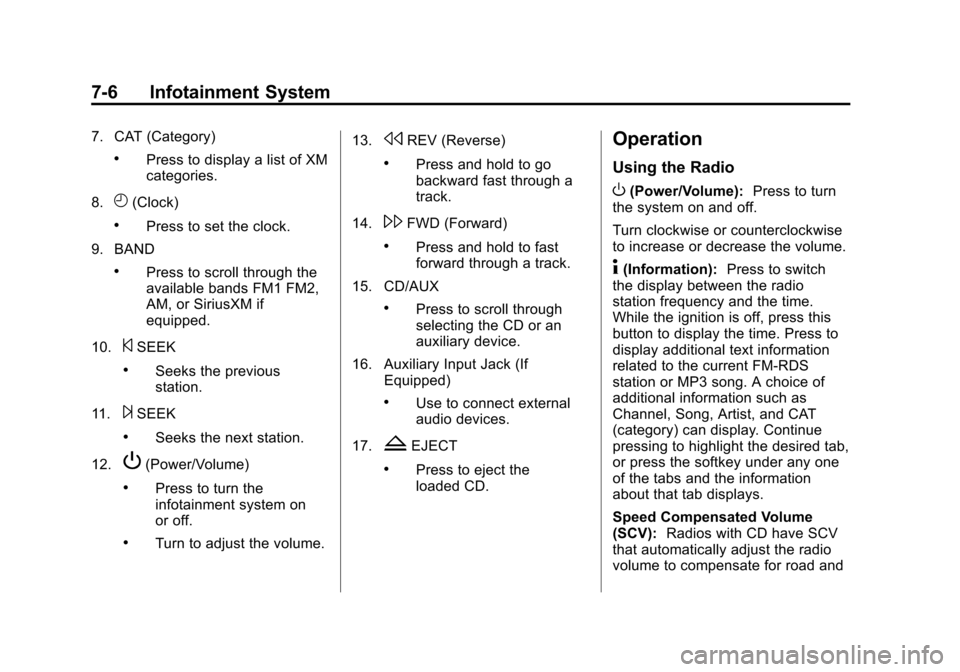
7. CAT (Category)
.Press to display a list of XM
categories.
8.
H(Clock)
.Press to set the clock.
9. BAND
.Press to scroll through the
available bands FM1 FM2,
AM, or SiriusXM if
equipped.
10.
©SEEK
.Seeks the previous
station.
11.
¨SEEK
.Seeks the next station.
12.
P(Power/Volume)
.Press to turn the
infotainment system on
or off.
.Turn to adjust the volume. 13.
sREV (Reverse)
.Press and hold to go
backward fast through a
track.
14.
\FWD (Forward)
.Press and hold to fast
forward through a track.
15. CD/AUX
.Press to scroll through
selecting the CD or an
auxiliary device.
16. Auxiliary Input Jack (If Equipped)
.Use to connect external
audio devices.
17.
ZEJECT
.Press to eject the
loaded CD.
Operation
Using the Radio
O(Power/Volume): Press to turn
the system on and off.
Turn clockwise or counterclockwise
to increase or decrease the volume.
4(Information): Press to switch
the display between the radio
station frequency and the time.
While the ignition is off, press this
button to display the time. Press to
display additional text information
related to the current FM-RDS
station or MP3 song. A choice of
additional information such as
Channel, Song, Artist, and CAT
(category) can display. Continue
pressing to highlight the desired tab,
or press the softkey under any one
of the tabs and the information
about that tab displays.
Speed Compensated Volume
(SCV): Radios with CD have SCV
that automatically adjust the radio
volume to compensate for road and
Page 159 of 406
Black plate (7,1)Chevrolet Express Owner Manual (GMNA-Localizing-U.S./Canada/Mexico-
6014662) - 2014 - crc - 8/26/13
Infotainment System 7-7
wind noise as the vehicle speed
changes while driving, so that the
volume level stays consistent.
To activate SCV:
1. Set the radio volume to thedesired level.
2. Press the MENU button to display the radio setup menu.
3. Press the softkey under the AUTO VOLUM (automatic
volume) tab on the radio display.
4. Press the softkey under the desired SCV setting (OFF, Low,
Med, or High) to select the level
of radio volume compensation.
The display times out after
approximately 10 seconds. Each
higher setting allows for more
radio volume compensation at
faster vehicle speeds.
Setting the Tone (Bass/Treble)
To adjust the bass or treble:
1. Press the
fknob until Bass or
Treble displays. 2. To adjust the setting, do one of
the following:
.Turn thefknob.
.Press either¨SEEK,
or
©SEEK.
EQ (Equalization): Press this
button to choose bass and treble
equalization settings designed for
different types of music. Selecting
MANUAL, or changing bass or
treble, returns the EQ to the manual
bass and treble settings.
Unique EQ settings can be saved
for each source.
Adjusting the Speakers
(Balance/Fade)
To adjust the balance or fade:
1. Press
`or press thefknob
until the speaker control tab
displays.
2. To adjust the setting, do one of the following:
.Turn thefknob.
.Press either¨SEEK,
or
©SEEK.
Radio Messages
Calibration Error: The audio
system has been calibrated for the
vehicle from the factory.
If Calibration Error displays, it
means that the radio has not been
configured properly for the vehicle
and it must be returned to your
dealer for service.
VIN or NO VIN: One of these
messages will display when the
TheftLock system has locked up the
radio. Take the vehicle to your
dealer for service.
If any error occurs repeatedly or if
an error cannot be corrected,
contact your dealer.
Page 160 of 406
Black plate (8,1)Chevrolet Express Owner Manual (GMNA-Localizing-U.S./Canada/Mexico-
6014662) - 2014 - crc - 8/26/13
7-8 Infotainment System
Radio
AM-FM Radio
Radio Data System (RDS)
The radio may have an RDS. The
RDS feature is available for use
only on FM stations that broadcast
RDS information. This system relies
upon receiving specific information
from these stations and only works
when the information is available.
While the radio is tuned to an
FM-RDS station, the station name
or call letters display. In rare cases,
a radio station could broadcast
incorrect information that causes the
radio features to work improperly.
If this happens, contact the radio
station.
Finding a Station
BAND:Press to switch between
FM1, FM2, AM, and XM. The
selection displays.
f(Tune): Turn clockwise or
counterclockwise to increase or
decrease the station frequency.
©SEEK or¨SEEK: Press©
SEEK to go to the previous or¨
SEEK to go to the next station and
stay there.
To scan stations, press and hold
either button for two seconds until a
beep sounds. The radio goes to a
station, plays for a few seconds,
then goes to the next station. For
AM-FM Radio and Radio with CD,
the station frequency flashes while
the radio is in the scan mode. Press
either button again to stop scanning.
The radio seeks and scans stations
only with a strong signal that are in
the selected band.
For AM-FM Radio and Radio with
CD, scan presets within the current
selected band by pressing and
holding either SEEK button for
four seconds until a double beep
sounds. The radio goes to a stored
preset, plays for a few seconds if a strong signal is present, then goes
to the next stored preset. The
station frequency flashes while the
radio is in the scan mode.
Setting Preset Stations
If the radio does not have a FAV
button, up to 18 stations (six FM1,
six FM2, and six AM), can be
programmed on the six numbered
softkeys, by performing the following
steps:
1. Turn the radio on.
2. Press BAND to select FM1,
FM2, or AM.
3. Tune in the desired station.
4. Press and hold one of the six numbered softkeys for
three seconds until a beep
sounds. When that softkey is
pressed and released, the
station that was set, returns.
5. Repeat Steps 2–4 for each softkey.
Page 161 of 406
Black plate (9,1)Chevrolet Express Owner Manual (GMNA-Localizing-U.S./Canada/Mexico-
6014662) - 2014 - crc - 8/26/13
Infotainment System 7-9
Storing a Radio Station as a
Favorite
You are encouraged to set up radio
station favorites while the vehicle is
parked. Tune to favorite stations
using the presets, favorites button,
and steering wheel controls,
if equipped. SeeDefensive Driving
on page 9-3.
FAV (Favorites): If the vehicle has
a FAV button, a maximum of
36 stations can be programmed as
favorites using the six softkeys
below the radio station frequency
tabs and by using the radio favorites
page button (FAV button). Press the
FAV button to go through up to
six pages of favorites, each having
six favorite stations available per
page. Each page of favorites can
contain any combination of AM and
FM stations.
The balance/fade and tone settings
that were previously adjusted, are
stored with the favorite stations. To store a station as a favorite:
1. Tune to the desired radio station.
2. Press the FAV button to display
the page where the station is to
be stored.
3. Press and hold one of the six softkeys until a beep sounds.
When that softkey is pressed
and released, the station that
was set, returns.
4. Repeat the steps for each softkey radio station to be stored
as a favorite.
The number of favorites pages can
be set up using the MENU button.
To set up the number of favorites
pages:
1. Press the MENU button to display the radio setup menu.
2. Press the softkey below the FAV 1-6 tab.
3. Select the desired number of favorites pages by pressing the
softkey below the displayed
page numbers. 4. Press the FAV button, or let the
menu time out, to return to the
original main radio screen
showing the radio station
frequency tabs and to begin the
process of programming
favorites for the chosen number
of numbered pages.
Satellite Radio
SiriusXM®, if equipped, is a satellite
radio service based in the United
States and Canada only.
Finding a Category (CAT)
Station
CAT (Category): The CAT button is
used to find XM channels (if
equipped) while the radio is in the
XM mode.
Finding a Channel
BAND: Press to switch between
FM1, FM2, AM, and XM. The
selection displays.
Page 162 of 406
Black plate (10,1)Chevrolet Express Owner Manual (GMNA-Localizing-U.S./Canada/Mexico-
6014662) - 2014 - crc - 8/26/13
7-10 Infotainment System
f(Tune):Turn clockwise or
counterclockwise to increase or
decrease the station frequency.
©SEEK or¨SEEK: Press©
SEEK to go to the previous or¨
SEEK to go to the next station and
stay there.
To scan stations, press and hold
either button for two seconds until a
beep sounds. The radio goes to a
station, plays for a few seconds,
then goes to the next station. The
station frequency flashes while the
radio is in the scan mode. Press
either button again to stop scanning.
The radio seeks and scans stations
only with a strong signal that are in
the selected band.
To scan presets within the current
selected band by pressing and
holding either SEEK button for
four seconds until a double beep
sounds. The radio goes to a stored
preset, plays for a few seconds if a
strong signal is present, then goes to the next stored preset. The
station frequency flashes while the
radio is in the scan mode.
Setting Preset Stations
If the radio does not have a FAV
button, up to 18 stations (six FM1,
six FM2, and six AM), can be
programmed on the six numbered
softkeys, by performing the following
steps:
1. Turn the radio on.
2. Press BAND to select FM1,
FM2, or AM.
3. Tune in the desired station.
4. Press and hold one of the six numbered softkeys for
three seconds until a beep
sounds. When that softkey is
pressed and released, the
station that was set, returns.
5. Repeat Steps 2–4 for each softkey.
Storing a Radio Station as a
Favorite
Drivers are encouraged to set up
radio station favorites while the
vehicle is parked. Tune to favorite
stations using the presets, favorites
button, and steering wheel controls,
if the vehicle has this feature. See
Defensive Driving on page 9-3.
FAV (Favorites): If the vehicle has
a FAV button, a maximum of
36 stations can be programmed as
favorites using the six softkeys
below the radio station frequency
tabs and by using the radio favorites
page button (FAV button). Press the
FAV button to go through up to
six pages of favorites, each having
six favorite stations available per
page. Each page of favorites can
contain any combination of AM and
FM stations.
The balance/fade and tone settings
that were previously adjusted, are
stored with the favorite stations.
Page 163 of 406
Black plate (11,1)Chevrolet Express Owner Manual (GMNA-Localizing-U.S./Canada/Mexico-
6014662) - 2014 - crc - 8/26/13
Infotainment System 7-11
To store a station as a favorite:
1. Tune to the desired radio station.
2. Press the FAV button to displaythe page where the station is to
be stored.
3. Press and hold one of the six softkeys until a beep sounds.
When that softkey is pressed
and released, the station that
was set, returns.
4. Repeat the steps for each softkey radio station to be stored
as a favorite.
The number of favorites pages can
be set up using the MENU button.
To set up the number of favorites
pages:
1. Press the MENU button to display the radio setup menu.
2. Press the softkey below the FAV 1-6 tab.
3. Select the desired number of favorites pages by pressing the
softkey below the displayed
page numbers. 4. Press the FAV button, or let the
menu time out, to return to the
original main radio screen
showing the radio station
frequency tabs and to begin the
process of programming
favorites for the chosen number
of numbered pages.
Radio Reception
Frequency interference and static
can occur during normal radio
reception if items such as cell phone
chargers, vehicle convenience
accessories, and external electronic
devices are plugged into the
accessory power outlet. If there is
interference or static, unplug the
item from the accessory power
outlet.
AM
The range for most AM stations is
greater than for FM, especially at
night. The longer range can cause
station frequencies to interfere with
each other. For better radio
reception, most AM radio stations boost the power levels during the
day, and then reduce these levels
during the night. Static can also
occur when things like storms and
power lines interfere with radio
reception. When this happens, try
reducing the treble on the radio.
FM Stereo
FM stereo gives the best sound, but
FM signals reach only about 16 to
65 km (10 to 40 mi). Tall buildings or
hills can interfere with FM signals,
causing the sound to fade in
and out.
Cellular Phone Usage
Cellular phone usage may cause
interference with the radio. This
interference may occur when
making or receiving phone calls,
charging the phone's battery,
or simply having the phone on. This
interference causes an increased
level of static while listening to the
radio. If static is received while
listening to the radio, unplug the
cellular phone and turn it off.
Page 170 of 406
Black plate (18,1)Chevrolet Express Owner Manual (GMNA-Localizing-U.S./Canada/Mexico-
6014662) - 2014 - crc - 8/26/13
7-18 Infotainment System
Drivers are encouraged to set up
any auxiliary device while the
vehicle is in P (Park). See
Defensive Driving on page 9-3for
more information on driver
distraction.
To use a portable audio player,
connect a 3.5 mm (1/8 in) cable to
the radio's front auxiliary input jack.
When a device is connected, press
the radio CD/AUX button to begin
playing audio from the device over
the vehicle speakers.
For optimal sound quality, increase
the portable audio device's volume
to the loudest level.
It is always best to power the
portable audio device through its
own battery while playing.
O(Power/Volume): Turn clockwise
or counterclockwise to increase or
decrease the volume of the portable
player. Additional volume
adjustments might have to be made
from the portable device if the
volume is not loud or soft enough. BAND:
Press to listen to the radio
when a portable audio device is
playing. The portable audio device
continues playing.
CD/AUX (CD/Auxiliary): Press to
play a CD when a portable audio
device is playing. Press again and
the system begins playing audio
from the connected portable audio
player. If a portable audio player is
not connected, “No Input Device
Found” displays.
Using the USB Port
Radios with a USB port can control
a USB storage device or an iPod®
using the radio buttons and knobs.
See“Playing an MP3” inCD Player
on page 7-12 for information about
how to connect and control a USB
storage device or an iPod. USB Support
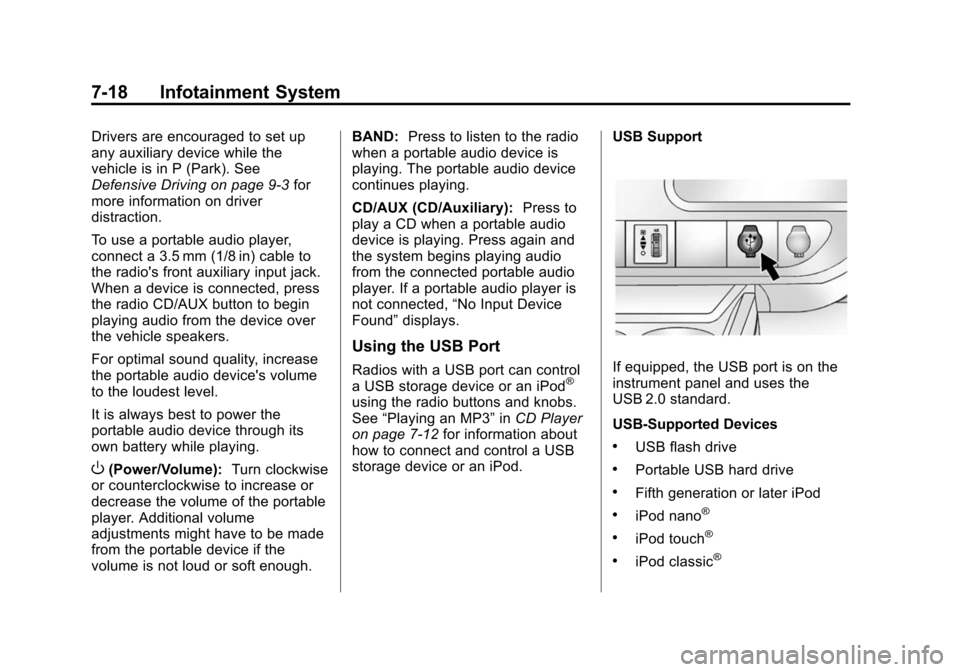
If equipped, the USB port is on the
instrument panel and uses the
USB 2.0 standard.
USB-Supported Devices
.USB flash drive
.Portable USB hard drive
.Fifth generation or later iPod
.iPod nano®
.iPod touch®
.iPod classic®
Page 192 of 406
Black plate (2,1)Chevrolet Express Owner Manual (GMNA-Localizing-U.S./Canada/Mexico-
6014662) - 2014 - crc - 8/26/13
9-2 Driving and Operating
Trailer Towing
General TowingInformation . . . . . . . . . . . . . . . . . 9-48
Driving Characteristics and Towing Tips . . . . . . . . . . . . . . . . 9-48
Trailer Towing . . . . . . . . . . . . . . . . 9-51
Towing Equipment . . . . . . . . . . . 9-56
Conversions and Add-Ons
Add-On Electrical
Equipment . . . . . . . . . . . . . . . . . 9-59
Driving Information
Distracted Driving
Distraction comes in many forms
and can take your focus from the
task of driving. Exercise good
judgment and do not let other
activities divert your attention away
from the road. Many local
governments have enacted laws
regarding driver distraction. Become
familiar with the local laws in
your area.
To avoid distracted driving, always
keep your eyes on the road, hands
on the wheel, and mind on the drive.
.Do not use a phone in
demanding driving situations.
Use a hands-free method to
place or receive necessary
phone calls.
.Watch the road. Do not read,
take notes, or look up
information on phones or other
electronic devices.
.Designate a front seat
passenger to handle potential
distractions.
.Become familiar with vehicle
features before driving, such as
programming favorite radio
stations and adjusting climate
control and seat settings.
Program all trip information into
any navigation device prior to
driving.
.Wait until the vehicle is parked
to retrieve items that have fallen
to the floor.
.Stop or park the vehicle to tend
to children.
.Keep pets in an appropriate
carrier or restraint.
.Avoid stressful conversations
while driving, whether with a
passenger or on a cell phone.
Page 206 of 406
Black plate (16,1)Chevrolet Express Owner Manual (GMNA-Localizing-U.S./Canada/Mexico-
6014662) - 2014 - crc - 8/26/13
9-16 Driving and Operating
3. Come to a complete stop, shiftto P (Park), and turn the ignition
to LOCK/OFF. On vehicles with
an automatic transmission, the
shift lever must be in P (Park) to
turn the ignition switch to the
LOCK/OFF position.
4. Set the parking brake. See Parking Brake on page 9-32.
{Warning
Turning off the vehicle while
moving may cause loss of power
assist in the brake and steering
systems and disable the airbags.
While driving, only shut the
vehicle off in an emergency.
If the vehicle cannot be pulled over,
and must be shut off while driving,
turn the ignition to ACC/
ACCESSORY.
{Caution
Using a tool to force the key to
turn in the ignition could cause
damage to the switch or break the
key. Use the correct key, make
sure it is all the way in, and turn it
only with your hand. If the key
cannot be turned by hand, see
your dealer.
2 (ACC/ACCESSORY): This is the
position in which you can operate
things like the radio and the
windshield wipers when the engine
is off.
3 (ON/RUN): This position can be
used to operate the electrical
accessories and to display some
instrument cluster warning and
indicator lights. This position can
also be used for service and
diagnostics, and to verify the proper
operation of the malfunction
indicator lamp as may be required for emission inspection purposes.
The switch stays in this position
when the engine is running.
If you leave the key in the ACC/
ACCESSORY or ON/RUN position
with the engine off, the battery could
be drained. You may not be able to
start the vehicle if the battery is
allowed to drain for an extended
period of time.
4 (START):
This is the position that
starts the engine. When the engine
starts, release the key. The ignition
switch returns to ON/RUN for
driving.
A warning tone will sound when the
driver door is opened, the ignition is
in ACC/ACCESSORY or LOCK/OFF
and the key is in the ignition.
Page 210 of 406
Black plate (20,1)Chevrolet Express Owner Manual (GMNA-Localizing-U.S./Canada/Mexico-
6014662) - 2014 - crc - 8/26/13
9-20 Driving and Operating
Retained Accessory
Power (RAP)
These vehicle accessories can be
used for up to 10 minutes after the
engine is turned off:
.Audio System
.Power Windows (if equipped)
These features will work when the
ignition key is in ON/RUN or ACC/
ACCESSORY. Once the key is
turned from ON/RUN to LOCK/OFF,
power to the radio and power
windows will continue to work
10 minutes or until the driver door is
opened.
Shifting Into Park
1. Hold the brake pedal down, then set the parking brake.
2. Move the shift lever into the P (Park) position by pulling the
shift lever toward you and
moving it up as far as it will go.
3. Turn the ignition key to LOCK/OFF. 4. Remove the key and take it with
you. If you can leave the vehicle
with the ignition key in your
hand, the vehicle is in P (Park).
Leaving the Vehicle with the
Engine Running
{Warning
It can be dangerous to leave the
vehicle with the engine running.
It could overheat and catch fire.
It is dangerous to get out of the
vehicle if the shift lever is not fully
in P (Park) with the parking brake
firmly set. The vehicle can roll.
Do not leave the vehicle when the
engine is running. If you have left
the engine running, the vehicle
can move suddenly. You or others
could be injured. To be sure the
vehicle will not move, even when
you are on fairly level ground,
always set the parking brake and
(Continued)
Warning (Continued)
move the shift lever to P (Park).
SeeShifting Into Park on
page 9-20. If you are towing a
trailer, see Driving Characteristics
and Towing Tips on page 9-48.
If you have to leave the vehicle with
the engine running, be sure the
vehicle is in P (Park) and the
parking brake is firmly set. After the
shift lever is moved into P (Park),
hold the regular brake pedal down.
Then, see if you can move the shift
lever away from P (Park) without
first pulling it toward you. If you can,
it means that the shift lever was not
fully locked into P (Park).