buttons CHEVROLET EXPRESS CARGO VAN 2017 1.G Owners Manual
[x] Cancel search | Manufacturer: CHEVROLET, Model Year: 2017, Model line: EXPRESS CARGO VAN, Model: CHEVROLET EXPRESS CARGO VAN 2017 1.GPages: 346, PDF Size: 6.54 MB
Page 8 of 346

Chevrolet Express Owner Manual (GMNA-Localizing-U.S./Canada/Mexico-9967827) - 2017 - crc - 5/2/16
In Brief 7
1.Air Vents0163.
2. Driver Information Center (DIC)Buttons (Out of View). SeeDriver Information Center(DIC)0108.
3. Turn Signal Lever. SeeTu r nand Lane-ChangeSignals0128.
Windshield Wiper/Washer089.
4.Horn089.
5.Hazard WarningFlashers0128.
6.Instrument Cluster095.
7. Shift Lever. SeeAutomaticTr a n s m i s s i o n0183.
Manual Mode0186(IfEquipped).
8.Climate ControlSystems0158.
9.Infotainment0132.
10.Power Outlets093.
11 . U S B P o r t ( I f E q u i p p e d ) . S e eAuxiliary Devices0146.
12. Power Outlet 110 VoltAlternating Current. SeePowerOutlets093.
13.Rear Heating System0160(If Equipped).
14. Passenger Airbag On-OffSwitch (If Equipped). SeeAirbag On-Off Switch062.
15.Tr a c t i o n C o n t r o l / E l e c t r o n i cStability Control0190(If Equipped).
16. Tow/Haul Mode Button(If Equipped). SeeTo w / H a u lMode0187.
17.Steering Wheel Controls088(If Equipped).
18.Steering Wheel Adjustment088(Out of View),(If Equipped).
19. Hood Release. SeeHood0217.
20.Cruise Control0192(If Equipped).
Fast Idle System0178(If Equipped).
21.Parking Brake0189.
22. Data Link Connector (DLC)(Out of View). SeeMalfunctionIndicator Lamp (Check EngineLight)0102.
23.Instrument Panel IlluminationControl0129.
Dome Lamp Override. SeeDome Lamps0129.
24.Exterior Lamp Controls0125.
Page 17 of 346
Chevrolet Express Owner Manual (GMNA-Localizing-U.S./Canada/Mexico-9967827) - 2017 - crc - 5/2/16
16 In Brief
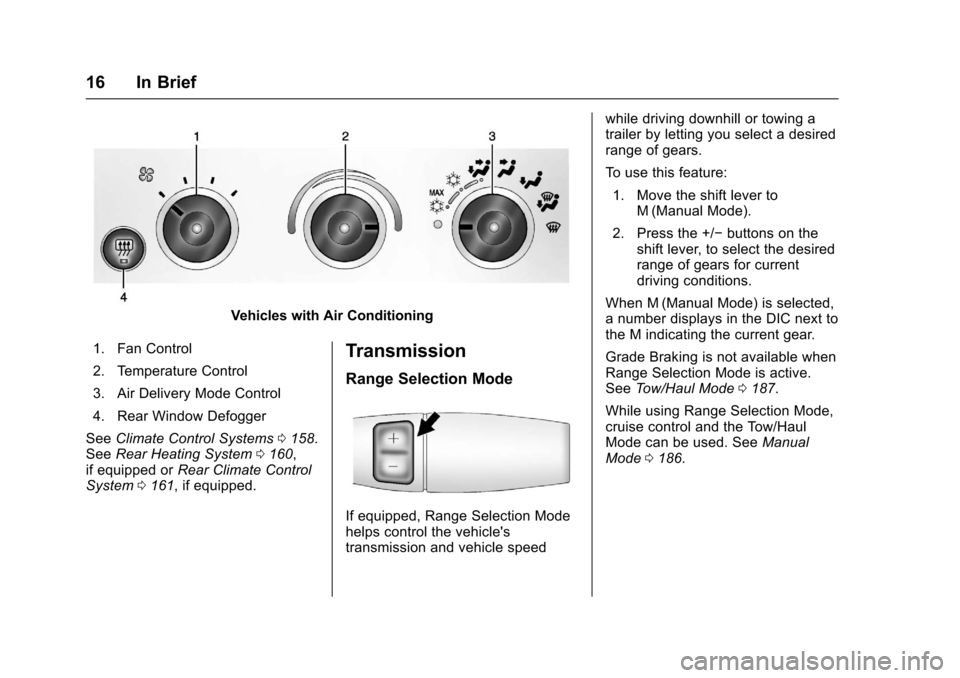
Vehicles with Air Conditioning
1. Fan Control
2. Temperature Control
3. Air Delivery Mode Control
4. Rear Window Defogger
SeeClimate Control Systems0158.SeeRear Heating System0160,if equipped orRear Climate ControlSystem0161,ifequipped.
Transmission
Range Selection Mode
If equipped, Range Selection Modehelps control the vehicle'stransmission and vehicle speed
while driving downhill or towing atrailer by letting you select a desiredrange of gears.
To u s e t h i s f e a t u r e :
1. Move the shift lever toM(Manual Mode).
2. Press the +/✓buttons on theshift lever, to select the desiredrange of gears for currentdriving conditions.
When M (Manual Mode) is selected,anumberdisplaysintheDICnexttothe M indicating the current gear.
Grade Braking is not available whenRange Selection Mode is active.SeeTo w / H a u l M o d e0187.
While using Range Selection Mode,cruise control and the Tow/HaulMode can be used. SeeManualMode0186.
Page 109 of 346
Chevrolet Express Owner Manual (GMNA-Localizing-U.S./Canada/Mexico-9967827) - 2017 - crc - 5/2/16
108 Instruments and Controls
Information Displays
Driver Information
Center (DIC)
This vehicle has a DIC.
All messages will appear in the DICdisplay at the bottom of theinstrument cluster.
The DIC comes on when the ignitionis on. After a short delay, the DICwill display the information that waslast displayed before the enginewas turned off.
The DIC displays trip, fuel, andvehicle system information, andwarning messages if a systemproblem is detected.
If the vehicle has these features, theDIC also displays the compassdirection and the outside airtemperature when viewing the tripand fuel information. The compassdirection appears on the top rightcorner of the DIC display. Theoutside air temperatureautomatically appears in the bottomright corner of the DIC display.
If there is a problem with the systemthat controls the temperaturedisplay, the numbers will bereplaced with dashes. If this occurs,have the vehicle serviced by yourdealer.
If the vehicle has a diesel engine,see the Duramax dieselsupplement.
DIC Operation and Displays
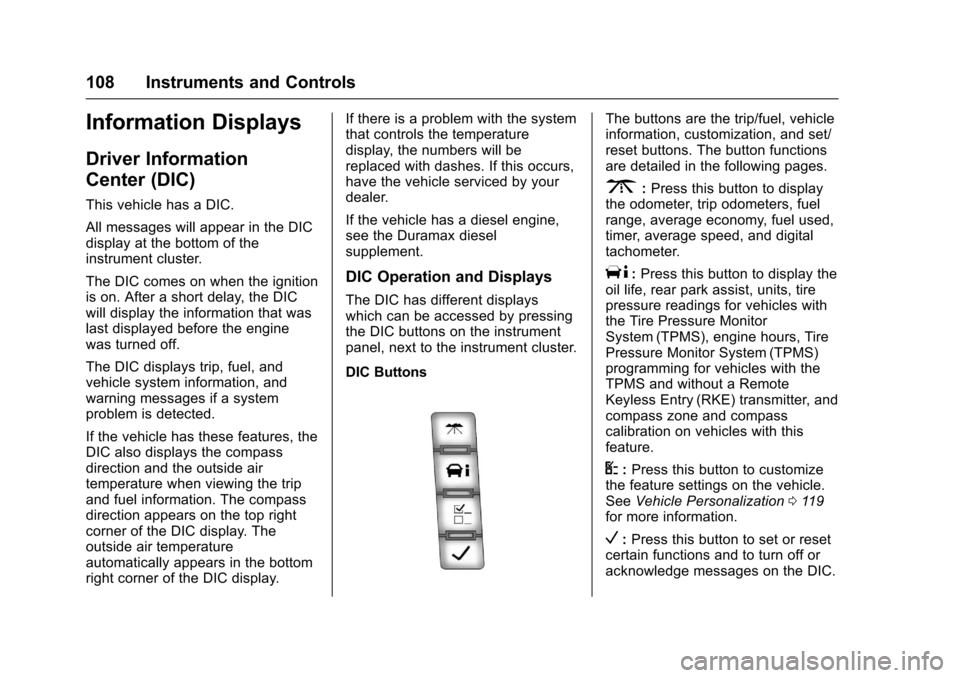
The DIC has different displayswhich can be accessed by pressingthe DIC buttons on the instrumentpanel, next to the instrument cluster.
DIC Buttons
The buttons are the trip/fuel, vehicleinformation, customization, and set/reset buttons. The button functionsare detailed in the following pages.
3:Press this button to displaythe odometer, trip odometers, fuelrange, average economy, fuel used,timer, average speed, and digitaltachometer.
T:Press this button to display theoil life, rear park assist, units, tirepressure readings for vehicles withthe Tire Pressure MonitorSystem (TPMS), engine hours, TirePressure Monitor System (TPMS)programming for vehicles with theTPMS and without a RemoteKeyless Entry (RKE) transmitter, andcompass zone and compasscalibration on vehicles with thisfeature.
U:Press this button to customizethe feature settings on the vehicle.SeeVehicle Personalization011 9for more information.
V:Press this button to set or resetcertain functions and to turn off oracknowledge messages on the DIC.
Page 125 of 346
Chevrolet Express Owner Manual (GMNA-Localizing-U.S./Canada/Mexico-9967827) - 2017 - crc - 5/2/16
124 Instruments and Controls
To s e l e c t a s e t t i n g , p r e s sVwhile
the desired setting is displayed onthe DIC.
EXIT FEATURE SETTINGS
This feature allows you to exit thefeature settings menu.
PressUuntil FEATURE SETTINGS
PRESSVTO EXIT appears in the
DIC display. PressVonce to exit
the menu.
If you do not exit, pressingUwill
return you to the beginning of thefeature settings menu.
Exiting the Feature
Settings Menu
The feature settings menu will beexited when any of the followingoccurs:
.The vehicle is no longer inON/RUN.
.The3orTDIC buttons are
pressed.
.The end of the feature settingsmenu is reached and exited.
.A40secondtimeperiodhaselapsed with no selection made.
Page 133 of 346
Chevrolet Express Owner Manual (GMNA-Localizing-U.S./Canada/Mexico-9967827) - 2017 - crc - 5/2/16
132 Infotainment System
Infotainment
System
Introduction
Infotainment . . . . . . . . . . . . . . . . . . 132Theft-Deterrent Feature . . . . . . 133Overview (AM-FM Radio) . . . . . 133Overview (Radio withCD/MP3) . . . . . . . . . . . . . . . . . . . . 135Operation . . . . . . . . . . . . . . . . . . . . . 136
Radio
AM-FM Radio . . . . . . . . . . . . . . . . 138Satellite Radio . . . . . . . . . . . . . . . . 139Radio Reception . . . . . . . . . . . . . . 140Multi-Band Antenna . . . . . . . . . . 141
Audio Players
Avoiding Untrusted MediaDevices . . . . . . . . . . . . . . . . . . . . . 141CD Player . . . . . . . . . . . . . . . . . . . . 141Auxiliary Devices . . . . . . . . . . . . . 146
OnStar System
OnStar System . . . . . . . . . . . . . . . 150
Phone
Bluetooth . . . . . . . . . . . . . . . . . . . . . 151
Introduction
Infotainment
Base radio information is included inthis manual. See the infotainmentmanual for information on otheravailable infotainment systems.
Read the following pages tobecome familiar with the BaseRadio features.
{Warning
Ta k i n g y o u r e y e s o f f t h e r o a d f o r
too long or too often while using
any infotainment feature can
cause a crash. You or others
could be injured or killed. Do not
give extended attention to
infotainment tasks while driving.
Limit your glances at the vehicle
displays and focus your attention
on driving. Use voice commands
whenever possible.
The infotainment system has built-infeatures intended to help avoiddistraction by disabling some
functions when driving. Thesefunctions may gray out when theyare unavailable. Many infotainmentfeatures are also available throughthe instrument cluster and steeringwheel controls.
Before driving:
.Become familiar with theoperation, faceplate buttons, andscreen buttons.
.Set up the audio by presettingfavorite stations, setting thetone, and adjusting thespeakers.
.Set up phone numbers inadvance so they can be calledeasily by pressing a singlebutton or by using a single voicecommand if equipped withBluetooth phone capability.
SeeDefensive Driving0165.
To p l a y t h e i n f o t a i n m e n t s y s t e m w i t hthe ignition off, seeRetainedAccessory Power (RAP)0180.
Page 135 of 346

Chevrolet Express Owner Manual (GMNA-Localizing-U.S./Canada/Mexico-9967827) - 2017 - crc - 5/2/16
134 Infotainment System
4. Buttons 1 - 6
.Press to save and selectfavorite stations.
5. EQ
.Press to adjust theequalizer.
6.f
.Press to set the bass,midrange, treble, fade, andbalance.
.Turn to manually selectradio stations.
7. CAT
.Press to display a list ofSXM categories,if equipped.
8. Auxiliary Input Jack (IfEquipped)
.Use to connect externalaudio devices.
9. SRCE
.Press to scroll throughauxiliary devices, AM, FM,or SXM if equipped.
10.\FWD
.Press and hold to fastforward through a track.
11 .sREV
.Press and hold to gobackward fast through atrack.
12.P
.Press to turn theinfotainment system onor off.
.Turn to adjust the volume.
13.¨SEEK
.Seeks or scans to the nextstation.
14.©SEEK
.Seeks or scans to theprevious station.
15.H
.Press to set the clockand date.
Page 136 of 346
Chevrolet Express Owner Manual (GMNA-Localizing-U.S./Canada/Mexico-9967827) - 2017 - crc - 5/2/16
Infotainment System 135
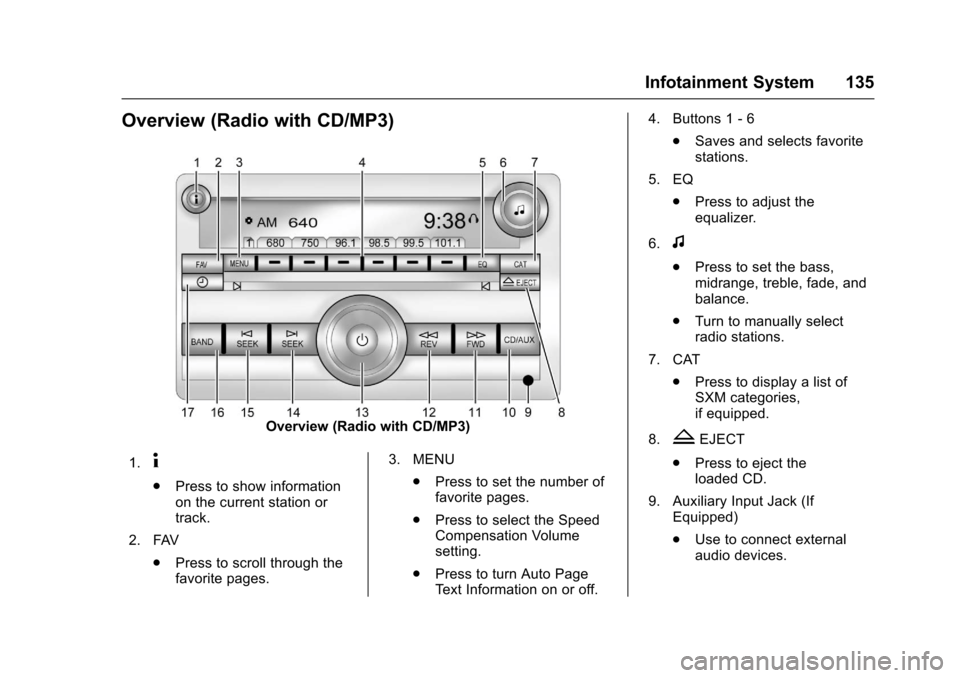
Overview (Radio with CD/MP3)
Overview (Radio with CD/MP3)
1.4
.Press to show informationon the current station ortrack.
2. FAV
.Press to scroll through thefavorite pages.
3. MENU
.Press to set the number offavorite pages.
.Press to select the SpeedCompensation Volumesetting.
.Press to turn Auto PageTe x t I n f o r m a t i o n o n o r o f f .
4. Buttons 1 - 6
.Saves and selects favoritestations.
5. EQ
.Press to adjust theequalizer.
6.f
.Press to set the bass,midrange, treble, fade, andbalance.
.Turn to manually selectradio stations.
7. CAT
.Press to display a list ofSXM categories,if equipped.
8.ZEJECT
.Press to eject theloaded CD.
9. Auxiliary Input Jack (IfEquipped)
.Use to connect externalaudio devices.
Page 148 of 346
Chevrolet Express Owner Manual (GMNA-Localizing-U.S./Canada/Mexico-9967827) - 2017 - crc - 5/2/16
Infotainment System 147
SRCE :If equipped, press to listento the radio when a portable audiodevice is playing. The portableaudio device continues playing.
Press to play a CD when a portableaudio device is playing. Press againand the system begins playingaudio from the connected portableaudio player. If a portable audioplayer is not connected,“No InputDevice Found”displays.
Using the USB Port
Radios with a USB port can controlaUSBstoragedeviceoraniPod®
using the radio buttons and knobs.See“Playing an MP3”inCD Player0141for information about how toconnect and control a USB storagedevice or an iPod.
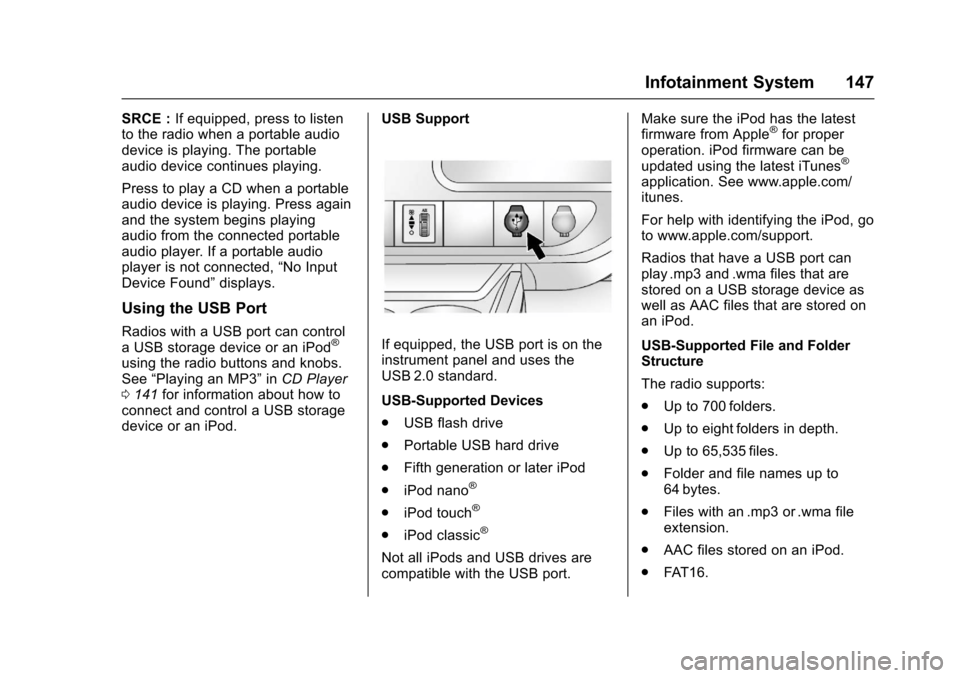
USB Support
If equipped, the USB port is on theinstrument panel and uses theUSB 2.0 standard.
USB-Supported Devices
.USB flash drive
.Portable USB hard drive
.Fifth generation or later iPod
.iPod nano®
.iPod touch®
.iPod classic®
Not all iPods and USB drives arecompatible with the USB port.
Make sure the iPod has the latestfirmware from Apple®for properoperation. iPod firmware can beupdated using the latest iTunes®
application. See www.apple.com/itunes.
For help with identifying the iPod, goto www.apple.com/support.
Radios that have a USB port canplay .mp3 and .wma files that arestored on a USB storage device aswell as AAC files that are stored onan iPod.
USB-Supported File and FolderStructure
The radio supports:
.Up to 700 folders.
.Up to eight folders in depth.
.Up to 65,535 files.
.Folder and file names up to64 bytes.
.Files with an .mp3 or .wma fileextension.
.AAC files stored on an iPod.
.FAT 1 6 .
Page 149 of 346
Chevrolet Express Owner Manual (GMNA-Localizing-U.S./Canada/Mexico-9967827) - 2017 - crc - 5/2/16
148 Infotainment System
.FAT 3 2 .
Connecting a USB Storage
Device or iPod
The USB port can be used tocontrol an iPod or a USB storagedevice.
To c o n n e c t a U S B s t o r a g e d e v i c e ,connect the device to the USB porton the instrument panel.
To c o n n e c t a n i P o d , c o n n e c t o n eend of the USB cable that camewith the iPod to the iPod’sdockconnector and connect the otherend to the USB port on theinstrument panel. If the vehicle is onand the USB connection works,“OKto disconnect”and a GM logo mayappear on the iPod, and iPodappears on the radio display. TheiPod music appears on the radiodisplay and begins playing.
The iPod charges while it isconnected to the vehicle if thevehicle is in the ACC/ACCESSORYor ON/RUN position. When thevehicle is turned off, the iPod
automatically powers off and will notcharge or draw power from thevehicle's battery.
If you have an older iPod model thatis not supported, it can still be usedby connecting it to the auxiliaryinput jack using a standard 3.5 mm(1/8 in) stereo cable. See“Using theAuxiliary Input Jack”previously inthis section.
Using the Radio to Control a
USB Storage Device or iPod
The radio can control a USBstorage device or an iPod using theradio buttons and knobs, anddisplay song information on theradio display.
f:Turn to select files.
©SEEK :Press to go to the start ofthe track, if more than 10 secondshave played. Press and hold orpress multiple times to continuemoving backward through tracks.
¨SEEK :Press to go to the nexttrack. Press and hold or pressmultiple times to continue movingforward through tracks.
sREV :Press and hold to reverseplayback quickly. Sound is heard at
areducedvolume.ReleasesREV
to resume playing. The elapsed timeof the file displays.
\FWD :Press and hold toadvance playback quickly. Sound isheard at a reduced volume. Release\FWD to resume playing. Theelapsed time of the file displays.
4:Press to display additionalinformation about the selected track.
Using Softkeys to Control a
USB Storage Device or iPod
The five softkeys below the radiodisplay are used to control thefunctions listed below.
To u s e t h e s o f t k e y s :
1. Press the first or fifth softkeybelow the radio display todisplay the functions listedbelow, or press the softkeybelow the function if it iscurrently displayed.
2. Press the softkey below the tabwith the function on it to usethat function.
Page 153 of 346
Chevrolet Express Owner Manual (GMNA-Localizing-U.S./Canada/Mexico-9967827) - 2017 - crc - 5/2/16
152 Infotainment System
can be used while the key is in theON/RUN or ACC/ACCESSORYposition. The range of the Bluetoothsystem can be up to 9.1 m (30 ft).Not all phones support all functions,and not all phones work with thein-vehicle Bluetooth system. Seewww.gm.com/bluetooth for moreinformation on compatible phones inU.S. and Canada only.
Voice Recognition
The Bluetooth system uses voicerecognition to interpret voicecommands to dial phone numbersand name tags.
For additional information, say“Help”while you are in a voicerecognition menu.
Noise :Keep interior noise levels toaminimum.Thesystemmaynotrecognize voice commands if thereis too much background noise.
When to Speak :Ashorttonesounds after the system respondsindicating when it is waiting for avoice command. Wait until the toneand then speak.
How to Speak :Speak clearly in acalm and natural voice.
Audio System
When using the in-vehicle Bluetoothsystem, sound comes through thevehicle's front audio systemspeakers and overrides the audiosystem. Use the audio systemvolume knob, during a call, tochange the volume level. Theadjusted volume level remains inmemory for later calls. To preventmissed calls, a minimum volumelevel is used if the volume is turneddown too low.
Bluetooth Controls
Use the buttons on the steeringwheel to operate the in-vehicleBluetooth system. SeeSteeringWheel Controls088.
b/g:Press to answer incomingcalls, confirm system information,and start speech recognition.
c/x:Press to end a call, rejectacall,orcancelanoperation.
Pairing
ABluetooth-enabledcellphonemust be paired to the Bluetoothsystem and then connected to thevehicle before it can be used. Seethe cell phone manufacturer's userguide for Bluetooth functions beforepairing the cell phone. If a Bluetoothphone is not connected, calls will bemade using OnStar Hands-FreeCalling, if equipped. See OnStar,if equipped.
Pairing Information
.ABluetoothphonewithMP3capability cannot be paired tothe vehicle as a phone and anMP3 player at the same time.
.Up to five cell phones can bepaired to the Bluetooth system.
.The pairing process is disabledwhen the vehicle is moving.
.Pairing only needs to becompleted once, unless thepairing information on the cellphone changes or the cell phoneis deleted from the system.