ignition CHEVROLET HHR 2010 1.G Service Manual
[x] Cancel search | Manufacturer: CHEVROLET, Model Year: 2010, Model line: HHR, Model: CHEVROLET HHR 2010 1.GPages: 480, PDF Size: 5.25 MB
Page 206 of 480
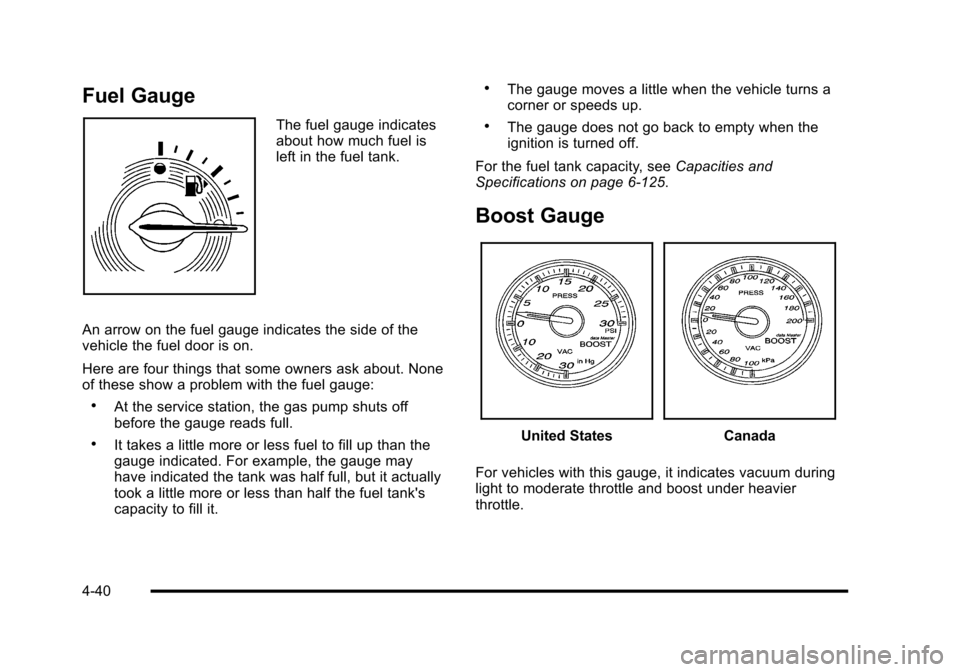
Fuel Gauge
The fuel gauge indicates
about how much fuel is
left in the fuel tank.
An arrow on the fuel gauge indicates the side of the
vehicle the fuel door is on.
Here are four things that some owners ask about. None
of these show a problem with the fuel gauge:
.At the service station, the gas pump shuts off
before the gauge reads full.
.It takes a little more or less fuel to fill up than the
gauge indicated. For example, the gauge may
have indicated the tank was half full, but it actually
took a little more or less than half the fuel tank's
capacity to fill it.
.The gauge moves a little when the vehicle turns a
corner or speeds up.
.The gauge does not go back to empty when the
ignition is turned off.
For the fuel tank capacity, see Capacities and
Specifications on page 6‑125.
Boost Gauge
United StatesCanada
For vehicles with this gauge, it indicates vacuum during
light to moderate throttle and boost under heavier
throttle.
4-40
Page 207 of 480
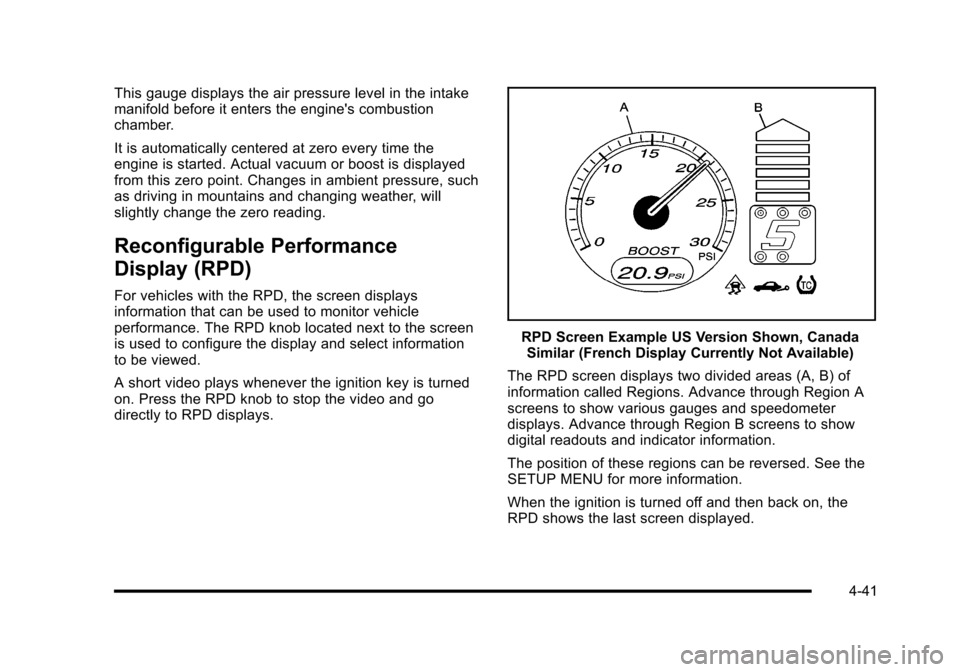
This gauge displays the air pressure level in the intake
manifold before it enters the engine's combustion
chamber.
It is automatically centered at zero every time the
engine is started. Actual vacuum or boost is displayed
from this zero point. Changes in ambient pressure, such
as driving in mountains and changing weather, will
slightly change the zero reading.
Reconfigurable Performance
Display (RPD)
For vehicles with the RPD, the screen displays
information that can be used to monitor vehicle
performance. The RPD knob located next to the screen
is used to configure the display and select information
to be viewed.
A short video plays whenever the ignition key is turned
on. Press the RPD knob to stop the video and go
directly to RPD displays.
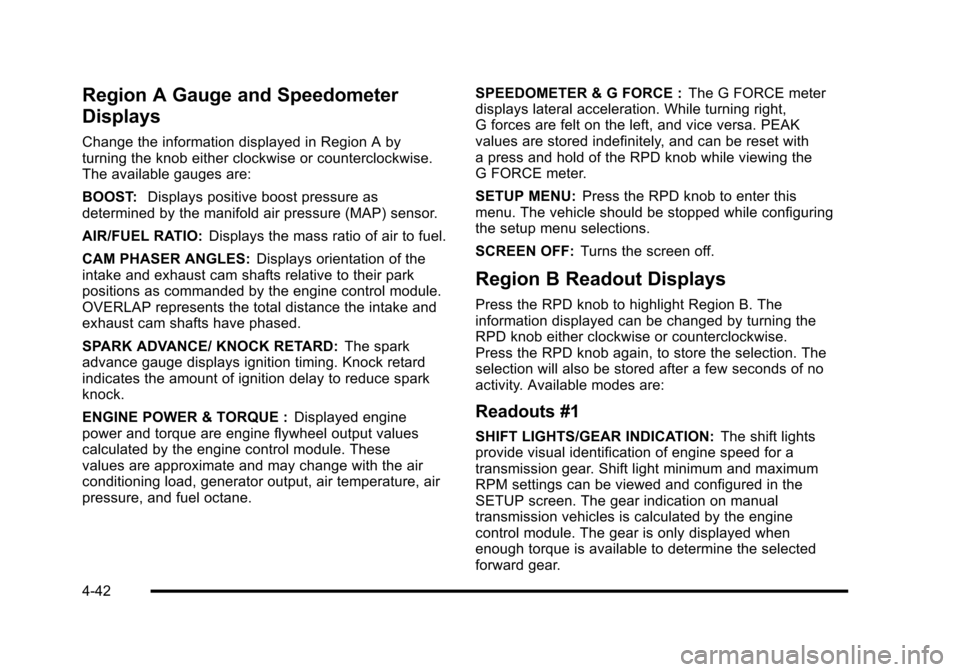
RPD Screen Example US Version Shown, CanadaSimilar (French Display Currently Not Available)
The RPD screen displays two divided areas (A, B) of
information called Regions. Advance through Region A
screens to show various gauges and speedometer
displays. Advance through Region B screens to show
digital readouts and indicator information.
The position of these regions can be reversed. See the
SETUP MENU for more information.
When the ignition is turned off and then back on, the
RPD shows the last screen displayed.
4-41
Page 208 of 480
Region A Gauge and Speedometer
Displays
Change the information displayed in Region A by
turning the knob either clockwise or counterclockwise.
The available gauges are:
BOOST:Displays positive boost pressure as
determined by the manifold air pressure (MAP) sensor.
AIR/FUEL RATIO: Displays the mass ratio of air to fuel.
CAM PHASER ANGLES: Displays orientation of the
intake and exhaust cam shafts relative to their park
positions as commanded by the engine control module.
OVERLAP represents the total distance the intake and
exhaust cam shafts have phased.
SPARK ADVANCE/ KNOCK RETARD: The spark
advance gauge displays ignition timing. Knock retard
indicates the amount of ignition delay to reduce spark
knock.
ENGINE POWER & TORQUE : Displayed engine
power and torque are engine flywheel output values
calculated by the engine control module. These
values are approximate and may change with the air
conditioning load, generator output, air temperature, air
pressure, and fuel octane. SPEEDOMETER & G FORCE :
The G FORCE meter
displays lateral acceleration. While turning right,
G forces are felt on the left, and vice versa. PEAK
values are stored indefinitely, and can be reset with
a press and hold of the RPD knob while viewing the
G FORCE meter.
SETUP MENU: Press the RPD knob to enter this
menu. The vehicle should be stopped while configuring
the setup menu selections.
SCREEN OFF: Turns the screen off.
Region B Readout Displays
Press the RPD knob to highlight Region B. The
information displayed can be changed by turning the
RPD knob either clockwise or counterclockwise.
Press the RPD knob again, to store the selection. The
selection will also be stored after a few seconds of no
activity. Available modes are:
Readouts #1
SHIFT LIGHTS/GEAR INDICATION: The shift lights
provide visual identification of engine speed for a
transmission gear. Shift light minimum and maximum
RPM settings can be viewed and configured in the
SETUP screen. The gear indication on manual
transmission vehicles is calculated by the engine
control module. The gear is only displayed when
enough torque is available to determine the selected
forward gear.
4-42
Page 212 of 480
Driver Information Center (DIC)
Your vehicle has a Driver Information Center (DIC). The
DIC display gives you the status of many of your
vehicle's systems. The DIC is also used to display
driver personalization menu modes and warning/status
messages. All messages will appear in the DIC display,
located at the bottom of the instrument panel cluster.
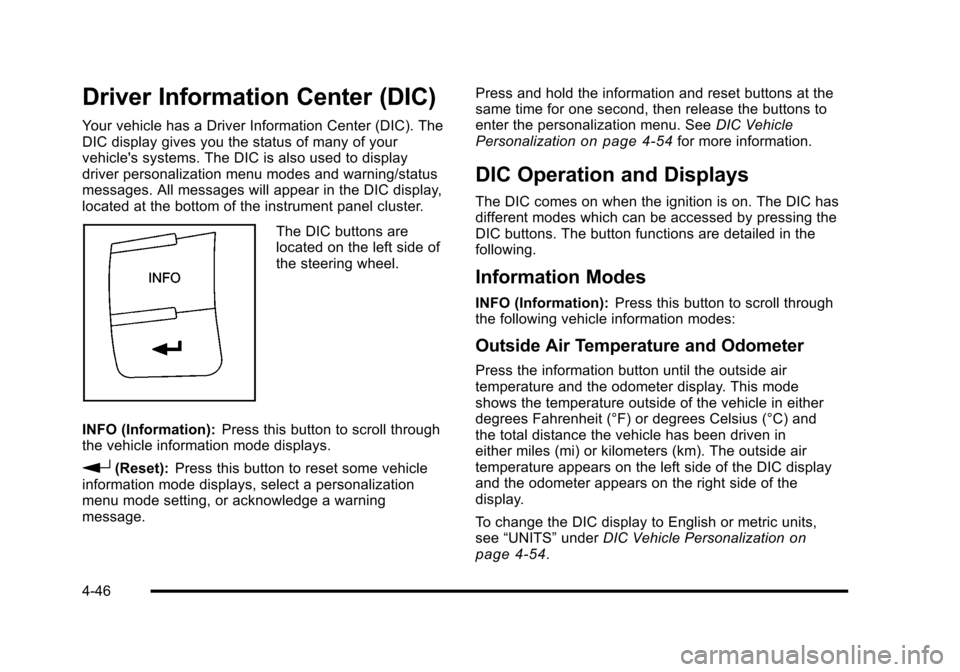
The DIC buttons are
located on the left side of
the steering wheel.
INFO (Information): Press this button to scroll through
the vehicle information mode displays.
r(Reset): Press this button to reset some vehicle
information mode displays, select a personalization
menu mode setting, or acknowledge a warning
message. Press and hold the information and reset buttons at the
same time for one second, then release the buttons to
enter the personalization menu. See
DIC Vehicle
Personalization
on page 4‑54for more information.
DIC Operation and Displays
The DIC comes on when the ignition is on. The DIC has
different modes which can be accessed by pressing the
DIC buttons. The button functions are detailed in the
following.
Information Modes
INFO (Information): Press this button to scroll through
the following vehicle information modes:
Outside Air Temperature and Odometer
Press the information button until the outside air
temperature and the odometer display. This mode
shows the temperature outside of the vehicle in either
degrees Fahrenheit (°F) or degrees Celsius (°C) and
the total distance the vehicle has been driven in
either miles (mi) or kilometers (km). The outside air
temperature appears on the left side of the DIC display
and the odometer appears on the right side of the
display.
To change the DIC display to English or metric units,
see “UNITS” underDIC Vehicle Personalization
on
page 4‑54.
4-46
Page 215 of 480
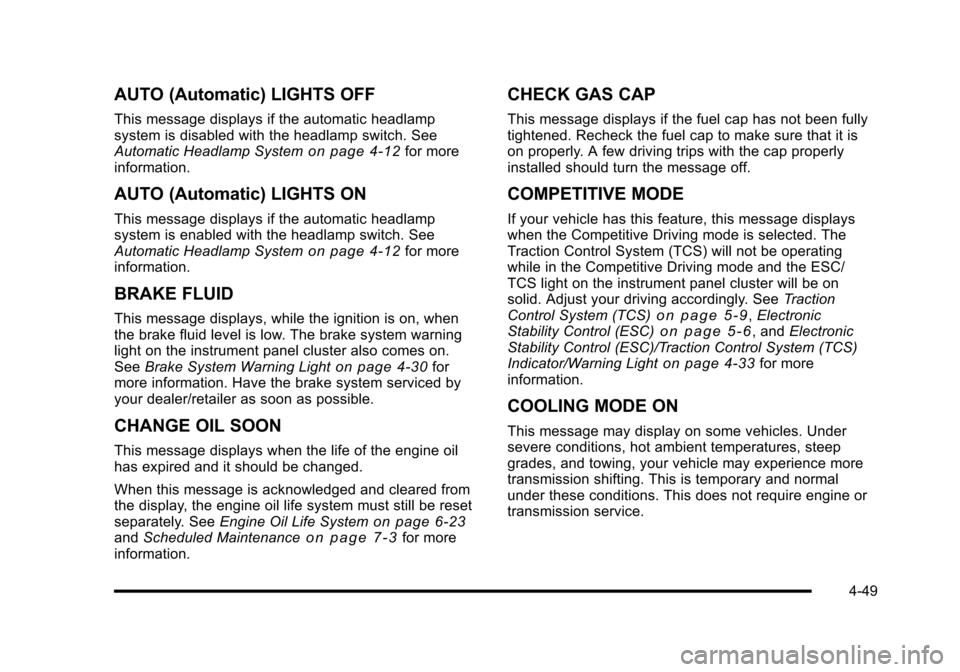
AUTO (Automatic) LIGHTS OFF
This message displays if the automatic headlamp
system is disabled with the headlamp switch. See
Automatic Headlamp System
on page 4‑12for more
information.
AUTO (Automatic) LIGHTS ON
This message displays if the automatic headlamp
system is enabled with the headlamp switch. See
Automatic Headlamp System
on page 4‑12for more
information.
BRAKE FLUID
This message displays, while the ignition is on, when
the brake fluid level is low. The brake system warning
light on the instrument panel cluster also comes on.
See Brake System Warning Light
on page 4‑30for
more information. Have the brake system serviced by
your dealer/retailer as soon as possible.
CHANGE OIL SOON
This message displays when the life of the engine oil
has expired and it should be changed.
When this message is acknowledged and cleared from
the display, the engine oil life system must still be reset
separately. See Engine Oil Life System
on page 6‑23andScheduled Maintenanceon page 7‑3for more
information.
CHECK GAS CAP
This message displays if the fuel cap has not been fully
tightened. Recheck the fuel cap to make sure that it is
on properly. A few driving trips with the cap properly
installed should turn the message off.
COMPETITIVE MODE
If your vehicle has this feature, this message displays
when the Competitive Driving mode is selected. The
Traction Control System (TCS) will not be operating
while in the Competitive Driving mode and the ESC/
TCS light on the instrument panel cluster will be on
solid. Adjust your driving accordingly. See Traction
Control System (TCS)
on page 5‑9, Electronic
Stability Control (ESC)on page 5‑6, and Electronic
Stability Control (ESC)/Traction Control System (TCS)
Indicator/Warning Light
on page 4‑33for more
information.
COOLING MODE ON
This message may display on some vehicles. Under
severe conditions, hot ambient temperatures, steep
grades, and towing, your vehicle may experience more
transmission shifting. This is temporary and normal
under these conditions. This does not require engine or
transmission service.
4-49
Page 218 of 480
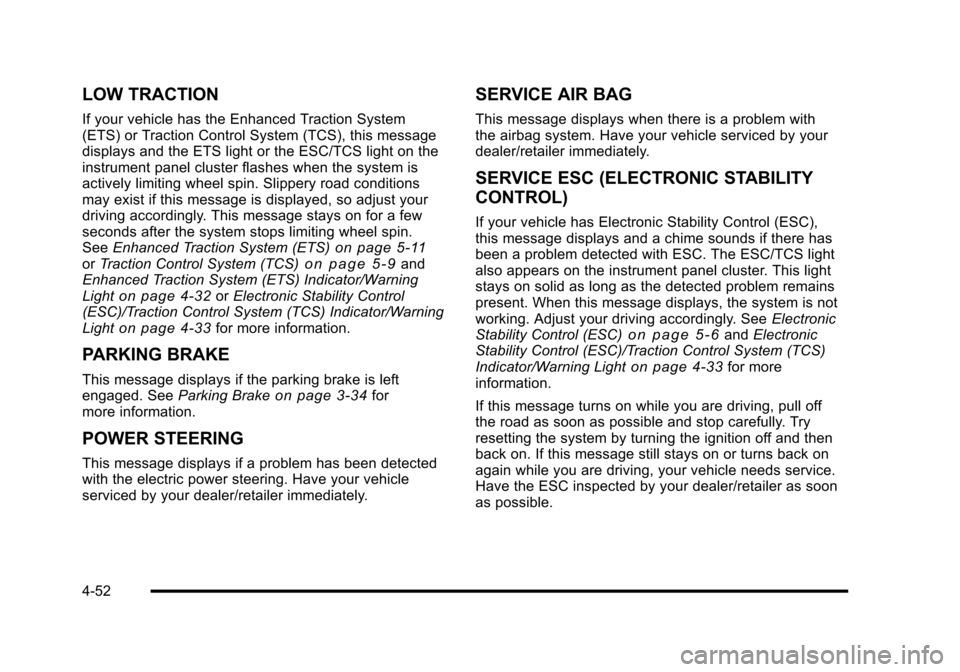
LOW TRACTION
If your vehicle has the Enhanced Traction System
(ETS) or Traction Control System (TCS), this message
displays and the ETS light or the ESC/TCS light on the
instrument panel cluster flashes when the system is
actively limiting wheel spin. Slippery road conditions
may exist if this message is displayed, so adjust your
driving accordingly. This message stays on for a few
seconds after the system stops limiting wheel spin.
SeeEnhanced Traction System (ETS)
on page 5‑11orTraction Control System (TCS)on page 5‑9and
Enhanced Traction System (ETS) Indicator/Warning
Light
on page 4‑32or Electronic Stability Control
(ESC)/Traction Control System (TCS) Indicator/Warning
Light
on page 4‑33for more information.
PARKING BRAKE
This message displays if the parking brake is left
engaged. See Parking Brakeon page 3‑34for
more information.
POWER STEERING
This message displays if a problem has been detected
with the electric power steering. Have your vehicle
serviced by your dealer/retailer immediately.
SERVICE AIR BAG
This message displays when there is a problem with
the airbag system. Have your vehicle serviced by your
dealer/retailer immediately.
SERVICE ESC (ELECTRONIC STABILITY
CONTROL)
If your vehicle has Electronic Stability Control (ESC),
this message displays and a chime sounds if there has
been a problem detected with ESC. The ESC/TCS light
also appears on the instrument panel cluster. This light
stays on solid as long as the detected problem remains
present. When this message displays, the system is not
working. Adjust your driving accordingly. See Electronic
Stability Control (ESC)
on page 5‑6and Electronic
Stability Control (ESC)/Traction Control System (TCS)
Indicator/Warning Light
on page 4‑33for more
information.
If this message turns on while you are driving, pull off
the road as soon as possible and stop carefully. Try
resetting the system by turning the ignition off and then
back on. If this message still stays on or turns back on
again while you are driving, your vehicle needs service.
Have the ESC inspected by your dealer/retailer as soon
as possible.
4-52
Page 219 of 480
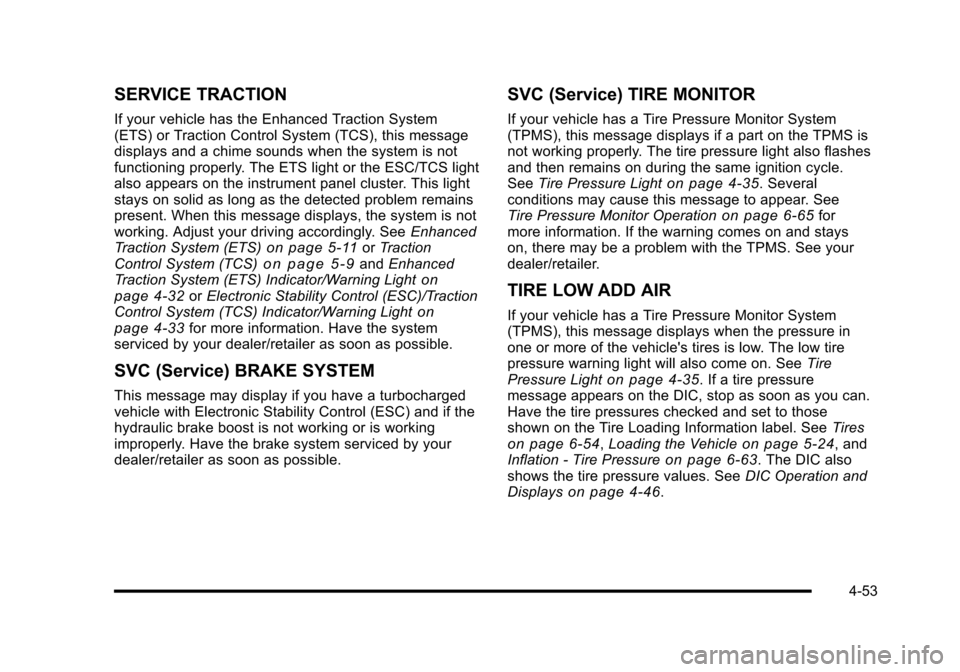
SERVICE TRACTION
If your vehicle has the Enhanced Traction System
(ETS) or Traction Control System (TCS), this message
displays and a chime sounds when the system is not
functioning properly. The ETS light or the ESC/TCS light
also appears on the instrument panel cluster. This light
stays on solid as long as the detected problem remains
present. When this message displays, the system is not
working. Adjust your driving accordingly. SeeEnhanced
Traction System (ETS)
on page 5‑11or Traction
Control System (TCS)on page 5‑9and Enhanced
Traction System (ETS) Indicator/Warning Lighton
page 4‑32or Electronic Stability Control (ESC)/Traction
Control System (TCS) Indicator/Warning Lighton
page 4‑33for more information. Have the system
serviced by your dealer/retailer as soon as possible.
SVC (Service) BRAKE SYSTEM
This message may display if you have a turbocharged
vehicle with Electronic Stability Control (ESC) and if the
hydraulic brake boost is not working or is working
improperly. Have the brake system serviced by your
dealer/retailer as soon as possible.
SVC (Service) TIRE MONITOR
If your vehicle has a Tire Pressure Monitor System
(TPMS), this message displays if a part on the TPMS is
not working properly. The tire pressure light also flashes
and then remains on during the same ignition cycle.
See Tire Pressure Light
on page 4‑35. Several
conditions may cause this message to appear. See
Tire Pressure Monitor Operation
on page 6‑65for
more information. If the warning comes on and stays
on, there may be a problem with the TPMS. See your
dealer/retailer.
TIRE LOW ADD AIR
If your vehicle has a Tire Pressure Monitor System
(TPMS), this message displays when the pressure in
one or more of the vehicle's tires is low. The low tire
pressure warning light will also come on. See Tire
Pressure Light
on page 4‑35. If a tire pressure
message appears on the DIC, stop as soon as you can.
Have the tire pressures checked and set to those
shown on the Tire Loading Information label. See Tires
on page 6‑54,Loading the Vehicleon page 5‑24, and
Inflation - Tire Pressureon page 6‑63. The DIC also
shows the tire pressure values. See DIC Operation and
Displays
on page 4‑46.
4-53
Page 220 of 480
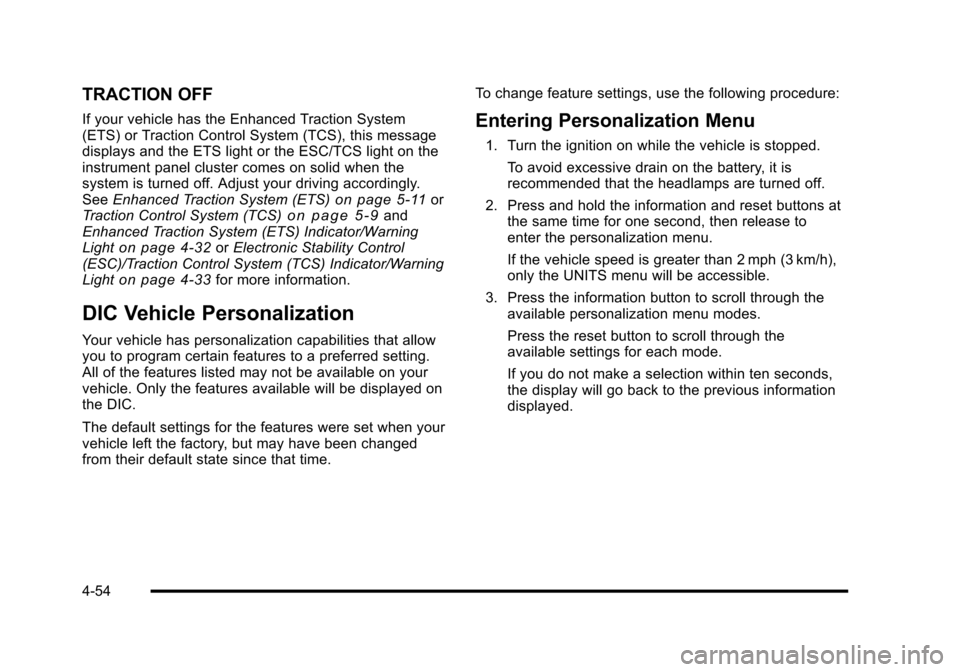
TRACTION OFF
If your vehicle has the Enhanced Traction System
(ETS) or Traction Control System (TCS), this message
displays and the ETS light or the ESC/TCS light on the
instrument panel cluster comes on solid when the
system is turned off. Adjust your driving accordingly.
SeeEnhanced Traction System (ETS)
on page 5‑11or
Traction Control System (TCS)on page 5‑9and
Enhanced Traction System (ETS) Indicator/Warning
Light
on page 4‑32or Electronic Stability Control
(ESC)/Traction Control System (TCS) Indicator/Warning
Light
on page 4‑33for more information.
DIC Vehicle Personalization
Your vehicle has personalization capabilities that allow
you to program certain features to a preferred setting.
All of the features listed may not be available on your
vehicle. Only the features available will be displayed on
the DIC.
The default settings for the features were set when your
vehicle left the factory, but may have been changed
from their default state since that time. To change feature settings, use the following procedure:
Entering Personalization Menu
1. Turn the ignition on while the vehicle is stopped.
To avoid excessive drain on the battery, it is
recommended that the headlamps are turned off.
2. Press and hold the information and reset buttons at the same time for one second, then release to
enter the personalization menu.
If the vehicle speed is greater than 2 mph (3 km/h),
only the UNITS menu will be accessible.
3. Press the information button to scroll through the available personalization menu modes.
Press the reset button to scroll through the
available settings for each mode.
If you do not make a selection within ten seconds,
the display will go back to the previous information
displayed.
4-54
Page 225 of 480
EXT (Exterior) LIGHTS
This feature, which allows the vehicle's exterior
perimeter lighting to turn on each time the unlock
button on the Remote Keyless Entry (RKE) transmitter
is pressed, can be enabled or disabled. When EXT
LIGHTS appears on the display, press and hold the
reset button for at least one second to scroll through the
available settings:
OFF:The exterior perimeter lighting will not turn on
when the unlock button on the RKE transmitter is
pressed.
ON (default): The exterior perimeter lighting will turn
on when the unlock button on the RKE transmitter is
pressed.
See Remote Keyless Entry (RKE) System Operation
on
page 3‑4for more information.
To select a setting and move on to the next feature,
press the information button while the desired setting
is displayed on the DIC.
LANGUAGE
This feature allows you to select the language in which
the DIC will display. When LANGUAGE appears on the
display, press and hold the reset button for at least
one second to scroll through the available settings:
ENGLISH (default): All messages will appear in
English.
FRENCH: All messages will appear in French.
SPANISH: All messages will appear in Spanish.
GERMAN: All messages will appear in German.
To select a setting and exit out of the personalization
menu mode, press the information button while the
desired setting is displayed on the DIC.
Exiting Personalization Menu
The personalization menu will be exited when any of
the following conditions occur:
.A ten second time period has elapsed.
.The ignition is turned off.
.The end of the personalization menu list is
reached.
4-59
Page 226 of 480
Audio System(s)
Determine which radio the vehicle has and read the
following pages to become familiar with its features.
{WARNING:
Taking your eyes off the road for extended periods
could cause a crash resulting in injury or death to
you or others. Do not give extended attention to
entertainment tasks while driving.
This system provides access to many audio and non
audio listings.
To minimize taking your eyes off the road while driving,
do the following while the vehicle is parked:
.Become familiar with the operation and controls of
the audio system.
.Set up the tone, speaker adjustments, and preset
radio stations.
For more information, see Defensive Driving
on
page 5‑2. Notice:
Contact your dealer/retailer before adding
any equipment.
Adding audio or communication equipment could
interfere with the operation of the vehicle's engine,
radio, or other systems, and could damage them.
Follow federal rules covering mobile radio and
telephone equipment.
Notice: The chime signals related to safety belts,
parking brake, and other functions of your vehicle
operate through the radio/entertainment system.
If that equipment is replaced or additional
equipment is added to your vehicle, the chimes
may not work. Make sure that replacement or
additional equipment is compatible with your
vehicle before installing it. See Accessories and
Modifications on page 6‑3.
The vehicle has Retained Accessory Power (RAP).
With RAP, the audio system can be played even after
the ignition is turned off. See Retained Accessory
Power (RAP)
on page 3‑25for more information.
4-60