light CHEVROLET HHR 2010 1.G Manual PDF
[x] Cancel search | Manufacturer: CHEVROLET, Model Year: 2010, Model line: HHR, Model: CHEVROLET HHR 2010 1.GPages: 480, PDF Size: 5.25 MB
Page 217 of 480
ESC (Electronic Stability Control) OFF
If your vehicle has Electronic Stability Control (ESC),
this message displays and the ESC/TCS light on the
instrument panel cluster comes on solid when ESC
is turned off. Adjust your driving accordingly. See
Electronic Stability Control (ESC)
on page 5‑6and
Electronic Stability Control (ESC)/Traction Control
System (TCS) Indicator/Warning Light
on page 4‑33for more information.
GATE AJAR
This message displays when the liftgate is open. Make
sure that the liftgate is closed completely. See Liftgate
on page 3‑13for more information.
ICE POSSIBLE
This message displays when the outside air
temperature is cold enough to create icy road
conditions. Adjust your driving accordingly.
KEY FOB BATT (Battery) LOW
This message displays if the Remote Keyless Entry
(RKE) transmitter battery is low. Replace the battery in
the transmitter. See“Battery Replacement” under
Remote Keyless Entry (RKE) System Operation
on
page 3‑4.
LAUNCH CONTROL
If your vehicle has this feature, this message displays
after the COMPETITIVE MODE message when the
vehicle is stopped. Launch control is a form of traction
control to control wheel spin while launching the vehicle
during closed track events and competitive driving
venues. The system will exit to COMPETITIVE MODE
after the vehicle is launched. See “COMPETITIVE
MODE” earlier in this section. See “Launch Control”
under Electronic Stability Control (ESC)
on page 5‑6for more information.
LOW FUEL
This message displays when your vehicle is low on fuel.
Refill the fuel tank as soon as possible. See Fuel
Gauge
on page 4‑40, Fuelon page 6‑5, and Filling
the Tankon page 6‑10for more information.
4-51
Page 218 of 480
LOW TRACTION
If your vehicle has the Enhanced Traction System
(ETS) or Traction Control System (TCS), this message
displays and the ETS light or the ESC/TCS light on the
instrument panel cluster flashes when the system is
actively limiting wheel spin. Slippery road conditions
may exist if this message is displayed, so adjust your
driving accordingly. This message stays on for a few
seconds after the system stops limiting wheel spin.
SeeEnhanced Traction System (ETS)
on page 5‑11orTraction Control System (TCS)on page 5‑9and
Enhanced Traction System (ETS) Indicator/Warning
Light
on page 4‑32or Electronic Stability Control
(ESC)/Traction Control System (TCS) Indicator/Warning
Light
on page 4‑33for more information.
PARKING BRAKE
This message displays if the parking brake is left
engaged. See Parking Brakeon page 3‑34for
more information.
POWER STEERING
This message displays if a problem has been detected
with the electric power steering. Have your vehicle
serviced by your dealer/retailer immediately.
SERVICE AIR BAG
This message displays when there is a problem with
the airbag system. Have your vehicle serviced by your
dealer/retailer immediately.
SERVICE ESC (ELECTRONIC STABILITY
CONTROL)
If your vehicle has Electronic Stability Control (ESC),
this message displays and a chime sounds if there has
been a problem detected with ESC. The ESC/TCS light
also appears on the instrument panel cluster. This light
stays on solid as long as the detected problem remains
present. When this message displays, the system is not
working. Adjust your driving accordingly. See Electronic
Stability Control (ESC)
on page 5‑6and Electronic
Stability Control (ESC)/Traction Control System (TCS)
Indicator/Warning Light
on page 4‑33for more
information.
If this message turns on while you are driving, pull off
the road as soon as possible and stop carefully. Try
resetting the system by turning the ignition off and then
back on. If this message still stays on or turns back on
again while you are driving, your vehicle needs service.
Have the ESC inspected by your dealer/retailer as soon
as possible.
4-52
Page 219 of 480
SERVICE TRACTION
If your vehicle has the Enhanced Traction System
(ETS) or Traction Control System (TCS), this message
displays and a chime sounds when the system is not
functioning properly. The ETS light or the ESC/TCS light
also appears on the instrument panel cluster. This light
stays on solid as long as the detected problem remains
present. When this message displays, the system is not
working. Adjust your driving accordingly. SeeEnhanced
Traction System (ETS)
on page 5‑11or Traction
Control System (TCS)on page 5‑9and Enhanced
Traction System (ETS) Indicator/Warning Lighton
page 4‑32or Electronic Stability Control (ESC)/Traction
Control System (TCS) Indicator/Warning Lighton
page 4‑33for more information. Have the system
serviced by your dealer/retailer as soon as possible.
SVC (Service) BRAKE SYSTEM
This message may display if you have a turbocharged
vehicle with Electronic Stability Control (ESC) and if the
hydraulic brake boost is not working or is working
improperly. Have the brake system serviced by your
dealer/retailer as soon as possible.
SVC (Service) TIRE MONITOR
If your vehicle has a Tire Pressure Monitor System
(TPMS), this message displays if a part on the TPMS is
not working properly. The tire pressure light also flashes
and then remains on during the same ignition cycle.
See Tire Pressure Light
on page 4‑35. Several
conditions may cause this message to appear. See
Tire Pressure Monitor Operation
on page 6‑65for
more information. If the warning comes on and stays
on, there may be a problem with the TPMS. See your
dealer/retailer.
TIRE LOW ADD AIR
If your vehicle has a Tire Pressure Monitor System
(TPMS), this message displays when the pressure in
one or more of the vehicle's tires is low. The low tire
pressure warning light will also come on. See Tire
Pressure Light
on page 4‑35. If a tire pressure
message appears on the DIC, stop as soon as you can.
Have the tire pressures checked and set to those
shown on the Tire Loading Information label. See Tires
on page 6‑54,Loading the Vehicleon page 5‑24, and
Inflation - Tire Pressureon page 6‑63. The DIC also
shows the tire pressure values. See DIC Operation and
Displays
on page 4‑46.
4-53
Page 220 of 480
TRACTION OFF
If your vehicle has the Enhanced Traction System
(ETS) or Traction Control System (TCS), this message
displays and the ETS light or the ESC/TCS light on the
instrument panel cluster comes on solid when the
system is turned off. Adjust your driving accordingly.
SeeEnhanced Traction System (ETS)
on page 5‑11or
Traction Control System (TCS)on page 5‑9and
Enhanced Traction System (ETS) Indicator/Warning
Light
on page 4‑32or Electronic Stability Control
(ESC)/Traction Control System (TCS) Indicator/Warning
Light
on page 4‑33for more information.
DIC Vehicle Personalization
Your vehicle has personalization capabilities that allow
you to program certain features to a preferred setting.
All of the features listed may not be available on your
vehicle. Only the features available will be displayed on
the DIC.
The default settings for the features were set when your
vehicle left the factory, but may have been changed
from their default state since that time. To change feature settings, use the following procedure:
Entering Personalization Menu
1. Turn the ignition on while the vehicle is stopped.
To avoid excessive drain on the battery, it is
recommended that the headlamps are turned off.
2. Press and hold the information and reset buttons at the same time for one second, then release to
enter the personalization menu.
If the vehicle speed is greater than 2 mph (3 km/h),
only the UNITS menu will be accessible.
3. Press the information button to scroll through the available personalization menu modes.
Press the reset button to scroll through the
available settings for each mode.
If you do not make a selection within ten seconds,
the display will go back to the previous information
displayed.
4-54
Page 223 of 480
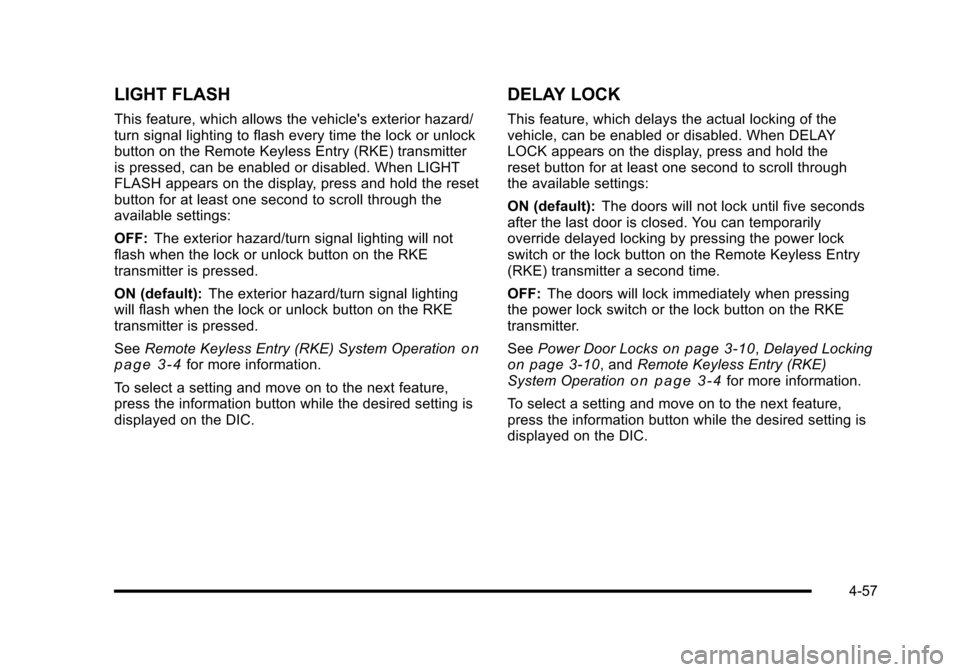
LIGHT FLASH
This feature, which allows the vehicle's exterior hazard/
turn signal lighting to flash every time the lock or unlock
button on the Remote Keyless Entry (RKE) transmitter
is pressed, can be enabled or disabled. When LIGHT
FLASH appears on the display, press and hold the reset
button for at least one second to scroll through the
available settings:
OFF:The exterior hazard/turn signal lighting will not
flash when the lock or unlock button on the RKE
transmitter is pressed.
ON (default): The exterior hazard/turn signal lighting
will flash when the lock or unlock button on the RKE
transmitter is pressed.
See Remote Keyless Entry (RKE) System Operation
on
page 3‑4for more information.
To select a setting and move on to the next feature,
press the information button while the desired setting is
displayed on the DIC.
DELAY LOCK
This feature, which delays the actual locking of the
vehicle, can be enabled or disabled. When DELAY
LOCK appears on the display, press and hold the
reset button for at least one second to scroll through
the available settings:
ON (default): The doors will not lock until five seconds
after the last door is closed. You can temporarily
override delayed locking by pressing the power lock
switch or the lock button on the Remote Keyless Entry
(RKE) transmitter a second time.
OFF: The doors will lock immediately when pressing
the power lock switch or the lock button on the RKE
transmitter.
See Power Door Locks
on page 3‑10,Delayed Lockingon page 3‑10, and Remote Keyless Entry (RKE)
System Operationon page 3‑4for more information.
To select a setting and move on to the next feature,
press the information button while the desired setting is
displayed on the DIC.
4-57
Page 225 of 480
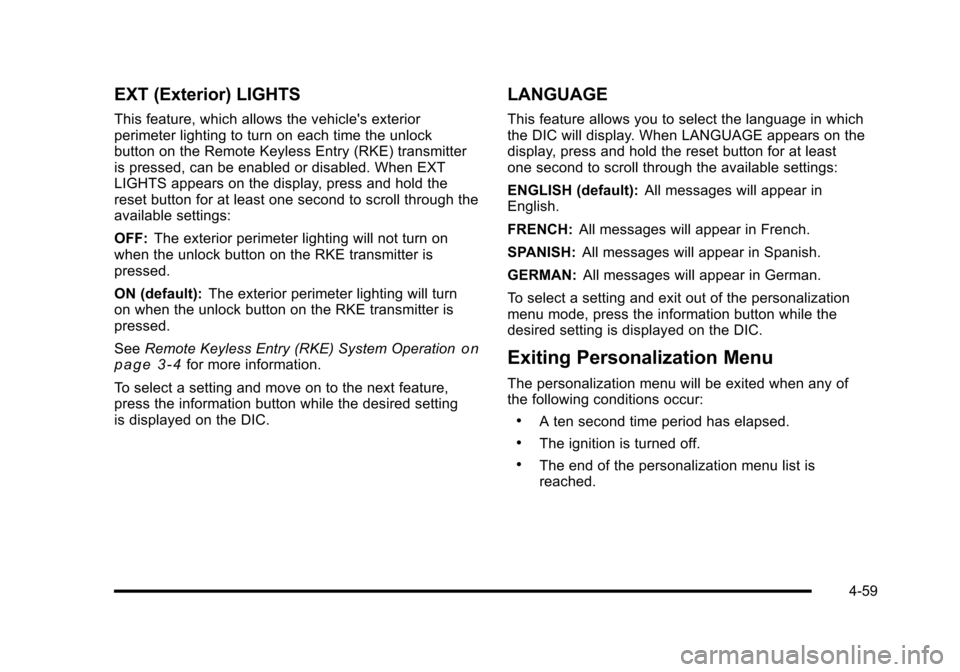
EXT (Exterior) LIGHTS
This feature, which allows the vehicle's exterior
perimeter lighting to turn on each time the unlock
button on the Remote Keyless Entry (RKE) transmitter
is pressed, can be enabled or disabled. When EXT
LIGHTS appears on the display, press and hold the
reset button for at least one second to scroll through the
available settings:
OFF:The exterior perimeter lighting will not turn on
when the unlock button on the RKE transmitter is
pressed.
ON (default): The exterior perimeter lighting will turn
on when the unlock button on the RKE transmitter is
pressed.
See Remote Keyless Entry (RKE) System Operation
on
page 3‑4for more information.
To select a setting and move on to the next feature,
press the information button while the desired setting
is displayed on the DIC.
LANGUAGE
This feature allows you to select the language in which
the DIC will display. When LANGUAGE appears on the
display, press and hold the reset button for at least
one second to scroll through the available settings:
ENGLISH (default): All messages will appear in
English.
FRENCH: All messages will appear in French.
SPANISH: All messages will appear in Spanish.
GERMAN: All messages will appear in German.
To select a setting and exit out of the personalization
menu mode, press the information button while the
desired setting is displayed on the DIC.
Exiting Personalization Menu
The personalization menu will be exited when any of
the following conditions occur:
.A ten second time period has elapsed.
.The ignition is turned off.
.The end of the personalization menu list is
reached.
4-59
Page 234 of 480
The radio may also be capable of adjusting all tone
and speaker controls to the middle position by
pressing
ffor more than two seconds until the radio
beeps once.
If a station's frequency is weak, or has static, decrease
the treble.
EQ (Equalization): Press this button to select preset
equalization settings.
To return to the manual mode, press EQ until Manual
displays or start to manually adjust the bass, midrange,
or treble by pressing
f.
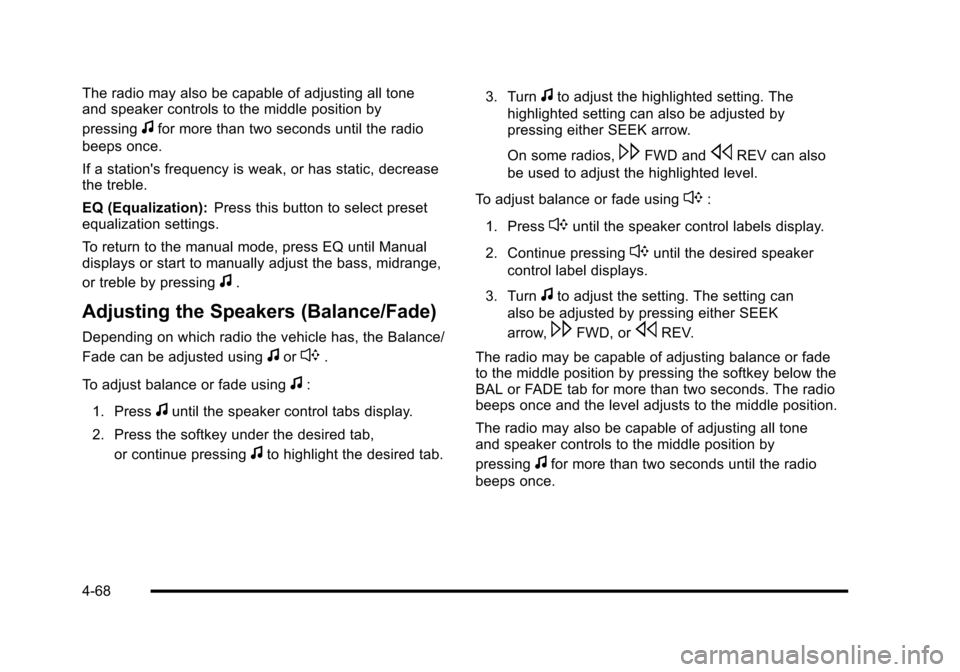
Adjusting the Speakers (Balance/Fade)
Depending on which radio the vehicle has, the Balance/
Fade can be adjusted using
for`.
To adjust balance or fade using
f:
1. Press
funtil the speaker control tabs display.
2. Press the softkey under the desired tab, or continue pressing
fto highlight the desired tab. 3. Turn
fto adjust the highlighted setting. The
highlighted setting can also be adjusted by
pressing either SEEK arrow.
On some radios,
\FWD andsREV can also
be used to adjust the highlighted level.
To adjust balance or fade using
`:
1. Press
`until the speaker control labels display.
2. Continue pressing
`until the desired speaker
control label displays.
3. Turn
fto adjust the setting. The setting can
also be adjusted by pressing either SEEK
arrow,
\FWD, orsREV.
The radio may be capable of adjusting balance or fade
to the middle position by pressing the softkey below the
BAL or FADE tab for more than two seconds. The radio
beeps once and the level adjusts to the middle position.
The radio may also be capable of adjusting all tone
and speaker controls to the middle position by
pressing
ffor more than two seconds until the radio
beeps once.
4-68
Page 238 of 480
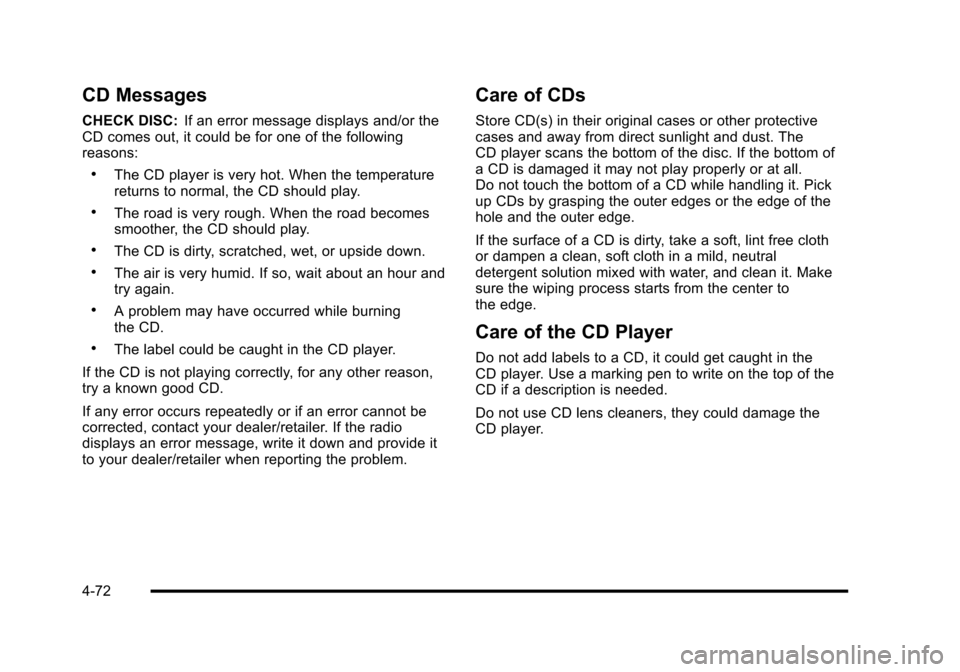
CD Messages
CHECK DISC:If an error message displays and/or the
CD comes out, it could be for one of the following
reasons:
.The CD player is very hot. When the temperature
returns to normal, the CD should play.
.The road is very rough. When the road becomes
smoother, the CD should play.
.The CD is dirty, scratched, wet, or upside down.
.The air is very humid. If so, wait about an hour and
try again.
.A problem may have occurred while burning
the CD.
.The label could be caught in the CD player.
If the CD is not playing correctly, for any other reason,
try a known good CD.
If any error occurs repeatedly or if an error cannot be
corrected, contact your dealer/retailer. If the radio
displays an error message, write it down and provide it
to your dealer/retailer when reporting the problem.
Care of CDs
Store CD(s) in their original cases or other protective
cases and away from direct sunlight and dust. The
CD player scans the bottom of the disc. If the bottom of
a CD is damaged it may not play properly or at all.
Do not touch the bottom of a CD while handling it. Pick
up CDs by grasping the outer edges or the edge of the
hole and the outer edge.
If the surface of a CD is dirty, take a soft, lint free cloth
or dampen a clean, soft cloth in a mild, neutral
detergent solution mixed with water, and clean it. Make
sure the wiping process starts from the center to
the edge.
Care of the CD Player
Do not add labels to a CD, it could get caught in the
CD player. Use a marking pen to write on the top of the
CD if a description is needed.
Do not use CD lens cleaners, they could damage the
CD player.
4-72
Page 259 of 480
To change radio stations:
.Press and releaseworxto go to the next or
previous radio station stored as a preset.
.Press and holdworxto go to the next or
previous radio station in the selected band with a
strong signal.
To select tracks on a CD:
Press and release
worxto go to the next or previous
track.
To select tracks on an iPod or USB device:
1. Press and hold
worxwhile listening to a song
until the contents of the current folder display on
the radio display.
2. Press and release
worxto scroll up or down the
list, then press and hold
wto play the highlighted
track. To navigate folders on an iPod or USB device:
1. Press and hold
worxwhile listening to a song
until the contents of the current folder display on
the radio display.
2. Press and hold
xto go back to the previous
folder list.
3. Press and release
worxto scroll up or down
the list.
.To select a folder, press and holdwwhen the
folder is highlighted.
.To go back further in the folder list, press and
hold
x.
c(End): Press to reject an incoming call, or end a
current call.
b g(Mute / Voice Recognition): Press to silence the
vehicle speakers only. Press again to turn the sound on.
For vehicles with Bluetooth
®or OnStar®systems press
and hold
b gfor longer than two seconds to interact
with those systems. See Bluetooth®on page 4‑82and
the OnStar Owner's Guide for more information.
4-93
Page 261 of 480
Cellular Phone Usage
Cellular phone usage may cause interference with the
vehicle's radio. This interference may occur when
making or receiving phone calls, charging the phone's
battery, or simply having the phone on. This
interference causes an increased level of static while
listening to the radio. If static is received while listening
to the radio, unplug the cellular phone and turn it off.
Fixed Mast Antenna
The fixed mast antenna can withstand most car washes
without being damaged as long as it is securely
attached to the base. If the mast becomes slightly bent,
straighten it out by hand. If the mast is badly bent,
replace it.
Occasionally check to make sure the antenna is
tightened to its base. If tightening is required, tighten by
hand until fully seated plus one quarter turn.
XM™Satellite Radio Antenna
System
The XM Satellite Radio antenna is located on the roof of
the vehicle. Keep the antenna clear of obstructions for
clear radio reception.
If the vehicle has a sunroof, the performance of the XM
system may be affected if the sunroof is open.
Chime Level Adjustment
The radio may be used to adjust the vehicle's chime
level. If the radio can be used to change the volume
level of the chime, press and hold the sixth numbered
pushbutton or the sixth FAV pushbutton with the ignition
on and the radio power off. The volume level changes
between Normal and Loud. The selected volume level
appears on the radio display.
Removing the radio and not replacing it with a factory
radio or chime module will disable vehicle chimes.
4-95