change time CHEVROLET IMPALA 2003 8.G User Guide
[x] Cancel search | Manufacturer: CHEVROLET, Model Year: 2003, Model line: IMPALA, Model: CHEVROLET IMPALA 2003 8.GPages: 408, PDF Size: 2.75 MB
Page 138 of 408
Delayed Headlamps
The delayed headlamps feature provides a period of
exterior lighting as you leave the area around your
vehicle. The feature is activated when the headlamps
are on due to the automatic headlamps control
feature described previously in this section, and when
the ignition is turned off. Your headlamps will then
remain on until the exterior lamps control is moved to
the parking lamps position or until either a 30 second or
60 second lighting period has ended.
If you turn off the ignition with the headlamps switch in
the parking lamps or headlamps position, the delayed
headlamps cycle will not occur.
To disable the delayed headlamps feature or change
the time of delay, see
Vehicle Customization Settings on
page 3-94.
Fog Lamps
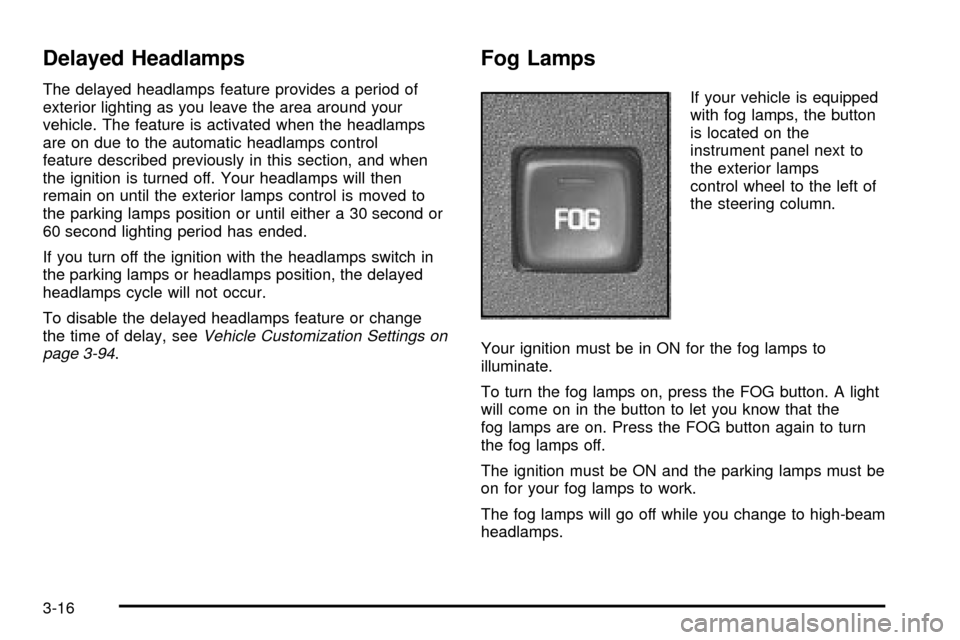
If your vehicle is equipped
with fog lamps, the button
is located on the
instrument panel next to
the exterior lamps
control wheel to the left of
the steering column.
Your ignition must be in ON for the fog lamps to
illuminate.
To turn the fog lamps on, press the FOG button. A light
will come on in the button to let you know that the
fog lamps are on. Press the FOG button again to turn
the fog lamps off.
The ignition must be ON and the parking lamps must be
on for your fog lamps to work.
The fog lamps will go off while you change to high-beam
headlamps.
3-16
Page 147 of 408
Rear Window Defogger
The rear window defogger uses a warming grid to
remove fog from the rear window.
turned on again, the defogger will run for the same
amount of time. The defogger can also be turned off by
pressing the button again or by turning off the engine.
Do not drive the vehicle until all the windows are clear.
If your vehicle has heated outside rearview mirrors,
the mirrors will heat to help clear fog or frost from the
surface of the mirror when the rear window defog button
is pressed.
Notice:Don't use anything sharp on the inside of
the rear window. If you do, you could cut or damage
the warming grid, and the repairs wouldn't be
covered by your warranty. Do not attach a temporary
vehicle license, tape, a decal or anything similar
to the defogger grid.
Outlet Adjustment
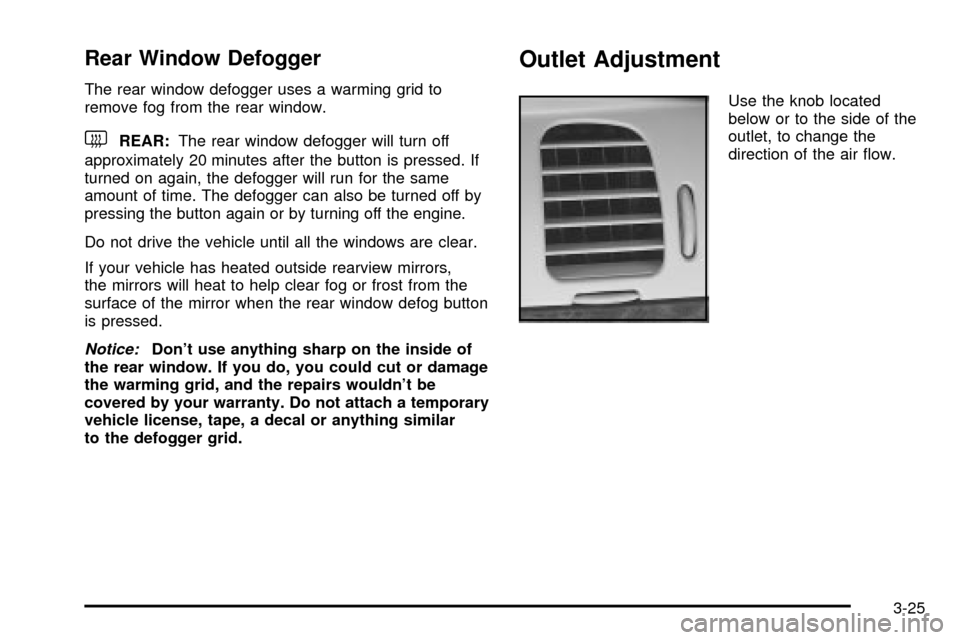
Use the knob located
below or to the side of the
outlet, to change the
direction of the air ¯ow.
3-25
Page 166 of 408
Change Engine Oil Message
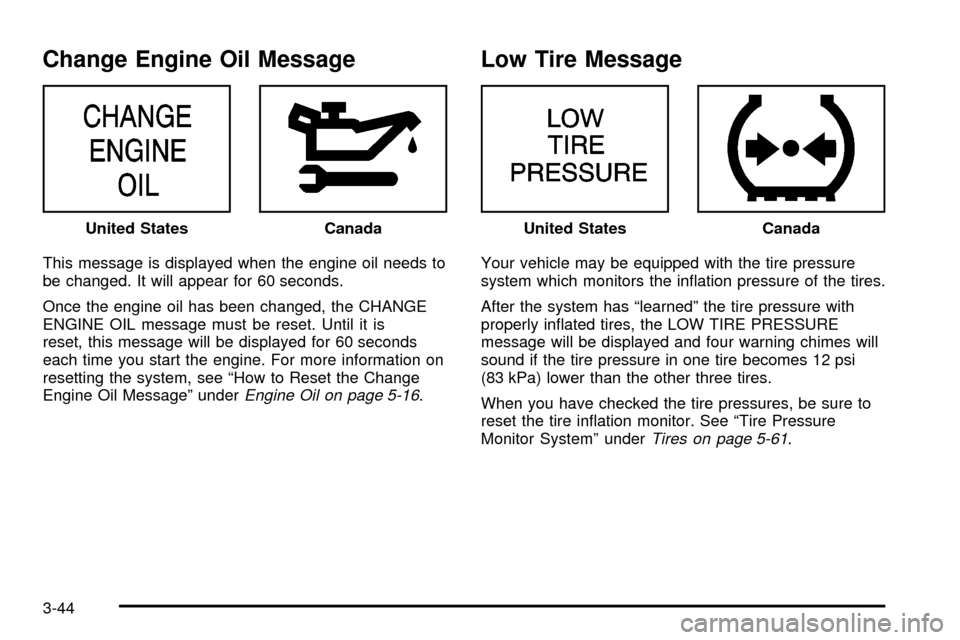
This message is displayed when the engine oil needs to
be changed. It will appear for 60 seconds.
Once the engine oil has been changed, the CHANGE
ENGINE OIL message must be reset. Until it is
reset, this message will be displayed for 60 seconds
each time you start the engine. For more information on
resetting the system, see ªHow to Reset the Change
Engine Oil Messageº under
Engine Oil on page 5-16.
Low Tire Message
Your vehicle may be equipped with the tire pressure
system which monitors the in¯ation pressure of the tires.
After the system has ªlearnedº the tire pressure with
properly in¯ated tires, the LOW TIRE PRESSURE
message will be displayed and four warning chimes will
sound if the tire pressure in one tire becomes 12 psi
(83 kPa) lower than the other three tires.
When you have checked the tire pressures, be sure to
reset the tire in¯ation monitor. See ªTire Pressure
Monitor Systemº under
Tires on page 5-61. United States
CanadaUnited StatesCanada
3-44
Page 171 of 408
Driver Information Center (DIC)
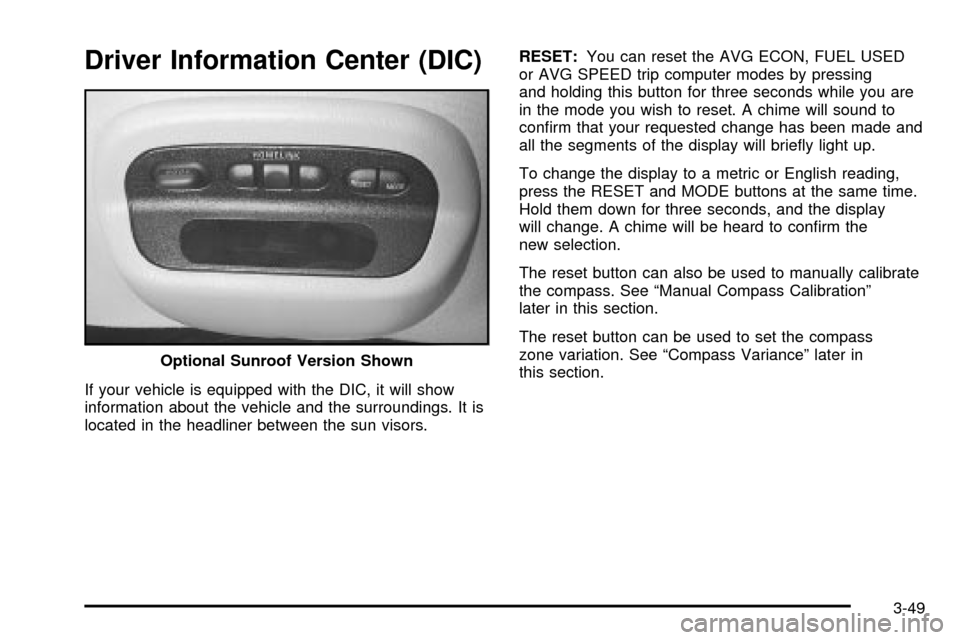
If your vehicle is equipped with the DIC, it will show
information about the vehicle and the surroundings. It is
located in the headliner between the sun visors.RESET:You can reset the AVG ECON, FUEL USED
or AVG SPEED trip computer modes by pressing
and holding this button for three seconds while you are
in the mode you wish to reset. A chime will sound to
con®rm that your requested change has been made and
all the segments of the display will brie¯y light up.
To change the display to a metric or English reading,
press the RESET and MODE buttons at the same time.
Hold them down for three seconds, and the display
will change. A chime will be heard to con®rm the
new selection.
The reset button can also be used to manually calibrate
the compass. See ªManual Compass Calibrationº
later in this section.
The reset button can be used to set the compass
zone variation. See ªCompass Varianceº later in
this section. Optional Sunroof Version Shown
3-49
Page 196 of 408

6 RDM (Random):Press this pushbutton to hear the
tracks in random, rather than sequential, order. RDM ON
will appear on the display. RDM T and the track
number will appear on the display when each track
starts to play. Press RDM again to turn off random play.
RDM OFF will appear on the display.
qSEEKr:Press the left arrow to go to the start of
the current or of the previous track. Press the right
arrow to go to the start of the next track. If either of the
arrows is held or pressed more than once, the player
will continue moving backward or forward through
the CD.
DISPL (Display):Press this knob to see how long the
current track has been playing. ET and the elapsed
time will appear on the display. To change the default
on the display (track or elapsed time), press the
knob until you see the display you want, then hold the
knob for two seconds. The radio will produce one
beep and selected display will now be the default.BAND:Press this button to listen to the radio when a
CD is playing. The CD will stop but remain in the player.
CD AUX (Auxiliary):Press this button to play a CD
when listening to the radio.
ZEJT (Eject):Press this button to eject a CD. Eject
may be activated with either the ignition or radio off.
CDs may be loaded with the radio and ignition off if this
button is pressed ®rst.
3-74
Page 210 of 408

1 PREV (Previous):Press this pushbutton to go to the
previous track if the current track has been playing
for less than eight seconds. If pressed when the current
track has been playing for more than eight seconds,
it will go to the beginning of the current track. TRACK
and the track number will appear on the display. If
you hold this pushbutton or press it more than once, the
player will continue moving back through the disc.
2 NEXT:Press this pushbutton to go to the next track.
TRACK. The track number will appear on the display.
If you hold this pushbutton or press it more than once,
the player will continue moving forward through
the disc.
3 REV (Reverse):Press and hold this pushbutton to
reverse quickly within a track. Press and hold this
pushbutton for less than two seconds to reverse at six
times the normal playing speed. Press and hold it
for more than two seconds to reverse at 17 times the
normal playing speed. Release it to play the passage.
The display will show ET and the elapsed time.
4 FWD (Forward):Press and hold this pushbutton to
advance quickly within a track. Press and hold this
pushbutton for less than two seconds to advance at six
times the normal playing speed. Press and hold it for
more than two seconds to advance at 17 times the
normal playing speed. Release it to play the passage.
The display will show ET and the elapsed time.6 RDM (Random):Press this pushbutton to hear the
tracks in random, rather than sequential, order. RDM ON
will appear on the display. RDM T and the track
number will appear on the display when each track
starts to play. Press it again to turn off random play.
RDM OFF will appear on the display.
qSEEKr:The right arrow is the same as the
NEXT pushbutton, and the left arrow is the same as the
PREV pushbutton. If either of the SEEK arrows is
held or pressed more than once, the player will continue
moving backward or forward through the CD.
DISPL (Display):Press this knob to see how long the
current track has been playing. ET and the elapsed
time will appear on the display. To change the default
on the display (track or elapsed time), press the
knob until you see the display you want, then hold the
knob for two seconds. The radio will produce one
beep and selected display will now be the default.
BAND:Press this button to listen to the radio when
a disc is playing. The disc will stop but remain in
the player.
TAPE CD:Press this button to play a CD when
listening to the radio. Press TAPE CD to switch between
the tape and compact disc if both are loaded. The
inactive tape or CD will remain safely inside the radio
for future listening.
3-88
Page 216 of 408

XMŸ Satellite Radio Antenna
System (United States Only)
Your XMŸ Satellite Radio antenna is located on the
roof of your vehicle. Keep this antenna clear of
snow and ice build up for clear radio reception.
The performance of your XM system may be affected if
your sunroof is open.
Vehicle Customization Settings
Your audio system can be used to control vehicle
customization settings using the DISP button when the
radio is off. See
Vehicle Personalization on page 2-45for more information.
Chime Level Adjustment
The radio is the vehicle chime producer. To change the
volume level, press and hold pushbutton 6 with the
ignition on and the radio power off. The chime volume
level will change from the normal level to loud, and
LOUD will be displayed on the radio. To change back to
the default or normal setting, press and hold
pushbutton 6 again. The chime level will change from
the loud level to normal, and NORMAL will be displayed.
Each time the chime volume is changed, three chimes
will sound as an example of the new volume selected.
Removing the radio and not replacing it with a
factory radio or chime module will disable vehicle
chimes.
3-94
Page 224 of 408

Remember: Anti-lock doesn't change the time you need
to get your foot up to the brake pedal or always
decrease stopping distance. If you get too close to the
vehicle in front of you, you won't have time to apply
your brakes if that vehicle suddenly slows or stops.
Always leave enough room up ahead to stop, even
though you have anti-lock brakes.
Using Anti-Lock
Don't pump the brakes. Just hold the brake pedal down
®rmly and let anti-lock work for you. You may feel a
slight brake pedal pulsation or notice some noise, but
this is normal.
Braking in Emergencies
At some time, nearly every driver gets into a situation
that requires hard braking.If you have anti-lock, you can steer and brake at the
same time. However, if you don't have anti-lock,
your ®rst reaction Ð to hit the brake pedal hard and
hold it down Ð may be the wrong thing to do. Your
wheels can stop rolling. Once they do, the vehicle can't
respond to your steering. Momentum will carry it in
whatever direction it was headed when the wheels
stopped rolling. That could be off the road, into the
very thing you were trying to avoid, or into traffic.
If you don't have anti-lock, use a ªsqueezeº braking
technique. This will give you maximum braking while
maintaining steering control. You can do this by pushing
on the brake pedal with steadily increasing pressure.
In an emergency, you will probably want to squeeze the
brakes hard without locking the wheels. If you hear or
feel the wheels sliding, ease off the brake pedal.
This will help you retain steering control. If you
dohave
anti-lock, it's different. See ªAnti-Lock Brake Systemº
in this section.
In many emergencies, steering can help you more than
even the very best braking.
4-8
Page 226 of 408
To turn the system on or
off, press the TRAC OFF
button on the left side
of the instrument panel.
When you turn the system off, a chime will sound and
the TRAC OFF warning light will come on and stay on.
If the traction control system is limiting wheel spin
when you press the button to turn the system off, the
warning light will come on and the system will turn
off right away.
You can turn the system back on at any time by
pressing the button again. The TRAC OFF warning light
should go off.Steering
Power Steering
If you lose power steering assist because the engine
stops or the system is not functioning, you can steer but
it will take much more effort.
Steering Tips
Driving on Curves
It's important to take curves at a reasonable speed.
A lot of the ªdriver lost controlº accidents mentioned on
the news happen on curves.
Here's why:
Experienced driver or beginner, each of us is subject to
the same laws of physics when driving on curves.
The traction of the tires against the road surface makes
it possible for the vehicle to change its path when
you turn the front wheels. If there's no traction, inertia
will keep the vehicle going in the same direction. If
you've ever tried to steer a vehicle on wet ice, you'll
understand this.
The traction you can get in a curve depends on the
condition of your tires and the road surface, the angle
at which the curve is banked, and your speed. While
you're in a curve, speed is the one factor you
can control.
4-10
Page 230 of 408

·Check your mirrors, glance over your shoulder, and
start your left lane change signal before moving out
of the right lane to pass. When you are far
enough ahead of the passed vehicle to see its front
in your inside mirror, activate your right lane
change signal and move back into the right lane.
(Remember that your right outside mirror is convex.
The vehicle you just passed may seem to be
farther away from you than it really is.)
·Try not to pass more than one vehicle at a time on
two-lane roads. Reconsider before passing the
next vehicle.
·Don't overtake a slowly moving vehicle too rapidly.
Even though the brake lamps are not ¯ashing, it
may be slowing down or starting to turn.
·If you're being passed, make it easy for the
following driver to get ahead of you. Perhaps you
can ease a little to the right.
Loss of Control
Let's review what driving experts say about what
happens when the three control systems (brakes,
steering and acceleration) don't have enough friction
where the tires meet the road to do what the driver has
asked.
In any emergency, don't give up. Keep trying to steer
and constantly seek an escape route or area of
less danger.
4-14