light CHEVROLET IMPALA 2010 9.G Repair Manual
[x] Cancel search | Manufacturer: CHEVROLET, Model Year: 2010, Model line: IMPALA, Model: CHEVROLET IMPALA 2010 9.GPages: 432, PDF Size: 1.89 MB
Page 198 of 432
SERVICE POWER STEERINGThis message displays when a problem is detected
with the power steering system. When this message is
displayed, you may notice that the effort required to steer
the vehicle increases or feels heavier, but you will still be
able to steer the vehicle. Have your vehicle serviced by
your dealer/retailer immediately.SERVICE STABILITRAKIf your vehicle has Electronic Stability Control (ESC),
this message displays if there has been a problem
detected with ESC. The ESC/TCS light also appears
on the instrument panel cluster. SeeElectronic Stability
Control (ESC) on page 5-6for more information.
If this message turns on while you are driving, pull off the
road as soon as possible and stop carefully. Try resetting
the system by turning the ignition off and then back on.
If this message still stays on or turns back on again while
you are driving, your vehicle needs service. Have the
system inspected by your dealer/retailer as soon as
possible.SERVICE THEFT SYSTEMThis message displays when there is a problem with the
theft-deterrent system programmed in the key. A fault
has been detected in the system which means that the
system is disabled and it is not protecting the vehicle.The vehicle usually restarts; however, you may want to
take the vehicle to your dealer/retailer before turning off
the engine. SeePASS-Key
®III+ Electronic Immobilizer
Operation on page 3-18for more information.
SERVICE TIRE MONITOR SYSTEMOn vehicles with the Tire Pressure Monitor System
(TPMS), this message displays if a part on the TPMS is
not working properly. The tire pressure light also flashes
and then remains on during the same ignition cycle. See
Tire Pressure Light on page 4-31. Several conditions may
cause this message to appear. SeeTire Pressure Monitor
Operation on page 6-62for more information. If the
warning comes on and stays on, there may be a problem
with the TPMS. See your dealer/retailer.SERVICE TRACTION CONTROLIf your vehicle has the Traction Control System (TCS),
this message displays when the system is not functioning
properly. A warning light also appears on the instrument
panel cluster. SeeTraction Control System (TCS)
Warning Light on page 4-28. SeeTraction Control
System (TCS) on page 5-7for more information. Have
the TCS serviced by your dealer/retailer as soon as
possible.
4-48
Page 199 of 432
SERVICE TRANSMISSIONThis message displays when there is a problem with the
transmission. See your dealer/retailer for service.SERVICE VEHICLE SOONThis message displays when a non-emissions related
malfunction occurs. Have the vehicle serviced by
your dealer/retailer as soon as possible.STABILITRAK NOT READYIf your vehicle has Electronic Stability Control (ESC),
this message may display and the ESC/TCS light on the
instrument panel cluster may be on after first driving the
vehicle and exceeding 19 mph (30 km/h) for 30 seconds.
The ESC system is not functional until the light has turned
off. SeeElectronic Stability Control (ESC) on page 5-6for
more information.STARTING DISABLED SERVICE
THROTTLEThis message displays if the starting of the engine is
disabled due to the electronic throttle control system.
Have your vehicle serviced by your dealer/retailer
immediately.This message only appears while the ignition is in
ON/RUN, and will not disappear until the problem is
resolved.
This message cannot be acknowledged.
THEFT ATTEMPTEDThis message displays if the content theft-deterrent
system has detected a break-in attempt while you were
away from your vehicle. SeeContent Theft-Deterrent
on page 3-17for more information.TIGHTEN GAS CAPThis message may be displayed if the gas cap is not
on, or is not fully tightened. Check the gas cap to ensure
that it is on properly. SeeFilling the Tank on page 6-10
for more information.TIRE LEARNING ACTIVEOn vehicles with the Tire Pressure Monitor System
(TPMS), this message displays when the TPMS is
re-learning the tire positions on your vehicle. The tire
positions must be re-learned after rotating the tires or
after replacing a tire or sensor. SeeTire Inspection and
Rotation on page 6-65,Tire Pressure Monitor System on
page 6-60, andInflation - Tire Pressure on page 6-59for
more information.
4-49
Page 200 of 432
TIRE LOW ADD AIR TO TIREOn vehicles with the Tire Pressure Monitor System
(TPMS), this message displays when the pressure in one
or more of the vehicle’s tires is low. This message also
displays LEFT FRT (left front), RIGHT FRT (right front),
LEFT RR (left rear), or RIGHT RR (right rear) to indicate
the location of the low tire. The low tire pressure warning
light will also come on. SeeTire Pressure Light on
page 4-31. You can receive more than one tire pressure
message at a time. To read the other messages that may
have been sent at the same time, press the set/reset
button. If a tire pressure message appears on the DIC,
stop as soon as you can. Have the tire pressures
checked and set to those shown on the Tire Loading
Information label. SeeTires on page 6-51,Loading the
Vehicle on page 5-20, andInflation - Tire Pressure on
page 6-59. The DIC also shows the tire pressure values.
SeeDIC Operation and Displays on page 4-37.TRACTION CONTROL OFFIf your vehicle has the Traction Control System (TCS),
this message displays when the TCS turns off.
SeeTraction Control System (TCS) on page 5-7
for more information.
This message only displays while the ignition is in
ON/RUN and disappears after 10 seconds, unless
it is acknowledged or an urgent warning appears.Any of the following conditions may cause the TCS to
turn off:
•
The TCS is turned off by pressing the traction
control button. SeeTraction Control System (TCS)
on page 5-7for more information.
•
The battery is low.
•
There is a TCS failure. See your dealer/retailer for
service.
TRACTION CONTROL ONIf your vehicle has the Traction Control System (TCS),
this message displays when the TCS is turned on.
SeeTraction Control System (TCS) on page 5-7
for more information.TRANSMISSION HOT IDLE ENGINEThis message displays when the transmission fluid in
your vehicle is too hot. Stop the vehicle and allow it to idle
until it cools down. If the warning message continues to
display, have the vehicle serviced by your dealer/retailer
as soon as possible.TRUNK OPENThis message displays when the trunk is not closed
completely. Make sure that the trunk is closed
completely. SeeTrunk on page 3-12.
4-50
Page 203 of 432

AUTO DOOR UNLOCKThis feature allows you to select whether or not to
turn off the automatic door unlocking feature. It also
allows you to select which doors and when the doors will
automatically unlock. SeeProgrammable Automatic
Door Unlock on page 3-11for more information.
Press the customization button until AUTO DOOR
UNLOCK appears on the DIC display. Press the
set/reset button once to access the settings for this
feature. Then press the customization button to scroll
through the following settings:
OFF:None of the doors will automatically unlock.
DRIVER AT KEY OUT:Only the driver’s door will
unlock when the key is taken out of the ignition.
DRIVER IN PARK:Only the driver’s door will unlock
when the vehicle is shifted into P (Park).
ALL AT KEY OUT:All of the doors will unlock when
the key is taken out of the ignition.
ALL IN PARK (default):All of the doors will unlock
when the vehicle is shifted into P (Park).
NO CHANGE:No change will be made to this feature.
The current setting will remain.
To select a setting, press the set/reset button while the
desired setting is displayed on the DIC.
REMOTE DOOR LOCKThis feature allows you to select the type of feedback
you will receive when locking the vehicle with the
Remote Keyless Entry (RKE) transmitter. You will not
receive feedback when locking the vehicle with the RKE
transmitter if any of the doors are open. SeeRemote
Keyless Entry (RKE) System Operation on page 3-4
for more information.
Press the customization button until REMOTE DOOR
LOCK appears on the DIC display. Press the set/reset
button once to access the settings for this feature.
Then press the customization button to scroll through
the following settings:
HORN & LIGHTS OFF:There will be no feedback
when you press the lock button on the RKE transmitter.
LIGHTS ONLY:The exterior lamps will flash when
you press the lock button on the RKE transmitter.
HORN ONLY:The horn will sound on the second press
of the lock button on the RKE transmitter.
HORN & LIGHTS ON (default):The exterior lamps
will flash when you press the lock button on the
RKE transmitter, and the horn will sound when the lock
button is pressed again within five seconds of the
previous command.
NO CHANGE:No change will be made to this feature.
The current setting will remain.
4-53
Page 204 of 432

To select a setting, press the set/reset button while the
desired setting is displayed on the DIC.REMOTE DOOR UNLOCKThis feature allows you to select the type of feedback you
will receive when unlocking the vehicle with the Remote
Keyless Entry (RKE) transmitter. You will not receive
feedback when unlocking the vehicle with the RKE
transmitter if the doors are open. SeeRemote Keyless
Entry (RKE) System Operation on page 3-4for more
information.
Press the customization button until REMOTE DOOR
UNLOCK appears on the DIC display. Press the
set/reset button once to access the settings for this
feature. Then press the customization button to scroll
through the following settings:
LIGHTS OFF:The exterior lamps will not flash when
you press the unlock button on the RKE transmitter.
LIGHTS ON (default):The exterior lamps will
flash when you press the unlock button on the
RKE transmitter.
NO CHANGE:No change will be made to this feature.
The current setting will remain.
To select a setting, press the set/reset button while the
desired setting is displayed on the DIC.
EXIT LIGHTINGThis feature allows you to select the amount of time you
want the exterior lamps to remain on when it is dark
enough outside. This happens after the key is turned
from ON/RUN to LOCK/OFF.
Press the customization button until EXIT LIGHTING
appears on the DIC display. Press the set/reset button
once to access the settings for this feature. Then press
the customization button to scroll through the following
settings:
OFF:The exterior lamps will not turn on.
30 SECONDS (default):The exterior lamps will stay on
for 30 seconds.
1 MINUTE:The exterior lamps will stay on for
one minute.
2 MINUTES:The exterior lamps will stay on for
two minutes.
NO CHANGE:No change will be made to this feature.
The current setting will remain.
To select a setting, press the set/reset button while the
desired setting is displayed on the DIC.
4-54
Page 205 of 432

APPROACH LIGHTINGThis feature allows you to select whether or not to
have the exterior lights turn on briefly during low light
periods after unlocking the vehicle using the Remote
Keyless Entry (RKE) transmitter.
Press the customization button until APPROACH
LIGHTING appears on the DIC display. Press the
set/reset button once to access the settings for
this feature. Then press the customization button
to scroll through the following settings:
OFF:The exterior lights will not turn on when you
unlock the vehicle with the RKE transmitter.
ON (default):If it is dark enough outside, the exterior
lights will turn on briefly when you unlock the vehicle
with the RKE transmitter.
The lights will remain on for 20 seconds or until the lock
button on the RKE transmitter is pressed, or the vehicle is
no longer off. SeeRemote Keyless Entry (RKE) System
Operation on page 3-4for more information.
NO CHANGE:No change will be made to this feature.
The current setting will remain.
To select a setting, press the set/reset button while the
desired setting is displayed on the DIC.
CHIME VOLUMEThis feature allows you to select the volume level of the
chime.
Press the customization button until CHIME VOLUME
appears on the DIC display. Press the set/reset button
once to access the settings for this feature. Then press
the customization button to scroll through the following
settings:
NORMAL:The chime volume will be set to a normal
level.
LOUD:The chime volume will be set to a loud level.
NO CHANGE:No change will be made to this feature.
The current setting will remain.
There is no default for chime volume. The volume will
stay at the last known setting.
To select a setting, press the set/reset button while the
desired setting is displayed on the DIC.
4-55
Page 213 of 432
Setting the Tone
(Bass/Midrange/Treble)BASS/MID/TREB (Bass, Midrange, or Treble):The
radio may display some or all tones, such as BASS, MID,
and TREB. To adjust the tone settings, press the
f
knob
until the tone control tabs display. Press the softkey
under the desired tab, then turn the
f
knob clockwise
or counterclockwise to adjust the highlighted setting.
The highlighted setting can also be adjusted by pressing
either SEEK arrow,
\
FWD, or
s
REV button until the
desired levels are obtained. If a station’s frequency is
weak, or has static, decrease the treble.
The radio may be capable of adjusting bass, midrange, or
treble to the middle position by pressing the softkey under
the BASS, MID (midrange), or TREB (treble) tab for more
than two seconds. The radio beeps once and the level
adjusts to the middle position.
The radio may also be capable of adjusting all tone
and speaker controls to the middle position by pressing
the
f
knob for more than two seconds until the radio
beeps once.
EQ (Equalization):Press to select preset equalization
settings.To return to the manual mode, press until Manual
displays or start to manually adjust the bass and
depending on the radio, midrange, or treble by
pressing the
f
knob.
Adjusting the Speakers (Balance/Fade)
`
BAL/FADE (Balance/Fade):To adjust balance
or fade, press the
`
if the radio has this symbol, or
the
f
knob until the speaker control tabs display.
Continue pressing the
f
knob to highlight the desired
tab, or press the softkey under the desired tab. Turn
the
f
knob clockwise or counterclockwise to adjust the
setting. The setting can also be adjusted by pressing
either SEEK arrow,
\
FWD, or
s
REV until the
desired levels are obtained.
The radio may be capable of adjusting balance or fade to
the middle position by pressing the softkey under the BAL
or FADE tab for more than two seconds. The radio beeps
once and the level adjusts to the middle position.
The radio may also be capable of adjusting all speaker
and tone controls to the middle position by pressing
the
f
knob for more than two seconds until the radio
beeps once.
4-63
Page 216 of 432

RDM (Random):Tracks can be listened to in random,
rather than sequential order.
To use random on the Radio with CD, press the RDM
button to play tracks from a CD in random order. The
random icon displays. Press again to turn off random
play. The random icon disappears from the display.
To use random on the Radio with CD (MP3):
1. Press the CD/AUX button, insert a disc partway into
the slot of the CD player. A RDM tab displays.
2. To play the tracks in random order, press the
softkey under the RDM tab until Random Current
Disc displays. Press the softkey again to turn
off random play.
RPT (Repeat):With repeat, one track or an entire CD
can be repeated.
To use repeat on the Radio with CD:•
Press and release the RPT button to repeat the
current track. An arrow symbol displays. Press
again to turn off repeat play.
•
Press and hold the RPT button for a few seconds
to repeat the CD. An arrow symbol displays.
Press again to turn off repeat play. When repeat
is off, the symbol no longer displays.BAND:Press to listen to the radio while a CD is
playing. The CD remains inside the radio for future
listening.
CD/AUX (CD/Auxiliary):Press to play a CD while
listening to the radio. The CD icon and a message
showing disc and/or track number displays when a
CD is in the player. Press this button again and
the system automatically searches for an auxiliary input
device, such as a portable audio player. If a portable
audio player is not connected, No Aux Input Device
Found may display.
Care of CDsIf playing a CD-R, the sound quality can be reduced due
to CD-R quality, the method of recording, the quality of
the music that has been recorded, and the way the CD-R
has been handled. Handle them carefully. Store CD-R(s)
in their original cases or other protective cases and away
from direct sunlight and dust. The CD player scans the
bottom surface of the disc. If the surface of a CD is
damaged, such as cracked, broken, or scratched, the
CD does not play properly or not at all. Do not touch the
bottom side of a CD while handling it; this could damage
the surface. Pick up CDs by grasping the outer edges or
the edge of the hole and the outer edge.
4-66
Page 240 of 432

BrakingSeeBrake System Warning Light on page 4-27.
Braking action involves perception time and reaction
time. Deciding to push the brake pedal is perception
time. Actually doing it is reaction time.
Average reaction time is about three-fourths of a second.
But that is only an average. It might be less with one
driver and as long as two or three seconds or more with
another. Age, physical condition, alertness, coordination,
and eyesight all play a part. So do alcohol, drugs, and
frustration. But even in three-fourths of a second, a
vehicle moving at 100 km/h (60 mph) travels 20 m
(66 feet). That could be a lot of distance in an emergency,
so keeping enough space between the vehicle and others
is important.
And, of course, actual stopping distances vary greatly
with the surface of the road, whether it is pavement or
gravel; the condition of the road, whether it is wet, dry, or
icy; tire tread; the condition of the brakes; the weight of
the vehicle; and the amount of brake force applied.Avoid needless heavy braking. Some people drive
in spurts — heavy acceleration followed by heavy
braking — rather than keeping pace with traffic. This is
a mistake. The brakes might not have time to cool
between hard stops. The brakes will wear out much
faster with a lot of heavy braking. Keeping pace with the
traffic and allowing realistic following distances
eliminates a lot of unnecessary braking. That means
better braking and longer brake life.
If the engine ever stops while the vehicle is being driven,
brake normally but do not pump the brakes. If the brakes
are pumped, the pedal could get harder to push down.
If the engine stops, there will still be some power brake
assist but it will be used when the brake is applied. Once
the power assist is used up, it can take longer to stop and
the brake pedal will be harder to push.
Adding non-dealer/non-retailer accessories can affect
vehicle performance. SeeAccessories and Modifications
on page 6-3.
5-4
Page 241 of 432
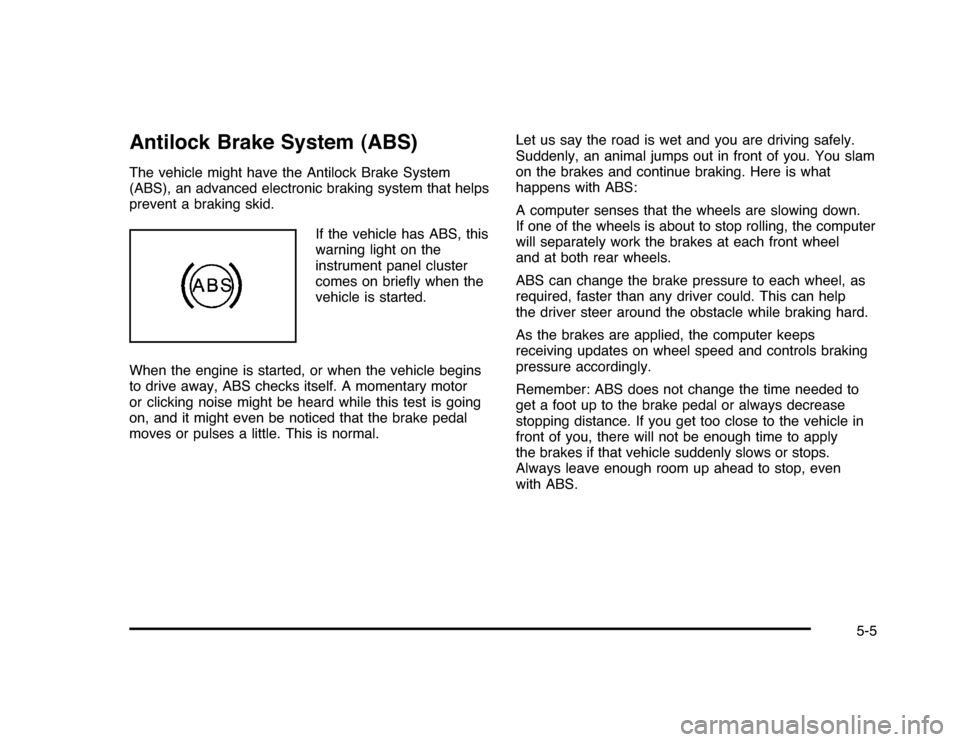
Antilock Brake System (ABS)The vehicle might have the Antilock Brake System
(ABS), an advanced electronic braking system that helps
prevent a braking skid.
If the vehicle has ABS, this
warning light on the
instrument panel cluster
comes on briefly when the
vehicle is started.
When the engine is started, or when the vehicle begins
to drive away, ABS checks itself. A momentary motor
or clicking noise might be heard while this test is going
on, and it might even be noticed that the brake pedal
moves or pulses a little. This is normal.Let us say the road is wet and you are driving safely.
Suddenly, an animal jumps out in front of you. You slam
on the brakes and continue braking. Here is what
happens with ABS:
A computer senses that the wheels are slowing down.
If one of the wheels is about to stop rolling, the computer
will separately work the brakes at each front wheel
and at both rear wheels.
ABS can change the brake pressure to each wheel, as
required, faster than any driver could. This can help
the driver steer around the obstacle while braking hard.
As the brakes are applied, the computer keeps
receiving updates on wheel speed and controls braking
pressure accordingly.
Remember: ABS does not change the time needed to
get a foot up to the brake pedal or always decrease
stopping distance. If you get too close to the vehicle in
front of you, there will not be enough time to apply
the brakes if that vehicle suddenly slows or stops.
Always leave enough room up ahead to stop, even
with ABS.
5-5