buttons CHEVROLET IMPALA 2015 10.G User Guide
[x] Cancel search | Manufacturer: CHEVROLET, Model Year: 2015, Model line: IMPALA, Model: CHEVROLET IMPALA 2015 10.GPages: 413, PDF Size: 5.51 MB
Page 161 of 413
Black plate (46,1)Chevrolet Impala Owner Manual (GMNA-Localizing-U.S./Canada-7576026) -
2015 - crc 2nd edition - 8/21/14
5-46 Instruments and Controls
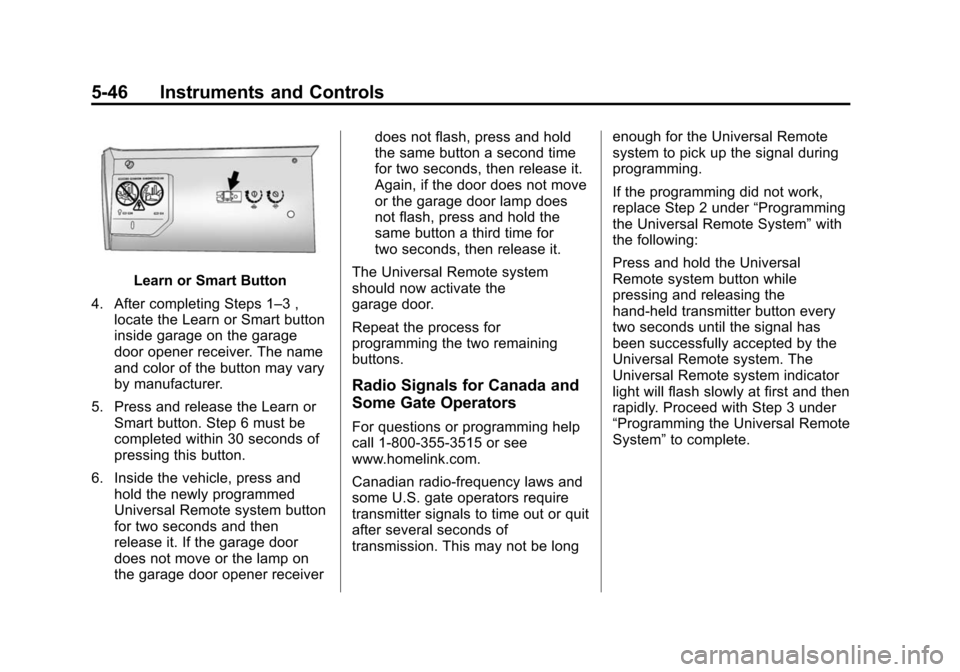
Learn or Smart Button
4. After completing Steps 1–3 , locate the Learn or Smart button
inside garage on the garage
door opener receiver. The name
and color of the button may vary
by manufacturer.
5. Press and release the Learn or Smart button. Step 6 must be
completed within 30 seconds of
pressing this button.
6. Inside the vehicle, press and hold the newly programmed
Universal Remote system button
for two seconds and then
release it. If the garage door
does not move or the lamp on
the garage door opener receiver does not flash, press and hold
the same button a second time
for two seconds, then release it.
Again, if the door does not move
or the garage door lamp does
not flash, press and hold the
same button a third time for
two seconds, then release it.
The Universal Remote system
should now activate the
garage door.
Repeat the process for
programming the two remaining
buttons.
Radio Signals for Canada and
Some Gate Operators
For questions or programming help
call 1-800-355-3515 or see
www.homelink.com.
Canadian radio-frequency laws and
some U.S. gate operators require
transmitter signals to time out or quit
after several seconds of
transmission. This may not be long enough for the Universal Remote
system to pick up the signal during
programming.
If the programming did not work,
replace Step 2 under
“Programming
the Universal Remote System” with
the following:
Press and hold the Universal
Remote system button while
pressing and releasing the
hand-held transmitter button every
two seconds until the signal has
been successfully accepted by the
Universal Remote system. The
Universal Remote system indicator
light will flash slowly at first and then
rapidly. Proceed with Step 3 under
“Programming the Universal Remote
System” to complete.
Page 162 of 413
Black plate (47,1)Chevrolet Impala Owner Manual (GMNA-Localizing-U.S./Canada-7576026) -
2015 - crc 2nd edition - 8/21/14
Instruments and Controls 5-47
Universal Remote System
Operation
Using the Universal Remote
System
Press and hold the appropriate
Universal Remote system button for
at least one-half second. The
indicator light will come on while the
signal is being transmitted.
Erasing Universal Remote
System Buttons
Erase all programmed buttons when
vehicle ownership is terminated.
To erase:
1. Press and hold the two outsidebuttons until the indicator light
begins to flash. This should take
about 10 seconds.
2. Release both buttons.
Reprogramming a Single
Universal Remote System
Button
To reprogram any of the system
buttons:
1. Press and hold any one of the buttons. Do not release the
button.
2. The indicator light will begin to flash after 20 seconds. Without
releasing the button, proceed
with Step 1 under “Programming
the Universal Remote System.”
Page 173 of 413
Black plate (2,1)Chevrolet Impala Owner Manual (GMNA-Localizing-U.S./Canada-7576026) -
2015 - crc 2nd edition - 8/21/14
7-2 Infotainment System
The infotainment system has built-in
features intended to help avoid
distraction by disabling some
functions when driving. These
functions may gray out when they
are unavailable. Many infotainment
features are also available through
the instrument cluster and steering
wheel controls.
Before driving:
.Become familiar with the
operation, faceplate buttons, and
screen buttons.
.Set up the audio by presetting
favorite stations, setting the
tone, and adjusting the
speakers.
.Set up phone numbers in
advance so they can be called
easily by pressing a single
button or by using a single voice
command if equipped with
Bluetooth phone capability.
See Defensive Driving on page 9-3. To play the infotainment system with
the ignition off, see
Retained
Accessory Power (RAP) on
page 9-22.
Theft-Deterrent Feature
TheftLock®is designed to
discourage theft of the vehicle's
radio by learning a portion of the
Vehicle Identification Number (VIN).
The radio does not operate if it is
stolen or moved to a different
vehicle.
Page 174 of 413
Black plate (3,1)Chevrolet Impala Owner Manual (GMNA-Localizing-U.S./Canada-7576026) -
2015 - crc 2nd edition - 8/21/14
Infotainment System 7-3
Overview
Infotainment System Overview
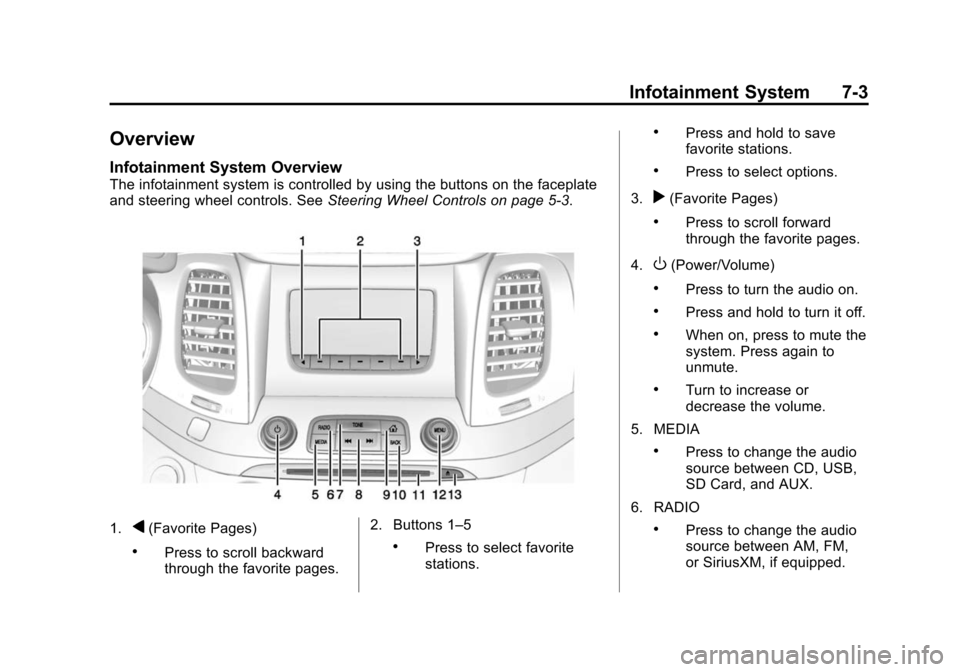
The infotainment system is controlled by using the buttons on the faceplate
and steering wheel controls. SeeSteering Wheel Controls on page 5-3.
1.q(Favorite Pages)
.Press to scroll backward
through the favorite pages.2. Buttons 1–5.Press to select favorite
stations.
.Press and hold to save
favorite stations.
.Press to select options.
3.
r(Favorite Pages)
.Press to scroll forward
through the favorite pages.
4.
O(Power/Volume)
.Press to turn the audio on.
.Press and hold to turn it off.
.When on, press to mute the
system. Press again to
unmute.
.Turn to increase or
decrease the volume.
5. MEDIA
.Press to change the audio
source between CD, USB,
SD Card, and AUX.
6. RADIO
.Press to change the audio
source between AM, FM,
or SiriusXM, if equipped.
Page 191 of 413
Black plate (20,1)Chevrolet Impala Owner Manual (GMNA-Localizing-U.S./Canada-7576026) -
2015 - crc 2nd edition - 8/21/14
7-20 Infotainment System
duplicate or rarely used entries.
If possible, program speed dial
or other shortcuts.
.Review the controls and
operation of the infotainment
system.
.Pair cell phone(s) to the vehicle.
The system may not work with
all cell phones. See“Pairing”in
this section.
.If the cell phone has voice
dialing capability, learn to use
that feature to access the
address book or contact list. See
“Voice Pass-Thru” in this
section.
.See “Storing and Deleting Phone
Numbers” in this section.
{Warning
When using a cell phone, it can
be distracting to look too long or
too often at the screen of the
phone or the infotainment system.
(Continued)
Warning (Continued)
Taking your eyes off the road too
long or too often could cause a
crash resulting in injury or death.
Focus your attention on driving.
Vehicles with a Bluetooth system
can use a Bluetooth-capable cell
phone with a Hands-Free Profile to
make and receive phone calls. The
infotainment system and voice
recognition are used to control the
system. The system can be used
while in ON/RUN or ACC/
ACCESSORY. The range of the
Bluetooth system can be up to 9.1 m
(30 ft). Not all phones support all
functions and not all phones work
with the Bluetooth system. See
www.gm.com/bluetooth for more
information about compatible
phones.
Bluetooth Controls
Use the buttons on the instrument
panel, faceplate, and the steering
wheel to operate the Bluetooth
system.
Steering Wheel Controls
g(Press to Talk): Press to answer
incoming calls or start voice
recognition.
c(End Call): Press to end a call,
reject a call, or cancel an operation.
Press to mute or unmute the
infotainment system.
Infotainment System Controls
For information about how to
navigate the menu system using the
infotainment controls, see Overview
on page 7-3.
MENU: Turn to scroll through a list.
Press to select the highlighted list
option.
{(Home Page): Press to go to the
Home Page. See Home Page on
page 7-4.
Page 390 of 413
Black plate (1,1)Chevrolet Impala Owner Manual (GMNA-Localizing-U.S./Canada-7576026) -
2015 - crc 2nd edition - 8/21/14
OnStar 14-1
OnStar
OnStar Overview
OnStar Overview . . . . . . . . . . . . 14-1
OnStar Services
Emergency . . . . . . . . . . . . . . . . . . 14-2
Security . . . . . . . . . . . . . . . . . . . . . . 14-3
Navigation . . . . . . . . . . . . . . . . . . . 14-3
Connections . . . . . . . . . . . . . . . . . 14-4
Vehicle Diagnostics . . . . . . . . . . 14-6
OnStar Additional Information
OnStar AdditionalInformation . . . . . . . . . . . . . . . . . 14-6
OnStar Overview
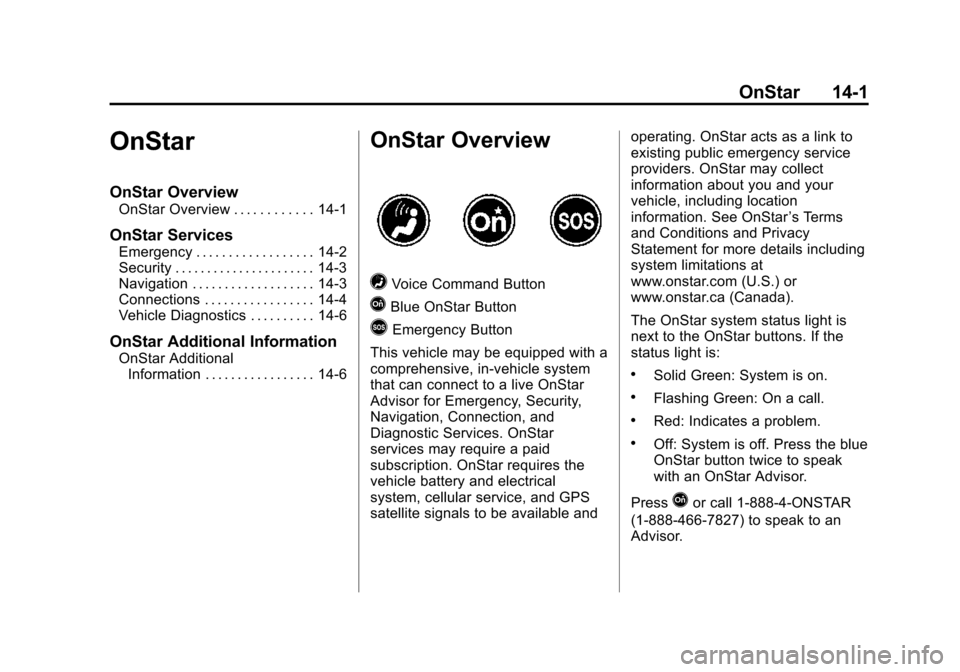
=Voice Command Button
QBlue OnStar Button
>Emergency Button
This vehicle may be equipped with a
comprehensive, in-vehicle system
that can connect to a live OnStar
Advisor for Emergency, Security,
Navigation, Connection, and
Diagnostic Services. OnStar
services may require a paid
subscription. OnStar requires the
vehicle battery and electrical
system, cellular service, and GPS
satellite signals to be available and operating. OnStar acts as a link to
existing public emergency service
providers. OnStar may collect
information about you and your
vehicle, including location
information. See OnStar
’s Terms
and Conditions and Privacy
Statement for more details including
system limitations at
www.onstar.com (U.S.) or
www.onstar.ca (Canada).
The OnStar system status light is
next to the OnStar buttons. If the
status light is:
.Solid Green: System is on.
.Flashing Green: On a call.
.Red: Indicates a problem.
.Off: System is off. Press the blue
OnStar button twice to speak
with an OnStar Advisor.
Press
Qor call 1-888-4-ONSTAR
(1-888-466-7827) to speak to an
Advisor.