start CHEVROLET IMPALA 2017 10.G Repair Manual
[x] Cancel search | Manufacturer: CHEVROLET, Model Year: 2017, Model line: IMPALA, Model: CHEVROLET IMPALA 2017 10.GPages: 378, PDF Size: 6.09 MB
Page 143 of 378
Chevrolet Impala Owner Manual (GMNA-Localizing-U.S./Canada-9921197) -
2017 - crc - 3/30/16
142 Instruments and Controls
Chime Volume
This allows the selection of the
chime volume level.
Press + or−to adjust the volume.
Reverse Tilt Mirror
When on, both the driver and
passenger, driver, or passenger
mirrors will tilt downward when the
vehicle is shifted to R (Reverse) to
improve visibility of the ground near
the rear wheels. They will return to
their previous driving position when
the vehicle is shifted out of
R (Reverse) or the ignition is turned
to OFF.
Select Off, On - Driver and
Passenger, On - Driver, or On -
Passenger.
Lighting
Select and the following may
display:
. Vehicle Locator Lights
. Exit Lighting
. Daytime Tail Lights Vehicle Locator Lights
This feature will flash the exterior
lamps when
Kon the Remote
Keyless Entry (RKE) transmitter is
pressed to locate the vehicle.
Select Off or On.
Exit Lighting
This allows the selection of how
long the exterior lamps stay on
when leaving the vehicle when it is
dark outside.
Select Off, 30 Seconds, 60
Seconds, or 120 Seconds.
Daytime Tail Lights
This feature allows the taillamps to
be on during the day.
Select Off or On.
Power Door Locks
Select and the following may
display:
. Unlocked Door Anti-Lockout
. Auto Door Unlock
. Delayed Door Lock Unlocked Door Anti-Lockout
When on, this feature will keep the
driver door from locking when the
door is open. If Off is selected, the
Delayed Door Lock menu will be
available.
Select Off or On.
Auto Door Unlock
This allows selection of which of the
doors will automatically unlock when
the vehicle is shifted into P (Park).
Select Off, All Doors, or Driver Door.
Delayed Door Lock
When on, this feature will delay the
locking of the doors. To override the
delay, press the power door lock
switch on the door.
Select Off or On.
Remote Lock, Unlock, Start
Select and the following may
display:
.
Remote Unlock Light Feedback
. Remote Lock Feedback
. Remote Door Unlock
Page 144 of 378
Chevrolet Impala Owner Manual (GMNA-Localizing-U.S./Canada-9921197) -
2017 - crc - 3/30/16
Instruments and Controls 143
.Remote Start Auto Cool Seats
. Remote Start Auto Heat Seats
. Passive Door Unlock
. Passive Door Lock
. Remote Left in Vehicle Alert
Remote Unlock Light Feedback
When on, the exterior lamps will
flash when unlocking the vehicle
with the RKE transmitter.
Select Off or Flash Lights.
Remote Lock Feedback
This allows selection of what type of
feedback is given when locking the
vehicle with the RKE transmitter.
Select Off, Lights and Horn, Lights
Only, or Horn Only.
Remote Door Unlock
This allows selection of which doors
will unlock when pressing
Kon the
RKE transmitter.
Select All Doors or Driver Door. Remote Start Auto Cool Seats
If equipped and turned on, this
feature will turn the ventilated seats
on when using remote start on
warm days.
Select Off or On.
Remote Start Auto Heat Seats
If equipped and turned on, this
feature will turn the heated seats on
when using remote start on
cold days.
Select Off or On.
Passive Door Unlock
This allows the selection of what
doors will unlock when using the
button on the driver door to unlock
the vehicle.
Select All Doors or Driver Door.
Passive Door Lock
This feature can be turned on or off,
or can be used to select feedback
when using the button on the driver
door to lock the vehicle. See
Remote Keyless Entry (RKE)
System Operation
030. Select Off, On with Horn
Chirp, or On.
Remote Left in Vehicle Alert
This feature sounds an alert when
the RKE transmitter is left in the
vehicle.
Select Off or On.
Bluetooth
Select and the following may
display:
.
Pair New Device
. Device Management
. Ringtones
. Voice Mail Numbers
Pair New Device
Select to pair a new device. See
“Pairing” underBluetooth
(Overview) 0169 orBluetooth
(Infotainment Controls - Base
Radio) 0171 orBluetooth (Voice
Recognition - Base Radio) 0175 or
“Pairing” under“Bluetooth” in the
infotainment manual.
Page 152 of 378
Chevrolet Impala Owner Manual (GMNA-Localizing-U.S./Canada-9921197) -
2017 - crc - 3/30/16
Lighting 151
Automatic Headlamp
System
When the exterior lamp control is
set to AUTO and it is dark enough
outside, the headlamps come on
automatically.
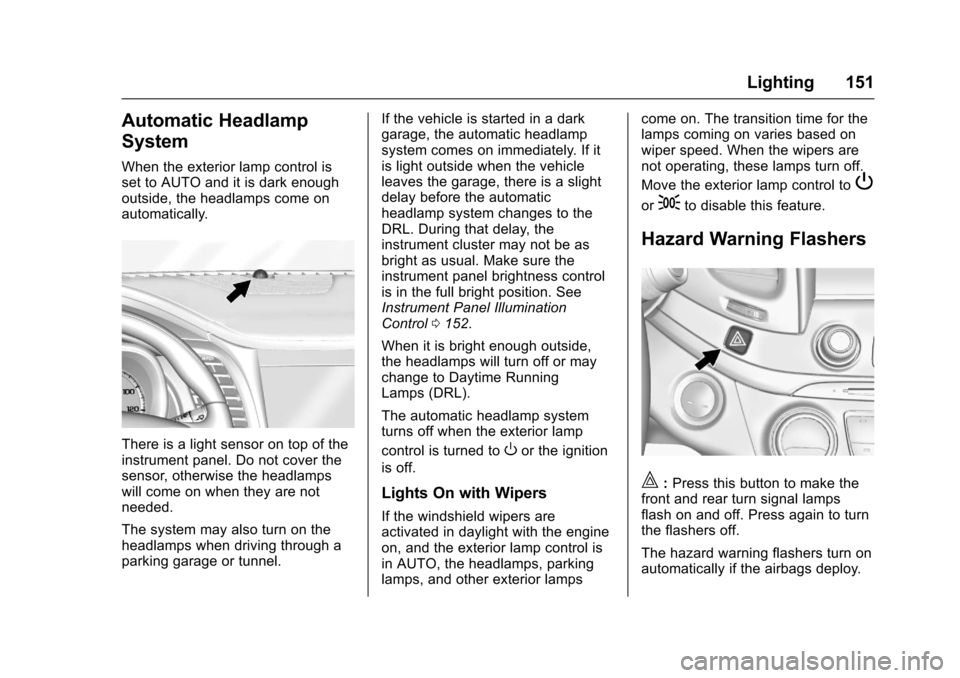
There is a light sensor on top of the
instrument panel. Do not cover the
sensor, otherwise the headlamps
will come on when they are not
needed.
The system may also turn on the
headlamps when driving through a
parking garage or tunnel.If the vehicle is started in a dark
garage, the automatic headlamp
system comes on immediately. If it
is light outside when the vehicle
leaves the garage, there is a slight
delay before the automatic
headlamp system changes to the
DRL. During that delay, the
instrument cluster may not be as
bright as usual. Make sure the
instrument panel brightness control
is in the full bright position. See
Instrument Panel Illumination
Control
0152.
When it is bright enough outside,
the headlamps will turn off or may
change to Daytime Running
Lamps (DRL).
The automatic headlamp system
turns off when the exterior lamp
control is turned toOor the ignition
is off.
Lights On with Wipers
If the windshield wipers are
activated in daylight with the engine
on, and the exterior lamp control is
in AUTO, the headlamps, parking
lamps, and other exterior lamps come on. The transition time for the
lamps coming on varies based on
wiper speed. When the wipers are
not operating, these lamps turn off.
Move the exterior lamp control to
P
or;to disable this feature.
Hazard Warning Flashers
|:
Press this button to make the
front and rear turn signal lamps
flash on and off. Press again to turn
the flashers off.
The hazard warning flashers turn on
automatically if the airbags deploy.
Page 153 of 378
Chevrolet Impala Owner Manual (GMNA-Localizing-U.S./Canada-9921197) -
2017 - crc - 3/30/16
152 Lighting
Turn and Lane-Change
Signals
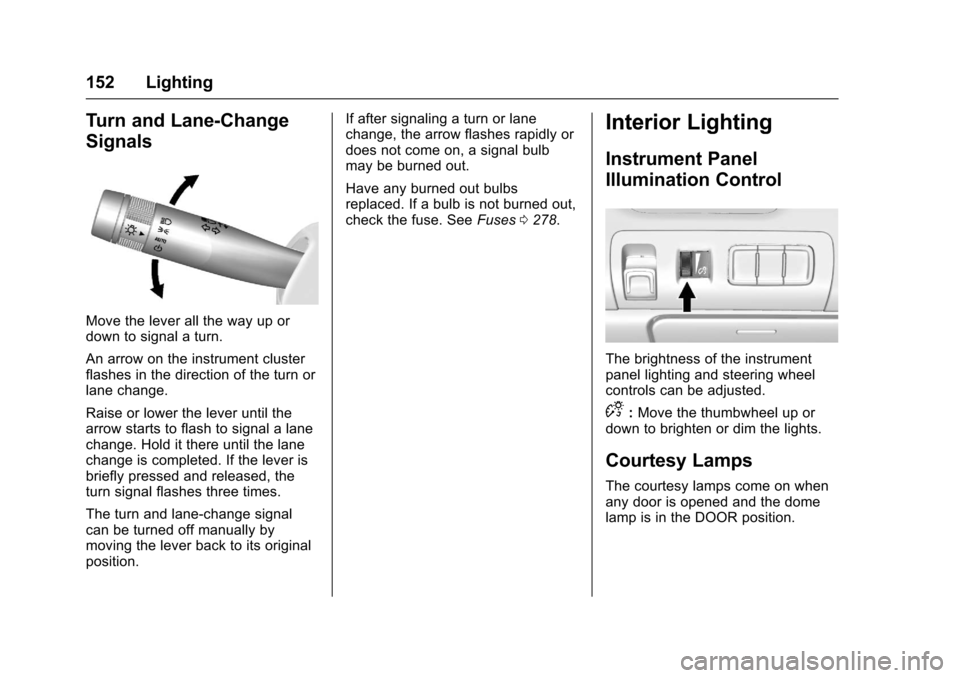
Move the lever all the way up or
down to signal a turn.
An arrow on the instrument cluster
flashes in the direction of the turn or
lane change.
Raise or lower the lever until the
arrow starts to flash to signal a lane
change. Hold it there until the lane
change is completed. If the lever is
briefly pressed and released, the
turn signal flashes three times.
The turn and lane-change signal
can be turned off manually by
moving the lever back to its original
position.If after signaling a turn or lane
change, the arrow flashes rapidly or
does not come on, a signal bulb
may be burned out.
Have any burned out bulbs
replaced. If a bulb is not burned out,
check the fuse. See
Fuses0278.
Interior Lighting
Instrument Panel
Illumination Control
The brightness of the instrument
panel lighting and steering wheel
controls can be adjusted.
D:Move the thumbwheel up or
down to brighten or dim the lights.
Courtesy Lamps
The courtesy lamps come on when
any door is opened and the dome
lamp is in the DOOR position.
Page 156 of 378
Chevrolet Impala Owner Manual (GMNA-Localizing-U.S./Canada-9921197) -
2017 - crc - 3/30/16
Lighting 155
EPM works to prevent excessive
discharge of the battery. It does this
by balancing the generator's output
and the vehicle's electrical needs.
It can increase engine idle speed to
generate more power, whenever
needed. It can temporarily reduce
the power demands of some
accessories.
Normally, these actions occur in
steps or levels, without being
noticeable. In rare cases at the
highest levels of corrective action,
this action may be noticeable to the
driver. If so, a DIC message might
be displayed and it is recommended
that the driver reduce the electrical
loads as much as possible. See
Battery Voltage and Charging
Messages0130.
Battery Power Protection
The battery saver feature is
designed to protect the vehicle's
battery. If some interior lamps are left on
and the ignition is turned off, the
battery rundown protection system
automatically turns the lamp off after
some time.
Exterior Lighting Battery
Saver
The exterior lamps turn off about
10 minutes after the ignition is
turned off, if the parking lamps or
headlamps have been manually left
on. This protects against draining
the battery. To restart the 10-minute
timer, turn the exterior lamp control
to the
Oposition and then back to
the
;or2position.
To keep the lamps on for more than
10 minutes, the ignition must be in
the ACC/ACCESSORY or ON/RUN/
START position.
Page 160 of 378
Chevrolet Impala Owner Manual (GMNA-Localizing-U.S./Canada-9921197) -
2017 - crc - 3/30/16
Infotainment System 159
7.gorl
.Pressgto seek to the
beginning of the current or
previous track. If the track
has been playing for less
than five seconds, it seeks
the previous track. If longer
than five seconds, the
current track starts from the
beginning.
. Press
gand hold to
quickly reverse through a
track. Release the button to
return to playing speed.
. Press
lto seek the next
track.
. Press
land hold to fast
forward through a track.
Release the button to return
to playing speed.
. For AM, FM, or SiriusXM (if
equipped), press
lto
seek to the next strong
station. 8. TONE
.Press to open the Tone
Settings menu.
9. RADIO .Press to change the audio
source between AM, FM,
or SiriusXM, if equipped.
10. MEDIA .Press to change the audio
source between USB, SD
Card, and AUX.
11.
O
. Press to turn the audio on.
. Press and hold to turn it off.
. When on, press to mute the
system. Press again to
unmute.
. Turn to increase or
decrease the volume.
Home Page
Home Page Features
The infotainment system displays a
Home Page that makes it easy to
access all of the applications. Turn the MENU knob to highlight
application icons. Press the MENU
knob to access the feature’
s
options.
Various functions are disabled when
the vehicle is moving.
AUDIO : Select the AUDIO screen
icon to display the active source
page. The sources available are
AM, FM, SiriusXM
®(if equipped),
USB/iPod, AUX, and SD Card
Reader. See AM-FM Radio 0162,
Satellite Radio 0163, and Auxiliary
Jack 0168.
PHONE : Select the PHONE screen
icon to display the Phone main
page. See Bluetooth (Overview)
0 169 orBluetooth (Infotainment
Controls - Base Radio) 0171 or
Bluetooth (Voice Recognition - Base
Radio) 0175.
SETTINGS : Select the SETTINGS
screen icon to display the Settings
main page. See “Setting Radio
Preferences” following.
Page 162 of 378
Chevrolet Impala Owner Manual (GMNA-Localizing-U.S./Canada-9921197) -
2017 - crc - 3/30/16
Infotainment System 161
DSP Modes (If Equipped) :This
feature has four modes:
. Normal: Adjusts the audio to
normal mode. This provides the
best sound quality for all seating
positions.
. Driver: Adjusts the audio to give
the driver the best possible
sound quality.
. Rear: Adjusts the audio to give
the rear seat occupants the best
possible sound quality.
. Centerpoint
®: Turns on Bose
Centerpoint surround
technology.
Centerpoint creates a surround
sound from nearly any audio
source: existing satellite radio and
audio players.
Maximum Startup Volume : This
feature sets the maximum startup
volume. If the vehicle is started and
the volume is greater than this level,
the volume is adjusted to this level.
To set the maximum startup volume,
Turn the MENU knob to increase or
decrease startup volume. Rear Camera (If Equipped)
From the Rear Camera screen
button, the following may be
displayed:
Rear Park Assist Symbols :
This
feature will display symbols where
objects are detected by the Rear
Parking Assist system. Select Park
Assist Symbols, then select Off
or On.
See Assistance Systems for Parking
or Backing 0229.
Guidance Lines : Select to turn Off
or On.
See Assistance Systems for Parking
or Backing 0229.
Return to Factory Settings
Select Return to Factory Settings
and the following list may display:
Restore Vehicle Settings : This
option will restore factory vehicle
personalization settings. Select
Restore Vehicle Settings. A screen
displays stating all vehicle
customization settings will be
restored to the factory settings.
Select Cancel or Continue. Clear All Private Data :
This option
clears all private information from
the vehicle. Select Clear All Private
Data. Select Cancel or Continue.
Restore Radio Settings : This
option will restore factory radio
settings. Select Restore Radio
Settings. A screen displays stating
all personalized radio settings will
be restored back to the factory
settings. Select Cancel or Continue.
English and Metric Unit
Conversion
To change the display units between
English and metric units, see “Units”
under “Settings” inInstrument
Cluster 0113.
Software Updates
See the website for more
information.
In the U.S., see www.chevrolet.com
In Canada, see
www.chevrolet.gm.ca
Page 167 of 378
Chevrolet Impala Owner Manual (GMNA-Localizing-U.S./Canada-9921197) -
2017 - crc - 3/30/16
166 Infotainment System
USB MP3 Player and USB Drives
.The USB MP3 players and USB
drives connected must comply
with the USB Mass Storage
Class specification (USB MSC).
. Hard disk drives are not
supported.
To play a USB device:
. Connect the USB.
. Press the MEDIA button on the
faceplate until the connected
device is shown.
While the USB source is active, use
the icons on the screen to operate
USB function:
t:
. Press to seek to the beginning of
the current or previous track.
If the track has been playing for
less than five seconds, it seeks
to the previous track. If longer
than five seconds, the current
track starts from the beginning.
. Press and hold to fast reverse
through a track. Release the
button to return to playing
speed. Elapsed time displays.
u:
. Press to seek to the next track.
. Press and hold to fast forward
through a track. Release the
button to return to playing
speed. Elapsed time displays.
j/r:Press to pause. Press again
to resume.
Z: Press to play the songs in
random order. Press again to
turn off.
USB Menu
Press the MENU knob to display the
USB menu and the following may
display:
Browse : Select to display the files
and folders on the USB device.
Tone Settings : Select to adjust
Bass, Midrange, Treble, Balance,
Fade, and EQ (Equalizer). See
“Tone Settings” underAM-FM
Radio 0162. Auto Volume :
If equipped, this
feature adjusts the volume based on
the vehicle speed. Select the level
between off, low, medium-low,
medium, medium-high, and high.
Press
qBACK to go to the
previous menu.
EQ (Equalizer) Settings :
If equipped, this feature adjusts the
pre-defined EQ Modes. See “EQ
(Equalizer) Settings” inAM-FM
Radio 0162.
DSP Modes : If equipped, this
feature adjusts the DSP Modes.
See “DSP Modes” inAM-FM
Radio 0162.
Playing from an iPod®
This feature supports the following
iPod models:
.
iPod nano
®(1st, 2nd, 3rd, and
4th generation)
. iPod with video (5.0 and 5.5
generation).
. iPod classic
®(6th generation)
. iPod touch
®(1st and 2nd
generation)
Page 171 of 378
Chevrolet Impala Owner Manual (GMNA-Localizing-U.S./Canada-9921197) -
2017 - crc - 3/30/16
170 Infotainment System
.Review the controls and
operation of the infotainment
system.
. Pair cell phone(s) to the vehicle.
The system may not work with
all cell phones. See “Pairing”in
this section.
. If the cell phone has voice
dialing capability, learn to use
that feature to access the
address book or contact list. See
“Voice Pass-Thru” in this
section.
. See “Storing and Deleting Phone
Numbers” in this section.
{Warning
When using a cell phone, it can
be distracting to look too long or
too often at the screen of the
phone or the infotainment system.
Taking your eyes off the road too
long or too often could cause a
crash resulting in injury or death.
Focus your attention on driving. Vehicles with a Bluetooth system
can use a Bluetooth-capable cell
phone with a Hands-Free Profile to
make and receive phone calls. The
infotainment system and voice
recognition are used to control the
system. The system can be used
while in ON/RUN or ACC/
ACCESSORY. The range of the
Bluetooth system can be up to 9.1 m
(30 ft). Not all phones support all
functions and not all phones work
with the Bluetooth system. See
www.gm.com/bluetooth for more
information about compatible
phones.
Bluetooth Controls
Use the buttons on the instrument
panel, faceplate, and the steering
wheel to operate the Bluetooth
system.
Steering Wheel Controls
g:
Press to answer incoming calls
or start voice recognition.
c: Press to end a call, reject a
call, or cancel an operation. Press
to mute or unmute the infotainment
system. Infotainment System Controls
For information about how to
navigate the menu system using the
infotainment controls, see
Overview
0158.
MENU : Turn to scroll through a list.
Press to select the highlighted list
option.
{: Press to go to the Home Page.
See Home Page 0159.
PHONE : From the Home Page,
select to enter the phone main
menu. See Bluetooth (Overview)
0 169 orBluetooth (Infotainment
Controls - Base Radio) 0171 or
Bluetooth (Voice Recognition - Base
Radio) 0175.
Voice Recognition
The voice recognition system uses
commands to control the system
and dial phone numbers.
Noise : The system may not
recognize voice commands if there
is too much background noise, such
as noise from open windows or loud
talking inside the vehicle.
Page 173 of 378
Chevrolet Impala Owner Manual (GMNA-Localizing-U.S./Canada-9921197) -
2017 - crc - 3/30/16
172 Infotainment System
press the MENU knob to select
the PHONE screen button. If a
device has been previously
paired, the main Phone menu
will be shown. If no devices
have been paired, Step 2 can
be skipped.
2. Turn the MENU knob and press to select Manage
Phones.
3. Press the button just below the PAIR screen button. A four-digit
Personal Identification Number
(PIN) appears on the display.
The PIN is used in Step 5.
4. Start the pairing process on the cell phone to be paired to the
vehicle. See your cell phone
manufacturer's user guide for
information on this process.
5. Locate the device named “Your
Vehicle” in the list on the cell
phone. Follow the instructions
on the cell phone to enter the
PIN provided in Step 3. If a six
digit code is shown on the
phone and the vehicle screen,
confirm the codes are the
same. The system recognizes the new connected phone after
the pairing process is
complete.
6. If the phone prompts to accept connection or allow phone
book download, select Always
Accept and Allow. The phone
book may not be available if
not accepted.
7. Repeat Steps 1–6 to pair additional phones or devices.
Listing All Paired and Connected
Phones 1. To list all paired devices, from the Home Page turn the MENU
knob, then press to select the
PHONE screen button.
2. Turn the MENU knob and press to select Manage
Phones.
Deleting a Paired Phone 1. From the Home Page, turn the MENU knob, then press to
select the PHONE screen
button. 2. Turn the MENU knob and
press to select Manage
Phones.
3. Turn the MENU knob to highlight the phone to be
deleted.
4. Press the button below the DELETE screen button to
delete the highlighted device.
5. A confirmation screen is displayed. Press the button just
below the DELETE screen
button to confirm deletion.
Connecting to a Different Phone 1. From the Home Page, turn the MENU knob, then press to
select the PHONE screen
button.
2. Turn the MENU knob and press to select Manage
Phones.
3. Turn the MENU knob to highlight the phone to be
connected.