Home CHEVROLET IMPALA 2020 Infotainment System Manual
[x] Cancel search | Manufacturer: CHEVROLET, Model Year: 2020, Model line: IMPALA, Model: CHEVROLET IMPALA 2020Pages: 97, PDF Size: 1.26 MB
Page 73 of 97
Chevrolet Impala Infotainment Manual (2.6) (GMNA-Localizing-U.S./Canada-
14402255) - 2020 - CRC - 6/5/19
72 Phone
Memory Full
This message may display if there is
no more room on the phone to store
messages.
Text Settings
Text Alerts :When on, this feature
will display an alert when a new text
message has been received. Touch
to turn on or off.
Manage Predefined Messages :
Touch to add, change, or delete
predefined messages.
Apple CarPlay and
Android Auto
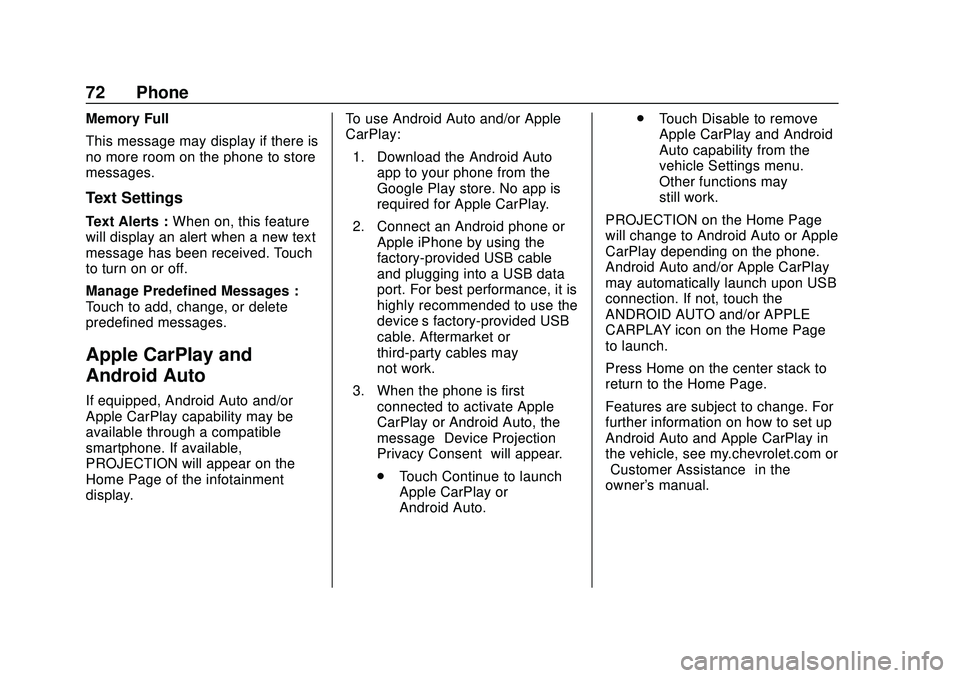
If equipped, Android Auto and/or
Apple CarPlay capability may be
available through a compatible
smartphone. If available,
PROJECTION will appear on the
Home Page of the infotainment
display. To use Android Auto and/or Apple
CarPlay:
1. Download the Android Auto app to your phone from the
Google Play store. No app is
required for Apple CarPlay.
2. Connect an Android phone or Apple iPhone by using the
factory-provided USB cable
and plugging into a USB data
port. For best performance, it is
highly recommended to use the
device’s factory-provided USB
cable. Aftermarket or
third-party cables may
not work.
3. When the phone is first connected to activate Apple
CarPlay or Android Auto, the
message “Device Projection
Privacy Consent” will appear.
. Touch Continue to launch
Apple CarPlay or
Android Auto. .
Touch Disable to remove
Apple CarPlay and Android
Auto capability from the
vehicle Settings menu.
Other functions may
still work.
PROJECTION on the Home Page
will change to Android Auto or Apple
CarPlay depending on the phone.
Android Auto and/or Apple CarPlay
may automatically launch upon USB
connection. If not, touch the
ANDROID AUTO and/or APPLE
CARPLAY icon on the Home Page
to launch.
Press Home on the center stack to
return to the Home Page.
Features are subject to change. For
further information on how to set up
Android Auto and Apple CarPlay in
the vehicle, see my.chevrolet.com or
“Customer Assistance” in the
owner's manual.
Page 77 of 97

Chevrolet Impala Infotainment Manual (2.6) (GMNA-Localizing-U.S./Canada-
14402255) - 2020 - CRC - 6/5/19
76 Settings
Display
From Display on the infotainment
display, the following may appear:
.Mode: Touch Auto, Day, or Night
to adjust the display. Touch the
Back icon on the infotainment
display to go to the
previous menu.
. Calibrate Touchscreen: Touch to
calibrate the infotainment display
and follow the prompts. Touch
the Back icon on the
infotainment display to go back
to the previous menu.
. Turn Display Off: Touch to turn
the display off. Touch anywhere
on the display area or any center
stack control again to turn the
display on.
Rear Camera
Touch to display the Rear Camera
menu. See “Driver Assistance
Systems” in the owner ’s manual.
Return to Factory Settings
Touching Continue restores all
factory settings. Select Return to Factory Settings
and the following list may display:
.
Restore Vehicle Settings:
Restores factory vehicle
personalization settings. Touch
Restore Vehicle Settings. Touch
Cancel or Continue. If continue
is touched, a confirmation
pop-up will appear indicating the
vehicle settings have been
restored.
. Clear All Private Data: If
available, use to erase personal
private data before loaning or
selling the vehicle. Touch Clear
All Private Data. Touch Cancel
or Continue. If Continue is
touched, a confirmation pop-up
will appear indicating all private
data has been cleared from the
system.
. Restore Radio Settings:
Restores factory radio settings.
Touch Restore Radio Settings.
Touch Cancel or Continue.
If Continue is touched, a
confirmation pop-up will appear
indicating the radio settings have
been restored. Press
oBACK on the center stack
or touch the Back icon on the
infotainment display to go back to
the main settings menu.
Over-the-Air Software Updates
If equipped, the infotainment system
can download and install select
software updates over a wireless
connection. The system will prompt
for certain updates to be
downloaded and installed. There is
also an option to check for updates
manually.
To manually check for updates,
touch SETTINGS on the Home
Page, followed by Software
Information, and then System
Update. Follow the on-screen
prompts. The steps to check for,
download and install updates may
vary by vehicle.
Downloading Over-the-Air vehicle
software updates requires Internet
connectivity, which can be accessed
through the vehicle’ s built-in 4G LTE
connection, if equipped and active.
If required, data plans are provided
by a third party. Optionally, a secure
Page 78 of 97

Chevrolet Impala Infotainment Manual (2.6) (GMNA-Localizing-U.S./Canada-
14402255) - 2020 - CRC - 6/5/19
Settings 77
Wi-Fi hotspot such as a compatible
mobile device hotspot, home
hotspot or public hotspot can be
used. Applicable data rates may
apply.
To connect the infotainment system
to a secured mobile device hotspot,
home hotspot, or a public hotspot,
touch SETTINGS on the Home
Page, followed by Wi-Fi, and then
Manage Wi-Fi Networks. Select the
appropriate Wi-Fi network, and
follow the on-screen prompts.
Download speeds may vary.
On most compatible mobile devices,
activation of the Wi-Fi hotspot is in
the Settings menu under Mobile
Network Sharing, Personal Hotspot,
Mobile Hotspot or similar.
Availability of Over-the-Air software
updates varies by vehicle and
country. Features are subject to
change. For more information on
this feature, see my.chevrolet.com/
learn.English and Metric Unit
Conversion
To change the display units between
English and metric units, see
“Instrument Cluster”in the owner’s
manual.
Teen Driver
If equipped, this allows multiple
keys to be registered for beginner
drivers to encourage safe driving
habits. When the vehicle is started
with a Teen Driver key, it will
automatically activate certain safety
systems, allow setting of some
features, and limit the use of others.
The Report Card will record vehicle
data about driving behavior that can
be viewed later. When the vehicle is
started with a registered key, the
Driver Information Center (DIC)
displays a message that Teen Driver
is active.
To access:
1. Touch Settings on the Home Page, then touch Teen Driver. 2. Create a Personal Identification
Number (PIN) by choosing a
four-digit PIN. Re-enter the PIN
to confirm. To change the PIN,
touch Change PIN.
The PIN is required to:
. Register or unregister keys.
. Change Teen Driver settings.
. Change or clear the Teen
Driver PIN.
. Access or delete Report
Card data.
Register keys to activate Teen
Driver:
Any vehicle key can be registered,
up to a maximum of eight keys.
Label the key to tell it apart from the
other keys.
For a pushbutton start system: 1. Start the engine.
2. For automatic transmissions, the vehicle must be in P (Park).
For manual transmissions, the
vehicle must be stopped with
the parking brake set.
Page 94 of 97
Chevrolet Impala Infotainment Manual (2.6) (GMNA-Localizing-U.S./Canada-
14402255) - 2020 - CRC - 6/5/19
Index 93
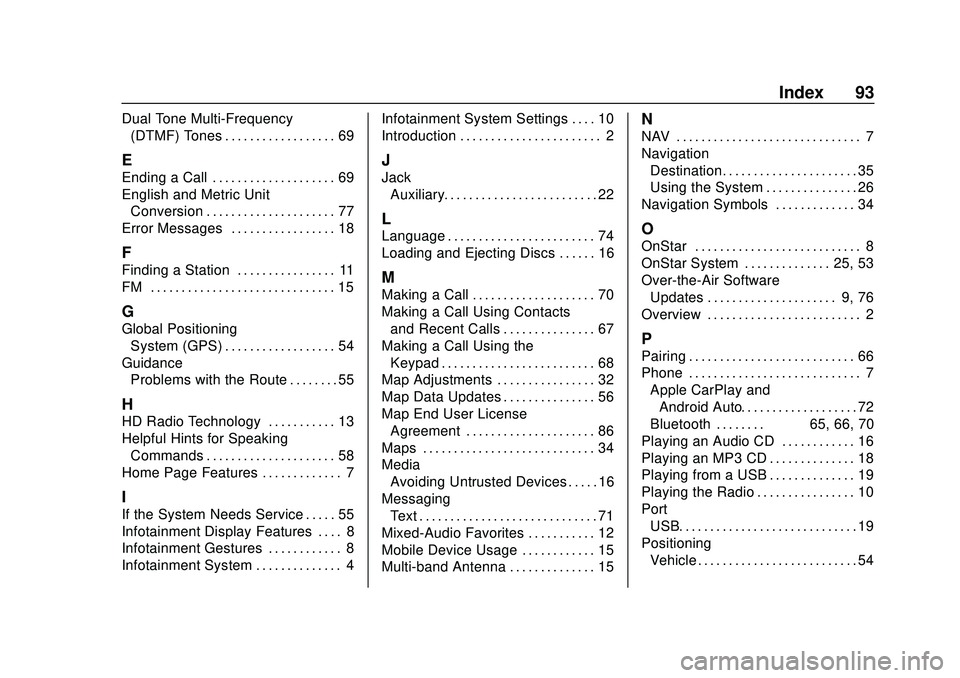
Dual Tone Multi-Frequency(DTMF) Tones . . . . . . . . . . . . . . . . . . 69
E
Ending a Call . . . . . . . . . . . . . . . . . . . . 69
English and Metric UnitConversion . . . . . . . . . . . . . . . . . . . . . 77
Error Messages . . . . . . . . . . . . . . . . . 18
F
Finding a Station . . . . . . . . . . . . . . . . 11
FM . . . . . . . . . . . . . . . . . . . . . . . . . . . . . . 15
G
Global Positioning System (GPS) . . . . . . . . . . . . . . . . . . 54
Guidance Problems with the Route . . . . . . . . 55
H
HD Radio Technology . . . . . . . . . . . 13
Helpful Hints for Speaking
Commands . . . . . . . . . . . . . . . . . . . . . 58
Home Page Features . . . . . . . . . . . . . 7
I
If the System Needs Service . . . . . 55
Infotainment Display Features . . . . 8
Infotainment Gestures . . . . . . . . . . . . 8
Infotainment System . . . . . . . . . . . . . . 4 Infotainment System Settings . . . . 10
Introduction . . . . . . . . . . . . . . . . . . . . . . . 2
J
Jack
Auxiliary. . . . . . . . . . . . . . . . . . . . . . . . . 22
L
Language . . . . . . . . . . . . . . . . . . . . . . . . 74
Loading and Ejecting Discs . . . . . . 16
M
Making a Call . . . . . . . . . . . . . . . . . . . . 70
Making a Call Using Contactsand Recent Calls . . . . . . . . . . . . . . . 67
Making a Call Using the Keypad . . . . . . . . . . . . . . . . . . . . . . . . . 68
Map Adjustments . . . . . . . . . . . . . . . . 32
Map Data Updates . . . . . . . . . . . . . . . 56
Map End User License
Agreement . . . . . . . . . . . . . . . . . . . . . 86
Maps . . . . . . . . . . . . . . . . . . . . . . . . . . . . 34
Media Avoiding Untrusted Devices . . . . . 16
Messaging Text . . . . . . . . . . . . . . . . . . . . . . . . . . . . . 71
Mixed-Audio Favorites . . . . . . . . . . . 12
Mobile Device Usage . . . . . . . . . . . . 15
Multi-band Antenna . . . . . . . . . . . . . . 15
N
NAV . . . . . . . . . . . . . . . . . . . . . . . . . . . . . . 7
Navigation Destination. . . . . . . . . . . . . . . . . . . . . . 35
Using the System . . . . . . . . . . . . . . . 26
Navigation Symbols . . . . . . . . . . . . . 34
O
OnStar . . . . . . . . . . . . . . . . . . . . . . . . . . . 8
OnStar System . . . . . . . . . . . . . . 25, 53
Over-the-Air Software Updates . . . . . . . . . . . . . . . . . . . . . 9, 76
Overview . . . . . . . . . . . . . . . . . . . . . . . . . 2
P
Pairing . . . . . . . . . . . . . . . . . . . . . . . . . . . 66
Phone . . . . . . . . . . . . . . . . . . . . . . . . . . . . 7 Apple CarPlay andAndroid Auto. . . . . . . . . . . . . . . . . . . 72
Bluetooth . . . . . . . . 65, 66, 70
Playing an Audio CD . . . . . . . . . . . . 16
Playing an MP3 CD . . . . . . . . . . . . . . 18
Playing from a USB . . . . . . . . . . . . . . 19
Playing the Radio . . . . . . . . . . . . . . . . 10
Port
USB. . . . . . . . . . . . . . . . . . . . . . . . . . . . . 19
Positioning Vehicle . . . . . . . . . . . . . . . . . . . . . . . . . . 54