driver CHEVROLET IMPALA 2020 Infotainment System Manual
[x] Cancel search | Manufacturer: CHEVROLET, Model Year: 2020, Model line: IMPALA, Model: CHEVROLET IMPALA 2020Pages: 97, PDF Size: 1.26 MB
Page 11 of 97
Chevrolet Impala Infotainment Manual (2.6) (GMNA-Localizing-U.S./Canada-
14402255) - 2020 - CRC - 6/5/19
10 Radio
Radio
AM-FM Radio
Playing the Radio
While on the Audio main page the
available sources are: AM, FM,
SXM (if equipped), CD (if equipped),
MyMedia, USB, Bluetooth, and AUX
Input.
.Press RADIO on the center
stack or touch the Audio icon on
the Home Page to scroll through
AM, FM, or SXM (if equipped).
. Press MEDIA on the center
stack or touch the Audio icon on
the Home Page to access Media
and scroll through CD (if
equipped), MyMedia, USB,
Bluetooth, and AUX Input.
Infotainment System Settings
Press RADIO on the center stack to
access broadcast sources. Touch the Menu icon on the
infotainment display to display the
following menus:
Tone Settings:
.
Bass, Midrange, Treble,
Surround (if equipped): Touch +
or–to adjust. Surround adjusts
the headrest speaker
volume only.
. Balance: Touch
SorTfor more
sound from the left or right
speakers. The middle position
balances the sound between the
left and right speakers.
. Fade: Touch
yorzfor more
sound from the front or rear
speakers. The middle position
balances the sound between the
front and rear speakers.
DSP Modes (If Equipped):
. Bose Centerpoint surround
sound system has four DSP
modes:
‐Normal: Adjusts the audio to
provide the best sound for all
seating positions. ‐
Driver: Adjusts the audio to
provide the best sound for the
driver.
‐ Rear: Adjusts the audio to
provide the best sound for the
rear seat occupants.
‐ Centerpoint: Turns on Bose
Centerpoint surround
technology. This setting
creates a surround sound from
nearly any audio source:
existing stereo, CD collection,
and MP3 players. For more
information on Bose
Centerpoint surround
technology, see
www.boseautomotive.com.
Categories : Touch Categories
under the Audio menu to access the
categories list for AM, FM, or SXM
(if equipped). The list contains
names associated with the AM, FM,
and SXM, if equipped, stations or
channels. Touch a category name to
display a list of stations or channels
for that category. Touching a station
or channel from the list tunes the
radio to that station or channel and
returns the display to Now Playing.
Page 30 of 97
Chevrolet Impala Infotainment Manual (2.6) (GMNA-Localizing-U.S./Canada-
14402255) - 2020 - CRC - 6/5/19
Navigation 29
turns the traffic avoidance feature
On and performs the desired
selection.
The two options, Ask Me Before
Avoiding and Automatically Avoid
Traffic will adjust the system as
follows:
.If the Automatically Avoid Traffic
list item is touched, the system
will automatically adjust the
route based on traffic without
notifying the driver.
. If the Ask Me Before Avoiding
list item is touched, the system
will always use Alerts to show
when there is an incident and
allow it to be avoided by
touching Avoid.
If the Traffic list item is touched from
the Map Menu and Traffic is not
available because the SiriusXM
subscription is not valid, a pop-up
will display with information on how
to reactivate the subscription along
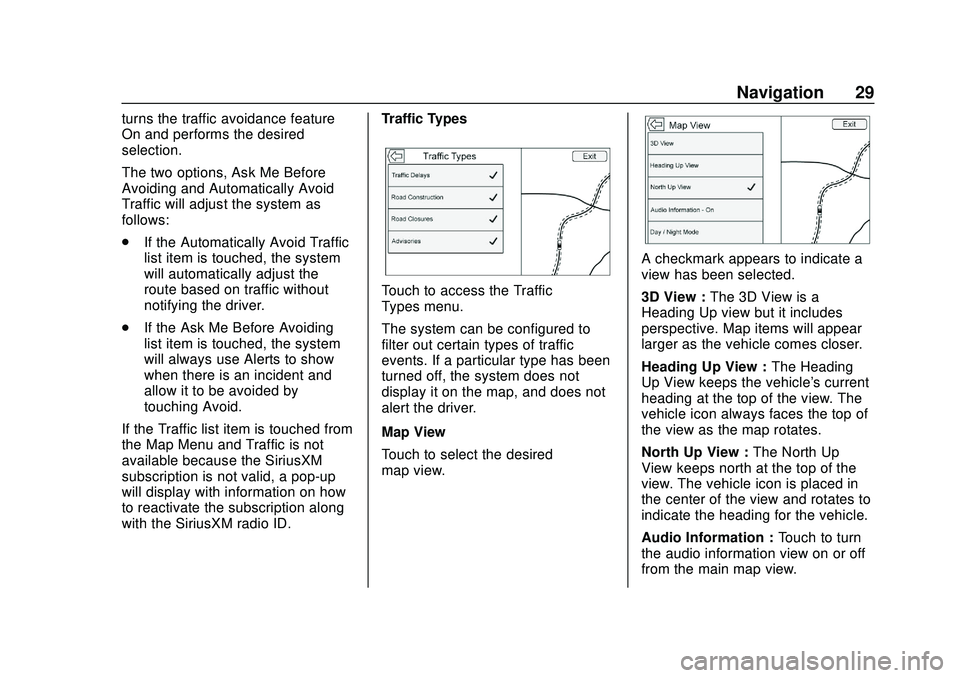
with the SiriusXM radio ID. Traffic Types
Touch to access the Traffic
Types menu.
The system can be configured to
filter out certain types of traffic
events. If a particular type has been
turned off, the system does not
display it on the map, and does not
alert the driver.
Map View
Touch to select the desired
map view.
A checkmark appears to indicate a
view has been selected.
3D View :
The 3D View is a
Heading Up view but it includes
perspective. Map items will appear
larger as the vehicle comes closer.
Heading Up View : The Heading
Up View keeps the vehicle's current
heading at the top of the view. The
vehicle icon always faces the top of
the view as the map rotates.
North Up View : The North Up
View keeps north at the top of the
view. The vehicle icon is placed in
the center of the view and rotates to
indicate the heading for the vehicle.
Audio Information : Touch to turn
the audio information view on or off
from the main map view.
Page 37 of 97
Chevrolet Impala Infotainment Manual (2.6) (GMNA-Localizing-U.S./Canada-
14402255) - 2020 - CRC - 6/5/19
36 Navigation
.Recent (destinations)
. Contacts
Touch the Destination icon on the
infotainment display and the last
used destination view is shown.
This mode is retained. The initial
default is Address.
Navigation Next Turn Maneuver
Alert
The navigation system may need to
get the attention of the driver in
certain situations.
If not in the navigation application
when a near maneuver prompt is
given, it is shown as an alert. The
alert contains the turn indicator and
the option to display the main
navigation view, or dismiss the alert.
The alert also contains the name of
the street to turn on and a
countdown bar.
Auto-Capitalization
The shift key is automatically
enabled when a period is entered
on the keyboard. Once the first character is typed after the period,
the next character will change to
lower-case.
Alpha-Numeric Keyboard
The keyboard is used in multiple
locations throughout the system and
can be used with many features.
The navigation system uses the
keyboard's alpha-numeric keyboard.
The keyboard can also be modified
to include characters appropriate for
the region configured in the vehicle
settings.
@:
Touch to search for the
destination details of an address or
place of interest entered in the text
field. Once
@is touched, the
activity indicator displays in the list
of possible matches.
|: Touch to display a list of
matches.
When there are multiple matches, a
dropdown arrow is shown after the
autocomplete text. This dropdown
displays an entire list of matches.
Touch the appropriate match without
having to enter more text.
z: Touch to delete the last typed
character. Touch and hold this icon
to clear the entire text field. If the
entire text field has been deleted,
this icon becomes an Undo option.
Touching Undo will restore the
deleted text.
Exit : Touch to return to the
previous Map view.
SYM : Touch to show the symbol
keyboard.
Space : Touch to enter a space
between characters or the words of
a name.
R: Touch to display the
interaction selector.
E: If equipped, touch to switch
between Alpha-Numeric Keyboard
and Character Recognition.
Special Characters
As the characters are typed on the
keyboard, a pop-up of the letter
touched displays above the key that
was touched.
Page 66 of 97
Chevrolet Impala Infotainment Manual (2.6) (GMNA-Localizing-U.S./Canada-
14402255) - 2020 - CRC - 6/5/19
Phone 65
Phone
Bluetooth (Overview)
The Bluetooth-capable system can
interact with many cell phones,
allowing:
.Placement and receipt of calls in
a hands-free mode.
. Sharing of the cell phone’s
address book or contact list with
the vehicle.
To minimize driver distraction,
before driving, and with the vehicle
parked:
. Become familiar with the
features of the cell phone.
Organize the phone book and
contact lists clearly and delete
duplicate or rarely used entries.
If possible, program speed dial
or other shortcuts.
. Review the controls and
operation of the infotainment
system. .
Pair cell phone(s) to the vehicle.
The system may not work with
all cell phones. See “Pairing”in
this section.
Vehicles with a Bluetooth system
can use a Bluetooth-capable cell
phone with a Hands-Free Profile to
make and receive phone calls. The
infotainment system and voice
recognition are used to control the
system. The system can be used
while the ignition is on or in ACC/
ACCESSORY. The range of the
Bluetooth system can be up to 9.1 m
(30 ft). Not all phones support all
functions and not all phones work
with the Bluetooth system. See
www.gm.com/bluetooth for more
information about compatible
phones.
Bluetooth Controls
Use the features on the infotainment
system and the steering wheel to
operate the Bluetooth system. Steering Wheel Controls
g:
Press to answer incoming calls,
confirm system information, and
start voice recognition.
i: Press to end a call, decline a
call, or cancel an operation. Press
to mute or unmute the infotainment
system when not on a call.
Infotainment System Controls
For information about how to
navigate the menu system using the
infotainment controls, see Using the
System 07.
PHONE : Touch the Phone icon on
the Home Page to enter the phone
main menu.
Audio System
When using the Bluetooth system,
sound comes through the vehicle's
front audio system speakers and
overrides the audio system. Turn
the volume knob during a call to
change the volume level. The
adjusted volume level remains in
memory for later calls. The system
maintains a minimum volume level.
Page 77 of 97

Chevrolet Impala Infotainment Manual (2.6) (GMNA-Localizing-U.S./Canada-
14402255) - 2020 - CRC - 6/5/19
76 Settings
Display
From Display on the infotainment
display, the following may appear:
.Mode: Touch Auto, Day, or Night
to adjust the display. Touch the
Back icon on the infotainment
display to go to the
previous menu.
. Calibrate Touchscreen: Touch to
calibrate the infotainment display
and follow the prompts. Touch
the Back icon on the
infotainment display to go back
to the previous menu.
. Turn Display Off: Touch to turn
the display off. Touch anywhere
on the display area or any center
stack control again to turn the
display on.
Rear Camera
Touch to display the Rear Camera
menu. See “Driver Assistance
Systems” in the owner ’s manual.
Return to Factory Settings
Touching Continue restores all
factory settings. Select Return to Factory Settings
and the following list may display:
.
Restore Vehicle Settings:
Restores factory vehicle
personalization settings. Touch
Restore Vehicle Settings. Touch
Cancel or Continue. If continue
is touched, a confirmation
pop-up will appear indicating the
vehicle settings have been
restored.
. Clear All Private Data: If
available, use to erase personal
private data before loaning or
selling the vehicle. Touch Clear
All Private Data. Touch Cancel
or Continue. If Continue is
touched, a confirmation pop-up
will appear indicating all private
data has been cleared from the
system.
. Restore Radio Settings:
Restores factory radio settings.
Touch Restore Radio Settings.
Touch Cancel or Continue.
If Continue is touched, a
confirmation pop-up will appear
indicating the radio settings have
been restored. Press
oBACK on the center stack
or touch the Back icon on the
infotainment display to go back to
the main settings menu.
Over-the-Air Software Updates
If equipped, the infotainment system
can download and install select
software updates over a wireless
connection. The system will prompt
for certain updates to be
downloaded and installed. There is
also an option to check for updates
manually.
To manually check for updates,
touch SETTINGS on the Home
Page, followed by Software
Information, and then System
Update. Follow the on-screen
prompts. The steps to check for,
download and install updates may
vary by vehicle.
Downloading Over-the-Air vehicle
software updates requires Internet
connectivity, which can be accessed
through the vehicle’ s built-in 4G LTE
connection, if equipped and active.
If required, data plans are provided
by a third party. Optionally, a secure
Page 78 of 97

Chevrolet Impala Infotainment Manual (2.6) (GMNA-Localizing-U.S./Canada-
14402255) - 2020 - CRC - 6/5/19
Settings 77
Wi-Fi hotspot such as a compatible
mobile device hotspot, home
hotspot or public hotspot can be
used. Applicable data rates may
apply.
To connect the infotainment system
to a secured mobile device hotspot,
home hotspot, or a public hotspot,
touch SETTINGS on the Home
Page, followed by Wi-Fi, and then
Manage Wi-Fi Networks. Select the
appropriate Wi-Fi network, and
follow the on-screen prompts.
Download speeds may vary.
On most compatible mobile devices,
activation of the Wi-Fi hotspot is in
the Settings menu under Mobile
Network Sharing, Personal Hotspot,
Mobile Hotspot or similar.
Availability of Over-the-Air software
updates varies by vehicle and
country. Features are subject to
change. For more information on
this feature, see my.chevrolet.com/
learn.English and Metric Unit
Conversion
To change the display units between
English and metric units, see
“Instrument Cluster”in the owner’s
manual.
Teen Driver
If equipped, this allows multiple
keys to be registered for beginner
drivers to encourage safe driving
habits. When the vehicle is started
with a Teen Driver key, it will
automatically activate certain safety
systems, allow setting of some
features, and limit the use of others.
The Report Card will record vehicle
data about driving behavior that can
be viewed later. When the vehicle is
started with a registered key, the
Driver Information Center (DIC)
displays a message that Teen Driver
is active.
To access:
1. Touch Settings on the Home Page, then touch Teen Driver. 2. Create a Personal Identification
Number (PIN) by choosing a
four-digit PIN. Re-enter the PIN
to confirm. To change the PIN,
touch Change PIN.
The PIN is required to:
. Register or unregister keys.
. Change Teen Driver settings.
. Change or clear the Teen
Driver PIN.
. Access or delete Report
Card data.
Register keys to activate Teen
Driver:
Any vehicle key can be registered,
up to a maximum of eight keys.
Label the key to tell it apart from the
other keys.
For a pushbutton start system: 1. Start the engine.
2. For automatic transmissions, the vehicle must be in P (Park).
For manual transmissions, the
vehicle must be stopped with
the parking brake set.
Page 79 of 97

Chevrolet Impala Infotainment Manual (2.6) (GMNA-Localizing-U.S./Canada-
14402255) - 2020 - CRC - 6/5/19
78 Settings
3. From the Settings menu, touchTeen Driver.
4. Enter the PIN.
5. Place the Remote Keyless Entry (RKE) transmitter key in
the transmitter pocket. See
“Remote Keyless Entry (RKE)
System Operation” in the
owner's manual for transmitter
pocket location.
6. From the Teen Driver Menu, touch Key Registration.
.If the transmitter key is in
the transmitter pocket, it will
identify whether the
transmitter key is registered
or unregistered.
. If the transmitter key is not
registered, the option to
register displays. Touch
Register and a confirmation
message displays.
. If the transmitter key is
already registered, the
option to unregister
displays. If Unregister is
touched, the transmitter key is no longer registered and
a confirmation message
displays.
In vehicles with a pushbutton start
system, if a Teen Driver transmitter
key and a non-Teen Driver
transmitter key are both present at
start up, the vehicle will recognize
the non-Teen Driver transmitter key
to start the vehicle. The Teen Driver
settings will not be active.
For a keyed ignition system: 1. Start the engine.
2. For automatic transmissions, the vehicle must be in P (Park).
For manual transmissions, the
vehicle must be stopped with
the parking brake set.
3. From the Settings menu, touch Teen Driver.
4. Enter the PIN.
5. Touch Key Registration. The system displays instructions for
registering or unregistering a
key. A confirmation message
displays. Manage Settings
Audio Volume Limit :
Allows a
maximum radio volume to be set.
Turn the audio volume limit On or
Off and choose the maximum level
for the audio volume.
Teen Driver Speed Warning :
Allows for setting a visual and
audible warning when a certain
speed is exceeded. The speed
warning is selectable. The speed
warning does not limit the speed of
the vehicle.
Teen Driver Speed Limiter : Allows
the maximum speed of the vehicle
to be limited. When the speed
limiter is turned On and the vehicle
is started with a Teen Driver key, the
DIC displays a message that the top
speed is limited.
On certain vehicles, when the
Speed Limiter is turned ON, the
vehicle’s maximum acceleration will
be limited. The DIC will display a
message that the acceleration is
limited.
Page 80 of 97
Chevrolet Impala Infotainment Manual (2.6) (GMNA-Localizing-U.S./Canada-
14402255) - 2020 - CRC - 6/5/19
Settings 79
When Teen Driver is Active:
.If equipped with Buckle to Drive,
shifting out of P (Park) will be
prevented if the driver seat belt,
and in some vehicles the front
passenger seat belt, is not
buckled. See “Buckle to Drive” in
the owner ’s manual.
. The radio will mute when the
driver seat belt, and in some
vehicles the front passenger
seat belt, is not buckled. The
audio from any device paired to
the vehicle will also be muted.
. An object placed on the front
passenger seat, such as a
briefcase, handbag, grocery bag,
laptop, or other electronic
device, could cause the
passenger sensing system to
falsely sense an unbuckled front
passenger and mute the radio.
If this happens, remove the
object from the seat. See
“Passenger Sensing System” in
the owner's manual. .
Some safety systems, such as
Lane Departure Warning,
if equipped, cannot be turned
off. They may include: Park
Assist, Side Blind Zone Alert,
Lane Change Alert, Rear Cross
Traffic Alert, Forward Collision
Alert, Automatic Emergency
Braking, Pedestrian Braking,
Lane Departure Warning, Lane
Keep Assist, Daytime Running
Lamps/Automatic Light Control,
Traction Control, Stability
Control, and Antilock Brakes.
. The gap setting for the Forward
Collision Alert and Adaptive
Cruise Control, if equipped,
cannot be changed.
. When trying to change a safety
feature that is not configurable in
Teen Driver, the DIC displays a
message indicating that Teen
Driver is active and the action is
not available.
. Enhanced Low Fuel Warning (if
equipped) –When the vehicle is
low on fuel, the low fuel light on the instrument cluster flashes
and the DIC low fuel warning
cannot be dismissed.
Report Card
The vehicle owner must secure the
driver ’s consent to record certain
vehicle data when the vehicle is
driven with a registered Teen Driver
key. There is one Report Card per
vehicle. Data is not recorded when
Teen Driver is not active.
The Report Card data is collected
from the time Teen Driver is
activated or the last time the Report
Card was reset. The following items
may be recorded:
. Distance Driven –the total
distance driven.
. Maximum Speed –the maximum
vehicle speed recorded.
. Overspeed Warnings –the
number of times the speed
warning setting was exceeded.
. Wide Open Throttle –the
number of times the accelerator
pedal is pressed nearly all the
way down.
Page 81 of 97
Chevrolet Impala Infotainment Manual (2.6) (GMNA-Localizing-U.S./Canada-
14402255) - 2020 - CRC - 6/5/19
80 Settings
.Forward Collision Alerts –the
number of times the driver was
notified when approaching a
vehicle ahead too quickly and at
potential risk for a crash.
. Forward Collision Avoidance
Braking (if equipped) –Also
referred to as Automatic
Emergency Braking, this is the
number of times the vehicle
detected that a forward collision
was imminent and applied the
brakes.
. Traction Control –the number of
times the traction control system
activated to reduce wheel spin
or loss of traction.
. Stability Control –the number of
events which required the use of
electronic stability control.
. ABS Active –Also referred to as
Antilock Brake System Active,
the number of Antilock Brake
System activations.
. Tailgating Alerts –the number of
times the driver was alerted for
following the vehicle ahead too
closely. Delete Report Card Data
Data is saved for all trips until the
data is deleted using the PIN or until
the maximum count is exceeded.
Each item will report a maximum of
1,000 counts. The distance driven
will report a maximum of 64,374 km
(40,000 mi).
To delete Report Card data, do one
of the following:
.
From the Report Card display,
touch Reset.
. Touch Clear All Teen Keys/PIN
from the Teen Driver menu. This
will also unregister any Teen
Driver keys and delete the PIN.
Forgotten PIN
See your dealer to reset the PIN.
Page 93 of 97
Chevrolet Impala Infotainment Manual (2.6) (GMNA-Localizing-U.S./Canada-
14402255) - 2020 - CRC - 6/5/19
92 Index
Index4
4G LTE . . . . . . . . . . . . . . . . . . . . . . . . . . 25
A
Accepting or Declining a Call . . . . 68
AgreementsTrademarks and License . . . . . . . . 81
AM . . . . . . . . . . . . . . . . . . . . . . . . . . . . . . 15
AM-FM Categories . . . . . . . . . . . . . . 12
AM-FM Radio . . . . . . . . . . . . . . . . . . . . 10
Antenna Multi-band. . . . . . . . . . . . . . . . . . . . . . . 15
Apple CarPlay and Android Auto . . . . . . . . . . . . . . . . . . . 72
Applications Tray . . . . . . . . . . . . . . . . . 8
Apps . . . . . . . . . . . . . . . . . . . . . . . . . . . . . . 7
Audio . . . . . . . . . . . . . . . . . . . . . . . . . . . . . 7
Bluetooth. . . . . . . . . . . . . . . . . . . . . . . . 23
Audio Players CD . . . . . . . . . . . . . . . . . . . . . . . . . . . . . . 16
Audio System . . . . . . . . . . . . . . . . . . . . 65
Auxiliary Jack . . . . . . . . . . . . . . . . . . . . 22
Avoiding Untrusted Media Devices . . . . . . . . . . . . . . . . . . . . . . . . 16
B
Bluetooth . . . . . . . . . . . . . . . . . . . . . . . . 75
Overview . . . . . . . . 65, 66, 70
Bluetooth Audio . . . . . . . . . . . . . . . . . 23
Bluetooth Controls . . . . . . . . . . . . . . . 65
C
Call Waiting . . . . . . . . . . . . . . . . . . . . . . 68
Canceling Voice Recognition . . . . 58
CD Player . . . . . . . . . . . . . . . . . . . . . . . 16
Character Handwriting Recognition . . . . . . . . . . . . . . . . . . . . 37
Cleaning High Gloss Surfaces and Vehicle Information and
Radio Displays . . . . . . . . . . . . . . . . . . 9
Clearing the System . . . . . . . . . . . . . 71
Controls Steering Wheel. . . . . . . . . . . . . . . . . . . 6
Coverage Explanations . . . . . . . . . . 56
D
Database Coverage Explanations . . . . . . . . . . . . . . . . . . . 56
Destination . . . . . . . . . . . . . . . . . . . . . . 35
Detailed Areas . . . . . . . . . . . . . . . . . . . 34
Display . . . . . . . . . . . . . . . . . . . . . . . . . . 76
Driver Teen . . . . . . . . . . . . . . . . . . . . . . . . . . . . 77