phone CHEVROLET LOW CAB FORWARD 2019 Owner's Manual
[x] Cancel search | Manufacturer: CHEVROLET, Model Year: 2019, Model line: LOW CAB FORWARD, Model: CHEVROLET LOW CAB FORWARD 2019Pages: 382, PDF Size: 5.95 MB
Page 98 of 382
Chevrolet Low Cab Forward 5.2L Diesel Engine 4500/5500 Series (GMNA-
Localizing-U.S.-12407814) - 2019 - crc - 12/13/17
Infotainment System 97
Infotainment
System
Radio
AM-FM Radio . . . . . . . . . . . . . . . . . . 97
Radio Reception . . . . . . . . . . . . . . 101
Fixed Mast Antenna . . . . . . . . . . 102
Audio Players
CD Player . . . . . . . . . . . . . . . . . . . . 102
USB Port . . . . . . . . . . . . . . . . . . . . . 109
Auxiliary Devices . . . . . . . . . . . . . 117
Bluetooth Audio . . . . . . . . . . . . . . 118
Phone
Bluetooth . . . . . . . . . . . . . . . . . . . . . 121
Trademarks and License
Agreements
Trademarks and LicenseAgreements . . . . . . . . . . . . . . . . . 129
Radio
AM-FM Radio
Control Panel
{Warning
Adjust the radio or CD player only
while the vehicle is stationary.
Adjusting them while the vehicle
is moving could cause a crash.
You and others could be seriously
injured.
Adjust the volume so that sound
outside of the vehicle can be heard.
If outside sound cannot be heard,
crashes may be harder to avoid.
Do not install a radio equipment
antenna near the vehicle's radio
antenna. This could cause
unwanted noise on the radio or
while playing a CD. The radio or CD/USB player can be
used when the ignition is on or in
ACC/ACCESSORY. Continued use
while engine is stopped may cause
the battery to discharge.
Take care not to spill liquids, etc. on
the radio or CD player. It may cause
damage to the player.
Do not disassemble or apply oil to
radio or CD player.
Page 102 of 382
Chevrolet Low Cab Forward 5.2L Diesel Engine 4500/5500 Series (GMNA-
Localizing-U.S.-12407814) - 2019 - crc - 12/13/17
Infotainment System 101
2. Press and hold Tune/Tracky
orzfor more than
two seconds. The radio keeps
searching for stations within its
available frequency band. To
cancel, press the button again.
When Tune/Track
yis pressed, the
radio is tuned to the higher
frequency range (step up), and to
the lower frequency range (step
down) when pressing Tune/
Track
z.
In either cases, if the radio cannot
find stations, it continues searching.
Storing the Stations (PRESET)
Favorite stations can be tuned by
one touch operation if they are
stored in the Preset buttons.
A maximum of 30 stations can be
saved. 12 in AM (six each for
AM1 and AM2.), and 18 in FM (six
each for FM1, FM2 and FM3.) 1. Select the radio mode to be stored from FM1, FM2, FM3,
AM1 or AM2. 2. Tune in the station of your
choice.
3. Press and hold down the Preset buttons you want to
store in, for more than
two seconds. When the station
is stored, the Preset button
number and station frequency
appear on the display window.
Radio Reception
Usually, a problem with radio
reception does not mean there is a
problem with your radio. It is just the
normal result of conditions outside
the vehicle. For example, nearby
buildings and terrain can interfere
with FM reception. Power lines or
telephone wires can interfere with
AM signals.
And of course, radio signals have a
limited range. The farther you are
from a station, the weaker its signal
will be. In addition, reception
conditions change constantly as
your vehicle moves. Here are some common reception
problems that probably do not
indicate a problem with your radio.
FM Transmissions
Fading and drifting stations -
Generally, the effective range of FM
is about 40 km (25 miles). Once
outside this range, you may notice
fading and drifting, which increase
with the distance from the radio
transmitter. They are often
accompanied by distortion.
Multi-path - FM signals are
reflective, making it possible for two
signals to reach your antenna at the
same time. If this happens, the
signals will cancel each other out,
causing a momentary flutter or loss
of reception.
Static and fluttering - These occur
when signals are blocked by
buildings, trees, or other large
objects. Increasing the bass level
may reduce static and fluttering.
Station swapping - If the FM signal
you are listening to is interrupted or
weakened, and there is another
strong station nearby on the FM
Page 118 of 382

Chevrolet Low Cab Forward 5.2L Diesel Engine 4500/5500 Series (GMNA-
Localizing-U.S.-12407814) - 2019 - crc - 12/13/17
Infotainment System 117
Playable WMA File Standards
.Supported standards:
. Supported sampling frequencies:
32, 44.1, 48 (kHz)
. Supported bit rates: Ver. 7, 8:
CBR 48, 64, 80, 96, 128, 160,
192 (kbps) Ver. 9 (9.1/9.2): CBR
48, 64, 80, 96, 128, 160, 192,
256, 320 (kbps)
Only compatible with 2-channel
playback
. Variable bit rate (VBR) is
supported.
. Lossless compression is not
supported.
ID3 Tag/WMA Tag
MP3/WMA files have an ID3 Tag/
WMA Tag that allows the input of
information so that data such as
song title and artist can be saved.
This deck supports ID3 Ver. 1.0, 1.1,
2.2, 2.3 and WMA tags. Display Order of MP3/WMA File/
Folder Names
Names of MP3/WMA folders and
files within the same level are
displayed in the following order.
1. MP3/WMA folders displayed first, by ascending order of
numbers, letters. The files
stored just below the root of the
disc will be stored in the ROOT
FOLDER.
2. Files displayed next, by ascending order of numbers,
letters. It is assumed here that
a disc has already been loaded
into the unit.
Normally, tracks in ROOT FOLDER
will be played in order from the
first file.
Auxiliary Devices
AUX Operation
By connecting the 3.5 mm
headphone jack of your own
portable audio device to the Mini
jack, you can listen to your own
music through this unit. 1. Use the mini plug cable, and
connect the portable audio
device to the Mini jack.
2. Press MODE/
O/ENTER.
3. Turn MODE/
O/ENTER to
select AUX, and then press
ENTER.
Connecting the mini plug cable to
the Mini jack also establishes the
AUX mode and enables you to use
the portable audio device.
When the mini plug cable is
disconnected from the main unit, the
AUX mode is cancelled.
Adjusting the Volume
Turn the Volume adjust knob
clockwise or counterclockwise to
adjust the volume.
. Turn clockwise: Increase the
volume.
. Turn counterclockwise:
Decrease the volume.
Page 119 of 382
Chevrolet Low Cab Forward 5.2L Diesel Engine 4500/5500 Series (GMNA-
Localizing-U.S.-12407814) - 2019 - crc - 12/13/17
118 Infotainment System
{Warning
.Either place the portable
audio device and mini plug
cable somewhere where
they do not interfere with
driving or temporarily secure
them at a location where
they are not in the way.
They could impede driving
and cause a crash.
. Make sure not to touch the
terminals of the mini plug
cable.
. Do not connect, operate or
remove the portable audio
device while driving.
The volume set by adjustment in the
AUX mode is effective in the AUX
mode only.
To power the portable audio device,
use the battery or other power
source supplied with the device.
The AUX device cannot be
controlled from the main unit. Reduce the AUX volume to prevent
speaker damage.Bluetooth Audio
Bluetooth Audio Operation
Connecting a Bluetooth compatible
audio player or mobile phone to this
unit allows you to operate them from
the system and listen to music.
In addition, as the connection
between the unit and the portable
device is wireless, users will not
face problems associated with cable
connections.
This unit supports Bluetooth.
Bluetooth is a wireless data system
which allows users to listen to music
without the need to connect the
portable device with wires.
If the portable device is not
Bluetooth-compatible, this function
is not available.
Do not connect the portable device
while driving.
Do not leave the portable device
inside the vehicle. (The interior of
the vehicle may become too hot
under extreme hot weather.)
Do not set the portable device too
close to this unit. When the device
and the unit are too close to each
other, sound quality may deteriorate
and connection problems may arise.
Playing Music
1. Press MODE/
O/ENTER.
2. Turn MODE/
O/ENTER to
select BT-AUDIO, and then
press ENTER.
The music on the Bluetooth
compatible device that is
connected will start.
When the registered device is
not connected, NO CONNECT
is displayed.
First connect the portable device to
the unit before performing the
following operation. See
“Registering a Bluetooth Device” in
Bluetooth 0121.
Page 122 of 382
Chevrolet Low Cab Forward 5.2L Diesel Engine 4500/5500 Series (GMNA-
Localizing-U.S.-12407814) - 2019 - crc - 12/13/17
Infotainment System 121
Phone
Bluetooth
This unit supports Bluetooth.
Bluetooth is a wireless data system
by which you can call without your
mobile phone being connected with
a cable or placed on a cable. If your
mobile phone does not support
Bluetooth, this unit cannot function.
Registering a Bluetooth Device
Connecting a Bluetooth device
(mobile phone or Bluetooth
compatible audio player) to this unit
allows you to operate them from the
unit and talk in handsfree mode or
listen to music. When a Bluetooth
connection is established,
4is
displayed.
Do not register the Bluetooth device
while driving. Park the vehicle in a
secure location before carrying out
the registration.
1. Press FUNC. 2. Turn MODE/
O/ENTER to
select BLUETOOTH, and then
press ENTER.
3. When PAIRING is displayed, press ENTER.
If the Bluetooth device has
already been registered in this
unit, turn MODE/
O/ENTER to
select PAIRING.
4. After CAR AUDIO, a 4-digit passkey is displayed, operate
the Bluetooth device to enter
the passkey.
See the instruction manual
enclosed with your portable
device on how to operate it.
5. When the registration of the Bluetooth device in this unit is
completed, CONNECTED is
displayed.
If FAILED is displayed, after
the passkey is entered, try
registering again.
Up to five Bluetooth devices can be
registered on the unit. If it exceeds
the limit of registrations and DEL DEVICE? is displayed, you must
delete the registered Bluetooth
device.
Connect to the Bluetooth Device
Automatically
1. Press FUNC.
2. Turn MODE/O/ENTER to
select BLUETOOTH, and then
press ENTER.
3. Turn MODE/
O/ENTER to
select A.CONNECT, and then
press ENTER.
4. Turn MODE/
O/ENTER to
select ON/OFF, and then press
ENTER.
CONNECT ON: Turn on the
automatic connection.
CONNECT OFF: Turn off the
automatic connection.
Clearing the Bluetooth Settings
You can clear the Bluetooth settings
or histories stored in this unit.
Page 123 of 382
Chevrolet Low Cab Forward 5.2L Diesel Engine 4500/5500 Series (GMNA-
Localizing-U.S.-12407814) - 2019 - crc - 12/13/17
122 Infotainment System
Do not clear the settings while
driving. Park your vehicle in a
secure location and then
initialize them.1. Press FUNC.
2. Turn MODE/
O/ENTER to
select BLUETOOTH, and then
press ENTER.
3. Turn MODE/
O/ENTER to
select RESET DATA, and then
press ENTER.
4. When RESET DATA? is displayed, press ENTER.
PLEASE WAIT is displayed,
when reset is complete
COMPLETED is displayed.
The reset Bluetooth settings or
histories are unrecoverable. Be
careful when clearing them.
When selling your vehicle, make
sure to delete all personal data in
your audio system. You should
delete the following Handsfree/
Bluetooth Audio data from the
system:
. Phonebook data .
History of outgoing/incoming/
missed calls
. Speed dial data
. Handsfree setting
. Bluetooth phone data
. Portable device data
. Portable device connection
setting
Page 124 of 382
Chevrolet Low Cab Forward 5.2L Diesel Engine 4500/5500 Series (GMNA-
Localizing-U.S.-12407814) - 2019 - crc - 12/13/17
Infotainment System 123
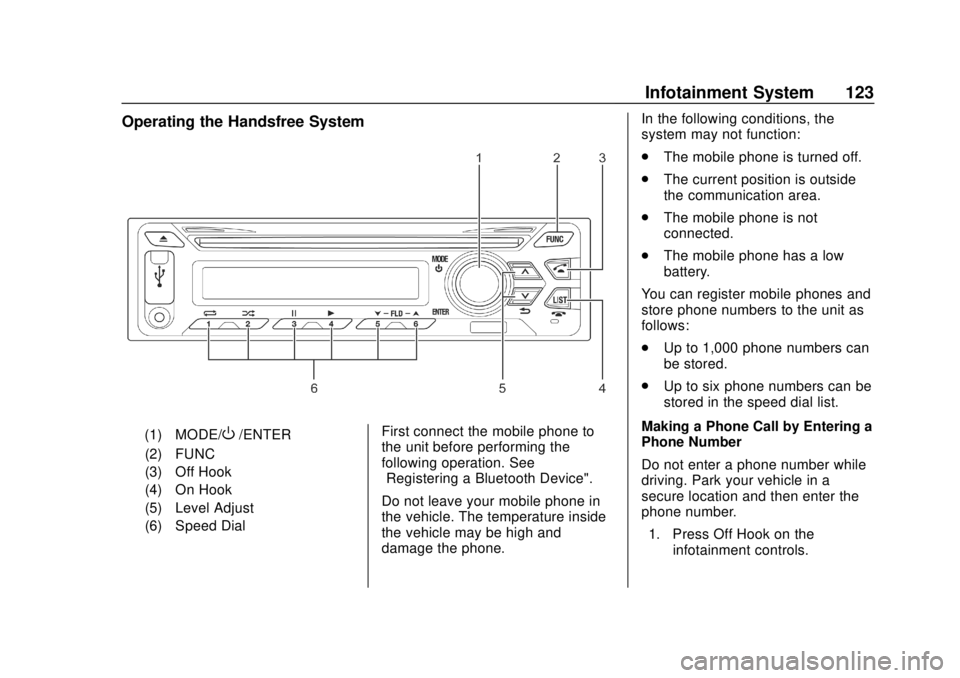
Operating the Handsfree System
(1) MODE/O/ENTER
(2) FUNC
(3) Off Hook
(4) On Hook
(5) Level Adjust
(6) Speed Dial First connect the mobile phone to
the unit before performing the
following operation. See
“Registering a Bluetooth Device".
Do not leave your mobile phone in
the vehicle. The temperature inside
the vehicle may be high and
damage the phone. In the following conditions, the
system may not function:
.
The mobile phone is turned off.
. The current position is outside
the communication area.
. The mobile phone is not
connected.
. The mobile phone has a low
battery.
You can register mobile phones and
store phone numbers to the unit as
follows:
. Up to 1,000 phone numbers can
be stored.
. Up to six phone numbers can be
stored in the speed dial list.
Making a Phone Call by Entering a
Phone Number
Do not enter a phone number while
driving. Park your vehicle in a
secure location and then enter the
phone number. 1. Press Off Hook on the infotainment controls.
Page 125 of 382
Chevrolet Low Cab Forward 5.2L Diesel Engine 4500/5500 Series (GMNA-
Localizing-U.S.-12407814) - 2019 - crc - 12/13/17
124 Infotainment System
2. Turn MODE/O/ENTER to
select ENTER NUMBER, and
then press ENTER.
INPUT NUMBER is displayed.
3. Turn MODE/
O/ENTER to
select a phone number.
You can enter phone numbers
by one digit at a time.
Numeric character (0-9) and
symbols (*, #, +) are available.
You can use the symbols (+)
only for the first digit.
y: Advance to the next digit.
z: Delete the entered digit and
return to the previous digit.
4. After entering the phone number, press Off Hook or
ENTER.
CALLING is displayed and a
call is made to the selected
phone number.
When the person receives the
call, you can talk in
handsfree mode. Making a Phone Call Using
Phonebook
1. Press Off Hook on the infotainment controls.
2. Turn MODE/
O/ENTER to
select PHONEBOOK, and then
press ENTER.
The phonebook data is
displayed.
3. Turn MODE/
O/ENTER to
select the phone number of
your choice, and then press
ENTER.
Select in the following order:
Initial
PNamePPhone
number
CALLING is displayed and a
call is made to the selected
phone number.
You can also make a call by
pressing the Off Hook.
When the person receives the call,
you can talk in handsfree mode. Making a Phone Call Using Missed
Call History
1. Press Off Hook on the infotainment controls.
2. Turn MODE/
O/ENTER to
select MISSED, and then press
ENTER.
The phone number of the
previous missed call appears
on the display window.
3. Turn MODE/
O/ENTER to
select the phone number of
your choice, and then press
ENTER.
CALLING is displayed and a
call is made to the selected
phone number.
You can also make a call by
pressing Off Hook.
When the person receives the call,
you can talk in handsfree mode.
Making a Phone Call Using
Incoming Call History 1. Press Off Hook on the infotainment controls.
Page 126 of 382

Chevrolet Low Cab Forward 5.2L Diesel Engine 4500/5500 Series (GMNA-
Localizing-U.S.-12407814) - 2019 - crc - 12/13/17
Infotainment System 125
2. Turn MODE/O/ENTER to
select INCOMING, and then
press ENTER.
The person (phone number or
name) who made the previous
incoming call is displayed.
3. Turn MODE/
O/ENTER to
select the person (phone
number or name) of your
choice, and then press
ENTER.
CALLING is displayed and a
call is made to the selected
phone number.
You can also make a call by
pressing Off Hook.
When the person receives the call,
you can talk in handsfree mode.
Making a Phone Call Using
Outgoing Call History 1. Press Off Hook on the infotainment controls.
2. Turn MODE/
O/ENTER to
select OUTGOING, and then
press ENTER. The person (phone number or
name) you called is displayed.
3. Turn MODE/
O/ENTER to
select the person (phone
number or name) of your
choice, and then press
ENTER.
CALLING is displayed and a
call is made to the selected
phone number.
You can also make a call by
pressing the Off Hook.
When the person receives the call,
you can talk in handsfree mode.
Answering a Call
When your phone set receives a
call, INCOMING, followed by the
person (phone number or name) is
displayed.
. If there is a call that has been
registered, the caller ’s name is
displayed.
. If there is a call that has not
been registered, only the
number is displayed. .
If there is a private call,
UNAVAILABLE is displayed.
. You can refuse a call by
pressing On Hook when a call is
incoming.
. This unit supports the in-band
ring tone (transfers the ring tone
from your phone to the main
unit). If the in-band ring tone is
not supported your phone, the
unit use the built-in ring tone.
1. Press Off Hook and use handsfree to talk.
2. When you have finished the call, press On Hook.
Registering a Speed Dial by
Entering a Phone Number
Up to six phone numbers and
names can be registered in the
Speed Dial and you can call the
person in a one-touch operation. 1. Press Off Hook on the infotainment controls.
Page 127 of 382
Chevrolet Low Cab Forward 5.2L Diesel Engine 4500/5500 Series (GMNA-
Localizing-U.S.-12407814) - 2019 - crc - 12/13/17
126 Infotainment System
2. Turn MODE/O/ENTER to
select ENTER NUMBER, and
then press ENTER.
INPUT NUMBER is displayed.
3. Turn MODE/
O/ENTER to
select a phone number.
You can enter phone numbers
by one digit at a time.
Numeric character (0-9) and
symbols (*, #, +) are available.
You can use the symbols (+)
only for the first digit.
y: Advance to the next digit.
z: Delete the entered digit and
return to the previous digit.
You can also select phone
numbers from the phonebook.
4. After entering the phone number, press and hold down
the Speed Dial of your choice
for more than one second.
SAVED is displayed and the
Speed Dial registration is
complete. Registering a Speed Dial Number
from a History
You can select a phone number
from the incoming (missed call) or
outgoing call history and register it
for speed dialling.
Do not register the phone number
while driving. Park your vehicle in a
secure location and register it.
1. Press Off Hook on the infotainment controls.
2. Turn MODE/
O/ENTER to
select the phone number
history of your choice, and then
press ENTER.
3. Turn MODE/
O/ENTER to
select the phone number of
your choice.
4. Press and hold down the Speed Dial you want to store
in, for more than one second.
SAVED is displayed and the
Speed Dial registration is
complete. Making a Call Using Speed Dial
1. Press Off Hook on the infotainment controls.
2. Press the Speed Dial of your choice for less than
one second.
3. Press Off Hook or ENTER. CALLING is displayed and a
call is made to the selected
phone number.
When the person receives the
call, you can talk in
handsfree mode.
Registering a Name to Speed Dial 1. Press Off Hook on the infotainment controls.
2. Press the Speed Dial of your choice for less than
one second.
3. Press FUNC.
4. Turn MODE/
O/ENTER to
select characters.
You can enter phone numbers
by one digit at a time.