bluetooth CHEVROLET MALIBU 2013 8.G Owners Manual
[x] Cancel search | Manufacturer: CHEVROLET, Model Year: 2013, Model line: MALIBU, Model: CHEVROLET MALIBU 2013 8.GPages: 436, PDF Size: 7.43 MB
Page 7 of 436
Black plate (1,1)Chevrolet Malibu Owner Manual - 2013 - CRC - 6/6/12
In Brief 1-1
In Brief
Instrument Panel
Instrument Panel Overview . . . . 1-2
Initial Drive Information
Initial Drive Information . . . . . . . . 1-4
Remote Keyless Entry (RKE)System . . . . . . . . . . . . . . . . . . . . . . 1-4
Remote Vehicle Start . . . . . . . . . 1-5
Door Locks . . . . . . . . . . . . . . . . . . . 1-5
Windows . . . . . . . . . . . . . . . . . . . . . . 1-6
Seat Adjustment . . . . . . . . . . . . . . 1-7
Memory Features . . . . . . . . . . . . . 1-9
Second Row Seats . . . . . . . . . . 1-10
Heated Seats . . . . . . . . . . . . . . . . 1-10
Head Restraint Adjustment . . . . . . . . . . . . . . . . . 1-10
Safety Belts . . . . . . . . . . . . . . . . . . 1-10
Passenger Sensing System . . . . . . . . . . . . . . . . . . . . . 1-11
Mirror Adjustment . . . . . . . . . . . . 1-11
Steering Wheel Adjustment . . . . . . . . . . . . . . . . . 1-12
Interior Lighting . . . . . . . . . . . . . . 1-12 Exterior Lighting . . . . . . . . . . . . . 1-13
Windshield Wiper/Washer . . . . 1-14
Climate Controls . . . . . . . . . . . . . 1-15
Transmission . . . . . . . . . . . . . . . . 1-16
Vehicle Features
Radio(s) . . . . . . . . . . . . . . . . . . . . . 1-17
Satellite Radio . . . . . . . . . . . . . . . 1-17
Portable Audio Devices . . . . . . 1-17
Bluetooth
®. . . . . . . . . . . . . . . . . . . 1-17
Steering Wheel Controls . . . . . 1-18
Cruise Control . . . . . . . . . . . . . . . 1-18
Infotainment System . . . . . . . . . 1-19
Driver Information Center (DIC) . . . . . . . . . . . . . . . 1-19
Forward Collision Alert (FCA) System . . . . . . . . . . . . . . . . . . . . . 1-19
Lane Departure Warning (LDW) . . . . . . . . . . . . . 1-20
Rear Vision Camera (RVC) . . . . . . . . . . . . . 1-20
Ultrasonic Parking Assist . . . . 1-20
Power Outlets . . . . . . . . . . . . . . . 1-20
Universal Remote System . . . 1-21
Sunroof . . . . . . . . . . . . . . . . . . . . . . 1-21
eAssist Features
eAssist®Overview . . . . . . . . . . . 1-22
High Voltage Safety Information . . . . . . . . . . . . . . . . . 1-22
Driver Efficiency Gauge . . . . . . 1-23
Automatic Engine Start/Stop Feature . . . . . . . . . . . . . . . . . . . . . 1-23
Regenerative Braking . . . . . . . . 1-23
Battery . . . . . . . . . . . . . . . . . . . . . . . 1-23
Service . . . . . . . . . . . . . . . . . . . . . . 1-24
Performance and Maintenance
Traction Control System (TCS) . . . . . . . . . . . . . . 1-24
StabiliTrak
®System . . . . . . . . . 1-24
Tire Pressure Monitor . . . . . . . . 1-24
Tire Sealant and Compressor Kit . . . . . . . . . . . . . 1-25
Engine Oil Life System . . . . . . 1-25
Fuel E85 (85% Ethanol) . . . . . 1-26
Driving for Better Fuel Economy . . . . . . . . . . . . . . . . . . . 1-26
Roadside Assistance Program . . . . . . . . . . . . . . . . . . . . 1-26
OnStar
®. . . . . . . . . . . . . . . . . . . . . 1-26
Page 23 of 436
Black plate (17,1)Chevrolet Malibu Owner Manual - 2013 - CRC - 6/6/12
In Brief 1-17
Vehicle Features
Radio(s)
VOL/O:Press to turn the system
on and off. Turn to increase or
decrease the volume.
RADIO/BAND or SOURCE: Press
to choose between FM, AM,
or XM™, if equipped.
TUNE/MENU: Turn to select radio
stations. Press to select a menu.
©SEEK¨: Press to seek the
previous or next station or track.
INFO: Press to show available
information about the current station
or track.
See Overview (Radio with CD and
Touchscreen) on page 7‑5 or
Overview (Radio with CD) on
page 7‑2 for more information about
these and other radio features.
Satellite Radio
Vehicles with a SiriusXM® satellite
radio tuner and a valid SiriusXM
satellite radio subscription can
receive SiriusXM programming.
SiriusXM Satellite Radio
Service
SiriusXM is a satellite radio service
based in the 48 contiguous United
States and 10 Canadian provinces.
SiriusXM satellite radio has a wide
variety of programming and
commercial-free music, coast to
coast, and in digital-quality sound.
A fee is required to receive the
SiriusXM service.
Refer to:
.www.siriusxm.com or call
1-866-635-2349 (U.S.).
.www.xmradio.ca or call
1-877-209-0079 (Canada).
See Satellite Radio on page 7‑19.
Portable Audio Devices
This vehicle has a 3.5 mm (1/8 in)
auxiliary input and a USB port in the
center console. External devices
such as iPods®, laptop computers,
MP3 players, and USB storage
devices may be connected.
SeeAuxiliary Devices on page 7‑25.
Bluetooth®
The Bluetooth® system allows
users with a Bluetooth-enabled
mobile phone to make and receive
hands-free calls using the vehicle
audio system and controls.
The Bluetooth-enabled mobile
phone must be paired with the
in-vehicle Bluetooth system before it
can be used in the vehicle. Not all
phones will support all functions.
SeeBluetooth (Overview) on
page 7‑35 orBluetooth (Voice
Recognition) on page 7‑40 or
Bluetooth (Infotainment Controls) on
page 7‑36.
Page 111 of 436
Black plate (3,1)Chevrolet Malibu Owner Manual - 2013 - CRC - 6/6/12
Instruments and Controls 5-3
b/g(Push to Talk):For vehicles
with an OnStar, Bluetooth,
or navigation system, press to
interact with those systems. See
Bluetooth (Overview) on page 7‑35
or Bluetooth (Voice Recognition) on
page 7‑40 orBluetooth
(Infotainment Controls) on
page 7‑36 andOnStar Overview on
page 14‑1.
$/i(Mute/End Call): Press to
silence the vehicle speakers only.
Press again to turn the sound on.
For vehicles with OnStar or
Bluetooth systems, press to reject
an incoming call, or to end a
current call.
_SRC^(Thumbwheel Control):
Use this control to select a radio
band or audio source.
Use
_or^to select the next or
previous favorite radio station, CD
track, DVD track/chapter, or MP3
track.
Press SRC to change between
radio and CD or DVD. Press and hold SRC to interact with
the navigation system, if equipped.
+
x−
(Volume): Press + to
increase the volume; press −to
decrease the volume.
Horn
Pressaon the steering wheel pad
to sound the horn.
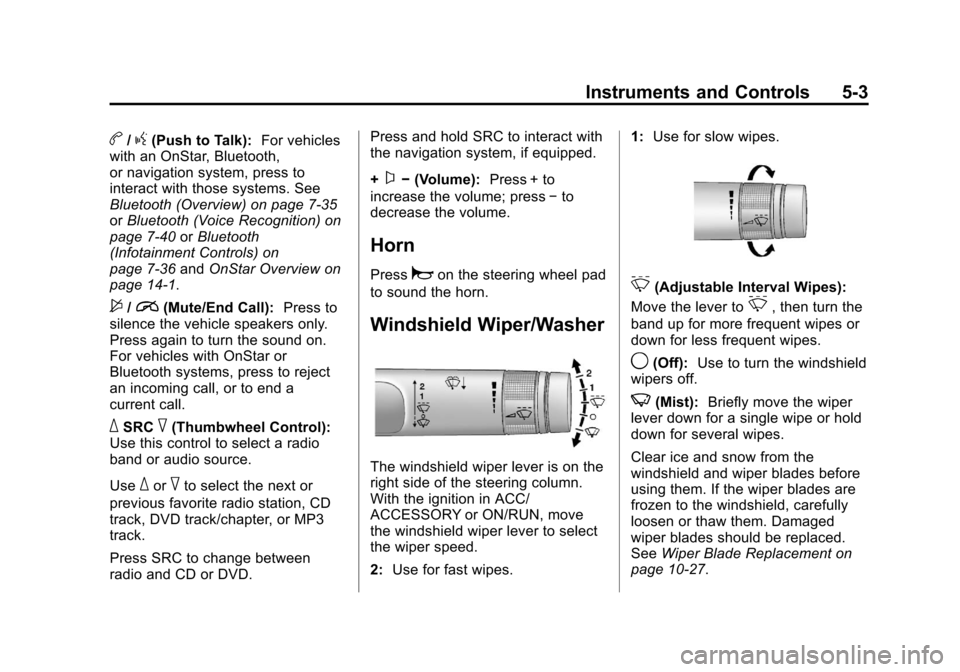
Windshield Wiper/Washer
The windshield wiper lever is on the
right side of the steering column.
With the ignition in ACC/
ACCESSORY or ON/RUN, move
the windshield wiper lever to select
the wiper speed.
2: Use for fast wipes. 1:
Use for slow wipes.
3(Adjustable Interval Wipes):
Move the lever to
3, then turn the
band up for more frequent wipes or
down for less frequent wipes.
9(Off): Use to turn the windshield
wipers off.
3(Mist): Briefly move the wiper
lever down for a single wipe or hold
down for several wipes.
Clear ice and snow from the
windshield and wiper blades before
using them. If the wiper blades are
frozen to the windshield, carefully
loosen or thaw them. Damaged
wiper blades should be replaced.
See Wiper Blade Replacement on
page 10‑27.
Page 161 of 436
Black plate (1,1)Chevrolet Malibu Owner Manual - 2013 - CRC - 6/6/12
Infotainment System 7-1
Infotainment
System
Introduction
Infotainment . . . . . . . . . . . . . . . . . . . 7-1
Theft-Deterrent Feature . . . . . . . 7-2
Overview (Radio with CD) . . . . . 7-2
Overview (Radio with CD andTouchscreen) . . . . . . . . . . . . . . . . 7-5
Operation . . . . . . . . . . . . . . . . . . . . . 7-9
Radio
AM-FM Radio . . . . . . . . . . . . . . . . 7-14
Satellite Radio . . . . . . . . . . . . . . . 7-19
Radio Reception . . . . . . . . . . . . . 7-20
Backglass Antenna . . . . . . . . . . 7-21
Satellite Radio Antenna . . . . . . 7-21
Audio Players
CD Player . . . . . . . . . . . . . . . . . . . 7-22
MP3 . . . . . . . . . . . . . . . . . . . . . . . . . 7-24
Auxiliary Devices . . . . . . . . . . . . 7-25
Phone
Bluetooth (Overview) . . . . . . . . 7-35
Bluetooth (Infotainment Controls) . . . . . . . . . . . . . . . . . . . 7-36
Bluetooth (Voice Recognition) . . . . . . . . . . . . . . . 7-40
Introduction
Infotainment
Determine which radio the vehicle
has. For radios without connectivity,
read the following pages to become
familiar with its features. For radios
with connectivity, see the
infotainment manual.
{WARNING
Taking your eyes off the road for
extended periods could cause a
crash resulting in injury or death
to you or others. Do not give
extended attention to infotainment
tasks while driving.
This system provides access to
many audio and non-audio listings.
Page 166 of 436

Black plate (6,1)Chevrolet Malibu Owner Manual - 2013 - CRC - 6/6/12
7-6 Infotainment System
3.F(Home)
.See“Home Page” following
in this section.
4. SOURCE
.Press to change the audio
sources such as AM-FM
Radio, CD, and AUX.
5.
v/>(Phone/Mute)
.Press to access the Phone
menu. See Bluetooth
(Overview) on page 7‑35 or
Bluetooth (Voice
Recognition) on page 7‑40
or Bluetooth (Infotainment
Controls) on page 7‑36.
Press to mute the audio
system.
6. BACK
/
.Press to return to the
previous screen in a menu.
.If on a page accessed
directly by a faceplate
button or Home Page screen button, pressing
/BACK will go to the
previous menu.
7. TUNE/MENU
.Turn to highlight a feature.
Press to activate the
highlighted feature.
.Turn to manually select a
radio station.
8.
Z(Eject)
.Press to eject a disc from
the CD player. See CD
Player on page 7‑22.
9.
H(Clock)
.Press to set the time.
10.
p/j(Play/Pause)
.Press to start, pause, and
resume playback. See CD
Player on page 7‑22 and
MP3 on page 7‑24.
11. CD Slot 12.
©SEEK¨
.Press©to seek to the
beginning of the current or
previous track. If the track
has been playing for less
than five seconds, it
seeks the previous
track. If longer than
five seconds, the current
track starts from the
beginning.
.Press and hold©to
quickly reverse through a
track. Release the button
to return to playing speed.
See CD Player on
page 7‑22 andMP3 on
page 7‑24.
.For AM or FM, press©to
seek to the previous
strong station.
.Press¨to seek the next
track.
.Press and hold¨to fast
forward through a track.
Page 167 of 436
Black plate (7,1)Chevrolet Malibu Owner Manual - 2013 - CRC - 6/6/12
Infotainment System 7-7
.Release¨to return to
playing speed. See CD
Player on page 7‑22 and
MP3 on page 7‑24.
.For AM or FM, press¨to
seek to the next strong
station.
13. CONFIG (Configuration)
.Press to adjust features
for radio, display, phone,
vehicle, and time.
14. TONE
.Press to access the sound
menu screen to adjust
bass, midrange, and
treble. See AM-FM Radio
on page 7‑14.
15. INFO (Information)
.Press to scroll through
station, song, artist, and
album information when
available.
Touchscreen Buttons
Touchscreen buttons are on the
screen and highlighted when a
feature is available. Some toggle
screen buttons highlight when active
and gray out when inactive.
Home Page
The infotainment system displays a
Home Page that makes it easy to
access many of the features.
Back: If on page 2 of the Home
Page, press Back to return to page
1 of the Home Page. If on page 1,
Back serves no function.
Home: While navigating through
other menus, press to go back to
the Home Page to start a different
feature.
Fav: Press to display a page of
stored (favorite) AM or FM stations.
Keep pressing Fav to scroll through
the favorite pages.
The Home Page Menu lists the
options Customize Home Page and
Restore Home Page Defaults. Out of all available Home Page
icons, up to eight icons can be
selected and sorted for the first
Home Page screen.
Home Page Features
Various functions are disabled when
the vehicle is moving.
Press the Now Playing screen
button to display the active source
page. The sources available are
AM, FM, CD, USB/iPod, and AUX.
See
AM-FM Radio on page 7‑14,
CD Player on page 7‑22, and
Auxiliary Devices on page 7‑25.
Press the Phone screen button to
display the Phone main page. See
Bluetooth (Overview) on page 7‑35
or Bluetooth (Voice Recognition) on
page 7‑40 orBluetooth
(Infotainment Controls) on
page 7‑36.
Page 169 of 436
Black plate (9,1)Chevrolet Malibu Owner Manual - 2013 - CRC - 6/6/12
Infotainment System 7-9
Radio Settings
Press the Config button on the
Home Page or the CONFIG button
on the faceplate to enter the menu
options. Turn the TUNE/MENU knob
or press the scroll bar to scroll
through the available options. Press
the TUNE/MENU knob or press
Radio Settings to display the radio
settings menu. Press this feature to
make changes for radio information
displayed, preset pages, and Auto
Volume Control.
The Radio Settings are:
Speed Dependent Volume:Select
OFF, Low, Medium, or High
sensitivity to automatically adjust
the volume to minimize the effects
of unwanted background noise that
can result from changing road
surfaces, driving speeds, or open
windows. This feature works best at
lower volume settings where
background noise is typically louder
than the sound system volume. Startup Volume:
Press to set the
maximum volume level for startup
that will be used even if a higher
volume had been set when the radio
was turned off.
Radio Favorites: Press to select
the number of favorite pages to be
used in the system.
Phone Settings
See Bluetooth (Overview) on
page 7‑35 orBluetooth (Voice
Recognition) on page 7‑40 or
Bluetooth (Infotainment Controls) on
page 7‑36 in the“Phone” section.
Vehicle Settings
SeeVehicle Personalization on
page 5‑35.
Display Settings
Press the Config button on the
Home Page or the CONFIG button
on the faceplate, then select Display
Settings from the list. The following options may display:
Dimming Mode:
Press to change
the screen background. The
Automatic setting adjusts the screen
background automatically
depending on the exterior lighting
conditions.
To change the overall brightness
setting for the display, use the
vehicle interior lighting instrument
panel illumination control.
Operation
Controls (Radio with CD)
The infotainment system is operated
by using the pushbuttons,
multifunction knobs, menus shown
on the display, and steering wheel
controls, if equipped.
Turning the System On or Off
VOL/O(Volume/Power): Press to
turn the system on and off.
Page 189 of 436
Black plate (29,1)Chevrolet Malibu Owner Manual - 2013 - CRC - 6/6/12
Infotainment System 7-29
Repeat Off:Playback starts from
the beginning of the current track
after the last track finishes.
Connecting a Bluetooth®
Device
Before a Bluetooth device can be
connected to the infotainment
system, it must first be paired to the
system. Not all Bluetooth devices
can be paired to the infotainment
system. Before pairing the Bluetooth
device, become familiar with its user
guide for Bluetooth functions. The
system only connects to Bluetooth
devices that support A2DP
(Advanced Audio Distribution
Profile) version 1.2.
A Bluetooth phone with MP3
capability cannot be paired to the
vehicle as a phone and an MP3
player at the same time.
Pairing Information:
.Up to five devices can be paired
to the system.
.The pairing process is disabled
when the vehicle is moving.
.The infotainment system
automatically links with the first
available paired device in the
order the device was paired.
.Only one paired device can be
connected to the infotainment
system at a time.
.Pairing should only need to be
completed once, unless changes
to the pairing information have
been made or the device is
deleted.
Bluetooth Setup Menu
The Bluetooth Setup menu can be
accessed with or without a device
attached to the USB port.
To select the Bluetooth Setup menu
when a device is attached to the
USB port and active:
1. Turn the TUNE/MENU knob while in the iPod, Zune, PFD,
or USB device main menu.
2. Select Bluetooth Music Setup. To select the Bluetooth Music Setup
menu when a device is not attached
to the USB port, or when a device is
attached to the USB port but not
active:
1. Press the CD/AUX button until
AUX is the active source.
2. Turn the TUNE/MENU knob.
3. Select Bluetooth Music Setup.
To select the Bluetooth Music Setup
menu when a Bluetooth device is
connected and active:
1. Turn the TUNE/MENU knob.
2. Select Bluetooth Music Setup.
Pairing a Device
1. Select Connect To New Device from the Bluetooth Music
Setup menu.
2. The system asks a series of Yes/No questions to determine
what type of device is being
paired.
Page 190 of 436
Black plate (30,1)Chevrolet Malibu Owner Manual - 2013 - CRC - 6/6/12
7-30 Infotainment System
3. After the system determineswhat type of Bluetooth device is
being paired, the Bluetooth
device will need to be put into
discovery mode.
4. Some devices may require a Personal Identification Number
(PIN) in order to complete the
pairing process. Locate the
device named “GMusicConnect”
in the list on the Bluetooth
device and follow the
instructions on the device to
enter the four-digit PIN provided
by the infotainment system.
Connecting to a Device
Once a device is paired to the
infotainment system, it can be
connected to the infotainment
system.
To connect a paired device when no
other device is connected to the
infotainment system:
1. Select the Select Device option from the Bluetooth Music
Setup menu. 2. Select the new device.
To connect a paired device when
another device is connected to the
infotainment system:
1. Select the Select Device option
from the Bluetooth Music
Setup menu.
2. Select the new device.
3. The active device is disconnected from the system
and the new device is
connected.
Removing a Device
1. Select Remove Device from the Bluetooth Music Setup menu.
2. Select the device.
3. The device is removed from the system.
Before connecting to the removed
device again, it will need to paired
to the infotainment system. Changing the Default PIN
To change the default PIN:
1. Select Change Default PIN from
the Bluetooth Music
Setup menu.
2. Select one of the pre-defined PINs, or select Other to create
a PIN.
To create a PIN:
1. Select the length of the PIN.
2. Enter the character sequence.
Messages
The following messages may
appear on the infotainment screen.
Poor Bluetooth Signal Quality:
This message displays when the
Bluetooth signal strength is low.
This Feature is Unavailable While
Vehicle is Moving: This message
displays when an action is not
allowed while the vehicle is moving.
Page 191 of 436
Black plate (31,1)Chevrolet Malibu Owner Manual - 2013 - CRC - 6/6/12
Infotainment System 7-31
Controlling a Bluetooth Device
Bluetooth devices that support
AVRCP (Audio/Video Remote
Control Profile) version 1.0 may be
able to be controlled by the
infotainment system.
Press and release
©or¨to skip
tracks.
Playing from a USB (Radio
with CD and Touchscreen)
A USB mass storage device or
Microsoft Transfer Protocal (MTP)
device can be connected to the
USB port.
The USB port is in the center
console.
The USB icon displays when the
USB device is connected.
USB MP3 Player and USB Drives
.The USB MP3 players and USB
drives connected must comply
with the USB Mass Storage
Class specification (USB MSC).
.Only USB MP3 players and USB
drives with a sector size of
512 bytes and a cluster size
smaller or equal to 32 kbytes in
the FAT32 file system are
supported.
.Hard disk drives are not
supported.
.The following restrictions apply
for the data stored on a USB
MP3 player or USB device:
‐ Maximum folder structure
depth: 11 levels.
‐ Maximum number of MP3/
WMA files that can be
displayed: 1,000.
.WMA with Digital Rights
Management (DRM) from online
music shops cannot be played.
WMA files can only be played
back safely if they were created
with Windows Media Player
version 8 or later.
‐Applicable playlist
extensions: .m3u, .pls. ‐
Playlist entries must be in the
form of relative paths.
‐ The system attribute for
folders/files that contain audio
data must not be set.
To play a USB device, do one of the
following:
.Connect the USB and it begins
to play.
.Press the Now Playing screen
button on the Home Page, then
press the SOURCE button on
the faceplate repeatedly to cycle
through all of the available audio
source screens, until the USB
source screen is selected.
While the USB source is active, use
the following to operate USB
function:
w j(Play/Pause): Press to start,
pause, or resume play of the current
media source.