service CHEVROLET MALIBU 2016 8.G Infotainment Manual
[x] Cancel search | Manufacturer: CHEVROLET, Model Year: 2016, Model line: MALIBU, Model: CHEVROLET MALIBU 2016 8.GPages: 94, PDF Size: 1.05 MB
Page 3 of 94
Chevrolet Malibu Limited/Cruze Limited MyLink Infotainment System
(GMNA-Localizing-U.S./Canada-9282853) - 2016 - crc - 4/17/15
2 Introduction
Introduction
Infotainment
The names, logos, emblems,
slogans, vehicle model names, and
vehicle body designs appearing in
this manual including, but not limited
to, GM, the GM logo, CHEVROLET,
the CHEVROLET Emblem, and the
names MALIBU, CRUZE, and
MyLink are trademarks and/or
service marks of General Motors
LLC, its subsidiaries, affiliates,
or licensors.For vehicles first sold in Canada,
substitute the name
“General
Motors of Canada Limited” for
Chevrolet Motor Division wherever it
appears in this manual.
The information in this manual
supplements the owner manual.
This manual describes features that
may or may not be on the vehicle
because of optional equipment that
was not purchased on the vehicle,
model variants, country
specifications, features/applications
that may not be available in your
region, or changes subsequent to
the printing of this manual.
Keep this manual with the owner
manual in the vehicle, so it will be
there if it is needed. If the vehicle is
sold, leave this manual in the
vehicle.
Overview
Read the following pages to
become familiar with the
infotainment system features.
{Warning
Taking your eyes off the road for
too long or too often while using
any infotainment feature can
cause a crash. You or others
could be injured or killed. Do not
give extended attention to
infotainment tasks while driving.
Limit your glances at the vehicle
displays and focus your attention
on driving. Use voice commands
whenever possible.
The infotainment system has built-in
features intended to help avoid
distraction by disabling some
functions when driving. These
functions may gray out when they
are unavailable. Many infotainment
features are also available through
the instrument cluster and steering
wheel controls.
Litho in U.S.A.
Part No. 23197785 A First Printing©2015 General Motors LLC. All Rights Reserved.
Page 15 of 94
Chevrolet Malibu Limited/Cruze Limited MyLink Infotainment System
(GMNA-Localizing-U.S./Canada-9282853) - 2016 - crc - 4/16/15
14 Introduction
If equipped, this feature is available
through the Apps button on the
radio Home Page. Downloading and
using Apps requires a Wi-Fi Internet
connection as part of a smartphone
or other mobile device data service
plan. On most smartphones,
activation is in the Settings menu
under Mobile Network Sharing,
Personal Hotspot, Mobile Hotspot,
Wi-Fi Hotspot, or similar. After
activation of Wi-Fi on the
smartphone, touch the Apps button
on the radio Home Page. Follow the
prompts to configure the Internet
connection and set up an account.See www.chevrolet.com/mylink
(U.S.) or www.mylink.chevrolet.ca
(Canada).
Cleaning High Gloss Surfaces
and Vehicle Information and
Radio Displays
For vehicles with high gloss
surfaces or vehicle displays, use a
microfiber cloth to wipe surfaces.
Before wiping the surface with the
microfiber cloth, use a soft bristle
brush to remove dirt that could
scratch the surface. Then use the
microfiber cloth by gently rubbing to
clean. Never use window cleaners
or solvents. Periodically hand wash
the microfiber cloth separately,
using mild soap. Do not use bleach
or fabric softener. Rinse thoroughly
and air dry before next use.
Caution
Do not attach a device with a
suction cup to the display. This
may cause damage and would
not be covered by the vehicle
warranty.
Software Updates
See the websites for more
information.
Website Information
In the U.S., see www.chevrolet.com
In Canada, see
www.chevrolet.gm.ca
Page 20 of 94
Chevrolet Malibu Limited/Cruze Limited MyLink Infotainment System
(GMNA-Localizing-U.S./Canada-9282853) - 2016 - crc - 4/16/15
Radio 19
Adding or Removing XM
Categories
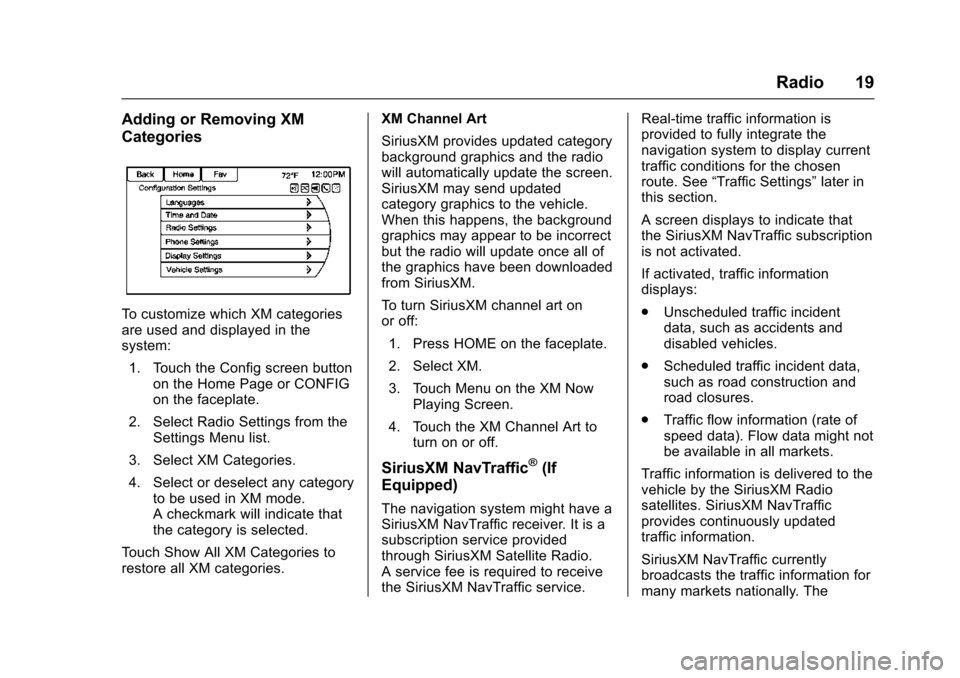
To customize which XM categories
are used and displayed in the
system:1. Touch the Config screen button on the Home Page or CONFIG
on the faceplate.
2. Select Radio Settings from the Settings Menu list.
3. Select XM Categories.
4. Select or deselect any category to be used in XM mode.
A checkmark will indicate that
the category is selected.
Touch Show All XM Categories to
restore all XM categories. XM Channel Art
SiriusXM provides updated category
background graphics and the radio
will automatically update the screen.
SiriusXM may send updated
category graphics to the vehicle.
When this happens, the background
graphics may appear to be incorrect
but the radio will update once all of
the graphics have been downloaded
from SiriusXM.
To turn SiriusXM channel art on
or off:
1. Press HOME on the faceplate.
2. Select XM.
3. Touch Menu on the XM Now Playing Screen.
4. Touch the XM Channel Art to turn on or off.
SiriusXM NavTraffic®(If
Equipped)
The navigation system might have a
SiriusXM NavTraffic receiver. It is a
subscription service provided
through SiriusXM Satellite Radio.
A service fee is required to receive
the SiriusXM NavTraffic service. Real-time traffic information is
provided to fully integrate the
navigation system to display current
traffic conditions for the chosen
route. See
“Traffic Settings” later in
this section.
A screen displays to indicate that
the SiriusXM NavTraffic subscription
is not activated.
If activated, traffic information
displays:
. Unscheduled traffic incident
data, such as accidents and
disabled vehicles.
. Scheduled traffic incident data,
such as road construction and
road closures.
. Traffic flow information (rate of
speed data). Flow data might not
be available in all markets.
Traffic information is delivered to the
vehicle by the SiriusXM Radio
satellites. SiriusXM NavTraffic
provides continuously updated
traffic information.
SiriusXM NavTraffic currently
broadcasts the traffic information for
many markets nationally. The
Page 21 of 94
Chevrolet Malibu Limited/Cruze Limited MyLink Infotainment System
(GMNA-Localizing-U.S./Canada-9282853) - 2016 - crc - 4/16/15
20 Radio
service may be available in more
cities in the future. See
www.xmnavtraffic.com for details on
local coverage.
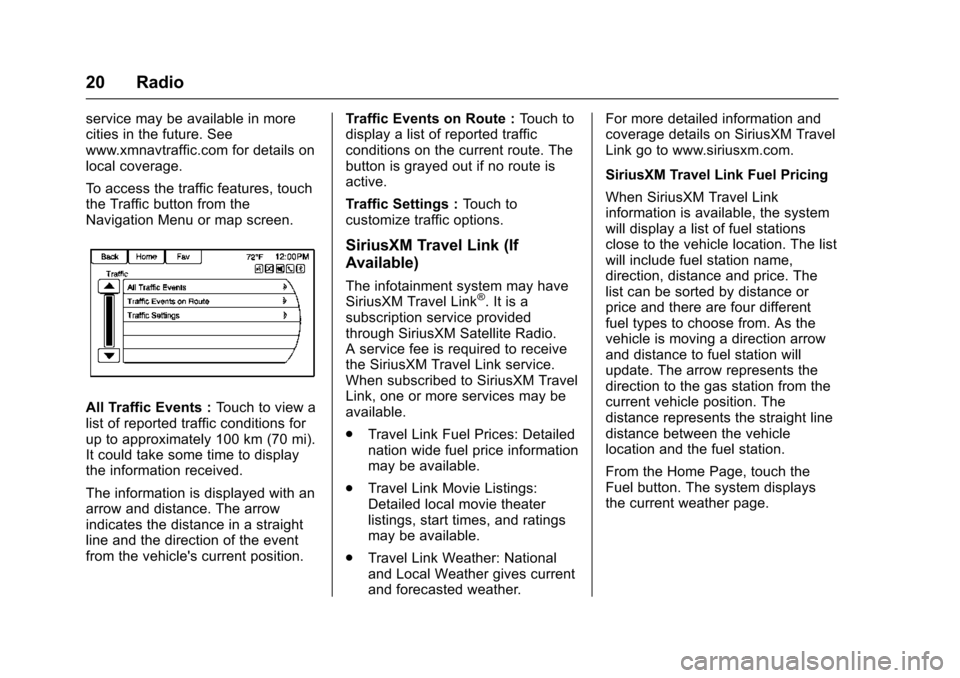
To access the traffic features, touch
the Traffic button from the
Navigation Menu or map screen.
All Traffic Events :Touch to view a
list of reported traffic conditions for
up to approximately 100 km (70 mi).
It could take some time to display
the information received.
The information is displayed with an
arrow and distance. The arrow
indicates the distance in a straight
line and the direction of the event
from the vehicle's current position. Traffic Events on Route :
Touch to
display a list of reported traffic
conditions on the current route. The
button is grayed out if no route is
active.
Traffic Settings : Touch to
customize traffic options.
SiriusXM Travel Link (If
Available)
The infotainment system may have
SiriusXM Travel Link®. It is a
subscription service provided
through SiriusXM Satellite Radio.
A service fee is required to receive
the SiriusXM Travel Link service.
When subscribed to SiriusXM Travel
Link, one or more services may be
available.
. Travel Link Fuel Prices: Detailed
nation wide fuel price information
may be available.
. Travel Link Movie Listings:
Detailed local movie theater
listings, start times, and ratings
may be available.
. Travel Link Weather: National
and Local Weather gives current
and forecasted weather. For more detailed information and
coverage details on SiriusXM Travel
Link go to www.siriusxm.com.
SiriusXM Travel Link Fuel Pricing
When SiriusXM Travel Link
information is available, the system
will display a list of fuel stations
close to the vehicle location. The list
will include fuel station name,
direction, distance and price. The
list can be sorted by distance or
price and there are four different
fuel types to choose from. As the
vehicle is moving a direction arrow
and distance to fuel station will
update. The arrow represents the
direction to the gas station from the
current vehicle position. The
distance represents the straight line
distance between the vehicle
location and the fuel station.
From the Home Page, touch the
Fuel button. The system displays
the current weather page.
Page 23 of 94
Chevrolet Malibu Limited/Cruze Limited MyLink Infotainment System
(GMNA-Localizing-U.S./Canada-9282853) - 2016 - crc - 4/16/15
22 Radio
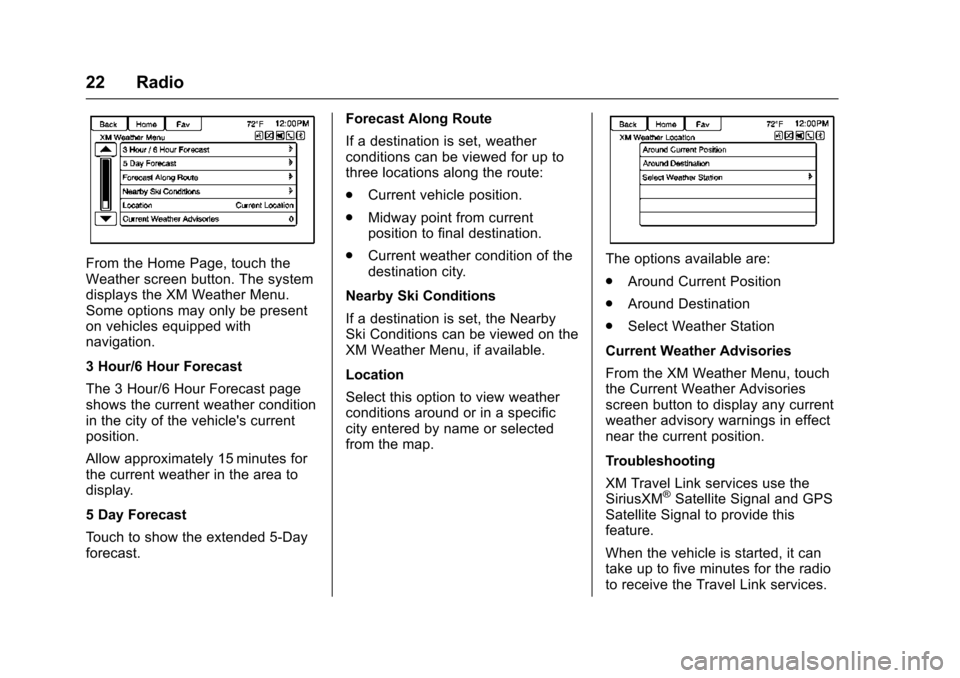
From the Home Page, touch the
Weather screen button. The system
displays the XM Weather Menu.
Some options may only be present
on vehicles equipped with
navigation.
3 Hour/6 Hour Forecast
The 3 Hour/6 Hour Forecast page
shows the current weather condition
in the city of the vehicle's current
position.
Allow approximately 15 minutes for
the current weather in the area to
display.
5 Day Forecast
Touch to show the extended 5-Day
forecast.Forecast Along Route
If a destination is set, weather
conditions can be viewed for up to
three locations along the route:
.
Current vehicle position.
. Midway point from current
position to final destination.
. Current weather condition of the
destination city.
Nearby Ski Conditions
If a destination is set, the Nearby
Ski Conditions can be viewed on the
XM Weather Menu, if available.
Location
Select this option to view weather
conditions around or in a specific
city entered by name or selected
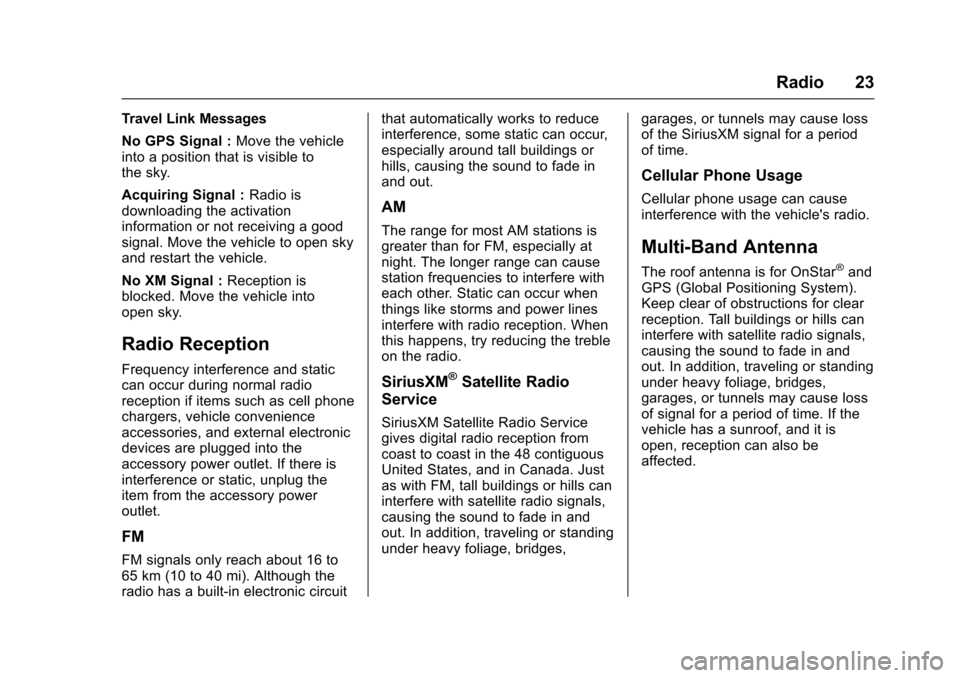
from the map.The options available are:
. Around Current Position
. Around Destination
. Select Weather Station
Current Weather Advisories
From the XM Weather Menu, touch
the Current Weather Advisories
screen button to display any current
weather advisory warnings in effect
near the current position.
Troubleshooting
XM Travel Link services use the
SiriusXM
®Satellite Signal and GPS
Satellite Signal to provide this
feature.
When the vehicle is started, it can
take up to five minutes for the radio
to receive the Travel Link services.
Page 24 of 94
Chevrolet Malibu Limited/Cruze Limited MyLink Infotainment System
(GMNA-Localizing-U.S./Canada-9282853) - 2016 - crc - 4/16/15
Radio 23
Travel Link Messages
No GPS Signal :Move the vehicle
into a position that is visible to
the sky.
Acquiring Signal : Radio is
downloading the activation
information or not receiving a good
signal. Move the vehicle to open sky
and restart the vehicle.
No XM Signal : Reception is
blocked. Move the vehicle into
open sky.
Radio Reception
Frequency interference and static
can occur during normal radio
reception if items such as cell phone
chargers, vehicle convenience
accessories, and external electronic
devices are plugged into the
accessory power outlet. If there is
interference or static, unplug the
item from the accessory power
outlet.
FM
FM signals only reach about 16 to
65 km (10 to 40 mi). Although the
radio has a built-in electronic circuit that automatically works to reduce
interference, some static can occur,
especially around tall buildings or
hills, causing the sound to fade in
and out.
AM
The range for most AM stations is
greater than for FM, especially at
night. The longer range can cause
station frequencies to interfere with
each other. Static can occur when
things like storms and power lines
interfere with radio reception. When
this happens, try reducing the treble
on the radio.
SiriusXM®Satellite Radio
Service
SiriusXM Satellite Radio Service
gives digital radio reception from
coast to coast in the 48 contiguous
United States, and in Canada. Just
as with FM, tall buildings or hills can
interfere with satellite radio signals,
causing the sound to fade in and
out. In addition, traveling or standing
under heavy foliage, bridges, garages, or tunnels may cause loss
of the SiriusXM signal for a period
of time.
Cellular Phone Usage
Cellular phone usage can cause
interference with the vehicle's radio.
Multi-Band Antenna
The roof antenna is for OnStar®and
GPS (Global Positioning System).
Keep clear of obstructions for clear
reception. Tall buildings or hills can
interfere with satellite radio signals,
causing the sound to fade in and
out. In addition, traveling or standing
under heavy foliage, bridges,
garages, or tunnels may cause loss
of signal for a period of time. If the
vehicle has a sunroof, and it is
open, reception can also be
affected.
Page 25 of 94
Chevrolet Malibu Limited/Cruze Limited MyLink Infotainment System
(GMNA-Localizing-U.S./Canada-9282853) - 2016 - crc - 4/16/15
24 Radio
Quick Info
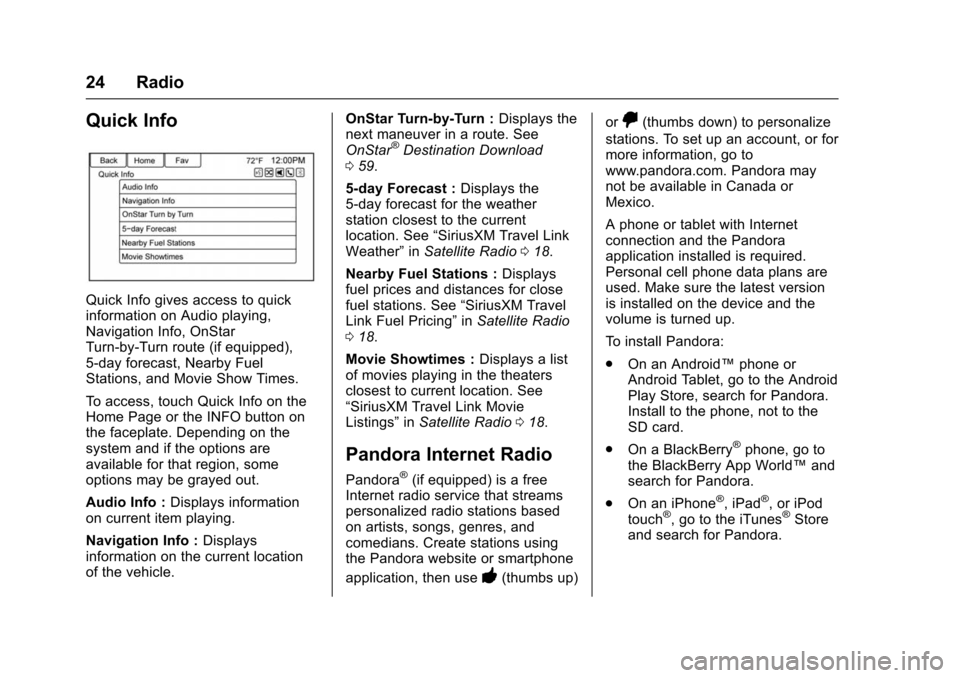
Quick Info gives access to quick
information on Audio playing,
Navigation Info, OnStar
Turn-by-Turn route (if equipped),
5-day forecast, Nearby Fuel
Stations, and Movie Show Times.
To access, touch Quick Info on the
Home Page or the INFO button on
the faceplate. Depending on the
system and if the options are
available for that region, some
options may be grayed out.
Audio Info :Displays information
on current item playing.
Navigation Info : Displays
information on the current location
of the vehicle. OnStar Turn-by-Turn :
Displays the
next maneuver in a route. See
OnStar
®Destination Download
0 59.
5-day Forecast : Displays the
5-day forecast for the weather
station closest to the current
location. See “SiriusXM Travel Link
Weather” inSatellite Radio 018.
Nearby Fuel Stations : Displays
fuel prices and distances for close
fuel stations. See “SiriusXM Travel
Link Fuel Pricing” inSatellite Radio
0 18.
Movie Showtimes : Displays a list
of movies playing in the theaters
closest to current location. See
“SiriusXM Travel Link Movie
Listings” inSatellite Radio 018.
Pandora Internet Radio
Pandora®(if equipped) is a free
Internet radio service that streams
personalized radio stations based
on artists, songs, genres, and
comedians. Create stations using
the Pandora website or smartphone
application, then use
-(thumbs up) or
,(thumbs down) to personalize
stations. To set up an account, or for
more information, go to
www.pandora.com. Pandora may
not be available in Canada or
Mexico.
A phone or tablet with Internet
connection and the Pandora
application installed is required.
Personal cell phone data plans are
used. Make sure the latest version
is installed on the device and the
volume is turned up.
To install Pandora:
. On an Android™ phone or
Android Tablet, go to the Android
Play Store, search for Pandora.
Install to the phone, not to the
SD card.
. On a BlackBerry
®phone, go to
the BlackBerry App World™ and
search for Pandora.
. On an iPhone
®, iPad®, or iPod
touch®, go to the iTunes®Store
and search for Pandora.
Page 27 of 94
Chevrolet Malibu Limited/Cruze Limited MyLink Infotainment System
(GMNA-Localizing-U.S./Canada-9282853) - 2016 - crc - 4/16/15
26 Radio
If the“Please unlock the phone or
restart the App and try again”
message is shown then your phone
may be locked. Unlock the phone,
close the app, and then restart the
app to ensure proper
communication.
Using a BlackBerry Phone
The phone must be unlocked. To
launch Pandora service:
1. Pair the BlackBerry phone using Bluetooth.
2. Use one of the following to launch:
.Launch the application on
the device.
. Touch Pandora on the
Home Page.
. Press
b/gand say
“Pandora” or“Tune
Pandora.”
After Pandora has been launched,
press SRCE or SRC on the steering
wheel controls to access Pandora
features. If nothing happens when the
available Pandora screen button is
touched, download the latest
Pandora application and retry.
If the
“Please See Device” message
is shown, the login screen may
display on the device.
If the “Please unlock the phone or
restart the App and try again”
message is shown, then your phone
may be locked. Unlock the phone,
close the app, then restart the app
to ensure proper communication.
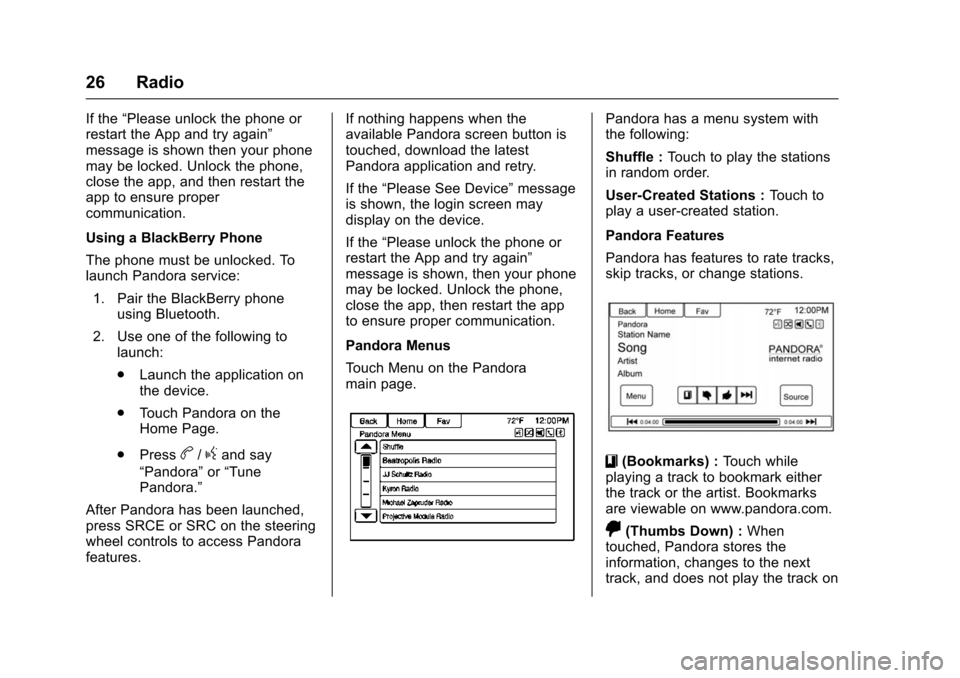
Pandora Menus
Touch Menu on the Pandora
main page.
Pandora has a menu system with
the following:
Shuffle : Touch to play the stations
in random order.
User-Created Stations : Touch to
play a user-created station.
Pandora Features
Pandora has features to rate tracks,
skip tracks, or change stations.
}(Bookmarks) : Touch while
playing a track to bookmark either
the track or the artist. Bookmarks
are viewable on www.pandora.com.
,(Thumbs Down) : When
touched, Pandora stores the
information, changes to the next
track, and does not play the track on
Page 28 of 94
Chevrolet Malibu Limited/Cruze Limited MyLink Infotainment System
(GMNA-Localizing-U.S./Canada-9282853) - 2016 - crc - 4/16/15
Radio 27
this station again. This helps
Pandora choose which tracks
should not play on this station. This
feature is only available on user
created stations.
-(Thumbs Up) :When touched,
Pandora stores this information and
-is highlighted for the remainder
of the track. This helps Pandora
choose which tracks should play on
this station.
d(Next Track) : When touched,
Pandora changes to the next track.
k(Play/Pause) : Touch on the
radio to pause playback. Touch
again to resume.
Tuning Pandora Stations : When
Pandora is playing, use the
b/g
button on the steering wheel to tune
to any Pandora station on the
device.
1. Press the
b/gbutton on the
steering wheel.
2. Say “Tune Pandora
until Pandora is launched the first
time during that ignition cycle.
Pandora Skip Limit
Pandora limits the number of skips
allowed on their service. When the
skip limit is reached,
,will not skip
the currently playing track, but
,
feedback will be recorded.
Pandora Advertisement
Pandora may display
advertisements. Artist name and
track title will not be displayed and
the skip track button is not
available.
Switching Between Pandora and
Stitcher
To switch between Pandora and
Stitcher, touch the application icon
on the iPhone, iPod touch, or iPad.
This is not required for Android
devices. See Stitcher Internet Radio
0 29.
Pandora Troubleshooting
Unable to Connect Device to
Vehicle
If the device is unable to connect to
the USB or Bluetooth:
1. Turn the vehicle off.
2. Open and close the driver door, wait about 30 seconds, and try
to connect the device again.
Unable to Start Pandora
If the device is unable to launch
Pandora:
. Check that the latest version of
Pandora is installed.
. Check that there is an active
account logged into Pandora.
. Have at least one station
created.
. For Android and BlackBerry
devices, check that the device is
paired with the vehicle, and the
Bluetooth icon on the display is
highlighted.
Page 29 of 94
Chevrolet Malibu Limited/Cruze Limited MyLink Infotainment System
(GMNA-Localizing-U.S./Canada-9282853) - 2016 - crc - 4/16/15
28 Radio
.For iPhone, iPod touch, or iPad
devices, check that the USB
cable is connected to the USB
port and the screen is unlocked.
. Close Pandora on the device
and launch again. Devices that
allow multitasking may require
an extra step to quit the Pandora
application. See the cell phone
manufacturer's user guide.
Thumbs Up or Thumbs Down
Error
If there is an error trying to rate a
track with the
,or-buttons, an
error message will display. Touch
OK to retry.
Loss of Audio
Loss of Pandora audio can happen
in different ways:
. Weak or lost data connection.
. Device needs to be charged.
. Application needs to be
relaunched.
. Connection between phone and
radio lost. .
The volume is too low. Turn up
the volume on the device.
. The battery saver and task
manager applications on the
phone can cause Pandora to
function incorrectly. Remove
those apps from the phone or
remove Pandora and Bluetooth
from the task lists.
If the connection is lost between the
application and device, a message
“Please Unlock the Phone or
Restart the App and Try Again” will
display. Touch OK to retry.
If touching OK does not clear the
issue on the phone, see "Please
unlock the phone or restart phone
App and try again” under "Common
Pandora Messages" following.
Common Pandora Messages
Please See Device : When not
logged in or when authentication
failed, see the device. Touch OK to
continue.
Paused or Audio Paused :
Playback is paused on the radio or
on the device. Touch
kor play on
the device. No Stations Found :
Logged in but
no stations have been created.
Touch OK to continue.
Please Unlock the Phone or
Restart Phone App and Try
Again : Communication failure
between the radio and the phone
application or the device is locked.
Devices that allow multitasking may
require an extra step to quit the
Pandora application. Close Pandora
on the device and launch again.
Unlock the phone and check that
Home Page is shown on the phone/
device.
See the cell phone manufacturer's
user guide.
See www.pandora.com/help for
more information. If the service will
not work, see your dealer for
assistance.