display CHEVROLET MALIBU 2016 8.G Repair Manual
[x] Cancel search | Manufacturer: CHEVROLET, Model Year: 2016, Model line: MALIBU, Model: CHEVROLET MALIBU 2016 8.GPages: 420, PDF Size: 7.86 MB
Page 184 of 420
Chevrolet Malibu Owner Manual (GMNA-Localizing-U.S./Canada/Mexico-
9087641) - 2016 - crc - 9/3/15
Infotainment System 183
.See “Deleting a Bluetooth
Device” under“Bluetooth
(Infotainment Controls)” in
Bluetooth (Overview) 0182
iior
Bluetooth (Infotainment Controls
Radio with Touchscreen) 0188
iior Bluetooth (Infotainment
Controls Radio without
Touchscreen) 0184
ii.
{Warning
When using a cell phone, it can
be distracting to look too long or
too often at the screen of the
phone or the infotainment system.
Taking your eyes off the road too
long or too often could cause a
crash resulting in injury or death.
Focus your attention on driving.
Vehicles with a Bluetooth system
can use a Bluetooth-capable cell
phone with a Hands-Free Profile to
make and receive phone calls. The
infotainment system is used to
control the system. The system can
be used while in ACC/ACCESSORY
or ON/RUN. See Retained
Accessory Power (RAP) 0231
ii. Not all phones support all functions and
not all phones work with the
Bluetooth system. See
www.gm.com/bluetooth for more
information about compatible
phones.
The Bluetooth system range can be
up to 9.1 m (30 ft).
There may be restrictions on using
Bluetooth wireless technology in
some locations.
Due to the variety of Bluetooth
devices and their firmware versions,
the device may respond differently
when performing over Bluetooth.
On a current phone call, an image
of the current contact from the
phone's contact list may be
displayed. Not all phones are
compatible with this feature.
Refer to the cell phone
manufacturer
’s user guide for
questions about the phone's
Bluetooth functionality.
Bluetooth Controls
If equipped with Bluetooth capability,
use the buttons on the infotainment
system and the steering wheel to
operate the system.
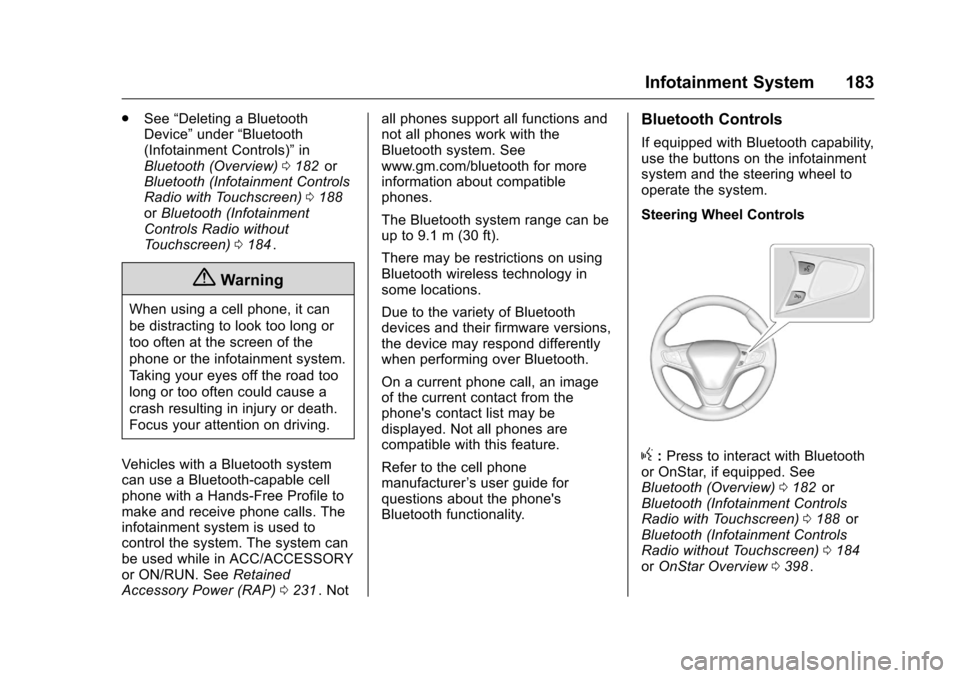
Steering Wheel Controls
g: Press to interact with Bluetooth
or OnStar, if equipped. See
Bluetooth (Overview) 0182
iior
Bluetooth (Infotainment Controls
Radio with Touchscreen) 0188
iior
Bluetooth (Infotainment Controls
Radio without Touchscreen) 0184
iior OnStar Overview 0398ii.
Page 185 of 420
Chevrolet Malibu Owner Manual (GMNA-Localizing-U.S./Canada/Mexico-
9087641) - 2016 - crc - 9/3/15
184 Infotainment System
c:Press to silence the vehicle
speakers only. Press again to turn
the sound on. Press to reject an
incoming call or end a current call.
Bluetooth (Infotainment
Controls Radio without
Touchscreen)
To use infotainment controls to
access the menu system, see
Overview 0170
ii.
Pairing
A Bluetooth-enabled cell phone
must be paired to the Bluetooth
system and then connected to the
vehicle before it can be used. See
your cell phone manufacturer's user
guide for Bluetooth functions before
pairing the cell phone. If a Bluetooth
phone is not connected, calls will be
made using OnStar Hands-Free
Calling, if available. See OnStar
Overview 0398
ii. Pairing Information
.
A Bluetooth phone with MP3
capability cannot be paired to
the vehicle as a phone and an
MP3 player at the same time.
. Up to five cell phones can be
paired to the Bluetooth system.
. The pairing process is disabled
when the vehicle is moving.
. Pairing only needs to be
completed once, unless the
pairing information on the cell
phone changes or the cell phone
is deleted from the system.
. Only one paired cell phone can
be connected to the Bluetooth
system at a time.
. If multiple paired cell phones are
within range of the system, the
system connects to the first
available paired cell phone in the
order that they were first paired.
When the Bluetooth device and
infotainment system are
successfully paired, the phone book
is downloaded automatically. This is
dependent on the type of phone
paired. If the automatic download does not occur, proceed with the
phone book download on the
phone.
Pairing a Phone
–SSP and No
Paired Device
When there is no paired device on
the infotainment system and Simple
Secure Pairing (SSP) is supported:
1. Press PHONE or press
gon
the steering wheel without
OnStar.
2. Press Pair to search for Bluetooth Devices.
3. When the Bluetooth device and infotainment system are
successfully paired, the phone
screen is displayed on the
infotainment system.
Pairing a Phone –SSP and Paired
Device
When a paired device is on the
infotainment system and SSP is
supported:
1. Press PHONE or press
gon
the steering wheel without
OnStar.
Page 186 of 420
Chevrolet Malibu Owner Manual (GMNA-Localizing-U.S./Canada/Mexico-
9087641) - 2016 - crc - 9/3/15
Infotainment System 185
2. Press MENU, then selectBluetooth Devices.
3. Turn MENU to the desired device to pair.
4. Press MENU to select the desired device to pair.
5. When the Bluetooth device and infotainment system are
successfully paired, the phone
screen is displayed on the
infotainment system. If no
desired device is available go
to Step 6.
6. Press Add to search for the desired device.
. The connected phone is
highlighted by
5.
.
Z/5indicates the hands-free
and phone music functions are
enabled.
.
5indicates only the hands-free
function is enabled.
.
Zindicates only Bluetooth
music is enabled. Pairing a Phone
–No SSP and No
Paired Device
When there is no paired device on
the infotainment system and SSP is
not supported:
1. Press PHONE or press
gon
the steering wheel without
OnStar.
2. Press Pair to search for Bluetooth Devices.
3. Input the Personal Identification Number (PIN)
code (default: 1234) to the
Bluetooth device. When the
Bluetooth device and
infotainment system are
successfully paired, the
PHONE screen is displayed on
the infotainment system.
When the connection fails, a failure
message is displayed on the
infotainment system.
If a Bluetooth device was previously
connected, the infotainment system
executes the auto connection.
However, if the Bluetooth setting on the Bluetooth device is turned off, a
failure message is displayed on the
infotainment system.
Pairing a Phone
–No SSP and
Paired Device
When a paired device is on the
infotainment system and SSP is not
supported:
1. Press PHONE or press
gon
the steering wheel without
OnStar.
2. Press MENU, then select Bluetooth Devices.
3. Turn MENU to the desired device to pair.
4. Press MENU to select the desired device to pair.
5. Input the Personal Identification Number (PIN)
code (default: 1234) to the
Bluetooth device. When the
Bluetooth device and
infotainment system are
successfully paired,
Z/5is
displayed on the pair device
screen. If no desired device is
available go to Step 6.
Page 189 of 420
Chevrolet Malibu Owner Manual (GMNA-Localizing-U.S./Canada/Mexico-
9087641) - 2016 - crc - 9/3/15
188 Infotainment System
.Sounds may be cut off during
the Bluetooth music playback.
. The infotainment system outputs
the audio from the cell phone or
Bluetooth device as it is
transmitted.
Bluetooth (Infotainment
Controls Radio with
Touchscreen)
To use infotainment controls to
access the menu system, see
Overview 0170
ii.
Pairing
A Bluetooth-enabled cell phone
must be paired to the Bluetooth
system and then connected to the
vehicle before it can be used. See
your cell phone manufacturer's user
guide for Bluetooth functions before
pairing the cell phone. If a Bluetooth
phone is not connected, calls will be
made using OnStar Hands-Free
Calling, if available. See OnStar
Overview 0398
ii. Pairing Information
.
A Bluetooth phone with MP3
capability cannot be paired to
the vehicle as a phone and an
MP3 player at the same time.
. Up to 10 cell phones can be
paired to the Bluetooth system.
. The pairing process is disabled
when the vehicle is moving.
. Pairing only needs to be
completed once, unless the
pairing information on the cell
phone changes or the cell phone
is deleted from the system.
. Only one paired cell phone can
be connected to the Bluetooth
system at a time.
. If multiple paired cell phones are
within range of the system, the
system connects to the first
available paired cell phone in the
order that they were first paired.
When the Bluetooth device and
infotainment system are
successfully paired, the phone book
is downloaded automatically. This is
dependent on the type of phone
paired. If the automatic download does not occur, proceed with the
phone book download on the
phone.
Pairing a Phone
–SSP and No
Paired Device
When there is no paired device on
the infotainment system and Simple
Secure Pairing (SSP) is supported:
1. Press
{.
2. Touch PHONE, press
5on the
faceplate, or press
gon the
steering wheel without OnStar.
3. Touch Search Device.
4. Touch the desired device to pair on the searched list
screen.
5. Touch Yes on the pop-up screen of the Bluetooth device
and infotainment system.
6. When the Bluetooth device and infotainment system are
successfully paired, the phone
screen is displayed on the
infotainment system.
Page 190 of 420
Chevrolet Malibu Owner Manual (GMNA-Localizing-U.S./Canada/Mexico-
9087641) - 2016 - crc - 9/3/15
Infotainment System 189
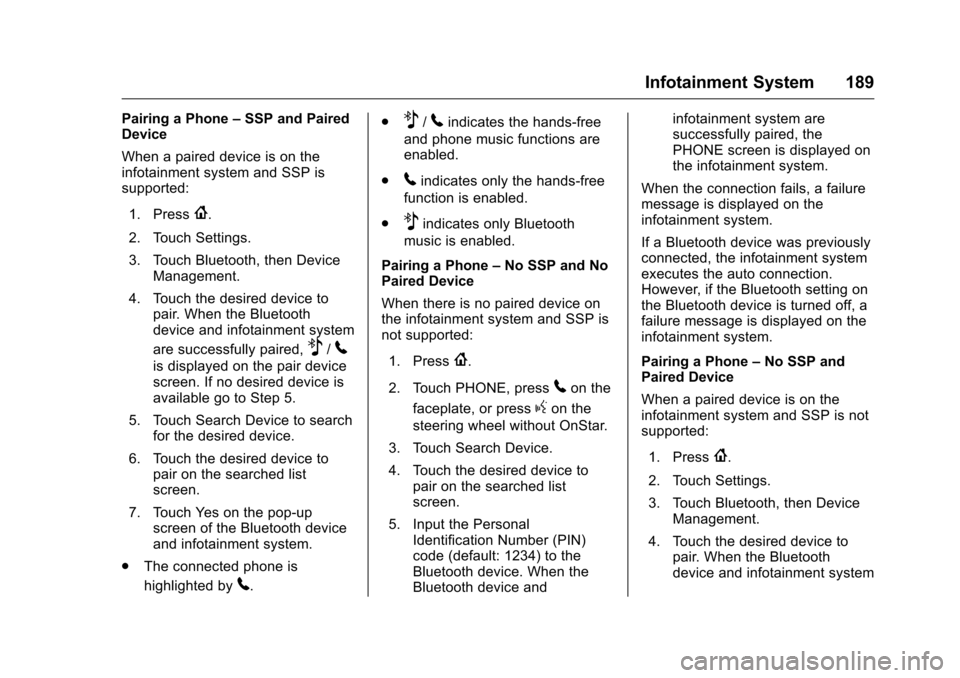
Pairing a Phone–SSP and Paired
Device
When a paired device is on the
infotainment system and SSP is
supported:
1. Press
{.
2. Touch Settings.
3. Touch Bluetooth, then Device Management.
4. Touch the desired device to pair. When the Bluetooth
device and infotainment system
are successfully paired,
Z/5
is displayed on the pair device
screen. If no desired device is
available go to Step 5.
5. Touch Search Device to search for the desired device.
6. Touch the desired device to pair on the searched list
screen.
7. Touch Yes on the pop-up screen of the Bluetooth device
and infotainment system.
. The connected phone is
highlighted by
5. .
Z/5indicates the hands-free
and phone music functions are
enabled.
.
5indicates only the hands-free
function is enabled.
.
Zindicates only Bluetooth
music is enabled.
Pairing a Phone –No SSP and No
Paired Device
When there is no paired device on
the infotainment system and SSP is
not supported:
1. Press
{.
2. Touch PHONE, press
5on the
faceplate, or press
gon the
steering wheel without OnStar.
3. Touch Search Device.
4. Touch the desired device to pair on the searched list
screen.
5. Input the Personal Identification Number (PIN)
code (default: 1234) to the
Bluetooth device. When the
Bluetooth device and infotainment system are
successfully paired, the
PHONE screen is displayed on
the infotainment system.
When the connection fails, a failure
message is displayed on the
infotainment system.
If a Bluetooth device was previously
connected, the infotainment system
executes the auto connection.
However, if the Bluetooth setting on
the Bluetooth device is turned off, a
failure message is displayed on the
infotainment system.
Pairing a Phone –No SSP and
Paired Device
When a paired device is on the
infotainment system and SSP is not
supported:
1. Press
{.
2. Touch Settings.
3. Touch Bluetooth, then Device Management.
4. Touch the desired device to pair. When the Bluetooth
device and infotainment system
Page 191 of 420
Chevrolet Malibu Owner Manual (GMNA-Localizing-U.S./Canada/Mexico-
9087641) - 2016 - crc - 9/3/15
190 Infotainment System
are successfully paired,Z/5
is displayed on the pair device
screen. If no desired device is
available go to Step 5.
5. Touch Search Device to search for the desired device.
6. Touch the desired device to pair on the searched list
screen.
7. Input the Personal Identification Number (PIN)
code (default: 1234) to the
Bluetooth device. When the
Bluetooth device and
infotainment system are
successfully paired,
Z/5is
displayed on the pair device
screen.
. The connected phone is
highlighted by
5.
.
Z/5indicates the hands-free
and phone music functions are
enabled.
.
5indicates only the hands-free
function is enabled. .
Zindicates only Bluetooth
music is enabled.
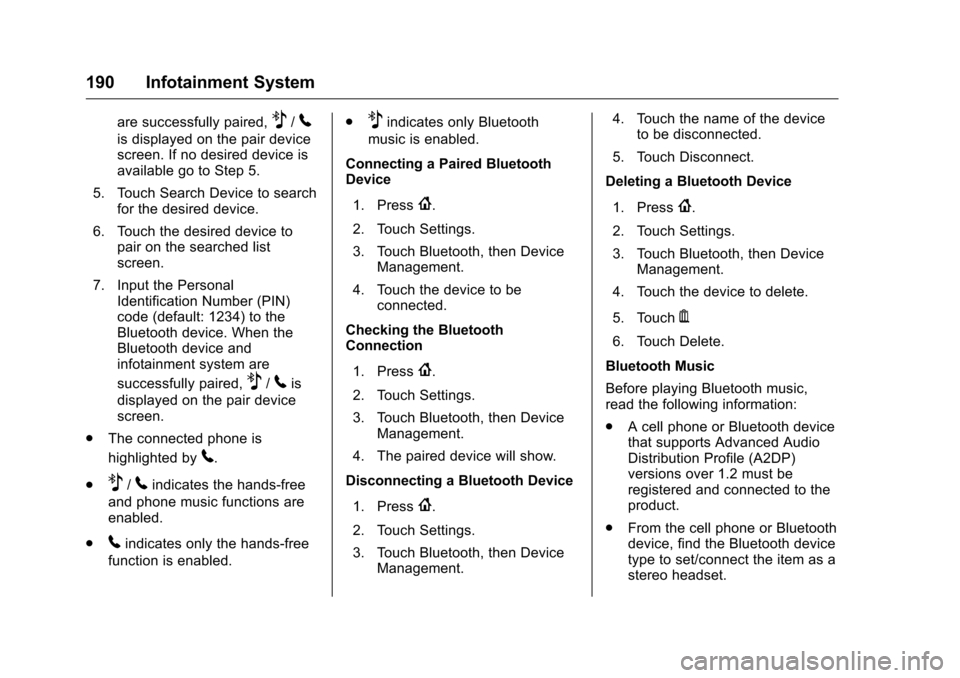
Connecting a Paired Bluetooth
Device
1. Press
{.
2. Touch Settings.
3. Touch Bluetooth, then Device Management.
4. Touch the device to be connected.
Checking the Bluetooth
Connection
1. Press
{.
2. Touch Settings.
3. Touch Bluetooth, then Device Management.
4. The paired device will show.
Disconnecting a Bluetooth Device
1. Press
{.
2. Touch Settings.
3. Touch Bluetooth, then Device Management. 4. Touch the name of the device
to be disconnected.
5. Touch Disconnect.
Deleting a Bluetooth Device
1. Press
{.
2. Touch Settings.
3. Touch Bluetooth, then Device Management.
4. Touch the device to delete.
5. Touch
Y.
6. Touch Delete.
Bluetooth Music
Before playing Bluetooth music,
read the following information:
. A cell phone or Bluetooth device
that supports Advanced Audio
Distribution Profile (A2DP)
versions over 1.2 must be
registered and connected to the
product.
. From the cell phone or Bluetooth
device, find the Bluetooth device
type to set/connect the item as a
stereo headset.
Page 193 of 420
Chevrolet Malibu Owner Manual (GMNA-Localizing-U.S./Canada/Mexico-
9087641) - 2016 - crc - 9/3/15
192 Infotainment System
.If the Bluetooth music playback
is not functioning, then check to
see if the Bluetooth device is in
the waiting screen mode.
. Sounds may be cut off during
the Bluetooth music playback.
. The infotainment system outputs
the audio from the cell phone or
Bluetooth device as it is
transmitted.
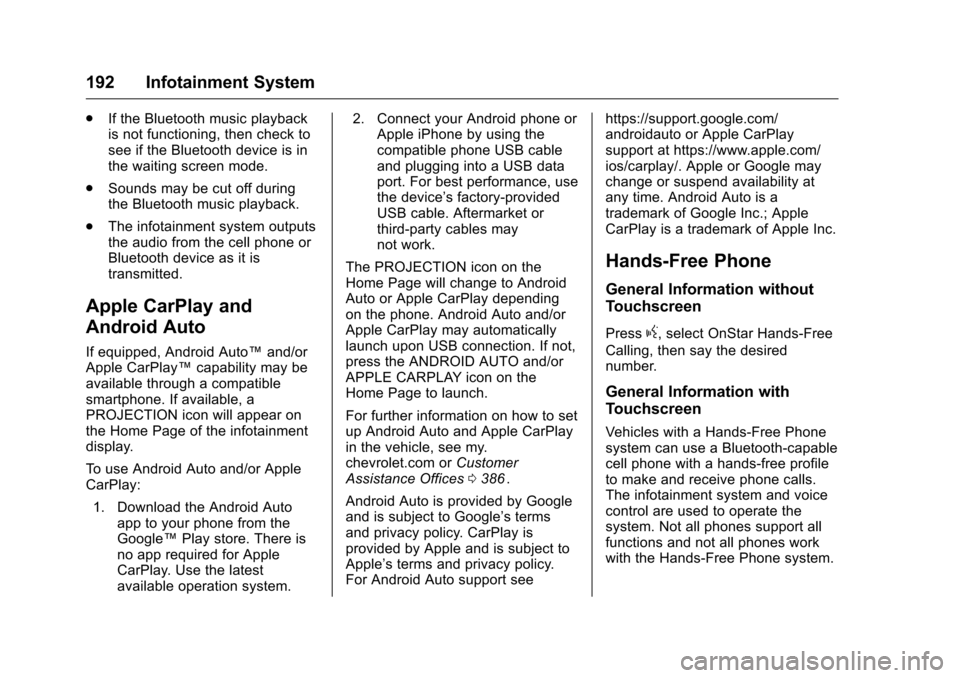
Apple CarPlay and
Android Auto
If equipped, Android Auto™ and/or
Apple CarPlay™ capability may be
available through a compatible
smartphone. If available, a
PROJECTION icon will appear on
the Home Page of the infotainment
display.
To use Android Auto and/or Apple
CarPlay:
1. Download the Android Auto app to your phone from the
Google™ Play store. There is
no app required for Apple
CarPlay. Use the latest
available operation system. 2. Connect your Android phone or
Apple iPhone by using the
compatible phone USB cable
and plugging into a USB data
port. For best performance, use
the device’ s factory-provided
USB cable. Aftermarket or
third-party cables may
not work.
The PROJECTION icon on the
Home Page will change to Android
Auto or Apple CarPlay depending
on the phone. Android Auto and/or
Apple CarPlay may automatically
launch upon USB connection. If not,
press the ANDROID AUTO and/or
APPLE CARPLAY icon on the
Home Page to launch.
For further information on how to set
up Android Auto and Apple CarPlay
in the vehicle, see my.
chevrolet.com or Customer
Assistance Offices 0386
ii.
Android Auto is provided by Google
and is subject to Google’s terms
and privacy policy. CarPlay is
provided by Apple and is subject to
Apple’ s terms and privacy policy.
For Android Auto support see https://support.google.com/
androidauto or Apple CarPlay
support at https://www.apple.com/
ios/carplay/. Apple or Google may
change or suspend availability at
any time. Android Auto is a
trademark of Google Inc.; Apple
CarPlay is a trademark of Apple Inc.
Hands-Free Phone
General Information without
Touchscreen
Pressg, select OnStar Hands-Free
Calling, then say the desired
number.
General Information with
Touchscreen
Vehicles with a Hands-Free Phone
system can use a Bluetooth-capable
cell phone with a hands-free profile
to make and receive phone calls.
The infotainment system and voice
control are used to operate the
system. Not all phones support all
functions and not all phones work
with the Hands-Free Phone system.
Page 194 of 420
Chevrolet Malibu Owner Manual (GMNA-Localizing-U.S./Canada/Mexico-
9087641) - 2016 - crc - 9/3/15
Infotainment System 193
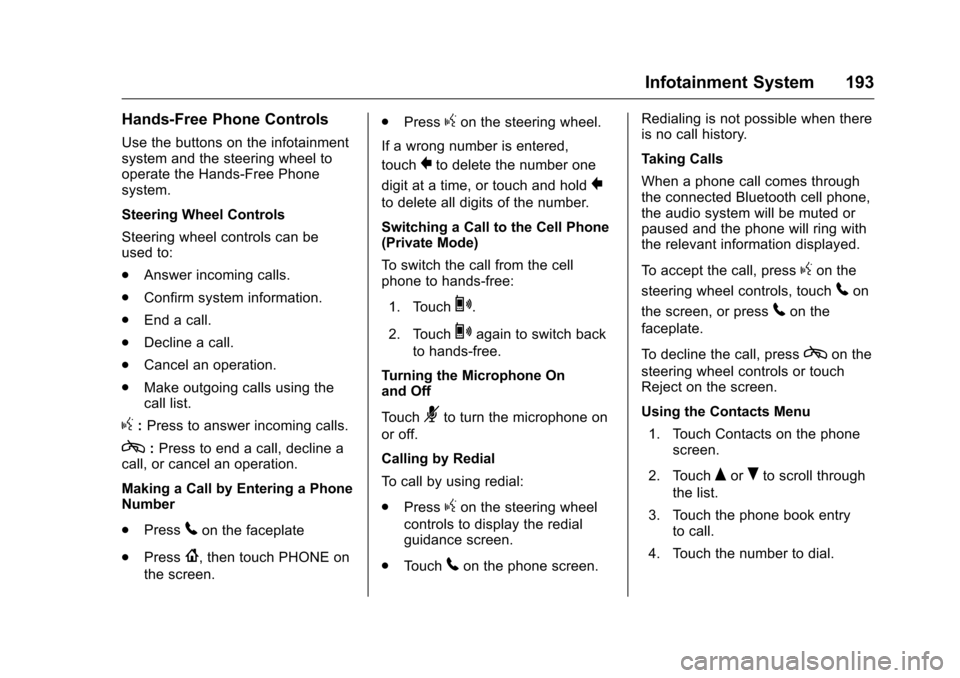
Hands-Free Phone Controls
Use the buttons on the infotainment
system and the steering wheel to
operate the Hands-Free Phone
system.
Steering Wheel Controls
Steering wheel controls can be
used to:
.Answer incoming calls.
. Confirm system information.
. End a call.
. Decline a call.
. Cancel an operation.
. Make outgoing calls using the
call list.
g:Press to answer incoming calls.
c:Press to end a call, decline a
call, or cancel an operation.
Making a Call by Entering a Phone
Number
. Press
5on the faceplate
. Press
{, then touch PHONE on
the screen. .
Press
gon the steering wheel.
If a wrong number is entered,
touch
}to delete the number one
digit at a time, or touch and hold
}
to delete all digits of the number.
Switching a Call to the Cell Phone
(Private Mode)
To switch the call from the cell
phone to hands-free:
1. Touch
0.
2. Touch
0again to switch back
to hands-free.
Turning the Microphone On
and Off
Touch
3to turn the microphone on
or off.
Calling by Redial
To call by using redial:
. Press
gon the steering wheel
controls to display the redial
guidance screen.
. Touch
5on the phone screen. Redialing is not possible when there
is no call history.
Taking Calls
When a phone call comes through
the connected Bluetooth cell phone,
the audio system will be muted or
paused and the phone will ring with
the relevant information displayed.
To accept the call, press
gon the
steering wheel controls, touch
5on
the screen, or press
5on the
faceplate.
To decline the call, press
con the
steering wheel controls or touch
Reject on the screen.
Using the Contacts Menu
1. Touch Contacts on the phone screen.
2. Touch
QorRto scroll through
the list.
3. Touch the phone book entry to call.
4. Touch the number to dial.
Page 195 of 420
Chevrolet Malibu Owner Manual (GMNA-Localizing-U.S./Canada/Mexico-
9087641) - 2016 - crc - 9/3/15
194 Infotainment System
Searching for Contacts Entries1. Touch Contacts on the phone screen.
2. Touch
9on the contacts
screen.
3. Use the keypad to input the name to search. See
“Searching for a Name”
following.
4. Touch the phone book entry to call.
5. If there is more than one number associated with the
name, touch the number
to dial.
When the Bluetooth device and
infotainment system are
successfully paired, the phone book
may download. Some phones may
not download automatically. If this
happens, connect it again or
proceed with the phone book
download on the phone.
Searching for a Name
Select characters by using the
keypad on the phone book screen.
As characters are selected, the names that include those characters
will display on the phone book
screen. As more characters of the
name are entered, the list of
possible names is shortened.
To search for the name Alex:
1. Touch (abc) to select the first character.
2. Touch (jkl) three times to select the second character.
3. Touch (def) two times to select the third character.
4. Touch (wxy) two times to select the fourth character.
Making a Call from Call History 1. Touch Call History on the phone screen.
2. Touch one of the following for:
.
WAll calls history.
.
[Dialed calls.
.
YMissed calls.
.
XReceived calls.
3. Select the contact entry to call. Making a Call with Speed Dial
Numbers
Touch and hold the speed dial
number using the keypad on the
phone screen.
Only speed dial numbers already
stored on the cell phone can be
used for speed dial calls. Up to
two-digit speed dial numbers are
supported.
For two-digit speed dial numbers,
touch and hold the second digit to
make a call to the speed dial
number.
Page 196 of 420
Chevrolet Malibu Owner Manual (GMNA-Localizing-U.S./Canada/Mexico-
9087641) - 2016 - crc - 9/3/15
Infotainment System 195
Settings
Teen Driver
If equipped, this allows multiple
keys to be registered for beginner
drivers, to encourage safe driving
habits. When the vehicle is started
with a Teen Driver key, it will
automatically activate certain safety
systems, allow setting of some
features, and limit the use of others.
The Report Card will record vehicle
data about driving behavior that can
be viewed later. When the vehicle is
started with a registered key, the
Driver Information Center (DIC)
displays a message that Teen Driver
is active.
To activate:1. From the Home screen, touch the Settings menu, then touch
Teen Driver.
2. Create a Personal Identification Number (PIN). Touch Teen
Driver, then choose a four-digit
PIN. Re-enter the PIN to
confirm. To change the PIN,
select Change PIN. The PIN is required to:
.
Register or unregister keys.
. Change Teen Driver
settings.
. Change or clear the Teen
Driver PIN.
. Access or delete Report
Card data.
3. Register a key. Any key can be registered, up to a maximum of
eight keys. Label the key to tell
it apart from the other keys.
For a pushbutton start system:
1. Start the engine.
2. For automatic transmissions, the vehicle must be in P (Park).
For manual transmissions, the
vehicle must be stopped with
the parking brake set.
3. From the Settings menu, select Teen Driver.
4. Enter the PIN. 5. Place the Remote Keyless
Entry (RKE) transmitter key in
the transmitter pocket. See
Remote Keyless Entry (RKE)
System Operation 031iifor
transmitter pocket location.
6. From the Teen Driver Menu, select Key Registration.
.If no transmitter key is
detected, place the key in
the transmitter pocket and
select Key Registration
again.
. If the transmitter key is in
the transmitter pocket, it will
identify whether the
transmitter key is registered
or unregistered.
‐If the transmitter key is
not registered, the
option to register
displays. Select
Register and a
confirmation message
displays.
‐ If the transmitter key is
already registered, the
option to unregister