ESP CHEVROLET MALIBU 2017 9.G User Guide
[x] Cancel search | Manufacturer: CHEVROLET, Model Year: 2017, Model line: MALIBU, Model: CHEVROLET MALIBU 2017 9.GPages: 419, PDF Size: 7.81 MB
Page 133 of 419
Chevrolet Malibu Owner Manual (GMNA-Localizing-U.S./Canada/Mexico-10122664) - 2017 - crc - 5/23/16
132 Instruments and Controls
V:Press to open a menu or selectamenuitem.Pressandholdtoreset values on certain screens.
Trip/Fuel Menu (TRIP) Items
Usewxto scroll through the
menu items. Not all items areavailable on every vehicle. Thefollowing is a list of all possiblemenu items:
Digital Speed :Displays how fastthe vehicle is moving in eitherkilometers per hour (km/h) or milesper hour (mph). The speedometercannot be reset.
Tr i p 1 o r Tr i p 2 , Av e r a g e F u e lEconomy :Displays the currentdistance traveled, in eitherkilometers (km) or miles (mi), fromthe last reset for the trip odometer.The trip odometer can be reset to
zero by pressing and holdingV
while the trip odometer display isshowing.
Also displays the approximateaverage liters per 100 kilometers(L/100 km) or miles per gallon(mpg). This number is based on the
number of L/100 km (mpg) recordedsince the last time this menu itemwas reset. This number reflects onlythe approximate average fueleconomy that the vehicle has rightnow, and will change as drivingconditions change. Reset the
average consumption by pressingV
when it is displayed.
Fuel Range :Displays theapproximate distance the vehiclecan be driven without refueling. Thefuel range estimate is based on anaverage of the vehicle's fueleconomy over recent driving historyand the amount of fuel remaining inthe fuel tank. Fuel range cannot bereset.
Average Vehicle Speed :Displaysthe average vehicle speed of thevehicle in kilometers per hour (km/h)or miles per hour (mph). Thisaverage is based on the variousvehicle speeds recorded since thelast reset. Reset the average speed
by pressingVwhen it is displayed.
Timer :To s t a r t t h e t i m e r , p r e s sV
while Timer is displayed. Thedisplay will show the amount of timethat has passed since the timer waslast reset, not including time theignition is off. Time will continue tobe counted as long as the ignition ison, even if another display is beingshown on the DIC. The timer willrecord up to 99 hours, 59 minutes,and 59 seconds (99:59:59) afterwhich the display will return to zero.
To s t o p t h e t i m e r, p r e s sVbriefly
while Timer is displayed. To reset
the timer to zero, press and holdV.
Navigation :Used for the OnStarTurn-by-Turn guidance. SeeOnStarOverview0397.
Vehicle Information Menu
(VEHICLE) Items
Usewxto scroll through the
menu items. Not all items areavailable on every vehicle. Thefollowing is a list of all possiblemenu items:
Page 134 of 419
Chevrolet Malibu Owner Manual (GMNA-Localizing-U.S./Canada/Mexico-10122664) - 2017 - crc - 5/23/16
Instruments and Controls 133
Remaining Oil Life :Displays anestimate of the oil's remaining usefullife. If REMAINING OIL LIFE 99% isdisplayed, that means 99% of thecurrent oil life remains.
When the remaining oil life is low,the CHANGE ENGINE OIL SOONmessage will appear on the display.SeeEngine Oil Messages0141.The oil should be changed as soonas possible. SeeEngine Oil0288.In addition to the engine oil lifesystem monitoring the oil life,additional maintenance isrecommended in the MaintenanceSchedule. SeeMaintenanceSchedule0369.
The Oil Life display must be resetafter each oil change. Do not resetthe Oil Life display accidentally atany time other than when the oil hasjust been changed. It cannot bereset accurately until the next oilchange. To reset the engine oil lifesystem, seeEngine Oil LifeSystem0291.
Oil Pressure :Oil pressure isdisplayed in either kilopascal (kPa)or in pounds per square inch (psi).
Oil pressure can vary with enginespeed, outside temperature, and oilviscosity. On some models, the oilpump will vary engine oil pressureaccording to engine needs. Oilpressure may change quickly as theengine speed or load varies. This isnormal. If the oil pressure warninglight or Driver Information Center(DIC) message indicates oilpressure outside the normaloperating range, check the vehicle'soil as soon as possible. SeeEngineOil Messages0141.
Tire Pressure :Displays a vehiclewith the approximate pressures ofall four tires. Tire pressure isdisplayed in either kilopascal (kPa)or in pounds per square inch (psi).SeeTire Pressure Monitor System0327andTire Pressure MonitorOperation0328.
Battery Voltage :Displays thecurrent battery voltage, if equipped.Battery voltage changes are normalwhile driving. SeeCharging SystemLight0122.Ifthereisaproblemwith the battery charging system,
the DIC will display a message. SeeBattery Voltage and ChargingMessages0138.
Coolant Temperature :Shows theengine coolant temperature in eitherdegrees Celsius (°C) or degreesFahrenheit (°F).
Speed Warning :This display isused to set the vehicle speed atwhich the speed warning chimesounds and the alert is displayed.The speed can be set by pressingVwhile the speed warning displayis showing.
Units :Movewxto change
between Metric or US when the Unit
display is active. PressVto confirm
the setting. This will change thedisplays on the DIC to the type ofmeasurements you select.
ECO Drive Assist Menu (ECO)
Items
Usewxto scroll through the
menu items. Not all items areavailable on every vehicle. Thefollowing is a list of all possiblemenu items:
Page 138 of 419
Chevrolet Malibu Owner Manual (GMNA-Localizing-U.S./Canada/Mexico-10122664) - 2017 - crc - 5/23/16
Instruments and Controls 137
Following Distance Indicator :When Adaptive Cruise Control(ACC) is not engaged, the currentfollow time to the vehicle ahead isdisplayed as a time value on thispage. When ACC has beenengaged, the display switches to thegap setting page. This page showsthe current gap setting along withthe vehicle ahead indicator.
Battery Voltage :Displays thecurrent battery voltage, if equipped.Battery voltage changes are normalwhile driving. SeeCharging SystemLight0122.Ifthereisaproblemwith the battery charging system,the DIC will display a message. SeeBattery Voltage and ChargingMessages0138.
Coolant Temperature :Shows theengine coolant temperature in eitherdegrees Celsius (°C) or degreesFahrenheit (°F).
Oil Pressure :Oil pressure isdisplayed in either kilopascal (kPa)or in pounds per square inch (psi).
Oil pressure can vary with enginespeed, outside temperature, and oilviscosity. On some models, the oil
pump will vary engine oil pressureaccording to engine needs. Oilpressure may change quickly as theengine speed or load varies. This isnormal. If the oil pressure warninglight or Driver Information Center(DIC) message indicates oilpressure outside the normaloperating range, check the vehicle'soil as soon as possible. SeeEngineOil Messages0141.
Drive Cycle Info (Hybrid) :Thisscreen displays the distancetraveled and average fuel economyfor the current trip. The screen willalso be shown when the vehicle isturned off displaying the previoustrip’sinformation.
Efficiency Gauge (Hybrid) :Thisgauge is a guide to driving in anefficient manner by keeping theindicator in the center of the gauge.
.Accel: If the indicator moves tothe right of the gauge,acceleration is too aggressive tooptimize efficiency.
.Brake: If the indicator moves tothe left side of the gauge,braking is too aggressive tooptimize efficiency.
To t a l P o w e r D i s p l a y ( H y b r i d ) :Provides a numeric display of thetotal power being used to propel orstop the vehicle. The display showsthe power being provided by thebattery or charging the battery aswell as the power provided by theengine.
EV Operation (Hybrid) :The barmoves from left to right as the driverrequests more power from thepropulsion system. While in EVmode, maintaining the bar in thegreen zone will allow the driver tomaximize EV operation.
Blank Page :Shows noinformation.
Page 149 of 419
Chevrolet Malibu Owner Manual (GMNA-Localizing-U.S./Canada/Mexico-10122664) - 2017 - crc - 5/23/16
148 Instruments and Controls
Entering the PersonalizationMenus
Select Settings from the home page.
The following menus may beavailable:
.Phone Connection (MTP Only)
.Time and Date
.To n e S e t t i n g s
.Auto Volume Control
.Maximum Startup Volume
.Vehicle Settings
Phone Connection (MTP Only)
Select and the following maydisplay:
.Charging Only
.Scan Music Folder Only
.Scan All Folders
Charging Only
This feature will charge a MediaTransfer Protocol (MTP) devicewhen connected to the USB port.Bluetooth®audio will beunavailable.
Turn MENU to highlight, then pressto select.
Scan Music Folder Only
This feature will scan and indexmusic folders on an MTP devicewhen connected to the USB port.
Turn MENU to highlight, then pressto select.
Scan All Folders
This feature will scan and index allfolders on an MTP device whenconnected to the USB port.
Turn MENU to highlight, then pressto select.
Time and Date
Select Time and Date to adjust theclock. SeeClock0107.
Tone Settings
Select to set the radio tone. See“To n e S e t t i n g s”under“RadioControls without Touchscreen”inOperation0176.
Auto Volume Control
This feature automatically adjuststhe radio volume based on thespeed of the vehicle.
Select the desired value.
Maximum Startup Volume
When the vehicle is started and theradio volume is greater than this setlevel, the volume is adjusted to thislevel.
Select the desired value.
Vehicle Settings
Select and the following maydisplay:
.Climate and Air Quality
.Comfort and Convenience
.Languages
.Lighting
.Power Door Locks
.Remote Lock, Unlock, Start
.Return to Factory Settings
.Software Information
.Va l e t M o d e
Page 173 of 419
Chevrolet Malibu Owner Manual (GMNA-Localizing-U.S./Canada/Mexico-10122664) - 2017 - crc - 5/23/16
172 Infotainment System
functions may gray out when theyare unavailable. Many infotainmentfeatures are also available throughthe instrument cluster and steeringwheel controls.
Before driving:
.Become familiar with theoperation, faceplate buttons, andscreen buttons.
.Set up the audio by presettingfavorite stations, setting thetone, and adjusting thespeakers.
.Set up phone numbers inadvance so they can be calledeasily by pressing a singlebutton or by using a single voicecommand if equipped withBluetooth phone capability.
SeeDefensive Driving0216.
To p l a y t h e i n f o t a i n m e n t s y s t e m w i t hthe ignition off, seeRetainedAccessory Power (RAP)0230.
Theft-Deterrent Feature
The infotainment system has anelectronic security system installedto prevent theft.
The infotainment system only worksin the vehicle in which it was firstinstalled, and cannot be used inanother vehicle.
Page 181 of 419
Chevrolet Malibu Owner Manual (GMNA-Localizing-U.S./Canada/Mexico-10122664) - 2017 - crc - 5/23/16
180 Infotainment System
Storing Stations
Press FAV to select the desiredpage of saved favorites.
To s t o r e t h e s t a t i o n t o a p o s i t i o n i nthe list, press and hold thecorresponding preset button 1✓4until a beep is heard.
Playing the Radio with
Touchscreen
Audio Source Menu
{:Press to go to the Home Page.
O:Press to turn on, mute,or unmute the system. Press andhold to turn off the system.
Selecting a Band
1. Press{.
2. Touch AUDIO.
3. Touch Source.
4. Select AM, FM, or SXM,if equipped.
The last station that was playingstarts playing again.
Selecting an Auxiliary Device
Connect the auxiliary device to theAUX input terminal. Play will beginwhen the system has finishedreading the information on thedevice.
If the auxiliary device is alreadyconnected:
1. Press{.
2. Touch AUDIO.
3. Touch Source.
4. Select the device.
Selecting a Station
Seek Tuning
If the radio station is not known:
Pressgordto automatically
search for available radio stations.
Direct Tune
From the AM or FM menu:
1. Touch Tune.
2. Enter the station number.
3. Touch Go.
Favorite
1. TouchSorTto scroll through
the favorite pages.
2. Touch the station to select it.
Station List
1. From the AM or FM menu,touch Menu.
2. Select Station List.
3. TouchQorRto scroll through
the list. Touch the station toselect it.
Update Station List
.From the AM or FM menu, touchMenu, then touch Update StationList. The broadcasting listupdating will begin.
.During the AM or FMbroadcasting list update, touchCancel to stop the updates.
Menu
To u c h t o c h o o s e b e t w e e n a v a i l a b l emenus for the current source.
Page 182 of 419
Chevrolet Malibu Owner Manual (GMNA-Localizing-U.S./Canada/Mexico-10122664) - 2017 - crc - 5/23/16
Infotainment System 181
Storing a Station as a Favorite
Stations from all bands can bestored in any order in the favoritepages.
Up to 25 stations can be stored.
Storing Stations
To s t o r e t h e s t a t i o n t o a p o s i t i o n i nthe list, touch the correspondingbutton 1✓5untilabeepisheard.
1. Select the desired station.
2. TouchSorTto select the
desired page of savedfavorites.
3. Touch and hold any of thepreset buttons to save thecurrent radio station to thatbutton of the selectedfavorites page.
To c h a n g e a p r e s e t b u t t o n , t u n e t othe new desired radio station andtouch and hold the preset button.
Satellite Radio
If equipped, vehicles with anSiriusXM®Satellite Radio tuner andavalidSiriusXMSatelliteRadiosubscription can receive SiriusXMprogramming.
SiriusXM Satellite Radio
Service
SiriusXM is a satellite radio servicebased in the 48 contiguous UnitedStates and 10 Canadian provinces.SiriusXM Satellite Radio has a widevariety of programming andcommercial-free music, coast tocoast, and in digital-quality sound.During your trial or when yousubscribe, you will get unlimitedaccess to SiriusXM Radio Online forwhen you are not in the vehicle.Aservicefeeisrequiredtoreceivethe SiriusXM service. If SiriusXMservice needs to be reactivated, theradio will display "No SubscriptionPlease Renew" on channel SXM1.For more information, contactSiriusXM at www.siriusxm.com or1-888-601-6296 (U.S.), andwww.siriusxm.ca or 1-877-438-9677(Canada).
Listening to SiriusXM Radio
1. Press{.
2. Touch AUDIO.
3. Touch Source.
4. Touch SXM and the mostrecent listened to SiriusXMchannel will display.
Selecting a Category
From Menu, touch Categories, thentouch the desired category or from
Categories, touchQorRto find the
desired channel. Touch the channelto select it.
Selecting a Channel
Pressgordto seek the previous
or next channel.
Using the Preset Buttons
Up to five favorites pages can besaved, and each page can store upto five channels.
To c h a n g e a p r e s e t b u t t o n , t u n e t othe new desired channel and holdthe button.
Page 183 of 419
Chevrolet Malibu Owner Manual (GMNA-Localizing-U.S./Canada/Mexico-10122664) - 2017 - crc - 5/23/16
182 Infotainment System
Listening to Preset Channels
1. TouchSorTrepeatedly to
select the desiredfavorites page.
2. Touch the preset button tolisten to the channel.
Using the SiriusXM Menu
Operation
1. Touch MENU on the SXM radioscreen.
2. Touch the menu to select thedesired item or to display thedetail menu item.
3. Touch0to return to the
previous menu.
Channel List
1. Touch Channel List from theSXM menu. The channel list isdisplayed.
2. TouchQorRto find the
desired channel. Touch thechannel to select it.
Tone Settings
1. Touch Tone Settings. See“To n e S e t t i n g s”underOperation0176.
2. Touch0.
Auto Volume
1. Touch Auto Volume. See“AutoVolume”underOperation0176.
2. Touch0.
Categories
1. Touch Categories.
2. TouchQorRto find the
desired category. Touch thecategory to select it.
Explicit Content Filter
When on, only a filtered list ofchannels will be received. When off,all regular SXM programmingsubscribed to will be received.
1. Touch SXM Explicit Filter.
2. Select to enable or disable.
Radio Reception
Frequency interference and staticcan occur during normal radioreception if items such as cell phonechargers, vehicle convenienceaccessories, and external electronicdevices are plugged into theaccessory power outlet. If there isinterference or static, unplug theitem from the accessory poweroutlet.
FM
FM signals only reach about 16 to65 km (10 to 40 mi). Although theradio has a built-in electronic circuitthat automatically works to reduceinterference, some static can occur,especially around tall buildings orhills, causing the sound to fade inand out.
AM
The range for most AM stations isgreater than for FM, especially atnight. The longer range can causestation frequencies to interfere witheach other. Static can occur whenthings like storms and power lines
Page 192 of 419
Chevrolet Malibu Owner Manual (GMNA-Localizing-U.S./Canada/Mexico-10122664) - 2017 - crc - 5/23/16
Infotainment System 191
There may be restrictions on usingBluetooth wireless technology insome locations.
Due to the variety of Bluetoothdevices and their firmware versions,the device may respond differentlywhen performing over Bluetooth.
On a current phone call, an imageof the current contact from thephone's contact list may bedisplayed. Not all phones arecompatible with this feature.
Refer to the cell phonemanufacturer’suserguideforquestions about the phone'sBluetooth functionality.
Bluetooth Controls
If equipped with Bluetooth capability,use the buttons on the infotainmentsystem and the steering wheel tooperate the system.
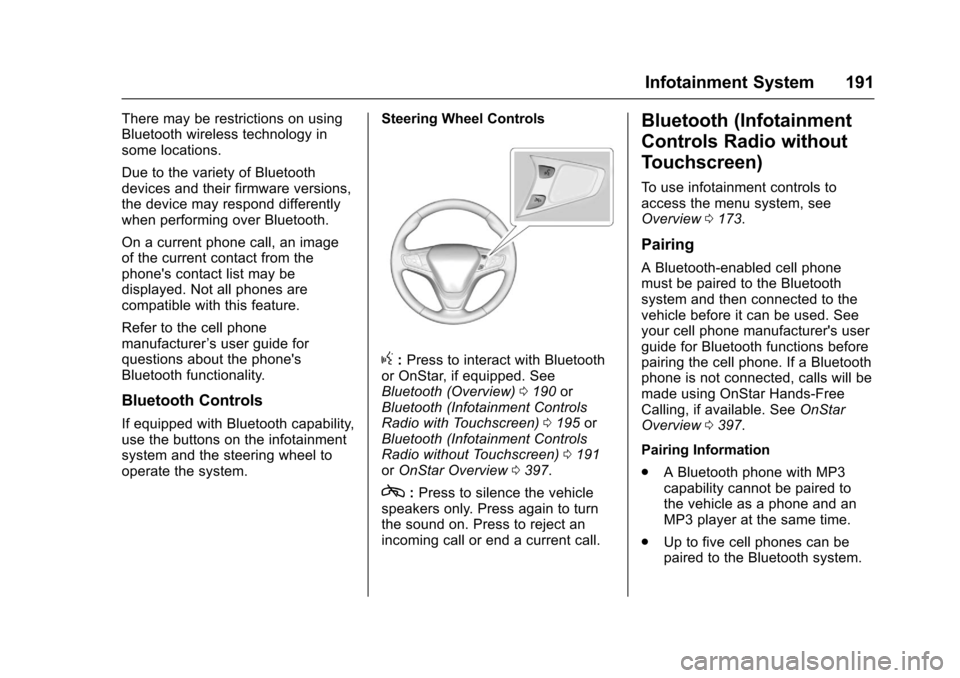
Steering Wheel Controls
g:Press to interact with Bluetoothor OnStar, if equipped. SeeBluetooth (Overview)0190orBluetooth (Infotainment ControlsRadio with Touchscreen)0195orBluetooth (Infotainment ControlsRadio without Touchscreen)0191orOnStar Overview0397.
c:Press to silence the vehiclespeakers only. Press again to turnthe sound on. Press to reject anincoming call or end a current call.
Bluetooth (Infotainment
Controls Radio without
Touchscreen)
To u s e i n f o t a i n m e n t c o n t r o l s t oaccess the menu system, seeOverview0173.
Pairing
ABluetooth-enabledcellphonemust be paired to the Bluetoothsystem and then connected to thevehicle before it can be used. Seeyour cell phone manufacturer's userguide for Bluetooth functions beforepairing the cell phone. If a Bluetoothphone is not connected, calls will bemade using OnStar Hands-FreeCalling, if available. SeeOnStarOverview0397.
Pairing Information
.ABluetoothphonewithMP3capability cannot be paired tothe vehicle as a phone and anMP3 player at the same time.
.Up to five cell phones can bepaired to the Bluetooth system.
Page 203 of 419
Chevrolet Malibu Owner Manual (GMNA-Localizing-U.S./Canada/Mexico-10122664) - 2017 - crc - 5/23/16
202 Infotainment System
Searching for a Name
Select characters by using thekeypad on the phone book screen.As characters are selected, thenames that include those characterswill display on the phone bookscreen. As more characters of thename are entered, the list ofpossible names is shortened.
To s e a r c h f o r t h e n a m e A l e x :
1. Touch (abc) to select the firstcharacter.
2. Touch (jkl) three times to selectthe second character.
3. Touch (def) two times to selectthe third character.
4. Touch (wxy) two times to selectthe fourth character.
Making a Call from Call History
1. Touch Call History on thephone screen.
2. Touch one of the following for:
.WAll calls history.
.[Dialed calls.
.YMissed calls.
.XReceived calls.
3. Select the contact entry to call.
Making a Call with Speed DialNumbers
To u c h a n d h o l d t h e s p e e d d i a lnumber using the keypad on thephone screen.
Only speed dial numbers alreadystored on the cell phone can beused for speed dial calls. Up totwo-digit speed dial numbers aresupported.
For two-digit speed dial numbers,touch and hold the second digit tomake a call to the speed dialnumber.
Trademarks and
License Agreements
FCC Information
SeeRadio FrequencyStatement0393.
Bluetooth®
The Bluetooth word mark and logosare owned by the Bluetooth®SIG,Inc. and any use of such marks byGeneral Motors is under license.Other trademarks and trade namesare those of their respective owners.
DivX Certified®to play DivX®video,including premium content.
Covered by one or more of thefollowing U.S. patents: 7,295,673;7,460,668; 7,515,710; 7,519,274.