audio CHEVROLET MALIBU 2017 9.G User Guide
[x] Cancel search | Manufacturer: CHEVROLET, Model Year: 2017, Model line: MALIBU, Model: CHEVROLET MALIBU 2017 9.GPages: 419, PDF Size: 7.81 MB
Page 173 of 419
Chevrolet Malibu Owner Manual (GMNA-Localizing-U.S./Canada/Mexico-10122664) - 2017 - crc - 5/23/16
172 Infotainment System
functions may gray out when theyare unavailable. Many infotainmentfeatures are also available throughthe instrument cluster and steeringwheel controls.
Before driving:
.Become familiar with theoperation, faceplate buttons, andscreen buttons.
.Set up the audio by presettingfavorite stations, setting thetone, and adjusting thespeakers.
.Set up phone numbers inadvance so they can be calledeasily by pressing a singlebutton or by using a single voicecommand if equipped withBluetooth phone capability.
SeeDefensive Driving0216.
To p l a y t h e i n f o t a i n m e n t s y s t e m w i t hthe ignition off, seeRetainedAccessory Power (RAP)0230.
Theft-Deterrent Feature
The infotainment system has anelectronic security system installedto prevent theft.
The infotainment system only worksin the vehicle in which it was firstinstalled, and cannot be used inanother vehicle.
Page 174 of 419
Chevrolet Malibu Owner Manual (GMNA-Localizing-U.S./Canada/Mexico-10122664) - 2017 - crc - 5/23/16
Infotainment System 173
Overview
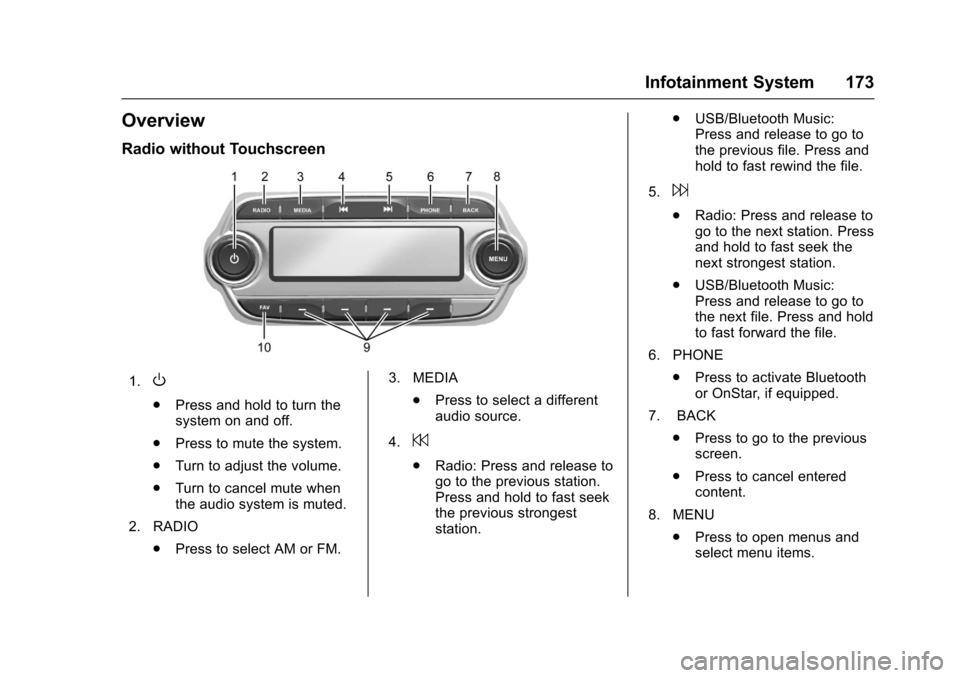
Radio without Touchscreen
1.O
.Press and hold to turn thesystem on and off.
.Press to mute the system.
.Turn to adjust the volume.
.Turn to cancel mute whenthe audio system is muted.
2. RADIO
.Press to select AM or FM.
3. MEDIA
.Press to select a differentaudio source.
4.7
.Radio: Press and release togo to the previous station.Press and hold to fast seekthe previous strongeststation.
.USB/Bluetooth Music:Press and release to go tothe previous file. Press andhold to fast rewind the file.
5.6
.Radio: Press and release togo to the next station. Pressand hold to fast seek thenext strongest station.
.USB/Bluetooth Music:Press and release to go tothe next file. Press and holdto fast forward the file.
6. PHONE
.Press to activate Bluetoothor OnStar, if equipped.
7. BACK
.Press to go to the previousscreen.
.Press to cancel enteredcontent.
8. MENU
.Press to open menus andselect menu items.
Page 176 of 419
Chevrolet Malibu Owner Manual (GMNA-Localizing-U.S./Canada/Mexico-10122664) - 2017 - crc - 5/23/16
Infotainment System 175
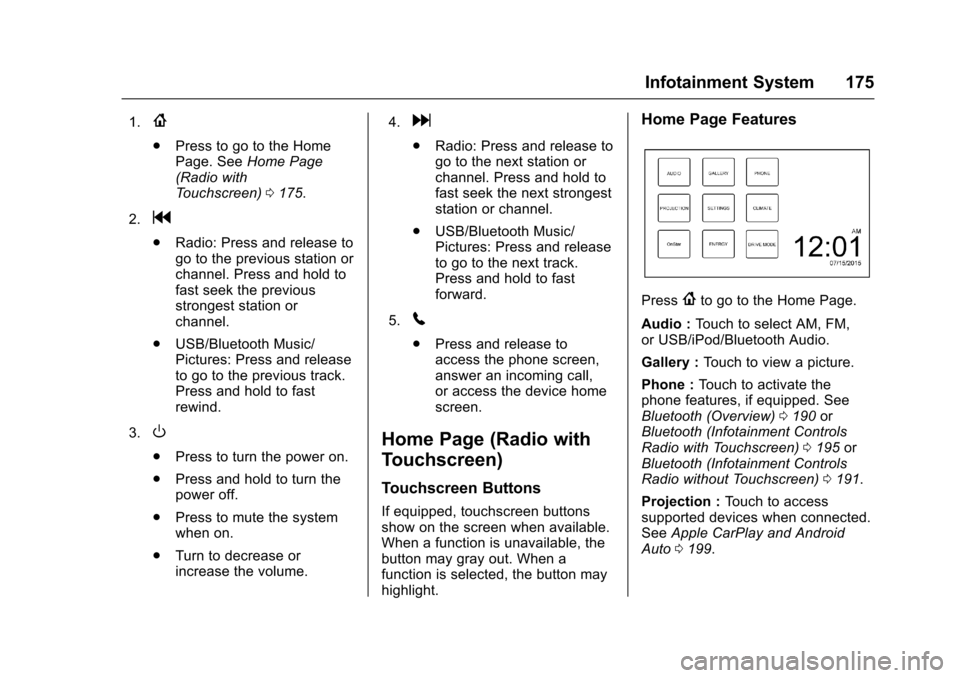
1.{
.Press to go to the HomePage. SeeHome Page(Radio withTo u c h s c r e e n )0175.
2.g
.Radio: Press and release togo to the previous station orchannel. Press and hold tofast seek the previousstrongest station orchannel.
.USB/Bluetooth Music/Pictures: Press and releaseto go to the previous track.Press and hold to fastrewind.
3.O
.Press to turn the power on.
.Press and hold to turn thepower off.
.Press to mute the systemwhen on.
.Turn to decrease orincrease the volume.
4.d
.Radio: Press and release togo to the next station orchannel. Press and hold tofast seek the next strongeststation or channel.
.USB/Bluetooth Music/Pictures: Press and releaseto go to the next track.Press and hold to fastforward.
5.5
.Press and release toaccess the phone screen,answer an incoming call,or access the device homescreen.
Home Page (Radio with
Touchscreen)
Touchscreen Buttons
If equipped, touchscreen buttonsshow on the screen when available.When a function is unavailable, thebutton may gray out. When afunction is selected, the button mayhighlight.
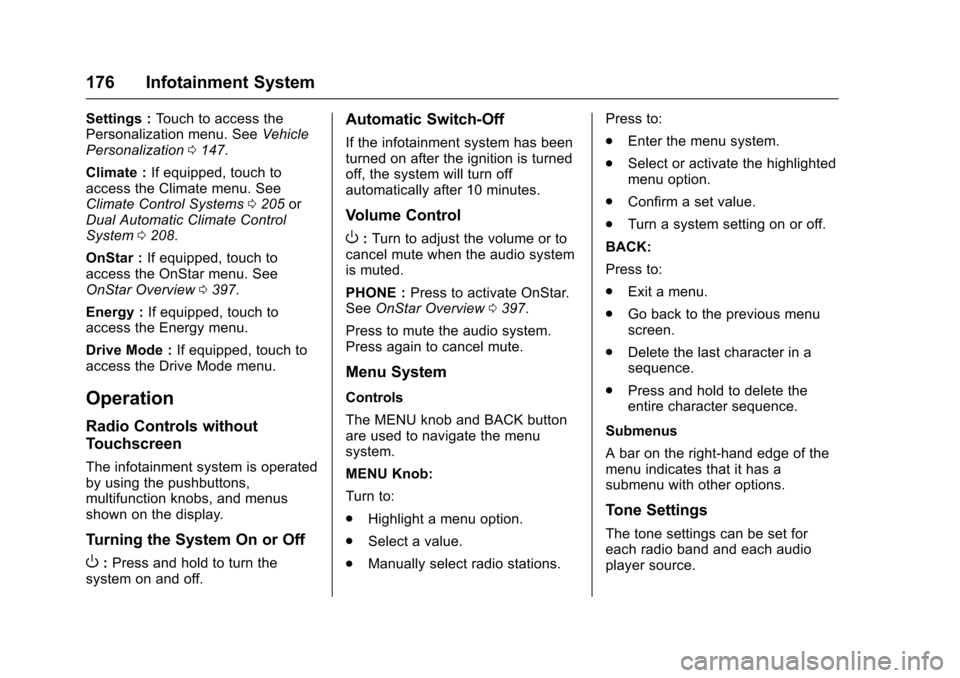
Home Page Features
Press{to go to the Home Page.
Audio :To u c h t o s e l e c t A M , F M ,or USB/iPod/Bluetooth Audio.
Gallery :To u c h t o v i e w a p i c t u r e .
Phone :To u c h t o a c t i v a t e t h ephone features, if equipped. SeeBluetooth (Overview)0190orBluetooth (Infotainment ControlsRadio with Touchscreen)0195orBluetooth (Infotainment ControlsRadio without Touchscreen)0191.
Projection :To u c h t o a c c e s ssupported devices when connected.SeeApple CarPlay and AndroidAuto0199.
Page 177 of 419
Chevrolet Malibu Owner Manual (GMNA-Localizing-U.S./Canada/Mexico-10122664) - 2017 - crc - 5/23/16
176 Infotainment System
Settings :To u c h t o a c c e s s t h ePersonalization menu. SeeVehiclePersonalization0147.
Climate :If equipped, touch toaccess the Climate menu. SeeClimate Control Systems0205orDual Automatic Climate ControlSystem0208.
OnStar :If equipped, touch toaccess the OnStar menu. SeeOnStar Overview0397.
Energy :If equipped, touch toaccess the Energy menu.
Drive Mode :If equipped, touch toaccess the Drive Mode menu.
Operation
Radio Controls without
Touchscreen
The infotainment system is operatedby using the pushbuttons,multifunction knobs, and menusshown on the display.
Turning the System On or Off
O:Press and hold to turn thesystem on and off.
Automatic Switch-Off
If the infotainment system has beenturned on after the ignition is turnedoff, the system will turn offautomatically after 10 minutes.
Volume Control
O:Turn to adjust the volume or tocancel mute when the audio systemis muted.
PHONE :Press to activate OnStar.SeeOnStar Overview0397.
Press to mute the audio system.Press again to cancel mute.
Menu System
Controls
The MENU knob and BACK buttonare used to navigate the menusystem.
MENU Knob:
Turn to:
.Highlight a menu option.
.Select a value.
.Manually select radio stations.
Press to:
.Enter the menu system.
.Select or activate the highlightedmenu option.
.Confirm a set value.
.Turn a system setting on or off.
BACK:
Press to:
.Exit a menu.
.Go back to the previous menuscreen.
.Delete the last character in asequence.
.Press and hold to delete theentire character sequence.
Submenus
Abarontheright-handedgeofthemenu indicates that it has asubmenu with other options.
Tone Settings
The tone settings can be set foreach radio band and each audioplayer source.
Page 179 of 419
Chevrolet Malibu Owner Manual (GMNA-Localizing-U.S./Canada/Mexico-10122664) - 2017 - crc - 5/23/16
178 Infotainment System
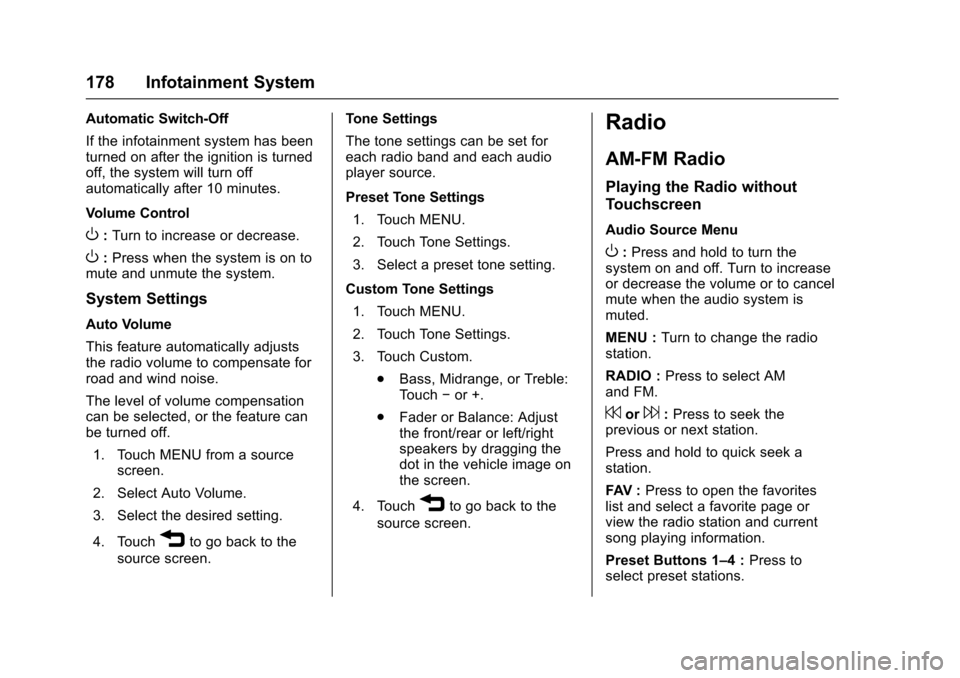
Automatic Switch-Off
If the infotainment system has beenturned on after the ignition is turnedoff, the system will turn offautomatically after 10 minutes.
Volume Control
O:Turn to increase or decrease.
O:Press when the system is on tomute and unmute the system.
System Settings
Auto Volume
This feature automatically adjuststhe radio volume to compensate forroad and wind noise.
The level of volume compensationcan be selected, or the feature canbe turned off.
1. Touch MENU from a sourcescreen.
2. Select Auto Volume.
3. Select the desired setting.
4. Touch3to go back to the
source screen.
Tone Settings
The tone settings can be set foreach radio band and each audioplayer source.
Preset Tone Settings
1. Touch MENU.
2. Touch Tone Settings.
3. Select a preset tone setting.
Custom Tone Settings
1. Touch MENU.
2. Touch Tone Settings.
3. Touch Custom.
.Bass, Midrange, or Treble:To u c h✓or +.
.Fader or Balance: Adjustthe front/rear or left/rightspeakers by dragging thedot in the vehicle image onthe screen.
4. Touch3to go back to the
source screen.
Radio
AM-FM Radio
Playing the Radio without
Touchscreen
Audio Source Menu
O:Press and hold to turn thesystem on and off. Turn to increaseor decrease the volume or to cancelmute when the audio system ismuted.
MENU :Turn to change the radiostation.
RADIO :Press to select AMand FM.
7or6:Press to seek theprevious or next station.
Press and hold to quick seek astation.
FAV :Press to open the favoriteslist and select a favorite page orview the radio station and currentsong playing information.
Preset Buttons 1–4:Press toselect preset stations.
Page 181 of 419
Chevrolet Malibu Owner Manual (GMNA-Localizing-U.S./Canada/Mexico-10122664) - 2017 - crc - 5/23/16
180 Infotainment System
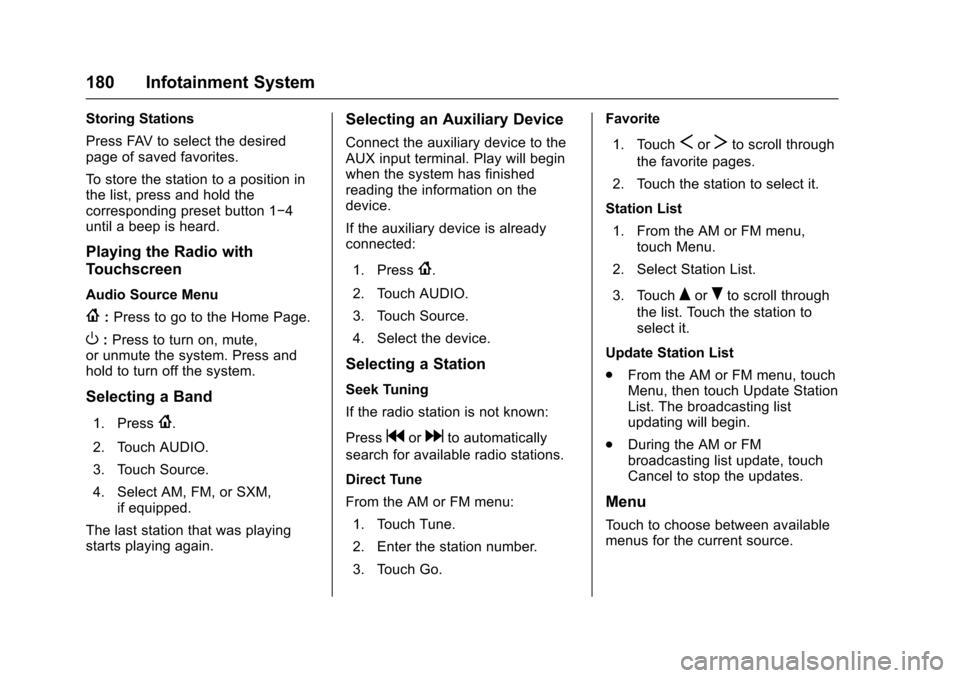
Storing Stations
Press FAV to select the desiredpage of saved favorites.
To s t o r e t h e s t a t i o n t o a p o s i t i o n i nthe list, press and hold thecorresponding preset button 1✓4until a beep is heard.
Playing the Radio with
Touchscreen
Audio Source Menu
{:Press to go to the Home Page.
O:Press to turn on, mute,or unmute the system. Press andhold to turn off the system.
Selecting a Band
1. Press{.
2. Touch AUDIO.
3. Touch Source.
4. Select AM, FM, or SXM,if equipped.
The last station that was playingstarts playing again.
Selecting an Auxiliary Device
Connect the auxiliary device to theAUX input terminal. Play will beginwhen the system has finishedreading the information on thedevice.
If the auxiliary device is alreadyconnected:
1. Press{.
2. Touch AUDIO.
3. Touch Source.
4. Select the device.
Selecting a Station
Seek Tuning
If the radio station is not known:
Pressgordto automatically
search for available radio stations.
Direct Tune
From the AM or FM menu:
1. Touch Tune.
2. Enter the station number.
3. Touch Go.
Favorite
1. TouchSorTto scroll through
the favorite pages.
2. Touch the station to select it.
Station List
1. From the AM or FM menu,touch Menu.
2. Select Station List.
3. TouchQorRto scroll through
the list. Touch the station toselect it.
Update Station List
.From the AM or FM menu, touchMenu, then touch Update StationList. The broadcasting listupdating will begin.
.During the AM or FMbroadcasting list update, touchCancel to stop the updates.
Menu
To u c h t o c h o o s e b e t w e e n a v a i l a b l emenus for the current source.
Page 182 of 419
Chevrolet Malibu Owner Manual (GMNA-Localizing-U.S./Canada/Mexico-10122664) - 2017 - crc - 5/23/16
Infotainment System 181
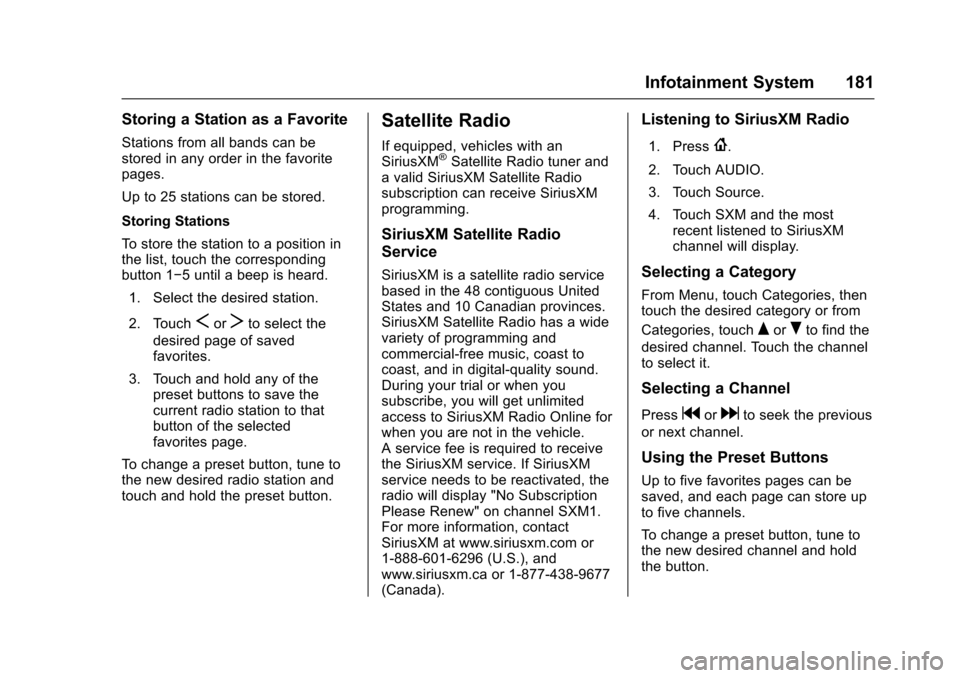
Storing a Station as a Favorite
Stations from all bands can bestored in any order in the favoritepages.
Up to 25 stations can be stored.
Storing Stations
To s t o r e t h e s t a t i o n t o a p o s i t i o n i nthe list, touch the correspondingbutton 1✓5untilabeepisheard.
1. Select the desired station.
2. TouchSorTto select the
desired page of savedfavorites.
3. Touch and hold any of thepreset buttons to save thecurrent radio station to thatbutton of the selectedfavorites page.
To c h a n g e a p r e s e t b u t t o n , t u n e t othe new desired radio station andtouch and hold the preset button.
Satellite Radio
If equipped, vehicles with anSiriusXM®Satellite Radio tuner andavalidSiriusXMSatelliteRadiosubscription can receive SiriusXMprogramming.
SiriusXM Satellite Radio
Service
SiriusXM is a satellite radio servicebased in the 48 contiguous UnitedStates and 10 Canadian provinces.SiriusXM Satellite Radio has a widevariety of programming andcommercial-free music, coast tocoast, and in digital-quality sound.During your trial or when yousubscribe, you will get unlimitedaccess to SiriusXM Radio Online forwhen you are not in the vehicle.Aservicefeeisrequiredtoreceivethe SiriusXM service. If SiriusXMservice needs to be reactivated, theradio will display "No SubscriptionPlease Renew" on channel SXM1.For more information, contactSiriusXM at www.siriusxm.com or1-888-601-6296 (U.S.), andwww.siriusxm.ca or 1-877-438-9677(Canada).
Listening to SiriusXM Radio
1. Press{.
2. Touch AUDIO.
3. Touch Source.
4. Touch SXM and the mostrecent listened to SiriusXMchannel will display.
Selecting a Category
From Menu, touch Categories, thentouch the desired category or from
Categories, touchQorRto find the
desired channel. Touch the channelto select it.
Selecting a Channel
Pressgordto seek the previous
or next channel.
Using the Preset Buttons
Up to five favorites pages can besaved, and each page can store upto five channels.
To c h a n g e a p r e s e t b u t t o n , t u n e t othe new desired channel and holdthe button.
Page 185 of 419
Chevrolet Malibu Owner Manual (GMNA-Localizing-U.S./Canada/Mexico-10122664) - 2017 - crc - 5/23/16
184 Infotainment System
Audio Players
Avoiding Untrusted Media
Devices
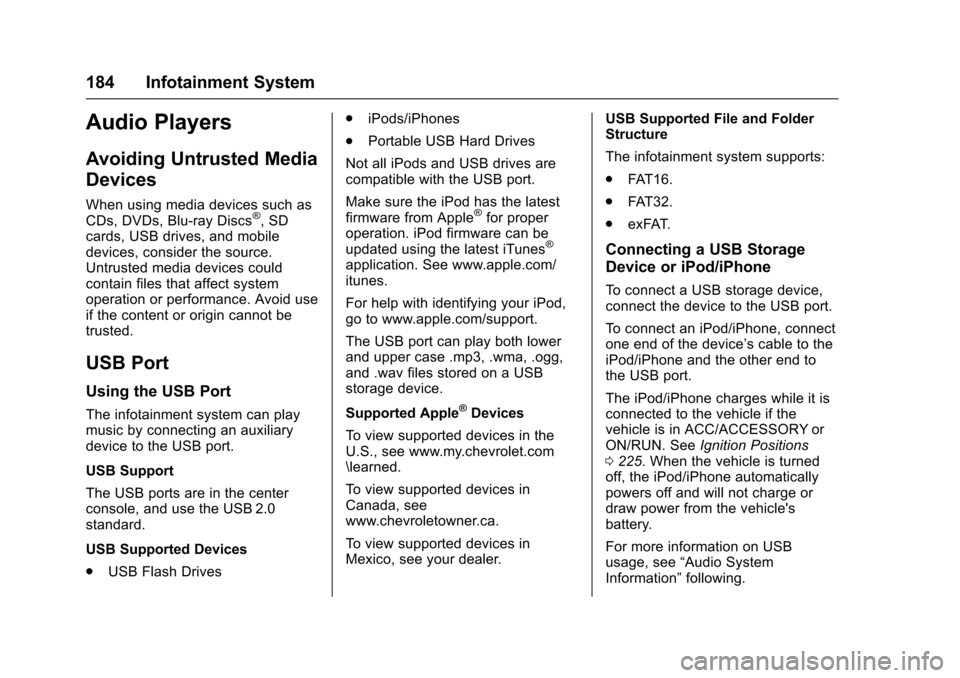
When using media devices such asCDs, DVDs, Blu-ray Discs®,SDcards, USB drives, and mobiledevices, consider the source.Untrusted media devices couldcontain files that affect systemoperation or performance. Avoid useif the content or origin cannot betrusted.
USB Port
Using the USB Port
The infotainment system can playmusic by connecting an auxiliarydevice to the USB port.
USB Support
The USB ports are in the centerconsole, and use the USB 2.0standard.
USB Supported Devices
.USB Flash Drives
.iPods/iPhones
.Portable USB Hard Drives
Not all iPods and USB drives arecompatible with the USB port.
Make sure the iPod has the latestfirmware from Apple®for properoperation. iPod firmware can beupdated using the latest iTunes®
application. See www.apple.com/itunes.
For help with identifying your iPod,go to www.apple.com/support.
The USB port can play both lowerand upper case .mp3, .wma, .ogg,and .wav files stored on a USBstorage device.
Supported Apple®Devices
To v i e w s u p p o r t e d d e v i c e s i n t h eU.S., see www.my.chevrolet.com\learned.
To v i e w s u p p o r t e d d e v i c e s i nCanada, seewww.chevroletowner.ca.
To v i e w s u p p o r t e d d e v i c e s i nMexico, see your dealer.
USB Supported File and FolderStructure
The infotainment system supports:
.FAT 1 6 .
.FAT 3 2 .
.exFAT.
Connecting a USB Storage
Device or iPod/iPhone
To c o n n e c t a U S B s t o r a g e d e v i c e ,connect the device to the USB port.
To c o n n e c t a n i P o d / i P h o n e , c o n n e c tone end of the device’scabletotheiPod/iPhone and the other end tothe USB port.
The iPod/iPhone charges while it isconnected to the vehicle if thevehicle is in ACC/ACCESSORY orON/RUN. SeeIgnition Positions0225.Whenthevehicleisturnedoff, the iPod/iPhone automaticallypowers off and will not charge ordraw power from the vehicle'sbattery.
For more information on USBusage, see“Audio SystemInformation”following.
Page 186 of 419
Chevrolet Malibu Owner Manual (GMNA-Localizing-U.S./Canada/Mexico-10122664) - 2017 - crc - 5/23/16
Infotainment System 185
Audio System Information
The infotainment system can playthe music files contained in the USBstorage device or iPod/iPhoneproducts.
Using MP3/WMA/OGG/WAV Files
.Music files with .mp3, .wma,.ogg, and .wav file nameextensions can be played.
.MP3 files that can be played: Bitrate: 8 kbps to 320 kbps.Sampling frequency: 48 kHz,44.1 kHz, 32 kHz, 24 kHz, 22.05kHz, and 16 kHz.
.Files with a bit rate above128 kbps will result in higherquality sound.
.ID3 Tag information for MP3files, such as the album nameand the artist, can be played.
.To d i s p l a y a l b u m t i t l e , t r a c k t i t l e ,and artist information, the fileshould be compatible with theID3 Tag V1 and V2 formats.
Using USB Storage Devices andiPod/iPhone
.Use a USB or flash memory typestorage device. Do not connectusing a USB adaptor.
.Do not connect and reconnectthe USB device repeatedly in ashort time, as this may causestatic electricity and problemsusing the device.
.Use a USB device with a metalconnecting terminal.
.Connection with i-Stick TypeUSB storage devices may befaulty due to vehicle vibration.
.Do not touch the USBconnecting terminal.
.Only USB storage devicesformatted in FAT16/32 or exFATfile systems are recognized.NTFS and other file systems arenot recognized.
.The time it takes to process fileswill depend on the USB storagedevice type and capacity, andthe type of files stored.
.Some USB storage device filesmay not be compatible.
.Up to two USB devices and oneiPod can be played through aUSB hub. All devices may not besupported, depending on theperformance of the USB hub.If there is not enough powersupply, it may not operatenormally.
.Do not disconnect the USBstorage device while it is playing.This may cause damage to theproduct or affect theperformance of the USB device.
.Disconnect the USB storagedevice when the ignition isturned off. If the ignition is turnedon while the USB device isconnected, the USB device maybe damaged or may not operatenormally.
.USB storage devices can onlybe connected for playing music,viewing photo files,or upgrading.
Page 187 of 419
Chevrolet Malibu Owner Manual (GMNA-Localizing-U.S./Canada/Mexico-10122664) - 2017 - crc - 5/23/16
186 Infotainment System
.Do not use the USB terminal tocharge USB accessoryequipment. The heat generatedmay cause performance issuesor damage.
.Music files to which Digital RightManagement (DRM) is appliedcannot be played.
.USB storage device that has acapacity limit of no more than5,000 files, such as music,photo, video, 15 levels of folderstructure. Normal usage cannotbe guaranteed for a storagedevice that exceeds this limit.The iPod/iPhone can play allmusic files that are supported.The music file lists will onlydisplay up to 5,000 files on thescreen. These files are sorted inalphabetical order.
.Some iPod/iPhone productmodels may not support theconnectivity or functionality ofthis product.
.Only connect the iPod/iPhonewith connection cablessupported by iPod/iPhoneproducts. Other connectioncables cannot be used.
.The iPod/iPhone may bedamaged if it is connected to thevehicle with the ignition on.When not in use, disconnect theiPod/iPhone.
.When the iPod/iPhone isconnected to the USB port byusing the iPod/iPhone cable, theBluetooth music is notsupported.
.The iPod/iPhone playbackfunctions and the informationdisplayed may be different whenplayed on the infotainmentsystem.
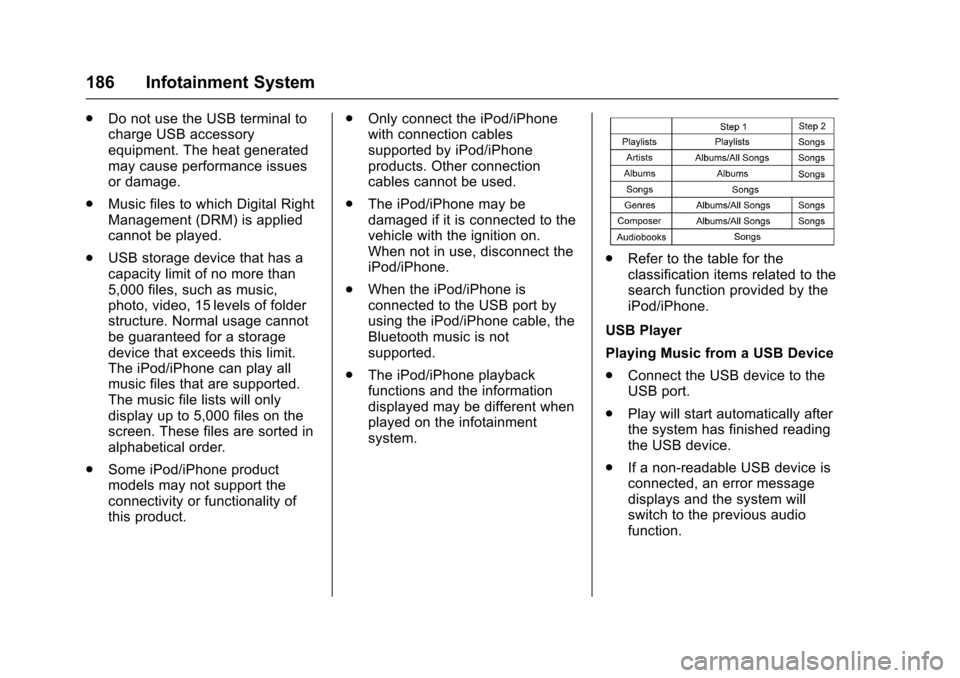
.Refer to the table for theclassification items related to thesearch function provided by theiPod/iPhone.
USB Player
Playing Music from a USB Device
.Connect the USB device to theUSB port.
.Play will start automatically afterthe system has finished readingthe USB device.
.If a non-readable USB device isconnected, an error messagedisplays and the system willswitch to the previous audiofunction.