buttons CHEVROLET MALIBU 2018 User Guide
[x] Cancel search | Manufacturer: CHEVROLET, Model Year: 2018, Model line: MALIBU, Model: CHEVROLET MALIBU 2018Pages: 413, PDF Size: 5.92 MB
Page 154 of 413
Chevrolet Malibu Owner Manual (GMNA-Localizing-U.S./Canada/Mexico-
11348460) - 2018 - crc - 5/3/17
Instruments and Controls 153
Universal Remote System
Operation
Using the Universal Remote
System
Press and hold the appropriate
Universal Remote system button for
at least one-half second. The
indicator light will come on while the
signal is being transmitted.
Erasing Universal Remote
System Buttons
Erase all programmed buttons when
vehicle ownership is terminated.
To erase:1. Press and hold the two outside buttons until the indicator light
begins to flash. This should
take about 10 seconds.
2. Release both buttons.
Reprogramming a Single
Universal Remote System
Button
To reprogram any of the system
buttons: 1. Press and hold any one of the buttons. Do not release the
button.
2. The indicator light will begin to flash after 20 seconds. Without
releasing the button, proceed
with Step 1 under
“Programming the Universal
Remote System.”
Page 160 of 413
Chevrolet Malibu Owner Manual (GMNA-Localizing-U.S./Canada/Mexico-
11348460) - 2018 - crc - 5/3/17
Lighting 159
Courtesy Lamps
The courtesy lamps come on when
any door is opened unless the dome
lamp override is activated. To
deactivate the dome lamp override,
press
jOFF and the indicator
light on the button will turn off.
Dome Lamps
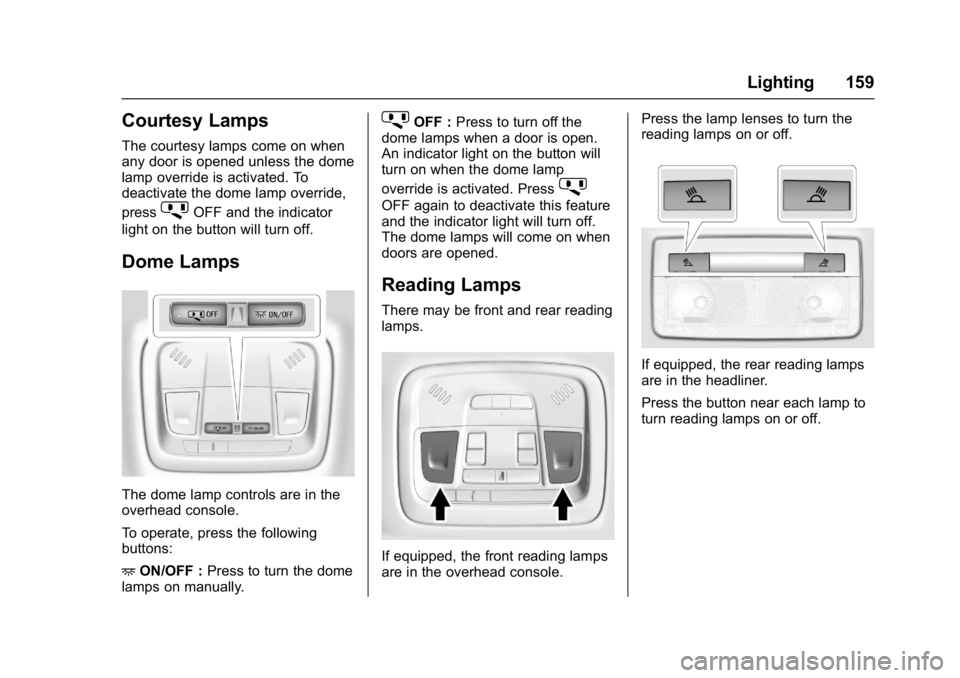
The dome lamp controls are in the
overhead console.
To operate, press the following
buttons:
+ ON/OFF : Press to turn the dome
lamps on manually.
jOFF : Press to turn off the
dome lamps when a door is open.
An indicator light on the button will
turn on when the dome lamp
override is activated. Press
j
OFF again to deactivate this feature
and the indicator light will turn off.
The dome lamps will come on when
doors are opened.
Reading Lamps
There may be front and rear reading
lamps.
If equipped, the front reading lamps
are in the overhead console. Press the lamp lenses to turn the
reading lamps on or off.
If equipped, the rear reading lamps
are in the headliner.
Press the button near each lamp to
turn reading lamps on or off.
Page 166 of 413
Chevrolet Malibu Owner Manual (GMNA-Localizing-U.S./Canada/Mexico-
11348460) - 2018 - crc - 5/3/17
Infotainment System 165
.Turn to highlight menu
items or to set values while
in a menu.
. Turn to manually select
radio stations.
9. Preset Buttons 1−4 .Press and hold to store a
station.
. Press to go to a preset
favorite station.
10. FAV .Press to go to a
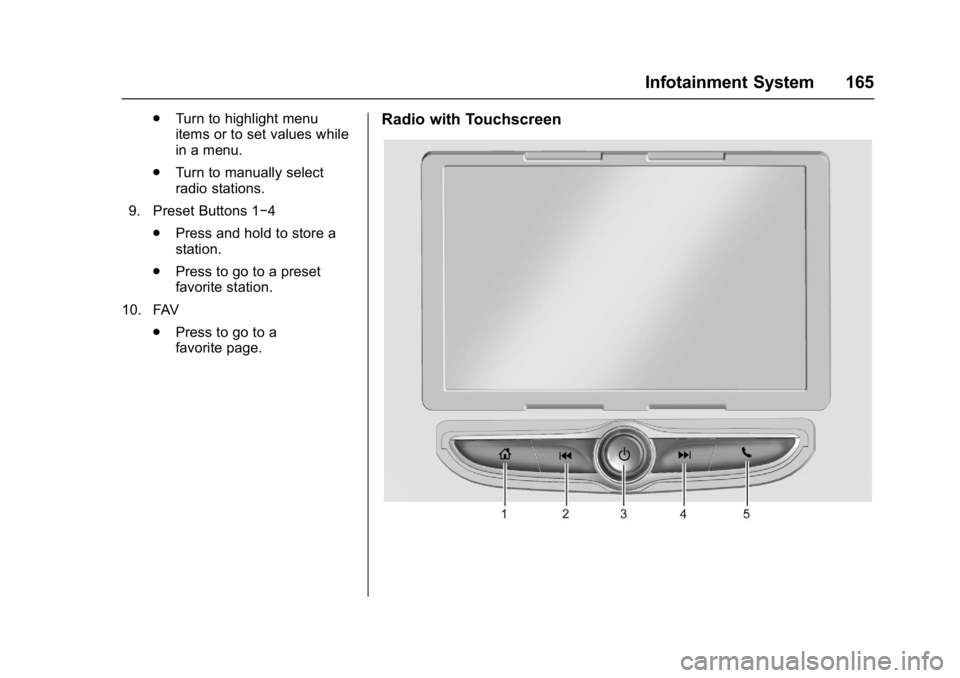
favorite page.Radio with Touchscreen
Page 167 of 413
Chevrolet Malibu Owner Manual (GMNA-Localizing-U.S./Canada/Mexico-
11348460) - 2018 - crc - 5/3/17
166 Infotainment System
1.{
.Press to go to the Home
Page. See Home Page
(Radio with Touchscreen)
0 166.
2.
g
. Radio: Press and release to
go to the previous station or
channel. Press and hold to
fast seek the previous
strongest station or
channel.
. USB/Bluetooth Music/
Pictures: Press and release
to go to the previous track.
Press and hold to fast
rewind.
3.
O
. Press to turn the power on.
. Press and hold to turn the
power off.
. Press to mute the system
when on.
. Turn to decrease or
increase the volume. 4.
d
.
Radio: Press and release to
go to the next station or
channel. Press and hold to
fast seek the next strongest
station or channel.
. USB/Bluetooth Music/
Pictures: Press and release
to go to the next track.
Press and hold to fast
forward.
5.
5
. Press and release to
access the phone screen,
answer an incoming call,
or access the device home
screen.
Home Page (Radio with
Touchscreen)
Touchscreen Buttons
If equipped, touchscreen buttons
show on the screen when available.
When a function is unavailable, the
button may gray out. When a
function is selected, the button may
highlight.
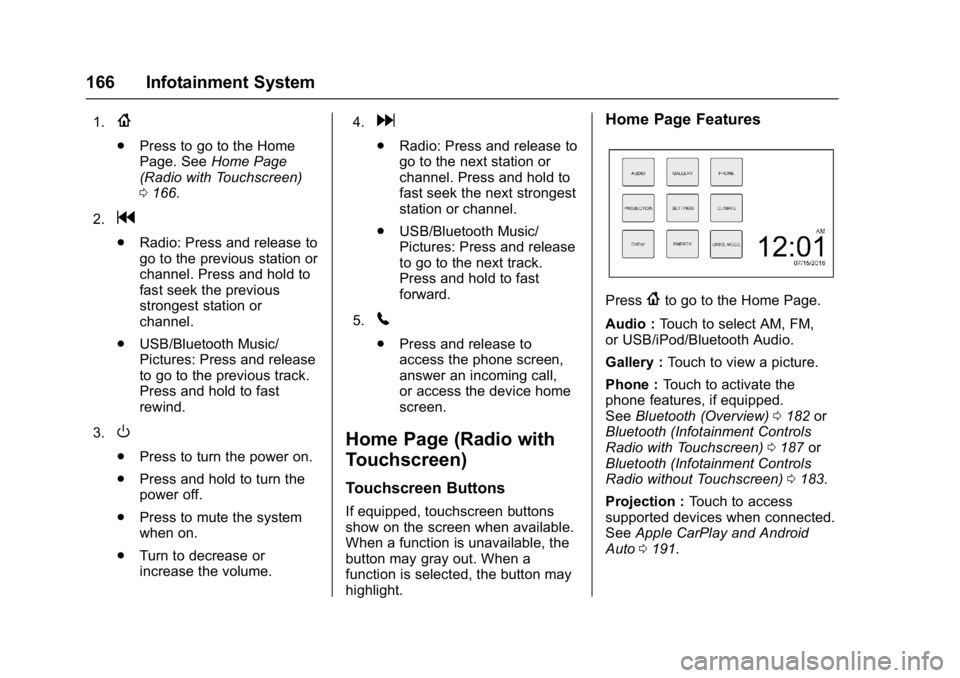
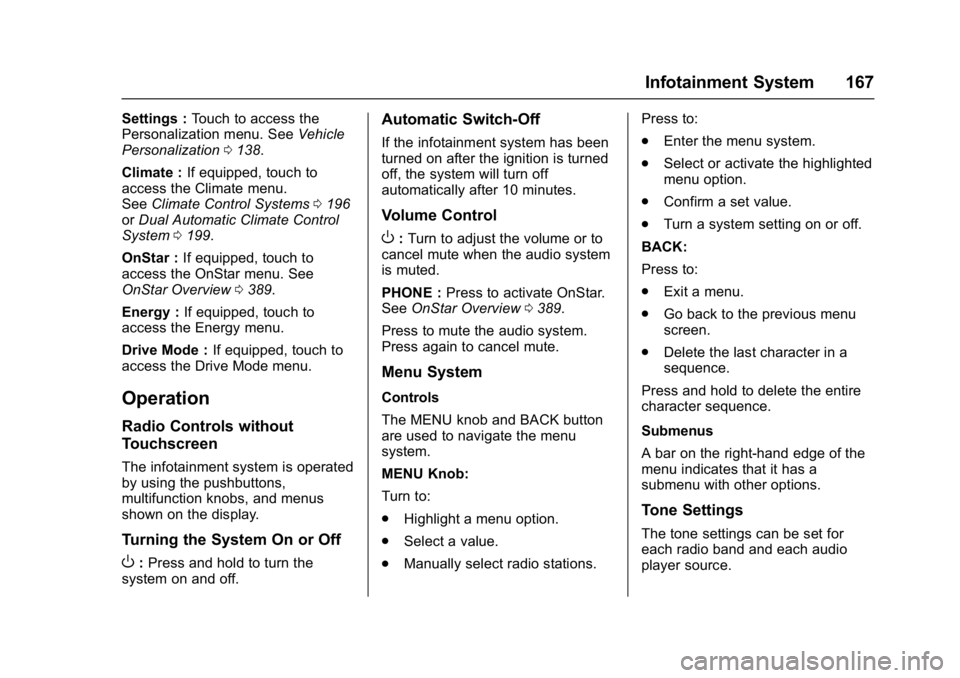
Home Page Features
Press{to go to the Home Page.
Audio : Touch to select AM, FM,
or USB/iPod/Bluetooth Audio.
Gallery : Touch to view a picture.
Phone : Touch to activate the
phone features, if equipped.
See Bluetooth (Overview) 0182 or
Bluetooth (Infotainment Controls
Radio with Touchscreen) 0187 or
Bluetooth (Infotainment Controls
Radio without Touchscreen) 0183.
Projection : Touch to access
supported devices when connected.
See Apple CarPlay and Android
Auto 0191.
Page 168 of 413
Chevrolet Malibu Owner Manual (GMNA-Localizing-U.S./Canada/Mexico-
11348460) - 2018 - crc - 5/3/17
Infotainment System 167
Settings :Touch to access the
Personalization menu. See Vehicle
Personalization 0138.
Climate : If equipped, touch to
access the Climate menu.
See Climate Control Systems 0196
or Dual Automatic Climate Control
System 0199.
OnStar : If equipped, touch to
access the OnStar menu. See
OnStar Overview 0389.
Energy : If equipped, touch to
access the Energy menu.
Drive Mode : If equipped, touch to
access the Drive Mode menu.
Operation
Radio Controls without
Touchscreen
The infotainment system is operated
by using the pushbuttons,
multifunction knobs, and menus
shown on the display.
Turning the System On or Off
O: Press and hold to turn the
system on and off.
Automatic Switch-Off
If the infotainment system has been
turned on after the ignition is turned
off, the system will turn off
automatically after 10 minutes.
Volume Control
O: Turn to adjust the volume or to
cancel mute when the audio system
is muted.
PHONE : Press to activate OnStar.
See OnStar Overview 0389.
Press to mute the audio system.
Press again to cancel mute.
Menu System
Controls
The MENU knob and BACK button
are used to navigate the menu
system.
MENU Knob:
Turn to:
. Highlight a menu option.
. Select a value.
. Manually select radio stations. Press to:
.
Enter the menu system.
. Select or activate the highlighted
menu option.
. Confirm a set value.
. Turn a system setting on or off.
BACK:
Press to:
. Exit a menu.
. Go back to the previous menu
screen.
. Delete the last character in a
sequence.
Press and hold to delete the entire
character sequence.
Submenus
A bar on the right-hand edge of the
menu indicates that it has a
submenu with other options.
Tone Settings
The tone settings can be set for
each radio band and each audio
player source.
Page 169 of 413
Chevrolet Malibu Owner Manual (GMNA-Localizing-U.S./Canada/Mexico-
11348460) - 2018 - crc - 5/3/17
168 Infotainment System
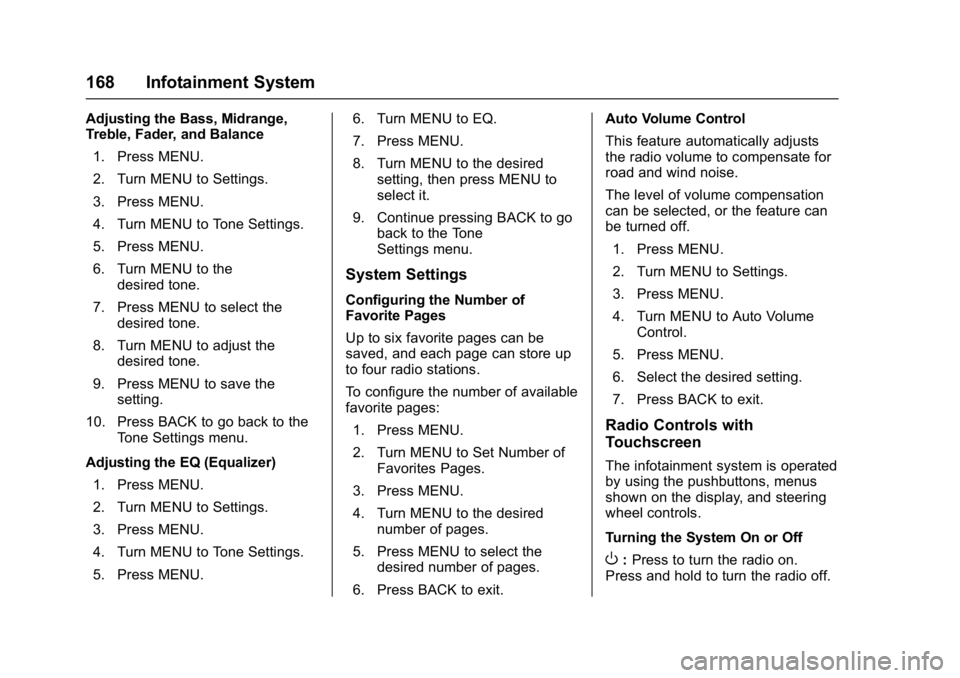
Adjusting the Bass, Midrange,
Treble, Fader, and Balance1. Press MENU.
2. Turn MENU to Settings.
3. Press MENU.
4. Turn MENU to Tone Settings.
5. Press MENU.
6. Turn MENU to the desired tone.
7. Press MENU to select the desired tone.
8. Turn MENU to adjust the desired tone.
9. Press MENU to save the setting.
10. Press BACK to go back to the Tone Settings menu.
Adjusting the EQ (Equalizer) 1. Press MENU.
2. Turn MENU to Settings.
3. Press MENU.
4. Turn MENU to Tone Settings.
5. Press MENU. 6. Turn MENU to EQ.
7. Press MENU.
8. Turn MENU to the desired
setting, then press MENU to
select it.
9. Continue pressing BACK to go back to the Tone
Settings menu.
System Settings
Configuring the Number of
Favorite Pages
Up to six favorite pages can be
saved, and each page can store up
to four radio stations.
To configure the number of available
favorite pages:
1. Press MENU.
2. Turn MENU to Set Number of Favorites Pages.
3. Press MENU.
4. Turn MENU to the desired number of pages.
5. Press MENU to select the desired number of pages.
6. Press BACK to exit. Auto Volume Control
This feature automatically adjusts
the radio volume to compensate for
road and wind noise.
The level of volume compensation
can be selected, or the feature can
be turned off.
1. Press MENU.
2. Turn MENU to Settings.
3. Press MENU.
4. Turn MENU to Auto Volume Control.
5. Press MENU.
6. Select the desired setting.
7. Press BACK to exit.
Radio Controls with
Touchscreen
The infotainment system is operated
by using the pushbuttons, menus
shown on the display, and steering
wheel controls.
Turning the System On or Off
O: Press to turn the radio on.
Press and hold to turn the radio off.
Page 171 of 413
Chevrolet Malibu Owner Manual (GMNA-Localizing-U.S./Canada/Mexico-
11348460) - 2018 - crc - 5/3/17
170 Infotainment System
home hotspot or public hotspot can
be used. Applicable data rates may
apply.
To connect the infotainment system
to a secured mobile device hotspot,
home hotspot, or a public hotspot,
touch SETTINGS on the Home
Page, followed by Wi-Fi, and then
Manage Wi-Fi Networks. Select the
appropriate Wi-Fi network, and
follow the on-screen prompts.
Download speeds may vary.
On most compatible mobile devices,
activation of the Wi-Fi hotspot is in
the Settings menu under Mobile
Network Sharing, Personal Hotspot,
Mobile Hotspot or similar.
Availability of Over-the-Air vehicle
software updates varies by vehicle
and country. For more information
on this feature, see
my.chevrolet.com/learn.Radio
AM-FM Radio
Playing the Radio without
Touchscreen
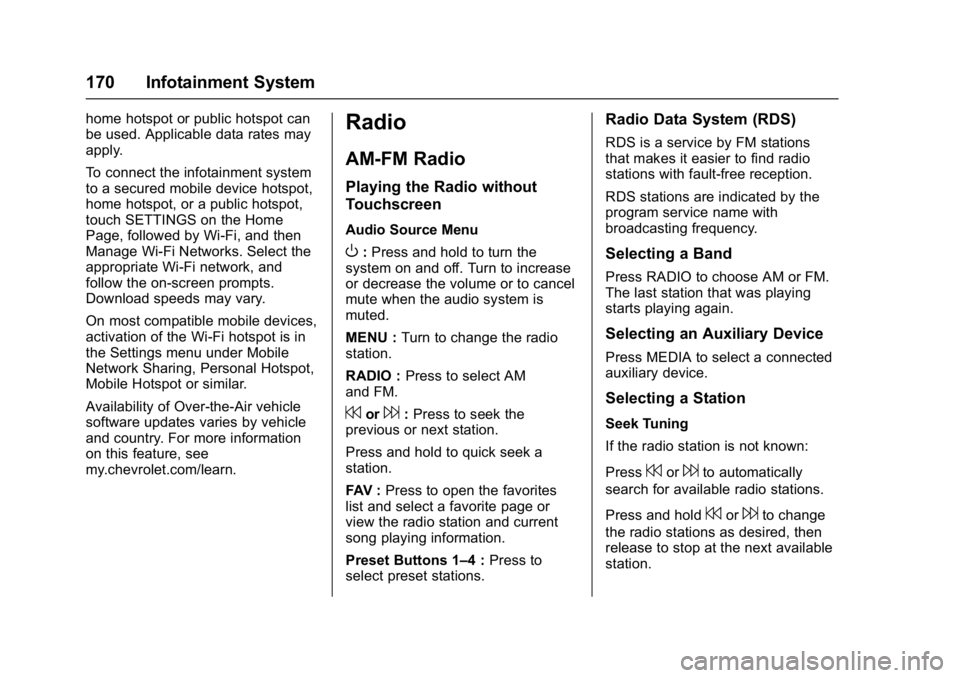
Audio Source Menu
O:Press and hold to turn the
system on and off. Turn to increase
or decrease the volume or to cancel
mute when the audio system is
muted.
MENU : Turn to change the radio
station.
RADIO : Press to select AM
and FM.
7or6: Press to seek the
previous or next station.
Press and hold to quick seek a
station.
FAV : Press to open the favorites
list and select a favorite page or
view the radio station and current
song playing information.
Preset Buttons 1–4 : Press to
select preset stations.
Radio Data System (RDS)
RDS is a service by FM stations
that makes it easier to find radio
stations with fault-free reception.
RDS stations are indicated by the
program service name with
broadcasting frequency.
Selecting a Band
Press RADIO to choose AM or FM.
The last station that was playing
starts playing again.
Selecting an Auxiliary Device
Press MEDIA to select a connected
auxiliary device.
Selecting a Station
Seek Tuning
If the radio station is not known:
Press
7or6to automatically
search for available radio stations.
Press and hold
7or6to change
the radio stations as desired, then
release to stop at the next available
station.
Page 173 of 413
Chevrolet Malibu Owner Manual (GMNA-Localizing-U.S./Canada/Mexico-
11348460) - 2018 - crc - 5/3/17
172 Infotainment System
Selecting an Auxiliary Device
Connect the auxiliary device to the
AUX input terminal. Play will begin
when the system has finished
reading the information on the
device.
If the auxiliary device is already
connected:1. Press
{.
2. Touch AUDIO.
3. Touch Source.
4. Select the device.
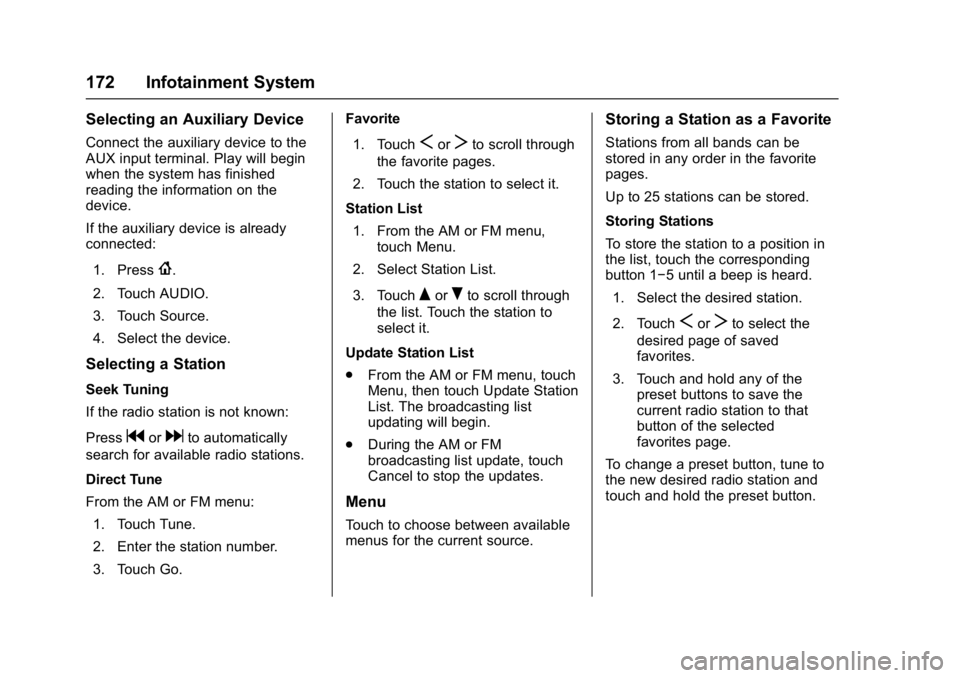
Selecting a Station
Seek Tuning
If the radio station is not known:
Press
gordto automatically
search for available radio stations.
Direct Tune
From the AM or FM menu:
1. Touch Tune.
2. Enter the station number.
3. Touch Go. Favorite
1. Touch
SorTto scroll through
the favorite pages.
2. Touch the station to select it.
Station List 1. From the AM or FM menu, touch Menu.
2. Select Station List.
3. Touch
QorRto scroll through
the list. Touch the station to
select it.
Update Station List
. From the AM or FM menu, touch
Menu, then touch Update Station
List. The broadcasting list
updating will begin.
. During the AM or FM
broadcasting list update, touch
Cancel to stop the updates.
Menu
Touch to choose between available
menus for the current source.
Storing a Station as a Favorite
Stations from all bands can be
stored in any order in the favorite
pages.
Up to 25 stations can be stored.
Storing Stations
To store the station to a position in
the list, touch the corresponding
button 1−5 until a beep is heard.
1. Select the desired station.
2. Touch
SorTto select the
desired page of saved
favorites.
3. Touch and hold any of the preset buttons to save the
current radio station to that
button of the selected
favorites page.
To change a preset button, tune to
the new desired radio station and
touch and hold the preset button.
Page 184 of 413
Chevrolet Malibu Owner Manual (GMNA-Localizing-U.S./Canada/Mexico-
11348460) - 2018 - crc - 5/3/17
Infotainment System 183
The Bluetooth system range can be
up to 9.1 m (30 ft).
There may be restrictions on using
Bluetooth wireless technology in
some locations.
Due to the variety of Bluetooth
devices and their firmware versions,
the device may respond differently
when performing over Bluetooth.
On a current phone call, an image
of the current contact from the
phone's contact list may be
displayed. Not all phones are
compatible with this feature.
Refer to the cell phone
manufacturer’s user guide for
questions about the phone's
Bluetooth functionality.
Bluetooth Controls
If equipped with Bluetooth capability,
use the buttons on the infotainment
system and the steering wheel to
operate the system.
Steering Wheel Controls
See Steering Wheel Controls 0105.
Bluetooth (Infotainment
Controls Radio without
Touchscreen)
To use infotainment controls to
access the menu system, see
Overview 0164.
Pairing
A Bluetooth-enabled cell phone
must be paired to the Bluetooth
system and then connected to the
vehicle before it can be used. See
your cell phone manufacturer's user
guide for Bluetooth functions before
pairing the cell phone. If a Bluetooth
phone is not connected, calls will be
made using OnStar Hands-Free
Calling, if available. See OnStar
Overview 0389.
Pairing Information
. A Bluetooth phone with MP3
capability cannot be paired to
the vehicle as a phone and an
MP3 player at the same time.
. Up to five cell phones can be
paired to the Bluetooth system. .
The pairing process is disabled
when the vehicle is moving.
. Pairing only needs to be
completed once, unless the
pairing information on the cell
phone changes or the cell phone
is deleted from the system.
. Only one paired cell phone can
be connected to the Bluetooth
system at a time.
. If multiple paired cell phones are
within range of the system, the
system connects to the first
available paired cell phone in the
order that they were first paired.
When the Bluetooth device and
infotainment system are
successfully paired, the phone book
is downloaded automatically. This is
dependent on the type of phone
paired. If the automatic download
does not occur, proceed with the
phone book download on the
phone.
Page 193 of 413
Chevrolet Malibu Owner Manual (GMNA-Localizing-U.S./Canada/Mexico-
11348460) - 2018 - crc - 5/3/17
192 Infotainment System
ANDROID AUTO and/or APPLE
CARPLAY icon on the Home Page
to launch.
Press
{on the center stack to
return to the Home Page.
For further information on how to set
up Android Auto and Apple CarPlay
in the vehicle, see my.chevrolet.com
or see Customer Assistance Offices
0 377.
Android Auto is provided by Google
and is subject to Google’s terms
and privacy policy. Apple CarPlay is
provided by Apple and is subject to
Apple’ s terms and privacy policy.
Data plan rates apply. For Android
Auto support see https://
support.google.com/androidauto.
For Apple CarPlay support see
www.apple.com/ios/carplay/. Apple
or Google may change or suspend
availability at any time. Android
Auto, Android, Google, Google Play,
and other marks are trademarks of
Google Inc.; Apple CarPlay is a
trademark of Apple Inc.
Hands-Free Phone
General Information without
Touchscreen
If equipped, pressg, select OnStar
Hands-Free Calling, then say the
desired number.
General Information with
Touchscreen
If equipped, vehicles with a
Hands-Free Phone system can use
a Bluetooth-capable cell phone with
a hands-free profile to make and
receive phone calls. The
infotainment system and voice
control are used to operate the
system. Not all phones support all
functions and not all phones work
with the Hands-Free Phone system.
Hands-Free Phone Controls
Use the buttons on the infotainment
system and the steering wheel to
operate the Hands-Free Phone
system. Steering Wheel Controls
Steering wheel controls can be
used to:
.
Answer incoming calls.
. Confirm system information.
. End a call.
. Decline a call.
. Cancel an operation.
. Make outgoing calls using the
call list.
g:Press to answer incoming calls.
c:Press to end a call, decline a
call, or cancel an operation.
Making a Call by Entering a Phone
Number
. Press
5on the center stack.
. Press
{, then touch PHONE on
the screen.
. Press
gon the steering wheel.
If a wrong number is entered, touch
}to delete the number one digit at
a time, or touch and hold
}to
delete all digits of the number.