change time CHEVROLET ORLANDO 2012 1.G User Guide
[x] Cancel search | Manufacturer: CHEVROLET, Model Year: 2012, Model line: ORLANDO, Model: CHEVROLET ORLANDO 2012 1.GPages: 378, PDF Size: 6.68 MB
Page 146 of 378
Black plate (6,1)Chevrolet Orlando Owner Manual - 2012
6-6 Lighting
Lighting Features
Entry Lighting
The headlamps, parking lamps, and
taillamps turn on briefly, when the
Remote Keyless Entry (RKE)
Kis
pressed. After about 30 seconds the
exterior lamps turn off. Entry lighting
can be disabled manually by
changing the ignition out of the OFF
position, or by pressing the RKE
Q
button.
This feature can be changed. See
Vehicle Personalization on
page 5‑32.
Exit Lighting
The headlamps, taillamps, parking
lamps, back‐up lamps, and license
plate lamps come on at night, or in
areas with limited lighting, when the
driver door is opened. The dome
lamps also come on when a door is
opened after the ignition is changed
to the OFF position.
The exterior lights and dome lamps
remain on after the driver door is
open for a set amount of time, then
automatically turn off.
The exterior lights turn off
immediately by turning the
exterior lamps control off.
This feature can be changed.
See Vehicle Personalization on
page 5‑32.
Battery Power Protection
The battery saver feature is
designed to protect the vehicle's
battery.
If some interior lamps are left on
and the ignition is turned off, the
battery rundown protection system
automatically turns the lamp off after
some time.
Page 160 of 378
Black plate (14,1)Chevrolet Orlando Owner Manual - 2012
7-14 Infotainment System
Selecting a Channel Using the
Menu System
1. Turn the MENU knob.
2. Select XM Category List.
3. Select the category.
4. Select the channel.
Storing an XM Channel as a
Favorite
Channels from all bands can be
stored in any order in the favorite
pages.
Up to six channels can be stored in
each favorite page and the number
of available favorite pages can
be set.
Storing a Channel as a Favorite
To store the channel to a position in
the list, press and hold the
corresponding 1 to 6 button until the
channel can be heard again.Retrieving Channels
Press the FAV button to open a
favorite page or to change to
another favorite page. Briefly press
one of the 1 to 6 buttons to retrieve
the channel.
XM Messages
XL (Explicit Language
Channels):
These channels, or any
others, can be blocked by request,
by calling 1-800-929-2100 in the
U.S., and 1-877-438-9677 in
Canada.
XM Updating: The encryption code
in the receiver is being updated. No
action is required. This process
should take no longer than
30 seconds.
Loading XM: The audio system is
acquiring and processing audio and
text data. No action is needed. This
message should disappear shortly.
Channel Off Air: This channel is
not currently in service. Tune in to
another channel. Channel Unauth:
This channel is
blocked or cannot be received with
your XM subscription package.
Channel Unavailable: This
previously assigned channel is no
longer assigned. Tune to another
station.
No Artist Info: The system is
working properly. No artist
information is available at this time
on this channel.
No Title Info: The system is
working properly. No song title
information is available at this time
on this channel.
No CAT Info: The system is
working properly. No category
information is available at this time
on this channel.
No Information: The system is
working properly. No text or
informational messages are
available at this time on this
channel.
Page 169 of 378
Black plate (23,1)Chevrolet Orlando Owner Manual - 2012
Infotainment System 7-23
Audio System
When using the Bluetooth system,
sound comes through the vehicle's
front audio system speakers and
overrides the audio system. Use the
VOL/
Oknob during a call to
change the volume level. The
adjusted volume level remains in
memory for later calls. The system
maintains a minimum volume level.
Other Information
The Bluetooth®word mark and
logos are owned by the Bluetooth®
SIG, Inc. and any use of such marks
by General Motors is under license.
Other trademarks and trade names
are those of their respective owners.
See Radio Frequency Statement on
page 13‑15 for information
regarding Part 15 of the Federal
Communications Commission (FCC)
rules and Industry Canada
Standards RSS-GEN/210/220/310.
Bluetooth (Infotainment
Controls)
For information about how to
navigate the menu system using the
infotainment controls, see Operation
on page 7‑5.
Pairing
A Bluetooth‐enabled cell phone
must be paired to the Bluetooth
system and then connected to the
vehicle before it can be used. See
your cell phone manufacturer's user
guide for Bluetooth functions before
pairing the cell phone. If a Bluetooth
phone is not connected, calls will be
made using OnStar Hands‐Free
Calling, if available. See OnStar
Overview on page 14‑1 for more
information.
Pairing Information
.A Bluetooth phone with MP3
capability cannot be paired to
the vehicle as a phone and an
MP3 player at the same time.
.Up to five cell phones can be
paired to the Bluetooth system.
.The pairing process is disabled
when the vehicle is moving.
.Pairing only needs to be
completed once, unless the
pairing information on the cell
phone changes or the cell phone
is deleted from the system.
.Only one paired cell phone can
be connected to the Bluetooth
system at a time.
.If multiple paired cell phones are
within range of the system, the
system connects to the first
available paired cell phone in the
order that they were first paired
to the system. To link to a
different paired phone, see
“Linking to a Different Phone”
later in this section.
Pairing a Phone
1. Press the CONFIG button.
2. Select Phone Settings.
3. Select Bluetooth.
Page 173 of 378
Black plate (27,1)Chevrolet Orlando Owner Manual - 2012
Infotainment System 7-27
Calling, if available. SeeOnStar
Overview on page 14‑1 for more
information.
Pairing Information
.A Bluetooth phone with MP3
capability cannot be paired to
the vehicle as a phone and an
MP3 player at the same time.
.Up to five cell phones can be
paired to the Bluetooth system.
.The pairing process is disabled
when the vehicle is moving.
.Pairing only needs to be
completed once, unless the
pairing information on the cell
phone changes or the cell phone
is deleted from the system.
.Only one paired cell phone can
be connected to the Bluetooth
system at a time.
.If multiple paired cell phones are
within range of the system, the
system connects to the first
available paired cell phone in the
order that they were first paired to the system. To link to a
different paired phone, see
“Linking to a Different Phone”
later in this section.
Pairing a Phone
1. Press
b/g. The system
responds “Ready,”followed by
a tone.
2. Say “Bluetooth.”
3. Say “Pair.”The system responds
with instructions and a four-digit
Personal Identification Number
(PIN). The PIN is used in Step 5.
4. Start the pairing process on the cell phone that you want to pair.
For help with this process, see
your cell phone manufacturer's
user guide.
5. Locate the device named “Your
Vehicle” in the list on the cell
phone. Follow the instructions
on the cell phone to enter the
PIN provided in Step 3. After the
PIN is successfully entered, the
system prompts you to provide a
name for the paired cell phone. This name will be used to
indicate which phones are
paired and connected to the
vehicle. The system responds
with
“
successfully paired” after the
pairing process is complete.
6. Repeat Steps 1 through 5 to pair additional phones.
Listing All Paired and Connected
Phones
The system can list all cell phones
paired to it. If a paired cell phone is
also connected to the vehicle, the
system responds with “is connected”
after that phone name.
1. Press
b/g. The system
responds “Ready,”followed by
a tone.
2. Say “Bluetooth.”
3. Say “List.”
Page 174 of 378
Black plate (28,1)Chevrolet Orlando Owner Manual - 2012
7-28 Infotainment System
Deleting a Paired Phone
If the phone name you want to
delete is unknown, see“Listing All
Paired and Connected Phones.”
1. Press
b/g. The system
responds “Ready,”followed by
a tone.
2. Say “Bluetooth.”
3. Say “Delete.” The system asks
for which phone to delete.
4. Say the name of the phone you want to delete.
Connecting to a Different Phone
To connect to a different cell phone,
the Bluetooth system looks for the
next available cell phone in the
order in which all the available cell
phones were paired. Depending on
which cell phone you want to
connect to, you may have to use
this command several times.
1. Press
b/g. The system
responds “Ready,”followed by
a tone. 2. Say
“Bluetooth.”
3. Say “Change phone.”
.If another cell phone is
found, the response will be
“
connected.”
.If another cell phone is not
found, the original phone
remains connected.
Storing and Deleting Phone
Numbers
The system can store up to
30 phone numbers as name tags in
the Hands-Free Directory that is
shared between the Bluetooth and
OnStar systems.
The following commands are used
to delete and store phone numbers.
Store:This command will store a
phone number, or a group of
numbers as a name tag.
Digit Store: This command allows
a phone number to be stored as a
name tag by entering the digits one
at a time. Delete:
This command is used to
delete individual name tags.
Delete All Name Tags: This
command deletes all stored name
tags in the Hands-Free Calling
Directory and the Destinations
Directory.
Using the “Store”Command
1. Press
b/g. The system
responds “Ready,”followed
by a tone.
2. Say “Store.”
3. Say the phone number or group of numbers you want to store all
at once with no pauses, then
follow the directions given by the
system to save a name tag for
this number.
Using the “Digit Store” Command
If an unwanted number is
recognized by the system, say
“Clear” at any time to clear the last
number.
Page 175 of 378
Black plate (29,1)Chevrolet Orlando Owner Manual - 2012
Infotainment System 7-29
To hear all of the numbers
recognized by the system, say
“Verify”at any time.
1. Press
b/g. The system
responds “Ready,”followed by
a tone.
2. Say “Digit Store.”
3. Say each digit, one at a time, that you want to store. After
each digit is entered, the system
repeats back the digit it heard
followed by a tone. After the last
digit has been entered, say
“Store,” and then follow the
directions given by the system to
save a name tag for this number.
Using the “Delete”Command
1. Press
b/g. The system
responds “Ready,”followed by
a tone.
2. Say “Delete.”
3. Say the name tag you want to delete. Using the
“Delete All Name Tags”
Command
This command deletes all stored
name tags in the Hands-Free
Calling Directory and the
Destinations Directory.
To delete all name tags:
1. Press
b/g. The system
responds “Ready,”followed by
a tone.
2. Say “Delete all name tags.”
Listing Stored Numbers
The list command will list all the
stored numbers and name tags.
Using the “List”Command
1. Press
b/g. The system
responds “Ready,”followed by
a tone.
2. Say “Directory.”
3. Say “Hands-Free Calling.”
4. Say “List.”
Making a Call
Calls can be made using the
following commands.
Dial or Call: The dial or call
command can be used
interchangeably to dial a phone
number or a stored name tag.
Digit Dial: This command allows a
phone number to be dialed by
entering the digits one at a time.
Re-dial: This command is used to
dial the last number used on the cell
phone.
Using the “Dial”or“Call”
Command
1. Press
b/g. The system
responds “Ready,”followed by
a tone.
2. Say “Dial”or“Call.”
3. Say the entire number without pausing or say the name tag.
Once connected, the person called
will be heard through the audio
speakers.
Page 179 of 378
Black plate (33,1)Chevrolet Orlando Owner Manual - 2012
Infotainment System 7-33
Fees and Taxes—Subscription fee,
taxes, one time activation fee, and
other fees may apply. Subscription
fee is consumer only. All fees and
programming subject to change.
Subscriptions subject to Customer
Agreement available at
www.xmradio.com. XM™ service
only available in the 48 contiguous
United States and Canada*.
*Canada —Some deterioration of
service may occur in extreme
northern latitudes. This is beyond
the control of XM™ Satellite
Radio. Explicit Language
Notice —Channels with frequent
explicit language are indicated with
an “XL” preceding the channel name. Channel blocking is available
for XM Satellite Radio receivers by
notifying XM at:
.USA Customers
—Visit
www.xmradio.com or
call 1‐800‐929‐2100.
.Canadian Customers —Visit
www.xmradio.ca or call
1-877-438-9677.
It is prohibited to copy, decompile,
disassemble, reverse engineer,
hack, manipulate, or otherwise
make available any technology or
software incorporated in receivers
compatible with the XM™ Satellite
Radio System or that support the
XM website, the Online Service or
any of its content. Furthermore, the
AMBER voice compression software
included in this product is protected
by intellectual property rights
including patent rights, copyrights,
and trade secrets of Digital Voice
Systems, Inc. General Requirements:
1. A License Agreement from XM™
is required for any product that
incorporates XM Technology
and/or for use of any of the XM
marks to be manufactured,
distributed or marketed in the
XM Service Area.
2. For products to be distributed, marketed and/or sold in Canada,
a separate agreement is
required with Canadian Satellite
Radio Inc. (operating as XM
Canada).
Music and video recognition
technology and related data are
provided by Gracenote
®. Gracenote
is the industry standard in music
recognition technology and related
Page 181 of 378
Black plate (35,1)Chevrolet Orlando Owner Manual - 2012
Infotainment System 7-35
Under no circumstances will
Gracenote become liable for any
payment to you for any information
that you provide. You agree that
Gracenote, Inc. may enforce its
rights under this Agreement against
you directly in its own name.
The Gracenote service uses a
unique identifier to track queries for
statistical purposes.
The purpose of a randomly
assigned numeric identifier is to
allow the Gracenote service to
count queries without knowing
anything about who you are. For
more information, see the web page
for the Gracenote Privacy Policy for
the Gracenote service.The Gracenote Software and each
item of Gracenote Data are licensed
to you
“AS IS.” Gracenote makes no
representations or warranties,
express or implied, regarding the
accuracy of any Gracenote Data
from in the Gracenote Servers.
Gracenote reserves the right to
delete data from the Gracenote
Servers or to change data
categories for any cause that
Gracenote deems sufficient.
No warranty is made that the
Gracenote Software or Gracenote
Servers are error-free or that
functioning of Gracenote Software
or Gracenote Servers will be
uninterrupted. Gracenote is not obligated to
provide you with new enhanced or
additional data types or categories
that Gracenote may provide in the
future and is free to discontinue its
services at any time.
Gracenote disclaims all warranties
express or implied, including, but
not limited to, implied warranties of
merchantability, fitness for a
particular purpose, title, and
non-infringement. Gracenote does
not warrant the results that will be
obtained by your use of the
Gracenote Software or any
Gracenote Server. In no case will
Gracenote be liable for any
consequential or incidental
damages or for any lost profits or
lost revenues.
Page 185 of 378
Black plate (3,1)Chevrolet Orlando Owner Manual - 2012
Climate Controls 8-3
Heated Seats (If Equipped):Press
to turn the heated seats on or off.
See Heated Front Seats on
page 3‑7
Automatic Climate
Control System
The heating, cooling, and ventilation
for the vehicle can be controlled
with this system.
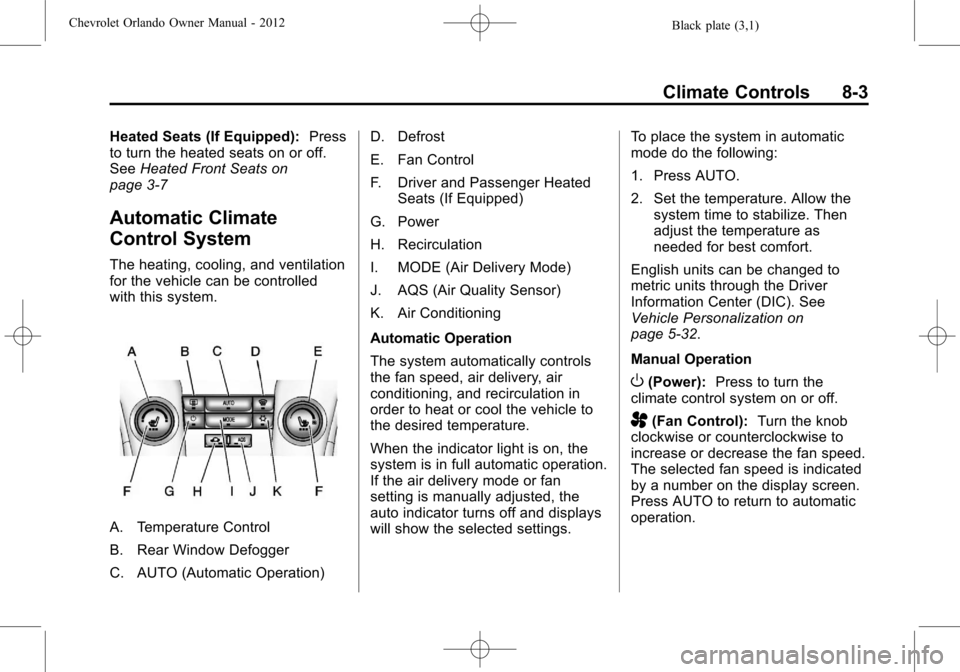
A. Temperature Control
B. Rear Window Defogger
C. AUTO (Automatic Operation) D. Defrost
E. Fan Control
F. Driver and Passenger Heated
Seats (If Equipped)
G. Power
H. Recirculation
I. MODE (Air Delivery Mode)
J. AQS (Air Quality Sensor)
K. Air Conditioning
Automatic Operation
The system automatically controls
the fan speed, air delivery, air
conditioning, and recirculation in
order to heat or cool the vehicle to
the desired temperature.
When the indicator light is on, the
system is in full automatic operation.
If the air delivery mode or fan
setting is manually adjusted, the
auto indicator turns off and displays
will show the selected settings. To place the system in automatic
mode do the following:
1. Press AUTO.
2. Set the temperature. Allow the
system time to stabilize. Then
adjust the temperature as
needed for best comfort.
English units can be changed to
metric units through the Driver
Information Center (DIC). See
Vehicle Personalization on
page 5‑32.
Manual Operation
O(Power): Press to turn the
climate control system on or off.
A(Fan Control): Turn the knob
clockwise or counterclockwise to
increase or decrease the fan speed.
The selected fan speed is indicated
by a number on the display screen.
Press AUTO to return to automatic
operation.
Page 215 of 378
Black plate (27,1)Chevrolet Orlando Owner Manual - 2012
Driving and Operating 9-27
If the gear does not engage, shift
the transmission to neutral, release
the clutch pedal and press it back
down. Repeat the gear selection.
{WARNING
If you skip a gear when you
downshift, you could lose control
of the vehicle. You could injure
yourself or others. Do not shift
down more than one gear at a
time when you downshift.
Notice: Do not skip gears while
upshifting. This can cause
premature wear in the
transmission. The repairs would
not be covered by the vehicle
warranty.
Brakes
Antilock Brake
System (ABS)
This vehicle has the Antilock Brake
System (ABS), an advanced
electronic braking system that helps
prevent a braking skid.
When the engine is started and the
vehicle begins to drive away, ABS
checks itself. A momentary motor or
clicking noise might be heard while
this test is going on, and it might
even be noticed that the brake
pedal moves a little. This is normal.
If there is a problem with ABS, this
warning light stays on. See Antilock
Brake System (ABS) Warning Light
on page 5‑16. If driving safely on a wet road and it
becomes necessary to slam on the
brakes and continue braking to
avoid a sudden obstacle, a
computer senses that the wheels
are slowing down. If one of the
wheels is about to stop rolling, the
computer will separately work the
brakes at each wheel.
ABS can change the brake pressure
to each wheel, as required, faster
than any driver could. This can help
the driver steer around the obstacle
while braking hard.
As the brakes are applied, the
computer keeps receiving updates
on wheel speed and controls
braking pressure accordingly.
Remember: ABS does not change
the time needed to get a foot up to
the brake pedal or always decrease
stopping distance. If you get too
close to the vehicle in front of you,
there will not be enough time to
apply the brakes if that vehicle