service CHEVROLET ORLANDO 2014 1.G Infotainment Manual
[x] Cancel search | Manufacturer: CHEVROLET, Model Year: 2014, Model line: ORLANDO, Model: CHEVROLET ORLANDO 2014 1.GPages: 98, PDF Size: 0.99 MB
Page 32 of 98
Black plate (32,1)Chevrolet Orlando Infotainment System (GMNA-Localizing-Canada-
6081467) - 2014 - CRC - 6/13/13
32 Infotainment System
.Pressb/gand say
“Stitcher” or“Tune Stitcher.”
3. If Stitcher does not begin playing, select a category and
then a station.
After Stitcher has been launched,
press SOURCE, SRCE, or SRC on
the steering wheel controls to
access Stitcher features.
If nothing happens when the
available Stitcher screen button is
pressed, download the latest
Stitcher application and retry.
If the “Please See Device” message
is shown, the login screen may
display on the device.
If the “Please unlock your phone or
restart the app” message is shown,
then your phone may be locked.
Unlock the phone, close the app,
then restart the app to ensure
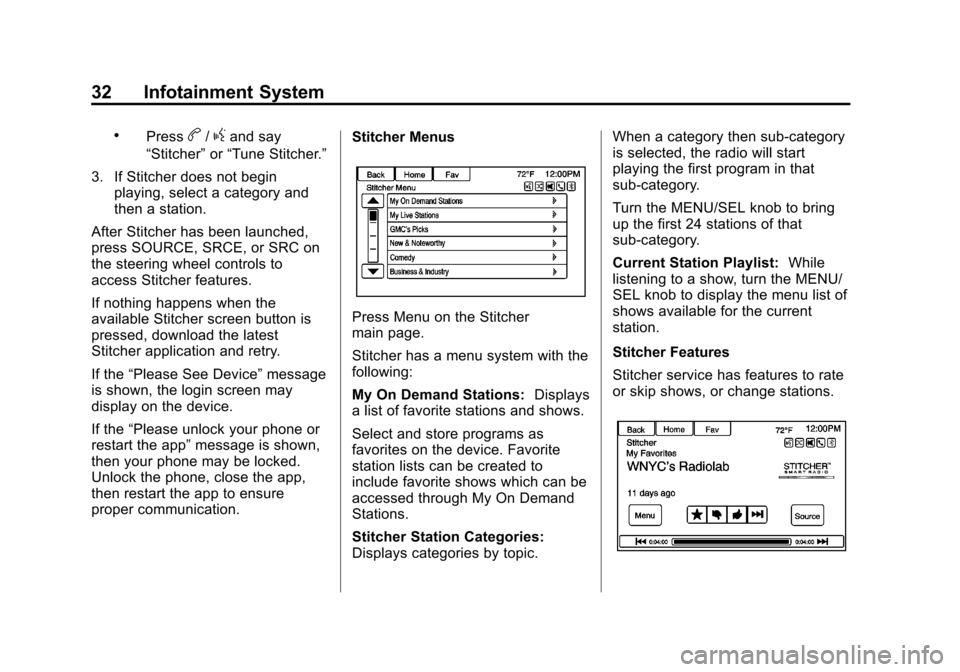
proper communication. Stitcher Menus
Press Menu on the Stitcher
main page.
Stitcher has a menu system with the
following:
My On Demand Stations:
Displays
a list of favorite stations and shows.
Select and store programs as
favorites on the device. Favorite
station lists can be created to
include favorite shows which can be
accessed through My On Demand
Stations.
Stitcher Station Categories:
Displays categories by topic. When a category then sub-category
is selected, the radio will start
playing the first program in that
sub-category.
Turn the MENU/SEL knob to bring
up the first 24 stations of that
sub-category.
Current Station Playlist:
While
listening to a show, turn the MENU/
SEL knob to display the menu list of
shows available for the current
station.
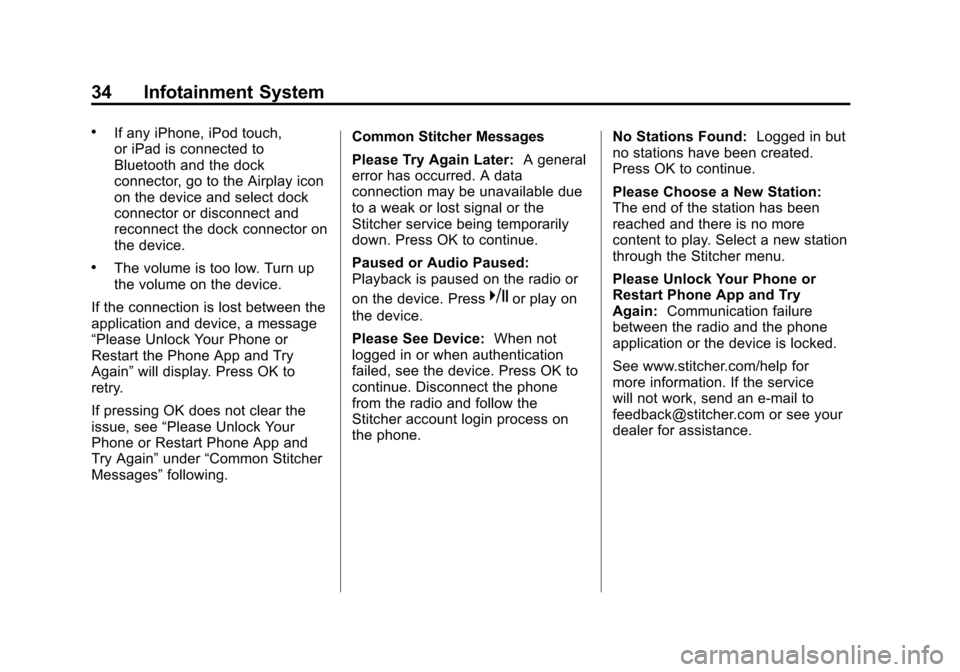
Stitcher Features
Stitcher service has features to rate
or skip shows, or change stations.
Page 34 of 98
Black plate (34,1)Chevrolet Orlando Infotainment System (GMNA-Localizing-Canada-
6081467) - 2014 - CRC - 6/13/13
34 Infotainment System
.If any iPhone, iPod touch,
or iPad is connected to
Bluetooth and the dock
connector, go to the Airplay icon
on the device and select dock
connector or disconnect and
reconnect the dock connector on
the device.
.The volume is too low. Turn up
the volume on the device.
If the connection is lost between the
application and device, a message
“Please Unlock Your Phone or
Restart the Phone App and Try
Again” will display. Press OK to
retry.
If pressing OK does not clear the
issue, see “Please Unlock Your
Phone or Restart Phone App and
Try Again” under“Common Stitcher
Messages” following. Common Stitcher Messages
Please Try Again Later:
A general
error has occurred. A data
connection may be unavailable due
to a weak or lost signal or the
Stitcher service being temporarily
down. Press OK to continue.
Paused or Audio Paused:
Playback is paused on the radio or
on the device. Press
kor play on
the device.
Please See Device: When not
logged in or when authentication
failed, see the device. Press OK to
continue. Disconnect the phone
from the radio and follow the
Stitcher account login process on
the phone. No Stations Found:
Logged in but
no stations have been created.
Press OK to continue.
Please Choose a New Station:
The end of the station has been
reached and there is no more
content to play. Select a new station
through the Stitcher menu.
Please Unlock Your Phone or
Restart Phone App and Try
Again: Communication failure
between the radio and the phone
application or the device is locked.
See www.stitcher.com/help for
more information. If the service
will not work, send an e-mail to
[email protected] or see your
dealer for assistance.
Page 49 of 98
Black plate (49,1)Chevrolet Orlando Infotainment System (GMNA-Localizing-Canada-
6081467) - 2014 - CRC - 6/13/13
Infotainment System 49
The scale can be configured for
English or metric units. To change
from English to metric, see“Driver
Information Center (DIC)” in the
owner manual.
Scroll Features
.To scroll within the map, press
anywhere on the map screen
and the scroll symbol displays.
.Tap the map to center at that
location on the screen.
.Press and hold the screen in any
direction outside the scroll
symbol to scroll the map in that
direction.
.Scroll speed increases when
pressing closer to the edge of
the screen.
.Press NAV on the faceplate to
exit map scrolling and return to
the current vehicle location on
the map.
Press the cycling arrows at the top
of the map screen to toggle from the
normal top bar (Home and Fav) to
the audio information bar.
Maps
This section includes basic
information about the map
database.
The data is stored in the internal
flash memory that is used in the
navigation system.
Detailed Areas
Road network attributes are
contained in the map database for
detailed areas. Attributes include
information such as street names,
street addresses, and turn
restrictions. A detailed area includes
all major highways, service roads,
and residential roads. The detailed
areas include points of interest
(POIs) such as restaurants, airports,
banks, hospitals, police stations,
gas stations, tourist attractions, and
historical monuments. The map
database may not include data for
newly constructed areas or map
database corrections. The
navigation system provides full
route guidance in the detailed map
areas.
Page 70 of 98
Black plate (70,1)Chevrolet Orlando Infotainment System (GMNA-Localizing-Canada-
6081467) - 2014 - CRC - 6/13/13
70 Infotainment System
This system might not be available
or interference can occur if any of
the following are true:
.Signals are obstructed by tall
buildings, trees, large trucks,
or a tunnel.
.Satellites are being repaired or
improved.
For more information if the GPS is
not functioning properly, see
Problems with Route Guidance on
page 70 andIf the System Needs
Service on page 71.
Vehicle Positioning
At times, the position of the vehicle
on the map could be inaccurate due
to one or more of the following
reasons:
.The road system has changed.
.The vehicle is driving on slippery
road surfaces such as sand,
gravel, or snow.
.The vehicle is traveling on
winding roads or long straight
roads.
.The vehicle is approaching a tall
building or a large vehicle.
.The surface streets run parallel
to a freeway.
.The vehicle has been transferred
by a vehicle carrier or a ferry.
.The current position calibration
is set incorrectly.
.The vehicle is traveling at high
speed.
.The vehicle changes directions
more than once, or the vehicle is
turning on a turn table in a
parking lot.
.The vehicle is entering and/or
exiting a parking lot, garage, or a
lot with a roof.
.The GPS signal is not received.
.A roof carrier is installed on the
vehicle.
.Tire chains have been installed.
.The tires are replaced or worn.
.The tire pressure for the tires is
incorrect.
.This is the first navigation use
after the map data is updated.
.The 12-volt battery is
disconnected for several days.
.The vehicle is driving in heavy
traffic where driving is at low
speeds, and the vehicle is
stopped and started repeatedly.
Problems with Route
Guidance
Inappropriate route guidance can
occur under one or more of the
following conditions:
.The turn was not made on the
road indicated.
.Route guidance might not be
available when using automatic
rerouting for the next right or
left turn.
.The route might not be changed
when using automatic rerouting.
Page 71 of 98
Black plate (71,1)Chevrolet Orlando Infotainment System (GMNA-Localizing-Canada-
6081467) - 2014 - CRC - 6/13/13
Infotainment System 71
.There is no route guidance when
turning at an intersection.
.Plural names of places might be
announced occasionally.
.It could take a long time to
operate automatic rerouting
during high-speed driving.
.Automatic rerouting might
display a route returning to the
set waypoint if heading for a
destination without passing
through a set waypoint.
.The route prohibits the entry of a
vehicle due to a regulation by
time or season or any other
regulation that may be given.
.Some routes might not be
searched.
.The route to the destination
might not be shown if there are
new roads, if roads have
recently changed, or if certain
roads are not listed in the map
data. SeeMaps on page 49.
To recalibrate the vehicle's position
on the map, park with the vehicle
running for two to five minutes, until
the vehicle position updates. Make
sure the vehicle is parked in a
location that is safe and has a clear
view of the sky and away from large
obstruction.
If the System Needs
Service
If the navigation system needs
service and the steps listed here
have been followed but there are
still problems, see your dealer for
assistance.
Map Data Updates
The map data provided in the
vehicle is the most up-to-date
information available when the
vehicle was produced. The map
data is updated periodically,
provided that the map information
has changed.
For questions about the operation of
the navigation system or the update
process, contact the GM Nav Disc
Center toll-free phone number,
1-877-NAV-DISC (1-877-628-3472)
or go to the center ’s website,
www.gmnavdisc.com. If updates are
needed, call the GM Nav Disc
Center or order a new Map Update
online. To order map data, have the
vehicle’s Vehicle Identification
Number (VIN) available. See
“Vehicle Identification Number
(VIN)” in the owner manual.
After receiving the updated map
data, see Maps on page 49.
Page 84 of 98
Black plate (84,1)Chevrolet Orlando Infotainment System (GMNA-Localizing-Canada-
6081467) - 2014 - CRC - 6/13/13
84 Infotainment System
Using the Infotainment Controls
Turn the MENU/SEL knob to
“Answer”or“Decline” and press the
MENU/SEL knob or press Accept or
Decline on the screen.
Using Steering Wheel Controls
Press
b/gto answer or$/ito
decline the call.
Call Waiting Using the
Infotainment Controls
Call waiting must be supported on
the Bluetooth phone and enabled by
the wireless service carrier to work.
Switching Between Calls (Call
Waiting Calls Only)
To switch between calls turn and
press the MENU/SEL knob and
select Switch Call or select Switch
Call on the screen.
Call Waiting Using Steering
Wheel Controls
Call waiting must be supported on
the cell phone and enabled by the
wireless service carrier.
.Pressb/gto answer an
incoming call when another call
is active. The original call is
placed on hold.
.Pressb/gagain to return to
the original call.
.To decline answering the
incoming call, press Decline on
the screen or take no action.
.Press$/ito disconnect the
current call and switch to the call
on hold.
Conference Calling Using the
Infotainment Controls
Conference calling and three-way
calling must be supported on the
Bluetooth phone and enabled by the wireless service carrier to work. This
feature is only supported when the
vehicle is not moving.
To start a conference while in a
current call:
1. Turn and press the MENU/SEL
knob and select Enter Number.
2. Enter the phone number and then select OK.
3. After the call has been placed, turn the MENU/SEL knob and
choose Merge Calls.
4. To add more callers to the conference call, repeat
Steps 1−3. The number of
callers that can be added is
limited by your wireless service
carrier.
Ending a Call
Using the Infotainment Controls
Turn and press the MENU/SEL
knob and select Hang Up or press
Hang Up on the screen.
Page 90 of 98
Black plate (90,1)Chevrolet Orlando Infotainment System (GMNA-Localizing-Canada-
6081467) - 2014 - CRC - 6/13/13
90 Infotainment System
Fees and Taxes: Subscription fee,
taxes, one time activation fee, and
other fees may apply. Subscription
fee is consumer only. All fees and
programming subject to change.
Subscriptions subject to Customer
Agreement available at
www.siriusxm.com. SiriusXM
®
service only available in the
48 contiguous United States and
Canada.
In Canada: Some deterioration of
service may occur in extreme
northern latitudes. This is beyond
the control of SiriusXM
®Satellite
Radio. Explicit Language Notice: Channels
with frequent explicit language are
indicated with an
“XL”preceding the
channel name. Channel blocking is
available for SiriusXM Satellite
Radio receivers by notifying
SiriusXM:
.Canada: 877-209-0079 or see
www.xmradio.ca.
It is prohibited to copy, decompile,
disassemble, reverse engineer,
hack, manipulate, or otherwise
make available any technology or
software incorporated in receivers
compatible with the SiriusXM
Satellite Radio System or that
support the SiriusXM website, the
Online Service or any of its content.
Furthermore, the AMBER voice
compression software included in
this product is protected by
intellectual property rights including
patent rights, copyrights, and trade
secrets of Digital Voice
Systems, Inc. General Requirements:
1. A License Agreement from
SiriusXM is required for any
product that incorporates
SiriusXM Technology and/or for
use of any of the SiriusXM
marks to be manufactured,
distributed, or marketed in the
SiriusXM Service Area.
2. For products to be distributed, marketed, and/or sold in
Canada, a separate agreement
is required with Canadian
Satellite Radio Inc. (operating as
XM Canada).
Gracenote
Gracenote®, Gracenote logo and
logotype, and the "Powered by
Gracenote" logo are either a
registered trademark or a trademark
of Gracenote, Inc. in the United
States and/or other countries.
Page 91 of 98
Black plate (91,1)Chevrolet Orlando Infotainment System (GMNA-Localizing-Canada-
6081467) - 2014 - CRC - 6/13/13
Infotainment System 91
Bluetooth
The Bluetooth®word mark and
logos are owned by the Bluetooth®
SIG, Inc. and any use of such marks
by General Motors is under license.
Other trademarks and trade names
are those of their respective owners.
Pandora (If Equipped)
Pandora is a registered trademark
of Pandora Media, Inc., used under
license.
Map End User License
Agreement (Optional
Equipment Applies Where
Equipped)
END USER TERMS
The data (“Data”) is provided for
your personal, internal use only and
not for resale. It is protected by
copyright, and is subject to the
following terms and conditions
which are agreed to by you, on the
one hand, and Panasonic
Automotive Systems Company of America (“PANASONIC”) and its
licensors (including their licensors
and suppliers) on the other hand.
© 2013 NAVTEQ. All rights
reserved.
The Data includes certain
information and related content
provided under license to NT
from third parties and is subject
to the applicable supplier terms
and copyright notices set
forth at the following URL:
http://corporate.navteq.com/
supplier_terms.html.
In addition, the Lonely Planet Travel
Guide content is subject to the
following supplier notices
(if equipped):
© 2013 Lonely Planet Publications
Pty Ltd. All rights reserved.
PANASONIC and its content
providers have tried to make this
information as accurate as possible,
but it is provided
“as is”and
PANASONIC and its content
providers accept no responsibility for any loss, injury or inconvenience
resulting from this information. You
should verify critical information (like
visas, health and safety) before you
travel.
TERMS AND CONDITIONS
Personal Use Only. You agree to
use this Data together with the
General Motors MyLink or IntelliLink
Connected Navigation Radio
Platform for the solely personal,
non-commercial purposes for which
you were licensed, and not for
service bureau, time-sharing or
other similar purposes. Accordingly,
but subject to the restrictions set
forth in the following paragraphs,
you agree not to otherwise
reproduce, copy, modify, decompile,
disassemble, create any derivative
works of, or reverse engineer any
portion of this Data, and may not
transfer or distribute it in any form,
for any purpose, except to the
extent permitted by mandatory laws.
Page 96 of 98

Black plate (2,1)Chevrolet Orlando Infotainment System (GMNA-Localizing-Canada-
6081467) - 2014 - CRC - 6/13/13
i-2 INDEX
G
Global PositioningSystem (GPS) . . . . . . . . . . . . . . . . . . 69
Gracenote . . . . . . . . . . . . . . . . . . . . . . . 90
Gracenote
®. . . . . . . . . . . . . . . . . . . . . . 38
H
Hands-Free Phone . . . . . . . . . . . . . . 85
Helpful Hints for Speaking Commands . . . . . . . . . . . . . . . . . . . . . 72
Home Page . . . . . . . . . . . . . . . . . . . . . . . 9
Home Page Customization . . . . . . 10
Home Page Features . . . . . . . . . . . . 10
I
If the System Needs Service . . . . . 71
Info Quick . . . . . . . . . . . . . . . . . . . . . . . . . . . 25
Infotainment . . . . . . . . . . . . . . . . . . . . . . 3
Infotainment Control Buttons . . . . . . 7
Infotainment System Overview . . . 5
Infotainment System Settings . . . . 15
Internet Radio Pandora . . . . . . . . . . . . . . . . . . . . . . . . 25
L
Languages . . . . . . . . . . . . . . . . . . . . . . 64
Launching Pandora . . . . . . . . . . . . . . 26
Launching Stitcher . . . . . . . . . . . . . . . 31
Loading and Ejecting Discs . . . . . . 36
M
Making a Call Using PhoneBook and Infotainment
Controls . . . . . . . . . . . . . . . . . . . . . . . . 83
Making a Call Using the Infotainment Controls . . . . . . . . . . 83
Map Adjustments . . . . . . . . . . . . . . . . 48
Map Data Updates . . . . . . . . . . . . . . . 71
Map End User License
Agreement (Optional
Equipment Applies Where
Equipped) . . . . . . . . . . . . . . . . . . . . . . 91
Map Scales . . . . . . . . . . . . . . . . . . . . . . 48
Maps . . . . . . . . . . . . . . . . . . . . . . . . . . . . 49
Menu Configure . . . . . . . . . . . . . . . . . . . . . . . 63
Menu with Route Guidance
Active . . . . . . . . . . . . . . . . . . . . . . . . . . 60
Messaging Text . . . . . . . . . . . . . . . . . . . . . . . . . . . . . 87 Mixed-Band Presets . . . . . . . . . . . . . 17
Muting a Call . . . . . . . . . . . . . . . . . . . . 85
My Media Commands . . . . . . . . . . . 75
N
Navigation
Destination . . . . . . . . . . . . . . . . . . . . . 52
Symbols . . . . . . . . . . . . . . . . . . . . . . . . 50
Using the System . . . . . . . . . . . . . . . 46
Navigation Commands (If Equipped) . . . . . . . . . . . . . . . . . . . . . . 76
Navigation Settings (If Equipped) . . . . . . . . . . . . . . . . . . . . . . 65
Navigation Settings Button . . . . . . 65
NavTraffic
®(If Equipped) . . . . . . . . 20
O
OnStar®Destination
Download . . . . . . . . . . . . . . . . . . . . . . 62
Other Commands . . . . . . . . . . . . . . . . 76
Overview . . . . . . . . . . . . . . . . . . . . . . . . 79
Overview, Infotainment System . . . 4
Page 97 of 98

Black plate (3,1)Chevrolet Orlando Infotainment System (GMNA-Localizing-Canada-
6081467) - 2014 - CRC - 6/13/13
INDEX i-3
P
Pairing with InfotainmentControls . . . . . . . . . . . . . . . . . . . . . . . . 80
Pairing with Voice Recognition . . . 81
Pandora (If Equipped) . . . . . . . . . . . 91
Pandora Internet Radio . . . . . . . . . . 25
Pandora Troubleshooting . . . . . . . . 29
Phone Bluetooth . . . . . . . . . . . . . . . . . . . . . . . 79
Phone Commands . . . . . . . . . . . . . . . 74
Phone Settings . . . . . . . . . . . . . . . . . . 65
Pictures . . . . . . . . . . . . . . . . . . . . . . . . . 35
Playing an Audio CD . . . . . . . . . . . . 36
Playing from a USB . . . . . . . . . . . . . . 37
Playing from an iPhone or iPad
®. . . . . . . . . . . . . . . . . . . . . . . . 43
Playing from an iPod®. . . . . . . . . . . 41
Playing the Radio . . . . . . . . . . . . . . . . 15
Problems with Route Guidance . . . . . . . . . . . . . . . . . . . . . . 70
Q
Quick Info . . . . . . . . . . . . . . . . . . . . . . . 25
R
Radio Commands . . . . . . . . . . . . . . . 74
Radio Settings . . . . . . . . . . . . . . . . . . . 64
Radios
AM-FM Radio . . . . . . . . . . . . . . . . . . . 15
Reception . . . . . . . . . . . . . . . . . . . . . . 24
Satellite . . . . . . . . . . . . . . . . . . . . . . . . . 18
Route Options . . . . . . . . . . . . . . . . . . . 60
S
Satellite Radio . . . . . . . . . . . . . . . . . . . 18
Scroll Features . . . . . . . . . . . . . . . . . . 49
Settings Commands . . . . . . . . . . . . . 76
SiriusXM Categories . . . . . . . . . . . . . 19
SiriusXM Satellite Radio Service . . . . . . . . . . . . . . . . . . . . . . . . . 24
SiriusXM Travel Link (If Equipped) . . . . . . . . . . . . . . . . . . . . . . 21
SiriusXM
®Satellite Radio . . . . . . . . 18
Software Updates . . . . . . . . . . . . . . . 15
Steering Wheel Controls . . . . . . . . . . 8
Stitcher Troubleshooting . . . . . . . . . 33
Storing Radio Station Presets . . . 17 Symbols, Navigation . . . . . . . . . . . . . 50
System
Infotainment . . . . . . . . . . . . . . . . . . . . . 3
System Needs Service . . . . . . . . . . 71
T
Text . . . . . . . . . . . . . . . . . . . . . . . . . . . . . . 87
Time and Date Settings . . . . . . . . . . 64
Touch Screen Buttons . . . . . . . . . . . . 8
Transferring a Call . . . . . . . . . . . . . . . 85
TuneSelect . . . . . . . . . . . . . . . . . . . . . . 19
U
Updates Map Data . . . . . . . . . . . . . . . . . . . . . . . 71
Software . . . . . . . . . . . . . . . . . . . . . . . . 15
USB . . . . . . . . . . . . . . . . . . . . . . . . . . . . . 37
USB Media Formats . . . . . . . . . . . . . 38
USB Troubleshooting . . . . . . . . . . . . 44
Using Destination Download . . . . . 62
Using the System . . . . . . . . . . . . . . . . . 9
Using Voice Recognition . . . . . . . . . 72