steering wheel CHEVROLET SILVERADO 2003 1.G User Guide
[x] Cancel search | Manufacturer: CHEVROLET, Model Year: 2003, Model line: SILVERADO, Model: CHEVROLET SILVERADO 2003 1.GPages: 556, PDF Size: 3.56 MB
Page 210 of 556
Here are some situations you may experience with your
fuel gage. None of these indicate a problem with the
fuel gage.
·At the gas station, the fuel pump shuts off before
the gage reads full.
·It takes a little more or less fuel to ®ll up than the
fuel gage indicated. For example, the gage may
have indicated the tank was half full, but it actually
took a little more or less than half the tank's
capacity to ®ll the tank.
·The gage goes back to empty when you turn off the
ignition.
If you have a diesel engine, see
Fuel Gage on
page 3-53in the Diesel Engine Supplement.
Low Fuel Warning Light
The light next to the fuel gage will come on brie¯y when
you are starting the engine.
This light comes on when the fuel tank is low on fuel.
To turn it off, add fuel to the fuel tank. See
Fuel on
page 5-4.
Driver Information Center (DIC)
The DIC display is located on the instrument panel
cluster above the steering wheel. The DIC can display
information such as the trip odometer, fuel economy and
personalization features.
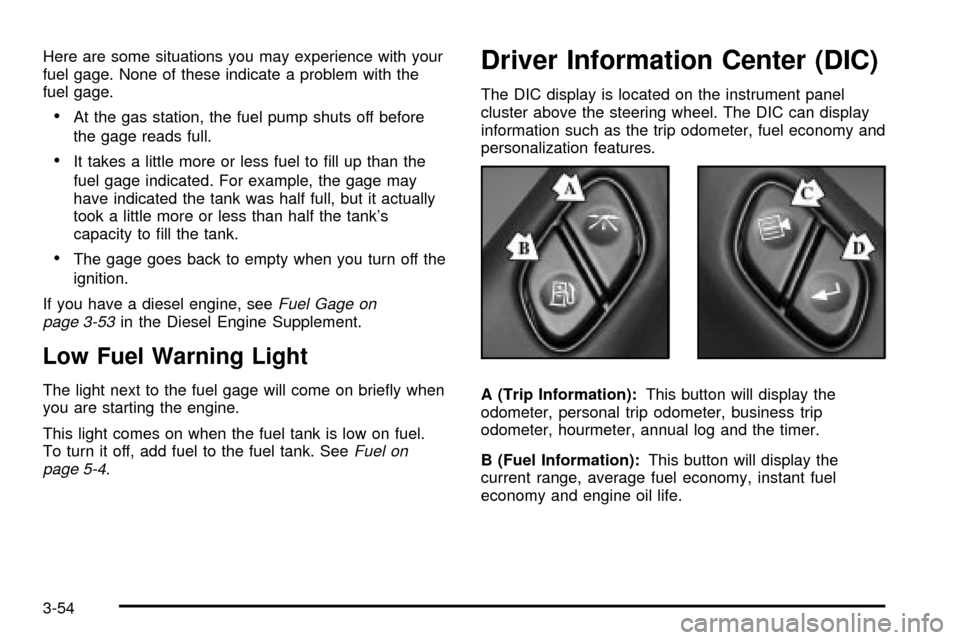
A (Trip Information):This button will display the
odometer, personal trip odometer, business trip
odometer, hourmeter, annual log and the timer.
B (Fuel Information):This button will display the
current range, average fuel economy, instant fuel
economy and engine oil life.
3-54
Page 211 of 556

C (Personalization):This button will change personal
options available on your vehicle.
D (Select):This button resets certain functions and
turns off or acknowledges messages on the DIC.
If your vehicle is not equipped with the DIC steering
wheel buttons you will not have all of the features listed
above, and you will turn off, or acknowledge DIC
messages by using the trip odometer reset stem located
on the instrument panel cluster.
DIC Operation and Displays
The DIC comes on when the ignition is on. After a short
delay the DIC will display the current driver and the
information that was last displayed before the engine
was turned off.
If a problem is detected, a warning message will appear
on the display. Pressing any of the DIC buttons will
acknowledge any current warning or service messages.
The DIC has different modes which can be accessed
by pressing the four buttons on the DIC. These buttons
are trip information, fuel information, personalization
and select. The button functions are detailed in
the following.
If your vehicle is not equipped with the DIC steering
wheel buttons not all of the features listed will be
available on your vehicle.
Trip Information Button
Use the trip information button to scroll through the
ODOMETER, PERSONAL TRIP ON/OFF, BUSINESS
TRIP ON/OFF, HOURMETER, ANNUAL LOG and
TIMER. If the personal trip and/or the business trip are
set to ON, you will also be able to scroll through
more messages. See
Personal TripandBusiness Tripnext for more information.
If your vehicle is not equipped with the DIC steering
wheel buttons you can select the trip information
by pressing the trip odometer reset stem on the
instrument panel cluster.
Personal Trip
If the PERSONAL TRIP is on (turn it on or off by
pressing the select button) you will also be able to scroll
through the following:
·PERSONAL: XX MI Ð This shows the current
distance traveled since the last reset for the
personal trip odometer in either miles or kilometers.
·PERSONAL: XX.X GAL Ð This shows the amount
of fuel used for the personal trip.
·PERSONAL: XX.X MPG Ð This shows the amount
of fuel used for the personal trip.
3-55
Page 212 of 556

·PERSONAL: AVG MPH Ð This shows the vehicle's
average speed for the personal trip.
·PERSONAL: % ANNUAL Ð This shows the ratio of
personal trip miles to annual miles as a percent.
You can reset the personal trip odometer by pressing
and holding the trip odometer reset stem.
Business Trip
If the BUSINESS TRIP is on (turn it on or off by
pressing the select button) you will also be able to scroll
through the following:
·BUSINESS: XX MI Ð This shows the current
distance traveled since the last reset for the
business trip odometer in either miles or kilometers.
·BUSINESS: XX.X MPG Ð This shows the amount
of fuel used for the business trip.
·BUSINESS: XX.X GAL Ð This shows the amount
of fuel used for the business trip.
·BUSINESS: AVG MPH Ð This shows the vehicle's
average speed for the business trip.
·BUSINESS: % ANNUAL Ð This shows the ratio of
business trip miles to annual miles as a percent.To reset the personal or business trip information, do the
following: press and hold select button for two seconds
while in one of the personal or business trip modes. This
will reset all of the information for the personal or
business trip, or if your vehicle does not have the DIC
steering wheel control buttons, press the reset stem on
the instrument panel cluster.
You can also reset the PERSONAL: XX MI, or
BUSINESS: XX MI, while they are displayed by pressing
the reset stem on the cluster. If you press and hold
the reset stem or select button for four seconds,
the display will show the distance traveled since the last
ignition cycle for the personal or business trip.
Odometer
Press the trip information button, or the trip odometer
reset step, until SEASON ODOMETER appears on
the display. This shows the total distance the vehicle has
been driven in either miles or kilometers. Pressing the
reset stem located on the instrument cluster with
the vehicle off will also display the season odometer.
Hourmeter
Press the trip button to scroll to the hourmeter. The
hourmeter shows the total number of hours the engine
has run. Pressing the reset stem on the instrument
cluster will also display the hourmeter after the season
odometer is displayed.
3-56
Page 213 of 556

Annual Log
Press the trip button, or the reset stem on the instrument
panel cluster, to scroll to the annual log. The annual
log shows the mileage accumulated since it was
last reset. To reset the annual log, press and hold the
select button, or the trip odometer reset stem for
approximately two seconds.
Timer
The DIC can be used as a stopwatch. Press the select
button, or the trip odometer reset stem, while TIMER
is displayed to start the timer. The display will show the
amount of time that has passed since the timer was
last reset (not including time the ignition is off). Time will
continue to be counted as long as the ignition is on,
even if another display is being shown on the DIC. The
timer will record up to 99 hours, 59 minutes and
59 seconds (99:59:59) after which the display will roll
back to zero.
To stop the counting of time, press the select button
brie¯y while TIMER is displayed.
To reset the timer to zero, press and hold the select
button, or the trip odometer reset stem, while TIMER is
displayed.
Fuel Information Button
Use the fuel information button to scroll through the
range, average fuel economy, instant fuel economy and
the GM Oil Life SystemŸ.
If your vehicle is not equipped with the DIC steering
wheel control buttons you will not be able to display the
fuel information.
Fuel Range
Press the fuel information button until RANGE appears
to display the remaining distance you can drive without
refueling. It's based on fuel economy and the fuel
remaining in the tank. The display will show LOW if the
fuel level is low.
The fuel economy data used to determine fuel range is
an average of recent driving conditions. As your driving
conditions change, this data is gradually updated. Fuel
range cannot be reset.
Average Fuel Economy
Press the fuel information button until AVG appears in the
display. Average fuel economy is how many miles per
gallon your vehicle is getting based on current and past
driving conditions.
Press and hold the select button while AVG.ECON is
displayed to reset the average fuel economy. Average
fuel economy will then be calculated starting from
that point. If the average fuel economy is not reset, it
will be continually updated each time you drive.
3-57
Page 214 of 556

Instant Fuel Economy
Press the fuel information button until INST appears in
the display. Instant fuel economy is how many miles
per gallon your vehicle is at the particular moment
in time. The instant fuel economy cannot be reset.
GM Oil Life SystemŸ
Press the fuel information button until ENGINE OIL LIFE
appears in the display. The GM Oil Life SystemŸ
shows an estimate of the oil's remaining useful life. It
will show 100% when the system is reset after an
oil change. It will alert you to change your oil on a
schedule consistent with your driving conditions.
Always reset the engine oil life after and oil change. To
reset the Oil Life System press and hold the select
button while ENGINE OIL LIFE is displayed. OIL LIFE
RESET will appear on the display for 10 seconds
to let you know the system is reset.
The DIC does not replace the need to maintain your
vehicle as recommended in the Maintenance Schedule
in this manual. Also, the oil change reminder does
not measure how much oil you have in your engine. So,
be sure to check your oil level often. See
Engine Oil
on page 5-16.
Personalization Button
You can program certain features to a preferred setting
for up to two people. Press the personalization button to
scroll through the following personalization features. All of
the personalization options may not be available on your
vehicle. only the options available will be displayed on
your DIC.
If your vehicle is not equipped with the DIC steering
wheel buttons you will not have any of these
personalization options except for DISPLAY
LANGUAGE. See DISPLAY LANGUAGE later in this
section for more information.
·AUTOMATIC LOCKING
·AUTOMATIC UNLOCKING
·REMOTE LOCK FEEDBACK
·ALARM WARNING TYPE
·REMOTE UNLOCK FEEDBACK
·HEADLAMPS ON AT EXIT
·PERIMETER LIGHTING
·SEAT POSITION RECALL
·EASY EXIT DRIVER SEAT
3-58
Page 278 of 556

Audio Steering Wheel Controls
You can control certain radio functions using the buttons
on your steering wheel.
g(OnStar/Voice Recognition):If your vehicle has
OnStarž, you can press this button to interact with
the OnStaržsystem. See the OnStaržmanual provided
with your vehicle for more information.
IF your vehicle does not have OnStar
ž, pressing this
button will mute the audio system.
PROG (Program):Press this button to play a station
you have programmed on the radio preset pushbuttons
on the selected band. If a cassette tape is playing, press
this button to play the other side of the tape. If a CD is
playing, press this button to go to the next available CD.
QSOURCER:Press this button to select AM, FM1,
FM2, or XM1 or XM2, (USA only, if equipped), or a
cassette tape or CD. The cassette or CD must be loaded
to play. Available loaded sources are shown on the
display as a tape or a CD symbol.
QSEEKR:Press the up or the down arrow to seek
to the next or to the previous radio station and stay
there.
QVOLR:Press the up or the down arrow to increase
or to decrease volume.
DVD Distortion
You may experience audio distortion in the
IR headphones when operating cellular phones,
scanners, CB radios, Global Positioning Systems
(GPS)*, two-way radios, mobile fax, or walkie talkies.
It may be necessary to turn off the DVD player when
operating one of these devices in or near the vehicle.
* Excludes the OnStar
žSystem.
3-122
Page 283 of 556

Your Driving, the Road, and Your Vehicle..........4-2
Defensive Driving...........................................4-2
Drunken Driving.............................................4-2
Control of a Vehicle........................................4-5
Braking.........................................................4-6
Traction Assist System (TAS).........................4-10
Manual Selectable Ride.................................4-12
Locking Rear Axle........................................4-13
Steering......................................................4-13
QUADRASTEERŸ........................................4-15
Off-Road Recovery.......................................4-19
Passing.......................................................4-19
Loss of Control.............................................4-21
Off-Road Driving with Your Four-Wheel-Drive
Vehicle....................................................4-22
Driving at Night............................................4-38
Driving in Rain and on Wet Roads..................4-39
City Driving..................................................4-42Freeway Driving...........................................4-43
Before Leaving on a Long Trip.......................4-44
Highway Hypnosis........................................4-45
Hill and Mountain Roads................................4-46
Winter Driving..............................................4-48
If You Are Stuck: In Sand, Mud, Ice or Snow . . .4-52
Towing..........................................................4-55
Towing Your Vehicle.....................................4-55
Recreational Vehicle Towing...........................4-55
Loading Your Vehicle....................................4-58
Adding a Snow Plow or Similar Equipment.......4-61
Truck-Camper Loading Information..................4-65
Trailer Recommendations...............................4-67
Pickup Conversion to Chassis Cab..................4-67
Towing a Trailer...........................................4-68
Power Take-Off (PTO)...................................4-95
Section 4 Driving Your Vehicle
4-1
Page 290 of 556
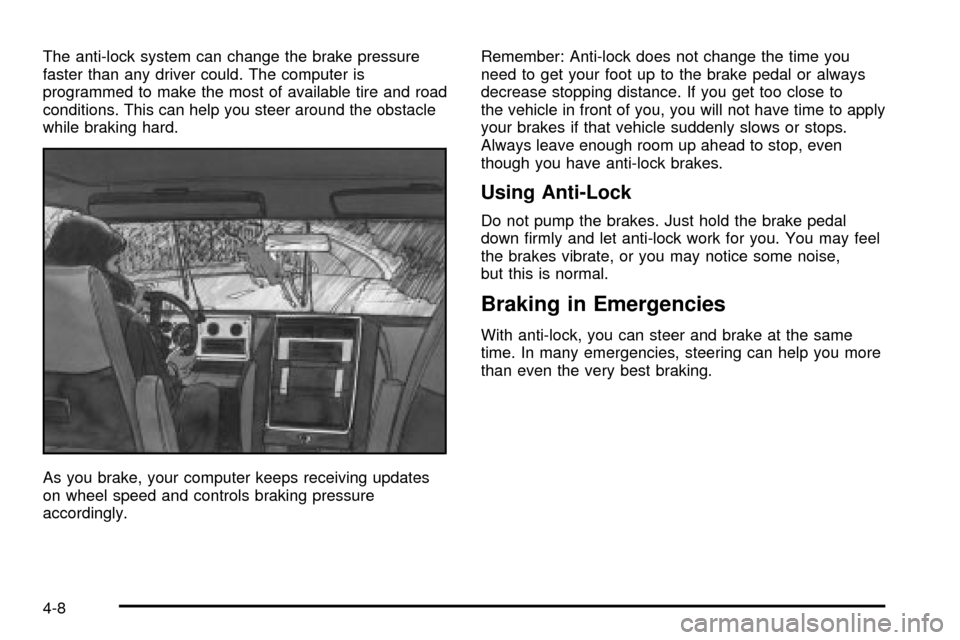
The anti-lock system can change the brake pressure
faster than any driver could. The computer is
programmed to make the most of available tire and road
conditions. This can help you steer around the obstacle
while braking hard.
As you brake, your computer keeps receiving updates
on wheel speed and controls braking pressure
accordingly.Remember: Anti-lock does not change the time you
need to get your foot up to the brake pedal or always
decrease stopping distance. If you get too close to
the vehicle in front of you, you will not have time to apply
your brakes if that vehicle suddenly slows or stops.
Always leave enough room up ahead to stop, even
though you have anti-lock brakes.
Using Anti-Lock
Do not pump the brakes. Just hold the brake pedal
down ®rmly and let anti-lock work for you. You may feel
the brakes vibrate, or you may notice some noise,
but this is normal.
Braking in Emergencies
With anti-lock, you can steer and brake at the same
time. In many emergencies, steering can help you more
than even the very best braking.
4-8
Page 291 of 556

Supplemental Brake Assist System
If your vehicle has vacuum assist power brakes, it is also
equipped with a supplemental brake assist system
that supplies additional vacuum to the vacuum brake
booster if engine vacuum is reduced. Under certain
conditions, the supplemental brake assist system may
run brie¯y after starting your vehicle or when you
apply and release the brake pedal and it may continue
to run even after you have removed your foot from
the brake pedal. When the supplemental brake assist
system is operating, you may hear a motor running
or feel a slight vibration in the steering wheel or brake
pedal. This indicates that the supplemental brake
assist system is working to supply additional vacuum for
your vacuum assist power brakes. This is a normal
operation of your brake system and does not require that
the brake system be serviced.Each time you start your vehicle and accelerate to
10 mph, the supplemental brake assist system
will perform a self-diagnostic check of the system and
you may hear or feel the supplemental brake assist
motor run brie¯y. While you are driving your vehicle, the
supplemental brake assist system monitors itself to
ensure that it is operating properly. If there is a problem
with the supplemental brake assist system, the
SERVICE BRAKE BOOSTER message will be displayed
on the Driver Information Center. See
DIC Warnings
and Messages on page 3-65.
If your supplemental brake assist system runs every
time you apply and release the brake pedal or you notice
that the brake pedal has suddenly become much
harder to push and the vehicle takes longer to stop, you
should have your vehicle serviced as soon as possible.
4-9
Page 295 of 556

·For optimum ride comfort when trailering, fully
loaded, driving off-road, or when personal
preferences demand more control the button should
be pressed in with the indicator light illuminated.
This switch position indicates FIRM levels of
ride control or damping.
The following guide can also be used to help determine
the best setting.
NORMAL:The indicator light will be off when the
system is in this setting. Use for normal city and highway
driving. Provides a smooth, soft ride when the vehicle
is unloaded.
FIRM (Unloaded):Press the switch to activate this
setting, the indicator light will illuminate. Use this setting
when road conditions or personal preference demand
more control. Provides more ªfeel²or response to
the road conditions.
FIRM (Loaded):Press the switch to activate this
setting, the indicator light will illuminate. Use this setting
to minimize trailer inputs to the vehicle or when the
vehicle is fully loaded. This setting is also appropriate
for off-road driving.
You can select a setting at any time based on road and
trailering conditions to provide the best ride and
handling. Select a new setting whenever driving
conditions change.Locking Rear Axle
If your vehicle has this feature, your locking rear axle can
give you additional traction on snow, mud, ice, sand or
gravel. It works like a standard axle most of the time, but
when one of the rear wheels has no traction and the other
does, this feature will allow the wheel with traction to
move the vehicle.
Steering
Power Steering
If you lose power steering assist because the engine
stops or the system is not functioning, you can steer but it
will take much more effort.
Steering Tips
Driving on Curves
It is important to take curves at a reasonable speed.
A lot of the ªdriver lost controlº accidents mentioned on
the news happen on curves. Here is why:
Experienced driver or beginner, each of us is subject to
the same laws of physics when driving on curves. The
traction of the tires against the road surface makes it
possible for the vehicle to change its path when you turn
the front wheels. If there is no traction, inertia will keep
the vehicle going in the same direction. If you have ever
tried to steer a vehicle on wet ice, you will
understand this.
4-13