ECO mode CHEVROLET SILVERADO 2003 1.G Owner's Manual
[x] Cancel search | Manufacturer: CHEVROLET, Model Year: 2003, Model line: SILVERADO, Model: CHEVROLET SILVERADO 2003 1.GPages: 556, PDF Size: 3.56 MB
Page 249 of 556

Playing a Cassette Tape
Your tape player is built to work best with tapes that are
up to 30 to 45 minutes long on each side. Tapes
longer than that are so thin they may not work well in
this player. The longer side with the tape visible should
face to the right. If the ignition is on, but the radio is
off, the tape can be inserted and will begin playing. A
tape symbol is shown on the display whenever a tape is
inserted. If you hear nothing but a garbled sound, the
tape may not be in squarely. Press the eject symbol to
remove the tape and start over.
While the tape is playing, use the VOL, AUDIO and
SEEK controls just as you do for the radio. The display
will show TAPE and an arrow showing which side of
the tape is playing.
If you want to insert a tape while the ignition is off, ®rst
press the eject symbol or DISP.
If an error appears on the display, see ªCassette Tape
Messagesº later in this section.
1 PREV (Previous):Your tape must have at least three
seconds of silence between each selection for previous
to work. Press this pushbutton to go to the previous
selection on the tape if the current selection has been
playing for less than three seconds. If pressed when the
current selection has been playing from 3 to 13 seconds,
it will go to the beginning of the previous selection or
the beginning of the current selection, depending uponthe position on the tape. If pressed when the current
selection has been playing for more than 13 seconds, it
will go to the beginning of the current selection.
SEEK and a negative number will appear on the display
while the cassette player is in the previous mode.
Pressing this pushbutton multiple times will increase the
number of selections to be searched back, up to -9.
2 NEXT:Your tape must have at least three seconds of
silence between each selection for next to work.
Press this pushbutton to go to the next selection on the
tape. If you press the pushbutton more than once,
the player will continue moving forward through the tape.
SEEK and a positive number will appear on the
display.
3 REV (Reverse):Press this pushbutton to reverse the
tape rapidly. Press it again to return to playing speed.
The radio will play while the tape reverses. The
station frequency and REV will appear on the display.
You may select stations during reverse operation
by using the TUNE and SEEK.
4 FWD (Forward):Press this pushbutton to advance
quickly to another part of the tape. Press this pushbutton
again to return to playing speed. The radio will play
while the tape advances. The station frequency
and FWD will appear on the display. You may select
stations during forward operation by using TUNE
and SEEK.
3-93
Page 255 of 556

Playing the Radio
PWR (Power):Push this knob to turn the system on
and off.
VOLUME:Turn the knob to increase or to decrease
volume.
AUTO VOL (Automatic Volume):With automatic
volume, your audio system will adjust automatically to
make up for road and wind noise as you drive by
increasing the volume as vehicle speed increases.
Set the volume at the desired level. Press this button to
select LOW, MEDIUM or HIGH. AVOL will appear on
the display. Each higher setting will provide more
volume compensation as vehicle speed increases. To
turn automatic volume off, press this button until
AVOL OFF appears on the display.
RCL (Recall):Push this knob to switch the display
between the radio station frequency and the time.
Pushing this knob with the ignition off will display the time.
For XMŸ (USA only, if equipped), push this knob while in
XMŸ mode to retrieve various pieces of information
related to the current song or channel. By pushing and
releasing this knob, you may retrieve four different
categories of information: Artist, Song Title, Category or
PTY, Channel Number/Channel Name.To change the default on the display, push this knob until
you see the display you want, then hold the knob until the
display ¯ashes. The selected display will now be the
default.
Finding a Station
BAND:Press this button to switch between AM, FM1,
FM2, or XM1, XM2 (USA only, if equipped). The
display will show your selection.
TUNE:Turn this knob to select radio stations.
sSEEKt:Press the right or the left arrow to go to
the next or to the previous station and stay there.
The radio will seek only to stations that are in the
selected band and only to those with a strong signal.
sSCANt:Press and hold either SCAN arrow
for two seconds until SC appears on the display and
you hear a beep. The radio will go to a station, play for
a few seconds, then go on to the next station. Press
either SCAN arrow again to stop scanning.
3-99
Page 265 of 556

Using Song List Mode
The integrated six-disc CD changer has a feature called
song list. This feature is capable of saving 20 track
selections.
To save tracks into the song list feature, perform the
following steps:
1. Turn the disc player on and load it with at least one
disc. See ªLOAD CDº listed previously in this
section for more information.
2. Check to see that the disc changer is not in song
list mode. S-LIST should not appear in the display.
If S-LIST is present, press the SONG LIST
button to turn it off.
3. Select the desired disc by pressing the numbered
pushbutton and then use the SEEK SCAN right
arrow button to locate the track that you want
to save. The track will begin to play.
4. Press and hold the SONG LIST button for two or
more seconds to save the track into memory.
When SONG LIST is pressed a beep will be heard
immediately. After two seconds of pressing
SONG LIST continuously, two beeps will sound to
con®rm that the track has been saved.
5. Repeat Steps 3 and 4 for saving other selections.If you attempt to save more than 20 selections, S-LIST
FULL will appear on the display.
To play the song list, press the SONG LIST button. One
beep will be heard and S-LIST will appear on the
display. The recorded tracks will begin to play in the
order that they were saved.
You may seek through the song list by using the SEEK
SCAN arrows. Seeking past the last saved track will
return you to the ®rst saved track.
To delete tracks from the song list, perform the following
steps:
1. Turn the disc player on.
2. Press the SONG LIST button to turn song list on.
S-LIST will appear on the display.
3. Press the SEEK SCAN arrows to select the desired
track to be deleted.
4. Press and hold the SONG LIST button for two
seconds. When pressing SONG LIST, one beep
will be heard immediately. After two seconds
of pressing the SONG LIST button continuously,
two beeps will be heard to con®rm that the track has
been deleted.
After a track has been deleted, the remaining tracks are
moved up the list. When another track is added to the
song list, the track will be added to the end of the list.
3-109
Page 266 of 556

To delete the entire song list, perform the following
steps:
1. Turn the disc player on.
2. Press the SONG LIST button to turn song list on.
S-LIST will appear on the display.
3. Press and hold the SONG LIST button for more
than four seconds. A beep will be heard, followed
by two beeps after two seconds and a ®nal beep will
be heard after four seconds. S-LIST EMPTY will
appear on the display indicating that the song
list has been deleted.
If a disc is ejected, and the song list contains saved
tracks from that disc, those tracks are automatically
deleted from the song list. Any tracks saved to the song
list again are added to the bottom of the list.
To end song list mode, press the SONG LIST button.
One beep will be heard and S-LIST will be removed from
the display.
Compact Disc Messages
CHECK CD:If this message appears on the radio
display, it could be due to one of the following reasons:
·You're driving on a very rough road. When the
road becomes smoother, the disc should play.
·The disc is dirty, scratched, wet or upside down.
·The air is very humid. If so, wait about an hour and
try again.
·There may have been a problem while burning
the CD.
·The label may be caught in the CD player.
If the CD is not playing correctly, for any other reason,
try a known good CD.
If any error occurs repeatedly or if an error can't be
corrected, contact your dealer. If your radio displays an
error message, write it down and provide it to your
dealer when reporting the problem.
Listening to a DVD
If your vehicle has Rear Seat Entertainment (RSE)
system and a DVD is playing, the DVD symbol
will appear on the radio display indicating that the DVD
is available and can be listened to through your
vehicles speakers. To listen to the DVD, press the CD
AUX button until RSE appears on the radio display. The
current radio source will stop and the DVD sound will
come through the speakers. To stop listening to
the DVD, press the CD AUX button, if a CD is loaded,
or press the BAND button to select a different source.
When the RSE system is turned off, the DVD symbol will
go off of the radio display and the radio will display
RSE OFF. The radio will return to the last radio source
that you were listening to.
3-110
Page 271 of 556

c(Stop):Press this button to stop the play of a DVD
or CD. Press this button twice to return to the beginning
of the DVD.
t(Previous Track/Chapter):Press this button to
return to the start of the current track or chapter. Press
this button again to return to the previous track or
chapter. This button may not work when the DVD is
playing the copyright or the previews.
1 through 0 (Numeric Keypad):The remote control
numeric keypad provides you with the capability of direct
chapter, title and track number selection.
Press the button, located on the bottom left of the
numeric key pad, within 3 seconds of inputting a numeric
selection to clear all numeric inputs.
Press the button, located on the bottom left of the
numeric key pad, to select chapter, title, and track
numbers greater than 9.
P(Illumination):Press this button to turn the remote
control backlight on.
y(Menu):Press this button to access the DVD menu
(this button only operates with a DVD).
r(Enter):Press this button to select items within
a menu.
q(Return):Press this button to exit the current
active menu and return to the previous menu. This
button will operate only when a DVD is being played
and a menu is active.
|(Angle):Press this button to call-up a menu that
will operate only when a DVD is being played. The
format and content of this function is de®ned by the disc
and is dependent of the disc.
{(Subtitle):Press this button to call-up a menu that
will operate only when a DVD is being played. The
format and content of this function is de®ned by the disc
and is dependent of the disc.
[(Fast Forward):Press this button to fast forward
the DVD or CD. To stop fast forwarding, press this
button again. This button may not work when the DVD
is playing the copyright or the previews.
s(Play/Pause):Press this button to turn the DVD
player on, to start play of a DVD or CD and to toggle
between play and pause of a DVD or CD.
Slow Play:When the DVD is playing, press the pause
button then press the fast forward button. The DVD
will continue playing in a slow play mode. To cancel slow
play mode, press the play/pause button.
3-115
Page 274 of 556
The RSE system is capable of outputting audio to the
vehicle speakers by using the radio. The RSE system
may be selected as an audio source on the radio if the
RSE system power is on. Once the RSE system is
selected as an audio source on the radio you may adjust
the speaker volume on the radio. If the RSE system
power is not on, the RSE system will not be an available
source on the radio. Refer to the radio information for the
radio that your vehicle has for more information.
The RSE system is capable of outputting audio to the
wired headphone jacks on the Rear Seat Audio system
(if equipped). The RSE system may be selected as
an audio source on the Rear Seat Audio system if the
RSE system power is on. Refer to
Rear Seat Audio
(RSA) on page 3-120for more information.
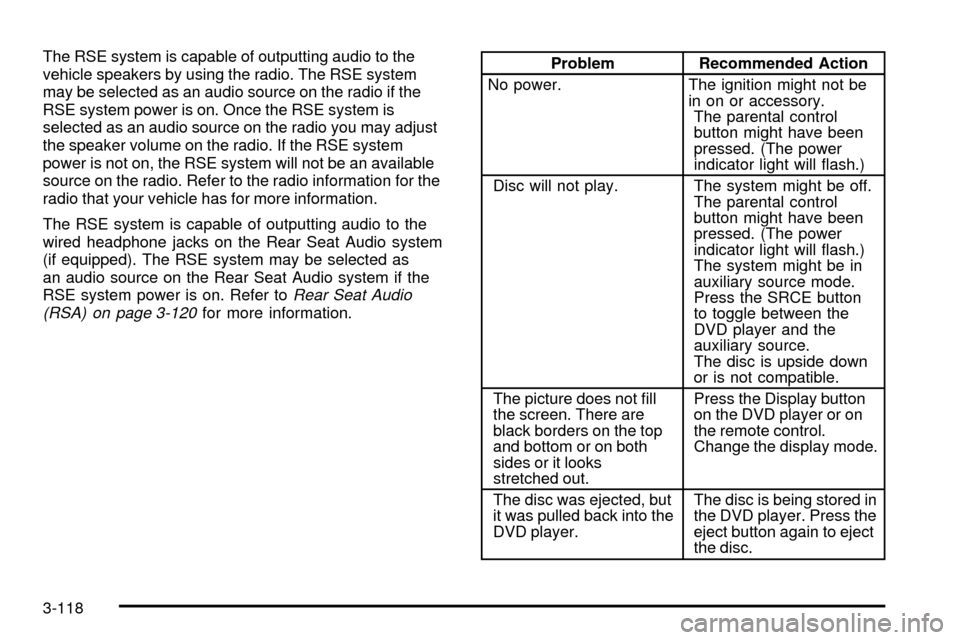
Problem Recommended Action
No power. The ignition might not be
in on or accessory.
The parental control
button might have been
pressed. (The power
indicator light will ¯ash.)
Disc will not play. The system might be off.
The parental control
button might have been
pressed. (The power
indicator light will ¯ash.)
The system might be in
auxiliary source mode.
Press the SRCE button
to toggle between the
DVD player and the
auxiliary source.
The disc is upside down
or is not compatible.
The picture does not ®ll
the screen. There are
black borders on the top
and bottom or on both
sides or it looks
stretched out.Press the Display button
on the DVD player or on
the remote control.
Change the display mode.
The disc was ejected, but
it was pulled back into the
DVD player.The disc is being stored in
the DVD player. Press the
eject button again to eject
the disc.
3-118
Page 275 of 556
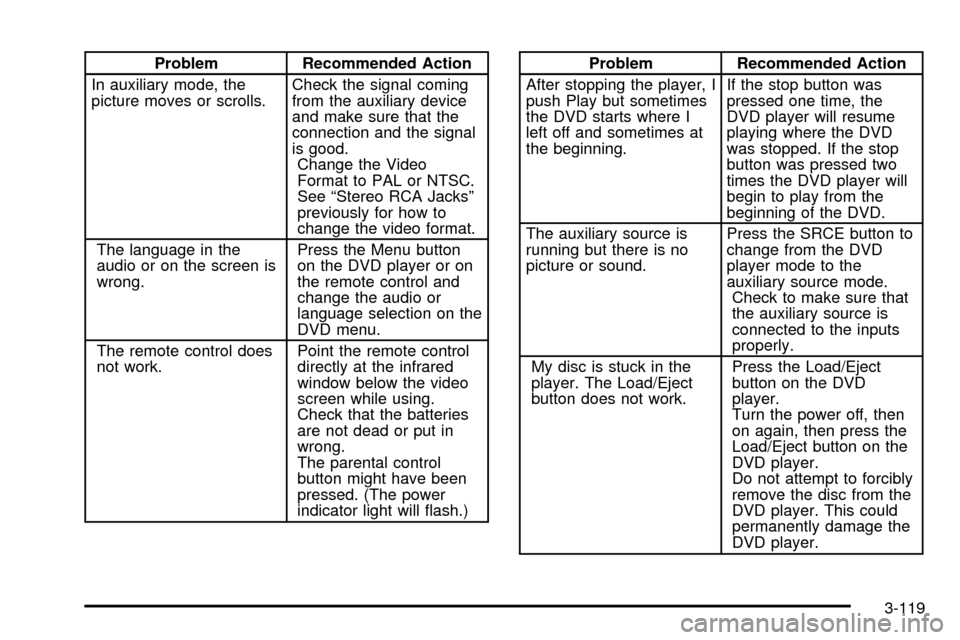
Problem Recommended Action
In auxiliary mode, the
picture moves or scrolls.Check the signal coming
from the auxiliary device
and make sure that the
connection and the signal
is good.
Change the Video
Format to PAL or NTSC.
See ªStereo RCA Jacksº
previously for how to
change the video format.
The language in the
audio or on the screen is
wrong.Press the Menu button
on the DVD player or on
the remote control and
change the audio or
language selection on the
DVD menu.
The remote control does
not work.Point the remote control
directly at the infrared
window below the video
screen while using.
Check that the batteries
are not dead or put in
wrong.
The parental control
button might have been
pressed. (The power
indicator light will ¯ash.)Problem Recommended Action
After stopping the player, I
push Play but sometimes
the DVD starts where I
left off and sometimes at
the beginning.If the stop button was
pressed one time, the
DVD player will resume
playing where the DVD
was stopped. If the stop
button was pressed two
times the DVD player will
begin to play from the
beginning of the DVD.
The auxiliary source is
running but there is no
picture or sound.Press the SRCE button to
change from the DVD
player mode to the
auxiliary source mode.
Check to make sure that
the auxiliary source is
connected to the inputs
properly.
My disc is stuck in the
player. The Load/Eject
button does not work.Press the Load/Eject
button on the DVD
player.
Turn the power off, then
on again, then press the
Load/Eject button on the
DVD player.
Do not attempt to forcibly
remove the disc from the
DVD player. This could
permanently damage the
DVD player.
3-119
Page 297 of 556
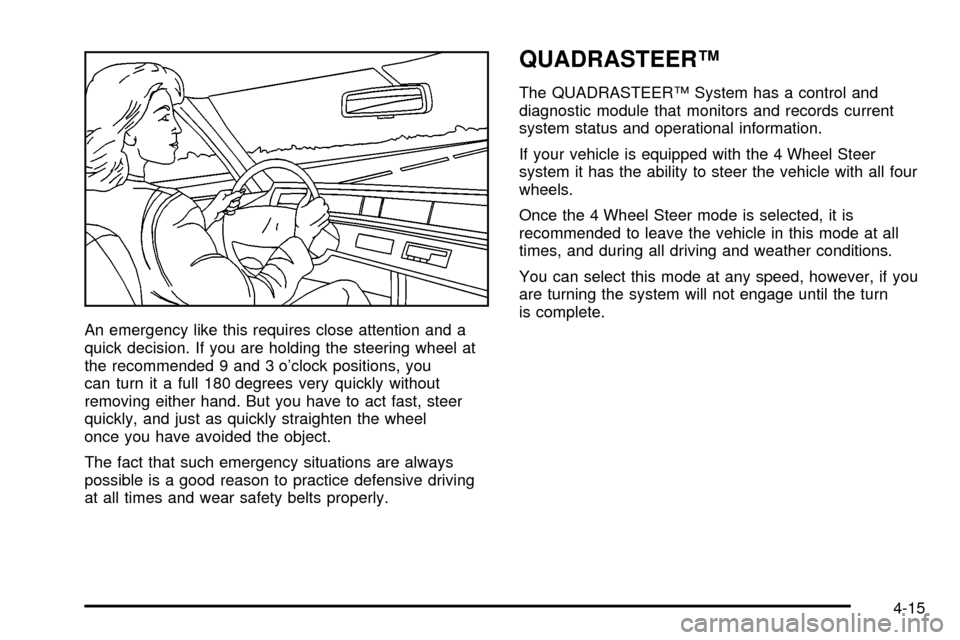
An emergency like this requires close attention and a
quick decision. If you are holding the steering wheel at
the recommended 9 and 3 o'clock positions, you
can turn it a full 180 degrees very quickly without
removing either hand. But you have to act fast, steer
quickly, and just as quickly straighten the wheel
once you have avoided the object.
The fact that such emergency situations are always
possible is a good reason to practice defensive driving
at all times and wear safety belts properly.
QUADRASTEERŸ
The QUADRASTEERŸ System has a control and
diagnostic module that monitors and records current
system status and operational information.
If your vehicle is equipped with the 4 Wheel Steer
system it has the ability to steer the vehicle with all four
wheels.
Once the 4 Wheel Steer mode is selected, it is
recommended to leave the vehicle in this mode at all
times, and during all driving and weather conditions.
You can select this mode at any speed, however, if you
are turning the system will not engage until the turn
is complete.
4-15
Page 299 of 556
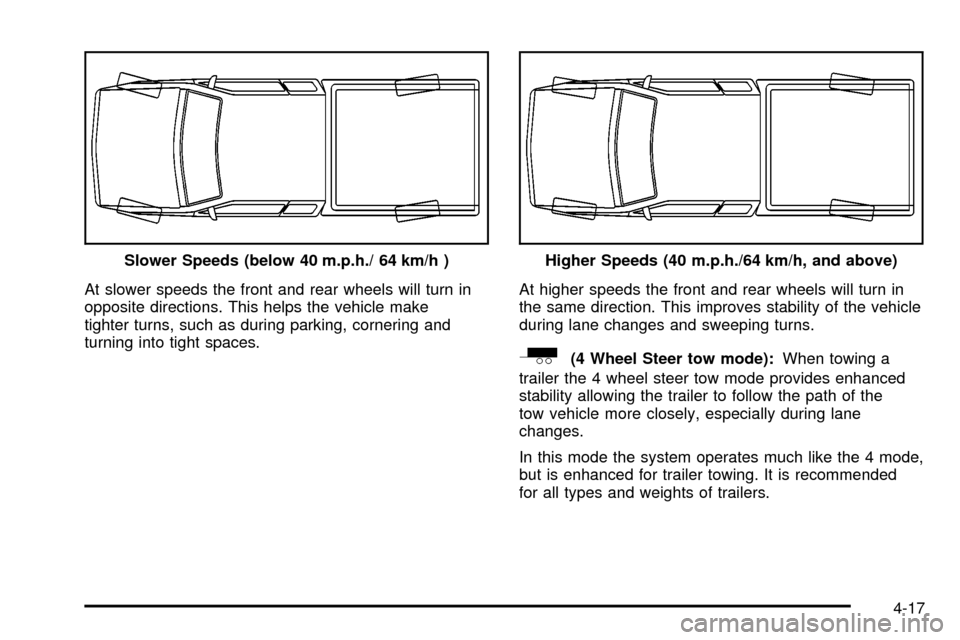
At slower speeds the front and rear wheels will turn in
opposite directions. This helps the vehicle make
tighter turns, such as during parking, cornering and
turning into tight spaces.At higher speeds the front and rear wheels will turn in
the same direction. This improves stability of the vehicle
during lane changes and sweeping turns.
_(4 Wheel Steer tow mode):When towing a
trailer the 4 wheel steer tow mode provides enhanced
stability allowing the trailer to follow the path of the
tow vehicle more closely, especially during lane
changes.
In this mode the system operates much like the 4 mode,
but is enhanced for trailer towing. It is recommended
for all types and weights of trailers. Slower Speeds (below 40 m.p.h./ 64 km/h )
Higher Speeds (40 m.p.h./64 km/h, and above)
4-17
Page 352 of 556

Tow/haul is designed to be most effective when the
vehicle and trailer combined weight is at least 75% of
the vehicle's Gross Combined Weight Rating (GCWR).
See
Weight of the Trailerlater in the section. Tow/haul
is most useful under the following driving conditions:
·When pulling a heavy trailer or a large or heavy load
through rolling terrain.
·When pulling a heavy trailer or a large or heavy
load in stop and go traffic.
·When pulling a heavy trailer or a large or heavy
load in busy parking lots where improved low
speed control of the vehicle is desired.
Operating the vehicle in tow/haul when lightly loaded or
with no trailer at all will not cause damage. However,
there is no bene®t to the selection of tow/haul when the
vehicle is unloaded. Such a selection when unloaded
may result in unpleasant engine and transmission driving
characteristics and reduced fuel economy. Tow/haul
is recommended only when pulling a heavy trailer or a
large or heavy load.
Weight of the Trailer
How heavy can a trailer safely be?
It depends on how you plan to use your rig. For
example, speed, altitude, road grades, outside
temperature and how much your vehicle is used to pull
a trailer are all important. And, it can also depend
on any special equipment that you have on your vehicle.
Use one of the following charts to determine how
much your vehicle can weigh, based upon your vehicle
model and options.
Maximum trailer weight is calculated assuming the
driver and one passenger are in the tow vehicle and it
has all the required trailering equipment. The weight
of additional optional equipment, passengers and cargo
in the tow vehicle must be subtracted from the
maximum trailer weight.
Above the 5,000 lbs. (2 268 kg) trailer rating, the
handling/trailering suspension is required on
C-1500 models and the handling/trailering or off-road
suspension is required on K-1500 models.
4-70