radio CHEVROLET SILVERADO 2010 2.G Workshop Manual
[x] Cancel search | Manufacturer: CHEVROLET, Model Year: 2010, Model line: SILVERADO, Model: CHEVROLET SILVERADO 2010 2.GPages: 626, PDF Size: 4.8 MB
Page 333 of 626
Preprogrammed Playlists
Preprogrammed playlists that were created using
WinAmp™, MusicMatch™, or Real Jukebox™software
can be accessed, however, they cannot be edited using
the radio. These playlists are treated as special folders
containing compressed audio song files.
Playlists that have an .m3u or .pls file extension and are
stored on a USB device may be supported by the radio
with a USB port.
Playing an MP3/WMA File From a Disc
(In Either the DVD or CD Slot)
If a disc is inserted into the top DVD slot, the rear seat
operator can turn on the video screen and use the
remote control to navigate the CD (tracks only).
f(Tune): Turn to select MP3/WMA files.
©SEEK:Press to go to the start of the track, if less
than five seconds have played. Press and hold or press
multiple times, if more than five seconds have played,
to continue moving backward through tracks.
¨SEEK: Press to go to the next track. Press and hold
or press multiple times to continue moving forward
through tracks.
sREV (Reverse): Press and hold to reverse
playback quickly. Sound is heard at a reduced
volume and the elapsed time of the file displays.
Release
sREV to resume playing.
\FWD (Fast Forward): Press and hold to advance
playback quickly. Sound is heard at a reduced
volume and the elapsed time of the file displays.
Release
\FWD to resume playing. The elapsed time
of the file displays.
S c(Previous Folder): Press the softkey
below
S cto go to the first track in the previous
folder.
cT (Next Folder): Press the softkey belowcTto
go to the first track in the next folder.
RDM (Random): Files on the disc can be listened to in
random, rather than sequential order. To use random,
press the softkey under the RDM tab until Random
Current Disc displays to play songs in random order.
Press the same softkey again to turn off random play.
h(Music Navigator): Press the softkey belowhto play files in order by artist or album.
The player scans the disc to sort the files by artist and
album ID3 tag information. It can take several minutes
to scan the disc depending on the number of files on
the disc. The radio may begin playing while it is
scanning in the background.
4-115
Page 334 of 626
When the scan is finished, the disc begins playing files
in order by artist. The current artist playing is shown on
the second line of the display. Once all songs by that
artist are played, the player moves to the next artist in
alphabetical order and begins playing files by that artist.
To listen to files by another artist, press the softkey
located below either arrow tab. The disc goes to the
next or previous artist in alphabetical order. Continue
pressing either softkey below the arrow tab until the
artist displays.
To change from playback by artist to playback by
album:1. Press the softkey located below the Sort By tab.
2. Press one of the softkeys below the album tab from the sort screen.
3. Press the softkey below the back tab to return to the main music navigator screen.
The album name displays on the second line between
the arrows and songs from the current album begin to
play. Once all songs from that album have played, the
player moves to the next album in alphabetical order on
the CD and begins playing MP3 files from that album.
To exit music navigator mode, press the softkey below
the Back tab to return to normal MP3 playback.Connecting a USB Storage Device
or iPod®
The USB Port can be used to control an iPod or a USB
storage device.
To connect a USB storage device, connect the device to
the USB port located in the center console or on the
instrument panel.
To connect an iPod, connect one end of the USB cable
that came with the iPod to the iPod’ s dock connector
and connect the other end to the USB port located in
the center console or on the instrument panel. If the
vehicle is on and the USB connection works, “OK to
disconnect” and a GM logo may appear on the iPod and
iPod appears on the radio display. The iPod music
appears on the radio’s display and begins playing.
The iPod charges while it is connected to the vehicle if
the vehicle is in the ACC/ACCESSORY or ON/RUN
position. When the vehicle is turned off, the iPod
automatically powers off and will not charge or draw
power from the vehicle's battery.
If you have an older iPod model that is not supported, it
can still be used by connecting it to the Auxiliary Input
Jack using a standard 3.5 mm (1/8 in) stereo cable. See
“Using the Auxiliary Input Jack” earlier for more
information.
4-116
Page 335 of 626
Using the Radio to Control a USB
Storage Device or iPod
The radio can control a USB storage device or an iPod
using the radio buttons and knobs and display song
information on the radio’s display.
f(Tune):Turn to select files.
©SEEK:Press to go to the start of the track, if more
than ten seconds have played. Press and hold or press
multiple times to continue moving backward through
tracks.
¨SEEK: Press to go to the next track. Press and hold
or press multiple times to continue moving forward
through tracks.
sREV (Reverse): Press and hold to reverse
playback quickly. Sound is heard at a reduced volume.
Release
sREV to resume playing. The elapsed time
of the file displays.
\FWD (Fast Forward): Press and hold to advance
playback quickly. Sound is heard at a reduced volume.
Release
\FWD to resume playing. The elapsed time
of the file displays.
4(Information): Press to display additional information
about the selected track.
Using Softkeys to Control a USB
Storage Device or iPod
The five softkeys below the radio display are used to
control the functions listed below.
To use the softkeys:
1. Press the first or fifth softkey below the radio display to display the functions listed below,
or press the softkey below the function if it is
currently displayed.
2. Press the softkey below the tab with the function on it to use that function.
j(Pause): Press the softkey belowjto pause the
track. The tab appears raised when pause is being
used. Press the softkey below
jagain to resume
playback.
Back: Press the softkey below the back tab to go back
to the main display screen on an iPod, or the root
directory on a USB storage device.
4-117
Page 338 of 626
XM Radio Messages
XL (Explicit Language Channels):These channels,
or any others, can be blocked at a customer's request,
by calling 1-800-852-XMXM (9696).
XM Updating: The encryption code in the receiver is
being updated, and no action is required. This process
should take no longer than 30 seconds.
No XM Signal: The system is functioning correctly, but
the vehicle is in a location that is blocking the XM™
signal. When the vehicle is moved into an open area,
the signal should return.
Loading XM: The audio system is acquiring and
processing audio and text data. No action is needed.
This message should disappear shortly.
Channel Off Air: This channel is not currently in
service. Tune in to another channel.
Channel Unauth : This channel is blocked or cannot
be received with your XM Subscription package.
Channel Unavail: This previously assigned channel is
no longer assigned. Tune to another station. If this
station was one of the presets, choose another station
for that preset button. No Artist Info:
No artist information is available at this
time on this channel. The system is working properly.
No Title Info: No song title information is available at
this time on this channel. The system is working
properly.
No CAT Info: No category information is available at
this time on this channel. The system is working
properly.
No Information: No text or informational messages are
available at this time on this channel. The system is
working properly.
CAT Not Found: There are no channels available for
the selected category. The system is working properly.
XM Theftlocked: The XM receiver in the vehicle could
have previously been in another vehicle. For security
purposes, XM receivers cannot be swapped between
vehicles. If this message is received after having the
vehicle serviced, check with your dealer.
XM Radio ID: If tuned to channel 0, this message
alternates with the XM™ Radio 8 digit radio ID label.
This label is needed to activate the service.
Unknown: If this message is received when tuned to
channel 0, there could be a receiver fault. Consult with
your dealer.
4-120
Page 339 of 626
Check XM Receivr:If this message does not clear
within a short period of time, the receiver could have a
fault. Consult with your dealer.
XM Not Available: If this message does not clear
within a short period of time, the receiver could have a
fault. Consult with your dealer.
Navigation/Radio System
For vehicles with a navigation radio system, see the
separate Navigation System manual.
Bluetooth®
Vehicles with a Bluetooth system can use a Bluetooth
capable cell phone with a Hands Free Profile to make
and receive phone calls. The system can be used while
the key is in ON/RUN or ACC/ACCESSORY position.
The range of the Bluetooth system can be up to 9.1 m
(30 ft). Not all phones support all functions, and not all
phones are guaranteed to work with the in-vehicle
Bluetooth system. See www.gm.com/bluetooth for more
information on compatible phones.
Voice Recognition
The Bluetooth system uses voice recognition to
interpret voice commands to dial phone numbers and
name tags.
Noise: Keep interior noise levels to a minimum. The
system may not recognize voice commands if there is
too much background noise.
When to Speak: A short tone sounds after the system
responds indicating when it is waiting for a voice
command. Wait until the tone and then speak.
How to Speak: Speak clearly in a calm and natural
voice.
Audio System
When using the in‐vehicle Bluetooth system, sound
comes through the vehicle's front audio system
speakers and overrides the audio system. Use the
audio system volume knob, during a call, to change the
volume level. The adjusted volume level remains in
memory for later calls. To prevent missed calls, a
minimum volume level is used if the volume is turned
down too low.
4-121
Page 349 of 626
Sending a Number During a Call
1. Pressbg. The system responds with “Ready”
followed by a tone.
2. Say “Dial”. The system responds with “Say a
number to send tones” followed by a tone.
3. Say the number to send.
.If the system clearly recognizes the number it
responds with “OK, Sending Number” and the
dial tones are sent and the call continues.
.If the system is not sure it recognized the
number properly, it responds “Dial Number,
Please say yes or no?” followed by a tone.
If the number is correct, say “Yes”. The system
responds with “OK, Sending Number” and the
dial tones are sent and the call continues.
Sending a Stored Name Tag During a Call
1. Pressb g. The system responds with “Ready”
followed by a tone.
2. Say “Send name tag.” The system responds with
“Say a name tag to send tones” followed by a tone.3. Say the name tag to send.
.If the system clearly recognizes the name tag it
responds with
“OK, Sending
the dial tones are sent and the call continues.
.If the system is not sure it recognized the name
tag properly, it responds “Dial
Please say yes or no?” followed by a tone.
If the name tag is correct, say “Yes”. The
system responds with “OK, Sending
continues.
Clearing the System
Unless information is deleted out of the in‐vehicle
Bluetooth system, it will be retained indefinitely. This
includes all saved name tags in the phonebook and
phone pairing information. For information on how to
delete this information, see the above sections on
Deleting a Paired Phone and Deleting Name Tags.
Other Information
The Bluetooth®word mark and logos are owned by the
Bluetooth®SIG, Inc. and any use of such marks by
General Motors is under license. Other trademarks and
trade names are those of their respective owners.
See Radio Frequency Statement
on page 8‑18for FCC
information.
4-131
Page 350 of 626
Rear Seat Entertainment (RSE)
System
The vehicle may have a DVD Rear Seat Entertainment
(RSE) system. The RSE system works with the
vehicle's audio system. The DVD player is part of the
front radio. The RSE system includes a radio with a
DVD player, a video display screen, audio/video jacks,
two wireless headphones, and a remote control. See
Radio(s)
on page 4‑85for more information on the
vehicle's audio/DVD system.
Before Driving
The RSE is designed for rear seat passengers only. The
driver cannot safely view the video screen while driving
and should not try to do so.
In severe or extreme weather conditions the RSE
system might not work until the temperature is within
the operating range. The operating range for the RSE
system is above −4°F (−20°C) or below 140°F (60°C).
If the temperature of the vehicle is outside of this range,
heat or cool the vehicle until the temperature is within
the operating range of the RSE system.
Parental Control
The RSE system may have a Parental Control feature,
depending on which radio the vehicle has. To start
Parental Control, press and hold the radio power button
for more than two seconds to stop all system features
such as: radio, video screen, RSA, DVD and/or CD.
While Parental Control is on, a padlock icon displays.
The radio can be turned back on with a single press of
the power button, but the RSE system will remain under
Parental Control.
To turn Parental Control off, press and hold the radio
power button for more than two seconds. The RSE
returns from where it was previously left and the
padlock icon disappears from the radio display.
Parental Control can also be turned off by inserting or
ejecting any disc, pressing the play icon on the radio
DVD display menu, or changing an ignition position.
4-132
Page 351 of 626
Headphones
The RSE includes two 2-channel wireless headphones
that are dedicated to this system. Channel 1 is
dedicated to the video screen, while Channel 2 is
dedicated to RSA selections. These headphones can
used to listen to the radio, CDs, DVDs, MP3s, DVDAs,
any auxiliary source connected to A/V jacks, or the
auxiliary input jack, if the vehicle has this feature. The
wireless headphones have an On/Off button,
channel 1/2 switch, and a volume control.
Push the power button to turn on the headphones. An
indicator light located on the headphones comes on.
If the light comes on but, there is intermittent sound
and/or static on the headphones, or if the indicator light
does not come on, the batteries might need to be
replaced. See“Battery Replacement” later in this
section for more information. Switch the headphones to
Off when not in use.
Infrared transmitters are located at the rear of the
overhead console. The headphones shut off
automatically to save the battery power if the RSE
system and RSA are shut off or if the headphones are
out of range of the transmitters for more than
three minutes. If you move too far forward or step out of
the vehicle, the headphones lose the audio signal. The headphones may automatically turn off after
four hours of continuous use.
To adjust the volume on the headphones, use the
volume control located on the right side.
For optimal audio performance, the headphones must
be worn correctly. Headphones should be worn with
headband over the top of the head for best audio
reception. The symbol L (Left) appears on the upper left
side, above the ear pad and should be positioned on
the left ear. The symbol R (Right) appears on the upper
right side, above the ear pad and should be positioned
on the right ear.
Notice:
Do not store the headphones in heat or
direct sunlight. This could damage the headphones
and repairs will not be covered by the warranty.
Storage in extreme cold can weaken the batteries.
Keep the headphones stored in a cool, dry place.
If the foam ear pads attached to the headphones
become worn or damaged, the pads can be replaced
separately from the headphone set. Refer to your dealer
for more information.
4-133
Page 352 of 626
Battery Replacement
To change the batteries on the headphones, do the
following:1. Turn the screw to loosen the battery door located on the left side of the headphones. Slide the
battery door open.
2. Replace the two batteries in the compartment. Make sure that they are installed correctly, using
the diagram on the inside of the battery
compartment.
3. Replace the battery door and tighten the door screw.
If the headphones are to be stored for a long period of
time, remove the batteries and keep them in a cool, dry
place.
Audio/Video (A/V) Jacks
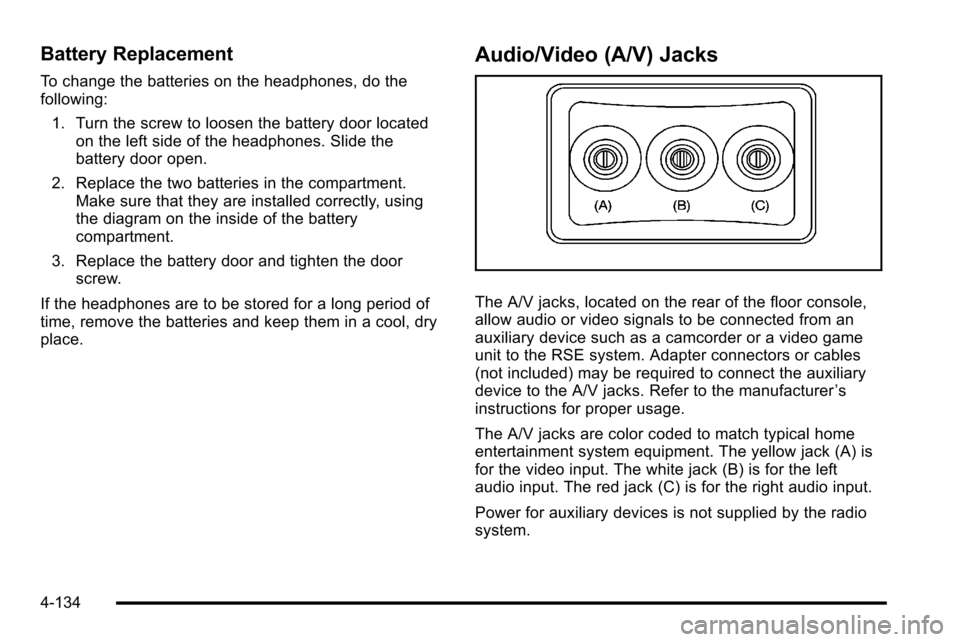
The A/V jacks, located on the rear of the floor console,
allow audio or video signals to be connected from an
auxiliary device such as a camcorder or a video game
unit to the RSE system. Adapter connectors or cables
(not included) may be required to connect the auxiliary
device to the A/V jacks. Refer to the manufacturer ’s
instructions for proper usage.
The A/V jacks are color coded to match typical home
entertainment system equipment. The yellow jack (A) is
for the video input. The white jack (B) is for the left
audio input. The red jack (C) is for the right audio input.
Power for auxiliary devices is not supplied by the radio
system.
4-134
Page 353 of 626
To use the auxiliary inputs of the RSE system, connect
an external auxiliary device to the color-coded A/V jacks
and turn both the auxiliary device and the video screen
power on. If the video screen is in the DVD player
mode, pressing the AUX (auxiliary) button on the
remote control switches the video screen from the DVD
player mode to the auxiliary device. The radio can listen
to the audio of the connected auxiliary device by
sourcing to auxiliary. SeeRadio(s)
on page 4‑85for
more information.
How to Change the RSE Video Screen
Settings
The screen display mode (normal, full, and zoom),
screen brightness, and setup menu language can be
changed from the on screen setup menu. To change
any feature, do the following:
1. Press the
z(display) menu button on the remote
control.
2. Use the remote control menu
n,q,p,o
(navigation) arrows and ther(enter) button to
use the setup menu.
3. Press the
zbutton again to remove the setup
menu from the screen.
Audio Output
Audio from the DVD player or auxiliary inputs can be
heard through the following possible sources:
.Wireless Headphones
.Vehicle Speakers
.Vehicle wired headphone jacks on the rear seat
audio system, if the vehicle has this feature.
The RSE system always transmits the audio signal to
the wireless headphones, if there is audio available.
See “Headphones” earlier in this section for more
information.
The DVD player is capable of outputting audio to the
wired headphone jacks on the RSA system, if the
vehicle has this feature. The DVD player can be
selected as an audio source on the RSA system. See
Rear Seat Audio (RSA)
on page 4‑141for more
information.
When a device is connected to the A/V jacks, or the
radio's auxiliary input jack, if the vehicle has this
feature, the rear seat passengers are able to hear audio
from the auxiliary device through the wireless or wired
headphones. The front seat passengers are able to
listen to playback from this device through the vehicle
speakers by selecting AUX as the source on the radio.
4-135