infotainment CHEVROLET SILVERADO 2011 2.G Workshop Manual
[x] Cancel search | Manufacturer: CHEVROLET, Model Year: 2011, Model line: SILVERADO, Model: CHEVROLET SILVERADO 2011 2.GPages: 588, PDF Size: 7.99 MB
Page 276 of 588
Black plate (50,1)Chevrolet Silverado Owner Manual - 2011
7-50 Infotainment System
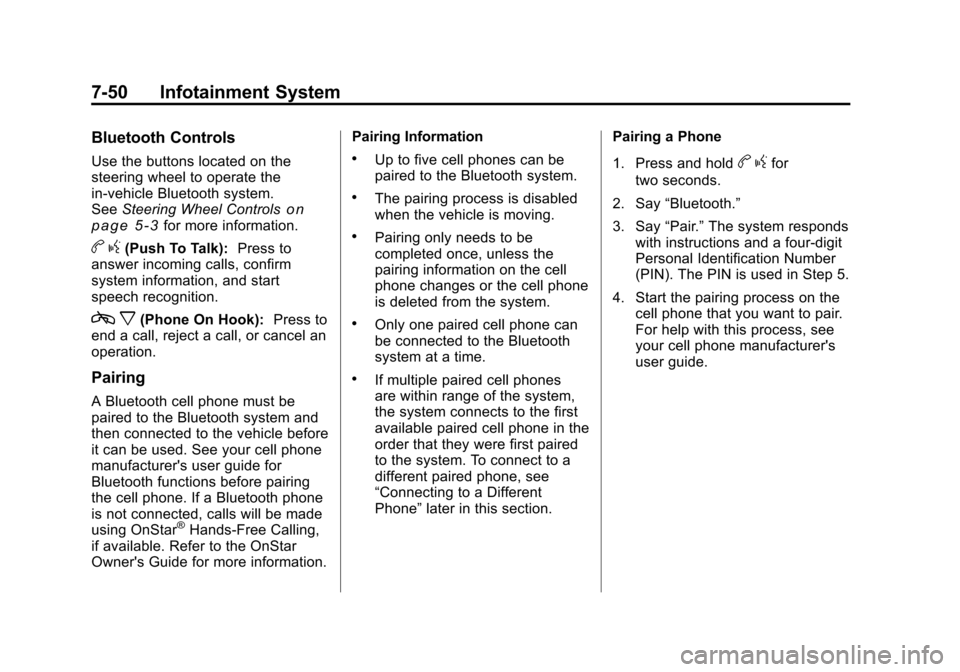
Bluetooth Controls
Use the buttons located on the
steering wheel to operate the
in‐vehicle Bluetooth system.
SeeSteering Wheel Controls
on
page 5‑3for more information.
b g(Push To Talk): Press to
answer incoming calls, confirm
system information, and start
speech recognition.
c x(Phone On Hook): Press to
end a call, reject a call, or cancel an
operation.
Pairing
A Bluetooth cell phone must be
paired to the Bluetooth system and
then connected to the vehicle before
it can be used. See your cell phone
manufacturer's user guide for
Bluetooth functions before pairing
the cell phone. If a Bluetooth phone
is not connected, calls will be made
using OnStar
®Hands‐Free Calling,
if available. Refer to the OnStar
Owner's Guide for more information. Pairing Information
.Up to five cell phones can be
paired to the Bluetooth system.
.The pairing process is disabled
when the vehicle is moving.
.Pairing only needs to be
completed once, unless the
pairing information on the cell
phone changes or the cell phone
is deleted from the system.
.Only one paired cell phone can
be connected to the Bluetooth
system at a time.
.If multiple paired cell phones
are within range of the system,
the system connects to the first
available paired cell phone in the
order that they were first paired
to the system. To connect to a
different paired phone, see
“Connecting to a Different
Phone”
later in this section. Pairing a Phone
1. Press and hold
b
gfor
two seconds.
2. Say “Bluetooth.”
3. Say “Pair.”The system responds
with instructions and a four‐digit
Personal Identification Number
(PIN). The PIN is used in Step 5.
4. Start the pairing process on the cell phone that you want to pair.
For help with this process, see
your cell phone manufacturer's
user guide.
Page 277 of 588
Black plate (51,1)Chevrolet Silverado Owner Manual - 2011
Infotainment System 7-51
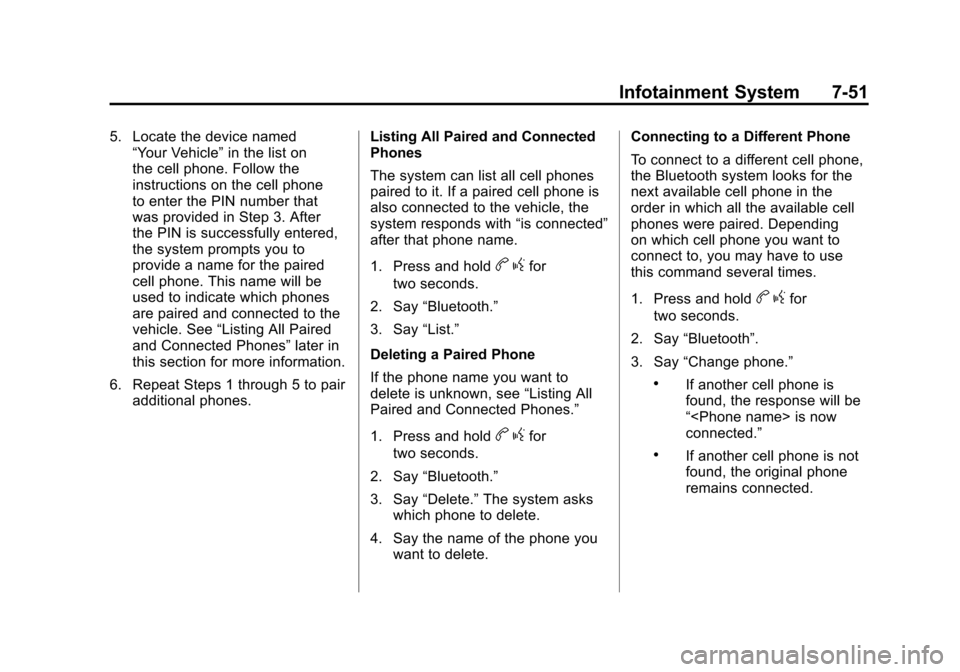
5. Locate the device named“Your Vehicle” in the list on
the cell phone. Follow the
instructions on the cell phone
to enter the PIN number that
was provided in Step 3. After
the PIN is successfully entered,
the system prompts you to
provide a name for the paired
cell phone. This name will be
used to indicate which phones
are paired and connected to the
vehicle. See “Listing All Paired
and Connected Phones” later in
this section for more information.
6. Repeat Steps 1 through 5 to pair additional phones. Listing All Paired and Connected
Phones
The system can list all cell phones
paired to it. If a paired cell phone is
also connected to the vehicle, the
system responds with
“is connected”
after that phone name.
1. Press and hold
b gfor
two seconds.
2. Say “Bluetooth.”
3. Say “List.”
Deleting a Paired Phone
If the phone name you want to
delete is unknown, see “Listing All
Paired and Connected Phones.”
1. Press and hold
b gfor
two seconds.
2. Say “Bluetooth.”
3. Say “Delete.” The system asks
which phone to delete.
4. Say the name of the phone you want to delete. Connecting to a Different Phone
To connect to a different cell phone,
the Bluetooth system looks for the
next available cell phone in the
order in which all the available cell
phones were paired. Depending
on which cell phone you want to
connect to, you may have to use
this command several times.
1. Press and hold
b
gfor
two seconds.
2. Say “Bluetooth”.
3. Say “Change phone.”
.If another cell phone is
found, the response will be
“
connected.”
.If another cell phone is not
found, the original phone
remains connected.
Page 278 of 588
Black plate (52,1)Chevrolet Silverado Owner Manual - 2011
7-52 Infotainment System
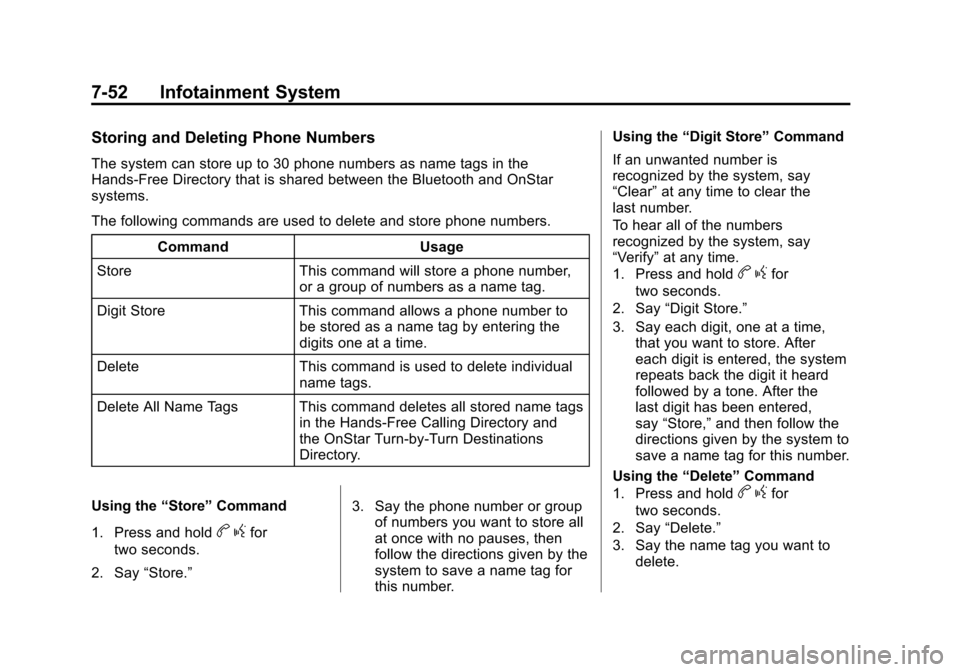
Storing and Deleting Phone Numbers
The system can store up to 30 phone numbers as name tags in the
Hands‐Free Directory that is shared between the Bluetooth and OnStar
systems.
The following commands are used to delete and store phone numbers.Command Usage
Store This command will store a phone number, or a group of numbers as a name tag.
Digit Store This command allows a phone number to be stored as a name tag by entering the
digits one at a time.
Delete This command is used to delete individual name tags.
Delete All Name Tags This command deletes all stored name tags in the Hands‐Free Calling Directory and
the OnStar Turn‐by‐Turn Destinations
Directory.
Using the “Store”Command
1. Press and hold
b gfor
two seconds.
2. Say “Store.” 3. Say the phone number or group
of numbers you want to store all
at once with no pauses, then
follow the directions given by the
system to save a name tag for
this number. Using the
“Digit Store” Command
If an unwanted number is
recognized by the system, say
“Clear” at any time to clear the
last number.
To hear all of the numbers
recognized by the system, say
“Verify” at any time.
1. Press and hold
b gfor
two seconds.
2. Say “Digit Store.”
3. Say each digit, one at a time, that you want to store. After
each digit is entered, the system
repeats back the digit it heard
followed by a tone. After the
last digit has been entered,
say “Store,” and then follow the
directions given by the system to
save a name tag for this number.
Using the “Delete”Command
1. Press and hold
b gfor
two seconds.
2. Say “Delete.”
3. Say the name tag you want to delete.
Page 279 of 588
Black plate (53,1)Chevrolet Silverado Owner Manual - 2011
Infotainment System 7-53
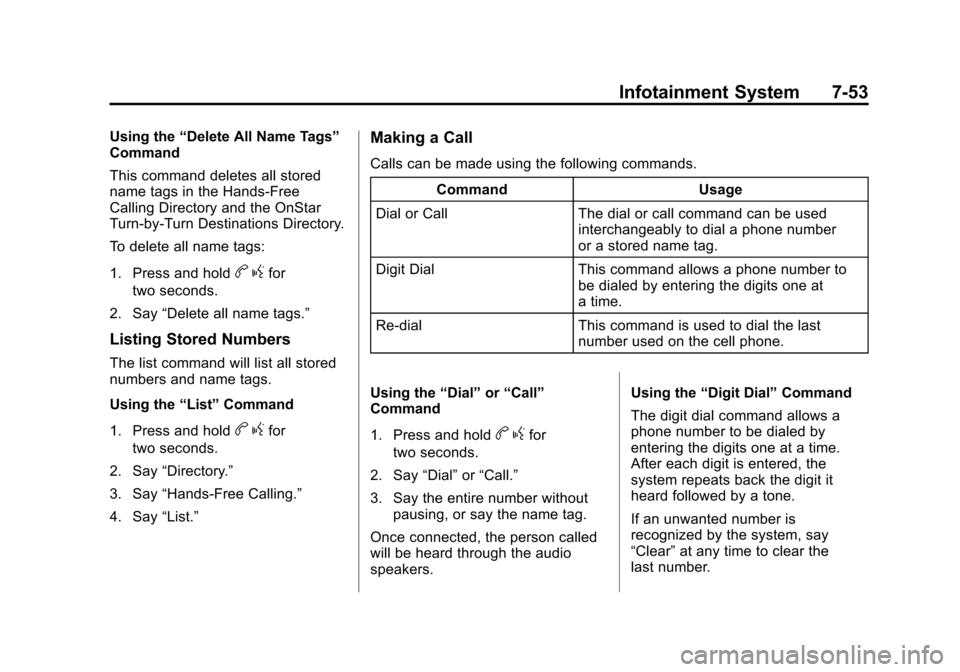
Using the“Delete All Name Tags”
Command
This command deletes all stored
name tags in the Hands‐Free
Calling Directory and the OnStar
Turn‐by‐Turn Destinations Directory.
To delete all name tags:
1. Press and hold
b gfor
two seconds.
2. Say “Delete all name tags.”
Listing Stored Numbers
The list command will list all stored
numbers and name tags.
Using the “List”Command
1. Press and hold
b gfor
two seconds.
2. Say “Directory.”
3. Say “Hands‐Free Calling.”
4. Say “List.”
Making a Call
Calls can be made using the following commands.
Command Usage
Dial or Call The dial or call command can be used interchangeably to dial a phone number
or a stored name tag.
Digit Dial This command allows a phone number to be dialed by entering the digits one at
a time.
Re‐dial This command is used to dial the last number used on the cell phone.
Using the “Dial”or“Call”
Command
1. Press and hold
b gfor
two seconds.
2. Say “Dial”or“Call.”
3. Say the entire number without pausing, or say the name tag.
Once connected, the person called
will be heard through the audio
speakers. Using the
“Digit Dial” Command
The digit dial command allows a
phone number to be dialed by
entering the digits one at a time.
After each digit is entered, the
system repeats back the digit it
heard followed by a tone.
If an unwanted number is
recognized by the system, say
“Clear” at any time to clear the
last number.
Page 280 of 588
Black plate (54,1)Chevrolet Silverado Owner Manual - 2011
7-54 Infotainment System
To hear all of the numbers
recognized by the system, say
“Verify”at any time.
1. Press and hold
b gfor
two seconds.
2. Say “Digit Dial.”
3. Say each digit, one at a time, that you want to dial. After each
digit is entered, the system
repeats back the digit it heard
followed by a tone. After the
last digit has been entered,
say “Dial.”
Once connected, the person called
will be heard through the audio
speakers.
Using the “Re‐dial”Command
1. Press and hold
b gfor
two seconds.
2. After the tone, say “Re‐dial.”
Once connected, the person called
will be heard through the audio
speakers.
Receiving a Call
When an incoming call is received,
the audio system mutes and a ring
tone is heard in the vehicle.
.Pressb gto answer the call.
.Pressc xto ignore a call.
Call Waiting
Call waiting must be supported on
the cell phone and enabled by the
wireless service carrier.
.Pressbgto answer an
incoming call when another
call is active. The original call
is placed on hold.
.Pressb gagain to return to the
original call.
.To ignore the incoming call, no
action is required.
.Pressc xto disconnect the
current call and switch to the call
on hold.
Three‐Way Calling
Three‐way calling must be
supported on the cell phone
and enabled by the wireless
service carrier.
1. While on a call, press
b g.
2. Say “Three‐way call.”
3. Use the dial or call command to dial the number of the third party
to be called.
4. Once the call is connected, press
bgto link all callers
together.
Ending a Call
Pressc xto end a call.
Page 281 of 588
Black plate (55,1)Chevrolet Silverado Owner Manual - 2011
Infotainment System 7-55
Muting a Call
During a call, all sounds from inside
the vehicle can be muted so that the
person on the other end of the call
cannot hear them.
.To mute a call, pressbg, and
then say “Mute call.”
.To cancel mute, pressbg, and
then say “Un‐mute call.”
Transferring a Call
Audio can be transferred between
the Bluetooth system and the cell
phone.
The cell phone must be paired
and connected with the Bluetooth
system before a call can be
transferred. The connection process
can take up to two minutes after the
ignition is turned to ON/RUN. Transferring Audio from the
Bluetooth System to a Cell Phone
During a call with the audio in the
vehicle:
1. Press
b
g.
2. Say “Transfer Call.”
Transferring Audio to the
Bluetooth System from a Cell
Phone
During a call with the audio on the
cell phone, press
b g. The audio
transfers to the vehicle. If the audio
does not transfer to the vehicle, use
the audio transfer feature on the
cell phone. See your cell phone
manufacturer's user guide for more
information.
Voice Pass-Thru
Voice pass‐thru allows access to the
voice recognition commands on the
cell phone. See your cell phone
manufacturer's user guide to see if
the cell phone supports this feature.
To access contacts stored in the cell
phone:
1. Press and hold
b gfor
two seconds.
2. Say “Bluetooth.” The system
responds “Bluetooth ready,”
followed by a tone.
3. Say “Voice.” The system
responds “OK, accessing
The cell phone's normal prompt
messages will go through their cycle
according to the phone's operating
instructions.
Page 282 of 588
Black plate (56,1)Chevrolet Silverado Owner Manual - 2011
7-56 Infotainment System
Dual Tone Multi-Frequency
(DTMF) Tones
The Bluetooth system can send
numbers and the numbers stored
as name tags during a call. You can
use this feature when calling a
menu‐driven phone system.
Account numbers can also be
stored for use.
Sending a Number or Name Tag
During a Call
1. Press
bg. The system
responds “Ready,”followed by
a tone.
2. Say “Dial.”
3. Say the number or name tag to send.
Clearing the System
Unless information is deleted out
of the in‐vehicle Bluetooth system,
it will be retained indefinitely. This
includes all saved name tags in
the phone book and phone pairing
information. For information on how
to delete this information, see the
previou section “Deleting a Paired
Phone” and the previous sections
on deleting name tags.
Other Information
The Bluetooth®word mark and
logos are owned by the Bluetooth®
SIG, Inc. and any use of such marks
by General Motors is under license.
Other trademarks and trade names
are those of their respective owners.
See Radio Frequency Statement
on
page 13‑18for FCC information.
Page 583 of 588

Black plate (9,1)Chevrolet Silverado Owner Manual - 2011
INDEX i-9
MirrorsAutomatic Dimming
Rearview . . . . . . . . . . . . . . . . . . . . 2-19
Convex . . . . . . . . . . . . . . . . . . . . . . . 2-15
Folding . . . . . . . . . . . . . . . . . . . . . . . 2-17
Heated . . . . . . . . . . . . . . . . . . . . . . . 2-18
Manual . . . . . . . . . . . . . . . . . . . . . . . 2-16
Manual Rearview . . . . . . . . . . . . . 2-19
Park Tilt . . . . . . . . . . . . . . . . . . . . . . 2-19
Power . . . . . . . . . . . . . . . . . . . . . . . . 2-16
Trailer Tow . . . . . . . . . . . . . . . . . . . . 2-16
Monitor System, Tire Pressure . . . . . . . . . . . . . . . . . . . . 10-65
N
Navigation SystemVehicle Data Recordingand Privacy . . . . . . . . . . . . . . . 13-18
New Vehicle Break-In . . . . . . . . . . 9-32
Noise Control System . . . . . . . . 10-36
O
Object Detection System Messages . . . . . . . . . . . . . . . . . . . . 5-48
Odometer . . . . . . . . . . . . . . . . . . . . . . 5-16 Trip . . . . . . . . . . . . . . . . . . . . . . . . . . . 5-16
Off-Road . . . . . . . . . . . . . . . . . . . . . . . 9-7 Driving . . . . . . . . . . . . . . . . . . . . . . . . . 9-7
Recovery . . . . . . . . . . . . . . . . . . . . . . 9-5
Oil Engine . . . . . . . . . . . . . . . . . . . . . . . . 10-7
Engine Oil Life System . . . . . . . 10-9
Engine Oil PressureGauge . . . . . . . . . . . . . . . . . . . . . . 5-18
Messages . . . . . . . . . . . . . . . . . . . . 5-47
Pressure Light . . . . . . . . . . . . . . . . 5-32
Older Children, Restraints . . . . . 3-51
Online Owner Center . . . . . . . . . . 13-6
OnStar
®System . . . . . . . . . . . . . . . 1-35
Operation, Infotainment System . . . . . . . . . . . . . . . . . . . . . . . . 7-2
Outlets Power . . . . . . . . . . . . . . . . . . . . . . . . 5-10 Overheated Engine
Protection
Operating Mode . . . . . . . . . . . . . 10-26
Overheating, Engine . . . . . . . . . . 10-24
P
Park Shifting Into . . . . . . . . . . . . . . . . . . . 9-38
Shifting Out of . . . . . . . . . . . . . . . . 9-40
Park Tilt Mirrors . . . . . . . . . . . . . . . . 2-19
Parking . . . . . . . . . . . . . . . . . . . . . . . . 9-41 Assist, Ultrasonic . . . . . . . . . . . . . 9-76
Brake . . . . . . . . . . . . . . . . . . . . . . . . . 9-68
Brake and P (Park)Mechanism Check . . . . . . . . 10-39
Over Things That Burn . . . . . . . 9-41
Passenger Airbag Status Indicator . . . . . . . . . . . . . . . . . . . . . 5-25
Passenger Sensing System . . . . . . . . . . . . . . . . . . . . . . . 3-42
Perchlorate Materials Requirements, California . . . . . 10-3
Phone
Bluetooth . . . . . . . . . . . . . . . . . . . . . 7-49