display CHEVROLET SILVERADO 2014 2.G Workshop Manual
[x] Cancel search | Manufacturer: CHEVROLET, Model Year: 2014, Model line: SILVERADO, Model: CHEVROLET SILVERADO 2014 2.GPages: 546, PDF Size: 8.08 MB
Page 216 of 546
Black plate (12,1)Chevrolet Silverado Owner Manual (GMNA-Localizing-U.S./Canada/Mexico-
5853506) - 2014 - crc 2nd - 5/15/13
7-12 Infotainment System
Fixed Mast Antenna
The fixed mast antenna will go
through most car washes as long as
it is securely attached. If the
antenna becomes slightly bent,
straighten it out by hand. If it is
badly bent, replace it.
Occasionally check that the antenna
is tight at the base. If tightening is
required, protect the paint from
damage.
Multi-Band Antenna
The roof antenna is for OnStar®,
SiriusXM®Satellite Radio, and GPS
(Global Positioning System), if the
vehicle has these features. Keep
clear of obstructions for clear
reception. If the vehicle has a
sunroof, and it is open, reception
can also be affected.
Pandora Internet Radio
If equipped, Pandora®is a free
Internet radio service that streams
personalized radio stations based
on artists, tracks, genres, and
comedians. Create stations using
the Pandora website or Smartphone
application, then use
-(thumbs up)
or
,(thumbs down) to personalize
stations. To set up an account, or for
more information, go to
www.pandora.com. Pandora may
not be available in Canada or
Mexico.
A phone or tablet with Internet
connection and the Pandora
application installed is required.
Personal cell phone data plans are
used. Make sure the latest version
is installed on the device.
Launching Pandora
Connect the iPhone to the USB
port, or connect Android®or
BlackBerry®through Bluetooth. See
Auxiliary Jack on page 7-21 or
Bluetooth (Infotainment Controls -
Base Radio) on page 7-34 or
Bluetooth (Voice Recognition - Base
Radio) on page 7-38 orBluetooth
(Overview) on page 7-32 or
Bluetooth (Infotainment Controls -
Base Connected Radio) on
page 7-43 orBluetooth (Voice
Recognition - Base Connected
Radio) on page 7-48. For first time
use, set up the stations before
connecting to the vehicle. The
Pandora icon will be available on
the Home Page.
When Pandora is chosen, the
Pandora logo will populate on the
screen and the system will display
“Acquiring Pandora Radio Station.”
Launch times can be significant.
Page 217 of 546
Black plate (13,1)Chevrolet Silverado Owner Manual (GMNA-Localizing-U.S./Canada/Mexico-
5853506) - 2014 - crc 2nd - 5/15/13
Infotainment System 7-13
Using the iPhone
1. Plug the device into the USBport. The phone screen must be
unlocked.
2. Launch Pandora from the Home Page by selecting the
Pandora icon.
If nothing happens when the
available Pandora screen button is
pressed, download the latest
Pandora application and retry.
The login screen may display on the
device.
Using an Android or BlackBerry
Phone
The BlackBerry phone must be
unlocked to launch Pandora service.
1. Pair the phone using Bluetooth.
2. Launch Pandora by selecting Pandora on the Home Page.
If nothing happens when the
available Pandora screen button is
selected, download the latest
Pandora application and retry. The login screen may display on the
device.
Pandora Menus
Select Menu on the Pandora
main page.
Pandora has a menu with the
following:
Tone Settings:
Select to adjust the
tone settings. See AM-FM Radio on
page 7-8.
Bookmark Artist: Select to
bookmark the artist.
Bookmark Song: Select to
bookmark the song.
Auto Volume: This feature sets the
auto volume based on the speed of
the vehicle and noise in the vehicle.
See AM-FM Radio on page 7-8.
Pandora Features
Pandora service has features to rate
tracks, skip tracks, or change
stations.}(Bookmarks): When selected
during a track, a choice displays to
bookmark the artist or track. This
sends the bookmark to the Pandora
account.
,(Thumbs Down): When
selected, Pandora stores this
information, changes to the next
track, and does not play this track
on this station again. This helps
Pandora choose which tracks
should not play on this station. This
feature is only available on user
created stations.
-(Thumbs Up): When selected,
Pandora stores this information and
-is highlighted for the remainder of
the track. This helps Pandora
choose which tracks should play on
this station.
d(Next Track): When selected,
Pandora changes to the next track.
rorj(Play/Pause): Select to play
or pause playback.
Page 218 of 546
Black plate (14,1)Chevrolet Silverado Owner Manual (GMNA-Localizing-U.S./Canada/Mexico-
5853506) - 2014 - crc 2nd - 5/15/13
7-14 Infotainment System
Pandora Skip Limit
Pandora limits the number of skips
allowed on their service. When the
skip limit is reached,
,or next
arrow will not skip the currently
playing track, but the
,feedback
will be recorded.
Advertisement on Pandora
Pandora may display
advertisements. The artist name
and track title will not be displayed
and the skip track button will not be
available.
Pandora Troubleshooting
Unable to Connect Device to
Vehicle
If the device is unable to connect to
the USB or Bluetooth:
1. Turn the vehicle off.
2. Take the Remote Keyless Entry (RKE) transmitter at least 6 m
(20 ft) away from the vehicle. 3. Wait about 30 seconds, and try
to connect the device again. See
Auxiliary Jack on page 7-21 or
Bluetooth (Infotainment Controls
- Base Radio) on page 7-34 or
Bluetooth (Voice Recognition -
Base Radio) on page 7-38 or
Bluetooth (Overview) on
page 7-32 orBluetooth
(Infotainment Controls - Base
Connected Radio) on page 7-43
or Bluetooth (Voice Recognition
- Base Connected Radio) on
page 7-48.
Unable to Start Pandora
If the device is unable to launch
Pandora:.Check that the latest version of
Pandora is installed.
.Check that there is an active
account logged into Pandora.
.Have at least one station
created.
.For Android and BlackBerry
devices, check that the device is
paired with the vehicle, and
whether the device displays in
the Connected phone sources
list under the Phone icon from
the Home Page.
.For an iPhone, check that the
USB cable is connected to the
USB port and the screen is
unlocked.
.Close Pandora on the device
and launch again. Devices that
allow multitasking may require
an extra step to quit the Pandora
application. See the cell phone
manufacturer's user guide.
Thumbs Up or Thumbs Down
Error
If there is an error trying to rate a
track with the
,or-buttons, the
message “Thumbs Down Error” or
“Thumbs Up Error” will display.
Press OK to dismiss.
Page 220 of 546
Black plate (16,1)Chevrolet Silverado Owner Manual (GMNA-Localizing-U.S./Canada/Mexico-
5853506) - 2014 - crc 2nd - 5/15/13
7-16 Infotainment System
Audio Players
CD Player
If the vehicle is equipped with a CD
player, it can be used for CD and
MP3 audio.
With the vehicle on, insert a disc
into the slot, label side up. Press the
MEDIA button to select CD as a
source.
The system is capable of
playing most:
.Audio CDs
.CD-R
.CD-RW
.MP3 or unprotected WMA
formats
When playing any compatible
recordable disc, the sound quality
can be reduced due to disc quality,
the method of recording, the quality
of the music that has been
recorded, or the way the disc has
been handled. There can be increased skipping,
difficulty in finding tracks, and/or
difficulty in loading and ejecting.
If these problems occur, check the
disc for damage or try a known
good disc.
To avoid damage to the CD player:
.Do not use scratched or
damaged discs.
.Do not apply labels to discs. The
labels could get caught in the
player.
.Insert only one disc at a time.
.Keep the loading slot free of
foreign materials, liquids, and
debris.
.Use a marking pen to label the
top of the disc.
Loading and Ejecting Discs
To load a disc:
1. Turn the vehicle on.
2. Insert a disc into the slot, label
side up. The player pulls it in the
rest of the way. If the disc is damaged or improperly loaded,
there is an error and the disc
ejects.
Playing an Audio CD
Press the MEDIA button on the
faceplate until CD is selected.
On the CD main page, either a track
number displays at the beginning of
each track or Song, Artist, and
Album information displays when
available.
Use the following screen controls to
play the disc:
t(Seek Previous/Fast Reverse):
While on the CD main page:
.Press to seek to the beginning of
the current or previous track.
If the track has been playing for
less than five seconds, it seeks
to the previous track. If longer
than five seconds, the current
track starts from the beginning.
Page 221 of 546
Black plate (17,1)Chevrolet Silverado Owner Manual (GMNA-Localizing-U.S./Canada/Mexico-
5853506) - 2014 - crc 2nd - 5/15/13
Infotainment System 7-17
.Press and hold to fast reverse
through a track. Release the
button to return to playing
speed. Elapsed time displays.
u(Seek Next/Fast Forward):
While on the CD main page:
.Press to seek to the next track.
.Press and hold to fast forward
through a track. Release the
button to return to playing
speed. Elapsed time displays.
j/r(Pause/Play): While on the CD
main page, press to pause. Press
again to resume.
Z(Shuffle): PressZto play the
songs in random order. Press again
to turn off.
If a Blu-ray Disc
®or DVD disc is
loaded into the Disc player and the
CD screen button is selected, a
message comes on the screen to
use the Video application. The
Video application is only available
on vehicles with Rear Seat
Entertainment (RSE). CD Menu
While on the CD main page, press
the MENU knob to display the CD
menu and the following may display:
Browse:
Select to display the files
or songs on the CD.
Tone Settings: Select to adjust
Bass, Midrange, Treble, Balance,
Fade, and EQ (Equalizer). See
“Tone Settings” underAM-FM Radio
on page 7-8.
Auto Volume: If equipped, this
feature adjusts the volume based on
the vehicle speed. Select the level
between Off, Low, Medium-Low,
Medium, Medium-High, and High.
Press BACK to go to the
previous menu.
EQ (Equalizer) Settings:
If equipped, this feature adjusts the
equalizer settings. See “EQ
(Equalizer) Settings” inAM-FM
Radio on page 7-8.
Error Messages
If Disc Error displays and/or the disc
comes out, it could be for one of the
following reasons:
.The disc has an invalid or
unknown format.
.The disc is very hot. Try the disc
again when the temperature
returns to normal.
.The road is very rough. Try the
disc again when the road is
smoother.
.The disc is dirty, scratched, wet,
or upside down.
.The air is very humid. Try the
disc again later.
.There was a problem while
burning the disc.
.The label is caught in the CD
player.
Page 222 of 546
Black plate (18,1)Chevrolet Silverado Owner Manual (GMNA-Localizing-U.S./Canada/Mexico-
5853506) - 2014 - crc 2nd - 5/15/13
7-18 Infotainment System
If Disc Player Error displays, it could
be for one of the following reasons:
.The player temperature is
too high.
.There are load or eject errors.
If the CD is not playing correctly, for
any other reason, try a known
good CD.
If any error continues, contact your
dealer.
Playing an MP3 CD
To play an MP3 CD, follow the same
instructions as “Playing an
Audio CD.”
The following guidelines must be
met when creating an MP3 disc,
otherwise the CD might not play:
.Sampling rate: 16 kHz,
22.05 kHz, 24 kHz, 32 kHz,
44.1 kHz, and 48 kHz.
.Bit rates supported: 8, 16, 24,
32, 40, 48, 56, 64, 80, 96, 112,
128, 144, 160, 192, 224, 256,
and 320 kbps.
.Maximum number of folders:
eight folders with 255 files per
folder.
.Maximum of 1,000 files on
a disc.
.Recorded on a CD-R or CD-RW.
Root Directory
The root directory is treated as a
folder. All files contained directly
under the root directory are
accessed prior to any root directory
folders.
Empty Folders
If a root directory or folder is empty
or contains only folders, the player
advances to the next folder in the
file structure that contains a
compressed audio file. The empty
folder(s) are not displayed or
numbered.
No Folder
When the CD only contains
compressed audio files without any
folders, all files are under the root
folder.
USB Port
Playing from a USB
A USB mass storage device or
Media Transfer Protocol (MTP)
device can be connected to the
USB port.
The USB ports are in the center
console.
USB MP3 Player and USB Drives
.The USB MP3 players and USB
drives connected must comply
with the USB Mass Storage
Class specification (USB MSC).
.Hard disk drives are not
supported.
To play a USB device:
.Connect the USB.
.Press the MEDIA button on the
faceplate until the connected
device is shown.
Page 223 of 546
Black plate (19,1)Chevrolet Silverado Owner Manual (GMNA-Localizing-U.S./Canada/Mexico-
5853506) - 2014 - crc 2nd - 5/15/13
Infotainment System 7-19
While the USB source is active,
press the corresponding faceplate
button for the icons on the screen to
operate USB function:
.t(Seek Previous/Fast
Reverse)
.u(Seek Next/Fast Forward)
.j/r(Play/Pause)
.Z(Shuffle)
For information on how to use the
screen icons, see “Playing an
Audio CD.”
USB Menu
Press the MENU knob to display the
USB menu and the following may
display:
Browse: Select to display the files
and folders on the USB device.
Tone Settings: Select to adjust
Bass, Midrange, Treble, Balance,
Fade, and EQ (Equalizer). See
“Tone Settings” under“Playing an
Audio CD.” Auto Volume:
If equipped, see
“Playing an Audio CD.”
EQ (Equalizer) Settings:
If equipped, this feature adjusts the
equalizer settings. See “EQ
(Equalizer) Settings” inAM-FM
Radio on page 7-8.
Playing from an iPod®
This feature supports the following
iPod models:
.iPod nano®(1st, 2nd, 3rd, and
4th generation)
.iPod with video (5.0 and 5.5
generation).
.iPod classic®(6th generation)
.iPod touch®(1st and 2nd
generation) There may be problems with
operation and function in the
following situations:
.When connecting an iPod with a
more recent version of the
firmware installed than is
supported by the infotainment
system.
.When connecting an iPod on
which firmware from other
providers is installed.
To connect and control an iPod:
1. Connect one end of the standard iPod USB cable to the iPod's
dock connector.
2. Connect the other end to a USB port in the center console.
3. Press the MEDIA button to select the source.
iPod music information displays on
the radio’s display and begins
playing through the vehicle’s audio
system.
Page 224 of 546
Black plate (20,1)Chevrolet Silverado Owner Manual (GMNA-Localizing-U.S./Canada/Mexico-
5853506) - 2014 - crc 2nd - 5/15/13
7-20 Infotainment System
The iPod battery recharges
automatically while the vehicle is on.
When the vehicle is off while an
iPod is connected using the iPod
USB cable, the iPod battery stops
charging and the iPod automatically
turns off.
If the iPod is an unsupported model,
it can still be listened to in the
vehicle by connecting to the
auxiliary input jack using a standard
3.5 mm (1/8 in) stereo cable.
iPod Menu
Press the MENU knob to display the
iPod Menu and the following may
display:
Browse:Select to display the files
or songs on the iPod. See “Browse
iPod Media” later in this section.
Tone Settings: Select to adjust
Bass, Midrange, Treble, Balance,
Fade, and EQ (Equalizer). See
“Tone Settings” under“Playing an
Audio CD.”
Auto Volume: If equipped, see
“Playing an Audio CD.” EQ (Equalizer) Settings:
If equipped, this feature adjusts the
Equalizer settings. See
“EQ
(Equalizer) Settings” inAM-FM
Radio on page 7-8.
Browse iPod Media
Use the following to browse:
Playlists:
1. Turn the MENU knob to highlight and press to view the playlists
stored on the iPod.
2. Turn the MENU knob to highlight and press to select a playlist
name to view a list of all songs
in the playlist.
3. Turn the MENU knob to highlight and press to select the song
from the list to begin playback.
Artists:
1. Turn the MENU knob to highlight and press to view the artists
stored on the iPod. 2. Turn the MENU knob to highlight
and press to select an artist
name to view a list of all albums
by the artist.
3. Turn the MENU knob to highlight and press to select an album
name to view a list of all songs
on the album.
4. Turn the MENU knob to highlight and press to select the song
from the list to begin playback.
Albums:
1. Turn the MENU knob to highlight and press to view the albums
stored on the iPod.
2. Turn the MENU knob to highlight and press to select an album
name to view a list of all songs
on the album.
3. Turn the MENU knob to highlight and press to select the song
from the list to begin playback.
Page 226 of 546
Black plate (22,1)Chevrolet Silverado Owner Manual (GMNA-Localizing-U.S./Canada/Mexico-
5853506) - 2014 - crc 2nd - 5/15/13
7-22 Infotainment System
Playing from the AUX Jack
An auxiliary device is played
through the audio system and
controlled through the device itself.
AUX Menu
Press the MENU knob to display the
AUX menu and the following may
display:
Tone Settings:Select to adjust
Bass, Midrange, Treble, Balance,
Fade, and EQ (Equalizer). See
“Tone Settings” underAM-FM Radio
on page 7-8.
Auto Volume: If equipped, see
“Playing an Audio CD.”
EQ (Equalizer) Settings:
If equipped, this feature adjusts the
pre-defined equalizer settings. See
“EQ (Equalizer) Settings” inAM-FM
Radio on page 7-8.Bluetooth Audio
If equipped, music may be played
from a paired Bluetooth device. See
Bluetooth (Infotainment Controls -
Base Radio) on page 7-34 or
Bluetooth (Voice Recognition - Base
Radio) on page 7-38 orBluetooth
(Overview) on page 7-32 or
Bluetooth (Infotainment Controls -
Base Connected Radio) on
page 7-43 orBluetooth (Voice
Recognition - Base Connected
Radio) on page 7-48 for help pairing
a device.
Volume and song selection may be
controlled using the Infotainment
controls or on the phone/device.
If Bluetooth Audio is selected and
nothing is heard, check the volume
setting on both phone/device and
the Infotainment system.
Music can be launched by pressing
the MEDIA screen button on the
Home Page. To play music via Bluetooth:
1. Power on the device, and pair to
connect the device.
2. Once paired, go into the audio application from the Home Page
or via the application tray. Select
MEDIA until Bluetooth displays.
Bluetooth Audio Menu
Press the MENU screen button to
display the Bluetooth Audio menu.
The following may be available:
Tone: Select + or −to adjust the
tone settings. See AM-FM Radio on
page 7-8.
Press
oBACK to go back to the
previous menu.
Manage Bluetooth Devices: Select
to go to the Bluetooth page to add
or delete devices.
When selecting Bluetooth audio, the
radio may not be able to launch the
audio player on the connected
device to start playing. When the
vehicle is not moving, use the
phone to begin playback.
Page 227 of 546
Black plate (23,1)Chevrolet Silverado Owner Manual (GMNA-Localizing-U.S./Canada/Mexico-
5853506) - 2014 - crc 2nd - 5/15/13
Infotainment System 7-23
All devices launch audio differently.
When selecting Bluetooth audio as
a source, the radio may show as
paused on the screen. Press play
on the device or press
rto begin
playback.
Some phones support sending
Bluetooth music information to
display on the radio. When the radio
receives this information, it will
check to see if any is available and
display it. For more information
about supported Bluetooth features,
see www.gm.com/bluetooth.
Navigation
OnStar®System
An OnStar®subscriber has the
ability to connect to the OnStar
system (if equipped) and ask an
OnStar Advisor to download a
destination into the embedded
navigation system. OnStar will send
address information and location
coordinates of the destination into
the navigation system.
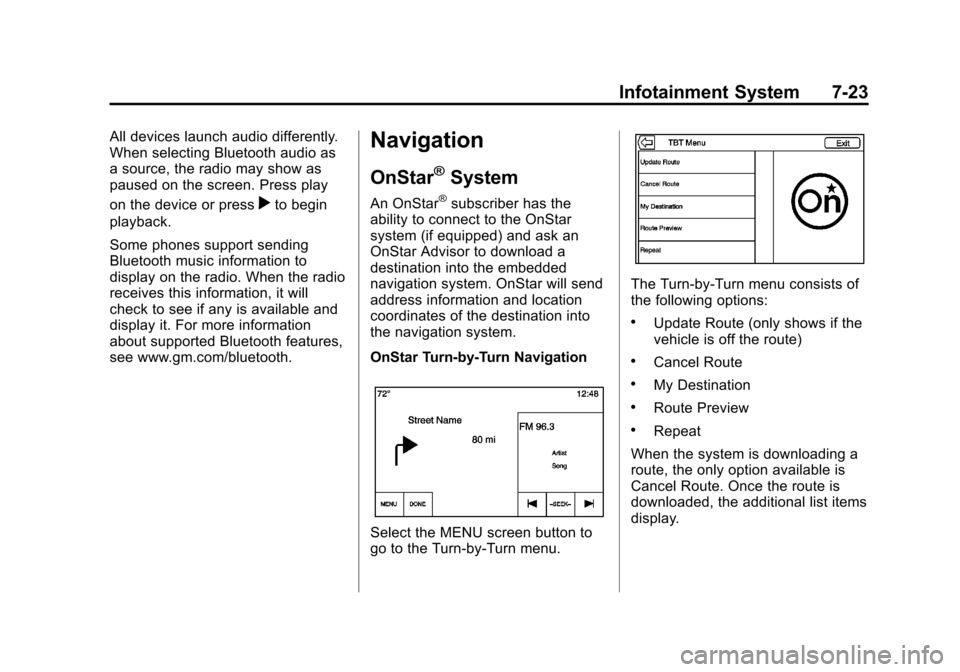
OnStar Turn-by-Turn Navigation
Select the MENU screen button to
go to the Turn-by-Turn menu.
The Turn-by-Turn menu consists of
the following options:
.Update Route (only shows if the
vehicle is off the route)
.Cancel Route
.My Destination
.Route Preview
.Repeat
When the system is downloading a
route, the only option available is
Cancel Route. Once the route is
downloaded, the additional list items
display.