display CHEVROLET SILVERADO 2014 2.G Repair Manual
[x] Cancel search | Manufacturer: CHEVROLET, Model Year: 2014, Model line: SILVERADO, Model: CHEVROLET SILVERADO 2014 2.GPages: 546, PDF Size: 8.08 MB
Page 228 of 546
Black plate (24,1)Chevrolet Silverado Owner Manual (GMNA-Localizing-U.S./Canada/Mexico-
5853506) - 2014 - crc 2nd - 5/15/13
7-24 Infotainment System
My Destination
If My Destination is selected, a
special version of the Maneuver
View displays. The Destination
Address is shown in the Street
Name field and the total distance to
the destination is shown in the
Distance to Maneuver View. Select
the DONE screen button to return to
the Maneuver View.
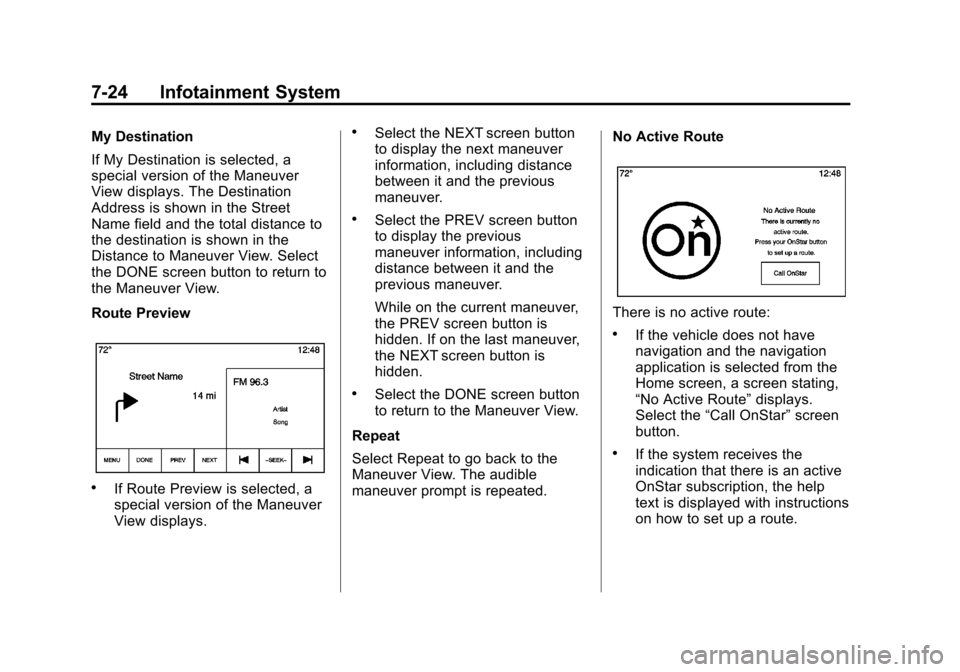
Route Preview
.If Route Preview is selected, a
special version of the Maneuver
View displays.
.Select the NEXT screen button
to display the next maneuver
information, including distance
between it and the previous
maneuver.
.Select the PREV screen button
to display the previous
maneuver information, including
distance between it and the
previous maneuver.
While on the current maneuver,
the PREV screen button is
hidden. If on the last maneuver,
the NEXT screen button is
hidden.
.Select the DONE screen button
to return to the Maneuver View.
Repeat
Select Repeat to go back to the
Maneuver View. The audible
maneuver prompt is repeated. No Active Route
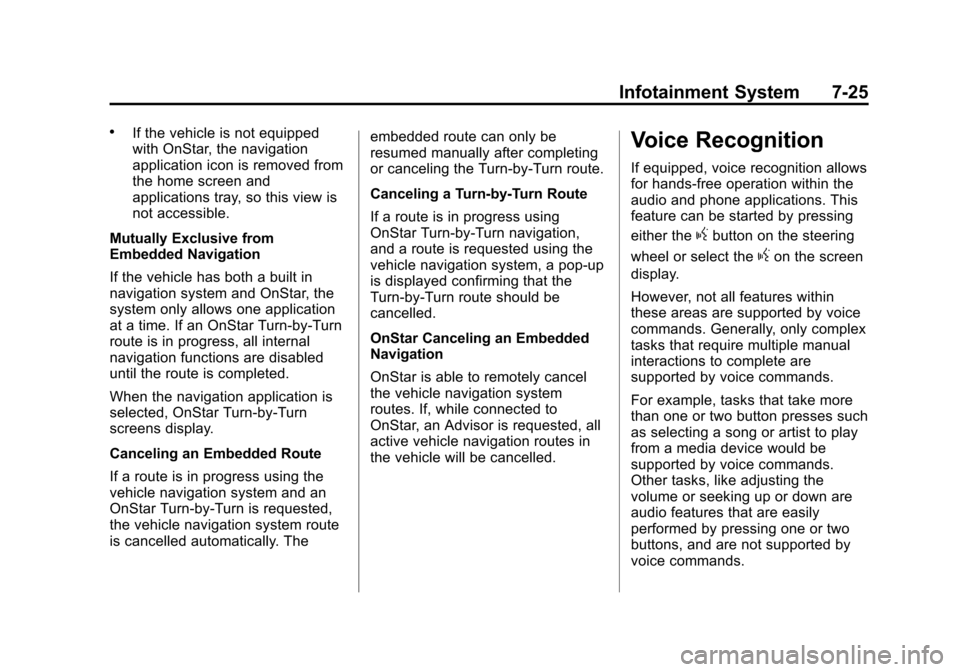
There is no active route:
.If the vehicle does not have
navigation and the navigation
application is selected from the
Home screen, a screen stating,
“No Active Route”
displays.
Select the “Call OnStar” screen
button.
.If the system receives the
indication that there is an active
OnStar subscription, the help
text is displayed with instructions
on how to set up a route.
Page 229 of 546
Black plate (25,1)Chevrolet Silverado Owner Manual (GMNA-Localizing-U.S./Canada/Mexico-
5853506) - 2014 - crc 2nd - 5/15/13
Infotainment System 7-25
.If the vehicle is not equipped
with OnStar, the navigation
application icon is removed from
the home screen and
applications tray, so this view is
not accessible.
Mutually Exclusive from
Embedded Navigation
If the vehicle has both a built in
navigation system and OnStar, the
system only allows one application
at a time. If an OnStar Turn-by-Turn
route is in progress, all internal
navigation functions are disabled
until the route is completed.
When the navigation application is
selected, OnStar Turn-by-Turn
screens display.
Canceling an Embedded Route
If a route is in progress using the
vehicle navigation system and an
OnStar Turn-by-Turn is requested,
the vehicle navigation system route
is cancelled automatically. The embedded route can only be
resumed manually after completing
or canceling the Turn-by-Turn route.
Canceling a Turn-by-Turn Route
If a route is in progress using
OnStar Turn-by-Turn navigation,
and a route is requested using the
vehicle navigation system, a pop-up
is displayed confirming that the
Turn-by-Turn route should be
cancelled.
OnStar Canceling an Embedded
Navigation
OnStar is able to remotely cancel
the vehicle navigation system
routes. If, while connected to
OnStar, an Advisor is requested, all
active vehicle navigation routes in
the vehicle will be cancelled.Voice Recognition
If equipped, voice recognition allows
for hands-free operation within the
audio and phone applications. This
feature can be started by pressing
either the
gbutton on the steering
wheel or select the
gon the screen
display.
However, not all features within
these areas are supported by voice
commands. Generally, only complex
tasks that require multiple manual
interactions to complete are
supported by voice commands.
For example, tasks that take more
than one or two button presses such
as selecting a song or artist to play
from a media device would be
supported by voice commands.
Other tasks, like adjusting the
volume or seeking up or down are
audio features that are easily
performed by pressing one or two
buttons, and are not supported by
voice commands.
Page 230 of 546
Black plate (26,1)Chevrolet Silverado Owner Manual (GMNA-Localizing-U.S./Canada/Mexico-
5853506) - 2014 - crc 2nd - 5/15/13
7-26 Infotainment System
In general there are flexible ways to
speak commands for completing the
tasks. Most of them, except
destination entry and voice keypad,
can be completed in a single
command. If the task takes more
than one command to complete, the
first command would be to indicate
the kind of task that is to be
performed. The system replies with
prompts that lead through a dialog
to enter the necessary information.
Voice recognition can be used when
the ignition is on or when Retained
Accessory Power (RAP) is active.
SeeRetained Accessory Power
(RAP) on page 9-29.
Using Voice Recognition
Voice recognition becomes available
once the system has been
initialized. This begins when the
ignition is turned on. Initialization
may take a few moments. 1. Press
gon the steering wheel
control to activate voice
recognition, or select the
gon
the infotainment screen on the
center stack.
.If voice recognition is
started from the steering
wheel control, the
instrument cluster displays
the selections and visual
dialog content.
.If voice recognition is
started from the
infotainment screen on the
center stack, the selections
and visual dialog content
are displayed on both the
center stack display and the
instrument cluster display.
2. The audio system mutes and the system plays a prompt followed
by a beep. 3. Wait until after the beep
completes, then clearly speak
one of the commands described
in this section.
Press
gto interrupt any voice
recognition system prompt. For
example, if the prompt seems to
be taking too long to finish,
press
gagain and the beep
should happen right away.
There are two voice prompt modes
supported:
.Long verbal prompts: The longer
prompts provide more
information regarding the
supported actions.
.Short prompts: The short
prompts provide simple
instructions about what can be
stated.
If a command is not spoken, the
voice recognition system says a
help prompt.
Page 231 of 546
Black plate (27,1)Chevrolet Silverado Owner Manual (GMNA-Localizing-U.S./Canada/Mexico-
5853506) - 2014 - crc 2nd - 5/15/13
Infotainment System 7-27
Prompts and Screen Displays
While a voice recognition session is
active, there will be corresponding
buttons on screens displayed.
Manual interaction in the voice
recognition session is permitted.
Interaction during a voice session
may be completed entirely using
voice commands, or some
selections may expedite a session.
If a selection is made using a
manual control, the dialog will
progress in the same way as if the
selection was made through a voice
command. Once the system is able
to complete the task, or the session
is terminated, the voice recognition
dialog stops.
An example of this type of manual
intervention is pressing on an entry
of a displayed number list instead of
speaking the number associated
with the entry desired.Canceling Voice Recognition
.Press the Home screen button.
This will terminate the voice
recognition session.
.Press or say“Cancel”or“Exit” to
terminate the voice recognition
session and display the screen
from which voice recognition
was initiated.
.Pression the steering wheel
controls to terminate the voice
session and display the screen
from which voice recognition
was initiated.
Helpful Hints for Speaking
Commands
Voice recognition can understand
commands that are either naturally
stated in sentence form (English
only), or direct commands that state
the application and the task. For languages that do not support
natural language commands in
sentence form, use the direct
commands shown as examples on
the display screen.
For best results:
.Listen for the prompt and wait
for the beep before saying a
command or reply.
.Say
“Help” or look at the screen
display for commands.
.Voice recognition system prompt
can be interrupted during a
prompt by pressing
gagain.
For example, if the prompt
seems to be taking too long to
finish, or if what is being
prompted causes a need for an
immediate reply, press
gagain
and wait for the beep.
.Speak the command naturally,
not too fast, not too slow. Use
direct commands without a lot of
extra words.
Page 232 of 546
Black plate (28,1)Chevrolet Silverado Owner Manual (GMNA-Localizing-U.S./Canada/Mexico-
5853506) - 2014 - crc 2nd - 5/15/13
7-28 Infotainment System
.Usually Phone and Audio
commands can be spoken in a
single command.
For example,“Call David Smith
at work,” “Play” followed by the
artist or song name, or “Tune”
followed by the radio station
number.
There is no need to memorize
specific command words. Direct
commands might be more clearly
understood by the system. An
example of a direct command would
be “Call 555-1212.” Examples of
these direct commands are
displayed on most of the screens
while a voice session is active.
If “Phone” or“Phone Commands,” is
stated, the system understands that
a phone call is requested and will
respond with questions until enough
details are gathered.
If the phone number has been
saved with a name and a place, the
direct command should include
both, for example “Call David Smith
at work.”Using Voice Recognition for
List Options
When a list is displayed, a voice
prompt will ask to confirm or select
an option from that list. A selection
can be made by manually selecting
the item, or by speaking the line
number for the item to select.
When a screen contains a list, there
may be options that are available
but not displayed. The list on a
voice recognition screen functions
the same as a list on other screens.
Scrolling can be used to help
display other entries from the list.
Manually scrolling or paging the list
on a screen during a voice
recognition session suspends the
current voice recognition event and
plays the prompt “Make your
selection from the list using the
manual controls or press the Back
button to try again.”
If manual selection takes more than
15 seconds, the session terminates
and prompts that it has timed out. The screen returns back to the
screen where voice recognition was
initiated.
The Back Command
Say
“Back” or press the Back button
to go to the previous screen.
If in voice recognition, and “Back”is
stated all the way through to the
initial screen, then “Back”is stated
one more time, the voice recognition
session will cancel.
Help
Say “Help” on any voice recognition
screen and the help prompt for the
screen is played. Additionally, a
pop-up displays a text version of the
help prompt. Depending on how
voice recognition was initiated, the
Help pop-up will either display on
the instrument cluster or the
infotainment screen. Press the
Dismiss button to make the pop-up
go away.
Page 234 of 546

Black plate (30,1)Chevrolet Silverado Owner Manual (GMNA-Localizing-U.S./Canada/Mexico-
5853506) - 2014 - crc 2nd - 5/15/13
7-30 Infotainment System
“Play Genre
Begin playback of the media
selection identified in the command.
“Play Playlist”:Begin a dialog to
enter a specific playlist name.
“Play Playlist
Begin playback of the identified
playlist in the command.
“Play
music from a specific device
identified by name. The device
name is the name displayed on the
screen when the device is first
selected as an audio source.
“Play Chapter”: Begin a dialog to
enter a specific name.
“Play Chapter
Begin playback of the media
selection identified in the command.
“Play Audiobook”: Begin a dialog
to enter a specific name.
“Play Audiobook
media selection identified in the
command. “Play CD Track
Begin playback of the
CD at the track identified in the
command.
“Play Episode”: Begin a dialog to
enter a specific name.
“Play Episode
media selection identified in the
command.
“Play Podcast”: Begin a dialog to
enter a specific name.
“Play Podcast
media selection identified in the
command.
“Play Video”: Begin a dialog to
enter a specific name.
“Play Video
Page 235 of 546
Black plate (31,1)Chevrolet Silverado Owner Manual (GMNA-Localizing-U.S./Canada/Mexico-
5853506) - 2014 - crc 2nd - 5/15/13
Infotainment System 7-31
There are no restrictions if the
number of song files and albums is
less than 4,000. When the number
of song files connected to the
system is between 4,000 and 8,000,
the content cannot be accessed
directly with one command like
“Play
The restriction is that the command
“Play Song”must be spoken first;
the system will then ask for the song
name. The reply command would be
to say the name of the song to play.
Similar limits exist for album
content. If there are more than
4,000 albums, but less than 8,000,
the content cannot be accessed
directly with one command like,
“Play
command “Play Album” must first be
spoken; the system will then ask for
the album name. The reply would
be to say the name of the album
to play. Once the number of songs has
exceeded approximately 8,000,
there is no support for accessing the
songs directly through voice
commands. There will still be
access to the media content by
using commands for playlists,
artists, and genres.
The access commands for playlists,
artists, and genres are prohibited
after the number of this type of
media exceeds 4,000.
The system will provide feedback
the first time voice recognition is
initiated if it has become apparent
that any of these limits are reached
during a device initializing process.Voice Recognition for the
Phone
“Call
Initiate a
call to an entered contact. The
command may include location if
the contact has location numbers
stored.
“Call
“At Work,” “On Mobile,” or“On
Other”: Initiate a call to an entered
contact and location at home, at
work, on mobile device, or on
another phone.
“Call
call to a standard phone number
seven or 10 digits in length, and
also 911, 411, or 611.
“Pair Phone”: Begins the
Bluetooth pairing process. Follow
instructions on the radio display.
“Switch Phone”: Select a different
phone for outgoing calls.
Page 239 of 546
Black plate (35,1)Chevrolet Silverado Owner Manual (GMNA-Localizing-U.S./Canada/Mexico-
5853506) - 2014 - crc 2nd - 5/15/13
Infotainment System 7-35
2. Turn the MENU knob and pressto select Manage Phones.
3. Press the button just below the PAIR/screen button. A four-digit
Personal Identification Number
(PIN) appears on the display.
The PIN is used in Step 5.
4. Start the pairing process on the cell phone to be paired to the
vehicle. See the cell phone
manufacturer's user guide for
information on this process.
5. Locate the device named “Your
Vehicle” in the list on the cell
phone. Follow the instructions
on the cell phone to enter the
PIN provided in Step 3.
After the PIN is successfully
entered, the system confirms the
pairing process is complete.
6. If the phone prompts to accept connection or allow phone book
download, select always accept
and allow. The phone book may
not be available if not accepted. 7. Repeat steps 1–6 to pair
additional phones or devices.
Listing All Paired and Connected
Phones
1. To list all paired devices, from the Home Page turn the MENU
knob, then press to select the
PHONE screen button.
2. Turn the MENU knob and press to select Manage Phones.
Deleting a Paired Phone
1. From the Home Page, turn the MENU knob, then press to
select the PHONE screen
button.
2. Turn the MENU knob and press to select Manage Phones.
3. Turn the MENU knob to highlight the phone to be deleted.
4. Press the button below the DELETE screen button to delete
the highlighted device. 5. A confirmation screen is
displayed. Press the button just
below the DELETE screen
button to confirm deletion.
Connecting to a Different Phone
1. From the Home Page, turn the MENU knob, then press to
select the PHONE screen button
or press the PHONE button on
the faceplate.
2. Turn the MENU knob and press to select Manage Phones.
3. Turn the MENU knob to highlight the phone to be connected.
4. Press the button just below the CONNECT screen button to
connect to the highlighted
device.
Phone Menu
Once a phone is connected and
selected, the following may display:
Recent Calls: Turn the MENU
knob to highlight Recent Calls and
press to select.
Page 240 of 546
Black plate (36,1)Chevrolet Silverado Owner Manual (GMNA-Localizing-U.S./Canada/Mexico-
5853506) - 2014 - crc 2nd - 5/15/13
7-36 Infotainment System
Contacts:Turn the MENU knob to
highlight Contacts and press to
select.
Keypad: Turn the MENU knob to
highlight Keypad and press to
select.
Active Call: Turn the MENU knob
to highlight Active Call and press to
select and display the active call
screen.
Manage Phones: Turn the MENU
knob to highlight Manage Phones
and press to select.
Making a Call Using Contacts
and Recent Calls
For cell phones that support the
Contacts and Recent Calls feature,
the Bluetooth system can use the
contacts stored on your cell phone
to make calls. See your cell phone
manufacturer ’s user guide or
contact your wireless provider to
find out if this feature is supported
by your phone. If the phone prompts to allow phone
book download during the pairing
process, select Always Accept and
Allow. The phone book may not be
available if not accepted.
When a cell phone supports the
phone book feature, the Contacts
and Recent Calls menus are
automatically available.
The Contacts menu allows you to
access the phone book stored in the
cell phone to make a call.
The Recent Calls menu allows you
to access the phone numbers from
the Incoming Calls, Outgoing Calls,
and Missed Calls menus on the cell
phone to make a call.
To make a call using the
Contacts menu:
1. From the Home Page, turn the
MENU knob, then press to
select the PHONE screen
button.
2. Turn the MENU knob to highlight Contacts and press to select. 3. Turn the MENU knob to highlight
the letter group and press to
select.
4. Turn the MENU knob to highlight the contact and press to select.
5. Turn the MENU knob to highlight the desired number, then press
the MENU knob to call the
contact.
To make a call using the Recent
Calls menu:
1. From the Home Page, turn the MENU knob, then press to
select the PHONE screen
button.
2. Turn the MENU knob to highlight Recent Calls and press to
select.
If necessary, select between
Missed, Recent, and Sent calls
by pressing the button below the
appropriate screen button.
Page 247 of 546
Black plate (43,1)Chevrolet Silverado Owner Manual (GMNA-Localizing-U.S./Canada/Mexico-
5853506) - 2014 - crc 2nd - 5/15/13
Infotainment System 7-43
3. Say“Voice.” The system
responds “OK, accessing
The cell phone's normal prompt
messages will go through their cycle
according to the phone's operating
instructions.
Dual Tone Multi-Frequency
(DTMF) Tones
The Bluetooth system can send
numbers and the numbers stored as
name tags during a call. You can
use this feature when calling a
menu-driven phone system.
Account numbers can also be
stored for use.
Sending a Number or Name Tag
During a Call
1. Press
g. The system responds
“Ready,” followed by a tone.
2. Say “Dial.”
3. Say the number or name tag to send.
Clearing the System
Unless information is deleted out of
the in-vehicle Bluetooth system, it
will be retained indefinitely. This
includes all phone pairing
information. For information on how
to delete this information, see
“Deleting a Paired Phone.”
Bluetooth (Infotainment
Controls - Base
Connected Radio)
For information about how to
navigate the menu system using the
infotainment controls, see Overview
on page 7-3.
Switching to Handset or
Hands-Free Mode
To switch between handset or
hands-free mode, from the Home
Page select the PHONE to display
Call View.
.While the active call is
hands-free, press the Handset
screen button to switch to the handset mode. The screen
button changes to Hands-Free
once the Bluetooth device
confirms it is operating as
handset.
.While the active call is handset,
select the Hands-Free screen
button to switch to the
hands-free mode. The screen
button changes to Handset once
the Bluetooth device confirms it
is operating as hands-free.
Pairing
A Bluetooth-enabled cell phone
must be paired to the Bluetooth
system and then connected to the
vehicle before it can be used. See
your cell phone manufacturer's user
guide for Bluetooth functions before
pairing the cell phone. If a Bluetooth
phone is not connected, calls can
be made using OnStar Hands-Free
Calling, if available. See
OnStar
Overview on page 14-1.