USB CHEVROLET SILVERADO 2014 2.G Owners Manual
[x] Cancel search | Manufacturer: CHEVROLET, Model Year: 2014, Model line: SILVERADO, Model: CHEVROLET SILVERADO 2014 2.GPages: 546, PDF Size: 8.08 MB
Page 28 of 546
Black plate (22,1)Chevrolet Silverado Owner Manual (GMNA-Localizing-U.S./Canada/Mexico-
5853506) - 2014 - crc 2nd - 5/15/13
1-22 In Brief
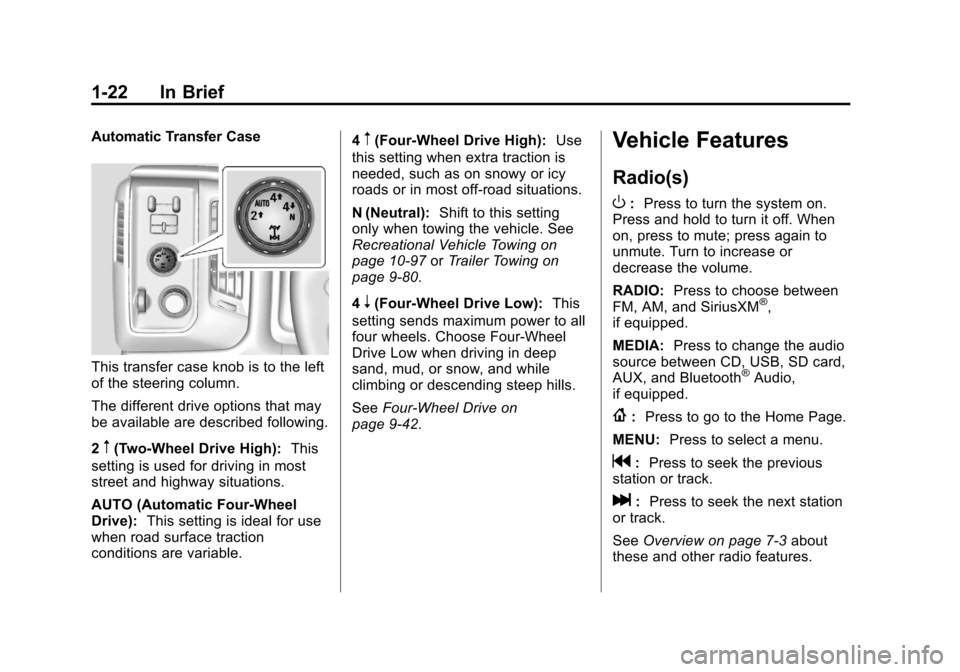
Automatic Transfer Case
This transfer case knob is to the left
of the steering column.
The different drive options that may
be available are described following.
2
m(Two-Wheel Drive High):This
setting is used for driving in most
street and highway situations.
AUTO (Automatic Four-Wheel
Drive): This setting is ideal for use
when road surface traction
conditions are variable. 4
m(Four-Wheel Drive High):
Use
this setting when extra traction is
needed, such as on snowy or icy
roads or in most off-road situations.
N (Neutral): Shift to this setting
only when towing the vehicle. See
Recreational Vehicle Towing on
page 10-97 orTrailer Towing on
page 9-80.
4
n(Four-Wheel Drive Low): This
setting sends maximum power to all
four wheels. Choose Four-Wheel
Drive Low when driving in deep
sand, mud, or snow, and while
climbing or descending steep hills.
See Four-Wheel Drive on
page 9-42.
Vehicle Features
Radio(s)
O
: Press to turn the system on.
Press and hold to turn it off. When
on, press to mute; press again to
unmute. Turn to increase or
decrease the volume.
RADIO: Press to choose between
FM, AM, and SiriusXM
®,
if equipped.
MEDIA: Press to change the audio
source between CD, USB, SD card,
AUX, and Bluetooth
®Audio,
if equipped.
{: Press to go to the Home Page.
MENU: Press to select a menu.
g:Press to seek the previous
station or track.
l: Press to seek the next station
or track.
See Overview on page 7-3 about
these and other radio features.
Page 29 of 546
Black plate (23,1)Chevrolet Silverado Owner Manual (GMNA-Localizing-U.S./Canada/Mexico-
5853506) - 2014 - crc 2nd - 5/15/13
In Brief 1-23
Storing Radio Station Presets
Up to 25 preset stations from all
bands can be stored in the favorite
lists in any order. Up to five stations
can be stored in each favorite page
and the number of favorite pages
can be set.
To store the station to a position in
the list, while on the active source
main page, such as AM, FM,
or SiriusXM (If Equipped), press and
hold a Favorites/Soft Key button on
the faceplate.
See“Storing Radio Station Presets”
under AM-FM Radio on page 7-8.
Setting the Clock
SeeClock on page 5-5.
Satellite Radio
Vehicles with a SiriusXM®satellite
radio tuner and a valid SiriusXM
satellite radio subscription can
receive SiriusXM programming.
SiriusXM Satellite Radio
Service
SiriusXM is a satellite radio service
based in the 48 contiguous United
States and 10 Canadian provinces.
SiriusXM satellite radio has a wide
variety of programming and
commercial-free music, coast to
coast, and in digital-quality sound.
A fee is required to receive the
SiriusXM service.
For more information refer to:
.www.siriusxm.com or call
1-866-635-2349 (U.S.).
.www.xmradio.ca or call
1-877-209-0079 (Canada).
See Satellite Radio on page 7-10.
Portable Audio Devices
This vehicle has a 3.5 mm (1/8 in)
auxiliary input jack, SD card reader,
and USB ports in the center
console. External devices such as
iPods
®, laptop computers, MP3
players, CD changers, and USB
storage devices may be connected,
depending on the audio system.
See USB Port on page 7-18, SD
Card Reader on page 7-21,
Auxiliary Jack on page 7-21.
Bluetooth®
The Bluetooth®system allows users
with a Bluetooth-enabled cell phone
to make and receive hands-free
calls using the vehicle audio system
and controls.
The Bluetooth-enabled cell phone
must be paired with the in-vehicle
Bluetooth system before it can be
used in the vehicle. Not all phones
will support all functions.
Page 135 of 546
Black plate (3,1)Chevrolet Silverado Owner Manual (GMNA-Localizing-U.S./Canada/Mexico-
5853506) - 2014 - crc 2nd - 5/15/13
Storage 4-3
Sunglasses Storage
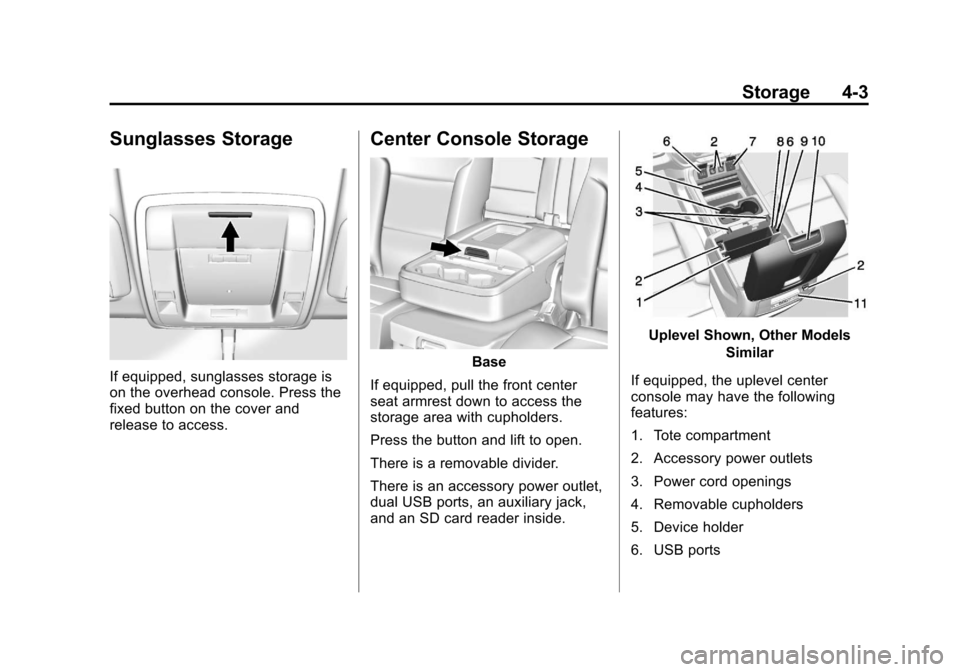
If equipped, sunglasses storage is
on the overhead console. Press the
fixed button on the cover and
release to access.
Center Console Storage
Base
If equipped, pull the front center
seat armrest down to access the
storage area with cupholders.
Press the button and lift to open.
There is a removable divider.
There is an accessory power outlet,
dual USB ports, an auxiliary jack,
and an SD card reader inside.
Uplevel Shown, Other Models Similar
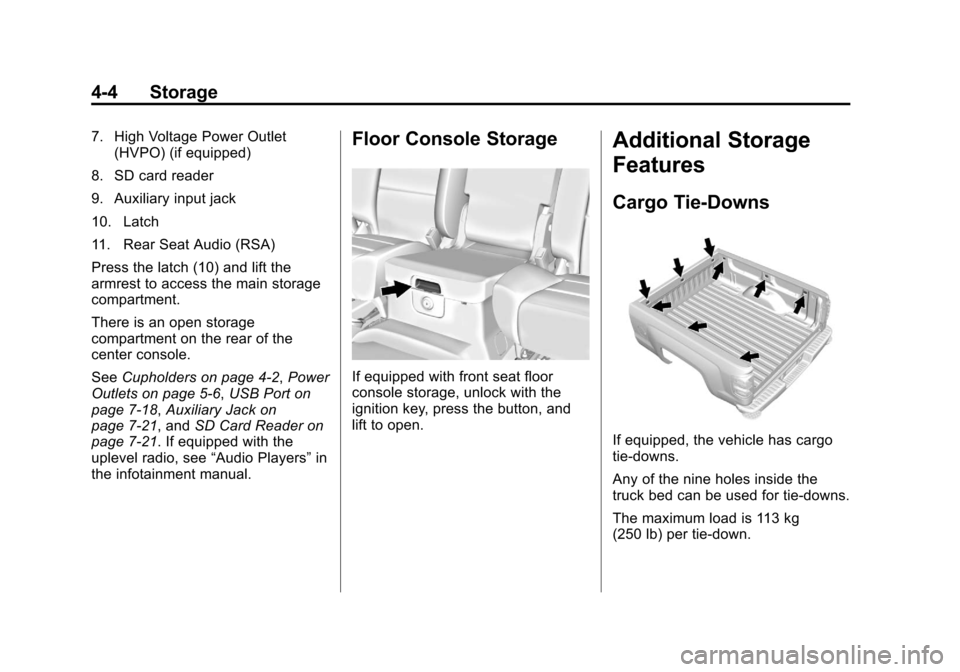
If equipped, the uplevel center
console may have the following
features:
1. Tote compartment
2. Accessory power outlets
3. Power cord openings
4. Removable cupholders
5. Device holder
6. USB ports
Page 136 of 546
Black plate (4,1)Chevrolet Silverado Owner Manual (GMNA-Localizing-U.S./Canada/Mexico-
5853506) - 2014 - crc 2nd - 5/15/13
4-4 Storage
7. High Voltage Power Outlet(HVPO) (if equipped)
8. SD card reader
9. Auxiliary input jack
10. Latch
11. Rear Seat Audio (RSA)
Press the latch (10) and lift the
armrest to access the main storage
compartment.
There is an open storage
compartment on the rear of the
center console.
See Cupholders on page 4-2, Power
Outlets on page 5-6, USB Port on
page 7-18, Auxiliary Jack on
page 7-21, and SD Card Reader on
page 7-21. If equipped with the
uplevel radio, see “Audio Players”in
the infotainment manual.Floor Console Storage
If equipped with front seat floor
console storage, unlock with the
ignition key, press the button, and
lift to open.
Additional Storage
Features
Cargo Tie-Downs
If equipped, the vehicle has cargo
tie-downs.
Any of the nine holes inside the
truck bed can be used for tie-downs.
The maximum load is 113 kg
(250 lb) per tie-down.
Page 205 of 546
Black plate (1,1)Chevrolet Silverado Owner Manual (GMNA-Localizing-U.S./Canada/Mexico-
5853506) - 2014 - crc 2nd - 5/15/13
Infotainment System 7-1
Infotainment
System
Introduction
Infotainment . . . . . . . . . . . . . . . . . . . 7-1
Theft-Deterrent Feature . . . . . . . 7-2
Overview . . . . . . . . . . . . . . . . . . . . . . 7-3
Home Page . . . . . . . . . . . . . . . . . . . 7-5
Software Updates . . . . . . . . . . . . . 7-8
Radio
AM-FM Radio . . . . . . . . . . . . . . . . . 7-8
Satellite Radio . . . . . . . . . . . . . . . 7-10
Radio Reception . . . . . . . . . . . . . 7-11
Fixed Mast Antenna . . . . . . . . . 7-12
Multi-Band Antenna . . . . . . . . . . 7-12
Pandora Internet Radio . . . . . . 7-12
Audio Players
CD Player . . . . . . . . . . . . . . . . . . . 7-16
USB Port . . . . . . . . . . . . . . . . . . . . 7-18
SD Card Reader . . . . . . . . . . . . . 7-21
Auxiliary Jack . . . . . . . . . . . . . . . . 7-21
Bluetooth Audio . . . . . . . . . . . . . . 7-22
Navigation
OnStar®System . . . . . . . . . . . . . 7-23
Voice Recognition
Voice Recognition . . . . . . . . . . . 7-25
Phone
Bluetooth (Overview) . . . . . . . . 7-32
Bluetooth (InfotainmentControls - Base Radio) . . . . . 7-34
Bluetooth (Voice Recognition - Base Radio) . . . . . . . . . . . . . . . . 7-38
Bluetooth (Infotainment Controls - Base Connected
Radio) . . . . . . . . . . . . . . . . . . . . . . 7-43
Bluetooth (Voice Recognition - Base Connected Radio) . . . . 7-48
Trademarks and License
Agreements
Trademarks and LicenseAgreements . . . . . . . . . . . . . . . . 7-49
Introduction
Infotainment
Read the following pages to
become familiar with the
infotainment system featured in this
owner manual.
{Warning
Taking your eyes off the road
for too long or too often while
using any infotainment features
can cause a crash resulting in
injury or death. Do not give
extended attention to
infotainment tasks while
driving. Focus your attention
on driving and limit glances to
the instrument cluster or center
stack screens. Use voice
guidance whenever possible.
Page 208 of 546
Black plate (4,1)Chevrolet Silverado Owner Manual (GMNA-Localizing-U.S./Canada/Mexico-
5853506) - 2014 - crc 2nd - 5/15/13
7-4 Infotainment System
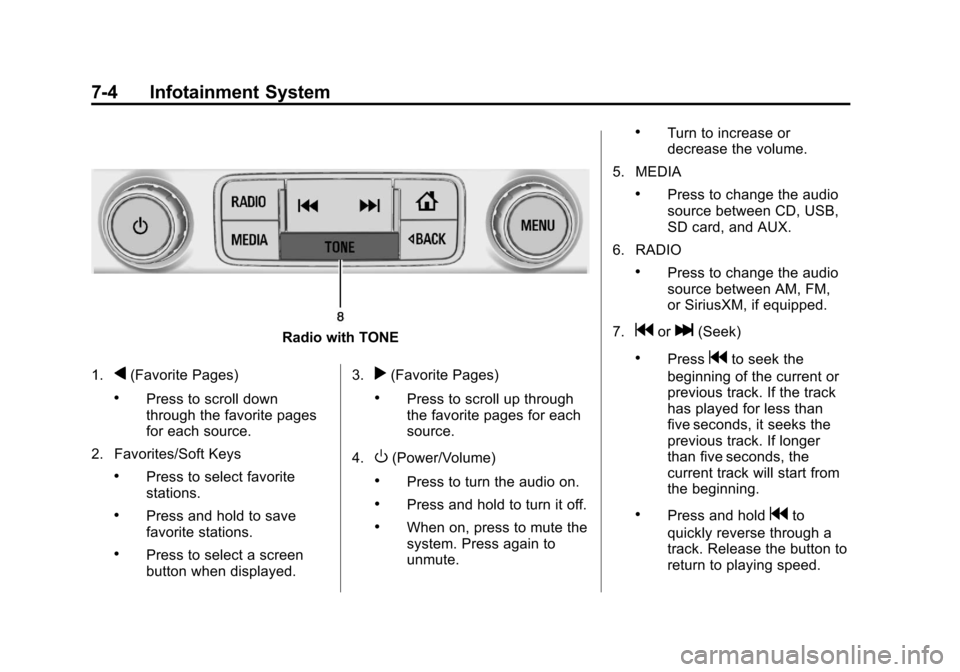
Radio with TONE
1.
q(Favorite Pages)
.Press to scroll down
through the favorite pages
for each source.
2. Favorites/Soft Keys
.Press to select favorite
stations.
.Press and hold to save
favorite stations.
.Press to select a screen
button when displayed. 3.
r(Favorite Pages)
.Press to scroll up through
the favorite pages for each
source.
4.
O(Power/Volume)
.Press to turn the audio on.
.Press and hold to turn it off.
.When on, press to mute the
system. Press again to
unmute.
.Turn to increase or
decrease the volume.
5. MEDIA
.Press to change the audio
source between CD, USB,
SD card, and AUX.
6. RADIO
.Press to change the audio
source between AM, FM,
or SiriusXM, if equipped.
7.
gorl(Seek)
.Pressgto seek the
beginning of the current or
previous track. If the track
has played for less than
five seconds, it seeks the
previous track. If longer
than five seconds, the
current track will start from
the beginning.
.Press and holdgto
quickly reverse through a
track. Release the button to
return to playing speed.
Page 209 of 546
Black plate (5,1)Chevrolet Silverado Owner Manual (GMNA-Localizing-U.S./Canada/Mexico-
5853506) - 2014 - crc 2nd - 5/15/13
Infotainment System 7-5
.Presslto seek the next
track.
.Press and holdlto fast
forward through a track.
Release the button to return
to playing speed. See CD
Player on page 7-16.
.For AM, FM, or SiriusXM (if
equipped), press
gorl
to seek to the previous or
next strong station.
8.
X(Eject) (If Equipped) or
TONE (If Equipped)
.PressXto eject the CD (if
equipped).
.Press TONE to open the
Tone Settings menu (if
equipped). 9.
{(Home Page)
.Press to go to the Home
Page from any point in the
system. See
“Home Page”
following.
10.
oBACK
.Press to return to the
previous screen in
a menu.
11. CD Slot
12. MENU
.Press to access the menu
for the current audio
source.
.Press to select the
highlighted menu option.
.Turn to scroll through
a list.
.Turn to manually select a
station.
Home Page
Home Page Features
The infotainment system displays a
Home Page that makes it easy to
access all of the applications. Turn
the MENU knob to highlight feature
icons. Press the MENU knob to
access the feature’s options.
Various functions are disabled when
the vehicle is moving.
AUDIO: Select the AUDIO screen
icon to display the active source
page. The sources available are
AM, FM, SiriusXM
®(if equipped),
CD, USB/iPod, AUX, SD card
reader, and Bluetooth Audio (if
equipped). See AM-FM Radio on
page 7-8, Satellite Radio on
page 7-10, CD Player on page 7-16,
Auxiliary Jack on page 7-21, and
Bluetooth Audio on page 7-22.
Page 210 of 546
Black plate (6,1)Chevrolet Silverado Owner Manual (GMNA-Localizing-U.S./Canada/Mexico-
5853506) - 2014 - crc 2nd - 5/15/13
7-6 Infotainment System
PHONE:Select the PHONE screen
icon to display the Phone main
page. See Bluetooth (Infotainment
Controls - Base Radio) on
page 7-34 orBluetooth (Voice
Recognition - Base Radio) on
page 7-38 orBluetooth (Overview)
on page 7-32 orBluetooth
(Infotainment Controls - Base
Connected Radio) on page 7-43 or
Bluetooth (Voice Recognition - Base
Connected Radio) on page 7-48.
NAV (Navigation, If Equipped):
Select the NAV screen icon to
display the OnStar Turn-by-Turn
Navigation. See OnStar
®System on
page 7-23.
SETTINGS: Select the SETTINGS
screen icon to display the Settings
main page. See “Setting Radio
Preferences” following.
Pandora (If Equipped)
Select the PANDORA icon to begin
Pandora. See Pandora Internet
Radio on page 7-12.
Setting Radio Preferences
Select the SETTINGS screen icon
to display the Settings menu and
the following may display:
Time and Date: SeeClock on
page 5-5.
Language (Current Language):
This will set the display language in
the radio and instrument cluster.
Select to display a list of languages.
Select
oBACK to go back to the
previous menu.
Valet Mode:
Using the circular numeric keypad,
enter a four-digit code:
1. Turn the MENU knob to highlight a number.
2. Press the MENU knob to select it. Do this for each one of the
four digits. Select Enter to go to
the confirmation screen.
3. Re-enter the four-digit code. Select LOCK to lock the system. 4. Enter the four-digit code to
unlock the system. Select
o
BACK to go back to the
previous menu.
Radio: See“Radio Setup” later in
this section.
Vehicle: SeeVehicle
Personalization on page 5-46.
Display: Press the MENU knob to
turn the display on or off.
Return to Factory Settings: See
“Return to Factory Settings” later in
this section.
Software Information: Press the
MENU knob to select Save Vehicle
Info to USB. Press the MENU knob
again to start downloading the
vehicle information to the USB.
Page 212 of 546
Black plate (8,1)Chevrolet Silverado Owner Manual (GMNA-Localizing-U.S./Canada/Mexico-
5853506) - 2014 - crc 2nd - 5/15/13
7-8 Infotainment System
Clear All Private Data (If
Equipped):This option clears all
private information from the vehicle.
Select Clear All Private Data. Select
Cancel or Confirm.
Restore Radio Settings: This
option will restore factory radio
settings. Select Restore Radio
Settings. A screen displays stating
all personalized radio settings will
be restored back to the factory
settings. Select Cancel or Confirm.
English and Metric Unit
Conversion
To change the display units between
English and metric units, see Driver
Information Center (DIC) (Base
Level) on page 5-30 orDriver
Information Center (DIC) (Uplevel)
on page 5-32.
Software Updates
See the website for more
information.
Website Information
In the U.S., see www.chevrolet.com
In Canada, see
www.chevrolet.gm.ca
In Mexico, see
www.chevrolet.com.mx
Radio
AM-FM Radio
Playing the Radio
While on the audio main page,
press the RADIO button repeatedly,
to cycle through the available
sources AM, FM, and SiriusXM
®(if
equipped) or press MEDIA button
repeatedly, to cycle through the
available sources Bluetooth
®Audio
(if equipped), CD, USB, SD,
and AUX.
The steering wheel controls can
also be used to adjust the volume.
See Steering Wheel Controls on
page 5-3.
AM, FM, or SiriusXM (If Equipped)
To select AM, FM, or SiriusXM (if
equipped), press the RADIO button
to toggle to the desired broadcast
source.
Page 216 of 546
Black plate (12,1)Chevrolet Silverado Owner Manual (GMNA-Localizing-U.S./Canada/Mexico-
5853506) - 2014 - crc 2nd - 5/15/13
7-12 Infotainment System
Fixed Mast Antenna
The fixed mast antenna will go
through most car washes as long as
it is securely attached. If the
antenna becomes slightly bent,
straighten it out by hand. If it is
badly bent, replace it.
Occasionally check that the antenna
is tight at the base. If tightening is
required, protect the paint from
damage.
Multi-Band Antenna
The roof antenna is for OnStar®,
SiriusXM®Satellite Radio, and GPS
(Global Positioning System), if the
vehicle has these features. Keep
clear of obstructions for clear
reception. If the vehicle has a
sunroof, and it is open, reception
can also be affected.
Pandora Internet Radio
If equipped, Pandora®is a free
Internet radio service that streams
personalized radio stations based
on artists, tracks, genres, and
comedians. Create stations using
the Pandora website or Smartphone
application, then use
-(thumbs up)
or
,(thumbs down) to personalize
stations. To set up an account, or for
more information, go to
www.pandora.com. Pandora may
not be available in Canada or
Mexico.
A phone or tablet with Internet
connection and the Pandora
application installed is required.
Personal cell phone data plans are
used. Make sure the latest version
is installed on the device.
Launching Pandora
Connect the iPhone to the USB
port, or connect Android®or
BlackBerry®through Bluetooth. See
Auxiliary Jack on page 7-21 or
Bluetooth (Infotainment Controls -
Base Radio) on page 7-34 or
Bluetooth (Voice Recognition - Base
Radio) on page 7-38 orBluetooth
(Overview) on page 7-32 or
Bluetooth (Infotainment Controls -
Base Connected Radio) on
page 7-43 orBluetooth (Voice
Recognition - Base Connected
Radio) on page 7-48. For first time
use, set up the stations before
connecting to the vehicle. The
Pandora icon will be available on
the Home Page.
When Pandora is chosen, the
Pandora logo will populate on the
screen and the system will display
“Acquiring Pandora Radio Station.”
Launch times can be significant.