key CHEVROLET SILVERADO 2015 3.G Workshop Manual
[x] Cancel search | Manufacturer: CHEVROLET, Model Year: 2015, Model line: SILVERADO, Model: CHEVROLET SILVERADO 2015 3.GPages: 543, PDF Size: 7.01 MB
Page 238 of 543
Black plate (35,1)Chevrolet 2015i Silverado Owner Manual (GMNA-Localizing-U.S./Canada/
Mexico-8425172) - 2015 - crc - 2/6/15
Infotainment System 7-35
To make a call using the
Contacts menu:
1. From the Home Page, turn theMENU knob, then press to
select the PHONE screen
button.
2. Turn the MENU knob to highlight Contacts and press to select.
3. Turn the MENU knob to highlight the letter group and press to
select.
4. Turn the MENU knob to highlight the contact and press to select.
5. Turn the MENU knob to highlight the desired number, then press
the MENU knob to call the
contact.
To make a call using the Recent
Calls menu:
1. From the Home Page, turn the MENU knob, then press to
select the PHONE screen
button. 2. Turn the MENU knob to highlight
Recent Calls and press to
select.
If necessary, select between
Missed, Recent, and Sent calls
by pressing the button below the
appropriate screen button.
3. Turn the MENU knob to highlight the contact or the phone
number.
4. Press the MENU knob to call the contact.
Making a Call Using the
Keypad
To make a call:
1. From the Home Page, turn theMENU knob, then press to
select the PHONE screen
button.
2. Turn the MENU knob and press to select Keypad.
3. Turn the MENU knob to highlight the first digit and press to select.
Continue this process through the number. To call, press the
button just below the CALL
screen button.
Accepting or Declining a Call
When an incoming call is received,
the infotainment system mutes and
a ring tone is heard in the vehicle.
Accepting a Call
To accept a call, do one of the
following:
.Press the button just below the
ANSWER screen button.
.Pressgon the steering wheel
controls.
Declining a Call
To decline a call, do one of the
following:
.Press the button just below the
IGNORE screen button.
.Pression the steering wheel
controls.
.Do nothing.
Page 239 of 543
Black plate (36,1)Chevrolet 2015i Silverado Owner Manual (GMNA-Localizing-U.S./Canada/
Mexico-8425172) - 2015 - crc - 2/6/15
7-36 Infotainment System
Call Waiting
Call waiting must be supported on
the Bluetooth phone and enabled by
the wireless service carrier to work.
Accepting a Call Waiting Call
To accept a call waiting call, do one
of the following:
.Press the button just below the
SWITCH screen button.
.Pressgon the steering wheel
controls.
Declining a Call Waiting Call
To decline a call waiting call, do one
of the following:
.Press the button just below the
IGNORE screen button.
.Pression the steering wheel
controls.
.Do nothing.
Ending a Call
To end a call, do one of the
following:
.Press the button just below the
END screen button.
.Pression the steering wheel
controls.
Dual Tone Multi-Frequency
(DTMF) Tones
The in-vehicle Bluetooth system can
send numbers during a call. This is
used when calling a menu-driven
phone system.
1. When a call is active, press the button just below the KEYPAD
screen button.
2. Turn the MENU knob to highlight the first digit and press to select.
If not initially in the phone
application, from the Home Page,
turn the MENU knob, then press to
select the PHONE screen button. From the PHONE main menu, turn
the MENU knob to highlight Active
Call and press to select.
Bluetooth (Voice
Recognition - Base
Radio)
Using Voice Recognition
To use voice recognition, pressg
on the steering wheel. Use the
commands below for the various
voice features. For additional
information, say
“Help”while you
are in a voice recognition menu.
Pairing
Pairing a Phone
1. Press
g. The system responds
“Ready,” followed by a tone.
2. Say “Bluetooth.”
3. Say “Pair.”The system responds
with instructions and a four-digit
Personal Identification Number
(PIN). The PIN is used in Step 5.
Page 246 of 543
Black plate (43,1)Chevrolet 2015i Silverado Owner Manual (GMNA-Localizing-U.S./Canada/
Mexico-8425172) - 2015 - crc - 2/6/15
Infotainment System 7-43
6. If“Chevrolet MyLink” does not
appear, turn the phone off or
remove the phone battery and
retry.
7. If the phone prompts to accept connection or allow phone book
download, select always accept
and allow. The phone book may
not be available if not accepted.
8. Repeat Steps 1−7 to pair additional phones.
Listing All Paired and Connected
Phones
1. To list all paired devices, from the Home Page turn the MENU
knob, then press to select the
PHONE screen button.
2. Turn the MENU knob and press to select Manage Phones.
Deleting a Paired Phone
1. From the Home Page, turn the MENU knob, then press to
select the PHONE screen
button. 2. Turn the MENU knob and press
to select Manage Phones.
3. Turn the MENU knob to highlight the phone to be deleted.
4. Press the button below the DROP screen button to
disconnect the highlighted
device.
5. Press the button below the DELETE screen button to delete
the highlighted device.
6. A confirmation screen is displayed. Press the button just
below the DELETE screen
button to confirm deletion.
Connecting to a Different Phone
1. From the Home Page, turn the MENU knob, then press to
select the PHONE screen
button.
2. Turn the MENU knob and press to select Manage Phones.
3. Turn the MENU knob to highlight the phone to be connected. 4. Press the button just below the
CONNECT screen button to
connect to the highlighted
device.
Phone Menu
Once a phone is connected and
selected, the following may display:
Recent Calls: Turn the MENU
knob to highlight Recent Calls and
press to select.
Contacts: Turn the MENU knob to
highlight Contacts and press to
select.
Keypad: Turn the MENU knob to
highlight Keypad and press to
select.
Active Call: Turn the MENU knob
to highlight Active Call and press to
select and display the active call
screen.
Manage Phones: Turn the MENU
knob to highlight Manage Phones
and press to select.
Page 247 of 543
Black plate (44,1)Chevrolet 2015i Silverado Owner Manual (GMNA-Localizing-U.S./Canada/
Mexico-8425172) - 2015 - crc - 2/6/15
7-44 Infotainment System
Making a Call Using Contacts
and Recent Calls
For cell phones that support the
Contacts and Recent Calls feature,
the Bluetooth system can use the
contacts stored on your cell phone
to make calls. See your cell phone
manufacturer’s user guide or
contact your wireless provider to
find out if this feature is supported
by your phone.
If the phone prompts to allow phone
book download during the pairing
process, select Always Accept and
Allow. The phone book may not be
available if not accepted.
When a cell phone supports the
phone book feature, the Contacts
and Recent Calls menus are
automatically available.
The Contacts menu allows you to
access the phone book stored in the
cell phone to make a call. The Recent Calls menu allows you
to access the phone numbers from
the Incoming Calls, Outgoing Calls,
and Missed Calls menus on the cell
phone to make a call.
To make a call using the
Contacts menu:
1. From the Home Page, turn the
MENU knob, then press to
select the PHONE screen
button.
2. Turn the MENU knob to highlight Contacts and press to select.
3. Turn the MENU knob to highlight the contact and press to select.
4. Turn the MENU knob to highlight the desired number, then press
the MENU knob to call the
contact.
To make a call using the Recent
Calls menu:
1. From the Home Page, turn the MENU knob, then press to
select the PHONE screen
button. 2. Turn the MENU knob to highlight
Recent Calls and press to
select.
If necessary, select between
Missed, Recent, and Sent calls
by pressing the button below the
appropriate screen button.
3. Turn the MENU knob to highlight the contact or the phone
number.
4. Press the MENU knob to call the contact.
Making a Call Using the
Keypad
To make a call:
1. From the Home Page, turn theMENU knob, then press to
select the PHONE screen
button.
2. Turn the MENU knob and press to select Keypad.
3. Turn the MENU knob to highlight the first digit and press to select.
Continue this process through
Page 248 of 543
Black plate (45,1)Chevrolet 2015i Silverado Owner Manual (GMNA-Localizing-U.S./Canada/
Mexico-8425172) - 2015 - crc - 2/6/15
Infotainment System 7-45
the number. To call, press the
button just below the CALL
screen button.
Accepting or Declining a Call
When an incoming call is received,
the infotainment system mutes and
a ring tone is heard in the vehicle.
Accepting a Call
To accept a call, do one of the
following:
.Press the button just below the
ANSWER screen button.
.Pressgon the steering wheel
controls.
Declining a Call
To decline a call, do one of the
following:
.Press the button just below the
IGNORE screen button.
.Pression the steering wheel
controls.
.Do nothing.
Call Waiting
Call waiting must be supported on
the Bluetooth phone and enabled by
the wireless service carrier to work.
Accepting a Call Waiting Call
To accept a call waiting call, do one
of the following:
.Press the button just below the
SWITCH screen button.
.Pressgon the steering wheel
controls.
Declining a Call Waiting Call
To decline a call waiting call, do one
of the following:
.Press the button just below the
IGNORE screen button.
.Pression the steering wheel
controls.
.Do nothing.
Ending a Call
To end a call, do one of the
following:
.Press the button just below the
END screen button.
.Pression the steering wheel
controls.
Dual Tone Multi-Frequency
(DTMF) Tones
The in-vehicle Bluetooth system can
send numbers during a call. This is
used when calling a menu-driven
phone system.
1. When a call is active, press the button just below the KEYPAD
screen button.
2. Turn the MENU knob to highlight the first digit and press to select.
If not initially in the phone
application, from the Home Page,
turn the MENU knob, then press to
select the PHONE screen button.
Page 249 of 543
Black plate (46,1)Chevrolet 2015i Silverado Owner Manual (GMNA-Localizing-U.S./Canada/
Mexico-8425172) - 2015 - crc - 2/6/15
7-46 Infotainment System
From the PHONE main menu, turn
the MENU knob to highlight Active
Call and press to select.
Bluetooth (Voice
Recognition - Base
Connected Radio)
Using Bluetooth Voice
Recognition
To use voice recognition, press thegbutton on the steering wheel. Use
the commands below for the various
voice features. For additional
information, say “Help”while in a
voice recognition menu. See Voice
Recognition on page 7-24 for help
using voice recognition commands.
Making a Call
Calls can be made using the
following commands. Using the
“Dial”or“Call”
Command
To call a number:
1. Press
g. The system responds
“Say a command or say help,”
followed by a tone.
2. Say “Dial”or“Call” followed by
the complete phone number.
Use the “Voice Keypad” command
for international numbers or special
numbers which include * or #.
Once connected, the person called
will be heard through the audio
speakers.
To call using a contact from your
phone book:
1. Press
g. The system responds
“Say a command or say help,”
followed by a tone.
2. Say “Dial”or“Call” and then say
the contact name. For example
“Call Dave Smith at Work.” Once connected, the person called
will be heard through the audio
speakers.
Calling 911 Emergency (U.S. and
Canada)
1. Press
g. The system responds
“Say a command or say help,”
followed by a tone.
2. Say “Dial”or“Call.”
3. Say “911.”
4. Say “Dial”or“Call.”
Calling 066 Emergency (Mexico)
1. Press
g. The system responds
“Say a command or say help,”
followed by a tone.
2. Say “Dial”or“Call.”
3. Say “066.”
4. Say “Dial”or“Call.”
Once connected, the person called
will be heard through the audio
speakers.
Page 250 of 543
Black plate (47,1)Chevrolet 2015i Silverado Owner Manual (GMNA-Localizing-U.S./Canada/
Mexico-8425172) - 2015 - crc - 2/6/15
Infotainment System 7-47
Using the“Switch Phone”
Command
1. Press
g. The system responds
“Say a command or say help,”
followed by a tone.
2. After the tone, say “Switch
Phone.” The system displays a
list of phones to select.
Using the “Voice Keypad”
Command
1. Press
g. The system responds
“Say a command or say help,”
followed by a tone.
2. After the tone, say “Voice
Keypad.” The system allows
entry of special numbers and
characters. Using the
“Voice mail” Command
1. Press
g. The system responds
“Say a command or say help,”
followed by a tone.
2. After the tone, say “Voice mail.”
The system dials the voice mail
number of the connected phone.
Clearing the System
Unless information is deleted out of
the vehicle Bluetooth system, it will
be retained. This includes phone
pairing information. For directions
on how to delete this information,
see “Deleting a Paired Phone.”
Settings
Teen Driver
If equipped, Teen Driver allows keys
to be programmed with
customizable vehicle settings.
It limits some vehicle features and
prevents some systems, such as
Park Assist, if equipped, from being
turned off. It also displays a report
card of the driving behavior when a
Teen Driver key is used.
To activate or change the settings,
select Teen Driver from the Settings
menu. See Vehicle Personalization
on page 5-45. If no keys are
activated, the Teen Driver feature
will not record any Report
Card data.
A Personal Identification Number
(PIN) must be created using the
keypad. The PIN is required to:
.Register Keys.
.Change settings.
Page 251 of 543
Black plate (48,1)Chevrolet 2015i Silverado Owner Manual (GMNA-Localizing-U.S./Canada/
Mexico-8425172) - 2015 - crc - 2/6/15
7-48 Infotainment System
.Access or delete Report Card
data or Teen Driver settings.
Register or Unregister a Key
Any of the vehicle keys can be
registered as a Teen Driver key.
Label the key to tell it apart from the
other keys. A maximum of eight
keys can be registered. There is
one Report Card per vehicle.
After creating the PIN, to register or
unregister the key(s):
1. Have the vehicle running.
2. For automatic transmissions, the vehicle must be in P (Park). For
manual transmissions, the
vehicle must be stopped with the
parking brake set.
3. Select Teen Driver from the Settings menu.
4. Enter the PIN.
5. Select Key Registration.
The system will display instructions
for registering or unregistering
a key. For Ignition Keyed System:
.If the key is not registered,
select Register and follow the
instructions. A message displays
to confirm successful
registration.
.If the key is already registered,
the option to unregister displays.
If Unregister is selected, the key
is no longer registered and a
confirmation displays.
For Pushbutton Start System:
Once Key Registration is selected,
the system detects whether there is
a transmitter key in the transmitter
pocket, which is in the center
console storage area or on the side
of the steering wheel column. See
Remote Keyless Entry (RKE)
System Operation on page 2-4.
.If no transmitter key is detected,
a message displays indicating to
place the transmitter key in the
transmitter pocket.
.If the transmitter key is in the
transmitter pocket, it will identify
whether the transmitter key is
registered or unregistered.
.If the transmitter key is not
registered, a message
displays requesting
confirmation to register.
Select Register and follow
the instructions. A message
displays to confirm
successful registration.
.If the transmitter key is
already registered, the option
to unregister displays.
If Unregister is selected, the
transmitter key is no longer
registered and a confirmation
displays.
In vehicles with a Pushbutton start
system, if a Teen Driver transmitter
key and a non-Teen Driver
transmitter key are both present at
start up, the vehicle will recognize
the non-Teen Driver transmitter key
to start the vehicle. The Teen Driver
settings will not be active.
Page 252 of 543
Black plate (49,1)Chevrolet 2015i Silverado Owner Manual (GMNA-Localizing-U.S./Canada/
Mexico-8425172) - 2015 - crc - 2/6/15
Infotainment System 7-49
Manage Settings
The PIN can be used to change
these settings:
Audio Volume Limit:Allows a
maximum radio volume to be set.
Teen Driver Speed Warning:
Allows a warning to be set when a
selected speed is exceeded.
Teen Driver Speed Limiter:
If equipped, this allows the
maximum speed limit of the vehicle
to be set.
The following cannot be changed:
.The radio will mute when the
driver safety belt is not fastened,
and in some vehicles, when the
safety belt of a front outboard
passenger is not fastened.
.Other vehicle features, such as
Park Assist, if equipped, cannot
be turned off when the Teen
Driver setting is in use. Delete Report Card Data
The Report Card continues to save
data for all trips until the data is
deleted using the PIN.
To delete Report Card data:
.Select Reset from the Report
Card screen.
.Select Clear All Teen Keys/PIN
from the Teen Driver menu.
Forgotten PIN
See your dealer to reset the PIN.
Trademarks and
License Agreements
FCC Information
See Radio Frequency Statement on
page 13-12.
"Made for iPod" and "Made for
iPhone" mean that an electronic
accessory has been designed to
connect specifically to iPod or
iPhone and has been certified by
the developer to meet Apple
performance standards. Apple is not
responsible for the operation of this
device or its compliance with safety
and regulatory standards. Please
note that the use of this accessory
with iPod or iPhone may affect
wireless performance. iPhone
®,
iPod®, iPod classic®, iPod nano®,
Page 291 of 543
Black plate (24,1)Chevrolet 2015i Silverado Owner Manual (GMNA-Localizing-U.S./Canada/
Mexico-8425172) - 2015 - crc - 2/9/15
9-24 Driving and Operating
No adjustment to the pedals can be
made when the vehicle is in
R (Reverse) or while using cruise
control.
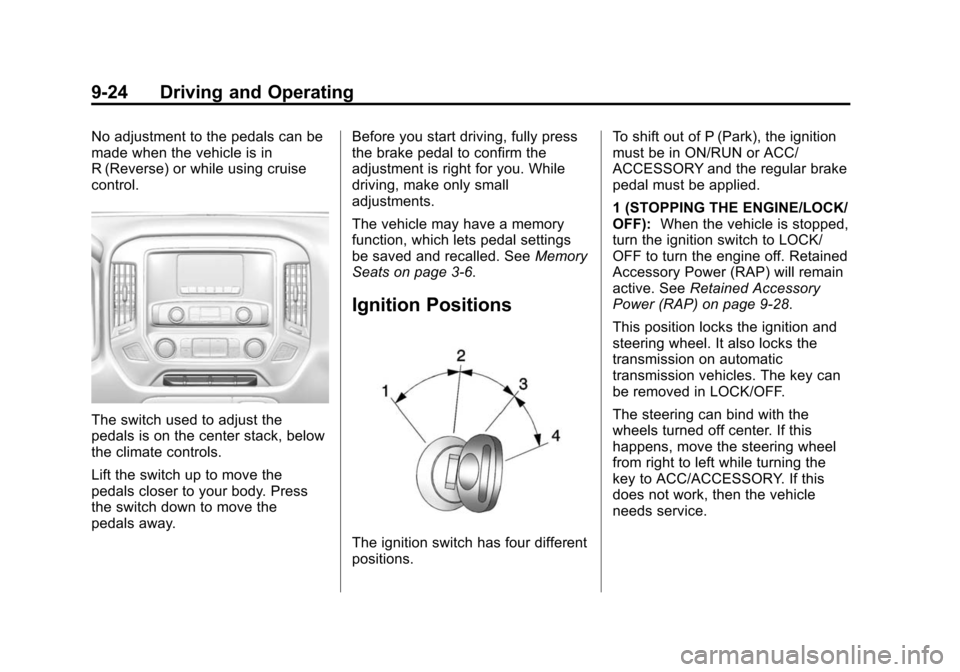
The switch used to adjust the
pedals is on the center stack, below
the climate controls.
Lift the switch up to move the
pedals closer to your body. Press
the switch down to move the
pedals away.Before you start driving, fully press
the brake pedal to confirm the
adjustment is right for you. While
driving, make only small
adjustments.
The vehicle may have a memory
function, which lets pedal settings
be saved and recalled. See
Memory
Seats on page 3-6.
Ignition Positions
The ignition switch has four different
positions. To shift out of P (Park), the ignition
must be in ON/RUN or ACC/
ACCESSORY and the regular brake
pedal must be applied.
1 (STOPPING THE ENGINE/LOCK/
OFF):
When the vehicle is stopped,
turn the ignition switch to LOCK/
OFF to turn the engine off. Retained
Accessory Power (RAP) will remain
active. See Retained Accessory
Power (RAP) on page 9-28.
This position locks the ignition and
steering wheel. It also locks the
transmission on automatic
transmission vehicles. The key can
be removed in LOCK/OFF.
The steering can bind with the
wheels turned off center. If this
happens, move the steering wheel
from right to left while turning the
key to ACC/ACCESSORY. If this
does not work, then the vehicle
needs service.