infotainment CHEVROLET SILVERADO 2016 3.G Repair Manual
[x] Cancel search | Manufacturer: CHEVROLET, Model Year: 2016, Model line: SILVERADO, Model: CHEVROLET SILVERADO 2016 3.GPages: 533, PDF Size: 8.17 MB
Page 236 of 533
Chevrolet Silverado Owner Manual (GMNA-Localizing-U.S./Canada/Mexico-
9159338) - 2016 - crc - 10/21/15
Infotainment System 235
4. The paired device will show.
Disconnecting a Bluetooth Device
1. Press
{.
2. Touch Settings.
3. Touch Bluetooth, then Device Management.
4. Touch the name of the device to be disconnected.
5. Touch Disconnect.
Deleting a Bluetooth Device
1. Press
{.
2. Touch Settings.
3. Touch Bluetooth, then Device Management.
4. Touch the device to delete.
5. Touch
Y.
6. Touch Delete.
Bluetooth Music
Before playing Bluetooth music,
read the following information. .
A cell phone or Bluetooth device
that supports Advanced Audio
Distribution Profile (A2DP)
versions over 1.2 must be
registered and connected to the
product.
. From the cell phone or Bluetooth
device, find the Bluetooth device
type to set/connect the item as a
stereo headset.
.
ewill appear on the screen if
the stereo headset is
successfully connected.
. The sound played by the
Bluetooth device is delivered
through the infotainment system.
. Bluetooth music can be played
only when a Bluetooth device
has been connected. To play
Bluetooth music, connect the
Bluetooth phone to the
infotainment system.
. If the Bluetooth device is
disconnected while playing
phone music, the music is
discontinued. The audio
streaming function may not be
supported in some Bluetooth phones. Only one function can
be used at a time between the
Bluetooth hands-free or Phone
music function. For example,
if you convert to Bluetooth
hands-free while playing Phone
music, the music is
discontinued. Playing music from
the car is not possible when
there are no music files stored in
the cell phone.
Playing Bluetooth Music
1. Press
{.
2. Touch AUDIO.
3. Touch Source.
4. Touch Bluetooth.
Pause
Touch
jto pause.
Touch
rto resume.
Playing the Next Song
Touch
l.
Page 237 of 533
Chevrolet Silverado Owner Manual (GMNA-Localizing-U.S./Canada/Mexico-
9159338) - 2016 - crc - 10/21/15
236 Infotainment System
Playing the Previous Song
Touch
gwithin two seconds of
playback time to play the
previous song.
Returning to the Beginning of the
Current Song
Touch
gafter two seconds of
playback time.
Search
Touch and hold
gorlto rewind
or fast forward.
Playing Music Randomly
Touch
Zduring playback. Touch
again to return to normal play.
This function may not be supported
depending on the bluetooth device.
Do not change the track too quickly
when playing Bluetooth music.
Conditions that may occur when
playing Bluetooth music:
. It takes time to transmit data
from the bluetooth device to the
infotainment system. .
If the cell phone or Bluetooth
device is not in the waiting
screen mode, it may not
automatically play.
. The infotainment system
transmits the order to play from
the bluetooth device in the
Bluetooth music play mode.
If this is done in a different
mode, then the device transmits
the order to stop. Depending on
the bluetooth device options, this
order to play/stop may take time
to activate.
. If the Bluetooth music playback
is not functioning, then check to
see if the bluetooth device is in
the waiting screen mode.
. Sounds may be cut off during
the Bluetooth music playback.
. The infotainment system outputs
the audio from the cell phone or
Bluetooth device as it is
transmitted.
Apple CarPlay and
Android Auto
If equipped, Android Auto™ and/or
Apple CarPlay™ capability may be
available through a compatible
smartphone. If available, a
PROJECTION icon will appear as
Android Auto or Car Play on the
Home Page of the infotainment
display.
To use Android Auto and/or Apple
CarPlay:
1. Download the Android Auto app to your phone from the
Google™ Play store. There is
no app required for Apple
CarPlay. Use the latest
available operation system.
2. Connect your Android phone or Apple iPhone by using the
compatible phone USB cable
and plugging into a USB data
port. For best performance, use
the device’ s factory-provided
USB cable. Aftermarket or
third-party cables may
not work.
Page 238 of 533
Chevrolet Silverado Owner Manual (GMNA-Localizing-U.S./Canada/Mexico-
9159338) - 2016 - crc - 10/21/15
Infotainment System 237
The PROJECTION icon on the
Home Page will change to Android
Auto or Apple CarPlay depending
on the phone. Android Auto and/or
Apple CarPlay may automatically
launch upon USB connection. If not,
press the ANDROID AUTO and/or
APPLE CARPLAY icon on the
Home Page to launch.
For further information on how to set
up Android Auto and Apple CarPlay
in the vehicle, see my.
chevrolet.com orCustomer
Assistance Offices 0485
or Customer Assistance
Offices 0485.
Android Auto is provided by Google
and is subject to Google’s terms
and privacy policy. CarPlay is
provided by Apple and is subject to
Apple’ s terms and privacy policy.
For Android Auto support see
https://support.google.com/
androidauto or Apple CarPlay
support at https://www.apple.com/
ios/carplay/. Apple or Google may
change or suspend availability at
any time. Android Auto is a
trademark of Google Inc.; Apple
CarPlay is a trademark of Apple Inc.Bluetooth Phone/
Devices
Pictures and Movies
(Audio System with
Touchscreen)
The infotainment system can play
the music files contained in the USB
storage device or iPod/iPhone
products.
Audio System Information
Using MP3/WMA/OGG/WAV Files
. Music files with .mp3, .wma,
.ogg, and .wav file name
extensions can be played.
. MP3 files that can be played are:
Bit rate: 8 kbps to 320 kbps -
Sampling frequency: 48 kHz,
44.1 kHz, 32 kHz, 24 kHz, 22.05
kHz, and 16 kHz.
. Files with a bit rate above
128 kbps will result in higher
quality sound.
. ID3 Tag information for MP3
files, such as the album name
and the artist, can be played. .
To display album title, track title,
and artist information, the file
should be compatible with the
ID3 Tag V1 and V2 formats.
Using USB Storage Devices and
iPod/iPhone
. Use a USB or flash memory type
storage device. Do not connect
using a USB adaptor.
. Do not connect and reconnect
the USB device repeatedly in a
short time, as this may cause
static electricity and problems
using the device.
. Use a USB device with a metal
connecting terminal.
. Connection with i-Stick Type
USB storage devices may be
faulty due to vehicle vibration.
. Do not touch the USB
connecting terminal.
. Only USB storage devices
formatted in FAT16/32 or exFAT
file system are recognized.
NTFS and other file systems are
not recognized.
Page 239 of 533
Chevrolet Silverado Owner Manual (GMNA-Localizing-U.S./Canada/Mexico-
9159338) - 2016 - crc - 10/21/15
238 Infotainment System
.The time it takes to process files
will depend on the USB storage
device type and capacity, and
the type of files stored.
. Some USB storage device files
may not be compatible.
. Up to two USB devices and one
iPod can be played through a
USB hub. All devices may not be
supported, depending on the
performance of the USB hub.
If there is not enough power
supply, it may not operate
normally.
. Do not disconnect the USB
storage device while it is playing.
This may cause damage to the
product or affect the
performance of the USB device.
. Disconnect the USB storage
device when the ignition is
turned off. If the ignition is turned
on while the USB device is
connected, the USB device may
be damaged or may not operate
normally. .
USB storage devices can only
be connected for playing music/
movies, viewing photo files,
or upgrading.
. Do not use the USB terminal to
charge USB accessory
equipment. The heat generated
may cause performance issues
or damage.
. Music files to which Digital Right
Management (DRM) is applied
cannot be played.
. USB storage device capacity
limit is 2,500 music files, 2,500
photo files, 250 movie files,
2,500 folders, and 10 stages of
folder structure. The iPod/iPhone
can play all music files
supported, but will only display
up to 2,500 files on the screen in
alphabetical order.
. Some iPod/iPhone product
models may not support the
connectivity or functionality of
this product. .
Only connect the iPod/iPhone
with connection cables
supported by iPod/iPhone
products. Other connection
cables cannot be used.
. The iPod/iPhone may be
damaged if it is connected to the
vehicle with the ignition on.
When not in use, disconnect the
iPod/iPhone.
. When the iPod/iPhone is
connected to the USB port by
using the iPod/iPhone cable, the
Bluetooth music is not
supported.
. The iPod/iPhone playback
functions and the information
displayed may be different when
played on the infotainment
system.
Page 240 of 533
Chevrolet Silverado Owner Manual (GMNA-Localizing-U.S./Canada/Mexico-
9159338) - 2016 - crc - 10/21/15
Infotainment System 239
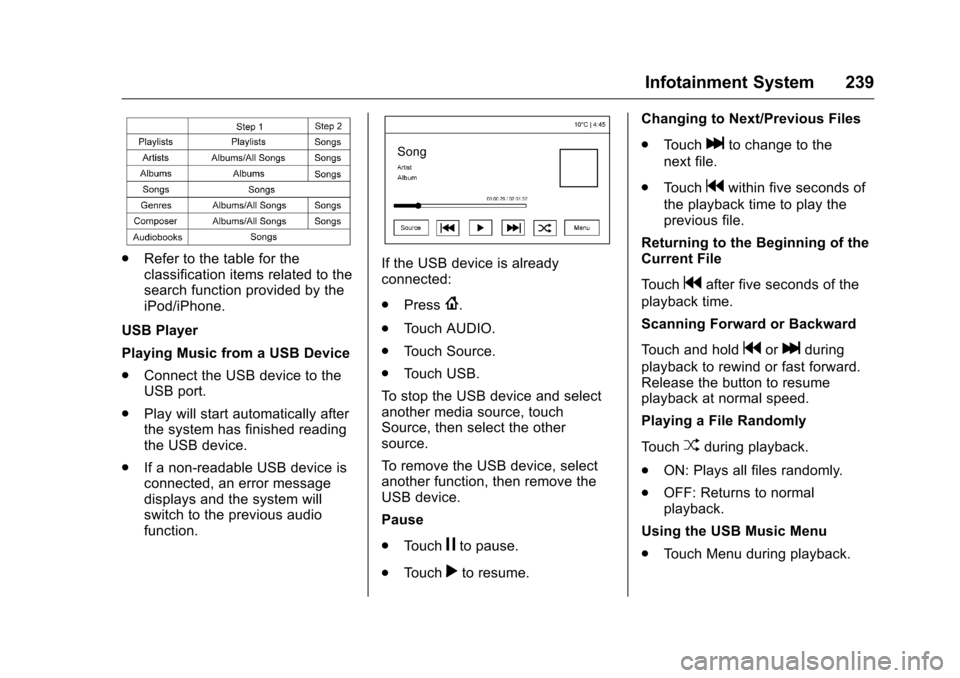
.Refer to the table for the
classification items related to the
search function provided by the
iPod/iPhone.
USB Player
Playing Music from a USB Device
. Connect the USB device to the
USB port.
. Play will start automatically after
the system has finished reading
the USB device.
. If a non-readable USB device is
connected, an error message
displays and the system will
switch to the previous audio
function.If the USB device is already
connected:
.Press
{.
. Touch AUDIO.
. Touch Source.
. Touch USB.
To stop the USB device and select
another media source, touch
Source, then select the other
source.
To remove the USB device, select
another function, then remove the
USB device.
Pause
. Touch
jto pause.
. Touch
rto resume. Changing to Next/Previous Files
.
Touch
lto change to the
next file.
. Touch
gwithin five seconds of
the playback time to play the
previous file.
Returning to the Beginning of the
Current File
Touch
gafter five seconds of the
playback time.
Scanning Forward or Backward
Touch and hold
gorlduring
playback to rewind or fast forward.
Release the button to resume
playback at normal speed.
Playing a File Randomly
Touch
Zduring playback.
. ON: Plays all files randomly.
. OFF: Returns to normal
playback.
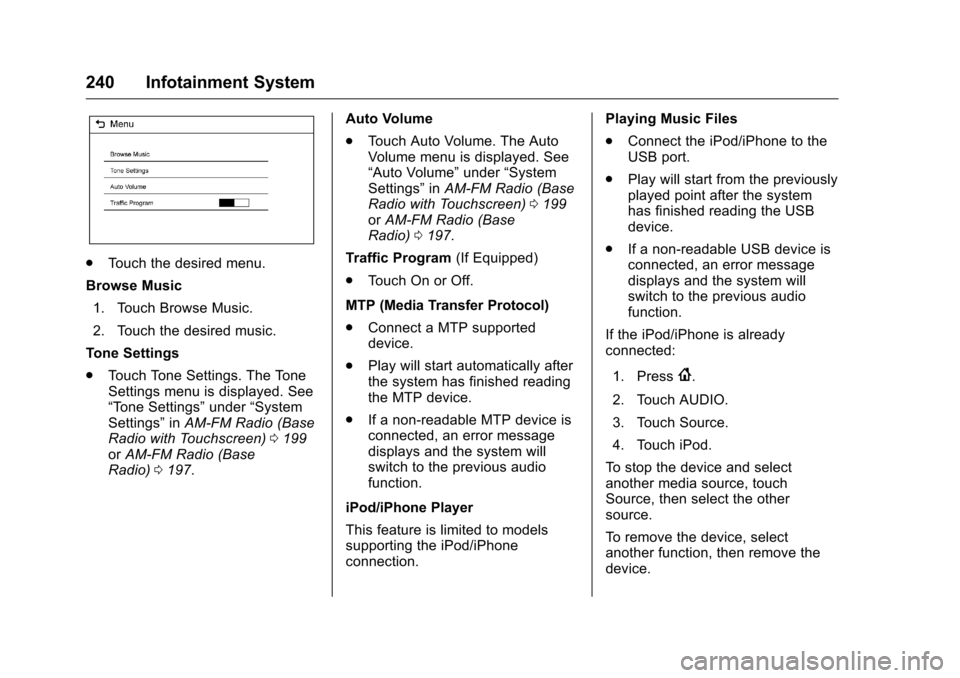
Using the USB Music Menu
. Touch Menu during playback.
Page 241 of 533
Chevrolet Silverado Owner Manual (GMNA-Localizing-U.S./Canada/Mexico-
9159338) - 2016 - crc - 10/21/15
240 Infotainment System
.Touch the desired menu.
Browse Music 1. Touch Browse Music.
2. Touch the desired music.
Tone Settings
. Touch Tone Settings. The Tone
Settings menu is displayed. See
“Tone Settings” under“System
Settings” inAM-FM Radio (Base
Radio with Touchscreen) 0199
or AM-FM Radio (Base
Radio) 0197. Auto Volume
.
Touch Auto Volume. The Auto
Volume menu is displayed. See
“Auto Volume” under“System
Settings” inAM-FM Radio (Base
Radio with Touchscreen) 0199
or AM-FM Radio (Base
Radio) 0197.
Traffic Program (If Equipped)
. Touch On or Off.
MTP (Media Transfer Protocol)
. Connect a MTP supported
device.
. Play will start automatically after
the system has finished reading
the MTP device.
. If a non-readable MTP device is
connected, an error message
displays and the system will
switch to the previous audio
function.
iPod/iPhone Player
This feature is limited to models
supporting the iPod/iPhone
connection. Playing Music Files
.
Connect the iPod/iPhone to the
USB port.
. Play will start from the previously
played point after the system
has finished reading the USB
device.
. If a non-readable USB device is
connected, an error message
displays and the system will
switch to the previous audio
function.
If the iPod/iPhone is already
connected:
1. Press
{.
2. Touch AUDIO.
3. Touch Source.
4. Touch iPod.
To stop the device and select
another media source, touch
Source, then select the other
source.
To remove the device, select
another function, then remove the
device.
Page 242 of 533
Chevrolet Silverado Owner Manual (GMNA-Localizing-U.S./Canada/Mexico-
9159338) - 2016 - crc - 10/21/15
Infotainment System 241
Pause
.Touch
jto pause.
. Touch
rto resume.
Changing to Next/Previous Song
. Touch
lto change to the
next song.
. Touch
gwithin three seconds
of the playback time to play the
previous file.
Returning to the Beginning of the
Current File
Touch
gafter three seconds of the
playback time.
Scanning Forward or Backward
Touch and hold
gorlduring
playback to rewind or fast forward.
Release the button to resume
playback at normal speed.
Playing a File Randomly
Touch
Zduring playback.
. ON: Plays all files randomly.
. OFF: Returns to normal
playback. Using the iPod Menu
.
Touch Menu during playback.
. Touch the appropriate
play mode.
Browse Music 1. Touch Browse Music.
2. Touch the desired music.
Tone Settings
. Touch Tone Settings. The Tone
Settings menu is displayed. See
“Tone Settings” under“System
Settings” inAM-FM Radio (Base
Radio with Touchscreen) 0199
or AM-FM Radio (Base
Radio) 0197.
Auto Volume
. Touch Auto Volume. The Auto
Volume menu is displayed. See
“Auto Volume” under“System
Settings” inAM-FM Radio (Base
Radio with Touchscreen) 0199
or AM-FM Radio (Base
Radio) 0197.
Pictures and Movies
(Picture System with
Touchscreen)
The infotainment system can view
picture files stored on a USB
storage device and devices that
support Media Transfer
Protocol (MTP).
Picture System Information
.
Supported file extensions: .jpg,
.bmp, .png, .gif.
. Animated GIF files are not
supported.
. Some files may not operate due
to a different recording format or
the condition of the file.
Viewing Pictures 1. Connect the USB device to the USB port.
2. Touch the screen to open to full screen. Touch the screen again
to return to the previous
screen.
Page 243 of 533
Chevrolet Silverado Owner Manual (GMNA-Localizing-U.S./Canada/Mexico-
9159338) - 2016 - crc - 10/21/15
242 Infotainment System
If the USB device is already
connected:1. Press
{.
2. Touch GALLERY.
Some features are disabled while
the vehicle is in motion.
Viewing a Slide Show
1. Touch
zfrom the picture
screen.
2. Touch the screen to cancel the slide show during the slide
show playback.
Viewing a Previous or Next
Picture
Touch
SorTfrom the picture
screen.
Rotating a Picture
Touch
wfrom the picture screen.
Enlarging a Picture
Touch
xfrom the picture screen. Using the USB Picture Menu
1. Touch MENU from the picture screen.
2. Touch the appropriate menu: .Slide Show Time: Allows
selection of the slide show
interval.
. Clock, Temp. Display:
Allows selection of On or
Off to show the clock and
temperature on the full
screen.
. Display Settings: Adjusts
for Brightness and Contrast.
3. Touch
0to exit.
Pictures and Movies
(Movie System with
Touchscreen)
The infotainment system can play
movie files stored on a USB storage
device and devices that support
Media Transfer Protocol (MTP). Movie System Information
.
Available resolution: Lower than
1280 x 720 (W x H) pixels.
. Frame rate: Less than 30 fps.
. Playable movie file: mp4. The
playable movie file may not be
played according to the codec
format.
. Playable codec format: H.264
codec.
. Playable Audio format: MP3,
AC3, AAC, WMA.
. Max video bitrate:
‐mpeg-1: 8 Mbps
‐ mpeg-4 (mpg4, mp42, mp43):
4 Mbps
. Max audio bitrate:
‐mp3: 320 Kbps
‐ wma: 320 Kbps
‐ ac-3: 640 Kbps
‐ aac: 449 Kbps
. Movie files to which Digital Right
Management (DRM) is applied
may not be played.
Page 244 of 533
Chevrolet Silverado Owner Manual (GMNA-Localizing-U.S./Canada/Mexico-
9159338) - 2016 - crc - 10/21/15
Infotainment System 243
Playing a Movie File1. Connect the USB device to the USB port.
2. Touch the screen to open to full screen. Touch the screen again
to return to the previous
screen.
If the USB device is already
connected:
1. Press
{.
2. Touch GALLERY.
3. Touch
z.
Movie is not available while driving.
Pause
. Touch
jto pause.
. Touch
rto resume.
Changing to Next/Previous Movie
. Touch
uto change to the
next file.
. Touch
twithin five seconds of
the playback time to play the
previous file. Returning to the Beginning of the
Current Movie
Touch
tafter five seconds of the
playback time.
Scanning Forward or Backward
Touch and hold
toruduring
playback to rewind or fast forward.
Release the button to resume
playback at normal speed.
Viewing Full Screen
Touch
tfrom the movie screen.
Touch
tagain to return to the
previous screen.
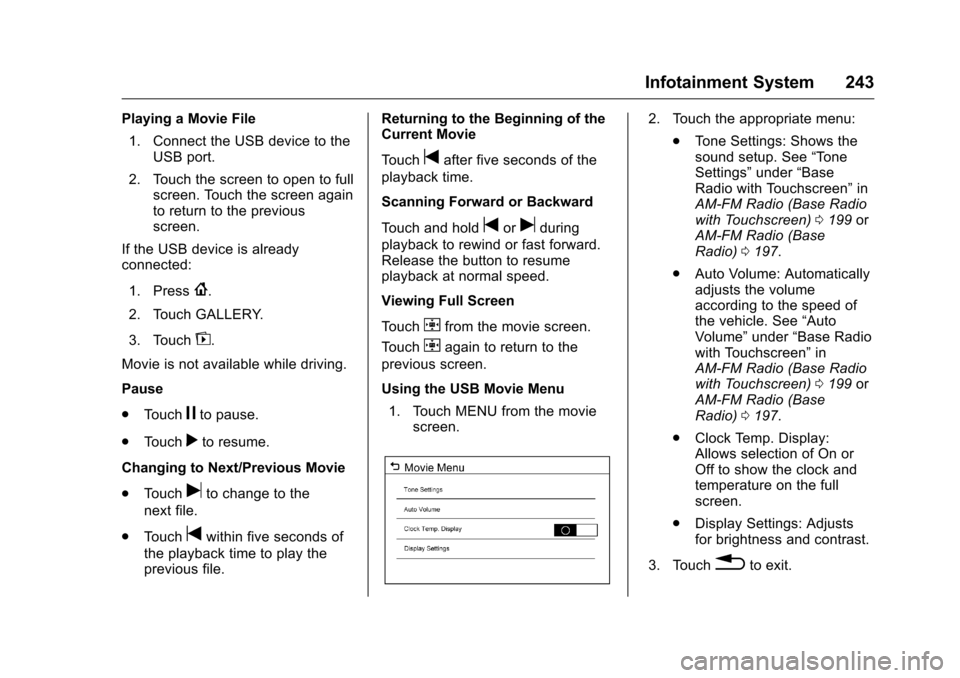
Using the USB Movie Menu
1. Touch MENU from the movie screen.
2. Touch the appropriate menu:
.Tone Settings: Shows the
sound setup. See “Tone
Settings” under“Base
Radio with Touchscreen” in
AM-FM Radio (Base Radio
with Touchscreen) 0199 or
AM-FM Radio (Base
Radio) 0197.
. Auto Volume: Automatically
adjusts the volume
according to the speed of
the vehicle. See “Auto
Volume” under“Base Radio
with Touchscreen” in
AM-FM Radio (Base Radio
with Touchscreen) 0199 or
AM-FM Radio (Base
Radio) 0197.
. Clock Temp. Display:
Allows selection of On or
Off to show the clock and
temperature on the full
screen.
. Display Settings: Adjusts
for brightness and contrast.
3. Touch
0to exit.
Page 245 of 533
Chevrolet Silverado Owner Manual (GMNA-Localizing-U.S./Canada/Mexico-
9159338) - 2016 - crc - 10/21/15
244 Infotainment System
Trademarks and
License Agreements
FCC Information
SeeRadio Frequency Statement
0 496 orRadio Frequency
Statement 0496.
"Made for iPod" and "Made for
iPhone" mean that an electronic
accessory has been designed to
connect specifically to iPod or
iPhone and has been certified by
the developer to meet Apple
performance standards. Apple is not
responsible for the operation of this
device or its compliance with safety
and regulatory standards. Please
note that the use of this accessory
with iPod or iPhone may affect
wireless performance. iPhone
®,
iPod®, iPod classic®, iPod nano®, iPod shuffle
®, and iPod touch®are
trademarks of Apple Inc., registered
in the U.S. and other countries.
Fees and Taxes: Subscription fee,
taxes, one time activation fee, and
other fees may apply. Subscription
fee is consumer only. All fees and
programming subject to change.
Subscriptions subject to Customer
Agreement available at
www.siriusxm.com. SiriusXM
®
service only available in the
48 contiguous United States and
Canada.
In Canada: Some deterioration of
service may occur in extreme
northern latitudes. This is beyond
the control of SiriusXM
®Satellite
Radio.
Explicit Language Notice: Channels
with frequent explicit language are
indicated with an “XL”preceding the channel name. Channel blocking is
available for SiriusXM Satellite
Radio receivers by notifying
SiriusXM:
.
USA Customers —See
www.siriusxm.com or call
1-866-635–2349.
. Canadian Customers —See
www.xmradio.ca or call
1-877-209-0079.
It is prohibited to copy, decompile,
disassemble, reverse engineer,
hack, manipulate, or otherwise
make available any technology or
software incorporated in receivers
compatible with the SiriusXM
®
Satellite Radio System or that
support the SiriusXM website, the
Online Service or any of its content.
Furthermore, the AMBER voice
compression software included in
this product is protected by
intellectual property rights including
patent rights, copyrights, and trade
secrets of Digital Voice
Systems, Inc.