USB port CHEVROLET SILVERADO 2016 3.G Owners Manual
[x] Cancel search | Manufacturer: CHEVROLET, Model Year: 2016, Model line: SILVERADO, Model: CHEVROLET SILVERADO 2016 3.GPages: 533, PDF Size: 8.17 MB
Page 26 of 533
Chevrolet Silverado Owner Manual (GMNA-Localizing-U.S./Canada/Mexico-
9159338) - 2016 - crc - 10/21/15
In Brief 25
MENU :Press to select a menu.
g:Press to seek the previous
station or track.
l: Press to seek the next station
or track.
See “Base Radio” inOverview
(Base Radio) 0189 orOverview
(Base Radio with
Touchscreen) 0193.
Base Radio with Touchscreen
O:Press to turn the system on.
Press and hold to turn it off. When
on, press to mute; press again to
unmute. Turn to increase or
decrease the volume.
{: Press to go to the Home Page.
7:Press to seek the previous
station or track.
6: Press to seek the next station
or track.
See “Base Radio with Touchscreen”
in Overview (Base Radio) 0189 or
Overview (Base Radio with
Touchscreen) 0193.
Setting the Clock
See Clock 0127.
Satellite Radio
Vehicles with a SiriusXM®satellite
radio tuner and a valid SiriusXM
satellite radio subscription can
receive SiriusXM programming.
SiriusXM Satellite Radio
Service
SiriusXM is a satellite radio service
based in the 48 contiguous United
States and 10 Canadian provinces.
SiriusXM satellite radio has a wide
variety of programming and
commercial-free music, coast to
coast, and in digital-quality sound.
A fee is required to receive the
SiriusXM service.
For more information refer to:
. www.siriusxm.com or call
1-866-635-2349 (U.S.).
. www.xmradio.ca or call
1-877-209-0079 (Canada). See
Satellite Radio (Base Radio)
0 201 orSatellite Radio (Base
Radio with Touchscreen) 0201.
Portable Audio Devices
This vehicle may have a 3.5 mm
(1/8 in) auxiliary input jack and USB
ports in the center console or
armrest. There may be a USB port
in the upper glove box. External
devices such as iPods
®, laptop
computers, MP3 players, and USB
storage devices may be connected,
depending on the audio system.
See USB Port (Base Radio) 0209
or USB Port (Base Radio with
Touchscreen) 0212 andAuxiliary
Jack 0213.
Bluetooth®
The Bluetooth®system allows users
with a Bluetooth-enabled cell phone
to make and receive hands-free
calls using the vehicle audio system
and controls.
Page 120 of 533
Chevrolet Silverado Owner Manual (GMNA-Localizing-U.S./Canada/Mexico-
9159338) - 2016 - crc - 10/21/15
Storage 119
Storage
Storage Compartments
Storage Compartments . . . . . . . 119
Instrument Panel Storage . . . . . 119
Glove Box . . . . . . . . . . . . . . . . . . . . 119
Cupholders . . . . . . . . . . . . . . . . . . . 120
Sunglasses Storage . . . . . . . . . . 120
Center Console Storage . . . . . . 120
Floor Console Storage . . . . . . . . 121
Additional Storage Features
Cargo Tie-Downs . . . . . . . . . . . . . 121
Storage
Compartments
{Warning
Do not store heavy or sharp
objects in storage compartments.
In a crash, these objects may
cause the cover to open and
could result in injury.
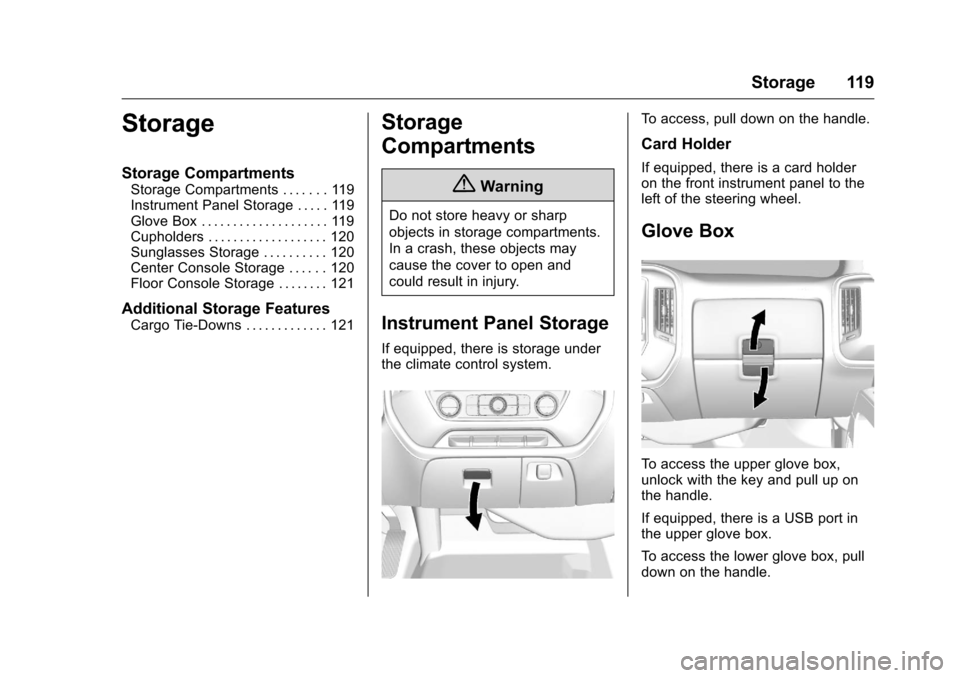
Instrument Panel Storage
If equipped, there is storage under
the climate control system.
To access, pull down on the handle.
Card Holder
If equipped, there is a card holder
on the front instrument panel to the
left of the steering wheel.
Glove Box
To access the upper glove box,
unlock with the key and pull up on
the handle.
If equipped, there is a USB port in
the upper glove box.
To access the lower glove box, pull
down on the handle.
Page 121 of 533
Chevrolet Silverado Owner Manual (GMNA-Localizing-U.S./Canada/Mexico-
9159338) - 2016 - crc - 10/21/15
120 Storage
Cupholders
Front
There may be cupholders on the
center front seat console armrest.
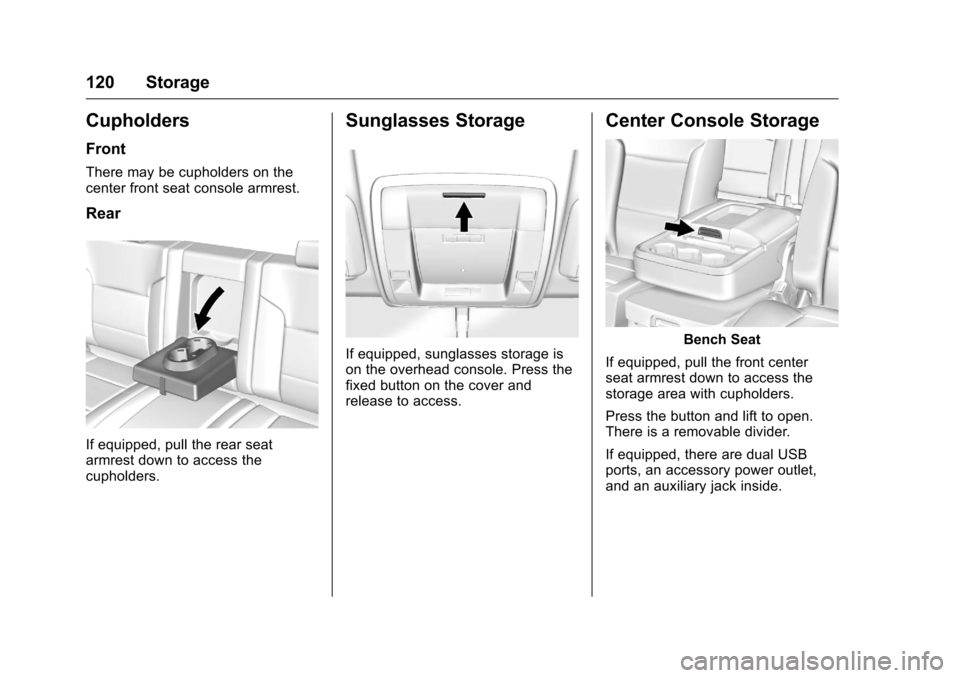
Rear
If equipped, pull the rear seat
armrest down to access the
cupholders.
Sunglasses Storage
If equipped, sunglasses storage is
on the overhead console. Press the
fixed button on the cover and
release to access.
Center Console Storage
Bench Seat
If equipped, pull the front center
seat armrest down to access the
storage area with cupholders.
Press the button and lift to open.
There is a removable divider.
If equipped, there are dual USB
ports, an accessory power outlet,
and an auxiliary jack inside.
Page 122 of 533
Chevrolet Silverado Owner Manual (GMNA-Localizing-U.S./Canada/Mexico-
9159338) - 2016 - crc - 10/21/15
Storage 121
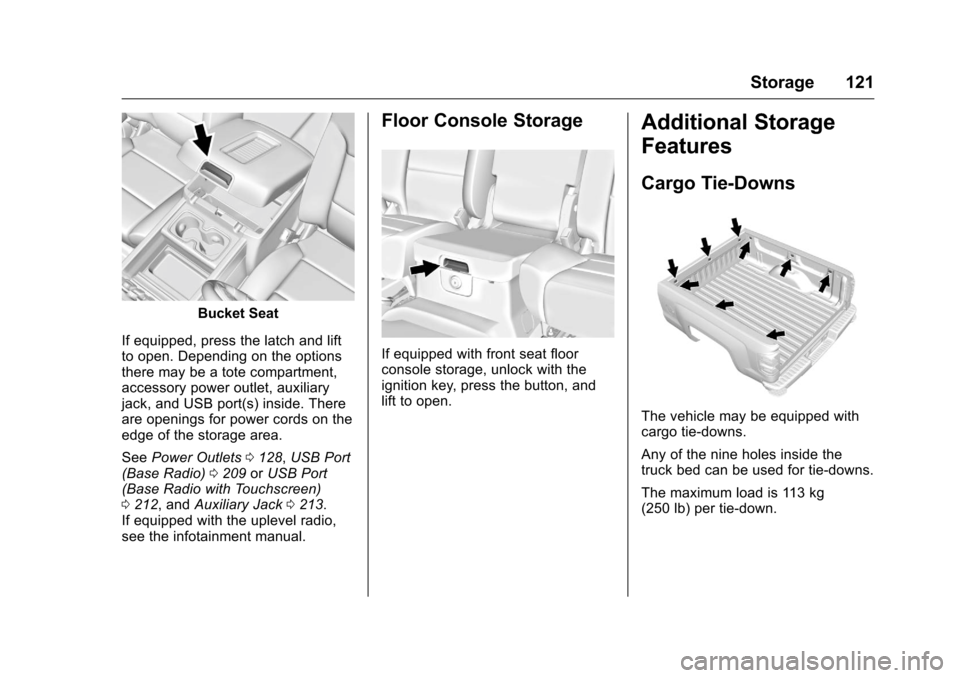
Bucket Seat
If equipped, press the latch and lift
to open. Depending on the options
there may be a tote compartment,
accessory power outlet, auxiliary
jack, and USB port(s) inside. There
are openings for power cords on the
edge of the storage area.
See Power Outlets 0128, USB Port
(Base Radio) 0209 orUSB Port
(Base Radio with Touchscreen)
0 212, and Auxiliary Jack 0213.
If equipped with the uplevel radio,
see the infotainment manual.
Floor Console Storage
If equipped with front seat floor
console storage, unlock with the
ignition key, press the button, and
lift to open.
Additional Storage
Features
Cargo Tie-Downs
The vehicle may be equipped with
cargo tie-downs.
Any of the nine holes inside the
truck bed can be used for tie-downs.
The maximum load is 113 kg
(250 lb) per tie-down.
Page 171 of 533
Chevrolet Silverado Owner Manual (GMNA-Localizing-U.S./Canada/Mexico-
9159338) - 2016 - crc - 10/21/15
170 Instruments and Controls
door to lock the vehicle. See
Remote Keyless Entry (RKE)
System Operation036.
Select Off, On with Horn
Chirp, or On.
Remote Left in Vehicle Alert
This feature sounds an alert when
the RKE transmitter is left in the
vehicle.
Select Off or On.
Bluetooth
Select and the following may
display:
. Pair New Device
. Discoverable
. Device Management
. Ringtones
. Voice Mail Numbers
. Text Message Alerts Pair New Device
Select to pair a new device. See
“Pairing”
in“Infotainment Controls”
under Bluetooth (Voice Recognition
- Base Radio) 0227 orBluetooth
(Infotainment Controls - Base
Radio) 0223 orBluetooth
(Overview) 0222 orBluetooth
(Infotainment Controls - Base Radio
with Touchscreen) 0232 or“Pairing”
in “Infotainment Controls” under
“Bluetooth” in the infotainment
manual.
Discoverable
This allows the system to find a
device.
Select Off or On.
Device Management
Select to connect to a different
phone source, disconnect a phone,
or delete a phone.
Ringtones
Select to change the ring tone for
the specific phone. The phone does
not need to be connected to change
the ring tones. Voice Mail Numbers
This feature displays the voice mail
number for all connected phones.
To change the voice mail number,
select EDIT. Type a new number,
then select SAVE.
Text Message Alerts
This allows the feature to be turned
on or off.
Select Off or On.
Apple CarPlay™
Select and the following may
display:
.
Apple CarPlay
. Manage Apple CarPlay Devices
Apple CarPlay
This feature allows Apple devices to
be connected to the infotainment
system through a USB port.
Select Off or On.
Manage Apple CarPlay Devices
Select to manage Apple devices.
Apple CarPlay must be on for this
feature to be accessed.
Page 172 of 533
Chevrolet Silverado Owner Manual (GMNA-Localizing-U.S./Canada/Mexico-
9159338) - 2016 - crc - 10/21/15
Instruments and Controls 171
Android Auto
Select and the following may
display:
.Android Auto
. Manage Android Auto Devices
Android Auto
This feature allows Android devices
to be connected to the infotainment
system through a USB port.
Select Off or On.
Manage Android Auto Devices
Select to manage Android devices.
Android Auto must be on for this
feature to be accessed.
USB Auto Launch
This allows Android and Apple
CarPlay devices to automatically
connect when plugged into the
USB port.
Select Off or On.
Voice
Select and the following may
display:
. Prompt Length .
Audio Feedback Speed
Prompt Length
This feature adjusts the voice
prompt length.
Select Short or Long.
Audio Feedback Speed
This feature adjusts the audio
feedback speed.
Select Slow, Medium, or Fast.
Voice
Select and the following may
display:
. Prompt Length
. Audio Feedback Speed
Prompt Length
This feature adjusts the voice
prompt length.
Select Short or Long.
Audio Feedback Speed
This feature adjusts the audio
feedback speed.
Select Slow, Medium, or Fast.
Display
Select and the following may
display:
. Calibrate Touchscreen
. Turn Display Off
Calibrate Touchscreen
Select to calibrate the touchscreen,
then follow the prompts.
Turn Display Off
Select to turn the display off. Press
anywhere on the display area or any
faceplate button to turn the
display on.
Rear Camera
Select and the following may
display:
. Guidance Lines
. Rear Park Assist Symbols
Guidance Lines
Select to turn Off or On. See
Assistance Systems for Parking or
Backing 0314.
Page 189 of 533
Chevrolet Silverado Owner Manual (GMNA-Localizing-U.S./Canada/Mexico-
9159338) - 2016 - crc - 10/21/15
188 Infotainment System
Infotainment
System
Introduction
Infotainment . . . . . . . . . . . . . . . . . . 189
Theft-Deterrent Feature . . . . . . 189
Overview (Base Radio) . . . . . . . 189
Overview (Base Radio withTouchscreen) . . . . . . . . . . . . . . . 193
Home Page (Base Radio) . . . . 194
Home Page (Base Radio with Touchscreen) . . . . . . . . . . . . . . . 196
Software Updates . . . . . . . . . . . . 197
Radio
AM-FM Radio (Base Radio) . . . . . . . . . . . . . . . . . . . . . . 197
AM-FM Radio (Base Radio with Touchscreen) . . . . . . . . . . . 199
Satellite Radio (Base Radio) . . . . . . . . . . . . . . . . . . . . . . 201
Satellite Radio (Base Radio with Touchscreen) . . . . . . . . . . . 201
Radio Reception . . . . . . . . . . . . . . 203
Fixed Mast Antenna . . . . . . . . . . 203
Multi-Band Antenna . . . . . . . . . . 203
Pandora Internet Radio . . . . . . . 204
Audio Players
CD Player . . . . . . . . . . . . . . . . . . . . 207
USB Port (Base Radio) . . . . . . . 209
USB Port (Base Radio with Touchscreen) . . . . . . . . . . . . . . . 212
Auxiliary Jack . . . . . . . . . . . . . . . . 213
Bluetooth Audio . . . . . . . . . . . . . . 215
Voice Recognition
Voice Recognition . . . . . . . . . . . . 216
Phone
Bluetooth (Overview) . . . . . . . . . 222
Bluetooth (Infotainment
Controls - Base Radio) . . . . . . 223
Bluetooth (Voice Recognition - Base Radio) . . . . . . . . . . . . . . . . 227
Bluetooth (Infotainment Controls - Base Radio with
Touchscreen) . . . . . . . . . . . . . . . 232
Apple CarPlay and Android Auto . . . . . . . . . . . . . . . . 236
Bluetooth Phone/Devices
Pictures and Movies (AudioSystem with
Touchscreen) . . . . . . . . . . . . . . . 237
Pictures and Movies (Picture System with
Touchscreen) . . . . . . . . . . . . . . . 241 Pictures and Movies (Movie
System with
Touchscreen) . . . . . . . . . . . . . . . 242
Trademarks and License
Agreements
Trademarks and LicenseAgreements . . . . . . . . . . . . . . . . . 244
Page 198 of 533
Chevrolet Silverado Owner Manual (GMNA-Localizing-U.S./Canada/Mexico-
9159338) - 2016 - crc - 10/21/15
Infotainment System 197
Projection :Touch to access
supported devices when connected.
See USB Port (Base Radio) 0209
or USB Port (Base Radio with
Touchscreen) 0212.
Settings : Touch to access the
Personalization menu. See Vehicle
Personalization 0165.
Climate : Touch to access the
Climate menu. See Climate Control
Systems (with Heater Only) 0250 or
Climate Control Systems (with Air
Conditioning) 0252 orDual
Automatic Climate Control
System 0253.
OnStar : If equipped, touch to
access the OnStar menu. See
OnStar Overview 0500 orOnStar
Overview 0501.Software Updates
See the website for more
information.
Website Information
In the U.S., see www.chevrolet.com
In Canada, see
www.chevrolet.gm.ca
In Mexico, see
www.chevrolet.com.mx
Radio
AM-FM Radio (Base
Radio)
Playing the Radio
While on the audio main page,
press the RADIO button repeatedly
to cycle through the available
sources AM, FM, and SiriusXM
®(if
equipped) or press the MEDIA
button repeatedly to cycle through
the available sources Bluetooth
®
Audio (if equipped), CD (if
equipped), USB, and AUX.
The steering wheel controls can
also be used to adjust the volume.
See Steering Wheel Controls 0125.
AM, FM, or SiriusXM (If Equipped)
To select AM, FM, or SiriusXM (if
equipped), press the RADIO button
to toggle to the desired broadcast
source.
Press the MENU knob and the
following radio settings may display:
Page 205 of 533
Chevrolet Silverado Owner Manual (GMNA-Localizing-U.S./Canada/Mexico-
9159338) - 2016 - crc - 10/21/15
204 Infotainment System
Pandora Internet Radio
If equipped, Pandora®is a free
Internet radio service that streams
personalized radio stations based
on artists, tracks, genres, and
comedians. Create stations using
the Pandora website or Smartphone
application, then use
-or,to
personalize stations. To set up an
account, or for more information, go
to www.pandora.com. Pandora may
not be available in Canada or
Mexico.
A phone or tablet with Internet
connection and the Pandora
application installed is required.
Personal cell phone data plans are
used. Make sure the latest version
is installed on the device.
Launching Pandora
Connect the iPhone to the USB
port, or connect Android®or
BlackBerry®through Bluetooth. See
Bluetooth (Voice Recognition - Base
Radio) 0227 orBluetooth
(Infotainment Controls - Base
Radio) 0223 orBluetooth
(Overview) 0222 orBluetooth
(Infotainment Controls - Base Radio
with Touchscreen) 0232. For first
time use, set up the stations before
connecting to the vehicle. The
Pandora icon will be available on
the Home Page.
When Pandora is chosen, the
Pandora logo will populate on the
screen and the system will display
“Acquiring Pandora Radio Station.”
Launch times can be significant.
Using the iPhone
1. Plug the device into the USB port. The phone screen must
be unlocked.
2. Launch Pandora from the Home Page by selecting the
Pandora icon. If nothing happens when the
available Pandora screen button is
pressed, download the latest
Pandora application and retry.
The login screen may display on the
device.
Using an Android or BlackBerry
Phone
The BlackBerry phone must be
unlocked to launch Pandora service.
1. Pair the phone using Bluetooth.
2. Launch Pandora by selecting Pandora on the Home Page.
If nothing happens when the
available Pandora screen button is
selected, download the latest
Pandora application and retry.
The login screen may display on the
device.
Page 207 of 533
Chevrolet Silverado Owner Manual (GMNA-Localizing-U.S./Canada/Mexico-
9159338) - 2016 - crc - 10/21/15
206 Infotainment System
Unable to Start Pandora
If the device is unable to launch
Pandora:
.Check that the latest version of
Pandora is installed.
. Check that there is an active
account logged into Pandora.
. Have at least one station
created.
. For Android and BlackBerry
devices, check that the device is
paired with the vehicle, and
whether the device displays in
the Connected phone sources
list under the Phone icon from
the Home Page.
. For an iPhone, check that the
USB cable is connected to the
USB port and the screen is
unlocked.
. Close Pandora on the device
and launch again. Devices that
allow multitasking may require
an extra step to quit the Pandora
application. See the cell phone
manufacturer's user guide. Thumbs Up or Thumbs Down
Error
If there is an error trying to rate a
track with the
,or-, the message
“Thumbs Down Error” or“Thumbs
Up Error” will display. Press OK to
dismiss.
Loss of Audio
Loss of Pandora audio can happen
in different ways:
. Weak or lost data connection.
. Device needs to be charged.
. Application needs to be
relaunched.
. Connection between phone and
radio lost.
. An iPhone is connected to both
Bluetooth and the USB port.
Playback can be resumed from
a loss of audio by double
tapping on the iPhone home
button then scrolling through the
icons to find an icon that allows
a change of flow between
Bluetooth and USB cable. Volume and song selection may
be controlled using the
Infotainment controls or on the
phone/device. If Pandora is
selected and nothing is heard,
check the volume setting on
both phone/device and the
Infotainment system.
Common Pandora Messages
Pandora Error/Please Check
Device : Not signed in or Pandora
is down for maintenance.
No Stations Available : No stations
are available on the Pandora server
through the connected device.
Action Unavailable. Please Check
Device Connection : A few
conditions for loss of Internet
connection are:
. The connected device loses its
cellular connection.
. The device does not support
Internet connectivity.
. The device is not in the vehicle.
. The Bluetooth signal is lost.