manual radio set CHEVROLET SILVERADO 2017 3.G User Guide
[x] Cancel search | Manufacturer: CHEVROLET, Model Year: 2017, Model line: SILVERADO, Model: CHEVROLET SILVERADO 2017 3.GPages: 509, PDF Size: 8.87 MB
Page 189 of 509
Chevrolet Silverado Owner Manual (GMNA-Localizing-U.S./Canada/Mexico-9956065) - 2017 - CRC - 4/29/16
188 Infotainment System
Audible Touch Feedback (IfEquipped) :Select Audible TouchFeedback to turn feedback off or on.
Auto Volume (If Equipped) :Thisfeature adjusts the volume based onvehicle speed. The options are Off,Low, Medium-Low, Medium,Medium-High, or High. Select thedesired volume.
Maximum Startup Volume :Thisfeature sets the maximum startupvolume. If the vehicle is started andthe volume is greater than this level,the volume is adjusted to this level.To s e t t h e m a x i m u m s t a r t u p v o l u m e ,Turn the MENU knob to increase ordecrease startup volume.
Rear Camera (If Equipped)
From the Rear Camera screenbutton, the following may display:
Return to Factory Settings
Select Return to Factory Settingsand the following may display:
Restore Vehicle Settings :Thisoption will restore factory vehiclepersonalization settings. SelectRestore Vehicle Settings. A screen
displays stating all vehiclecustomization settings will berestored to the factory settings.Select Cancel or Confirm.
Clear All Private Data (IfEquipped) :This option clears allprivate information from the vehicle.Select Clear All Private Data. SelectCancel or Confirm.
Restore Radio Settings :Thisoption will restore factory radiosettings. Select Restore RadioSettings. A screen displays statingall personalized radio settings willbe restored back to the factorysettings. Select Cancel or Confirm.
English and Metric Unit
Conversion
To c h a n g e t h e d i s p l a y u n i t s b e t w e e nEnglish and metric units, seeDriverInformation Center (DIC) (BaseLevel)0145orDriver InformationCenter (DIC) (Uplevel)0147orInstrument Cluster0128.
Home Page (Base Radio
with Touchscreen)
Touchscreen Buttons
To u c h s c r e e n b u t t o n s s h o w o n t h escreen when available. When afunction is unavailable, the buttonmay gray out. When a function isselected, the button may highlight.
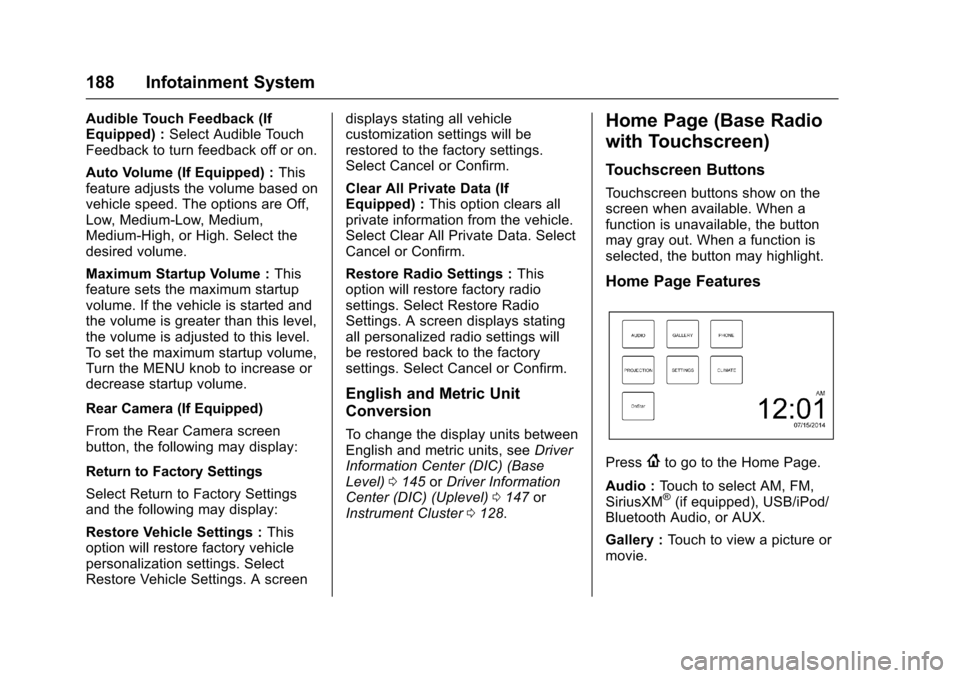
Home Page Features
Press{to go to the Home Page.
Audio :To u c h t o s e l e c t A M , F M ,SiriusXM®(if equipped), USB/iPod/Bluetooth Audio, or AUX.
Gallery :To u c h t o v i e w a p i c t u r e o rmovie.
Page 190 of 509
Chevrolet Silverado Owner Manual (GMNA-Localizing-U.S./Canada/Mexico-9956065) - 2017 - CRC - 4/29/16
Infotainment System 189
Phone :To u c h t o a c t i v a t e t h ephone features (if equipped). SeeBluetooth (Voice Recognition - BaseRadio)0221orBluetooth(Infotainment Controls - BaseRadio)0217orBluetooth(Overview)0216orBluetooth(Infotainment Controls - Base Radiowith Touchscreen)0226.
Projection :To u c h t o a c c e s ssupported devices when connected.SeeUSB Port (Base Radio)0199orUSB Port (Base Radio withTo u c h s c r e e n )0201.
Settings :To u c h t o a c c e s s t h ePersonalization menu. SeeVehiclePersonalization0160.
Climate :To u c h t o a c c e s s t h eClimate menu. SeeDual AutomaticClimate Control System0240.
OnStar :If equipped, touch toaccess the OnStar menu. SeeOnStar Overview0486.
Software Updates
See the website for moreinformation.
Website Information
In the U.S., see www.chevrolet.com
In Canada, seewww.chevrolet.gm.ca
In Mexico, seewww.chevrolet.com.mx
Radio
AM-FM Radio (Base
Radio)
Playing the Radio
While on the audio main page,press the RADIO button repeatedlyto cycle through the availablesources AM, FM, and SiriusXM®(ifequipped) or press the MEDIAbutton repeatedly to cycle throughthe available sources Bluetooth®
Audio (if equipped), USB, and AUX.
The steering wheel controls canalso be used to adjust the volume.SeeSteering Wheel Controls0121.
AM, FM, or SiriusXM (If Equipped)
To s e l e c t A M , F M , o r S i r i u s X M ( i fequipped), press the RADIO buttonto toggle to the desired broadcastsource.
Page 191 of 509
Chevrolet Silverado Owner Manual (GMNA-Localizing-U.S./Canada/Mexico-9956065) - 2017 - CRC - 4/29/16
190 Infotainment System
Press the MENU knob and thefollowing radio settings may display:
To n e S e t t i n g s :
.Bass, Midrange, and Treble:Turn the MENU knob andhighlight. Press the MENU knobto select. Turn the MENU knobto adjust.
.Balance:Turn the MENU knobto highlight. Press the MENUknob to select. Turn the MENUknob left for more sound fromthe left speakers or right formore sound from the rightspeakers. The middle positionbalances the sound between theleft and right speakers.
.Fade:Turn the MENU knob tohighlight. Press the MENU knobto select. Turn the MENU knobto the left for more sound fromthe front speakers and to theright for more sound from therear speakers. The middleposition balances the soundbetween the front and rearspeakers.
.DSP:IfequippedwithaBose Surround®sound system,it will have three DSP modesincluding:
⇣Normal: Adjusts the audio toprovide the best sound for allseating positions.
⇣Driver: Adjusts the audio toprovide the best sound for thedriver.
⇣Centerpoint: Creates asurround sound from nearlyany audio source.
.EQ (Equalizer):Ifequippedwith a Bose sound system, turnthe MENU knob to highlight.Turn the MENU knob to scrollthrough the options. Press theMENU knob to select. Press
theoBACK button to go to the
previous menu.
Station List :Select to displayalistofAMorFMstations.
PressoBACK to go to the
previous menu.
Auto Volume :If equipped, thisfeature adjusts the volume based onthe vehicle speed. Select the levelbetween Off, Low, Medium-Low,Medium, Medium-High, and High.
PressoBACK to go to the
previous menu.
EQ (Equalizer) Settings :In certainconfigurations, the available choicesare Manual and Talk.
Options for SiriusXM Only (IfEquipped)
SXM View :SXM view allows thechannel list to be viewed by channelname, artist playing on channel,or song playing on channel. Turnthe MENU knob to highlight andpress the MENU knob to select.
PressoBACK to go to the
previous menu.
Channel List :Select to display alist of SiriusXM channels. Turn theMENU knob to highlight and pressthe MENU knob to select.
PressoBACK to go to the
previous menu.
Page 192 of 509
Chevrolet Silverado Owner Manual (GMNA-Localizing-U.S./Canada/Mexico-9956065) - 2017 - CRC - 4/29/16
Infotainment System 191
Also see the radio settings commonfor all sources earlier in this section.
Finding a Station
Seeking a Station
Pressgorlto search for the
previous or next strongest station.
Tuning a Station
Turn the MENU knob to manuallyfind a station.
Storing Radio Station Presets
Up to 25 preset stations from allbands can be stored in the favoritelists in any order. Up to five stationscan be stored in each favorite pageand the number of favorites canbe set.
AM, FM, or SiriusXM (IfEquipped) :While on the activesource main page, such as AM, FM,or SiriusXM (if equipped), press andhold a favorites/soft key button onthe faceplate.
Mixed-Audio Favorites
Media (if equipped) and Broadcastfavorites can be stored.
To d i s p l a y t h e f a v o r i t e s p a g e ,
pressqorron the radio faceplate.
To m a n a g e f a v o r i t e s , s e e“ManageFavorites”underHome Page (BaseRadio)0186orHome Page (BaseRadio with Touchscreen)0188.
AM-FM Radio (Base
Radio with Touchscreen)
Playing the Radio
Audio Source Menu
{:Press to go to the Home Page.
O:Press to turn on, mute,or unmute the system. Press andhold to turn off the system.
Selecting a Band
Press{,thentouchAUDIO,
Source, then select AM, FM,or SXM, if equipped. The last stationthat was playing starts playingagain.
System Settings
Auto Volume
This feature automatically adjuststhe radio volume to compensate forroad and wind noise.
The level of volume compensationcan be selected, or the feature canbe turned off.
1. Touch MENU from a sourcescreen.
2. Select Auto Volume.
3. Select the desired setting.
4. Touch3to go back to the
source screen.
Tone Settings
The tone settings can be set foreach radio band and each audioplayer source.
Preset Tone Settings
.To u c h M E N U .
.To u c h To n e S e t t i n g s .
.Select a preset tone setting.
.Bass, Midrange, or Treble:To u c h✓or +.
Page 193 of 509
Chevrolet Silverado Owner Manual (GMNA-Localizing-U.S./Canada/Mexico-9956065) - 2017 - CRC - 4/29/16
192 Infotainment System
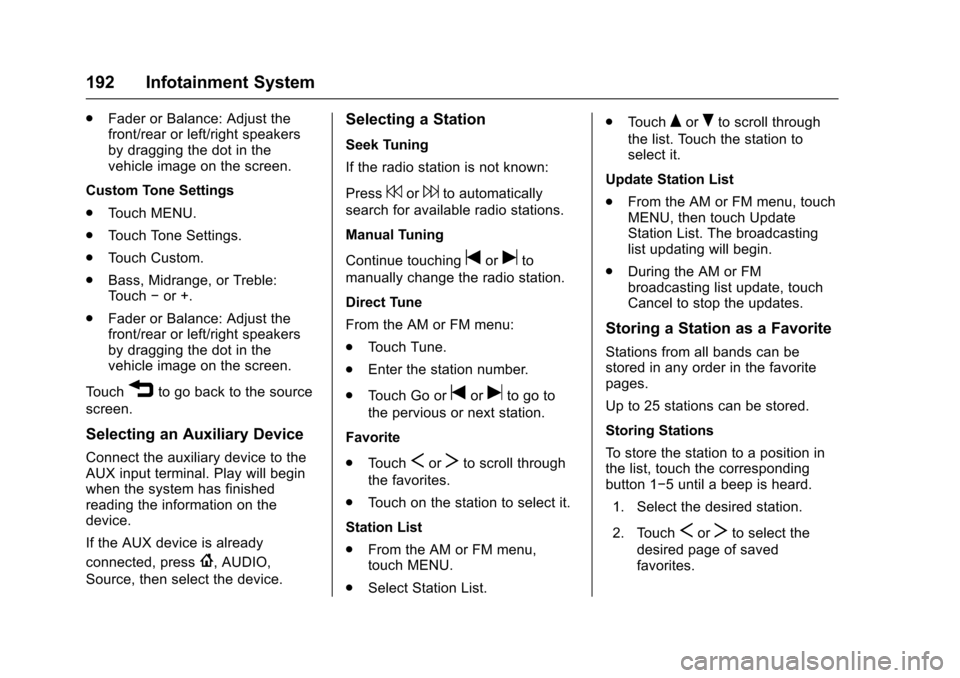
.Fader or Balance: Adjust thefront/rear or left/right speakersby dragging the dot in thevehicle image on the screen.
Custom Tone Settings
.To u c h M E N U .
.To u c h To n e S e t t i n g s .
.To u c h C u s t o m .
.Bass, Midrange, or Treble:To u c h✓or +.
.Fader or Balance: Adjust thefront/rear or left/right speakersby dragging the dot in thevehicle image on the screen.
To u c h3to go back to the source
screen.
Selecting an Auxiliary Device
Connect the auxiliary device to theAUX input terminal. Play will beginwhen the system has finishedreading the information on thedevice.
If the AUX device is already
connected, press{,AUDIO,
Source, then select the device.
Selecting a Station
Seek Tuning
If the radio station is not known:
Press7or6to automatically
search for available radio stations.
Manual Tuning
Continue touchingtoruto
manually change the radio station.
Direct Tune
From the AM or FM menu:
.To u c h T u n e .
.Enter the station number.
.To u c h G o o rtoruto go to
the pervious or next station.
Favorite
.To u c hSorTto scroll through
the favorites.
.To u c h o n t h e s t a t i o n t o s e l e c t i t .
Station List
.From the AM or FM menu,touch MENU.
.Select Station List.
.To u c hQorRto scroll through
the list. Touch the station toselect it.
Update Station List
.From the AM or FM menu, touchMENU, then touch UpdateStation List. The broadcastinglist updating will begin.
.During the AM or FMbroadcasting list update, touchCancel to stop the updates.
Storing a Station as a Favorite
Stations from all bands can bestored in any order in the favoritepages.
Up to 25 stations can be stored.
Storing Stations
To s t o r e t h e s t a t i o n t o a p o s i t i o n i nthe list, touch the correspondingbutton 1✓5untilabeepisheard.
1. Select the desired station.
2. TouchSorTto select the
desired page of savedfavorites.
Page 194 of 509
Chevrolet Silverado Owner Manual (GMNA-Localizing-U.S./Canada/Mexico-9956065) - 2017 - CRC - 4/29/16
Infotainment System 193
3. Touch and hold down any ofthe preset buttons to save thecurrent radio station to thatbutton of the selectedfavorites page.
To c h a n g e a p r e s e t b u t t o n , t u n e t othe new desired radio station andtouch and hold the preset button.
Satellite Radio (Base
Radio)
SiriusXM®Satellite Radio
Service (If Equipped)
Vehicles with a SiriusXM satelliteradio tuner and a valid SiriusXMsatellite radio subscription canreceive SiriusXM programming.
SiriusXM is a satellite radio servicebased in the 48 contiguous UnitedStates and 10 Canadian provinces.SiriusXM satellite radio has a widevariety of programming andcommercial-free music, coast tocoast, and in digital-quality sound.Aservicefeeisrequiredtoreceivethe SiriusXM service. Seewww.siriusxm.com or call
1-888-601-6296 (U.S.); or seewww.siriusxm.ca or call1-877-438-9677 (Canada).
When SiriusXM is active, thechannel name and number,category name, song title, and artistdisplay on the screen.
Browsing SiriusXM Channels
(If Equipped)
To b r o w s e t h e S i r i u s X M c h a n n e l s :
1. Press the MENU knob.
2. Turn the MENU knob tohighlight SXM Channel List.
3. Turn the MENU knob tohighlight the desired SXMChannels.
Satellite Radio (Base
Radio with Touchscreen)
Vehicles with an SXM SatelliteRadio tuner and a valid SiriusXM®
Satellite Radio subscription canreceive SiriusXM programming.
SiriusXM Satellite Radio
Service (If Equipped)
SiriusXM is a satellite radio servicebased in the 48 contiguous UnitedStates and 10 Canadian provinces.SiriusXM Satellite Radio has a widevariety of programming andcommercial-free music, coast tocoast, and in digital-quality sound.Aservicefeeisrequiredtoreceivethe SiriusXM service. For moreinformation, contact SiriusXM atwww.siriusxm.com or1-866-635-2349 (U.S.), andwww.xmradio.ca or 1-877-209-0079(Canada).
Listening to SiriusXM Radio (If
Equipped)
1. Press{.
2. Touch AUDIO.
3. Touch Source.
4. Touch SXM and the mostrecent listened to SiriusXMchannel will display.
To u c h0to return to the
HOME menu.
Page 195 of 509
Chevrolet Silverado Owner Manual (GMNA-Localizing-U.S./Canada/Mexico-9956065) - 2017 - CRC - 4/29/16
194 Infotainment System
Selecting a Category
From Menu, touch Categories, thentouch the desired category or from
Categories, touchQorRto find the
desired channel. Touch the channelto select it.
Selecting a Channel
To u c huortand the previous or
next channel will be selected.
To u c h a n d h o l duortto jump
four channels backward or forward,then release the button at thedesired channel.
Using the Preset Buttons
Up to seven favorites pages can besaved, and each page can store upto five channels.
To c h a n g e a p r e s e t b u t t o n , t u n e t othe new desired channel and holdthe button.
Listening to Preset Channels
1. Continue touchingSorTto
select the desiredfavorites page.
2. Touch the preset button tolisten to the channel saved tothat button.
Using the SiriusXM Menu
Operation
1. Touch MENU on the SXM radioscreen.
2. Touch the menu to select thedesired item or to display thedetail menu item.
3. Touch0to return to the
previous menu.
Channel List
1. Touch Channel List from theSXM menu. The channel list isdisplayed.
2. TouchQorRto find the
desired channel. Tune to thechannel by selecting it.
Tone Settings
From the tone settings menu, thesound features can be set up forSiriusXM audio and each audioplayer’sfunctions.
1. Touch Tone Settings. The tonesettings screen is displayed.See“To n e S e t t i n g s”under“Base Radio with Touchscreen”inAM-FM Radio (Base Radiowith Touchscreen)0191orAM-FM Radio (BaseRadio)0189.
2. Touch OK.
Auto Volume
1. Touch Auto Volume. See“AutoVolume”under“Base Radiowith Touchscreen”inAM-FMRadio (Base Radio withTo u c h s c r e e n )0191orAM-FMRadio (Base Radio)0189.
2. Touch OK.
Categories
1. Touch Categories.
2. TouchQorRto find the
desired category. Touch thecategory to select it.
Page 198 of 509
Chevrolet Silverado Owner Manual (GMNA-Localizing-U.S./Canada/Mexico-9956065) - 2017 - CRC - 4/29/16
Infotainment System 197
.Use a marking pen to label thetop of the disc.
Loading and Ejecting Discs
To l o a d a d i s c :
1. Turn the vehicle on.
2. Insert a disc into the slot, labelside up. The player pulls it inthe rest of the way. If the discis damaged or improperlyloaded, there is an error andthe disc ejects.
Playing an Audio CD
Press the MEDIA button on thefaceplate until CD is selected.
On the CD main page, either a tracknumber displays at the beginning ofeach track, or Song, Artist, andAlbum information displays whenavailable.
Use the following screen controls toplay the disc:
t:While on the CD main page:
.Press to seek to the beginning ofthe current or previous track.If the track has been playing forless than five seconds, it seeks
to the previous track. If longerthan five seconds, the currenttrack starts from the beginning.
.Press and hold to fast reversethrough a track. Release thebutton to return to playingspeed. Elapsed time displays.
u:While on the CD main page:
.Press to seek to the next track.
.Press and hold to fast forwardthrough a track. Release thebutton to return to playingspeed. Elapsed time displays.
j/r:While on the CD main page,press to pause. Press again toresume.
Z:PressZto play the songs inrandom order. Press again toturn off.
If a Blu-ray Disc®or DVD disc isloaded into the disc player and theCD screen button is selected, amessage comes on the screen touse the Video application. TheVideo application is only availableon vehicles with Rear SeatEntertainment (RSE).
CD Menu
While on the CD main page, pressthe MENU knob to display the CDmenu and the following may display:
Browse :Select to display the filesor songs on the CD.
To n e S e t t i n g s :Select to adjustBass, Midrange, Treble, Balance,Fade, and EQ (Equalizer). See“To n e S e t t i n g s”underAM-FM Radio(Base Radio with Touchscreen)0191orAM-FM Radio (BaseRadio)0189.
Auto Volume :If equipped, thisfeature adjusts the volume based onthe vehicle speed. Select the levelbetween Off, Low, Medium-Low,Medium, Medium-High, and High.Press BACK to go to theprevious menu.
DSP :If equipped, this featureadjusts the pre-defined settings.See“DSP”inAM-FM Radio (BaseRadio with Touchscreen)0191orAM-FM Radio (Base Radio)0189.
Page 199 of 509
Chevrolet Silverado Owner Manual (GMNA-Localizing-U.S./Canada/Mexico-9956065) - 2017 - CRC - 4/29/16
198 Infotainment System
EQ (Equalizer) :If equipped, thisfeature adjusts the equalizersettings. See“EQ (Equalizer)”inAM-FM Radio (Base Radio withTo u c h s c r e e n )0191orAM-FMRadio (Base Radio)0189.
Error Messages
If Disc Error displays and/or the disccomes out, it could be for one of thefollowing reasons:
.The disc has an invalid orunknown format.
.The disc is very hot. Try the discagain when the temperaturereturns to normal.
.The road is very rough. Try thedisc again when the road issmoother.
.The disc is dirty, scratched, wet,or upside down.
.The air is very humid. Try thedisc again later.
.There was a problem whileburning the disc.
.The label is caught in the CDplayer.
If Disc Player Error displays, it couldbe for one of the following reasons:
.The player temperature istoo high.
.There are load or eject errors.
If the CD is not playing correctly forany other reason, try a knowngood CD.
If any error continues, contact yourdealer.
Playing an MP3 CD
To p l a y a n M P 3 C D , f o l l o w t h e s a m einstructions as“Playing anAudio CD.”
The following guidelines must bemet when creating an MP3 disc,otherwise the CD might not play:
.Sampling rate: 16 kHz,22.05 kHz, 24 kHz, 32 kHz,44.1 kHz, and 48 kHz.
.Bit rates supported: 8, 16, 24,32, 40, 48, 56, 64, 80, 96, 112,128, 144, 160, 192, 224, 256,and 320 kbps.
.Maximum number of folders:eight folders with 255 files perfolder.
.Maximum of 1,000 files onadisc.
.Recorded on a CD-R or CD-RW.
Root Directory
The root directory is treated as afolder. All files contained directlyunder the root directory areaccessed prior to any root directoryfolders.
Empty Folders
If a root directory or folder is emptyor contains only folders, the playeradvances to the next folder in thefile structure that contains acompressed audio file. The emptyfolder(s) are not displayed ornumbered.
No Folder
When the CD only containscompressed audio files without anyfolders, all files are under the rootfolder.
Page 200 of 509
Chevrolet Silverado Owner Manual (GMNA-Localizing-U.S./Canada/Mexico-9956065) - 2017 - CRC - 4/29/16
Infotainment System 199
USB Port (Base Radio)
Playing from a USB
AUSBmassstoragedeviceorMedia Transfer Protocol (MTP)device can be connected to theUSB port.
The vehicle may have USB ports inthe front of the center console,armrest, or one in the upper glovebox. SeeCenter Console Storage011 6andGlove Box011 5.
USB MP3 Player and USB Drives
.The USB MP3 players and USBdrives connected must complywith the USB Mass StorageClass specification (USB MSC).
.Hard disk drives are notsupported.
.Supported file system is FAT32.
To p l a y a U S B d e v i c e :
.Connect the USB.
.Press MEDIA on the faceplateuntil the connected device isshown.
While the USB source is active,press the corresponding faceplatebutton for the icons on the screen tooperate USB function:
.t
.u
.j/r
.Z
For information on how to use thescreen icons, see“Playing anAudio CD.”
USB Menu
Press MENU to display the USBmenu and the following may display:
Browse :Select to display the filesand folders on the USB device.
To n e S e t t i n g s :Select to adjustBass, Midrange, Treble, Balance,Fade, and EQ (Equalizer). See“To n e S e t t i n g s”inAM-FM Radio(Base Radio with Touchscreen)0191orAM-FM Radio (BaseRadio)0189.
Auto Volume :If equipped, see“Auto Volume”inAM-FM Radio(Base Radio with Touchscreen)0191orAM-FM Radio (BaseRadio)0189.
EQ (Equalizer) :If equipped, thisfeature adjusts the equalizersettings. See“EQ (Equalizer)Settings”inAM-FM Radio (BaseRadio with Touchscreen)0191orAM-FM Radio (Base Radio)0189.
Playing from an iPod®/iPad®/
iPhone®
This feature supports the followingdevices:
.iPod nano®(1st, 2nd, 3rd, and4th generation)
.iPod with video (5.0 and 5.5generation)
.iPod classic®(6th generation)
.iPod touch®(1st and 2ndgeneration)
.iPad
.iPhone 3G, iPhone 3GS,iPhone 4