infotainment CHEVROLET SILVERADO 2017 3.G Owner's Manual
[x] Cancel search | Manufacturer: CHEVROLET, Model Year: 2017, Model line: SILVERADO, Model: CHEVROLET SILVERADO 2017 3.GPages: 509, PDF Size: 8.87 MB
Page 188 of 509
Chevrolet Silverado Owner Manual (GMNA-Localizing-U.S./Canada/Mexico-9956065) - 2017 - CRC - 4/29/16
Infotainment System 187
SETTINGS :Select the SETTINGSscreen icon to display the Settingsmain page. See“Setting RadioPreferences”following.
Setting Radio Preferences
Select the SETTINGS screen iconto display the Settings menu andthe following may display:
Time and Date :SeeClock0123.
Language (Current Language) :This will set the display language inthe radio and instrument cluster.Select to display a list of languages.
SelectoBACK to go back to the
previous menu.
Valet Mode:
Using the circular numeric keypad,enter a four-digit code:
1. Turn the MENU knob tohighlight a number.
2. Press the MENU knob to selectit. Do this for each one of thefour digits. Select Enter to go tothe confirmation screen.
3. Re-enter the four-digit code.Select LOCK to lock thesystem.
4. Enter the four-digit code tounlock the system.
SelectoBACK to go back to
the previous menu.
Radio :See“Radio Setup”later inthis section.
Vehicle :SeeVehiclePersonalization0160.
Display :Press the MENU knob toturn the display on or off.
Return to Factory Settings :See“Return to Factory Settings”later inthis section.
Software Information (IfEquipped) :Press the MENU knobto select Save Vehicle Info to USB.Press the MENU knob again to startdownloading the vehicle informationto the USB.
Radio Setup
Press the RADIO button and thefollowing may display:
Manage Favorites:
.Turn the MENU knob and pressto select a favorite.
.To d e l e t e a f a v o r i t e , p r e s sthe button just below theDELETE screen button.
.To m o v e a f a v o r i t e , p r e s s t h eMOVE screen button. Turnthe MENU knob to select anew location, then press theDROP screen button toselect the new location.
.SelectoBACK to go back to
the previous menu.
Number of Favorites Shown :Select Auto and the system willautomatically adjust the number offavorite pages when favorites areadded and removed, or select anumber from 5–25 to manuallyadjust the number of favoritesshown.
Page 189 of 509
Chevrolet Silverado Owner Manual (GMNA-Localizing-U.S./Canada/Mexico-9956065) - 2017 - CRC - 4/29/16
188 Infotainment System
Audible Touch Feedback (IfEquipped) :Select Audible TouchFeedback to turn feedback off or on.
Auto Volume (If Equipped) :Thisfeature adjusts the volume based onvehicle speed. The options are Off,Low, Medium-Low, Medium,Medium-High, or High. Select thedesired volume.
Maximum Startup Volume :Thisfeature sets the maximum startupvolume. If the vehicle is started andthe volume is greater than this level,the volume is adjusted to this level.To s e t t h e m a x i m u m s t a r t u p v o l u m e ,Turn the MENU knob to increase ordecrease startup volume.
Rear Camera (If Equipped)
From the Rear Camera screenbutton, the following may display:
Return to Factory Settings
Select Return to Factory Settingsand the following may display:
Restore Vehicle Settings :Thisoption will restore factory vehiclepersonalization settings. SelectRestore Vehicle Settings. A screen
displays stating all vehiclecustomization settings will berestored to the factory settings.Select Cancel or Confirm.
Clear All Private Data (IfEquipped) :This option clears allprivate information from the vehicle.Select Clear All Private Data. SelectCancel or Confirm.
Restore Radio Settings :Thisoption will restore factory radiosettings. Select Restore RadioSettings. A screen displays statingall personalized radio settings willbe restored back to the factorysettings. Select Cancel or Confirm.
English and Metric Unit
Conversion
To c h a n g e t h e d i s p l a y u n i t s b e t w e e nEnglish and metric units, seeDriverInformation Center (DIC) (BaseLevel)0145orDriver InformationCenter (DIC) (Uplevel)0147orInstrument Cluster0128.
Home Page (Base Radio
with Touchscreen)
Touchscreen Buttons
To u c h s c r e e n b u t t o n s s h o w o n t h escreen when available. When afunction is unavailable, the buttonmay gray out. When a function isselected, the button may highlight.
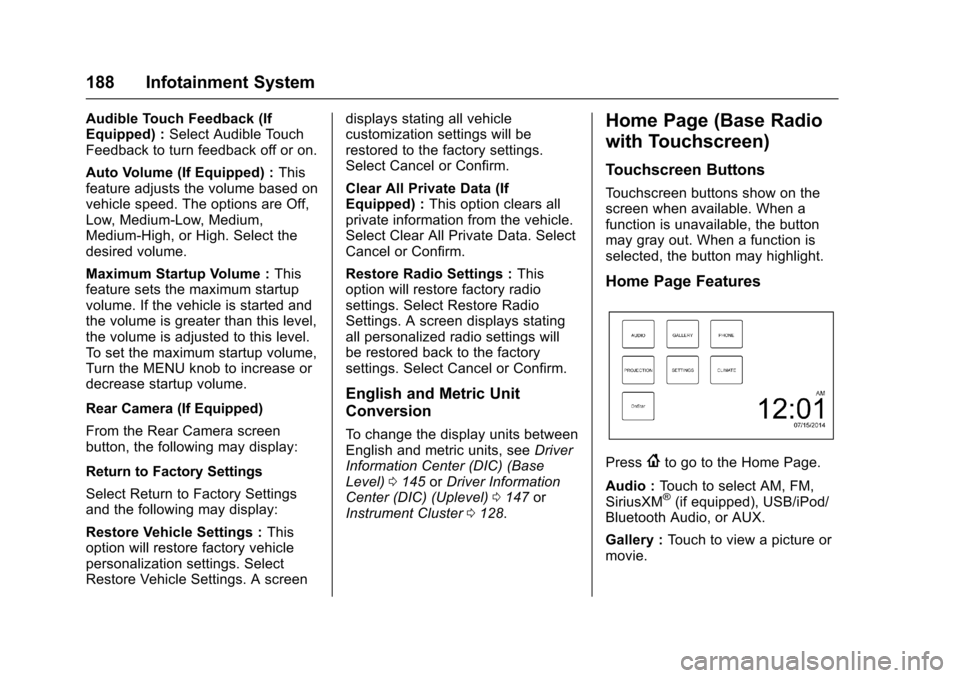
Home Page Features
Press{to go to the Home Page.
Audio :To u c h t o s e l e c t A M , F M ,SiriusXM®(if equipped), USB/iPod/Bluetooth Audio, or AUX.
Gallery :To u c h t o v i e w a p i c t u r e o rmovie.
Page 190 of 509
Chevrolet Silverado Owner Manual (GMNA-Localizing-U.S./Canada/Mexico-9956065) - 2017 - CRC - 4/29/16
Infotainment System 189
Phone :To u c h t o a c t i v a t e t h ephone features (if equipped). SeeBluetooth (Voice Recognition - BaseRadio)0221orBluetooth(Infotainment Controls - BaseRadio)0217orBluetooth(Overview)0216orBluetooth(Infotainment Controls - Base Radiowith Touchscreen)0226.
Projection :To u c h t o a c c e s ssupported devices when connected.SeeUSB Port (Base Radio)0199orUSB Port (Base Radio withTo u c h s c r e e n )0201.
Settings :To u c h t o a c c e s s t h ePersonalization menu. SeeVehiclePersonalization0160.
Climate :To u c h t o a c c e s s t h eClimate menu. SeeDual AutomaticClimate Control System0240.
OnStar :If equipped, touch toaccess the OnStar menu. SeeOnStar Overview0486.
Software Updates
See the website for moreinformation.
Website Information
In the U.S., see www.chevrolet.com
In Canada, seewww.chevrolet.gm.ca
In Mexico, seewww.chevrolet.com.mx
Radio
AM-FM Radio (Base
Radio)
Playing the Radio
While on the audio main page,press the RADIO button repeatedlyto cycle through the availablesources AM, FM, and SiriusXM®(ifequipped) or press the MEDIAbutton repeatedly to cycle throughthe available sources Bluetooth®
Audio (if equipped), USB, and AUX.
The steering wheel controls canalso be used to adjust the volume.SeeSteering Wheel Controls0121.
AM, FM, or SiriusXM (If Equipped)
To s e l e c t A M , F M , o r S i r i u s X M ( i fequipped), press the RADIO buttonto toggle to the desired broadcastsource.
Page 191 of 509
Chevrolet Silverado Owner Manual (GMNA-Localizing-U.S./Canada/Mexico-9956065) - 2017 - CRC - 4/29/16
190 Infotainment System
Press the MENU knob and thefollowing radio settings may display:
To n e S e t t i n g s :
.Bass, Midrange, and Treble:Turn the MENU knob andhighlight. Press the MENU knobto select. Turn the MENU knobto adjust.
.Balance:Turn the MENU knobto highlight. Press the MENUknob to select. Turn the MENUknob left for more sound fromthe left speakers or right formore sound from the rightspeakers. The middle positionbalances the sound between theleft and right speakers.
.Fade:Turn the MENU knob tohighlight. Press the MENU knobto select. Turn the MENU knobto the left for more sound fromthe front speakers and to theright for more sound from therear speakers. The middleposition balances the soundbetween the front and rearspeakers.
.DSP:IfequippedwithaBose Surround®sound system,it will have three DSP modesincluding:
⇣Normal: Adjusts the audio toprovide the best sound for allseating positions.
⇣Driver: Adjusts the audio toprovide the best sound for thedriver.
⇣Centerpoint: Creates asurround sound from nearlyany audio source.
.EQ (Equalizer):Ifequippedwith a Bose sound system, turnthe MENU knob to highlight.Turn the MENU knob to scrollthrough the options. Press theMENU knob to select. Press
theoBACK button to go to the
previous menu.
Station List :Select to displayalistofAMorFMstations.
PressoBACK to go to the
previous menu.
Auto Volume :If equipped, thisfeature adjusts the volume based onthe vehicle speed. Select the levelbetween Off, Low, Medium-Low,Medium, Medium-High, and High.
PressoBACK to go to the
previous menu.
EQ (Equalizer) Settings :In certainconfigurations, the available choicesare Manual and Talk.
Options for SiriusXM Only (IfEquipped)
SXM View :SXM view allows thechannel list to be viewed by channelname, artist playing on channel,or song playing on channel. Turnthe MENU knob to highlight andpress the MENU knob to select.
PressoBACK to go to the
previous menu.
Channel List :Select to display alist of SiriusXM channels. Turn theMENU knob to highlight and pressthe MENU knob to select.
PressoBACK to go to the
previous menu.
Page 192 of 509
Chevrolet Silverado Owner Manual (GMNA-Localizing-U.S./Canada/Mexico-9956065) - 2017 - CRC - 4/29/16
Infotainment System 191
Also see the radio settings commonfor all sources earlier in this section.
Finding a Station
Seeking a Station
Pressgorlto search for the
previous or next strongest station.
Tuning a Station
Turn the MENU knob to manuallyfind a station.
Storing Radio Station Presets
Up to 25 preset stations from allbands can be stored in the favoritelists in any order. Up to five stationscan be stored in each favorite pageand the number of favorites canbe set.
AM, FM, or SiriusXM (IfEquipped) :While on the activesource main page, such as AM, FM,or SiriusXM (if equipped), press andhold a favorites/soft key button onthe faceplate.
Mixed-Audio Favorites
Media (if equipped) and Broadcastfavorites can be stored.
To d i s p l a y t h e f a v o r i t e s p a g e ,
pressqorron the radio faceplate.
To m a n a g e f a v o r i t e s , s e e“ManageFavorites”underHome Page (BaseRadio)0186orHome Page (BaseRadio with Touchscreen)0188.
AM-FM Radio (Base
Radio with Touchscreen)
Playing the Radio
Audio Source Menu
{:Press to go to the Home Page.
O:Press to turn on, mute,or unmute the system. Press andhold to turn off the system.
Selecting a Band
Press{,thentouchAUDIO,
Source, then select AM, FM,or SXM, if equipped. The last stationthat was playing starts playingagain.
System Settings
Auto Volume
This feature automatically adjuststhe radio volume to compensate forroad and wind noise.
The level of volume compensationcan be selected, or the feature canbe turned off.
1. Touch MENU from a sourcescreen.
2. Select Auto Volume.
3. Select the desired setting.
4. Touch3to go back to the
source screen.
Tone Settings
The tone settings can be set foreach radio band and each audioplayer source.
Preset Tone Settings
.To u c h M E N U .
.To u c h To n e S e t t i n g s .
.Select a preset tone setting.
.Bass, Midrange, or Treble:To u c h✓or +.
Page 193 of 509
Chevrolet Silverado Owner Manual (GMNA-Localizing-U.S./Canada/Mexico-9956065) - 2017 - CRC - 4/29/16
192 Infotainment System
.Fader or Balance: Adjust thefront/rear or left/right speakersby dragging the dot in thevehicle image on the screen.
Custom Tone Settings
.To u c h M E N U .
.To u c h To n e S e t t i n g s .
.To u c h C u s t o m .
.Bass, Midrange, or Treble:To u c h✓or +.
.Fader or Balance: Adjust thefront/rear or left/right speakersby dragging the dot in thevehicle image on the screen.
To u c h3to go back to the source
screen.
Selecting an Auxiliary Device
Connect the auxiliary device to theAUX input terminal. Play will beginwhen the system has finishedreading the information on thedevice.
If the AUX device is already
connected, press{,AUDIO,
Source, then select the device.
Selecting a Station
Seek Tuning
If the radio station is not known:
Press7or6to automatically
search for available radio stations.
Manual Tuning
Continue touchingtoruto
manually change the radio station.
Direct Tune
From the AM or FM menu:
.To u c h T u n e .
.Enter the station number.
.To u c h G o o rtoruto go to
the pervious or next station.
Favorite
.To u c hSorTto scroll through
the favorites.
.To u c h o n t h e s t a t i o n t o s e l e c t i t .
Station List
.From the AM or FM menu,touch MENU.
.Select Station List.
.To u c hQorRto scroll through
the list. Touch the station toselect it.
Update Station List
.From the AM or FM menu, touchMENU, then touch UpdateStation List. The broadcastinglist updating will begin.
.During the AM or FMbroadcasting list update, touchCancel to stop the updates.
Storing a Station as a Favorite
Stations from all bands can bestored in any order in the favoritepages.
Up to 25 stations can be stored.
Storing Stations
To s t o r e t h e s t a t i o n t o a p o s i t i o n i nthe list, touch the correspondingbutton 1✓5untilabeepisheard.
1. Select the desired station.
2. TouchSorTto select the
desired page of savedfavorites.
Page 194 of 509
Chevrolet Silverado Owner Manual (GMNA-Localizing-U.S./Canada/Mexico-9956065) - 2017 - CRC - 4/29/16
Infotainment System 193
3. Touch and hold down any ofthe preset buttons to save thecurrent radio station to thatbutton of the selectedfavorites page.
To c h a n g e a p r e s e t b u t t o n , t u n e t othe new desired radio station andtouch and hold the preset button.
Satellite Radio (Base
Radio)
SiriusXM®Satellite Radio
Service (If Equipped)
Vehicles with a SiriusXM satelliteradio tuner and a valid SiriusXMsatellite radio subscription canreceive SiriusXM programming.
SiriusXM is a satellite radio servicebased in the 48 contiguous UnitedStates and 10 Canadian provinces.SiriusXM satellite radio has a widevariety of programming andcommercial-free music, coast tocoast, and in digital-quality sound.Aservicefeeisrequiredtoreceivethe SiriusXM service. Seewww.siriusxm.com or call
1-888-601-6296 (U.S.); or seewww.siriusxm.ca or call1-877-438-9677 (Canada).
When SiriusXM is active, thechannel name and number,category name, song title, and artistdisplay on the screen.
Browsing SiriusXM Channels
(If Equipped)
To b r o w s e t h e S i r i u s X M c h a n n e l s :
1. Press the MENU knob.
2. Turn the MENU knob tohighlight SXM Channel List.
3. Turn the MENU knob tohighlight the desired SXMChannels.
Satellite Radio (Base
Radio with Touchscreen)
Vehicles with an SXM SatelliteRadio tuner and a valid SiriusXM®
Satellite Radio subscription canreceive SiriusXM programming.
SiriusXM Satellite Radio
Service (If Equipped)
SiriusXM is a satellite radio servicebased in the 48 contiguous UnitedStates and 10 Canadian provinces.SiriusXM Satellite Radio has a widevariety of programming andcommercial-free music, coast tocoast, and in digital-quality sound.Aservicefeeisrequiredtoreceivethe SiriusXM service. For moreinformation, contact SiriusXM atwww.siriusxm.com or1-866-635-2349 (U.S.), andwww.xmradio.ca or 1-877-209-0079(Canada).
Listening to SiriusXM Radio (If
Equipped)
1. Press{.
2. Touch AUDIO.
3. Touch Source.
4. Touch SXM and the mostrecent listened to SiriusXMchannel will display.
To u c h0to return to the
HOME menu.
Page 195 of 509
Chevrolet Silverado Owner Manual (GMNA-Localizing-U.S./Canada/Mexico-9956065) - 2017 - CRC - 4/29/16
194 Infotainment System
Selecting a Category
From Menu, touch Categories, thentouch the desired category or from
Categories, touchQorRto find the
desired channel. Touch the channelto select it.
Selecting a Channel
To u c huortand the previous or
next channel will be selected.
To u c h a n d h o l duortto jump
four channels backward or forward,then release the button at thedesired channel.
Using the Preset Buttons
Up to seven favorites pages can besaved, and each page can store upto five channels.
To c h a n g e a p r e s e t b u t t o n , t u n e t othe new desired channel and holdthe button.
Listening to Preset Channels
1. Continue touchingSorTto
select the desiredfavorites page.
2. Touch the preset button tolisten to the channel saved tothat button.
Using the SiriusXM Menu
Operation
1. Touch MENU on the SXM radioscreen.
2. Touch the menu to select thedesired item or to display thedetail menu item.
3. Touch0to return to the
previous menu.
Channel List
1. Touch Channel List from theSXM menu. The channel list isdisplayed.
2. TouchQorRto find the
desired channel. Tune to thechannel by selecting it.
Tone Settings
From the tone settings menu, thesound features can be set up forSiriusXM audio and each audioplayer’sfunctions.
1. Touch Tone Settings. The tonesettings screen is displayed.See“To n e S e t t i n g s”under“Base Radio with Touchscreen”inAM-FM Radio (Base Radiowith Touchscreen)0191orAM-FM Radio (BaseRadio)0189.
2. Touch OK.
Auto Volume
1. Touch Auto Volume. See“AutoVolume”under“Base Radiowith Touchscreen”inAM-FMRadio (Base Radio withTo u c h s c r e e n )0191orAM-FMRadio (Base Radio)0189.
2. Touch OK.
Categories
1. Touch Categories.
2. TouchQorRto find the
desired category. Touch thecategory to select it.
Page 196 of 509
Chevrolet Silverado Owner Manual (GMNA-Localizing-U.S./Canada/Mexico-9956065) - 2017 - CRC - 4/29/16
Infotainment System 195
Explicit Content Filter
When on, only a filtered list ofchannels will be received. When off,all regular SXM programmingsubscribed to will be received.
1. Touch SXM Explicit Filter.
2. Select On or Off.
Radio Reception
Frequency interference and staticcan occur during normal radioreception if items such as phonechargers, vehicle convenienceaccessories, and external electronicdevices are plugged into theaccessory power outlet. If there isinterference or static, unplug theitem from the accessory poweroutlet.
FM
FM signals only reach about 16 to65 km (10 to 40 mi). Although theradio has a built-in electronic circuitthat automatically works to reduceinterference, some static can occur,
especially around tall buildings orhills, causing the sound to fade inand out.
AM
The range for most AM stations isgreater than for FM, especially atnight. The longer range can causestation frequencies to interfere witheach other. Static can also occurwhen things like storms and powerlines interfere with radio reception.When this happens, try reducing thetreble on the radio.
SiriusXM Satellite Radio
Service
If equipped, SiriusXM SatelliteRadio Service provides digital radioreception. Tall buildings or hills caninterfere with satellite radio signals,causing the sound to fade in andout. In addition, traveling or standingunder heavy foliage, bridges,garages, or tunnels may cause lossof the SiriusXM signal for a periodof time.
Cell Phone Usage
Cell phone usage, such as makingor receiving phone calls, charging,or just having the phone on maycause static interference in theradio. Unplug the phone or turn it offif this happens.
Fixed Mast Antenna
The fixed mast antenna will gothrough most car washes as long asit is securely attached. If theantenna becomes slightly bent,straighten it out by hand. If it isbadly bent, replace it.
Occasionally check that the antennais tight at the base. If tightening isrequired, protect the paint fromdamage.
Page 197 of 509
Chevrolet Silverado Owner Manual (GMNA-Localizing-U.S./Canada/Mexico-9956065) - 2017 - CRC - 4/29/16
196 Infotainment System
Multi-Band Antenna
The multi-band antenna is on theroof of the vehicle. The antenna isused for OnStar, the SiriusXMSatellite Radio Service System, andGPS (Global Positioning System),if the vehicle has these features.Keep the antenna clear ofobstructions for clear reception.
If the vehicle has a sunroof, and it isopen, reception can also beaffected.
Items on the roof of the vehicle caninterfere with the performance of theradio system and OnStar (ifequipped). Make sure themulti-band antenna is notobstructed.
Audio Players
Avoiding Untrusted Media
Devices
When using media devices such asCDs, DVDs, Blu-Ray Discs®,SDcards, USB drives, and mobiledevices, consider the source.Untrusted media devices couldcontain files that affect systemoperation or performance. Avoid useif the content or origin cannot betrusted.
CD Player
If the vehicle is equipped with a CDplayer, it can be used for CD andMP3 audio.
With the vehicle on, insert a discinto the slot, label side up. Press theMEDIA button to select CD as asource.
The system is capable ofplaying most:
.Audio CDs
.CD-R
.CD-RW
.MP3 or unprotected WMAformats
When playing any compatiblerecordable disc, the sound qualitycan be reduced due to disc quality,the method of recording, the qualityof the music that has beenrecorded, or the way the disc hasbeen handled.
There can be increased skipping,difficulty in finding tracks, and/ordifficulty in loading and ejecting.If these problems occur, check thedisc for damage or try a knowngood disc.
To a v o i d d a m a g e t o t h e C D p l a y e r :
.Do not use scratched ordamaged discs.
.Do not apply labels to discs. Thelabels could get caught in theplayer.
.Insert only one disc at a time.
.Keep the loading slot free offoreign materials, liquids, anddebris.