Jack CHEVROLET SILVERADO 2017 3.G Owners Manual
[x] Cancel search | Manufacturer: CHEVROLET, Model Year: 2017, Model line: SILVERADO, Model: CHEVROLET SILVERADO 2017 3.GPages: 509, PDF Size: 8.87 MB
Page 25 of 509
Chevrolet Silverado Owner Manual (GMNA-Localizing-U.S./Canada/Mexico-9956065) - 2017 - CRC - 4/29/16
24 In Brief
MENU :Press to select a menu.
g:Press to seek the previousstation or track.
l:Press to seek the next stationor track.
See“Base Radio”inOverview(Base Radio with Touchscreen)0183orOverview (BaseRadio)0184.
Base Radio with Touchscreen
O:Press to turn the system on.Press and hold to turn it off. Whenon, press to mute; press again tounmute. Turn to increase ordecrease the volume.
{:Press to go to the Home Page.
7:Press to seek the previousstation or track.
6:Press to seek the next stationor track.
See“Base Radio with Touchscreen”inOverview (Base Radio withTo u c h s c r e e n )0183orOverview(Base Radio)0184.
Setting the Clock
SeeClock0123.
Satellite Radio
Vehicles with a SiriusXM®satelliteradio tuner and a valid SiriusXMsatellite radio subscription canreceive SiriusXM programming.
SiriusXM Satellite Radio
Service
SiriusXM is a satellite radio servicebased in the 48 contiguous UnitedStates and 10 Canadian provinces.SiriusXM satellite radio has a widevariety of programming andcommercial-free music, coast tocoast, and in digital-quality sound.AfeeisrequiredtoreceivetheSiriusXM service.
For more information refer to:
.www.siriusxm.com or call1-888-601-6296 (U.S.).
.www.siriusxm.ca or call1-877-438-9677 (Canada).
SeeSatellite Radio (Base Radio)0193orSatellite Radio (BaseRadio with Touchscreen)0193.
Portable Audio Devices
This vehicle may have a 3.5 mm(1/8 in) auxiliary input jack and USBports in the center console orarmrest. There may be a USB portin the upper glove box. Externaldevices such as iPods®,laptopcomputers, MP3 players, and USBstorage devices may be connected,depending on the audio system.
SeeUSB Port (Base Radio)0199orUSB Port (Base Radio withTo u c h s c r e e n )0201andAuxiliaryJack0207.
Bluetooth®
The Bluetooth®system allows userswith a Bluetooth-enabled cell phoneto make and receive hands-freecalls using the vehicle audio systemand controls.
Page 117 of 509
Chevrolet Silverado Owner Manual (GMNA-Localizing-U.S./Canada/Mexico-9956065) - 2017 - CRC - 4/29/16
116 Storage
Cupholders
Front
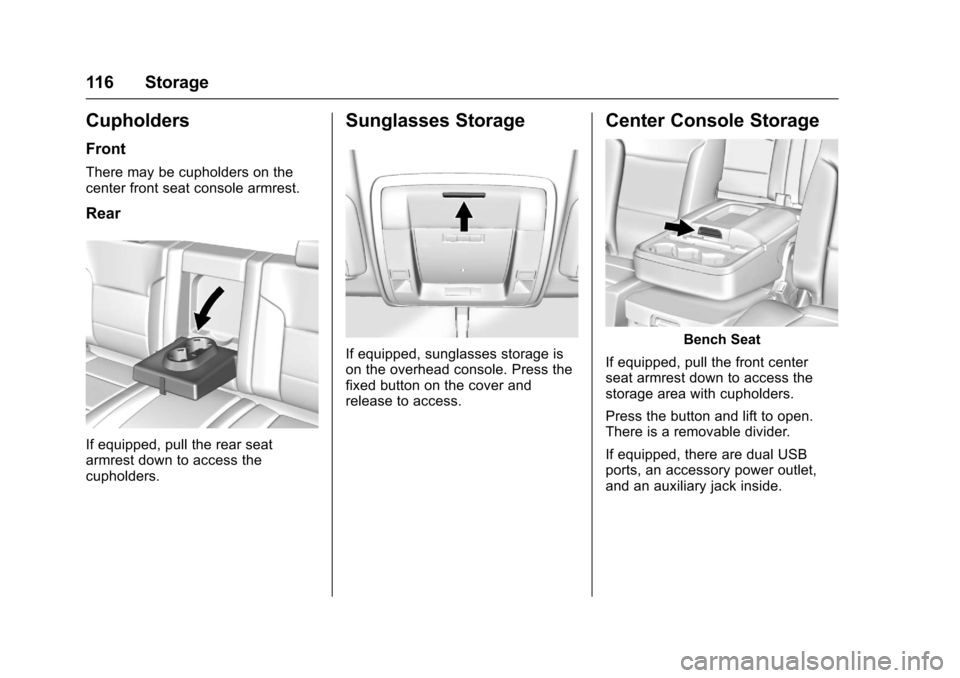
There may be cupholders on thecenter front seat console armrest.
Rear
If equipped, pull the rear seatarmrest down to access thecupholders.
Sunglasses Storage
If equipped, sunglasses storage ison the overhead console. Press thefixed button on the cover andrelease to access.
Center Console Storage
Bench Seat
If equipped, pull the front centerseat armrest down to access thestorage area with cupholders.
Press the button and lift to open.There is a removable divider.
If equipped, there are dual USBports, an accessory power outlet,and an auxiliary jack inside.
Page 118 of 509
Chevrolet Silverado Owner Manual (GMNA-Localizing-U.S./Canada/Mexico-9956065) - 2017 - CRC - 4/29/16
Storage 117
Bucket Seat
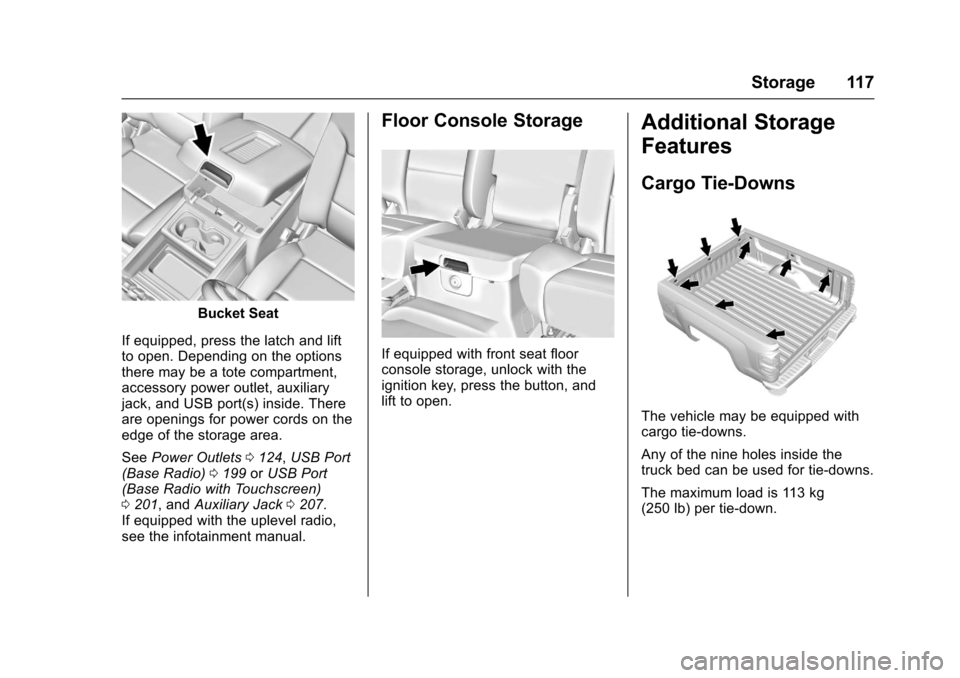
If equipped, press the latch and liftto open. Depending on the optionsthere may be a tote compartment,accessory power outlet, auxiliaryjack, and USB port(s) inside. Thereare openings for power cords on theedge of the storage area.
SeePower Outlets0124,USB Port(Base Radio)0199orUSB Port(Base Radio with Touchscreen)0201,andAuxiliary Jack0207.If equipped with the uplevel radio,see the infotainment manual.
Floor Console Storage
If equipped with front seat floorconsole storage, unlock with theignition key, press the button, andlift to open.
Additional Storage
Features
Cargo Tie-Downs
The vehicle may be equipped withcargo tie-downs.
Any of the nine holes inside thetruck bed can be used for tie-downs.
The maximum load is 113 kg(250 lb) per tie-down.
Page 182 of 509
Chevrolet Silverado Owner Manual (GMNA-Localizing-U.S./Canada/Mexico-9956065) - 2017 - CRC - 4/29/16
Infotainment System 181
Infotainment
System
Introduction
Infotainment . . . . . . . . . . . . . . . . . . 181Theft-Deterrent Feature . . . . . . 182Overview (Base Radio withTo u c h s c r e e n ) . . . . . . . . . . . . . . . 1 8 3Overview (Base Radio) . . . . . . . 184Home Page (Base Radio) . . . . 186Home Page (Base Radio withTo u c h s c r e e n ) . . . . . . . . . . . . . . . 1 8 8Software Updates . . . . . . . . . . . . 189
Radio
AM-FM Radio (BaseRadio) . . . . . . . . . . . . . . . . . . . . . . 189AM-FM Radio (Base Radiowith Touchscreen) . . . . . . . . . . . 191Satellite Radio (BaseRadio) . . . . . . . . . . . . . . . . . . . . . . 193Satellite Radio (Base Radiowith Touchscreen) . . . . . . . . . . . 193Radio Reception . . . . . . . . . . . . . . 195Fixed Mast Antenna . . . . . . . . . . 195Multi-Band Antenna . . . . . . . . . . 196
Audio Players
Avoiding Untrusted MediaDevices . . . . . . . . . . . . . . . . . . . . . 196CD Player . . . . . . . . . . . . . . . . . . . . 196USB Port (Base Radio) . . . . . . . 199USB Port (Base Radio withTo u c h s c r e e n ) . . . . . . . . . . . . . . . 2 0 1Auxiliary Jack . . . . . . . . . . . . . . . . 207Bluetooth Audio . . . . . . . . . . . . . . 208
Voice Recognition
Voice Recognition . . . . . . . . . . . . 209
Phone
Bluetooth (Overview) . . . . . . . . . 216Bluetooth (InfotainmentControls - Base Radio) . . . . . . 217Bluetooth (Voice Recognition -Base Radio) . . . . . . . . . . . . . . . . 221Bluetooth (InfotainmentControls - Base Radio withTo u c h s c r e e n ) . . . . . . . . . . . . . . . 2 2 6Apple CarPlay andAndroid Auto . . . . . . . . . . . . . . . . 230
Trademarks and License
Agreements
Trademarks and LicenseAgreements . . . . . . . . . . . . . . . . . 231
Introduction
Infotainment
Base radio information is included inthis manual. See the infotainmentmanual for information on otheravailable infotainment systems.
Read the following pages tobecome familiar with the BaseRadio features.
{Warning
Ta k i n g y o u r e y e s o f f t h e r o a d f o r
too long or too often while using
any infotainment feature can
cause a crash. You or others
could be injured or killed. Do not
give extended attention to
infotainment tasks while driving.
Limit your glances at the vehicle
displays and focus your attention
on driving. Use voice commands
whenever possible.
Page 187 of 509
Chevrolet Silverado Owner Manual (GMNA-Localizing-U.S./Canada/Mexico-9956065) - 2017 - CRC - 4/29/16
186 Infotainment System
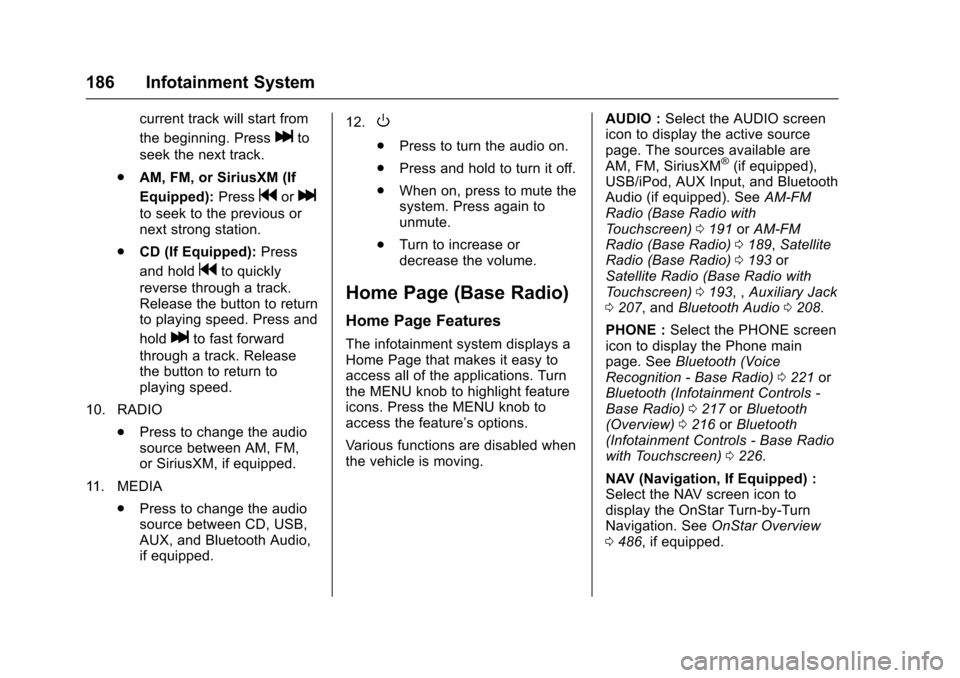
current track will start from
the beginning. Presslto
seek the next track.
.AM, FM, or SiriusXM (If
Equipped):Pressgorl
to seek to the previous ornext strong station.
.CD (If Equipped):Press
and holdgto quickly
reverse through a track.Release the button to returnto playing speed. Press and
holdlto fast forward
through a track. Releasethe button to return toplaying speed.
10. RADIO
.Press to change the audiosource between AM, FM,or SiriusXM, if equipped.
11 . M E D I A
.Press to change the audiosource between CD, USB,AUX, and Bluetooth Audio,if equipped.
12.O
.Press to turn the audio on.
.Press and hold to turn it off.
.When on, press to mute thesystem. Press again tounmute.
.Turn to increase ordecrease the volume.
Home Page (Base Radio)
Home Page Features
The infotainment system displays aHome Page that makes it easy toaccess all of the applications. Turnthe MENU knob to highlight featureicons. Press the MENU knob toaccess the feature’soptions.
Va r i o u s f u n c t i o n s a r e d i s a b l e d w h e nthe vehicle is moving.
AUDIO :Select the AUDIO screenicon to display the active sourcepage. The sources available areAM, FM, SiriusXM®(if equipped),USB/iPod, AUX Input, and BluetoothAudio (if equipped). SeeAM-FMRadio (Base Radio withTo u c h s c r e e n )0191orAM-FMRadio (Base Radio)0189,SatelliteRadio (Base Radio)0193orSatellite Radio (Base Radio withTo u c h s c r e e n )0193,,Auxiliary Jack0207,andBluetooth Audio0208.
PHONE :Select the PHONE screenicon to display the Phone mainpage. SeeBluetooth (VoiceRecognition - Base Radio)0221orBluetooth (Infotainment Controls -Base Radio)0217orBluetooth(Overview)0216orBluetooth(Infotainment Controls - Base Radiowith Touchscreen)0226.
NAV (Navigation, If Equipped) :Select the NAV screen icon todisplay the OnStar Turn-by-TurnNavigation. SeeOnStar Overview0486,ifequipped.
Page 201 of 509
Chevrolet Silverado Owner Manual (GMNA-Localizing-U.S./Canada/Mexico-9956065) - 2017 - CRC - 4/29/16
200 Infotainment System
There may be problems withoperation and function in thefollowing situations:
.When connecting a device withamorerecentversionofthefirmware installed than issupported by the infotainmentsystem.
.When connecting a device onwhich firmware from otherproviders is installed.
To c o n n e c t a n d c o n t r o l a d e v i c e :
1. Connect one end of thestandard USB cable to thedevice's dock connector.
2. Connect the other end to aUSB port in the center console.SeeCenter ConsoleStorage011 6.
3. Press MEDIA to select thesource.
The music information displays onthe radio’sdisplayandbeginsplaying through the vehicle’saudiosystem.
The device battery rechargesautomatically while the vehicle is on.When the vehicle is off while adevice is connected using the USBcable, the device battery stopscharging and the device willautomatically turn off.
If the device is an unsupportedmodel, it can still be listened to inthe vehicle by connecting to theauxiliary input jack using a standard3.5 mm (1/8 in) stereo cable.
Menu
Press MENU to display the deviceMenu and the following may display:
Browse :Select to display the filesor songs on the device. See“Browse Device Media”later in thissection.
To n e S e t t i n g s :Select to adjustBass, Midrange, Treble, Balance,Fade, and EQ (Equalizer). See“To n e S e t t i n g s”inAM-FM Radio(Base Radio with Touchscreen)0191orAM-FM Radio (BaseRadio)0189.
Auto Volume :If equipped, see“Auto Volume”inAM-FM Radio(Base Radio with Touchscreen)0191orAM-FM Radio (BaseRadio)0189.
EQ (Equalizer) :If equipped, thisfeature adjusts the Equalizersettings. See“EQ (Equalizer)”inAM-FM Radio (Base Radio withTo u c h s c r e e n )0191orAM-FMRadio (Base Radio)0189.
Browse Device Media
Use the following to browse:
Playlists:
1. Turn MENU to highlight andpress to view the playlistsstored on the device.
2. Turn MENU to highlight andpress to select a playlist nameto view a list of all songs in theplaylist.
3. Turn MENU to highlight andpress to select the song fromthe list to begin playback.
Page 208 of 509
Chevrolet Silverado Owner Manual (GMNA-Localizing-U.S./Canada/Mexico-9956065) - 2017 - CRC - 4/29/16
Infotainment System 207
2. Touch the screen to open to fullscreen. Touch the screen againto return to the previousscreen.
If the USB device is alreadyconnected:
1. Press{.
2. Touch GALLERY.
Some features are disabled whilethe vehicle is in motion.
Viewing a Slide Show
1. Touchzfrom the picture
screen.
2. Touch the screen to cancel theslide show during the slideshow playback.
Viewing a Previous or NextPicture
To u c hSorTfrom the picture
screen.
Rotating a Picture
To u c hwfrom the picture screen.
Enlarging a Picture
To u c hxfrom the picture screen.
Using the USB Picture Menu
1. Touch MENU from the picturescreen.
2. Touch the appropriate menu:
.Slide Show Time: Allowsselection of the slide showinterval.
.Clock, Temp. Display:Allows selection of On orOff to show the clock andtemperature on the fullscreen.
.Display Settings: Adjustsfor Brightness and Contrast.
3. Touch0to exit.
Auxiliary Jack
This vehicle may have an AUX jackin the center console or armrest.SeeCenter Console Storage011 6.
Possible auxiliary audio sourcesinclude:
.Laptop computer
.Audio music player
This jack is not an audio output. Donot plug headphones into theauxiliary input jack. Auxiliarydevices should be set up while thevehicle is in P (Park).
Connect a 3.5 mm (1/8 in) cablefrom the auxiliary device to theauxiliary input jack.
If an auxiliary device has alreadybeen connected, but a differentsource is currently active, press theMEDIA faceplate button repeatedlyto scroll through all of the availableaudio source screens, until the AUXsource screen is shown.
Base Radio
Playing from the AUX Jack
An auxiliary device is playedthrough the audio system andcontrolled through the device itself.
Page 422 of 509
Chevrolet Silverado Owner Manual (GMNA-Localizing-U.S./Canada/Mexico-9956065) - 2017 - CRC - 4/29/16
Vehicle Care 421
{Warning
Driving on a flat tire will cause
permanent damage to the tire.
Re-inflating a tire after it has been
driven on while severely
underinflated or flat may cause a
blowout and a serious crash.
Never attempt to re-inflate a tire
that has been driven on while
severely underinflated or flat.
Have your dealer or an authorized
tire service center repair or
replace the flat tire as soon as
possible.
{Warning
Lifting a vehicle and getting under
it to do maintenance or repairs is
dangerous without the
appropriate safety equipment and
training. If a jack is provided with
the vehicle, it is designed only for
changing a flat tire. If it is used for
anything else, you or others could
(Continued)
Warning (Continued)
be badly injured or killed if the
vehicle slips off the jack. If a jack
is provided with the vehicle, only
use it for changing a flat tire.
If a tire goes flat, avoid further tireand wheel damage by driving slowlyto a level place, well off the road,if possible. Turn on the hazardwarning flashers. SeeHazardWarning Flashers0175.
{Warning
Changing a tire can be
dangerous. The vehicle can slip
off the jack and roll over or fall
causing injury or death. Find a
level place to change the tire. To
help prevent the vehicle from
moving:
1. Set the parking brake firmly.
(Continued)
Warning (Continued)
2. Put an automatictransmission in P (Park) or amanual transmission in1(First)orR(Reverse).
3. For four-wheel-drivevehicles, be sure thetransfer case is in a drivegear–not in N (Neutral).
4. Turn off the engine and donot restart while the vehicleis raised.
5. Do not allow passengers toremain in the vehicle.
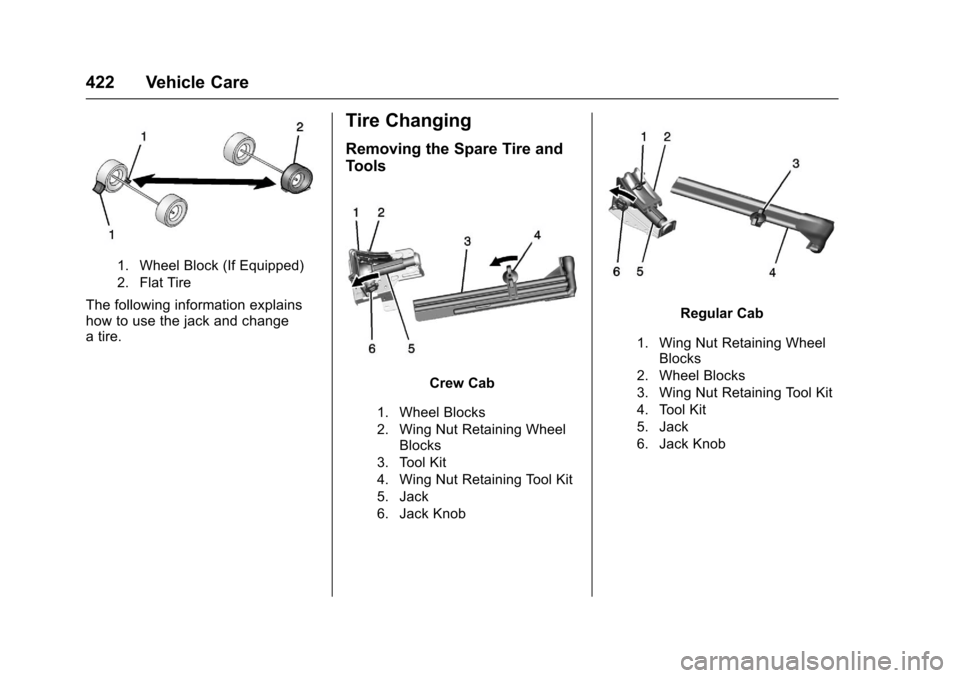
6. Place wheel blocks,if equipped, on both sides ofthe tire at the oppositecorner of the tire beingchanged.
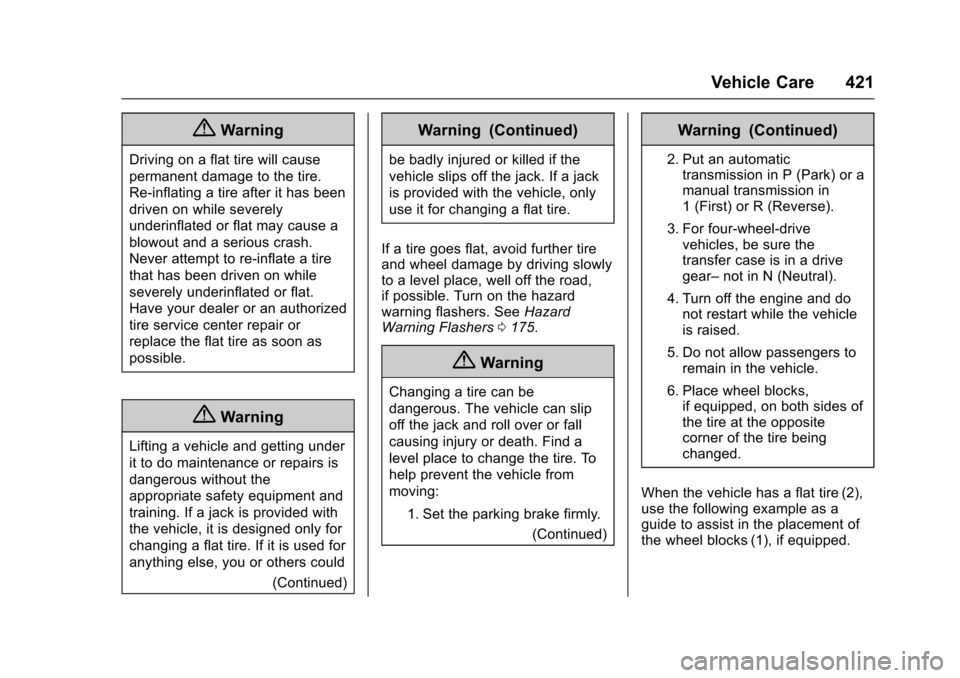
When the vehicle has a flat tire (2),use the following example as aguide to assist in the placement ofthe wheel blocks (1), if equipped.
Page 423 of 509
Chevrolet Silverado Owner Manual (GMNA-Localizing-U.S./Canada/Mexico-9956065) - 2017 - CRC - 4/29/16
422 Vehicle Care
1. Wheel Block (If Equipped)
2. Flat Tire
The following information explainshow to use the jack and changeatire.
Tire Changing
Removing the Spare Tire and
Tools
Crew Cab
1. Wheel Blocks
2. Wing Nut Retaining WheelBlocks
3. Tool Kit
4. Wing Nut Retaining Tool Kit
5. Jack
6. Jack Knob
Regular Cab
1. Wing Nut Retaining WheelBlocks
2. Wheel Blocks
3. Wing Nut Retaining Tool Kit
4. Tool Kit
5. Jack
6. Jack Knob
Page 424 of 509
Chevrolet Silverado Owner Manual (GMNA-Localizing-U.S./Canada/Mexico-9956065) - 2017 - CRC - 4/29/16
Vehicle Care 423
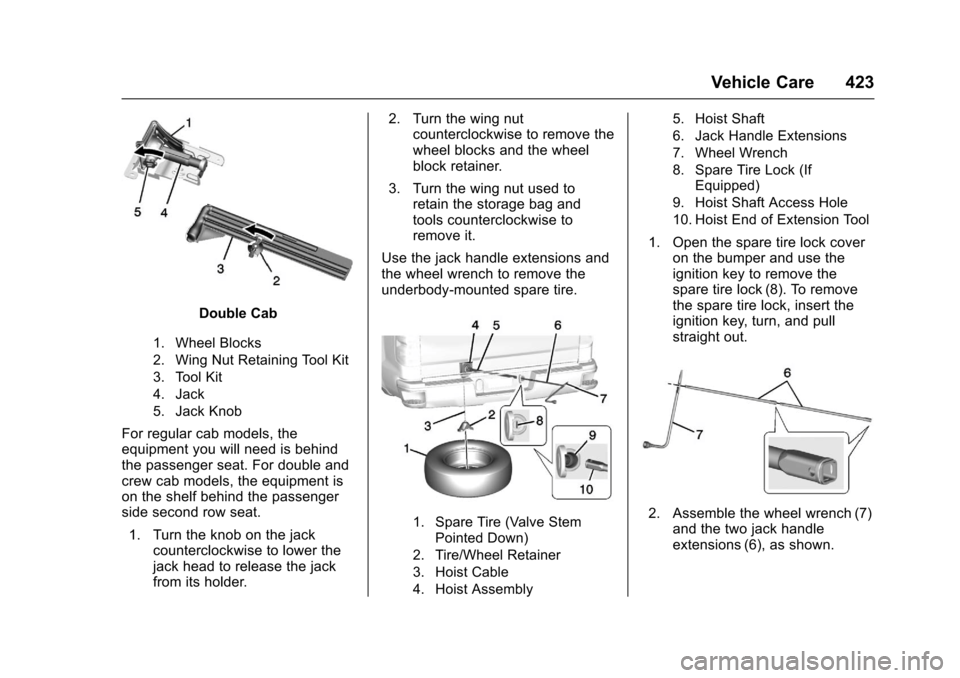
Double Cab
1. Wheel Blocks
2. Wing Nut Retaining Tool Kit
3. Tool Kit
4. Jack
5. Jack Knob
For regular cab models, theequipment you will need is behindthe passenger seat. For double andcrew cab models, the equipment ison the shelf behind the passengerside second row seat.
1. Turn the knob on the jackcounterclockwise to lower thejack head to release the jackfrom its holder.
2. Turn the wing nutcounterclockwise to remove thewheel blocks and the wheelblock retainer.
3. Turn the wing nut used toretain the storage bag andtools counterclockwise toremove it.
Use the jack handle extensions andthe wheel wrench to remove theunderbody-mounted spare tire.
1. Spare Tire (Valve StemPointed Down)
2. Tire/Wheel Retainer
3. Hoist Cable
4. Hoist Assembly
5. Hoist Shaft
6. Jack Handle Extensions
7. Wheel Wrench
8. Spare Tire Lock (IfEquipped)
9. Hoist Shaft Access Hole
10. Hoist End of Extension Tool
1. Open the spare tire lock coveron the bumper and use theignition key to remove thespare tire lock (8). To removethe spare tire lock, insert theignition key, turn, and pullstraight out.
2. Assemble the wheel wrench (7)and the two jack handleextensions (6), as shown.