horn CHEVROLET SILVERADO 2019 User Guide
[x] Cancel search | Manufacturer: CHEVROLET, Model Year: 2019, Model line: SILVERADO, Model: CHEVROLET SILVERADO 2019Pages: 474, PDF Size: 7.28 MB
Page 133 of 474
Chevrolet Silverado Owner Manual (GMNA-Localizing-U.S./Canada/Mexico-
1500-11698642) - 2019 - CRC - 2/20/19
132 Instruments and Controls
Steering Wheel Controls
The infotainment system can be
operated by using the steering
wheel controls. See“Steering Wheel
Controls” in the infotainment
manual.
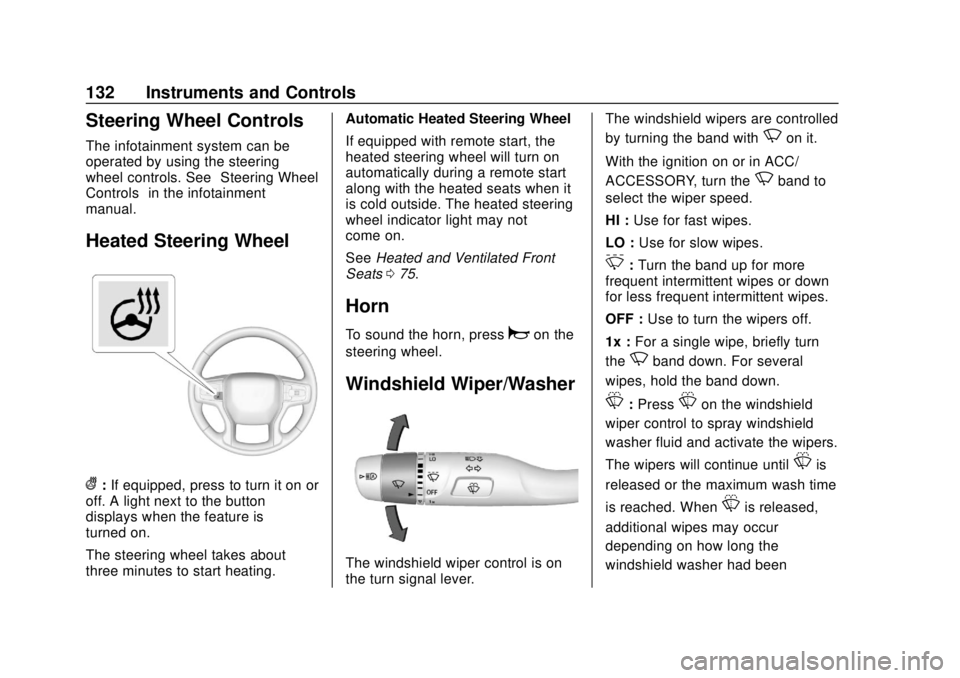
Heated Steering Wheel
(: If equipped, press to turn it on or
off. A light next to the button
displays when the feature is
turned on.
The steering wheel takes about
three minutes to start heating. Automatic Heated Steering Wheel
If equipped with remote start, the
heated steering wheel will turn on
automatically during a remote start
along with the heated seats when it
is cold outside. The heated steering
wheel indicator light may not
come on.
See
Heated and Ventilated Front
Seats 075.
Horn
To sound the horn, pressaon the
steering wheel.
Windshield Wiper/Washer
The windshield wiper control is on
the turn signal lever. The windshield wipers are controlled
by turning the band with
Non it.
With the ignition on or in ACC/
ACCESSORY, turn the
Nband to
select the wiper speed.
HI : Use for fast wipes.
LO : Use for slow wipes.
3:Turn the band up for more
frequent intermittent wipes or down
for less frequent intermittent wipes.
OFF : Use to turn the wipers off.
1x : For a single wipe, briefly turn
the
Nband down. For several
wipes, hold the band down.
L: PressLon the windshield
wiper control to spray windshield
washer fluid and activate the wipers.
The wipers will continue until
Lis
released or the maximum wash time
is reached. When
Lis released,
additional wipes may occur
depending on how long the
windshield washer had been
Page 172 of 474

Chevrolet Silverado Owner Manual (GMNA-Localizing-U.S./Canada/Mexico-
1500-11698642) - 2019 - CRC - 2/20/19
Instruments and Controls 171
Open Door Anti Lock Out
This setting prevents the driver door
from locking when the door is open.
If this setting is on, the Delayed
Door Lock menu will not be
available. If this setting is turned off,
the Delayed Door Lock menu may
not be available until the next
ignition cycle.
Touch Off or On.
Auto Door Unlock
This setting allows selection of
which doors will automatically
unlock when the vehicle is shifted
into P (Park).
Touch Off, All Doors, or Driver Door.
Delayed Door Lock
When on, this feature will delay the
locking of the doors. To override the
delay, press the power door lock
switch on the door.
Touch Off or On.
Remote Lock, Unlock, Start
Touch and the following may
display:.
Remote Unlock Light Feedback
. Remote Lock Feedback
. Remote Door Unlock
. Remote Start Auto Cool Seats
. Remote Start Auto Heat Seats
. Remote Window Operation
. Passive Door Unlock
. Passive Door Lock
. Remote Left in Vehicle Alert
Remote Unlock Light Feedback
When on, the exterior lamps will
flash when unlocking the vehicle
with the RKE transmitter.
Touch Off or Flash Lights.
Remote Lock Feedback
This allows selection of what type of
feedback is given when locking the
vehicle with the RKE transmitter.
Touch Off, Lights and Horn, Lights
Only, or Horn Only. Remote Door Unlock
This allows selection of which doors
will unlock when pressing
Kon the
RKE transmitter.
Touch All Doors or Driver Door.
Remote Start Auto Cool Seats
If equipped and turned on, this
feature will turn on the ventilated
seats when using remote start on
warm days. See Heated and
Ventilated Front Seats 075 and
Remote Vehicle Start 044.
Touch Off or On.
Remote Start Auto Heat Seats
If equipped and turned on, this
feature will turn on the heated seats
when using remote start on
cold days. See Heated and
Ventilated Front Seats 075 and
Remote Vehicle Start 044.
Touch Off or On.
Page 173 of 474
Chevrolet Silverado Owner Manual (GMNA-Localizing-U.S./Canada/Mexico-
1500-11698642) - 2019 - CRC - 2/20/19
172 Instruments and Controls
Remote Window Operation
If equipped, this feature enables
remote operation of the windows
with the RKE transmitter. See
Remote Keyless Entry (RKE)
System Operation (Keyless Access)
034 or
Remote Keyless Entry (RKE)
System Operation (Key Access)
0 42.
Touch Off or On.
Passive Door Unlock
This allows the selection of what
doors will unlock when using the
button on the driver door to unlock
the vehicle.
Touch All Doors or Driver Door Only.
Passive Door Lock
This allows passive locking to be
turned on or off and selects
feedback. See Remote Keyless
Entry (RKE) System Operation
(Keyless Access) 034 or
Remote Keyless Entry (RKE)
System Operation (Key Access)
0 42. Touch Off, On with Horn
Chirp, or On.
Remote Left in Vehicle Alert
This feature sounds an alert when
the RKE transmitter is left in the
vehicle. This menu also enables
Remote No Longer In Vehicle Alert.
Touch Off or On.
Seating Position
Touch and the following may
display:
.
Seat Entry Memory
. Seat Exit Memory
Seat Entry Memory
This feature automatically recalls
the previously stored 1 or 2 button
positions when the ignition is
changed from off to on or ACC/
ACCESSORY. See Memory Seats
0 73.
Touch Off or On. Seat Exit Memory
This feature automatically recalls
the previously stored exit button
position when the ignition is
changed from on or ACC/
ACCESSORY to off and the driver
door is open. See
Memory Seats
0 73.
Touch Off or On.
Teen Driver
See “Teen Driver” under“Settings”
in the infotainment manual.
Valet Mode
This will lock the infotainment
system and steering wheel controls.
It may also limit access to vehicle
storage locations, if equipped.
To enable valet mode:
1. Enter a four-digit code on the keypad.
2. Select Enter to go to the confirmation screen.
3. Re-enter the four-digit code.
Page 299 of 474
Chevrolet Silverado Owner Manual (GMNA-Localizing-U.S./Canada/Mexico-
1500-11698642) - 2019 - CRC - 2/20/19
298 Driving and Operating
the trailer detection pop-up. To turn
the Trailer Detection Alert on, select
ON in the Settings tab.
When a trailer is electrically
connected and after a Trailer Profile
has been created, the trailer
detection pop-up will appear with a
list of all of the custom Trailer
Profiles made on the vehicle. To
load an existing Trailer Profile,
select one of the Trailer Profiles
listed, or load the Guest Trailer
Profile by selecting GUEST
TRAILER. Touching Cancel,
Accessory/No trailer, or shifting the
vehicle from P (Park), will select
Accessory/No trailer as the active
Trailer Profile and will dismiss the
pop- up.
Create a Trailer Profile1. Touch Create Profile on the pop-up or touch + New Trailer
in the Trailering App.
2. Create a name for the trailer.
3. Select the hitch type. A checklist profile will be
created based on the type
selected. 4. Select the trailer type.
A pop-up will indicate the setup is
complete. Touch DONE to complete
the process or touch ADVANCED
SETUP to set up the Tow/Haul
Mode reminder, Trailer Tire
Pressure Monitoring System,
if equipped, or maintenance
reminders.
Advanced Setup
Tow/Haul Mode Reminder
To turn the Tow/Haul Mode
Reminder setting on, touch Yes. To
turn it off, touch No.
Trailer Tire Pressure Setup
If the Trailer Tire Pressure
Monitoring System (TTPMS) is
detected, touch Yes to set up the
sensors or touch No to skip this
step and go to the Maintenance
Reminders step.
If the vehicle is not equipped with
TTPMS, the app will advance
directly to the Maintenance
Reminders screen. Follow the
on-screen instructions. A trailer must be electrically
connected to the vehicle before
starting the sensor-to-vehicle learn
process.
After selecting Start from the Learn
Sensors screen, use the Tool
Method or the Manual Method
(described below) to learn each tire
sensor, during which the current tire
number will be highlighted.
Each sensor has a minimum of
two minutes to learn, shown by a
timer. After a sensor is learned, a
checkmark appears next to the tire,
the vehicle horn will sound, the
vehicle’s brake lamps will flash, and
all working trailer lamps will flash.
It then moves to the next sensor.
To cancel the process touch Stop.
The recommended tire pressure
must be entered for the trailer tires.
This allows the vehicle to alert when
the tire pressure is high or low.
TTPMS must learn the location of
the installed tire sensors to show
correct air pressure and
temperature for each tire. To set up,
use one of the following options or
Page 300 of 474
Chevrolet Silverado Owner Manual (GMNA-Localizing-U.S./Canada/Mexico-
1500-11698642) - 2019 - CRC - 2/20/19
Driving and Operating 299
see a tire or trailer dealer for
service. The learning process must
be repeated when the trailer tires
are rotated or replaced. See“Editing
a Trailer Profile” later in this section
for tire pressure sensor relearn
information.
Tool Method: A TTPMS activation
tool can be purchased separately to
learn the sensor locations.
Manual Method: Without the tool,
the air pressure can be increased or
decreased in each tire for
10 seconds. Do not exceed the
maximum inflation pressure found
on the tire sidewalls. Make sure to
re-adjust tire pressure to the
recommended level when the
process is complete.
Sensor Learning Steps
To complete the sensor-to-vehicle
learn process:
1. Touch Start on the Learn Sensors screen. The horn
chirps twice and the Learning
Active screen appears on the
infotainment display. 2. Start with the driver side front
trailer tire.
3. Activate the tool near the valve stem or adjust the air pressure
of this tire until the horn chirps
and all working vehicle and
trailer lights flash.
The process stops without
saving the sensor locations if
this step takes more than
two minutes.
4. Move to the next tire and repeat Step 3 for each sensor.
The horn chirps twice when all
sensors are completed.
5. Return to the vehicle to complete the setup.
Maintenance Reminders
Select Yes to set up the
maintenance reminders for the
Trailer Profile. Follow the on-screen
prompts. The maximum number of
reminders is 10. Select No to skip
this step.
Status View
The Status view shows: .
Truck
. Connection
. Trailer
. Maintenance
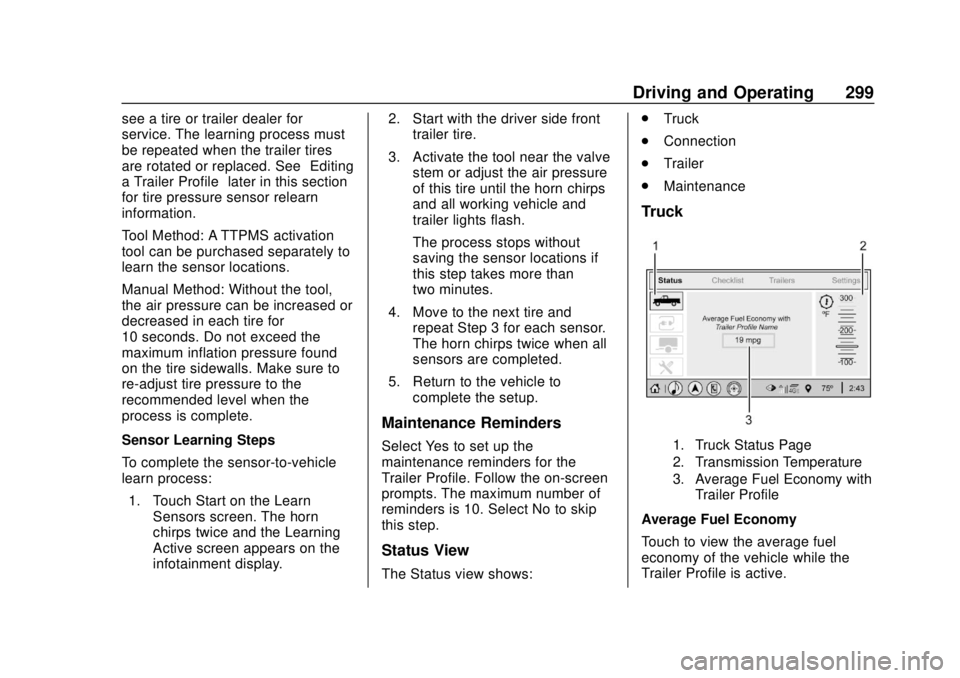
Truck
1. Truck Status Page
2. Transmission Temperature
3. Average Fuel Economy with
Trailer Profile
Average Fuel Economy
Touch to view the average fuel
economy of the vehicle while the
Trailer Profile is active.
Page 355 of 474
Chevrolet Silverado Owner Manual (GMNA-Localizing-U.S./Canada/Mexico-
1500-11698642) - 2019 - CRC - 2/20/19
354 Vehicle Care
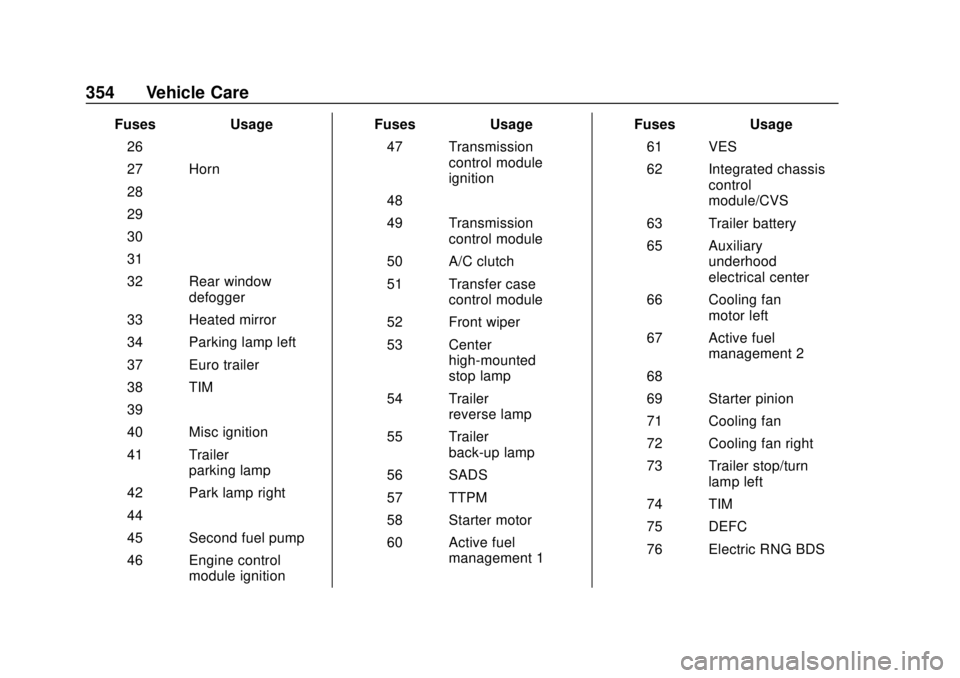
FusesUsage
26 –
27 Horn
28 –
29 –
30 –
31 –
32 Rear window defogger
33 Heated mirror
34 Parking lamp left
37 Euro trailer
38 TIM
39 –
40 Misc ignition
41 Trailer parking lamp
42 Park lamp right
44 –
45 Second fuel pump
46 Engine control module ignition Fuses
Usage
47 Transmission control module
ignition
48 –
49 Transmission control module
50 A/C clutch
51 Transfer case control module
52 Front wiper
53 Center high-mounted
stop lamp
54 Trailer reverse lamp
55 Trailer back-up lamp
56 SADS
57 TTPM
58 Starter motor
60 Active fuel management 1 Fuses
Usage
61 VES
62 Integrated chassis control
module/CVS
63 Trailer battery
65 Auxiliary underhood
electrical center
66 Cooling fan motor left
67 Active fuel management 2
68 –
69 Starter pinion
71 Cooling fan
72 Cooling fan right
73 Trailer stop/turn lamp left
74 TIM
75 DEFC
76 Electric RNG BDS
Page 374 of 474
Chevrolet Silverado Owner Manual (GMNA-Localizing-U.S./Canada/Mexico-
1500-11698642) - 2019 - CRC - 2/20/19
Vehicle Care 373
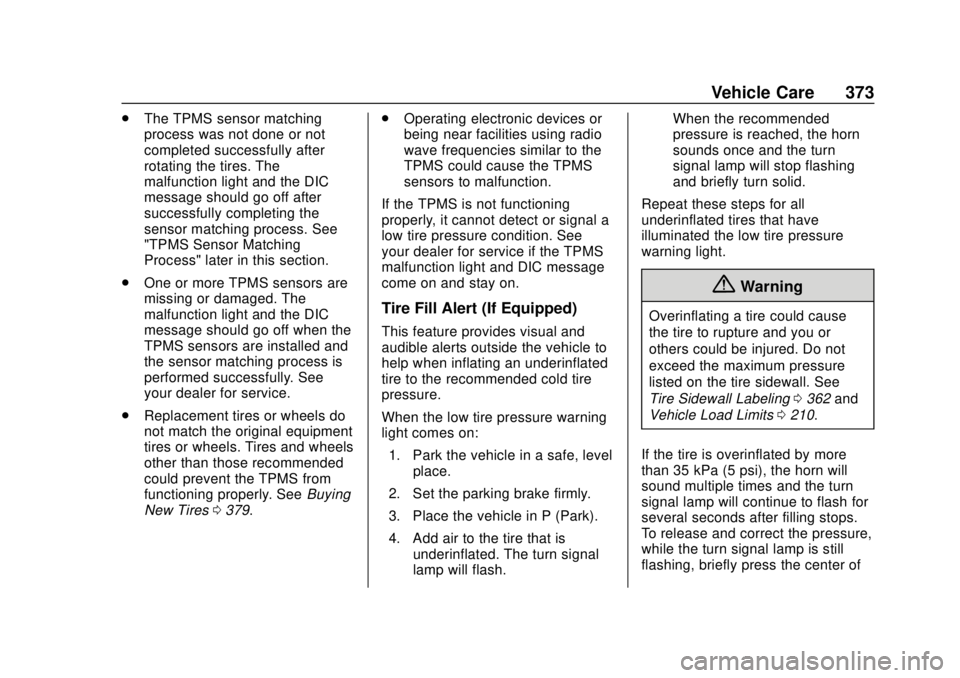
.The TPMS sensor matching
process was not done or not
completed successfully after
rotating the tires. The
malfunction light and the DIC
message should go off after
successfully completing the
sensor matching process. See
"TPMS Sensor Matching
Process" later in this section.
. One or more TPMS sensors are
missing or damaged. The
malfunction light and the DIC
message should go off when the
TPMS sensors are installed and
the sensor matching process is
performed successfully. See
your dealer for service.
. Replacement tires or wheels do
not match the original equipment
tires or wheels. Tires and wheels
other than those recommended
could prevent the TPMS from
functioning properly. See Buying
New Tires 0379. .
Operating electronic devices or
being near facilities using radio
wave frequencies similar to the
TPMS could cause the TPMS
sensors to malfunction.
If the TPMS is not functioning
properly, it cannot detect or signal a
low tire pressure condition. See
your dealer for service if the TPMS
malfunction light and DIC message
come on and stay on.
Tire Fill Alert (If Equipped)
This feature provides visual and
audible alerts outside the vehicle to
help when inflating an underinflated
tire to the recommended cold tire
pressure.
When the low tire pressure warning
light comes on:
1. Park the vehicle in a safe, level place.
2. Set the parking brake firmly.
3. Place the vehicle in P (Park).
4. Add air to the tire that is underinflated. The turn signal
lamp will flash. When the recommended
pressure is reached, the horn
sounds once and the turn
signal lamp will stop flashing
and briefly turn solid.
Repeat these steps for all
underinflated tires that have
illuminated the low tire pressure
warning light.
{Warning
Overinflating a tire could cause
the tire to rupture and you or
others could be injured. Do not
exceed the maximum pressure
listed on the tire sidewall. See
Tire Sidewall Labeling 0362 and
Vehicle Load Limits 0210.
If the tire is overinflated by more
than 35 kPa (5 psi), the horn will
sound multiple times and the turn
signal lamp will continue to flash for
several seconds after filling stops.
To release and correct the pressure,
while the turn signal lamp is still
flashing, briefly press the center of
Page 375 of 474
Chevrolet Silverado Owner Manual (GMNA-Localizing-U.S./Canada/Mexico-
1500-11698642) - 2019 - CRC - 2/20/19
374 Vehicle Care
the valve stem. When the
recommended pressure is reached,
the horn sounds once.
If the turn signal lamp does not flash
within 15 seconds after starting to
inflate the tire, the tire fill alert has
not been activated or is not working.
If the hazard warning flashers are
on, the tire fill alert visual feedback
will not work properly.
The TPMS will not activate the tire
fill alert properly under the following
conditions:
.There is interference from an
external device or transmitter.
. The air pressure from the
inflation device is not sufficient
to inflate the tire.
. There is a malfunction in
the TPMS.
. There is a malfunction in the
horn or turn signal lamps.
. The identification code of the
TPMS sensor is not registered to
the system. .
The battery of the TPMS sensor
is low.
If the tire fill alert does not operate
due to TPMS interference, move the
vehicle about 1 m (3 ft) back or
forward and try again. If the tire fill
alert feature is not working, use a
tire pressure gauge.
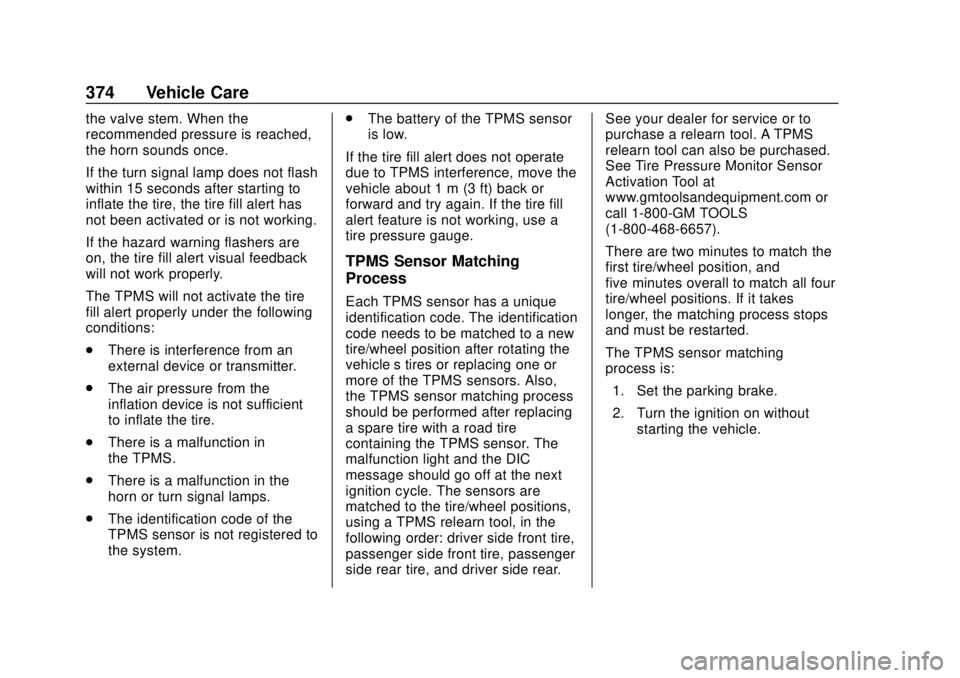
TPMS Sensor Matching
Process
Each TPMS sensor has a unique
identification code. The identification
code needs to be matched to a new
tire/wheel position after rotating the
vehicle’s tires or replacing one or
more of the TPMS sensors. Also,
the TPMS sensor matching process
should be performed after replacing
a spare tire with a road tire
containing the TPMS sensor. The
malfunction light and the DIC
message should go off at the next
ignition cycle. The sensors are
matched to the tire/wheel positions,
using a TPMS relearn tool, in the
following order: driver side front tire,
passenger side front tire, passenger
side rear tire, and driver side rear. See your dealer for service or to
purchase a relearn tool. A TPMS
relearn tool can also be purchased.
See Tire Pressure Monitor Sensor
Activation Tool at
www.gmtoolsandequipment.com or
call 1-800-GM TOOLS
(1-800-468-6657).
There are two minutes to match the
first tire/wheel position, and
five minutes overall to match all four
tire/wheel positions. If it takes
longer, the matching process stops
and must be restarted.
The TPMS sensor matching
process is:
1. Set the parking brake.
2. Turn the ignition on without starting the vehicle.
Page 376 of 474
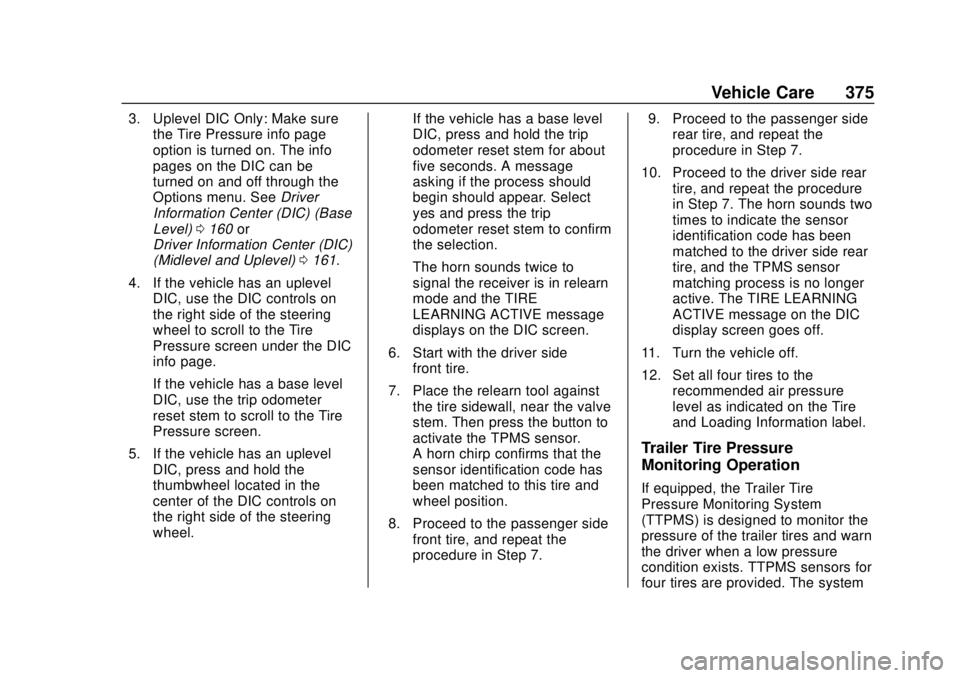
Chevrolet Silverado Owner Manual (GMNA-Localizing-U.S./Canada/Mexico-
1500-11698642) - 2019 - CRC - 2/20/19
Vehicle Care 375
3. Uplevel DIC Only: Make surethe Tire Pressure info page
option is turned on. The info
pages on the DIC can be
turned on and off through the
Options menu. See Driver
Information Center (DIC) (Base
Level) 0160 or
Driver Information Center (DIC)
(Midlevel and Uplevel) 0161.
4. If the vehicle has an uplevel DIC, use the DIC controls on
the right side of the steering
wheel to scroll to the Tire
Pressure screen under the DIC
info page.
If the vehicle has a base level
DIC, use the trip odometer
reset stem to scroll to the Tire
Pressure screen.
5. If the vehicle has an uplevel DIC, press and hold the
thumbwheel located in the
center of the DIC controls on
the right side of the steering
wheel. If the vehicle has a base level
DIC, press and hold the trip
odometer reset stem for about
five seconds. A message
asking if the process should
begin should appear. Select
yes and press the trip
odometer reset stem to confirm
the selection.
The horn sounds twice to
signal the receiver is in relearn
mode and the TIRE
LEARNING ACTIVE message
displays on the DIC screen.
6. Start with the driver side front tire.
7. Place the relearn tool against the tire sidewall, near the valve
stem. Then press the button to
activate the TPMS sensor.
A horn chirp confirms that the
sensor identification code has
been matched to this tire and
wheel position.
8. Proceed to the passenger side front tire, and repeat the
procedure in Step 7. 9. Proceed to the passenger side
rear tire, and repeat the
procedure in Step 7.
10. Proceed to the driver side rear tire, and repeat the procedure
in Step 7. The horn sounds two
times to indicate the sensor
identification code has been
matched to the driver side rear
tire, and the TPMS sensor
matching process is no longer
active. The TIRE LEARNING
ACTIVE message on the DIC
display screen goes off.
11. Turn the vehicle off.
12. Set all four tires to the recommended air pressure
level as indicated on the Tire
and Loading Information label.
Trailer Tire Pressure
Monitoring Operation
If equipped, the Trailer Tire
Pressure Monitoring System
(TTPMS) is designed to monitor the
pressure of the trailer tires and warn
the driver when a low pressure
condition exists. TTPMS sensors for
four tires are provided. The system
Page 460 of 474
Chevrolet Silverado Owner Manual (GMNA-Localizing-U.S./Canada/Mexico-
1500-11698642) - 2019 - CRC - 2/20/19
Connected Services 459
vehicles, the SSID and
password can be changed in
the Wi-Fi Hotspot menu.
After initial set-up, your vehicle’s
Wi-Fi hotspot will connect
automatically to your mobile
devices. Manage data usage by
turning Wi-Fi on or off on your
mobile device, using the
myChevrolet mobile app, or by
contacting an OnStar Advisor. On
some vehicles, Wi-Fi can also be
managed from the Wi-Fi
Hotspot menu.
MyChevrolet Mobile App (If
Available)
Download the myChevrolet mobile
app to compatible Apple and
Android smartphones. Chevrolet
users can access the following
services from a smartphone:
. Remotely start/stop the vehicle,
if factory-equipped.
. Lock/unlock doors, if equipped
with automatic locks.
. Activate the horn and lamps. .
Check the vehicle’s fuel level, oil
life, or tire pressure,
if factory-equipped with the Tire
Pressure Monitor System.
. Send destinations to the vehicle.
. Locate the vehicle on a map
(U.S. market only).
. Turn the vehicle's Wi-Fi hotspot
on/off, manage settings, and
monitor data consumption,
if equipped.
. Locate a dealer and schedule
service.
. Request roadside assistance.
. Set a parking reminder with pin
drop, take a photo, make a note,
and set a timer.
. Connect with Chevrolet on social
media.
Features are subject to change. For
myChevrolet mobile app information
and compatibility, see
my.chevrolet.com.
An active OnStar or connected
service plan may be required.
A compatible device, factory-installed remote start, and
power locks are required. Data rates
apply. See www.onstar.com for
details and system limitations.
Remote Services
Contact an OnStar Advisor to
unlock the doors or sound the horn
and flash the lamps.
Marketplace
OnStar Advisors can provide offers
from restaurants and retailers on
your route, help locate hotels,
or book a room. These services
vary by market.
OnStar Hands-Free Calling
Make and receive calls with the
built-in wireless calling service,
which requires available minutes.
Functionality of the Voice Command
button may vary by vehicle and
region. For some vehicles, press
=
to open the OnStar app on the
infotainment display, then select
Hands-Free calling. For other
vehicles press
=as follows.