Infotainment CHEVROLET SILVERADO 2020 User Guide
[x] Cancel search | Manufacturer: CHEVROLET, Model Year: 2020, Model line: SILVERADO, Model: CHEVROLET SILVERADO 2020Pages: 495, PDF Size: 8.09 MB
Page 174 of 495
Chevrolet Silverado Owner Manual (GMNA-Localizing-U.S./Canada/Mexico-
13337620) - 2020 - CTC - 1/27/20
Infotainment System 173
Infotainment
System
Introduction
Infotainment . . . . . . . . . . . . . . . . . . 173
Introduction
Infotainment
See the infotainment manual for
information on the radio, audio
players, phone, navigation system,
and voice or speech recognition.
It also includes information on
settings.
Active Noise Cancellation (ANC)
If equipped, ANC reduces engine
noise in the vehicle’s interior. ANC
requires the factory-installed audio
system, radio, speakers, amplifier
(if equipped), induction system, and
exhaust system to work properly.
Deactivation is required by your
dealer if related aftermarket
equipment is installed.
Page 178 of 495

Chevrolet Silverado Owner Manual (GMNA-Localizing-U.S./Canada/Mexico-
13337620) - 2020 - CTC - 1/27/20
Climate Controls 177
The fan, air delivery mode, air
conditioning, driver and passenger
temperatures, and Sync settings
can be controlled by touching
CLIMATE on the infotainment Home
Page or the climate button in the
climate control display application
tray. A selection can then be made
on the front climate control page
displayed. See the infotainment
manual.
Climate Control Status Display
The climate control status display
appears briefly when the center
stack climate controls are adjusted.Automatic Operation
The system automatically controls
the fan speed, air delivery, air
conditioning, and recirculation in
order to heat or cool the vehicle to
the desired temperature.
When AUTO is lit, all four functions
operate automatically. Each function
can also be manually set and the
selected setting is displayed.
Functions not manually set will
continue to be automatically
controlled, even if the AUTO
indicator is not lit.
For automatic operation:
1. Press AUTO.
2. Set the temperature. Allow the system time to stabilize. Adjust
the temperature as needed for
best comfort.
To improve fuel efficiency and to
cool the vehicle faster, recirculation
may be automatically selected in
warm weather. The recirculation light will not come
on when automatically controlled.
See
@under
“Manual Operation”
for more details.
Manual Operation
9: Turn clockwise or
counterclockwise to increase or
decrease the fan speed. Press the
knob to turn the fan off. When off is
selected, a small amount of air may
still come out of the outlets
depending on vehicle speed. If any
buttons are pressed or knobs are
turned, the climate control system
will turn on and operate at the
current setting.
Press AUTO to return to automatic
operation.
Driver and Passenger
Temperature Control : The
temperature can be adjusted
separately for the driver and
passenger.
Turn the knob clockwise or
counterclockwise to increase or
decrease the driver or passenger
temperature setting. The driver side
Page 185 of 495
Chevrolet Silverado Owner Manual (GMNA-Localizing-U.S./Canada/Mexico-
13337620) - 2020 - CTC - 1/27/20
184 Driving and Operating
.Combine several trips into a
single trip.
. Replace the vehicle's tires with
the same TPC Spec number
molded into the tire's sidewall
near the size.
. Follow recommended scheduled
maintenance.
Distracted Driving
Distraction comes in many forms
and can take your focus from the
task of driving. Exercise good
judgment and do not let other
activities divert your attention away
from the road. Many local
governments have enacted laws
regarding driver distraction. Become
familiar with the local laws in
your area.
To avoid distracted driving, keep
your eyes on the road, keep your
hands on the steering wheel, and
focus your attention on driving. .
Do not use a phone in
demanding driving situations.
Use a hands-free method to
place or receive necessary
phone calls.
. Watch the road. Do not read,
take notes, or look up
information on phones or other
electronic devices.
. Designate a front seat
passenger to handle potential
distractions.
. Become familiar with vehicle
features before driving, such as
programming favorite radio
stations and adjusting climate
control and seat settings.
Program all trip information into
any navigation device prior to
driving.
. Wait until the vehicle is parked
to retrieve items that have fallen
to the floor.
. Stop or park the vehicle to tend
to children.
. Keep pets in an appropriate
carrier or restraint. .
Avoid stressful conversations
while driving, whether with a
passenger or on a cell phone.
{Warning
Taking your eyes off the road too
long or too often could cause a
crash resulting in injury or death.
Focus your attention on driving.
Refer to the infotainment manual for
more information on using that
system and the navigation system,
if equipped, including pairing and
using a cell phone.
Defensive Driving
Defensive driving means “always
expect the unexpected.” The first
step in driving defensively is to wear
the seat belt. See Seat Belts062.
. Assume that other road users
(pedestrians, bicyclists, and
other drivers) are going to be
careless and make mistakes.
Anticipate what they may do and
be ready.
Page 209 of 495
Chevrolet Silverado Owner Manual (GMNA-Localizing-U.S./Canada/Mexico-
13337620) - 2020 - CTC - 1/27/20
208 Driving and Operating
4. Push the key all the way intoward the steering column,
then turn the key to
LOCK/OFF.
5. Remove the key.
6. Release the brake pedal.
See your dealer if the key can be
removed in any other position.
Retained Accessory Power (RAP)
will remain active. See Retained
Accessory Power (RAP) 0213.
A warning chime will sound when
the driver door is opened and the
key is in the ignition.
If equipped with a locking steering
column, the steering can bind with
the front wheels turned off center,
which may prevent key rotation out
of LOCK/OFF. If this happens, move
the steering wheel from right to left
while turning the key to ACC/
ACCESSORY. If this does not work,
then the vehicle needs service.
{Warning
Turning off the vehicle while
moving may cause loss of power
assist in the brake and steering
systems and disable the airbags.
While driving, turn off the vehicle
only in an emergency.
In an emergency, if the vehicle
cannot be pulled over and must be
turned off while driving: 1. Push the key all the way in toward the steering column,
then turn the key to ACC/
ACCESSORY.
2. Brake using firm and steady pressure. Do not pump the
brakes repeatedly. This may
deplete power assist, requiring
increased brake pedal force.
3. Shift the vehicle to N (Neutral). This can be done while the
vehicle is moving. Continue
braking and steer the vehicle to
a safe location.
4. Come to a complete stop. 5. Shift to P (Park).
6. Push the key all the way in
toward the steering column (1),
then turn the ignition to
LOCK/OFF (2).
7. Set the parking brake. See Electric Parking Brake 0229.
8. Remove the key.
9. Release the brake pedal.
Caution
Use the correct key, make sure it
is all the way in —or pushed all
the way in toward the steering
column when turning off the
vehicle —and turn it only with
your hand.
1 (ACC/ACCESSORY) : This
position allows features such as the
infotainment system to operate
while the vehicle is off. It also
unlocks the steering column,
if equipped with a locking steering
column. Use this position if the
Page 214 of 495
Chevrolet Silverado Owner Manual (GMNA-Localizing-U.S./Canada/Mexico-
13337620) - 2020 - CTC - 1/27/20
Driving and Operating 213
Warning (Continued)
vehicle. Possible heater
cord and thermostat
damage could occur.
. While in use, do not let the
heater cord touch vehicle
parts or sharp edges. Never
close the hood on the
heater cord.
. Before starting the vehicle,
unplug the cord, reattach
the cover to the plug, and
securely fasten the cord.
Keep the cord away from
any moving parts.
5. Before starting the engine, be sure to unplug and store
the cord.
The length of time the heater should
remain plugged in depends on
several factors. Ask a dealer in the
area where you will be parking the
vehicle for the best advice on this.
Retained Accessory
Power (RAP)
When the ignition is turned from on
to off, the following features (if
equipped) will continue to function
for up to 10 minutes, or until the
driver door is opened. These
features will also work when the
ignition is in RUN or ACC/
ACCESSORY:
. Infotainment System
. Power Windows (during RAP
this functionality will be lost
when any door is opened)
. Sunroof (during RAP this
functionality will be lost when
any door is opened)
. Auxiliary Power Outlet
. Audio System
. OnStar System
Shifting Into Park
{Warning
It can be dangerous to get out of
the vehicle if the shift lever is not
fully in P (Park) with the parking
brake firmly set. The vehicle can
roll. If you have left the engine
running, the vehicle can move
suddenly. You or others could be
injured. To be sure the vehicle will
not move, even when you are on
fairly level ground, use the steps
that follow. With four-wheel drive,
if the transfer case is in
N (Neutral), the vehicle will be
free to roll, even if the shift lever
is in P (Park). Be sure the transfer
case is in a drive gear. If towing a
trailer, see Driving Characteristics
and Towing Tips 0283.
1. Hold the brake pedal down, then set the parking brake. See
Electric Parking Brake 0229.
Page 254 of 495
Chevrolet Silverado Owner Manual (GMNA-Localizing-U.S./Canada/Mexico-
13337620) - 2020 - CTC - 1/27/20
Driving and Operating 253
Information Center (DIC) messages
may display when the systems are
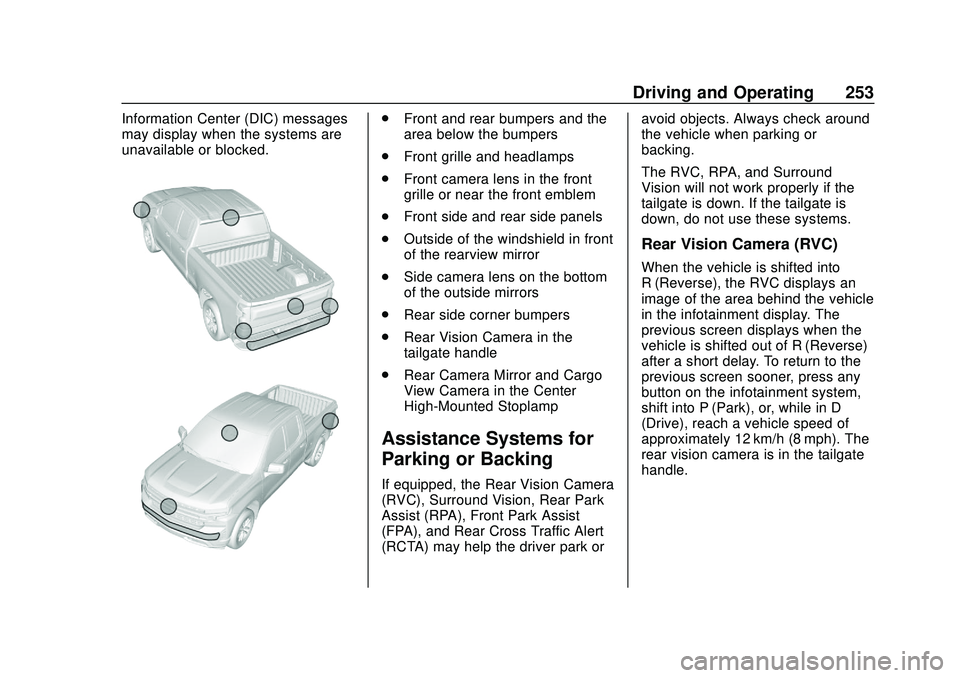
unavailable or blocked..Front and rear bumpers and the
area below the bumpers
. Front grille and headlamps
. Front camera lens in the front
grille or near the front emblem
. Front side and rear side panels
. Outside of the windshield in front
of the rearview mirror
. Side camera lens on the bottom
of the outside mirrors
. Rear side corner bumpers
. Rear Vision Camera in the
tailgate handle
. Rear Camera Mirror and Cargo
View Camera in the Center
High-Mounted Stoplamp
Assistance Systems for
Parking or Backing
If equipped, the Rear Vision Camera
(RVC), Surround Vision, Rear Park
Assist (RPA), Front Park Assist
(FPA), and Rear Cross Traffic Alert
(RCTA) may help the driver park or avoid objects. Always check around
the vehicle when parking or
backing.
The RVC, RPA, and Surround
Vision will not work properly if the
tailgate is down. If the tailgate is
down, do not use these systems.
Rear Vision Camera (RVC)
When the vehicle is shifted into
R (Reverse), the RVC displays an
image of the area behind the vehicle
in the infotainment display. The
previous screen displays when the
vehicle is shifted out of R (Reverse)
after a short delay. To return to the
previous screen sooner, press any
button on the infotainment system,
shift into P (Park), or, while in D
(Drive), reach a vehicle speed of
approximately 12 km/h (8 mph). The
rear vision camera is in the tailgate
handle.
Page 255 of 495
Chevrolet Silverado Owner Manual (GMNA-Localizing-U.S./Canada/Mexico-
13337620) - 2020 - CTC - 1/27/20
254 Driving and Operating
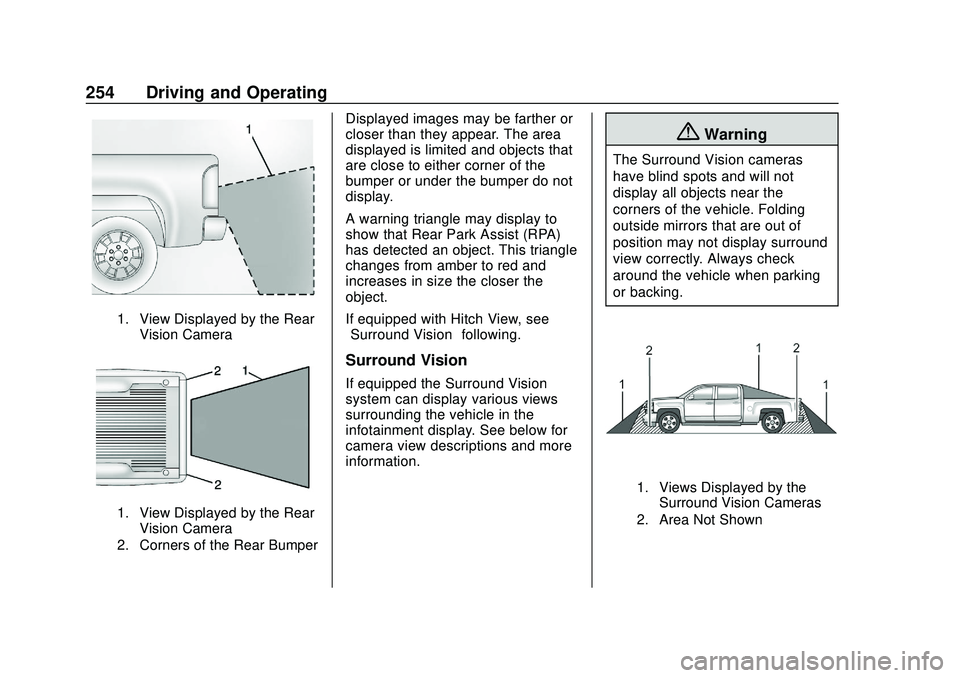
1. View Displayed by the RearVision Camera
1. View Displayed by the RearVision Camera
2. Corners of the Rear Bumper
Displayed images may be farther or
closer than they appear. The area
displayed is limited and objects that
are close to either corner of the
bumper or under the bumper do not
display.
A warning triangle may display to
show that Rear Park Assist (RPA)
has detected an object. This triangle
changes from amber to red and
increases in size the closer the
object.
If equipped with Hitch View, see
“Surround Vision” following.
Surround Vision
If equipped the Surround Vision
system can display various views
surrounding the vehicle in the
infotainment display. See below for
camera view descriptions and more
information.
{Warning
The Surround Vision cameras
have blind spots and will not
display all objects near the
corners of the vehicle. Folding
outside mirrors that are out of
position may not display surround
view correctly. Always check
around the vehicle when parking
or backing.
1. Views Displayed by the
Surround Vision Cameras
2. Area Not Shown
Page 256 of 495
Chevrolet Silverado Owner Manual (GMNA-Localizing-U.S./Canada/Mexico-
13337620) - 2020 - CTC - 1/27/20
Driving and Operating 255
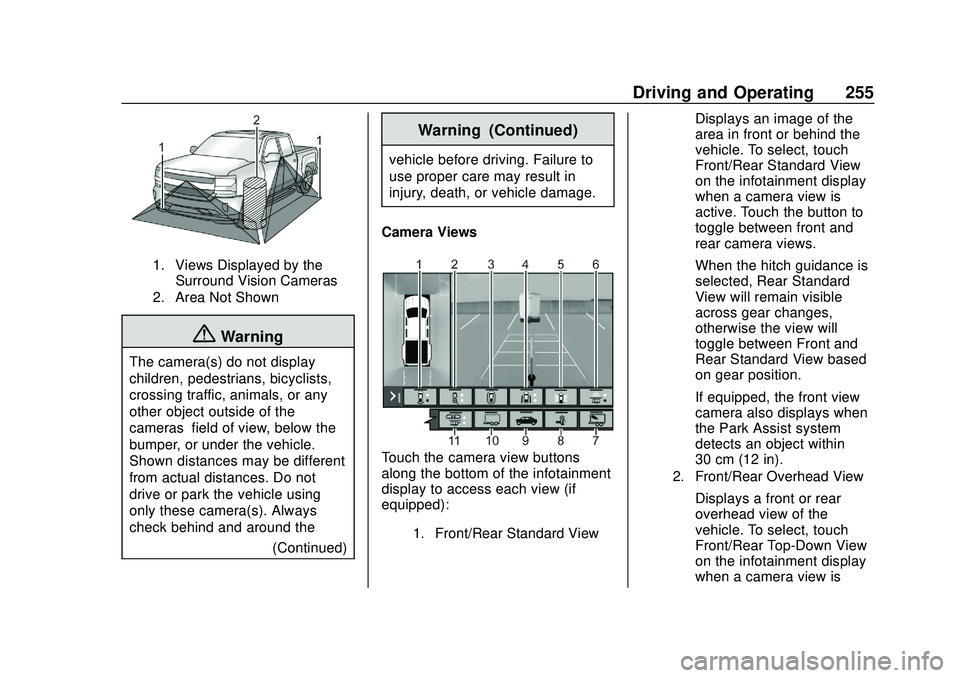
1. Views Displayed by theSurround Vision Cameras
2. Area Not Shown
{Warning
The camera(s) do not display
children, pedestrians, bicyclists,
crossing traffic, animals, or any
other object outside of the
cameras’ field of view, below the
bumper, or under the vehicle.
Shown distances may be different
from actual distances. Do not
drive or park the vehicle using
only these camera(s). Always
check behind and around the
(Continued)
Warning (Continued)
vehicle before driving. Failure to
use proper care may result in
injury, death, or vehicle damage.
Camera Views
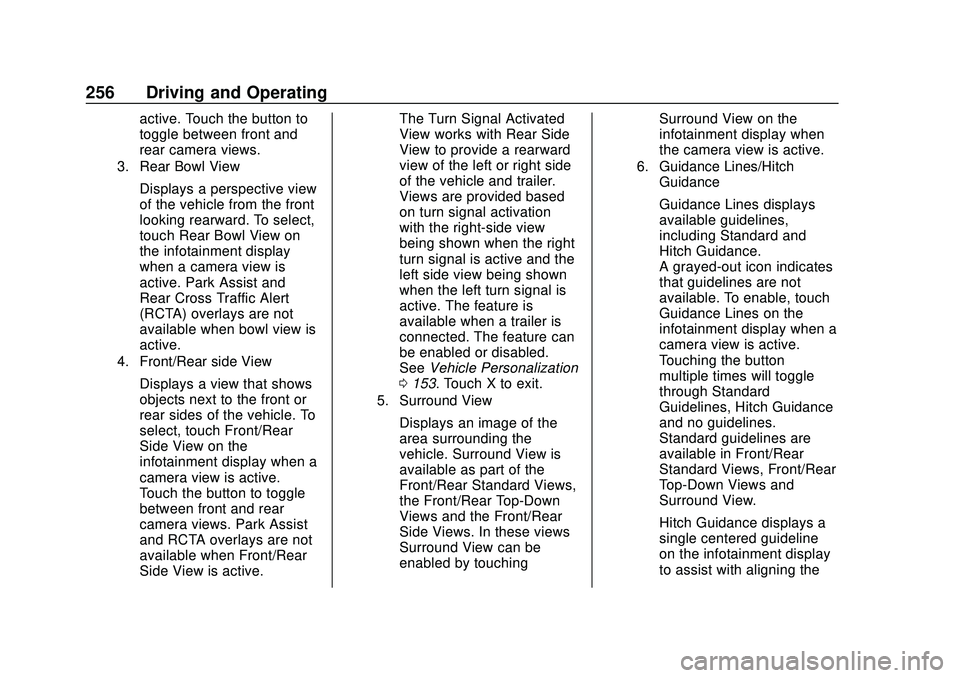
Touch the camera view buttons
along the bottom of the infotainment
display to access each view (if
equipped):
1. Front/Rear Standard View
Displays an image of the
area in front or behind the
vehicle. To select, touch
Front/Rear Standard View
on the infotainment display
when a camera view is
active. Touch the button to
toggle between front and
rear camera views.
When the hitch guidance is
selected, Rear Standard
View will remain visible
across gear changes,
otherwise the view will
toggle between Front and
Rear Standard View based
on gear position.
If equipped, the front view
camera also displays when
the Park Assist system
detects an object within
30 cm (12 in).
2. Front/Rear Overhead View
Displays a front or rear
overhead view of the
vehicle. To select, touch
Front/Rear Top-Down View
on the infotainment display
when a camera view is
Page 257 of 495
Chevrolet Silverado Owner Manual (GMNA-Localizing-U.S./Canada/Mexico-
13337620) - 2020 - CTC - 1/27/20
256 Driving and Operating
active. Touch the button to
toggle between front and
rear camera views.
3. Rear Bowl View
Displays a perspective view
of the vehicle from the front
looking rearward. To select,
touch Rear Bowl View on
the infotainment display
when a camera view is
active. Park Assist and
Rear Cross Traffic Alert
(RCTA) overlays are not
available when bowl view is
active.
4. Front/Rear side View
Displays a view that shows
objects next to the front or
rear sides of the vehicle. To
select, touch Front/Rear
Side View on the
infotainment display when a
camera view is active.
Touch the button to toggle
between front and rear
camera views. Park Assist
and RCTA overlays are not
available when Front/Rear
Side View is active.The Turn Signal Activated
View works with Rear Side
View to provide a rearward
view of the left or right side
of the vehicle and trailer.
Views are provided based
on turn signal activation
with the right-side view
being shown when the right
turn signal is active and the
left side view being shown
when the left turn signal is
active. The feature is
available when a trailer is
connected. The feature can
be enabled or disabled.
See
Vehicle Personalization
0 153. Touch X to exit.
5. Surround View
Displays an image of the
area surrounding the
vehicle. Surround View is
available as part of the
Front/Rear Standard Views,
the Front/Rear Top-Down
Views and the Front/Rear
Side Views. In these views
Surround View can be
enabled by touching Surround View on the
infotainment display when
the camera view is active.
6. Guidance Lines/Hitch
Guidance
Guidance Lines displays
available guidelines,
including Standard and
Hitch Guidance.
A grayed-out icon indicates
that guidelines are not
available. To enable, touch
Guidance Lines on the
infotainment display when a
camera view is active.
Touching the button
multiple times will toggle
through Standard
Guidelines, Hitch Guidance
and no guidelines.
Standard guidelines are
available in Front/Rear
Standard Views, Front/Rear
Top-Down Views and
Surround View.
Hitch Guidance displays a
single centered guideline
on the infotainment display
to assist with aligning the
Page 258 of 495
Chevrolet Silverado Owner Manual (GMNA-Localizing-U.S./Canada/Mexico-
13337620) - 2020 - CTC - 1/27/20
Driving and Operating 257
vehicle’s hitch ball with a
trailer coupler. Touch the
Hitch Guidance icon, then
align the trailer guidance
line over the trailer coupler.
Continuously steer the
vehicle to keep the
guideline centered on the
coupler when backing. Park
Assist overlays will not
display when the trailer
guidance line is active.
Hitch Guidance is available
in Rear Standard View.
{Warning
Use Hitch Guidance only to help
back the vehicle to a trailer hitch
or, when traveling above 12 km/h
(8 mph), to briefly check the
status of your trailer. Do not use
for any other purpose, such as
making lane change decisions.
Before making a lane change,
always check the mirrors and
glance over your shoulder.
Improper use could result in
serious injury to you or others.
7. Interior Trailer View
Provides a view of the
interior of the trailer. The
feature is available when a
trailer is connected. The
feature requires user
installation of an accessory
trailer camera on the
interior of the trailer per the
accessory trailer camera
installation instructions (see
your dealer for accessory
trailer camera(s) and
information). To select,
touch Interior Trailer View
on the infotainment display
when a camera view is
active. To access this view
when in a forward gear
above 12 km/h (8 mph),
touch CAMERA on the
infotainment display and
touch the Interior Trailer
View icon. The view will
close after 8 seconds and
can be closed early by
touching X.
8. Hitch View
Assists with connecting to a
trailer by providing a
zoomed-in view of the hitch
to help align the vehicle’s
hitch ball with the trailer
coupler, or to monitor the
trailer connection. To select,
touch Hitch View on the
infotainment display when a
camera view is active. To
access this view when in a
forward gear above 12 km/h
(8 mph), touch CAMERA on
the infotainment display
and touch the Cargo Bed
View icon. The view will
close after 8 seconds and
can be closed early by
touching X. Shifting into
P (Park) while in this view
will automatically engage
the Electric Parking
Brake (EPB).
9. Bed View
Provides a view of the truck
bed and the area behind
the vehicle to assist in
cargo or hitch monitoring or