tow CHEVROLET SILVERADO 2500 2020 Workshop Manual
[x] Cancel search | Manufacturer: CHEVROLET, Model Year: 2020, Model line: SILVERADO 2500, Model: CHEVROLET SILVERADO 2500 2020Pages: 500, PDF Size: 9.71 MB
Page 228 of 500
Chevrolet Silverado Owner Manual (GMNA-Localizing-U.S./Canada/Mexico-
13337620) - 2020 - CRC - 4/11/19
Driving and Operating 227
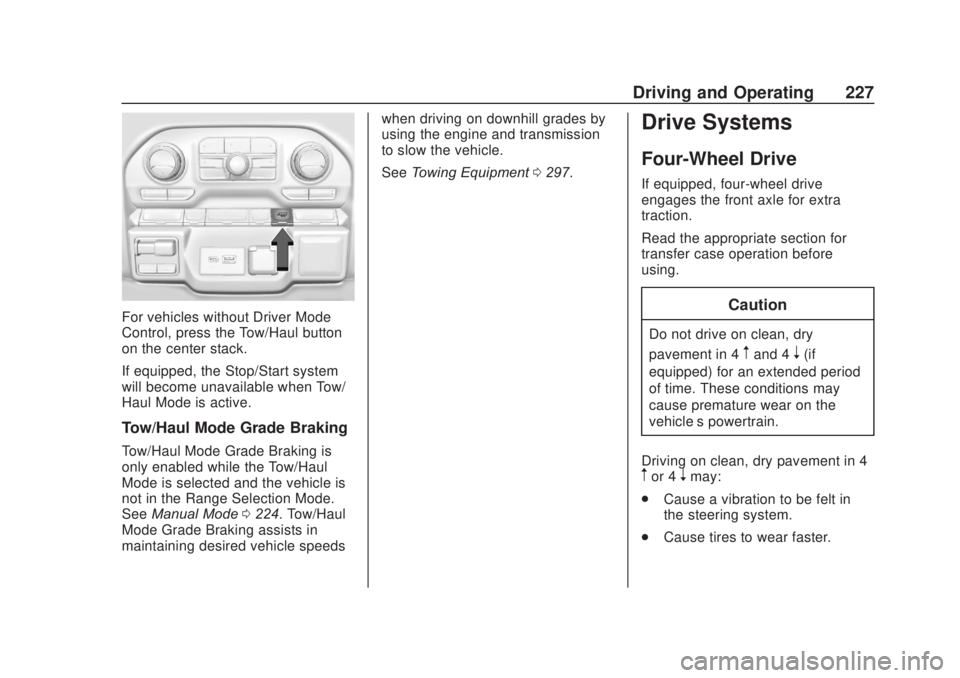
For vehicles without Driver Mode
Control, press the Tow/Haul button
on the center stack.
If equipped, the Stop/Start system
will become unavailable when Tow/
Haul Mode is active.
Tow/Haul Mode Grade Braking
Tow/Haul Mode Grade Braking is
only enabled while the Tow/Haul
Mode is selected and the vehicle is
not in the Range Selection Mode.
SeeManual Mode 0224. Tow/Haul
Mode Grade Braking assists in
maintaining desired vehicle speeds when driving on downhill grades by
using the engine and transmission
to slow the vehicle.
See
Towing Equipment 0297.
Drive Systems
Four-Wheel Drive
If equipped, four-wheel drive
engages the front axle for extra
traction.
Read the appropriate section for
transfer case operation before
using.
Caution
Do not drive on clean, dry
pavement in 4
mand 4n(if
equipped) for an extended period
of time. These conditions may
cause premature wear on the
vehicle’s powertrain.
Driving on clean, dry pavement in 4
mor 4nmay:
. Cause a vibration to be felt in
the steering system.
. Cause tires to wear faster.
Page 229 of 500
Chevrolet Silverado Owner Manual (GMNA-Localizing-U.S./Canada/Mexico-
13337620) - 2020 - CRC - 4/11/19
228 Driving and Operating
{Warning
If equipped with four-wheel drive,
the vehicle will be free to roll if the
transfer case is in N (Neutral),
even when the shift lever is in
P (Park). You or someone else
could be seriously injured. Be
sure the transfer case is in a drive
gear—2
m, 4m, or 4n—or set the
parking brake before placing the
transfer case in N (Neutral). See
Shifting Into Park 0217.
Caution
Extended high-speed operation in
4
nmay damage or shorten the
life of the drivetrain.
An engagement noise and bump is
normal when shifting between 4
n
and 4mor N (Neutral), with the
engine running. Shifting into 4
nwill turn Traction
Control and StabiliTrak/Electronic
Stability Control (ESC) off. See
Traction Control/Electronic Stability
Control 0235.
Automatic Transfer Case
Two-Speed Transfer Case
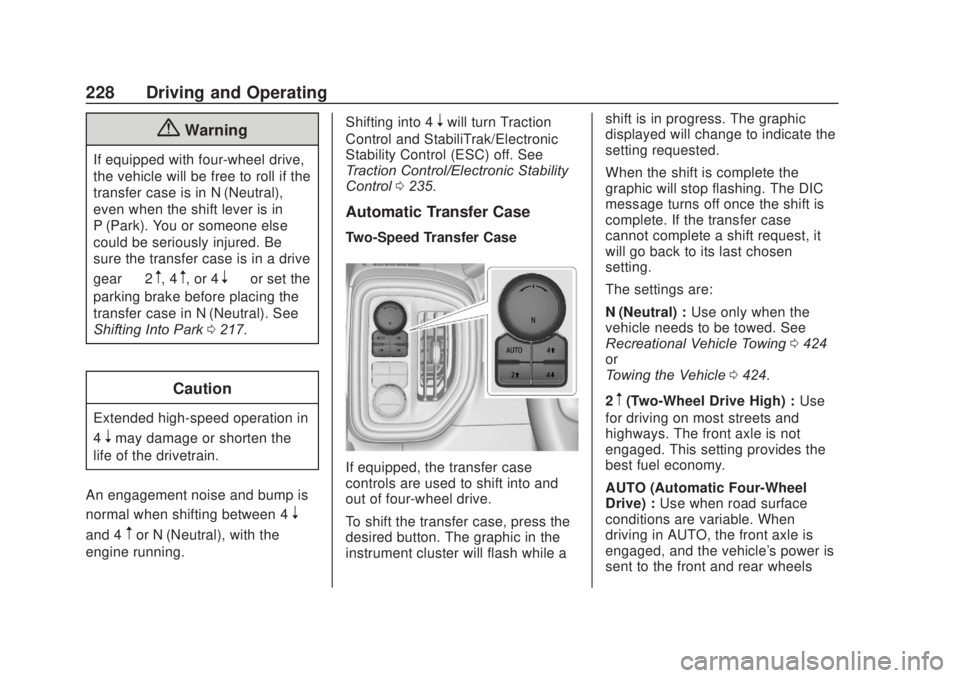
If equipped, the transfer case
controls are used to shift into and
out of four-wheel drive.
To shift the transfer case, press the
desired button. The graphic in the
instrument cluster will flash while a shift is in progress. The graphic
displayed will change to indicate the
setting requested.
When the shift is complete the
graphic will stop flashing. The DIC
message turns off once the shift is
complete. If the transfer case
cannot complete a shift request, it
will go back to its last chosen
setting.
The settings are:
N (Neutral) :
Use only when the
vehicle needs to be towed. See
Recreational Vehicle Towing 0424
or
Towing the Vehicle 0424.
2
m(Two-Wheel Drive High) : Use
for driving on most streets and
highways. The front axle is not
engaged. This setting provides the
best fuel economy.
AUTO (Automatic Four-Wheel
Drive) : Use when road surface
conditions are variable. When
driving in AUTO, the front axle is
engaged, and the vehicle's power is
sent to the front and rear wheels
Page 239 of 500
Chevrolet Silverado Owner Manual (GMNA-Localizing-U.S./Canada/Mexico-
13337620) - 2020 - CRC - 4/11/19
238 Driving and Operating
If HDC is to be used for more than
three minutes or on grades steeper
than 25%, the transfer case should
be put into Four-Wheel Drive Low (4
n) to reduce the possibility of brake
overheating.
Noise from the Electronic Brake
Control Module (EBCM) is normal
when HDC is active.
When HDC is activated, the initial
HDC speed is set to the current
driving speed. It can be increased or
decreased by pressing +RES or
SET- on the steering wheel, or by
applying the accelerator or brake
pedal. This adjusted speed
becomes the new set speed.
HDC will remain enabled between
30 and 60 km/h (19 and 37 mph);
however, vehicle speed cannot be
set or maintained in this range. HDC
will automatically disable if the
vehicle speed is above 80 km/h
(50 mph) or above 60 km/h
(37 mph) for at least 30 seconds.
5must be pressed again to
re-enable HDC. HDC may disable
after an extended period of use. If this happens, HDC will require
time to cool down. The length of
time HDC remains active depends
on road conditions, grade, set
speed, vehicle loading, and outside
temperature.
When enabled, if the vehicle speed
is above 30 km/h (19 mph) and
below 60 km/h (37 mph), a DIC
message will display.
Driver Mode Control
This feature adds a sportier feel,
provides a more comfortable ride,
or assists in different weather
conditions or terrain. Depending on
the option package, available
features, and mode selected; the
suspension, steering, and
powertrain will change settings to
achieve the desired mode
characteristics. If the vehicle is
equipped with magnetic ride control,
selecting the various Driver Modes
enhances the ride performance for
the road conditions and the
selected mode.
Mode availability is dependent upon
vehicle trim level, region, and
optional features.
Not all drive modes are available
on. 1500 series vehicles may have
Normal, Sport, Snow/Ice, Off Road,
Terrain, and Tow Haul. 2500/3500
series vehicles may have Normal,
Off Road, Snow/Ice, and Tow/Haul.
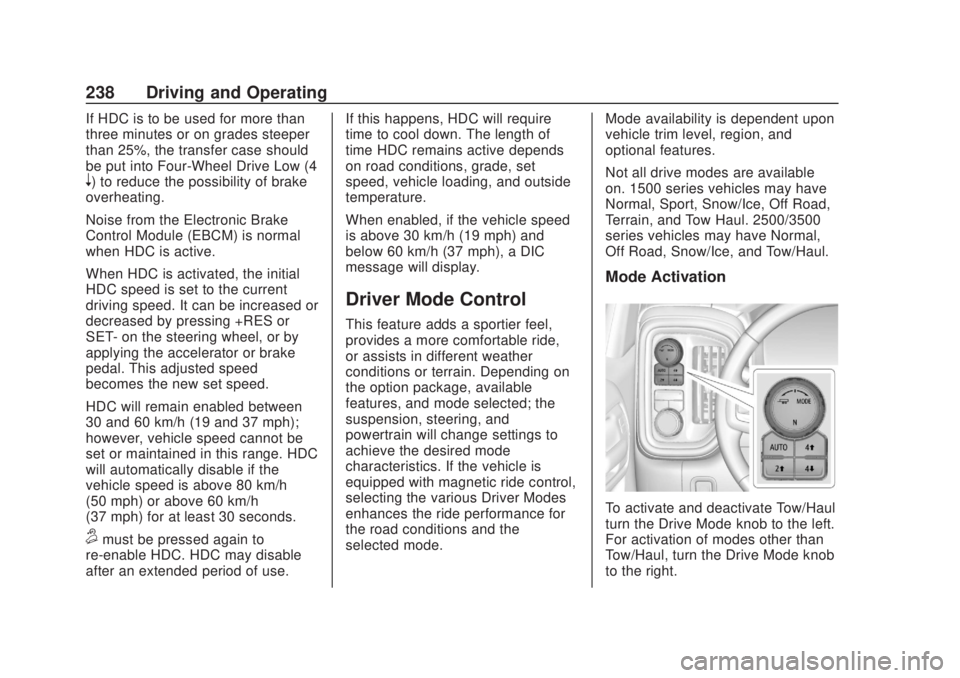
Mode Activation
To activate and deactivate Tow/Haul
turn the Drive Mode knob to the left.
For activation of modes other than
Tow/Haul, turn the Drive Mode knob
to the right.
Page 241 of 500
Chevrolet Silverado Owner Manual (GMNA-Localizing-U.S./Canada/Mexico-
13337620) - 2020 - CRC - 4/11/19
240 Driving and Operating
Snow/Ice Mode
Snow/Ice Mode is used for slippery
surfaces to help control wheel
speed. Snow Mode will adjust
acceleration to optimize traction on
a slippery surface. The accelerator
pedal will reduce engine torque at
small pedal inputs. This feature is
not intended for use when the
vehicle is stuck in sand, mud, ice,
snow, or gravel.
If the vehicle becomes stuck, seeIf
the Vehicle Is Stuck 0199.
Snow/Ice Mode is only available on
two-wheel-drive vehicles. When
selected, the Snow/Ice Mode light
displays in the instrument cluster.
Off-Road Mode
Use to improve driving at moderate
speeds, on grass, gravel, dirt,
unpaved roads, or snow-covered
roads that have not been groomed
or plowed.
The accelerator pedal will be more
sensitive to provide finer control of
the torque at the wheels.
StabiliTrak/Electronic Stability Control (ESC), the Antilock Brake
System (ABS), and the Traction
Control System (TCS) will change
for optimal off-road performance.
Use this mode for public off-road
recreational driving. See
Off-Road
Driving 0191.
When selected, the Off-Road Mode
indicator light displays in the
instrument cluster.
Tow/Haul Mode
This feature assists when pulling a
heavy trailer or a heavy load. See
Tow/Haul Mode 0226.
Tow/Haul Mode is designed to be
most effective when the vehicle and
trailer combined weight is at least
75% of the vehicle’s Gross
Combined Weight Rating (GCWR).
See “Weight of the Trailer” under
Trailer Towing 0292.
Tow/Haul Mode is most useful when
pulling a heavy trailer or a heavy
load under the following conditions:
. Through rolling terrain
. In stop-and-go traffic .
In busy parking lots where
improved low speed control of
the vehicle is desired
Operating the vehicle in Tow/Haul
Mode when lightly loaded or with no
trailer at all will not cause damage.
However, there is no benefit to
selecting Tow/Haul Mode when the
vehicle is unloaded. Such a
selection when unloaded may result
in unpleasant engine and
transmission driving characteristics,
heavy or light steering, and reduced
fuel economy.
When selected, the Tow/Haul Mode
light will display in the instrument
cluster.
If the vehicle is turned off with Tow/
Haul Mode active and then restarted
within four hours or less, Tow/Haul
will remain active. Otherwise the
vehicle will start in Normal Mode.
Terrain Mode
Use for finer control during low
speed, off-road driving. When using
this mode it will mimic the
Page 246 of 500
Chevrolet Silverado Owner Manual (GMNA-Localizing-U.S./Canada/Mexico-
13337620) - 2020 - CRC - 4/11/19
Driving and Operating 245
.To increase vehicle speed in
small increments, press +RES
up briefly. For each press, the
vehicle goes about 1 km/h
(1 mph) faster.
The speedometer reading can be
displayed in either English or metric
units. See Instrument Cluster 0127.
The increment value used depends
on the units displayed.
Reducing Speed While Using
Cruise Control
Do one of the following:
. Press and hold SET– down until
the desired lower speed is
reached, then release it.
. To slow down in small
increments, press SET– down
briefly. For each press, the
vehicle goes about 1 km/h
(1 mph) slower.
The speedometer reading can be
displayed in either English or metric
units. See Instrument Cluster 0127.
The increment value used depends
on the units displayed. Passing Another Vehicle While
Using Cruise Control
Use the accelerator pedal to
increase the vehicle speed. When
you take your foot off the pedal, the
vehicle will slow down to the
previously set cruise speed. While
pressing the accelerator pedal or
shortly following the release to
override cruise control, briefly
pressing SET–
will result in cruise
control set to the current vehicle
speed.
Using Cruise Control on Hills
How well the cruise control works
on hills depends on the vehicle
speed, the load, and the steepness
of the hills. When going up steep
hills, pressing the accelerator pedal
may be necessary to maintain
vehicle speed.
While going downhill, cruise braking
helps maintain driver selected
speed.
Cruise Grade Braking is enabled
when the vehicle is started and
cruise control is active. It is not
enabled in Range Selection Mode. It assists in maintaining driver
selected speed when driving on
downhill grades by using the engine
and transmission to slow the
vehicle.
For other forms of descent control,
see
Hill Descent Control (HDC)
0 237, Automatic Transmission
0 221, and Tow/Haul Mode 0226.
Ending Cruise Control
There are four ways to end cruise
control:
. Step lightly on the brake pedal.
. Press
*.
. Shift the transmission to
N (Neutral).
. To turn off cruise control,
press
5.
Erasing Speed Memory
The cruise control set speed is
erased from memory if
5is pressed
or the ignition is turned off.
Page 248 of 500
Chevrolet Silverado Owner Manual (GMNA-Localizing-U.S./Canada/Mexico-
13337620) - 2020 - CRC - 4/11/19
Driving and Operating 247
Warning (Continued)
.On slippery roads where
fast changes in tire traction
can cause excessive
wheel slip
. With extremely heavy cargo
loaded in the cargo area or
rear seat
. When towing a trailer
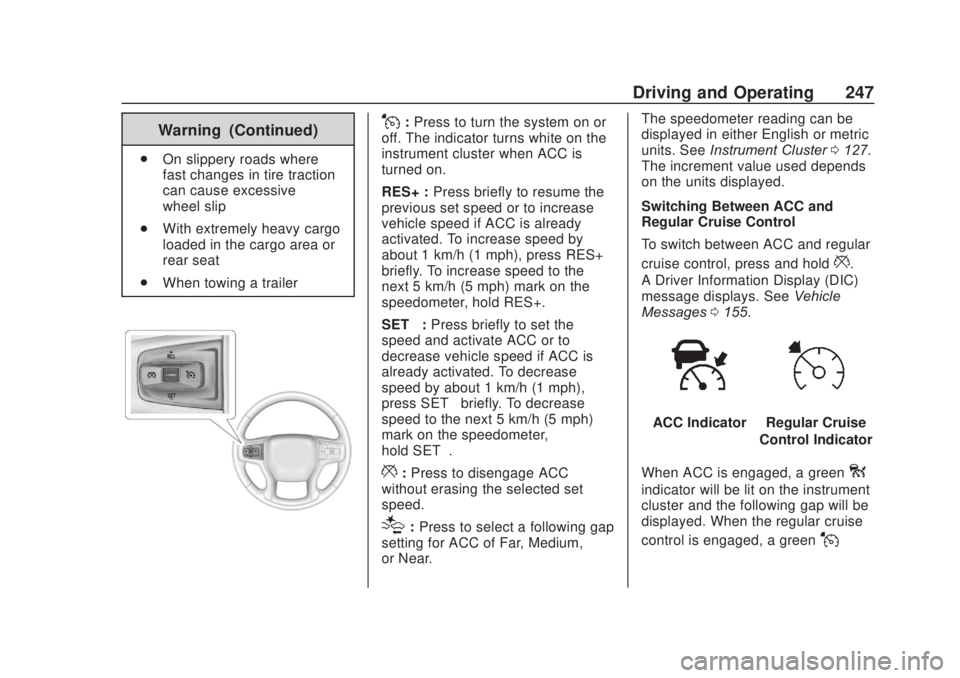
J:Press to turn the system on or
off. The indicator turns white on the
instrument cluster when ACC is
turned on.
RES+ : Press briefly to resume the
previous set speed or to increase
vehicle speed if ACC is already
activated. To increase speed by
about 1 km/h (1 mph), press RES+
briefly. To increase speed to the
next 5 km/h (5 mph) mark on the
speedometer, hold RES+.
SET– :Press briefly to set the
speed and activate ACC or to
decrease vehicle speed if ACC is
already activated. To decrease
speed by about 1 km/h (1 mph),
press SET– briefly. To decrease
speed to the next 5 km/h (5 mph)
mark on the speedometer,
hold SET–.
*: Press to disengage ACC
without erasing the selected set
speed.
[: Press to select a following gap
setting for ACC of Far, Medium,
or Near. The speedometer reading can be
displayed in either English or metric
units. See
Instrument Cluster 0127.
The increment value used depends
on the units displayed.
Switching Between ACC and
Regular Cruise Control
To switch between ACC and regular
cruise control, press and hold
*.
A Driver Information Display (DIC)
message displays. See Vehicle
Messages 0155.
ACC IndicatorRegular Cruise
Control Indicator
When ACC is engaged, a green
o
indicator will be lit on the instrument
cluster and the following gap will be
displayed. When the regular cruise
control is engaged, a green
J
Page 255 of 500
Chevrolet Silverado Owner Manual (GMNA-Localizing-U.S./Canada/Mexico-
13337620) - 2020 - CRC - 4/11/19
254 Driving and Operating
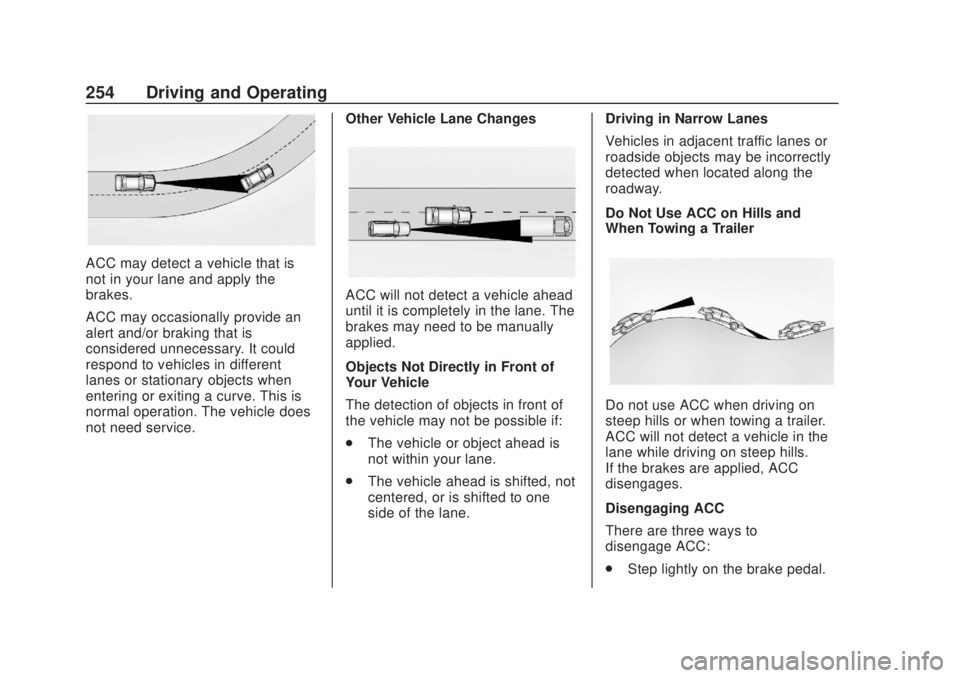
ACC may detect a vehicle that is
not in your lane and apply the
brakes.
ACC may occasionally provide an
alert and/or braking that is
considered unnecessary. It could
respond to vehicles in different
lanes or stationary objects when
entering or exiting a curve. This is
normal operation. The vehicle does
not need service.Other Vehicle Lane Changes
ACC will not detect a vehicle ahead
until it is completely in the lane. The
brakes may need to be manually
applied.
Objects Not Directly in Front of
Your Vehicle
The detection of objects in front of
the vehicle may not be possible if:
.
The vehicle or object ahead is
not within your lane.
. The vehicle ahead is shifted, not
centered, or is shifted to one
side of the lane. Driving in Narrow Lanes
Vehicles in adjacent traffic lanes or
roadside objects may be incorrectly
detected when located along the
roadway.
Do Not Use ACC on Hills and
When Towing a Trailer
Do not use ACC when driving on
steep hills or when towing a trailer.
ACC will not detect a vehicle in the
lane while driving on steep hills.
If the brakes are applied, ACC
disengages.
Disengaging ACC
There are three ways to
disengage ACC:
.
Step lightly on the brake pedal.
Page 264 of 500
Chevrolet Silverado Owner Manual (GMNA-Localizing-U.S./Canada/Mexico-
13337620) - 2020 - CRC - 4/11/19
Driving and Operating 263
left or right. When the
system is not calibrated or
trailer position is not known
the Transparent Trailer
Picture-in-Picture View will
be shown.
11. Rear Trailer View/Rear SideView with Available
Articulation Functionality/
Picture-in-Picture Side View
.Rear Trailer View
provides a view of the
area behind the trailer.
the feature is available
when a trailer is
connected. The feature
requires user installation
of an accessory trailer
camera on the rear
exterior surface of the
trailer per the accessory
trailer camera
installation instructions
(see your dealer for
accessory trailer
camera(s) and
information). To select,
touch Rear Trailer View/
Rear Side View with Available Articulation
Functionality/
Picture-in-Pictue Side
View on the
infotainment display
when a camera view is
active. Each touch will
toggle through the Rear
Trailer View, Trailer Tow
Mirror View and Combo
View. To access this
view when in a forward
gear above 12 km/h
(8 mph), touch
CAMERA on the
infotainment display and
touch the Interior Rear
Trailer View/Rear Side
View with Available
Articulation
Functionality/
Picture-in-Picture Side
View icon. Touch X
to exit.
. Rear Side View with
Available Articulation
Functionality provides a
rearward split view of
the left and right sides
of the vehicle and trailer. When in a forward gear
the view well
automatically pan to
show more of the left or
right side based on the
position of the trailer.
The feature is available
when a trailer is
connected. To select,
touch Rear trailer View/
Rear Side View with
Available Articulation
Functionality/
Picture-in-Picture Side
View on the
infotainment display
when a camera view is
active. Each touch will
toggle through the Rear
Trailer View, trailer tow
Mirror view and Combo
View. To access this
view when in a forward
gear above 12 km/h
(8 mph), Touch
CAMERA on the
infotainment display and
touch the Rear Trailer
View/Rear Side View
with Available
Page 265 of 500
Chevrolet Silverado Owner Manual (GMNA-Localizing-U.S./Canada/Mexico-
13337620) - 2020 - CRC - 4/11/19
264 Driving and Operating
Articulation
Functionality/
Picture-in-Picture Side
icon. Touch X to exit.
. Provides a rearward
split view of the left and
right sides of the vehicle
and trailer with an
overlay view of the area
behind the trailer. The
feature is available
when a trailer is
connected. the feature
requires user installation
of an accessory trailer
camera on the rear
exterior surface of the
trailer per the accessory
trailer camera
installation instructions
(see your dealer for
accessory trailer
camera(s) and
information). To select,
touch Rear Trailer View/
Rear Side View with
Available Articulation
Functionality/
Picture-in-Picture Side
view on the infotainment display when a camera
view is active. Each
press of the button will
toggle through the Rear
Trailer View, Trailer Tow
mirror View and Combo
View. To access this
view when in a forward
gear above 12 km/h
(8 mph), touch
CAMERA on the
infotainment display and
touch the Rear Trailer
View/Rear Side View
with Available
Articulation
Functionality/
Picture-in-Picture Side
View icon. Touch X
to exit.
HD Surround Vision with Trailer
Camera Provisions
If equipped, this feature provides
additional views to aid in trailering/
towing. The system shows multiple
views in the infotainment display
using five cameras mounted around
the vehicle and up to two additional
accessory cameras that can be mounted on or in a trailer. The front
camera is in the grille under the
front emblem, the side cameras are
on the bottom of the outside mirrors,
the rear camera is in the tailgate
handle and the bed camera is
mounted on the rear of the cab.
Additionally, up to two accessory
cameras can be mounted to the rear
and/or interior of the trailer. See
your dealer for accessory trailer
cameras. To access, touch
CAMERA on the infotainment
display or shift to R (Reverse). To
return to the previous screen when
not in reverse, touch the Home or
Back buttons on the infotainment
display.
Available camera views:
.
Front/Rear Standard View
. Front/Rear Top-Down View
. Rear Bowl View
. Front/Rear Side View
. Hitch View
. Bed View
. Rear trailer View
Page 266 of 500
Chevrolet Silverado Owner Manual (GMNA-Localizing-U.S./Canada/Mexico-
13337620) - 2020 - CRC - 4/11/19
Driving and Operating 265
.Rear Side view with a available
articulation functionality
. Picture-in-Picture Side View
. Interior Trailer View
. Transparent trailer View
. Surround View
. Guidance Lines
. Hitch Guidance
Surround Vision (360 Degrees)
If equipped, the Surround Vision
system can display various views
surrounding the vehicle in the
infotainment display using four
cameras mounted around the
vehicle. The front camera is in the
grille under the front emblem, the
side cameras are on the bottom of
the outside mirrors, and the rear
camera is in the tailgate handle.
The Surround Vision system can be
accessed by selecting CAMERA in
the infotainment display or when the
vehicle is shifted into R (Reverse).
To return to the previous screen
sooner, when not in R (Reverse),
press the Home or Back button on the infotainment system, shift into
P (Park), or, while in D (Drive),
reach a vehicle speed of
approximately 12 km/h (8 mph).
Available camera views:
.
Front/Rear Standard View
. Front/Rear Top-Down View
. Rear Bowl View
. Front/Rear Side View
. Hitch View
. Surround View
. Guidance Lines
. Hitch Guidance
Surround Vision
If equipped, this feature provides,
additional views to aid in trailering/
towing. The Front Vision Camera
and Surround Vision cameras are
not supported. The system can
show various views in the
infotainment display using cameras
mounted in and around the vehicle
and trailer. The rear camera is in the
tailgate handle and the cargo bed
camera is mounted on the rear of the cab. Up to two accessory
cameras can be mounted to the rear
and/or interior of the trailer. See
your dealer for these accessory
cameras.
The system can be accessed by
selecting CAMERA in the
infotainment display or when the
vehicle is shifted into R (Reverse).
To return to the previous screen
sooner, when not in R (Reverse),
press the Home or Back button on
the infotainment system or shift into
P (Park).
Available camera views:
.
Rear Standard View
. Hitch View
. Bed View
. Rear Trailer View
. Interior Trailer View
. Guidance Lines
. Hitch Guidance