ECU CHEVROLET SILVERADO 2500 2023 Service Manual
[x] Cancel search | Manufacturer: CHEVROLET, Model Year: 2023, Model line: SILVERADO 2500, Model: CHEVROLET SILVERADO 2500 2023Pages: 441, PDF Size: 14.4 MB
Page 124 of 441
Chevrolet Silverado 2500 HD/3500 HD Owner Manual (GMNA-Localizing-U.
S./Canada/Mexico-15546003) - 2022 - CRC - 5/12/21
Instruments and Controls 123
The security light should come on briefly as
the engine is started. If it does not come on,
have the vehicle serviced by your dealer.
If the system is working normally, the
indicator light turns off.
If the light stays on and the engine does
not start, there could be a problem with the
theft-deterrent system. SeeImmobilizer
Operation 033.
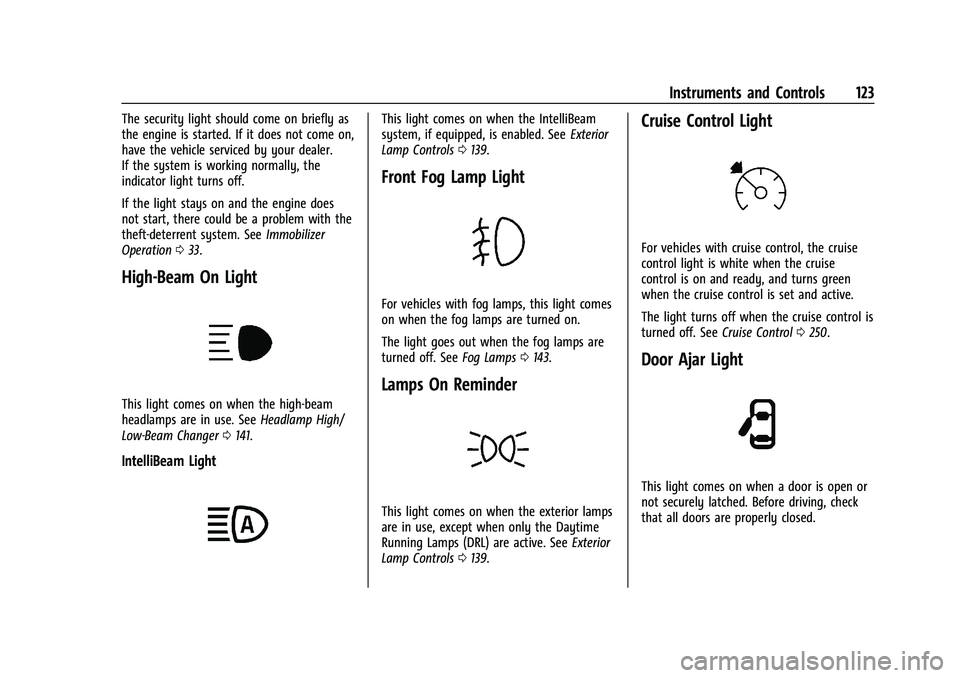
High-Beam On Light
This light comes on when the high-beam
headlamps are in use. See Headlamp High/
Low-Beam Changer 0141.
IntelliBeam Light
This light comes on when the IntelliBeam
system, if equipped, is enabled. See Exterior
Lamp Controls 0139.
Front Fog Lamp Light
For vehicles with fog lamps, this light comes
on when the fog lamps are turned on.
The light goes out when the fog lamps are
turned off. See Fog Lamps0143.
Lamps On Reminder
This light comes on when the exterior lamps
are in use, except when only the Daytime
Running Lamps (DRL) are active. See Exterior
Lamp Controls 0139.
Cruise Control Light
For vehicles with cruise control, the cruise
control light is white when the cruise
control is on and ready, and turns green
when the cruise control is set and active.
The light turns off when the cruise control is
turned off. See Cruise Control0250.
Door Ajar Light
This light comes on when a door is open or
not securely latched. Before driving, check
that all doors are properly closed.
Page 131 of 441
Chevrolet Silverado 2500 HD/3500 HD Owner Manual (GMNA-Localizing-U.
S./Canada/Mexico-15546003) - 2022 - CRC - 5/12/21
130 Instruments and Controls
English Shown, Metric Similar
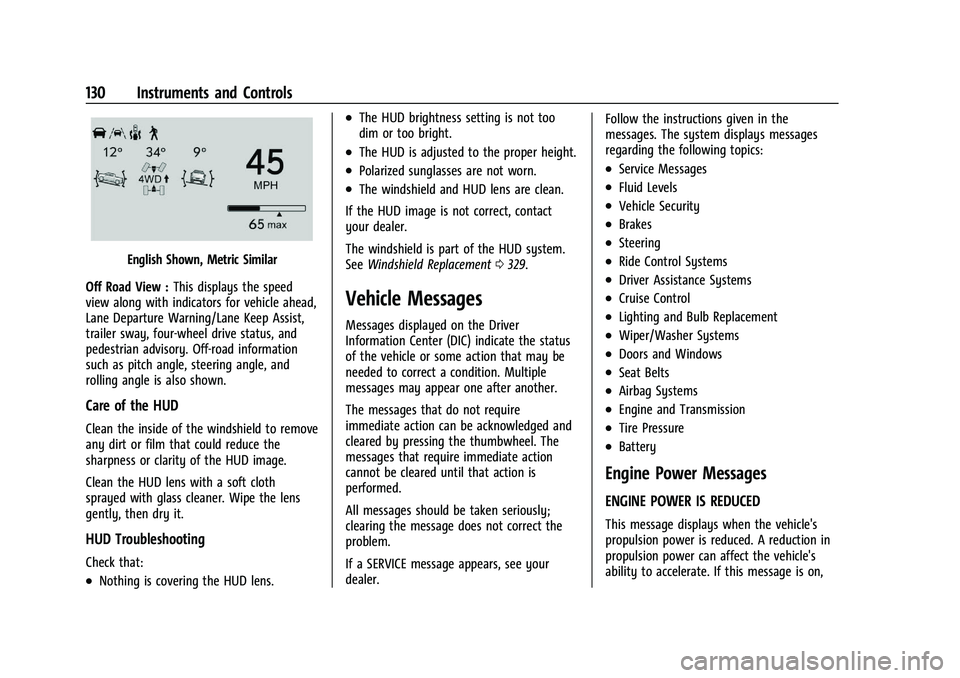
Off Road View : This displays the speed
view along with indicators for vehicle ahead,
Lane Departure Warning/Lane Keep Assist,
trailer sway, four-wheel drive status, and
pedestrian advisory. Off-road information
such as pitch angle, steering angle, and
rolling angle is also shown.
Care of the HUD
Clean the inside of the windshield to remove
any dirt or film that could reduce the
sharpness or clarity of the HUD image.
Clean the HUD lens with a soft cloth
sprayed with glass cleaner. Wipe the lens
gently, then dry it.
HUD Troubleshooting
Check that:
.Nothing is covering the HUD lens.
.The HUD brightness setting is not too
dim or too bright.
.The HUD is adjusted to the proper height.
.Polarized sunglasses are not worn.
.The windshield and HUD lens are clean.
If the HUD image is not correct, contact
your dealer.
The windshield is part of the HUD system.
See Windshield Replacement 0329.
Vehicle Messages
Messages displayed on the Driver
Information Center (DIC) indicate the status
of the vehicle or some action that may be
needed to correct a condition. Multiple
messages may appear one after another.
The messages that do not require
immediate action can be acknowledged and
cleared by pressing the thumbwheel. The
messages that require immediate action
cannot be cleared until that action is
performed.
All messages should be taken seriously;
clearing the message does not correct the
problem.
If a SERVICE message appears, see your
dealer. Follow the instructions given in the
messages. The system displays messages
regarding the following topics:
.Service Messages
.Fluid Levels
.Vehicle Security
.Brakes
.Steering
.Ride Control Systems
.Driver Assistance Systems
.Cruise Control
.Lighting and Bulb Replacement
.Wiper/Washer Systems
.Doors and Windows
.Seat Belts
.Airbag Systems
.Engine and Transmission
.Tire Pressure
.Battery
Engine Power Messages
ENGINE POWER IS REDUCED
This message displays when the vehicle's
propulsion power is reduced. A reduction in
propulsion power can affect the vehicle's
ability to accelerate. If this message is on,
Page 136 of 441
Chevrolet Silverado 2500 HD/3500 HD Owner Manual (GMNA-Localizing-U.
S./Canada/Mexico-15546003) - 2022 - CRC - 5/12/21
Instruments and Controls 135
Seat Exit Memory
This feature automatically recalls the
previously stored exit button position when
the ignition is changed from on or ACC/
ACCESSORY to off and the driver door is
open. SeeMemory Seats 050.
Touch Off or On.
Suspension
Touch and the following may display:
.Service Mode
.Alignment Mode
Service Mode
This feature disables the air suspension
system and is used to prevent unintended
raising or lowering of the suspension..
Touch Off or On.
Alignment Mode
This feature will optimize the vehicle height
to provide the most accurate wheel
alignment.
Touch Off or On.
Trailering
Touch and the following may display:
.Side Trailer Camera
.Bed View Camera Lighting
Side Trailer Camera
This feature specifies if using the turn signal
during a lane change will also display an
applicable side view of the trailer and
vehicle. See Assistance Systems for Parking
or Backing 0253.
Touch Off or On.
Bed View Camera Lighting
This feature specifies if the truck bed rail
lights are turned on when the Bed View
Camera is active. See Assistance Systems for
Parking or Backing 0253.
Touch Off or On.
Teen Driver
See “Teen Driver” underSettings 0184.
Valet Mode
This will lock the infotainment system and
steering wheel controls. It may also limit
access to vehicle storage locations,
if equipped.
To enable valet mode:
1. Enter a four-digit code on the keypad.
2. Select Enter to go to the confirmation screen. 3. Re-enter the four-digit code.
Touch Lock or Unlock to lock or unlock the
system. Touch Back to go back to the
previous menu.
Universal Remote System
See Radio Frequency Statement 0417.
Universal Remote System
Programming
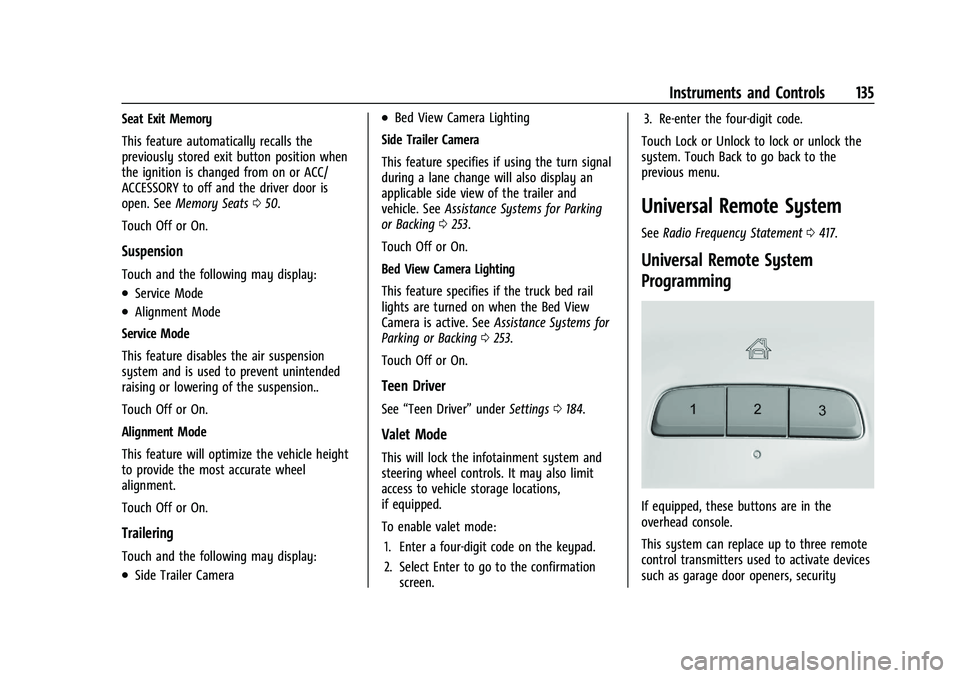
If equipped, these buttons are in the
overhead console.
This system can replace up to three remote
control transmitters used to activate devices
such as garage door openers, security
Page 159 of 441
Chevrolet Silverado 2500 HD/3500 HD Owner Manual (GMNA-Localizing-U.
S./Canada/Mexico-15546003) - 2022 - CRC - 5/5/21
158 Infotainment System
SiriusXM Satellite Radio Service
If equipped, SiriusXM Satellite Radio Service
provides digital radio reception. Tall
buildings or hills can interfere with satellite
radio signals, causing the sound to fade in
and out. In addition, traveling or standing
under heavy foliage, bridges, garages,
or tunnels may cause loss of the SiriusXM
signal for a period of time. Some cellular
services may interfere with SXM reception
causing loss of signal.
Mobile Device Usage
Mobile device usage, such as making or
receiving calls, charging, or just having the
mobile device on may cause static
interference in the radio. Unplug the mobile
device or turn it off if this happens.
Fixed Mast Antenna
The fixed mast antenna will go through
most car washes as long as it is securely
attached. If the antenna becomes slightly
bent, straighten it out by hand. If it is badly
bent, replace it.
Occasionally check that the antenna is tight
at the base. If tightening is required, protect
the paint from damage.
Multi-Band Antenna
The roof antenna is for SiriusXM Satellite
Radio, OnStar, and GPS (Global Positioning
System), depending on the equipped
options. Keep clear of obstructions for clear
reception. If the vehicle has a sunroof, and it
is open, reception can also be affected.
Audio Players
Avoiding Untrusted Media Devices
When using media devices such as SD cards,
USB devices, and mobile devices, consider
the source. Untrusted media devices could
contain files that affect system operation or
performance. Avoid use if the content or
origin cannot be trusted.
USB Port
This vehicle is equipped with two USB ports
in the center console under the armrest and
another two in the center stack. These ports
are for data and charging.
There may also be two USB ports for
charging only at the rear of the center
console.
Caution
To avoid vehicle damage, unplug all
accessories and disconnect all accessory
cables from the vehicle when not in use.
Accessory cables left plugged into the
vehicle, unconnected to a device, could be
damaged or cause an electrical short if
the unconnected end comes in contact
with liquids or another power source such
as the accessory power outlet.
Playing from a USB
A USB mass storage device can be connected
to the USB port.
Gracenote
When plugging in a USB device, Gracenote
service builds voice tags for music. Voice
tags allow artists, albums with hard to
pronounce names, and nicknames to be used
to play music through voice recognition.
While indexing, infotainment features are
available.
Page 185 of 441
Chevrolet Silverado 2500 HD/3500 HD Owner Manual (GMNA-Localizing-U.
S./Canada/Mexico-15546003) - 2022 - CRC - 5/5/21
184 Infotainment System
upon wireless connection. If not, touch the
Android Auto or Apple CarPlay icon on the
Home Page to launch.
Wireless Carplay and/or Wireless Android
Auto may experience occasional service
disruption due to outside Wi-Fi interference.
To disconnect the phones wireless
projection:1. Select Settings from the Home Page.
2. Select Phones
3. Touch
4next to the phone to be
disconnected.
4. Turn off Apple CarPlay or Android Auto.
Press
{on the center stack to return to the
Home Page.
Features are subject to change. For further
information on how to set up Android Auto
and Apple CarPlay in the vehicle, see
my.chevrolet.com.
Android Auto is provided by Google and is
subject to Google’s terms and privacy policy.
Apple CarPlay is provided by Apple and is
subject to Apple’s terms and privacy policy.
Data plan rates apply. For Android Auto
support and to see if your phone is
compatible, see https://support.google.com/
androidauto. For Apple CarPlay support and to see if your phone is compatible, see
www.apple.com/ios/carplay/. Apple or
Google may change or suspend availability
at any time. Android Auto, Android, Google,
Google Play, and other marks are
trademarks of Google Inc.; Apple CarPlay is a
trademark of Apple Inc.
Press
{on the center stack to exit Android
Auto or Apple CarPlay. To enter back into
Android Auto or Apple CarPlay, press and
hold
{on the center stack.
Apple CarPlay and Android Auto can be
disabled from the infotainment system. To
do this, touch Home, Settings, and then
touch the Apps tab along the top of the
display. Use the On/Off toggled to turn off
Apple CarPlay or Android Auto.
Settings
Certain settings can be managed in the
Owner Center sites when an account is
established, and may be modified if other
users have accessed the vehicle or created
accounts. This may result in changes to the
security or functionality of the infotainment
system. Some settings may also be
transferred to a new vehicle, if equipped. For instructions, in the U.S. see
my.chevrolet.com or in Canada see
mychevrolet.ca or monchevrolet.ca.
Refer to the User Terms and Privacy
Statement for important details. To view,
touch the Settings icon on the Home Page
of the infotainment display.
The settings menu may be organized into
four categories. Select the desired category
by touching System, Apps, Vehicle,
or Personal.
To access the personalization menus:
1. Touch Settings on the Home Page on the infotainment display.
2. Touch the desired category to display a list of available options.
3. Touch to select the desired feature setting.
4. Touch the options on the infotainment display to disable or enable a feature.
5. Touch
zto go to the top level of the
Settings menu.
Page 188 of 441
Chevrolet Silverado 2500 HD/3500 HD Owner Manual (GMNA-Localizing-U.
S./Canada/Mexico-15546003) - 2022 - CRC - 5/5/21
Infotainment System 187
.Tutorial Mode: Touch Off or On to
provide tutorial feedback on the display.
.Allow Prompt Interruptions: This setting
controls whether voice commands can be
spoken before voice prompts finish. Turn
this on to speak commands without
hearing the full prompt. Speaking while
the prompt is still playing will
immediately stop playing the current
prompt and recognize your command.
Background noise may cause accidental
interruptions. Touch Off or On.
Favorites
Touch and the following may display:
.Manage Favorites: Touch to display a list
of Audio, Phone, and Navigation favorites.
Favorites can be moved, renamed,
or deleted.
To move, touch and hold the favorite, and
then drag up or down to rearrange the
position.
.Set Number of Audio Favorites: Touch to
select how many favorites pages can be
viewed from the audio application. The
Auto setting will automatically adjust this
number based on the number of favorites
you have saved. Touch Auto, 5, 10, 15, 20,
25, 30, 35, or 40. Updates
If equipped, the vehicle can download and
install select software updates over a
wireless connection. The system will prompt
for certain updates to be downloaded and
installed. There is also an option to check
for updates manually.
To manually check for updates, touch
Settings on the Home Page and select the
System tab. Go to the Vehicle Software
section and touch Updates. Follow the
on-screen prompts. The steps to check for,
download, and install updates may vary by
vehicle.
The vehicle can be used normally during the
software download. Once the download is
complete, there may be a prompt to accept
the installation of the update upon the next
ignition cycle or the next time the vehicle is
shifted into P (Park). For most updates, the
vehicle will be disabled and cannot be driven
during the installation. The system will
deliver messages indicating success or error
during and after the download and
installation processes.
Downloading Over-the-Air vehicle software
updates requires Internet connectivity, which
can be accessed through the vehicle’s
built-in 4G LTE connection, if equipped and active. If required, data plans are provided
by a third party. Optionally, a secure Wi-Fi
hotspot such as a compatible mobile device
hotspot, home hotspot, or public hotspot
can be used. Applicable data rates may
apply.
To connect the infotainment system to a
secured mobile device hotspot, home
hotspot, or public hotspot, touch Settings on
the Home Page, select the System tab,
followed by Wi-Fi Networks. Select the
appropriate Wi-Fi network, and follow the
on-screen prompts. Download speeds
may vary.
On most compatible mobile devices,
activation of the Wi-Fi hotspot is in the
Settings menu under Mobile Network
Sharing, Personal Hotspot, Mobile Hotspot,
or similar.
Availability of Over-the-Air software updates
varies by vehicle and country. Features are
subject to change. For more information on
this feature, see my.chevrolet.com/learn.
Preferences
Touch the controls on the infotainment
display to disable or enable the download of
new updates in the background.
Page 191 of 441
Chevrolet Silverado 2500 HD/3500 HD Owner Manual (GMNA-Localizing-U.
S./Canada/Mexico-15546003) - 2022 - CRC - 5/5/21
190 Infotainment System
.Active Call View: Shows active call display
when answering a call.
Touch the controls on the infotainment
display to disable or enable.
.Privacy: Only show call alerts in the
instrument cluster.
Touch Off or On.
.Sort Contacts: Touch to sort by first or
last name.
.Re-sync Device Contacts:
This allows the device contacts to re-sync
if you are having difficulty accessing all of
the contacts on your cell phone.
.Delete All Vehicle Contacts: Touch to
delete all vehicle stored contacts.
.OnStar Phone TTY Mode: This enables
OnStar cell phone TTY mode.
Touch Disable or Enable.
Vehicle
This menu allows adjustment of different
vehicle features. SeeVehicle Personalization
0 131.
Personal
If equipped, this menu allows adjustment of
different user profile settings. See “Users”in
Using the System 0152 for information on
setting up user profiles.
The menu may contain the following:
Name
Touch to edit your user name that will be
displayed in the vehicle.
Vehicle Account Information
Touch to view the vehicle account
information and to change the account
password.
An “unverified user account” pop-up will
display until the account information
verification process has been completed on
the Internet. Check your registered e-mail
account for an activation e-mail to complete
the verification process.
Profile Picture
Touch to choose or change your profile
picture.
Profile Identifiers
Touch to have the vehicle recognize the
identifier you choose. Touch Vehicle Key 1 and/or Vehicle Key 2.
If the Remote Keyless Entry (RKE)
transmitter is lost or stolen, see your dealer.
Security
Touch to have your profile secured with
a PIN.
Touch No or Yes.
Vehicle Name
Touch to edit your vehicle name.
Vehicle Account
Touch to view the vehicle account
information and to change the account
password.
Delete Profile
Touch to remove the profile from the
vehicle.
Touch Remove or Cancel.
Teen Driver
If equipped, this allows multiple keys to be
registered for beginner drivers to encourage
safe driving habits. When the vehicle is
started with a Teen Driver key, it will
automatically activate certain safety
systems, allow setting of some features, and
Page 193 of 441
Chevrolet Silverado 2500 HD/3500 HD Owner Manual (GMNA-Localizing-U.
S./Canada/Mexico-15546003) - 2022 - CRC - 5/5/21
192 Infotainment System
Manage Settings
Audio Volume Limit :Allows the audio
volume limit to be turned on or off. Touch
Set Audio Volume Limit to choose the
maximum allowable audio volume level.
Set Audio Volume Limit : Allows a
maximum radio volume to be set. Use the
arrows to choose the maximum allowable
level for the audio volume.
Teen Driver Speed Limiter : Limits the
maximum speed of the vehicle. When the
speed limiter is turned on and the vehicle is
started with a Teen Driver key, the DIC
displays a message that the top speed is
limited.
On certain vehicles, when the Speed Limiter
is turned ON, the vehicle’s maximum
acceleration will be limited. The DIC will
display a message that the acceleration is
limited.
Teen Driver Speed Warning : Allows the
speed warning to be turned on or off. Touch
Set Teen Driver Speed Warning to set the
warning speed. Set Teen Driver Speed Warning :
Displays a
warning in the DIC when exceeding a
selectable speed. Choose the desired speed
warning level. The speed warning does not
limit the speed of the vehicle.
SiriusXM Explicit Content Filter (if
equipped) : Allows the SiriusXM Explicit
Content Filter to be turned ON or OFF.
When ON, the teen driver will not be able
to listen to SiriusXM stations that contain
explicit content, and the Explicit Content
Filter selection in the Audio Settings will be
unavailable for change.
When Teen Driver is Active:
.If equipped with Buckle to Drive, shifting
out of P (Park) will be prevented if the
driver seat belt, and in some vehicles the
front passenger seat belt, is not buckled.
.The radio will mute when the driver seat
belt, and in some vehicles the front
passenger seat belt, is not buckled. The
audio from any device paired to the
vehicle will also be muted.
.An object placed on the front passenger
seat, such as a briefcase, handbag,
grocery bag, laptop, or other electronic
device, could cause the passenger sensing
system to falsely sense an unbuckled
front passenger and mute the radio. If this happens, remove the object from
the seat. See
Passenger Sensing System
0 67.
.Some safety systems, such as Forward
Collision Alert, if equipped, cannot be
turned off.
.The gap setting for the Forward Collision
Alert and Adaptive Cruise Control,
if equipped, cannot be changed.
.When trying to change a safety feature
that is not configurable in Teen Driver,
the DIC displays a message indicating
that Teen Driver is active and the action
is not available.
.Super Cruise, if equipped, is not available.
.Enhanced Low Fuel Warning (if equipped)
–When the vehicle is low on fuel, the
low fuel light on the instrument cluster
flashes and the DIC low fuel warning
cannot be dismissed.
.Do not tow a trailer.
Report Card
The vehicle owner must secure the driver’s
consent to record certain vehicle data when
the vehicle is driven with a registered Teen
Driver key. There is one Report Card per
Page 215 of 441
Chevrolet Silverado 2500 HD/3500 HD Owner Manual (GMNA-Localizing-U.
S./Canada/Mexico-15546003) - 2022 - CRC - 5/5/21
214 Driving and Operating
Off-Road Driving
Four-wheel-drive vehicles can be used for
off-road driving. Vehicles without four-wheel
drive and vehicles not equipped with All
Terrain (AT) or On-Off Road (OOR) tires must
not be driven off-road except on a level,
solid surface. For contact information about
the original equipment tires, see the
warranty manual.
One of the best ways for successful off-road
driving is to control the speed.
{Warning
When driving off-road, bouncing and
quick changes in direction can easily
throw you out of position. This could
cause you to lose control and crash. You
and your passengers should always wear
seat belts.
Before Driving Off-Road
.Have all necessary maintenance and
service work completed.
.Fuel the vehicle, fill fluid levels, and check
inflation pressure in all tires, including the
spare, if equipped.
.Read all the information about
four-wheel-drive vehicles in this manual.
.Remove any underbody air deflector,
if equipped. Re-attach the air deflector
after off-road driving.
.Know the local laws that apply to off-road
driving.
To gain more ground clearance if needed, it
may be necessary to remove the front fascia
lower air dam, if equipped. However, driving
without the air dam reduces fuel economy.
Caution
Operating the vehicle for extended
periods without the front fascia lower air
dam installed can cause improper airflow
to the engine. Reattach the front fascia
air dam after off-road driving.
Loading the Vehicle for Off-Road Driving
{Warning
.Unsecured cargo on the load floor can
be tossed about when driving over
rough terrain. You or your passengers
can be struck by flying objects. Secure
the cargo properly. (Continued)
Warning (Continued)
.Keep cargo in the cargo area as far
forward and as low as possible. The
heaviest things should be on the floor,
forward of the rear axle.
.Heavy loads on the roof raise the
vehicle's center of gravity, making it
more likely to roll over. You can be
seriously or fatally injured if the
vehicle rolls over. Put heavy loads
inside the cargo area, not on the roof.
For more information about loading the
vehicle, see Vehicle Load Limits 0220 and
Tires 0344.
Environmental Concerns
.Always use established trails, roads, and
areas that have been set aside for public
off-road recreational driving and obey all
posted regulations.
.Do not damage shrubs, flowers, trees,
or grasses or disturb wildlife.
.Do not park over things that burn. See
Parking over Things That Burn 0234.
Page 224 of 441
Chevrolet Silverado 2500 HD/3500 HD Owner Manual (GMNA-Localizing-U.
S./Canada/Mexico-15546003) - 2022 - CRC - 5/5/21
Driving and Operating 223
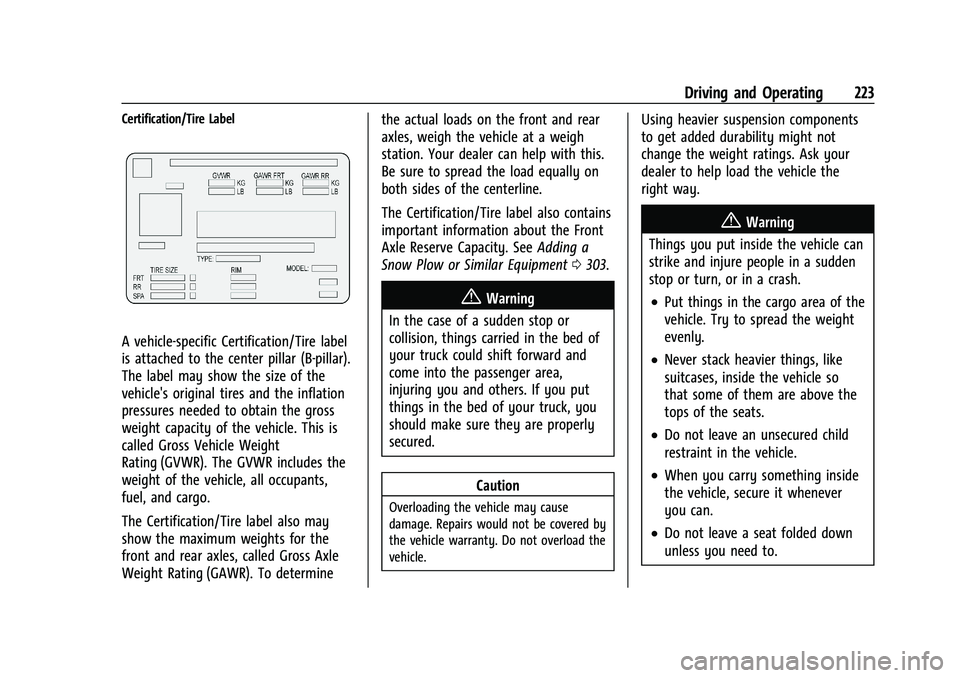
Certification/Tire Label
A vehicle-specific Certification/Tire label
is attached to the center pillar (B-pillar).
The label may show the size of the
vehicle's original tires and the inflation
pressures needed to obtain the gross
weight capacity of the vehicle. This is
called Gross Vehicle Weight
Rating (GVWR). The GVWR includes the
weight of the vehicle, all occupants,
fuel, and cargo.
The Certification/Tire label also may
show the maximum weights for the
front and rear axles, called Gross Axle
Weight Rating (GAWR). To determinethe actual loads on the front and rear
axles, weigh the vehicle at a weigh
station. Your dealer can help with this.
Be sure to spread the load equally on
both sides of the centerline.
The Certification/Tire label also contains
important information about the Front
Axle Reserve Capacity. See
Adding a
Snow Plow or Similar Equipment 0303.
{Warning
In the case of a sudden stop or
collision, things carried in the bed of
your truck could shift forward and
come into the passenger area,
injuring you and others. If you put
things in the bed of your truck, you
should make sure they are properly
secured.
Caution
Overloading the vehicle may cause
damage. Repairs would not be covered by
the vehicle warranty. Do not overload the
vehicle.
Using heavier suspension components
to get added durability might not
change the weight ratings. Ask your
dealer to help load the vehicle the
right way.
{Warning
Things you put inside the vehicle can
strike and injure people in a sudden
stop or turn, or in a crash.
.Put things in the cargo area of the
vehicle. Try to spread the weight
evenly.
.Never stack heavier things, like
suitcases, inside the vehicle so
that some of them are above the
tops of the seats.
.Do not leave an unsecured child
restraint in the vehicle.
.When you carry something inside
the vehicle, secure it whenever
you can.
.Do not leave a seat folded down
unless you need to.