light CHEVROLET SILVERADO EV 2024 Owners Manual
[x] Cancel search | Manufacturer: CHEVROLET, Model Year: 2024, Model line: SILVERADO EV, Model: CHEVROLET SILVERADO EV 2024Pages: 429, PDF Size: 8.98 MB
Page 239 of 429
Chevrolet Silverado EV Owner Manual (GMNA-Localizing-U.S./Canada-
16702912) - 2024 - CRC - 1/17/23
238 Driving and Operating
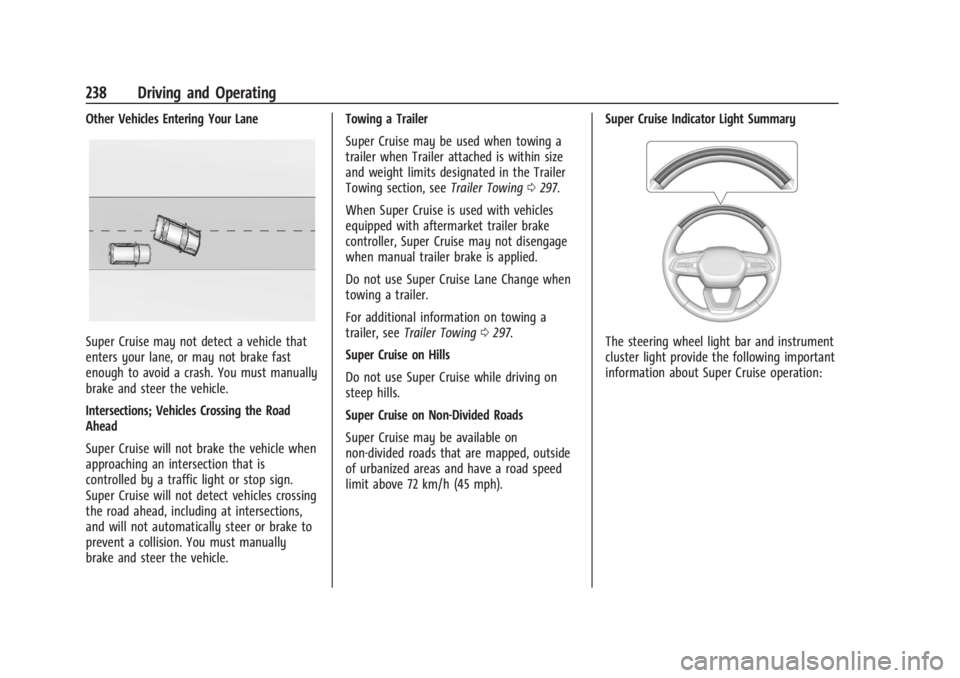
Other Vehicles Entering Your Lane
Super Cruise may not detect a vehicle that
enters your lane, or may not brake fast
enough to avoid a crash. You must manually
brake and steer the vehicle.
Intersections; Vehicles Crossing the Road
Ahead
Super Cruise will not brake the vehicle when
approaching an intersection that is
controlled by a traffic light or stop sign.
Super Cruise will not detect vehicles crossing
the road ahead, including at intersections,
and will not automatically steer or brake to
prevent a collision. You must manually
brake and steer the vehicle.Towing a Trailer
Super Cruise may be used when towing a
trailer when Trailer attached is within size
and weight limits designated in the Trailer
Towing section, see
Trailer Towing0297.
When Super Cruise is used with vehicles
equipped with aftermarket trailer brake
controller, Super Cruise may not disengage
when manual trailer brake is applied.
Do not use Super Cruise Lane Change when
towing a trailer.
For additional information on towing a
trailer, see Trailer Towing 0297.
Super Cruise on Hills
Do not use Super Cruise while driving on
steep hills.
Super Cruise on Non-Divided Roads
Super Cruise may be available on
non-divided roads that are mapped, outside
of urbanized areas and have a road speed
limit above 72 km/h (45 mph). Super Cruise Indicator Light SummaryThe steering wheel light bar and instrument
cluster light provide the following important
information about Super Cruise operation:
Page 240 of 429
Chevrolet Silverado EV Owner Manual (GMNA-Localizing-U.S./Canada-
16702912) - 2024 - CRC - 1/17/23
Driving and Operating 239
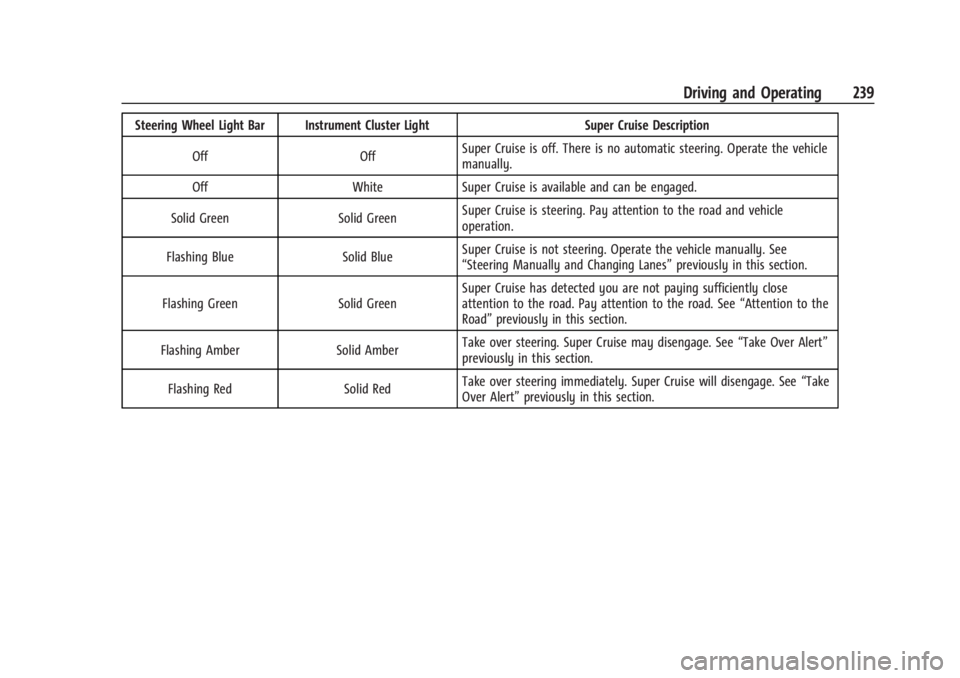
Steering Wheel Light Bar Instrument Cluster LightSuper Cruise Description
Off OffSuper Cruise is off. There is no automatic steering. Operate the vehicle
manually.
Off WhiteSuper Cruise is available and can be engaged.
Solid Green Solid GreenSuper Cruise is steering. Pay attention to the road and vehicle
operation.
Flashing Blue Solid BlueSuper Cruise is not steering. Operate the vehicle manually. See
“Steering Manually and Changing Lanes”
previously in this section.
Flashing Green Solid GreenSuper Cruise has detected you are not paying sufficiently close
attention to the road. Pay attention to the road. See
“Attention to the
Road” previously in this section.
Flashing Amber Solid AmberTake over steering. Super Cruise may disengage. See
“Take Over Alert”
previously in this section.
Flashing Red Solid RedTake over steering immediately. Super Cruise will disengage. See
“Take
Over Alert” previously in this section.
Page 241 of 429
Chevrolet Silverado EV Owner Manual (GMNA-Localizing-U.S./Canada-
16702912) - 2024 - CRC - 1/17/23
240 Driving and Operating
Disengaging Super Cruise
There are two ways to disengage Super
Cruise:
.PressZwhile your hands are on the
steering wheel. The Super Cruise steering
will disengage.
.Press the brake pedal or press the Regen
on Demand paddle, if equipped, while
your hands are on the steering wheel.
Both Super Cruise steering and Adaptive
Cruise Control will disengage.
Super Cruise Messages
If the Super Cruise indicator light does not
appear in the instrument cluster, press
Z
to display a DIC message that provides a
reason for the system’s unavailability.
Immediately after a disengagement,
pressing the
Zwithin 10 seconds will
display a DIC message with the reason for
Super Cruise disengagement.
Page 242 of 429
Chevrolet Silverado EV Owner Manual (GMNA-Localizing-U.S./Canada-
16702912) - 2024 - CRC - 1/17/23
Driving and Operating 241
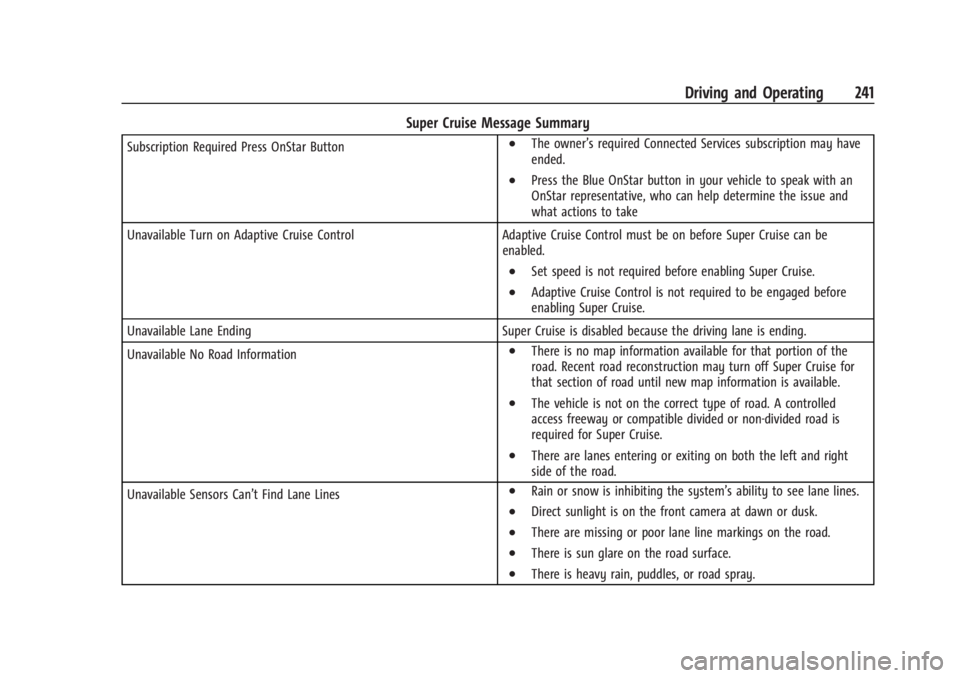
Super Cruise Message Summary
Subscription Required Press OnStar Button.The owner’s required Connected Services subscription may have
ended.
.Press the Blue OnStar button in your vehicle to speak with an
OnStar representative, who can help determine the issue and
what actions to take
Unavailable Turn on Adaptive Cruise Control Adaptive Cruise Control must be on before Super Cruise can be
enabled.
.Set speed is not required before enabling Super Cruise.
.Adaptive Cruise Control is not required to be engaged before
enabling Super Cruise.
Unavailable Lane Ending Super Cruise is disabled because the driving lane is ending.
Unavailable No Road Information
.There is no map information available for that portion of the
road. Recent road reconstruction may turn off Super Cruise for
that section of road until new map information is available.
.The vehicle is not on the correct type of road. A controlled
access freeway or compatible divided or non-divided road is
required for Super Cruise.
.There are lanes entering or exiting on both the left and right
side of the road.
Unavailable Sensors Can’t Find Lane Lines
.Rain or snow is inhibiting the system’s ability to see lane lines.
.Direct sunlight is on the front camera at dawn or dusk.
.There are missing or poor lane line markings on the road.
.There is sun glare on the road surface.
.There is heavy rain, puddles, or road spray.
Page 251 of 429
Chevrolet Silverado EV Owner Manual (GMNA-Localizing-U.S./Canada-
16702912) - 2024 - CRC - 1/17/23
250 Driving and Operating
view when in a forward gear
above 12 km/h (8 mph), select
CAMERA on the infotainment
display and select Rear Trailer
View. The view can be closed by
selecting X, Home, or Back.
.Rear Side View with Available
Articulation Functionality
Displays a rearward split view of
the left and right sides of the
vehicle and trailer, when a trailer is
connected. The view will
automatically pan to show more of
the left or right side based on the
position of the trailer when a
compatible profile is configured
and selected via the Trailering App.
To view, select Rear Side View with
Available Articulation Functionality
on the infotainment display when
the camera app is active. To access
this view when in a forward gear
above 12 km/h (8 mph), select
CAMERA on the infotainment
display and select Rear Side View
with Available Articulation
Functionality. The view can be
closed by selecting X, Home,
or Back.
.Picture-in-Picture Side View
Displays a rearward split view of
the left and right sides of the
vehicle and trailer with an overlay
view of the area behind the trailer
when a trailer is connected. The
feature requires user installation of
an accessory trailer camera on the
rear exterior surface of the trailer
per the accessory trailer camera
installation instructions. See your
dealer for accessory trailer
camera(s) and information. To
view, select Picture-in-Picture Side
View on the infotainment display
when the camera app is active. To
access this view when in a forward
gear above 12 km/h (8 mph), select
CAMERA on the infotainment
display and select Picture-in-Picture
Side View. The view can be closed
by selecting X, Home, or Back.
10. Cargo Bed View
Use the plus and minus icons on the
infotainment display to zoom in
or out.
Displays a view of the truck bed and
the area behind the vehicle to assist
in cargo or hitch monitoring orhitching to a fifth wheel or gooseneck
trailer. To view, select Cargo Bed View
on the infotainment display when the
camera app is active. To access this
view when in a forward gear above
12 km/h (8 mph), select CAMERA on
the infotainment display and select
Cargo Bed View. The view will close
after eight seconds and can be closed
early by selecting X, Home, or Back.
When the Cargo Bed View is selected
when not in D (Drive) the cargo bed
lighting is turned on automatically.
The feature can be enabled or
disabled. To view available settings
from the infotainment screen, touch
Settings > Vehicle > Collision/
Detection Systems.
Additional Views and Alerts
.Turn Signal Activated Views
Displays a rearward view of the left or
right side of the vehicle and trailer when
a trailer is connected. Views are provided
based on turn signal activation with the
right-side view being shown when the
right turn signal is active and the left side
view being shown when the left turn
signal is active. The feature can be
enabled or disabled. To view available
Page 253 of 429
Chevrolet Silverado EV Owner Manual (GMNA-Localizing-U.S./Canada-
16702912) - 2024 - CRC - 1/17/23
252 Driving and Operating
Certain trailer views require a compatible
trailer profile be configured and selected.
A compatible trailer is a box type trailer
(cargo, camper, etc.) with a conventional
hitch.
Available camera views:
.Front/Rear Standard View
.Front/Rear Top-Down View
.Rear Bowl View
.Front/Rear Side View
.Hitch View
.Rear Trailer View
.Rear Side View with Available Articulation
Functionality
.Picture-in-Picture Side View
.Interior Trailer View
.Transparent Trailer View
.Surround View
.Guidance Lines
.Hitch Guidance
Troubleshooting
The Trailer Camera calibration may take
longer than expected or not calibrate if:
.The vehicle is driven too fast during
calibration. Maintain speeds below
50 km/h (31 mph).
.The vehicle is not driven straight during
calibration. Steering should be maintained
as straight as possible. Excessive Steering
during calibration may extend
calibration time.
.The calibration is attempted in low light.
Calibration should be attempted when
there is enough light.
.The calibration is attempted during
adverse weather conditions. Calibration
during conditions such as snow or heavy
rain should be avoided.
.The road surface is not ideal for
calibration. Calibration should be
attempted on an alternate road surface.
.The accessory trailer cameras are
swapped at the hitch connector. Ensure
that the camera mounted to the rear of
the trailer is connected to the rear trailer
camera input.
.The accessory trailer camera is mounted,
angled, or rotated outside of the defined
mounting location (see camera
installation instructions).
.The vehicle or accessory trailer camera is
obstructed by dirt or debris. Check
cameras and clean as needed.
.The accessory trailer camera is mounted
such that obstructions are visible in the
view (spare tire, bike/cargo racks, etc.).
Calibration should be attempted with
obstruction temporarily removed.
Shadows resulting from driving toward
the sun may be perceived as obstructions.
Attempt to calibrate driving in an
alternate direction if possible.
.The entered trailer profile dimensions are
inaccurate. Measurements are expected to
be made to the nearest centimeter or
inch. Enter accurate measurements and
reattempt calibration.
Distortion may be observed in a rear trailer
camera view if:
.The accessory trailer camera is mounted,
angled or rotated outside of the defined
mounting location. See your dealer.
.The entered trailer profile dimensions are
inaccurate. Measurements are expected to
be made to the nearest centimeter or
inch. Enter accurate measurements and
reattempt calibration.
Page 255 of 429
Chevrolet Silverado EV Owner Manual (GMNA-Localizing-U.S./Canada-
16702912) - 2024 - CRC - 1/17/23
254 Driving and Operating
.Performance for Transparent Trailer and
Jack Knife Detection are optimized when
the entered value for trailer width reflects
the width of the box of the trailer. If total
width is entered:
.The inlayed camera view in
Transparent Trailer View may appear
wider than the trailer face.
.Jack Knife Detection alerts may
activate prematurely.
.Performance for Rear Trailer Guidance
Lines and Trailer Length Indicator Overlays
are optimized when the entered value for
trailer width reflects the total width of
the trailer including outboard wheels.
If the trailer box width is entered:
.The Rear Trailer Guidance Lines will
appear narrower than the actual path
of the trailer.
.The Trailer Length Indicator Overlays
will appear closer and possibly overlap
with the trailer.
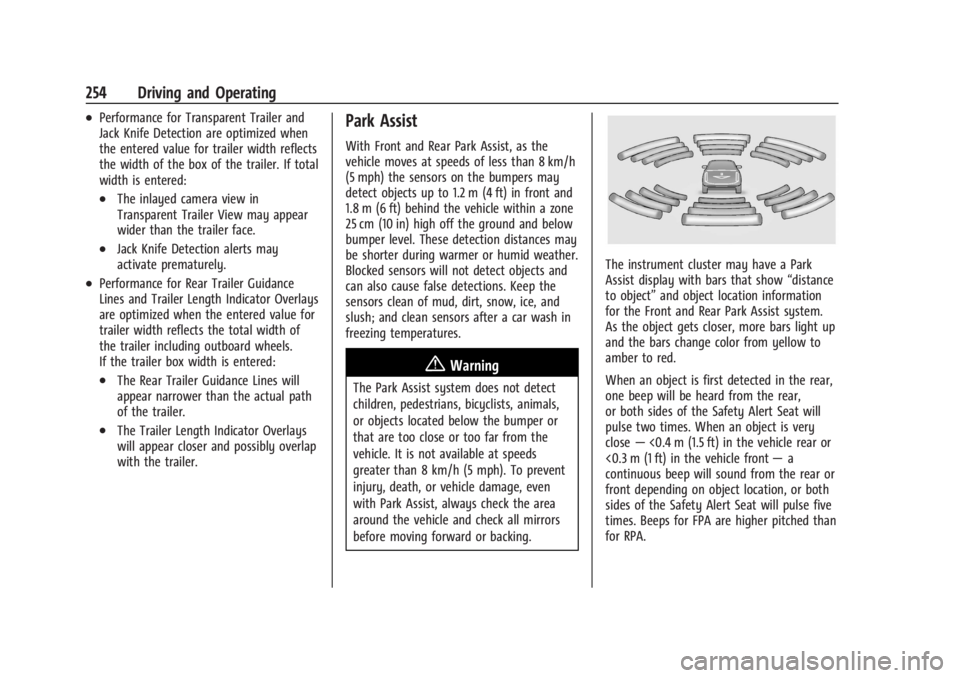
Park Assist
With Front and Rear Park Assist, as the
vehicle moves at speeds of less than 8 km/h
(5 mph) the sensors on the bumpers may
detect objects up to 1.2 m (4 ft) in front and
1.8 m (6 ft) behind the vehicle within a zone
25 cm (10 in) high off the ground and below
bumper level. These detection distances may
be shorter during warmer or humid weather.
Blocked sensors will not detect objects and
can also cause false detections. Keep the
sensors clean of mud, dirt, snow, ice, and
slush; and clean sensors after a car wash in
freezing temperatures.
{Warning
The Park Assist system does not detect
children, pedestrians, bicyclists, animals,
or objects located below the bumper or
that are too close or too far from the
vehicle. It is not available at speeds
greater than 8 km/h (5 mph). To prevent
injury, death, or vehicle damage, even
with Park Assist, always check the area
around the vehicle and check all mirrors
before moving forward or backing.
The instrument cluster may have a Park
Assist display with bars that show“distance
to object” and object location information
for the Front and Rear Park Assist system.
As the object gets closer, more bars light up
and the bars change color from yellow to
amber to red.
When an object is first detected in the rear,
one beep will be heard from the rear,
or both sides of the Safety Alert Seat will
pulse two times. When an object is very
close —<0.4 m (1.5 ft) in the vehicle rear or
<0.3 m (1 ft) in the vehicle front —a
continuous beep will sound from the rear or
front depending on object location, or both
sides of the Safety Alert Seat will pulse five
times. Beeps for FPA are higher pitched than
for RPA.
Page 256 of 429
Chevrolet Silverado EV Owner Manual (GMNA-Localizing-U.S./Canada-
16702912) - 2024 - CRC - 1/17/23
Driving and Operating 255
Turning the Features On or Off
PressXon the center stack to turn on or
off the Front and Rear Park Assist. The
indicator light next to the button comes on
when the features are on and turns off
when the features have been disabled.
Front and Rear Park Assist can be turned Off
or On. There is also a Park Assist Towbar
that can be turned Off or On. To view
available settings from the infotainment
screen, touch Settings > Vehicle >
Collision/Detection Systems > Park Assist.
If Park Assist is turned off through vehicle
personalization, the Park Assist button will
be disabled. To turn Park Assist on again,
select On in vehicle personalization. Setting
Park Assist Towbar to On allows Park Assist
to work properly with a trailer hitch. Some
larger trailer hitches may not be compatible.
Turn off Park Assist when towing a trailer.
Automatic Parking Assist (APA)
Enhanced Automatic Parking Assist (APA)
If equipped, under certain conditions APA
with Braking can use sensors based on sonar
technology along the vehicle’s front, rear
and sides to detect a parking spot, and
automatically park or unpark the vehicle
with some driver assistance. The vehicle will
automatically maneuver into a detected spot
moving at or near idle speed. It does this by
automatically steering, braking, accelerating,
and gear shifting. The driver must always be
prepared to apply braking or additional
acceleration, as needed. A display and
audible beeps help to guide the parking
maneuvers.
{Warning
APA may not always detect objects in the
parking space, objects that are not rigid
(e.g. shrubs and chain-link fences), objects
below the bumper, objects high off the
ground (e.g. flatbed trucks), hanging
objects, objects below ground level
(e.g. large potholes), or moving objects
(e.g. pedestrians, cyclists, vehicles).
Always verify that the parking space is
(Continued)
Warning (Continued)
appropriate for parking a vehicle. APA
may not respond to changes in the
parking space, such as movement of an
adjacent vehicle, or a person or object
entering the parking space. APA does not
detect or avoid traffic that is behind or
alongside of the vehicle. Always be
prepared to stop the vehicle during the
parking maneuver.
How to Activate Automatic Parking
To activate APA, press
Oon the
infotainment screen for the system to begin
searching for a parking space while driving
forward at no greater than
30 km/h (18 mph). APA searches for parking
spaces, to the left or right of the vehicle, up
to the sensors’ ranges of 1.5 m (5 ft). To
search for a parking space to the left, turn
on the left turn signal or, if available,
change the side selection in the
infotainment display. To choose or change
the parking mode, make a selection on the
infotainment display.
Page 262 of 429
Chevrolet Silverado EV Owner Manual (GMNA-Localizing-U.S./Canada-
16702912) - 2024 - CRC - 1/17/23
Driving and Operating 261
Turning the Features On or Off
The
Xbutton on the center stack is used
to turn on or off the Front and Rear Park
Assist, and Backing Warning and Reverse
Automatic Braking (RAB) systems at the
same time. The indicator light next to the
button comes on when the features are on
and turns off when the features have been
disabled.
RCTA can be turned on or off using the
infotainment system. To view available
settings from the infotainment screen, touch
Settings > Vehicle > Collision/Detection
Systems.
Assistance Systems for Driving
If equipped, when driving the vehicle in a
forward gear, Forward Collision Alert (FCA),
Lane Departure Warning (LDW), Lane Keep
Assist (LKA), Blind Zone Steering Assist
(BZSA), Lane Change Alert (LCA), Automatic
Emergency Braking (AEB), Intersection
Automatic Emergency Braking (I-AEB), and/or
the Front Pedestrian Braking (FPB) System
can help to avoid a crash or reduce crash
damage.
Forward Collision Alert (FCA)
System
If equipped, the FCA system may help to
avoid or reduce the harm caused by
front-end crashes. When approaching a
vehicle ahead too quickly, FCA provides a
red flashing alert on the windshield and
rapidly beeps or pulses the drivers seat. FCA
also lights an amber visual alert if following
another vehicle much too closely.
FCA detects vehicles within a distance of
approximately 60 m (197 ft) and operates at
speeds above 8 km/h (5 mph).
{Warning
FCA is a warning system and does not
apply the brakes. When approaching a
slower-moving or stopped vehicle ahead
too rapidly, or when following a vehicle
too closely, FCA may not provide a
warning with enough time to help avoid
a crash. It also may not provide any
warning at all. FCA does not warn of
pedestrians, animals, signs, guardrails,
bridges, construction barrels, or other
(Continued)
Warning (Continued)
objects. Be ready to take action and
apply the brakes. SeeDefensive Driving
0 183.
FCA can be disabled. To view available
settings from the infotainment screen, touch
Settings > Vehicle > Collision/Detection
Systems.
Detecting the Vehicle Ahead
FCA warnings will not occur unless the FCA
system detects a vehicle ahead. When a
vehicle is detected, the vehicle ahead
indicator will display green. Vehicles may
not be detected on curves, highway exit
ramps, or hills, due to poor visibility; or if a
vehicle ahead is partially blocked by
pedestrians or other objects. FCA will not
detect another vehicle ahead until it is
completely in the driving lane.
Page 269 of 429
Chevrolet Silverado EV Owner Manual (GMNA-Localizing-U.S./Canada-
16702912) - 2024 - CRC - 1/17/23
268 Driving and Operating
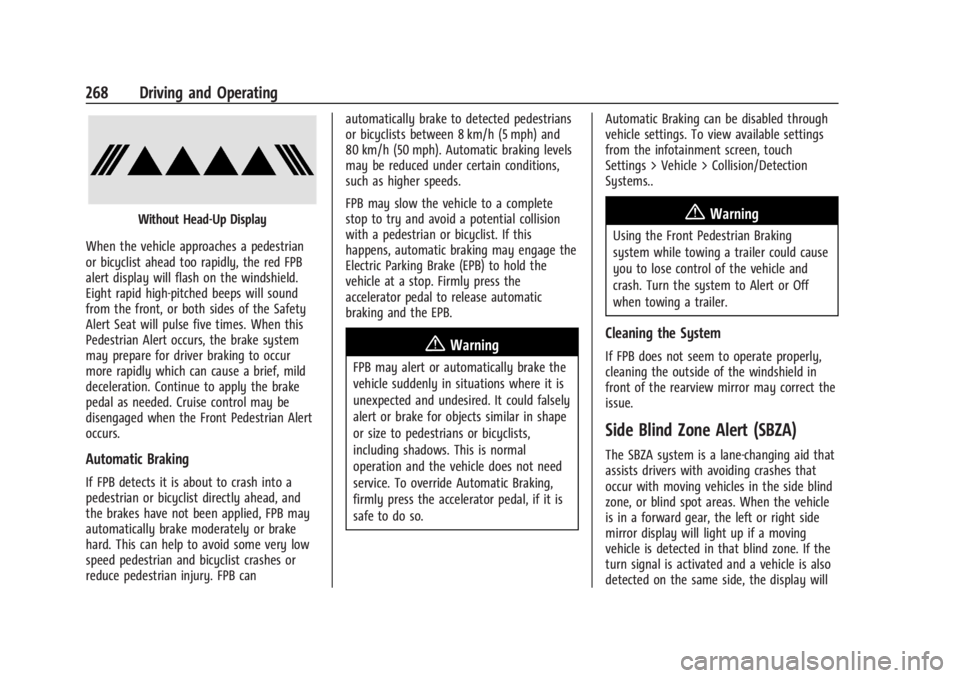
Without Head-Up Display
When the vehicle approaches a pedestrian
or bicyclist ahead too rapidly, the red FPB
alert display will flash on the windshield.
Eight rapid high-pitched beeps will sound
from the front, or both sides of the Safety
Alert Seat will pulse five times. When this
Pedestrian Alert occurs, the brake system
may prepare for driver braking to occur
more rapidly which can cause a brief, mild
deceleration. Continue to apply the brake
pedal as needed. Cruise control may be
disengaged when the Front Pedestrian Alert
occurs.
Automatic Braking
If FPB detects it is about to crash into a
pedestrian or bicyclist directly ahead, and
the brakes have not been applied, FPB may
automatically brake moderately or brake
hard. This can help to avoid some very low
speed pedestrian and bicyclist crashes or
reduce pedestrian injury. FPB can automatically brake to detected pedestrians
or bicyclists between 8 km/h (5 mph) and
80 km/h (50 mph). Automatic braking levels
may be reduced under certain conditions,
such as higher speeds.
FPB may slow the vehicle to a complete
stop to try and avoid a potential collision
with a pedestrian or bicyclist. If this
happens, automatic braking may engage the
Electric Parking Brake (EPB) to hold the
vehicle at a stop. Firmly press the
accelerator pedal to release automatic
braking and the EPB.
{Warning
FPB may alert or automatically brake the
vehicle suddenly in situations where it is
unexpected and undesired. It could falsely
alert or brake for objects similar in shape
or size to pedestrians or bicyclists,
including shadows. This is normal
operation and the vehicle does not need
service. To override Automatic Braking,
firmly press the accelerator pedal, if it is
safe to do so.
Automatic Braking can be disabled through
vehicle settings. To view available settings
from the infotainment screen, touch
Settings > Vehicle > Collision/Detection
Systems..
{Warning
Using the Front Pedestrian Braking
system while towing a trailer could cause
you to lose control of the vehicle and
crash. Turn the system to Alert or Off
when towing a trailer.
Cleaning the System
If FPB does not seem to operate properly,
cleaning the outside of the windshield in
front of the rearview mirror may correct the
issue.
Side Blind Zone Alert (SBZA)
The SBZA system is a lane-changing aid that
assists drivers with avoiding crashes that
occur with moving vehicles in the side blind
zone, or blind spot areas. When the vehicle
is in a forward gear, the left or right side
mirror display will light up if a moving
vehicle is detected in that blind zone. If the
turn signal is activated and a vehicle is also
detected on the same side, the display will