infotainment CHEVROLET SILVERADO EV 2024 Owner's Manual
[x] Cancel search | Manufacturer: CHEVROLET, Model Year: 2024, Model line: SILVERADO EV, Model: CHEVROLET SILVERADO EV 2024Pages: 429, PDF Size: 8.98 MB
Page 124 of 429

Chevrolet Silverado EV Owner Manual (GMNA-Localizing-U.S./Canada-
16702912) - 2024 - CRC - 1/13/23
Instruments and Controls 123
Information Displays
Charging
Important Information about Electric Vehicle
Charging
.Charging an electric vehicle can stress a
building’s electrical system more than a
typical household appliance.
.Charge cord limits can vary from vehicle
to vehicle, and increased charging rates
can stress a building’s electrical system.
.Before plugging into any electrical outlet,
have a qualified electrician inspect and
verify the electrical system (electrical
outlet, wiring, junctions, and protection
devices) for heavy-duty service at a
12 amp continuous load.
.Electrical outlets may wear out with
normal usage or may be damaged over
time, making them unsuitable for electric
vehicle charging.
.Check the electrical outlet/plug while
charging and discontinue use if the
electrical outlet/plug is hot, then have the
electrical outlet serviced by a qualified
electrician.
.When outdoors, plug into an electrical
outlet that is weatherproof while in use.
.Mount the charging cord to reduce strain
on the electrical outlet/plug.
.Do not place the charge cord in a position
where it is expected to be submerged in
water.
{Danger
Improper use of portable electric vehicle
charge cords may cause a fire, electrical
shock, or burns, and may result in
damage to property, serious injury,
or death.
.Do not use extension cords,
multi-outlet power strips, splitters,
grounding adapters, surge protectors,
or similar devices.
.Do not use an electrical outlet that is
worn or damaged, or will not hold the
plug firmly in place.
.Do not use an electrical outlet that is
not properly grounded.
.Do not use an electrical outlet that is
on a circuit with other electrical loads.
Charging App
The Charging app gives you access to
features that will help you better
understand and control how the vehicle
manages charging, providing a central
location to determine and review your
charging preferences.
To launch the Charging app from the
infotainment home screen, touch the
Charging icon. There are four selections to
choose from: Next Charge, Charge Assist,
Schedule, and Settings. When you launch
Charging for the first time, the Next Charge
screen will display.
Next Charge
To view the current charging status in the
infotainment display, touch
C.
On the Next Charge screen, there is a range
of information associated with the next
Charging session, as well as the ability to
specify when you would like to charge the
vehicle. The choices available to charge are
Charge Now or Charge Later.
Page 127 of 429
Chevrolet Silverado EV Owner Manual (GMNA-Localizing-U.S./Canada-
16702912) - 2024 - CRC - 1/13/23
126 Instruments and Controls
temperature, and outside air temperature.
To learn more about the vehicle battery see
Plug-In Charging0278.
The peek-in charging screen can be used to
monitor your vehicle’s charge status when
the vehicle is off, see Instrument Cluster
(Base Level) 0107 or
Instrument Cluster (Uplevel) 0109. To
monitor the charging status remotely,
download the myChevrolet app on your
mobile device.
Fast Charging
The vehicle will immediately begin charging
when plugged into a fast charging station.
While Fast Charging, the vehicle will bypass
any schedule or departure time selection.
See Plug-In Charging 0278.
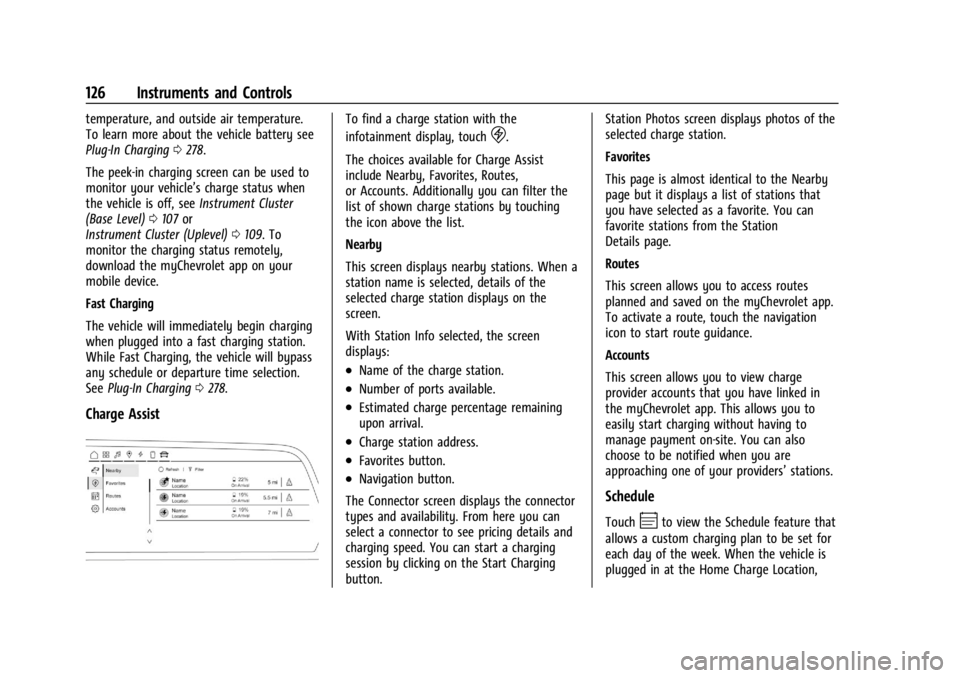
Charge Assist
To find a charge station with the
infotainment display, touch
D.
The choices available for Charge Assist
include Nearby, Favorites, Routes,
or Accounts. Additionally you can filter the
list of shown charge stations by touching
the icon above the list.
Nearby
This screen displays nearby stations. When a
station name is selected, details of the
selected charge station displays on the
screen.
With Station Info selected, the screen
displays:
.Name of the charge station.
.Number of ports available.
.Estimated charge percentage remaining
upon arrival.
.Charge station address.
.Favorites button.
.Navigation button.
The Connector screen displays the connector
types and availability. From here you can
select a connector to see pricing details and
charging speed. You can start a charging
session by clicking on the Start Charging
button. Station Photos screen displays photos of the
selected charge station.
Favorites
This page is almost identical to the Nearby
page but it displays a list of stations that
you have selected as a favorite. You can
favorite stations from the Station
Details page.
Routes
This screen allows you to access routes
planned and saved on the myChevrolet app.
To activate a route, touch the navigation
icon to start route guidance.
Accounts
This screen allows you to view charge
provider accounts that you have linked in
the myChevrolet app. This allows you to
easily start charging without having to
manage payment on-site. You can also
choose to be notified when you are
approaching one of your providers’
stations.
Schedule
TouchEto view the Schedule feature that
allows a custom charging plan to be set for
each day of the week. When the vehicle is
plugged in at the Home Charge Location,
Page 129 of 429
Chevrolet Silverado EV Owner Manual (GMNA-Localizing-U.S./Canada-
16702912) - 2024 - CRC - 1/13/23
128 Instruments and Controls
delete the schedule, simply touch the Delete
Schedule button, at which point you will be
prompted to confirm your decision.
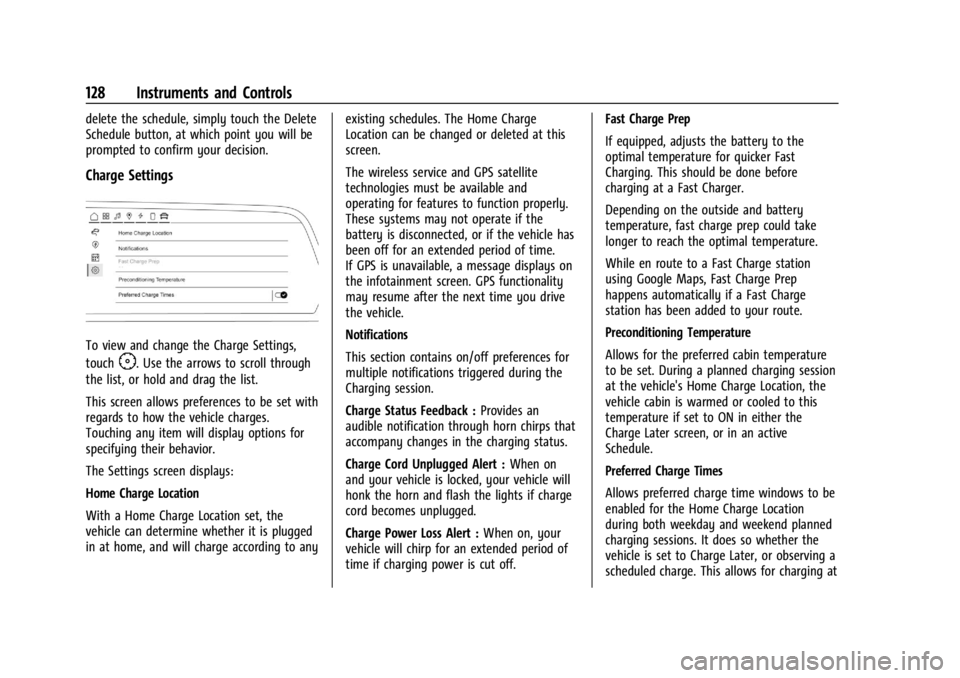
Charge Settings
To view and change the Charge Settings,
touch
F. Use the arrows to scroll through
the list, or hold and drag the list.
This screen allows preferences to be set with
regards to how the vehicle charges.
Touching any item will display options for
specifying their behavior.
The Settings screen displays:
Home Charge Location
With a Home Charge Location set, the
vehicle can determine whether it is plugged
in at home, and will charge according to any existing schedules. The Home Charge
Location can be changed or deleted at this
screen.
The wireless service and GPS satellite
technologies must be available and
operating for features to function properly.
These systems may not operate if the
battery is disconnected, or if the vehicle has
been off for an extended period of time.
If GPS is unavailable, a message displays on
the infotainment screen. GPS functionality
may resume after the next time you drive
the vehicle.
Notifications
This section contains on/off preferences for
multiple notifications triggered during the
Charging session.
Charge Status Feedback :
Provides an
audible notification through horn chirps that
accompany changes in the charging status.
Charge Cord Unplugged Alert : When on
and your vehicle is locked, your vehicle will
honk the horn and flash the lights if charge
cord becomes unplugged.
Charge Power Loss Alert : When on, your
vehicle will chirp for an extended period of
time if charging power is cut off. Fast Charge Prep
If equipped, adjusts the battery to the
optimal temperature for quicker Fast
Charging. This should be done before
charging at a Fast Charger.
Depending on the outside and battery
temperature, fast charge prep could take
longer to reach the optimal temperature.
While en route to a Fast Charge station
using Google Maps, Fast Charge Prep
happens automatically if a Fast Charge
station has been added to your route.
Preconditioning Temperature
Allows for the preferred cabin temperature
to be set. During a planned charging session
at the vehicle's Home Charge Location, the
vehicle cabin is warmed or cooled to this
temperature if set to ON in either the
Charge Later screen, or in an active
Schedule.
Preferred Charge Times
Allows preferred charge time windows to be
enabled for the Home Charge Location
during both weekday and weekend planned
charging sessions. It does so whether the
vehicle is set to Charge Later, or observing a
scheduled charge. This allows for charging at
Page 130 of 429

Chevrolet Silverado EV Owner Manual (GMNA-Localizing-U.S./Canada-
16702912) - 2024 - CRC - 1/13/23
Instruments and Controls 129
a lower cost by prioritizing charging during
the electrical provider’s off-peak period. The
vehicle will use these times to reach the
desired Charge Level by the scheduled time.
If the vehicle cannot reach the desired
charge level within these times, it will
charge as needed outside of this time
window.
Driver Information Center (DIC)
(Base Level)
The DIC is displayed in the instrument
cluster. It shows the status of many vehicle
systems.
yorz:Use to scroll to the previous or
next selection.
V: Press to open a menu or select a menu
item. Press and hold to reset certain
displays.
DIC Information Display Options
Select which info display to view on the DIC
through the Settings menu, or by selecting
Add to Driver Display in the Vehicle Status
on the infotainment display. See Settings
0 166 or
Vehicle Status 0132.
DIC Information Displays
The following is the list of all possible DIC
information displays and their locations.
Some of the information displays may not
be available for your particular vehicle.
Auto Lane Change : Displays the status of a
driver-requested lane change when Super
Cruise is active. See Super Cruise0227.
Audio Now Playing : Displays the actively
playing audio.
Navigation : Displays a variety of navigation
information.
Phone : Displays a variety of call
information. Trip 1 or Trip 2 and Average Efficiency :
The
Trip display shows the current distance
traveled, in either kilometers (km) or
miles (mi), since the trip odometer was last
reset. To reset the current trip, touch and
hold the touchscreen display when trip
odometer is displayed on the vehicle status
screen.
The Average Efficiency shows the
approximate average kWh per
100 kilometers (kWh/100 km), kilometers
per kilowatt hour kWh (km/kWh), or miles
per kilowatt hour kWh(mi/kWh). This
number is calculated based on the number
of kWh/100 km, km/kWh, or mi/kWh
recorded since the last time this menu item
was reset. This number only reflects the
approximate average electrical energy
economy that the vehicle has at that
moment, and changes as driving conditions
change.
Current Trip : Displays distance driven,
average efficiency, and time elapsed since
vehicle startup. It resets when you turn your
vehicle off.
Time/Date : Displays current date and time
information.
Page 131 of 429

Chevrolet Silverado EV Owner Manual (GMNA-Localizing-U.S./Canada-
16702912) - 2024 - CRC - 1/13/23
130 Instruments and Controls
Tire Pressure :Shows the approximate
pressures of all four tires. Tire pressure is
displayed in either kilopascal (kPa) or in
pounds per square inch (psi). If the pressure
is low, the value for that tire is shown in
amber. See Tire Pressure Monitor System
0 351 and
Tire Pressure Monitor Operation 0351.
If equipped, Tire Temperature is located near
the tire pressure graphic. Tire Temperature
shows overall temperature as either Cold,
Cool, Normal, Warm, or Hot. Normal is
typical for normal driving while Warm is
typical for spirited driving. Unknown
displays when tire temperature information
is unavailable.
Trailer Brake : On vehicles with the
Integrated Trailer Brake Control (ITBC)
system, the trailer brake display appears in
the DIC.
TRAILER GAIN shows the trailer gain setting.
This setting can be adjusted from 0.0 to 10.0
with either a trailer connected or
disconnected.
TRAILER OUTPUT shows the power output to
the trailer any time a trailer with electric
brakes is connected. Output is displayed as a
bar graph. Dotted lines may appear in the
OUTPUT display if a trailer is not connected. Energy Usage :
Shows energy usage of the
Driving, Remote Start, Climate and
Conditioning vehicle systems as percentages
of overall vehicle energy use.
Energy Efficiency : Shows a graph showing
the energy efficiency that has been used by
the vehicle over a recently driven distance.
Off : Allows for no information to be
displayed in the cluster info display areas.
Driver Information Center (DIC)
(Uplevel)
The DIC is displayed in the instrument
cluster. It shows the status of many vehicle
systems.
DIC information is broken down into two
main zones:
Left Zone : Displays on the instrument
cluster to the left of the speedometer.
Right Zone : Displays on the instrument
cluster to the right of the speedometer.yorz: Use to scroll to the previous or
next selection.
V: Press to open a menu or select a menu
item. Press and hold to reset certain
displays.
DIC Information Display Options
Select which info display to view on the DIC
through the Settings menu, or by selecting
Add to Driver Display in the Vehicle Status
on the infotainment display. See Settings
0 166 or
Vehicle Status 0132.
Page 133 of 429
Chevrolet Silverado EV Owner Manual (GMNA-Localizing-U.S./Canada-
16702912) - 2024 - CRC - 1/13/23
132 Instruments and Controls
Off :Allows for no information to be
displayed in the cluster info display areas.
Right Zone
Auto Lane Change : Displays the status of a
driver-requested lane change when Super
Cruise is active. See Super Cruise0227.
Audio Now Playing : Displays the actively
playing audio.
Navigation : Displays a variety of navigation
information.
Phone : Displays a variety of call
information.
Off : Allows for no information to be
displayed in the cluster info display areas.
Vehicle Status
The following are all possible vehicle status
features.
To access the vehicle status menu touch
A
from the list of home page icons displayed
on the left side of the infotainment display.
Vehicle status content is shown on cards
that are grouped together in option tabs
that are displayed on the infotainment
display. Touching a card on the infotainment display
opens up a dialog box for that card. To
select a desired option within a dialog box,
touch the option and follow any message or
alerts that may display. Some options may
be unavailable while driving.
Touch Add to Driver Display to send the
desired card to the Driver Information
Center (DIC) on the instrument cluster.
Touch Remove from Driver Display to
remove the selected card from the
instrument cluster. See
Driver Information
Center (DIC) (Base Level) 0129 or
Driver Information Center (DIC) (Uplevel)
0 130.
Options
The following is the list of all possible cards
and their locations. Some of the cards may
not be available for your particular vehicle.
Overview
Displays an interactive 3-D rendered image
of your vehicle that shows performance and
health information.
Tire Pressure
Displays the approximate pressures of all
four tires. Tire pressure is displayed in either
kilopascal (kPa) or in pounds per square inch (psi). If the pressure is low, the value
for that tire is shown in amber. See
Tire
Pressure Monitor System 0351 and
Tire Pressure Monitor Operation 0351.
If equipped, Tire Temperature is located
below the tire pressure graphic. Tire
Temperature shows overall temperature as
either Cold, Cool, Normal, Warm, or Hot.
Normal is typical for normal driving while
Warm is typical for spirited driving.
Unknown displays when tire temperature
information is unavailable.
When selected, the following options may
be chosen in the dialog: Relearn Tire
Pressure, Turn Off/On Leak Detection, Reset
Leak Detection, and Add to Driver Display.
When enabled, you will receive alerts when
a fast and/or slow tire leak is detected. The
Leak Detection speeds shown are either Tire
Leak or Fast Leak. When disabled, you will
still receive low tire pressure alerts.
However, you will stop receiving additional
alerts when a tire is leaking air.
Energy Info
Energy Usage : Displays how energy is
being used for the current drive since the
last time the vehicle was started.
Percentages of the Driving, Remote Climate,
and Climate and Prep vehicle systems as
Page 134 of 429

Chevrolet Silverado EV Owner Manual (GMNA-Localizing-U.S./Canada-
16702912) - 2024 - CRC - 1/13/23
Instruments and Controls 133
overall vehicle energy use are shown. When
selected, distance driven, total energy,
energy usage bar diagram, and selectable
categories are displayed. Select a category
to learn more about how your vehicle uses
energy from the battery.
When selected, Add to Driver Display may
be chosen in the dialog.
Energy Efficiency :Displays a graph showing
the energy efficiency that has been used by
the vehicle over a recently driven distance.
When selected, regenerated range, and
instant efficiency is shown along with
average efficiency in the dialog.
When selected, Add to Driver Display may
be chosen in the dialog.
Trip
Trip Information : Trip 1 or 2 displays the
current distance traveled, in either
kilometers (km) or miles (mi), since the trip
odometer was last reset.
If equipped, Average Efficiency shows the
approximate average kilometers per kilowatt
hour kWh (km/kWh) or miles per kilowatt
hour kWh (mi/kWh). This number is
calculated based on the number of km/kWh
or mi/kWh recorded since the last time this
menu item was reset. This number only reflects the approximate average electrical
energy economy that the vehicle has at that
moment, and changes as driving conditions
change.
To reset these values, touch reset on the
touchscreen display when the Trip
Information dialog is selected.
When selected, the following options may
be chosen in the dialog: Reset Trip 1, Reset
Trip 2, and Add to Driver Display.
Current Trip :
Displays distance driven,
average efficiency, and time elapsed since
vehicle startup. It resets when you turn your
vehicle off.
When selected, Add to Driver Display may
be chosen in the dialog.
Head-Up Display (HUD)
{Warning
If the HUD image is too bright or too
high in your field of view, it may take
you more time to see things you need to
see when it is dark outside. Be sure to
keep the HUD image dim and placed low
in your field of view. If equipped, some vehicle information can be
projected as an image on the windshield via
the HUD lens on top of the instrument
panel.
Caution
If you try to use the HUD image as a
parking aid, you may misjudge the
distance and damage your vehicle. Do not
use the HUD image as a parking aid.
HUD information can be displayed in various
languages. The speedometer reading and
other numerical values can be displayed in
either English or metric units.
The language selection is changed through
the radio, and the units of measurement are
changed through the infotainment display.
See Settings 0166.
Page 135 of 429

Chevrolet Silverado EV Owner Manual (GMNA-Localizing-U.S./Canada-
16702912) - 2024 - CRC - 1/13/23
134 Instruments and Controls
HUD Display on the Windshield
Depending on how the vehicle is equipped,
the HUD may display some of the following
vehicle information and vehicle messages or
alerts:
.Speed
.Audio
.Phone
.Navigation
.Driver Assistance Features
.Vehicle Messages
Some vehicle messages or alerts displayed in
the HUD may be cleared by using the
steering wheel controls. Head-Up Display (HUD) Controls
If equipped, this feature under HUD Controls
of the infotainment screen allows for
adjusting brightness, height, and rotation.
HUD Controls: This feature may only be
available in P (Park).
HUD controls are available on the
infotainment screen.
To adjust the HUD image:
1. Adjust the driver seat.
2. Start the vehicle.
3. On the infotainment screen navigate to Home > Controls > HUD. 4. Touch the HUD Control icons above and
below to adjust height, brightness, and
image angle. The values can also be
adjusted by tapping on the bar.
The HUD image will automatically dim and
brighten to compensate for outside lighting.
Adjust as needed.
The HUD image can temporarily light up
depending on the angle and position of
sunlight on the HUD display. This is normal.
Polarized sunglasses could make the HUD
image harder to see.
HUD Options
Options can be turned on or off from the
HEAD-UP DISPLAY screen. See Settings0166.
If equipped, the following can be turned on
or off using the infotainment display:
.Speed Sign
.Navigation
.Recent Calls/Audio Lists
Page 138 of 429
Chevrolet Silverado EV Owner Manual (GMNA-Localizing-U.S./Canada-
16702912) - 2024 - CRC - 1/13/23
Instruments and Controls 137
Vehicle Speed Messages
SPEED LIMITED TO XXX KM/H (MPH)
This message shows that the vehicle speed
has been limited to the speed displayed. The
limited speed is a protection for various
propulsion and vehicle systems, such as
lubrication, thermal, brakes, suspension,
Teen Driver if equipped, or tires.
Universal Remote System
SeeRadio Frequency Statement 0404.
Universal Remote System
Programming
If equipped, the Universal Garage Door
(Universal Remote) controls are located on
the infotainment screen.
This system can replace up to eight remote
control transmitters used to activate devices
such as garage door openers, security
systems, and home automation devices.
These instructions refer to a garage door
opener, but can be used for other devices. Do not use the Universal Remote system
with any garage door opener that does not
have the stop and reverse feature. This
includes any garage door opener model
manufactured before April 1, 1982.
Keep the original hand-held transmitter for
use in other vehicles as well as for future
programming. Erase the programming when
vehicle ownership is terminated. See
“Erasing Universal Remotes.”
To program a garage door opener, park
outside directly in line with and facing the
garage door opener receiver. Clear all people
and objects away from the garage door.
Make sure the hand-held transmitter has a
new battery for quick and accurate
transmission of the radio-frequency signal.
Programming the Universal Remote
System
Programming involves time-sensitive actions
and may time out, requiring the procedure
to be repeated. Read these instructions
completely before programming the
Universal Remote system. It may help to
have another person assist with the
programming process. 1. On the infotainment home screen,
navigate to the Universal Remote
controls.
2. Hold the end of the hand-held transmitter about 3 to 8 cm (1 to 3 in)
away from the rear-view mirror. The
hand-held transmitter was supplied by
the manufacturer of the garage door
opener.
3. Select the “Add Remotes” option on the
infotainment screen.
4. Press and hold the hand-held transmitter button. Do not release the hand-held
transmitter button until “Signal Found”
appears on the infotainment screen.
5. Once the signal is found, test the Universal Remote System by pressing the
Test button. If your garage door moves,
then programming was successful. You
may need to press the Test button
several times. Indicate the successful
programming of a remote by pressing
the It Worked button. After successfully
programming a remote, there is no need
to complete Steps 6–10.
Page 139 of 429

Chevrolet Silverado EV Owner Manual (GMNA-Localizing-U.S./Canada-
16702912) - 2024 - CRC - 1/13/23
138 Instruments and Controls
6. If your garage door does not reactduring testing, press the It Didn’t Work
button and proceed to Step 7.
The following steps require the location
and pressing of the Learn or Smart
button on the garage door opener
receiver inside the garage. These steps
may require a ladder and are time
sensitive.
7. Locate the Learn or Smart button on the garage door opener receiver in the
garage. The name and color may vary by
manufacturer but is usually located near
the antenna wire.
8. Press and release the Learn or Smart button on the garage door opener
receiver. Step 9 must be completed
within 30 seconds of pressing this
button.
9. Press the Test button on the infotainment screen. If your garage door
moves, then programming was
successful. You may need to press the
Test button several times. Indicate
successful programming by pressing the
It Worked button. 10. If programming is not successful,
press It Didn’t Work button and repeat
Steps 8–9, or consult HomeLink by
website or phone.
After your Universal Remote has been
successfully programmed, you can change
the name of the remote on the screen as
desired.
Some garage door openers require a
modification of Step 4. See “Radio Signals
for Some Gate Operators.”
For questions or programming help, visit
www.homelink.com/gm for self-help videos
or call 1–800–355–3515. For calls placed
outside the U.S., Canada, or Puerto Rico,
international rates will apply and may differ
based on landline or mobile phone.
Erasing Universal Remotes
To erase a programmed Universal Remote,
select the remote on the infotainment
screen. Then select “Delete.”
To erase ALL programmed Universal
Remotes, select any remote on the
infotainment screen. Then select
“Delete All.”
Radio Signals for Some Gate Operators
Some gate operators and radio-frequency
laws require transmitter signals to time out
or quit after several seconds of transmission.
This may not be long enough for the
Universal Remote system to pick up the
signal during programming.
If programming did not work, replace Step 4
under “Programming the Universal Remote
System,” with the following:
Press and release the hand-held transmitter
button every two seconds until the signal
has been found by the Universal Remote
System. Proceed to Step 5 under
“Programming the Universal Remote
System” to complete programming.
Universal Remote System
Operation
Using the Universal Remote System
Press the desired Universal Remote button
on the infotainment screen.