steering wheel CHEVROLET SILVERADO EV 2024 Repair Manual
[x] Cancel search | Manufacturer: CHEVROLET, Model Year: 2024, Model line: SILVERADO EV, Model: CHEVROLET SILVERADO EV 2024Pages: 429, PDF Size: 8.98 MB
Page 263 of 429
Chevrolet Silverado EV Owner Manual (GMNA-Localizing-U.S./Canada-
16702912) - 2024 - CRC - 1/17/23
262 Driving and Operating
{Warning
FCA does not provide a warning to help
avoid a crash, unless it detects a vehicle.
FCA may not detect a vehicle ahead if
the FCA sensor is blocked by dirt, snow,
or ice, or if the windshield is damaged.
It may also not detect a vehicle on
winding or hilly roads, or in conditions
that can limit visibility such as fog, rain,
or snow, or if the headlamps or
windshield are not cleaned or in proper
condition. Keep the windshield,
headlamps, and FCA sensors clean and in
good repair.
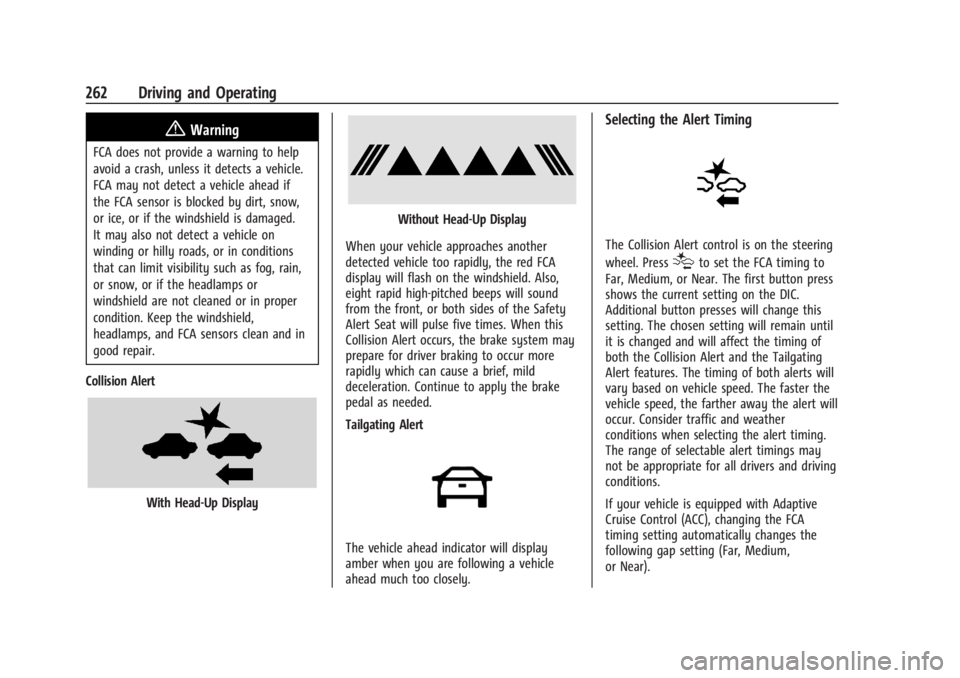
Collision Alert
With Head-Up Display
Without Head-Up Display
When your vehicle approaches another
detected vehicle too rapidly, the red FCA
display will flash on the windshield. Also,
eight rapid high-pitched beeps will sound
from the front, or both sides of the Safety
Alert Seat will pulse five times. When this
Collision Alert occurs, the brake system may
prepare for driver braking to occur more
rapidly which can cause a brief, mild
deceleration. Continue to apply the brake
pedal as needed.
Tailgating Alert
The vehicle ahead indicator will display
amber when you are following a vehicle
ahead much too closely.
Selecting the Alert Timing
The Collision Alert control is on the steering
wheel. Press
[to set the FCA timing to
Far, Medium, or Near. The first button press
shows the current setting on the DIC.
Additional button presses will change this
setting. The chosen setting will remain until
it is changed and will affect the timing of
both the Collision Alert and the Tailgating
Alert features. The timing of both alerts will
vary based on vehicle speed. The faster the
vehicle speed, the farther away the alert will
occur. Consider traffic and weather
conditions when selecting the alert timing.
The range of selectable alert timings may
not be appropriate for all drivers and driving
conditions.
If your vehicle is equipped with Adaptive
Cruise Control (ACC), changing the FCA
timing setting automatically changes the
following gap setting (Far, Medium,
or Near).
Page 272 of 429
Chevrolet Silverado EV Owner Manual (GMNA-Localizing-U.S./Canada-
16702912) - 2024 - CRC - 1/17/23
Driving and Operating 271
When the vehicle is in D (Drive), a bicyclist
can be detected 3 m (10 ft) behind the
vehicle or to the side of the vehicle.
Turning the Feature On or Off
Bicyclist Detection can be turned on or off
through vehicle settings. To view available
settings from the infotainment screen, touch
Settings > Vehicle > Collision/Detection
Systems.
Blind Zone Steering Assist (BZSA)
If equipped, the Blind Zone Steering Assist
(BZSA) system can detect a potential crash
with a moving vehicle in the lane you are
entering. It provides a brief, urgent turn of
the steering wheel to alert you to take
action to avoid a collision.
BZSA works with the Lane Keep Assist (LKA).
BZSA operates when the vehicle is in a
forward gear, and only when LKA is enabled
and able to assist. SeeLane Keep Assist
(LKA) 0274.
BZSA will provide a steering correction when
your vehicle is about to leave the current
lane of travel, with the possibility of a
collision with a vehicle in the adjacent lane.
This steering correction happens closer to
the center of the lane and has a stronger steering correction than LKA. Unlike LKA, the
steering correction with BSZA will happen
even if your turn signal is on in the
direction of lane departure.
In addition to the BZSA steering
intervention, the
Awill turn amber, six
beeps or six seat pulses will occur,
if equipped with Safety Alert Seat, and
8or|will flash on the outside
rear view mirror.
{Warning
Do not rely on Blind Zone Steering Assist
(BZSA) to prevent crashes. This system
does not replace the need to pay
attention and drive safely. Failure to use
proper care when driving may result in
vehicle damage, injury, or death.
.BZSA performance may be affected by
weather and road conditions.
.BZSA does not provide steering
assistance to avoid a vehicle that is in,
or has entered, your lane of travel.
.BZSA will not prevent a towed trailer
from crossing into the adjacent lane.
Always monitor the trailer position
(Continued)
Warning (Continued)
while towing to ensure it is in the
same lane as your vehicle. BZSA is
only designed to detect when your
vehicle unintentionally crosses
detected lane lines.
Traffic Sign Assistant
If equipped, Traffic Sign Assistant recognizes
designated traffic signs via the front camera
located behind the windshield in front of the
interior rear view mirror, and displays the
detected speed limit in the Driver
Information Center (DIC). Additionally, speed
limit information from the navigation
system map database may be used.
Caution
The system is intended to assist the
driver within a defined speed range to
discern certain traffic signs. Always pay
attention to posted speed limit signs.
Do not ignore traffic signs which are not
displayed by the system.
(Continued)
Page 274 of 429
Chevrolet Silverado EV Owner Manual (GMNA-Localizing-U.S./Canada-
16702912) - 2024 - CRC - 1/17/23
Driving and Operating 273
Navigation System Traffic Sign Detection
The currently displayed sign can either
originate from sign detection using the
camera, or from the navigation system map
data. If the currently displayed sign
originates from map data and the map
information changes, a new sign will be
displayed. This may lead to detection of a
new sign although no sign on the road may
have been passed. If the map data is
unavailable, Traffic Sign Assistant will turn
off automatically.
Limitations
Traffic sign memory may not operate
correctly if:
.The area of the windshield, where the
front camera is located, is not clean or is
affected by foreign objects, e.g. stickers,
window tinting, etc.
.Traffic signs are completely or partially
covered, are too low or high or difficult to
discern.
.Traffic signs are incorrectly mounted or
are damaged.
.Traffic signs do not comply with the
approved traffic sign standards.
.The speed limit is displayed by certain
types of electronic speed signs.
.There are adverse environmental
conditions, e.g. heavy rain, snow, direct
sunlight or shadows.
.The headlights are dirty or not correctly
aligned when driving at night.
.The navigation map data is out of date.
.The navigation map is unavailable.
Driver Attention Assist
If equipped, Driver Attention Assist alerts
the driver to pay closer attention to the
road ahead. Driver Attention Assist uses a
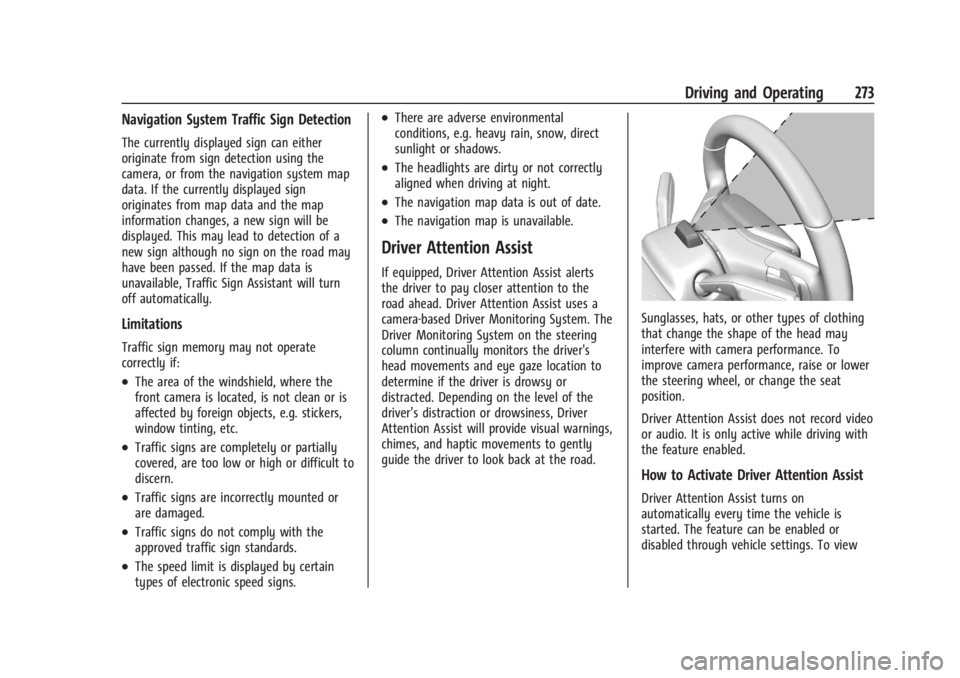
camera-based Driver Monitoring System. The
Driver Monitoring System on the steering
column continually monitors the driver's
head movements and eye gaze location to
determine if the driver is drowsy or
distracted. Depending on the level of the
driver’s distraction or drowsiness, Driver
Attention Assist will provide visual warnings,
chimes, and haptic movements to gently
guide the driver to look back at the road.
Sunglasses, hats, or other types of clothing
that change the shape of the head may
interfere with camera performance. To
improve camera performance, raise or lower
the steering wheel, or change the seat
position.
Driver Attention Assist does not record video
or audio. It is only active while driving with
the feature enabled.
How to Activate Driver Attention Assist
Driver Attention Assist turns on
automatically every time the vehicle is
started. The feature can be enabled or
disabled through vehicle settings. To view
Page 275 of 429
Chevrolet Silverado EV Owner Manual (GMNA-Localizing-U.S./Canada-
16702912) - 2024 - CRC - 1/17/23
274 Driving and Operating
available settings from the infotainment
screen, touch Settings > Vehicle >
Collision/Detection Systems.
Drowsiness Alerts
Depending on the drowsiness level, Driver
Attention Assist will display escalating alerts
in the instrument cluster. These alerts
progress as the drowsiness level increases.
Each level is designated by a coffee cup and
a DIC message recommending that the
driver consider taking a rest break.
Depending on the driver’s drowsiness level,
the system will also send chimes or haptic
alerts, if equipped with Safety Alert Seat.
The higher alerts will be seen more
frequently. Not all alerts may occur during a
drowsy event.
When the maximum drowsiness alert occurs,
the driver will be presented with the
following options on the infotainment
screen:
.Phone a Friend
.Place an OnStar call
.Navigate to Nearest Point of Interest (POI)
Select an option from the list and follow the
instructions displayed on infotainment
screen.
Attention Alerts
Depending on the attention level, Driver
Attention Assist will display escalating alerts
in the instrument cluster that advance from
level one to level two as the attention level
decreases. Depending on the driver’s
distraction level, the system will also send
chimes or haptic alerts, if equipped with
Safety Alert Seat. See Driver Attention Assist
Light 0122.
When Teen Driver is Active, the radio will
momentarily be set to mute when alert
level two is active. See Teen Driver0168.
Cleaning the Camera
The camera lens cover on the steering
column may become dirty over time. If this
occurs, clean the lens cover with a soft cloth
sprayed with glass cleaner. Wipe the lens
gently, then dry it. Never use abrasive
cloths, cleaners, or corrosive chemicals of
any kind on the lens cover.
Limitations
Some factors can impact the performance of
the Driver Attention Assist feature, causing
it to not to function as intended. These
include (but are not limited to):
.Damage to the Driver Monitoring System,
camera, or lens.
.The camera being blocked by the steering
wheel, hands, or objects.
If there is a problem with the system, a DIC
message or icon in the instrument cluster
may display.
Lane Keep Assist (LKA)
If equipped, LKA may help avoid crashes due
to unintentional lane departures. This
system uses a camera to detect lane
markings. The LKA system can be ready to
assist at speeds between approximately
60 km/h (37 mph) and 180 km/h (112 mph).
On some vehicles, the system will instead
operate above 50 km/h (31 mph). LKA may
assist by gently turning the steering wheel
if the vehicle approaches a detected lane
marking. It may also provide a Lane
Departure Warning (LDW) alert if the vehicle
unintentionally crosses a detected lane
marking.
Page 276 of 429
Chevrolet Silverado EV Owner Manual (GMNA-Localizing-U.S./Canada-
16702912) - 2024 - CRC - 1/17/23
Driving and Operating 275
The LKA system is not intended to keep the
vehicle centered in the lane. LKA will not
assist or alert if the turn signal is active,
or if it detects that you are accelerating,
braking, or actively steering. LKA can be
overridden by turning the steering wheel.
If the system detects you are steering
intentionally across a lane marker, the LDW
alert may not be given. Do not expect the
LDW alert to occur when you are
intentionally crossing the lane marker.
{Warning
The LKA system does not continuously
steer the vehicle. It may not keep the
vehicle in the lane or give a Lane
Departure Warning (LDW) alert, even if a
lane marking is detected.
The LKA and LDW systems may not:
.Provide an alert or enough steering
assist to avoid a lane departure or
crash.
.Detect lane markings under poor
weather or visibility conditions. This
can occur if the windshield or
headlamps are blocked by dirt, snow,(Continued)
Warning (Continued)
or ice; if they are not in proper
condition; or if the sun shines directly
into the camera.
.Detect road edges.
.Detect lanes on winding or hilly roads.
If LKA only detects lane markings on one
side of the road, it will only assist or
provide an LDW alert when approaching
the lane on the side where it has
detected a lane marking. Even with LKA
and LDW, you must steer the vehicle.
Always keep your attention on the road
and maintain proper vehicle position
within the lane, or vehicle damage,
injury, or death could occur. Always keep
the windshield, headlamps, and camera
sensors clean and in good repair. Do not
use LKA in bad weather conditions or on
roads with unclear lane markings, such as
construction zones.
{Warning
Using LKA on slippery roads could cause
loss of control of the vehicle and a crash.
Turn the system off.
{Warning
LKA will not alert the driver if a towed
trailer crosses into an adjacent lane of
travel. Serious injury or property damage
may occur if the trailer moves into
another lane. Always monitor the trailer
position while towing to make sure it is
within the same lane as the tow vehicle.
How the System Works
LKA uses a camera sensor installed on the
windshield ahead of the rearview mirror to
detect lane markings. It may provide brief
steering assist if it detects an unintended
lane departure. It may further provide an
audible alert or the driver seat may pulse
indicating that a lane marking has been
crossed. The system does not provide an
LDW when intentionally steering across a
lane marker.
Page 277 of 429
Chevrolet Silverado EV Owner Manual (GMNA-Localizing-U.S./Canada-
16702912) - 2024 - CRC - 1/17/23
276 Driving and Operating
To turn LKA on and off, pressAon the
instrument panel to the left of the steering
wheel. If equipped, the indicator light on the
button comes on when LKA is on and turns
off when LKA is disabled. In some vehicles,
you must press the button for more than
three seconds to turn LKA off.
LKA is not available when Terrain Mode,
Snow/Ice Mode, or Off-Road Mode is
selected.
See Driver Mode Control 0209. See
Four-Wheel Steering 0210.
When attempting to enable LKA in any of
the above conditions, LKA UNAVAILABLE will
display.
When on,
Ais white, if equipped,
indicating that the system is not ready to
assist.
Ais green if LKA is ready to
assist. LKA may assist by gently turning the
steering wheel if the vehicle approaches a
detected lane marking.
Ais amber when
assisting. It may also provide a Lane
Departure Warning (LDW) alert by flashing
Aamber if the vehicle crosses a
detected lane marking. Additionally, there
may be three beeps, or the driver seat may
pulse three times, on the right or left,
depending on the lane departure direction. Take Steering
The LKA system does not continuously steer
the vehicle. If LKA does not detect active
driver steering, an alert and chime may be
provided. Steer the vehicle to dismiss. LKA
may become temporarily unavailable after
repeated take steering alerts.
When the System Does Not Seem to
Work Properly
The system performance may be
affected by:
.Close vehicles ahead.
.Sudden lighting changes, such as when
driving through tunnels.
.Banked roads.
.Roads with poor lane markings, such as
two-lane roads.
If the LKA system is not functioning
properly when lane markings are clearly
visible, cleaning the windshield may help.
A camera blocked message may display if
the camera is blocked. Some driver
assistance systems may have reduced
performance or not work at all. An LKA or
LDW unavailable message may display if the
systems are temporarily unavailable. This
message could be due to a blocked camera. The LKA system does not need service. Clean
the outside of the windshield behind the
rearview mirror.
LKA assistance and/or LDW alerts may occur
due to tar marks, shadows, cracks in the
road, temporary or construction lane
markings, or other road imperfections. This
is normal system operation; the vehicle does
not need service. Turn LKA off if these
conditions continue.
Surround Vision Recorder
If equipped, this system records the 360°
camera views to an SD card. Only images
are recorded, no sound. An SD card will be
needed for this system. The minimum
recommended SD card specifications are at
least 64GB with FAT32 file system, Class V30
or greater.
Page 278 of 429
Chevrolet Silverado EV Owner Manual (GMNA-Localizing-U.S./Canada-
16702912) - 2024 - CRC - 1/17/23
Driving and Operating 277
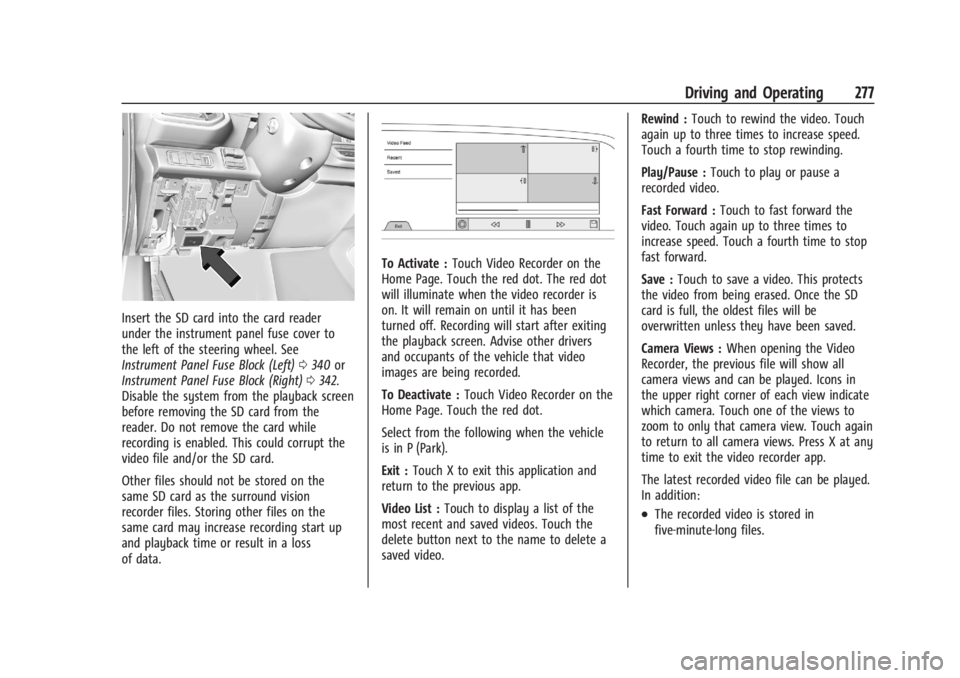
Insert the SD card into the card reader
under the instrument panel fuse cover to
the left of the steering wheel. See
Instrument Panel Fuse Block (Left)0340 or
Instrument Panel Fuse Block (Right) 0342.
Disable the system from the playback screen
before removing the SD card from the
reader. Do not remove the card while
recording is enabled. This could corrupt the
video file and/or the SD card.
Other files should not be stored on the
same SD card as the surround vision
recorder files. Storing other files on the
same card may increase recording start up
and playback time or result in a loss
of data.
To Activate : Touch Video Recorder on the
Home Page. Touch the red dot. The red dot
will illuminate when the video recorder is
on. It will remain on until it has been
turned off. Recording will start after exiting
the playback screen. Advise other drivers
and occupants of the vehicle that video
images are being recorded.
To Deactivate : Touch Video Recorder on the
Home Page. Touch the red dot.
Select from the following when the vehicle
is in P (Park).
Exit : Touch X to exit this application and
return to the previous app.
Video List : Touch to display a list of the
most recent and saved videos. Touch the
delete button next to the name to delete a
saved video. Rewind :
Touch to rewind the video. Touch
again up to three times to increase speed.
Touch a fourth time to stop rewinding.
Play/Pause : Touch to play or pause a
recorded video.
Fast Forward : Touch to fast forward the
video. Touch again up to three times to
increase speed. Touch a fourth time to stop
fast forward.
Save : Touch to save a video. This protects
the video from being erased. Once the SD
card is full, the oldest files will be
overwritten unless they have been saved.
Camera Views : When opening the Video
Recorder, the previous file will show all
camera views and can be played. Icons in
the upper right corner of each view indicate
which camera. Touch one of the views to
zoom to only that camera view. Touch again
to return to all camera views. Press X at any
time to exit the video recorder app.
The latest recorded video file can be played.
In addition:
.The recorded video is stored in
five-minute-long files.
Page 296 of 429
Chevrolet Silverado EV Owner Manual (GMNA-Localizing-U.S./Canada-
16702912) - 2024 - CRC - 1/17/23
Driving and Operating 295
The trailer structure, the tires, and the
brakes must be all be rated to carry the
intended cargo. Inadequate trailer
equipment can cause the combination to
operate in an unexpected or unsafe manner.
Before driving, inspect all trailer hitch parts
and attachments, safety chains, electrical
connectors, lamps, tires, and mirrors. See
Towing Equipment0301. If the trailer has
electric brakes, start the combination
moving and then manually apply the trailer
brake controller to check the trailer brakes
work. During the trip, occasionally check
that the cargo and trailer are secure and
that the lamps and any trailer brakes are
working.
Towing with a Stability Control System
When towing, the stability control system
might be heard. The system reacts to
vehicle movement caused by the trailer,
which mainly occurs during cornering. This is
normal when towing heavier trailers.
Following Distance
Stay at least twice as far behind the vehicle
ahead as you would when driving without a
trailer to help to avoid heavy braking and
sudden turns.
Passing
More passing distance is needed when
towing a trailer. The combination of the
vehicle and trailer will not accelerate as
quickly and is much longer than the vehicle
alone. It is necessary to go much farther
beyond the passed vehicle before returning
to the lane. Pass on level roadways. Avoid
passing on hills if possible.
Backing Up
Hold the bottom of the steering wheel with
one hand. To move the trailer to the left,
move that hand to the left. To move the
trailer to the right, move that hand to the
right. Always back up slowly and, if possible,
have someone guide you.
Making Turns
Caution
Turn more slowly and make wider arcs
when towing a trailer to prevent damage
to your vehicle. Making very sharp turns
could cause the trailer to contact the
vehicle. Make wider turns than normal when towing,
so the trailer does not go over soft
shoulders, over curbs, or strike road signs,
trees, or other objects. Always signal turns
well in advance. Do not steer or brake
suddenly.
Driving on Grades
Reduce speed before starting down a long or
steep downhill grade. Use regenerative
braking to help slow the vehicle or maintain
speed by keeping the vehicle in gear and
limiting the initial battery charge to 80% or
less. Avoid using Regen on Demand. See
Hill
and Mountain Roads 0190.
Viewing Systems
If equipped, the viewing systems on the
vehicle can improve visibility while hitching,
backing up, and driving with a trailer. See
Advanced Driver Assistance Systems 0244.
Parking on Hills
{Warning
To prevent serious injury or death,
always park your vehicle and trailer on a
level surface when possible.
Page 341 of 429
Chevrolet Silverado EV Owner Manual (GMNA-Localizing-U.S./Canada-
16702912) - 2024 - CRC - 1/13/23
340 Vehicle Care
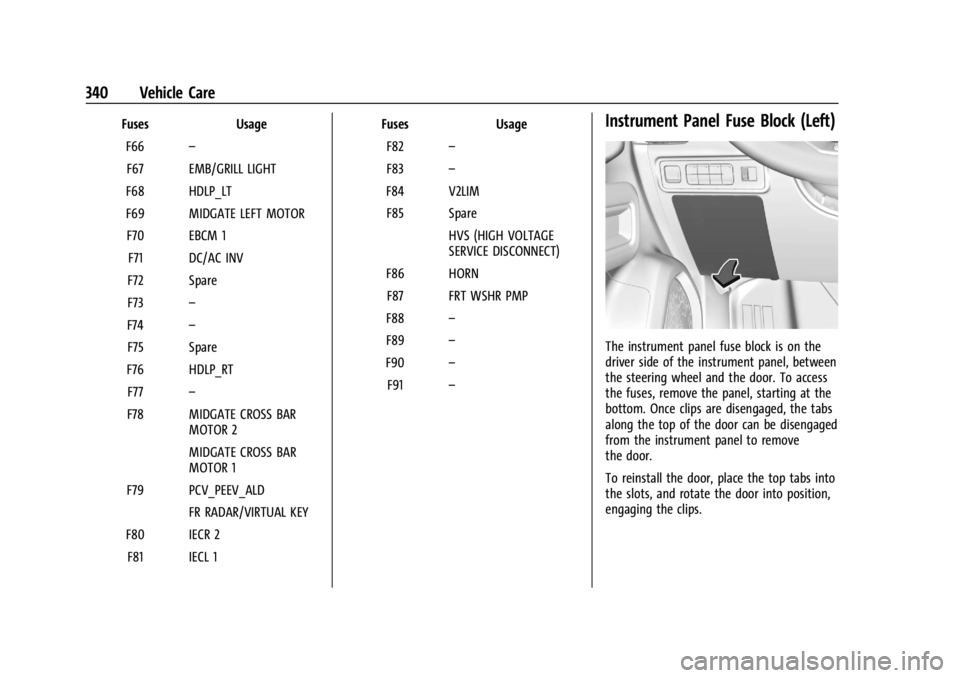
FusesUsage
F66 –
F67 EMB/GRILL LIGHT
F68 HDLP_LT
F69 MIDGATE LEFT MOTOR F70 EBCM 1 F71 DC/AC INV
F72 Spare
F73 –
F74 –
F75 Spare
F76 HDLP_RT F77 –
F78 MIDGATE CROSS BAR MOTOR 2
MIDGATE CROSS BAR
MOTOR 1
F79 PCV_PEEV_ALD FR RADAR/VIRTUAL KEY
F80 IECR 2 F81 IECL 1 Fuses
Usage
F82 –
F83 –
F84 V2LIM F85 Spare HVS (HIGH VOLTAGE
SERVICE DISCONNECT)
F86 HORN F87 FRT WSHR PMP
F88 –
F89 –
F90 –
F91 –Instrument Panel Fuse Block (Left)
The instrument panel fuse block is on the
driver side of the instrument panel, between
the steering wheel and the door. To access
the fuses, remove the panel, starting at the
bottom. Once clips are disengaged, the tabs
along the top of the door can be disengaged
from the instrument panel to remove
the door.
To reinstall the door, place the top tabs into
the slots, and rotate the door into position,
engaging the clips.
Page 345 of 429
Chevrolet Silverado EV Owner Manual (GMNA-Localizing-U.S./Canada-
16702912) - 2024 - CRC - 1/13/23
344 Vehicle Care
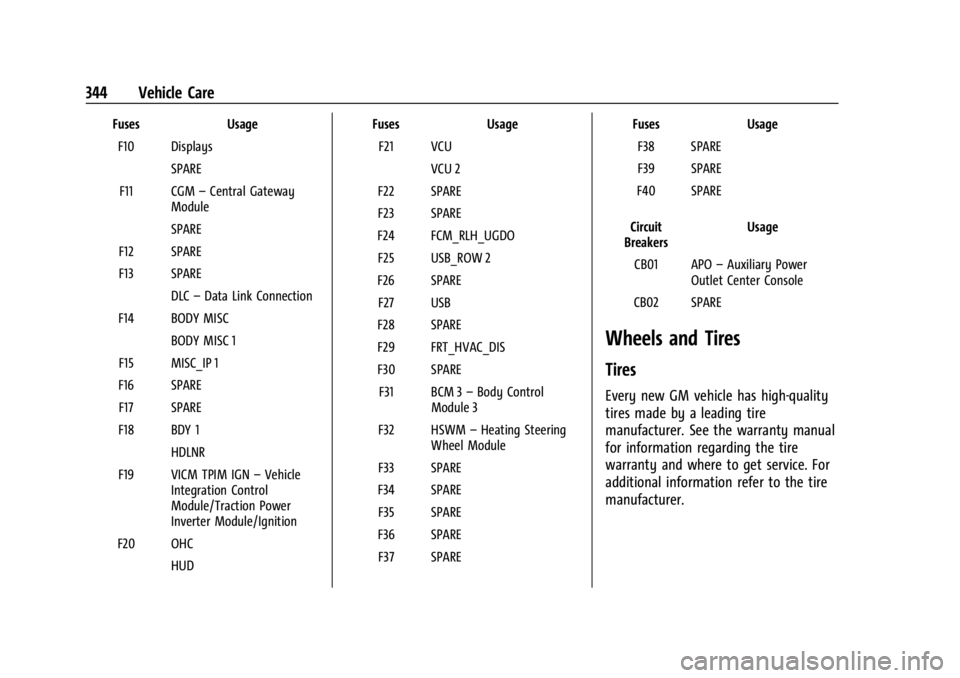
FusesUsage
F10 Displays SPARE
F11 CGM –Central Gateway
Module
SPARE
F12 SPARE
F13 SPARE DLC–Data Link Connection
F14 BODY MISC BODY MISC 1
F15 MISC_IP 1
F16 SPARE F17 SPARE
F18 BDY 1 HDLNR
F19 VICM TPIM IGN –Vehicle
Integration Control
Module/Traction Power
Inverter Module/Ignition
F20 OHC HUD Fuses
Usage
F21 VCU VCU 2
F22 SPARE
F23 SPARE
F24 FCM_RLH_UGDO F25 USB_ROW 2
F26 SPARE F27 USB
F28 SPARE
F29 FRT_HVAC_DIS
F30 SPARE F31 BCM 3 –Body Control
Module 3
F32 HSWM –Heating Steering
Wheel Module
F33 SPARE
F34 SPARE F35 SPARE
F36 SPARE F37 SPARE Fuses
Usage
F38 SPARE
F39 SPARE
F40 SPARE
Circuit
Breakers Usage
CB01 APO –Auxiliary Power
Outlet Center Console
CB02 SPARE
Wheels and Tires
Tires
Every new GM vehicle has high-quality
tires made by a leading tire
manufacturer. See the warranty manual
for information regarding the tire
warranty and where to get service. For
additional information refer to the tire
manufacturer.