phone CHEVROLET SONIC 2013 2.G Owners Manual
[x] Cancel search | Manufacturer: CHEVROLET, Model Year: 2013, Model line: SONIC, Model: CHEVROLET SONIC 2013 2.GPages: 382, PDF Size: 6.71 MB
Page 1 of 382

Black plate (1,1)Chevrolet Sonic Owner Manual - 2013 - 2nd PrintReady - 10/11/12
2013 Chevrolet Sonic Owner ManualM
In Brief. . . . . . . . . . . . . . . . . . . . . . . . 1-1
Instrument Panel . . . . . . . . . . . . . . 1-2
Initial Drive Information . . . . . . . . 1-4
Vehicle Features . . . . . . . . . . . . . 1-14
Performance and Maintenance . . . . . . . . . . . . . . . . 1-18
Keys, Doors, and Windows . . . . . . . . . . . . . . . . . . . . 2-1
Keys and Locks . . . . . . . . . . . . . . . 2-1
Doors . . . . . . . . . . . . . . . . . . . . . . . . . . 2-8
Vehicle Security . . . . . . . . . . . . . . 2-10
Exterior Mirrors . . . . . . . . . . . . . . . 2-12
Interior Mirrors . . . . . . . . . . . . . . . . 2-15
Windows . . . . . . . . . . . . . . . . . . . . . 2-15
Roof . . . . . . . . . . . . . . . . . . . . . . . . . . 2-17
Seats and Restraints . . . . . . . . . 3-1
Head Restraints . . . . . . . . . . . . . . . 3-2
Front Seats . . . . . . . . . . . . . . . . . . . . 3-3
Rear Seats . . . . . . . . . . . . . . . . . . . . 3-7
Safety Belts . . . . . . . . . . . . . . . . . . . . 3-8
Airbag System . . . . . . . . . . . . . . . . 3-17
Child Restraints . . . . . . . . . . . . . . 3-30 Storage
. . . . . . . . . . . . . . . . . . . . . . . 4-1
Storage Compartments . . . . . . . . 4-1
Luggage/Load Locations . . . . . . . 4-1
Additional Storage Features . . . 4-2
Instruments and Controls . . . . 5-1
Controls . . . . . . . . . . . . . . . . . . . . . . . 5-2
Warning Lights, Gauges, and
Indicators . . . . . . . . . . . . . . . . . . . . 5-7
Information Displays . . . . . . . . . . 5-22
Vehicle Messages . . . . . . . . . . . . 5-25
Vehicle Personalization . . . . . . . 5-26
Lighting . . . . . . . . . . . . . . . . . . . . . . . 6-1
Exterior Lighting . . . . . . . . . . . . . . . 6-1
Interior Lighting . . . . . . . . . . . . . . . . 6-5
Lighting Features . . . . . . . . . . . . . . 6-6
Infotainment System . . . . . . . . . 7-1
Introduction . . . . . . . . . . . . . . . . . . . . 7-1
Radio . . . . . . . . . . . . . . . . . . . . . . . . . 7-12
Audio Players . . . . . . . . . . . . . . . . 7-18
Phone . . . . . . . . . . . . . . . . . . . . . . . . 7-26 Downloadable Applications . . . 7-45
Bluetooth Phone/Devices . . . . . 7-50
Trademarks and License
Agreements . . . . . . . . . . . . . . . . . 7-58
Climate Controls . . . . . . . . . . . . . 8-1
Climate Control Systems . . . . . . 8-1
Air Vents . . . . . . . . . . . . . . . . . . . . . . . 8-3
Maintenance . . . . . . . . . . . . . . . . . . . 8-4
Driving and Operating . . . . . . . . 9-1
Driving Information . . . . . . . . . . . . . 9-2
Starting and Operating . . . . . . . 9-13
Engine Exhaust . . . . . . . . . . . . . . 9-20
Automatic Transmission . . . . . . 9-21
Manual Transmission . . . . . . . . . 9-24
Brakes . . . . . . . . . . . . . . . . . . . . . . . 9-25
Ride Control Systems . . . . . . . . 9-28
Cruise Control . . . . . . . . . . . . . . . . 9-31
Fuel . . . . . . . . . . . . . . . . . . . . . . . . . . 9-33
Towing . . . . . . . . . . . . . . . . . . . . . . . 9-37
Conversions and Add-Ons . . . 9-38
Page 21 of 382
Black plate (15,1)Chevrolet Sonic Owner Manual - 2013 - 2nd PrintReady - 10/18/12
In Brief 1-15
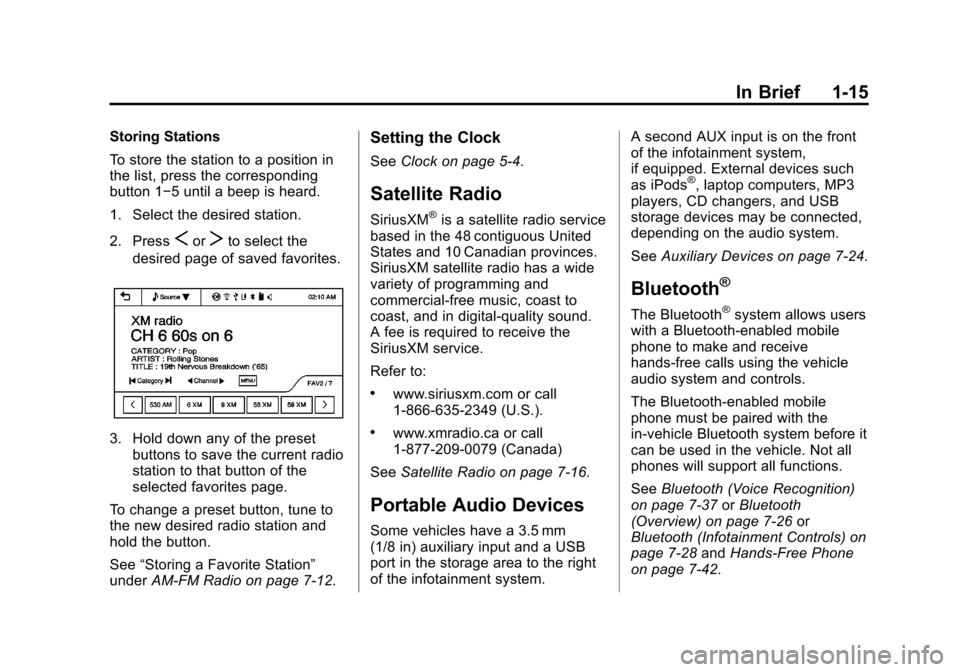
Storing Stations
To store the station to a position in
the list, press the corresponding
button 1−5 until a beep is heard.
1. Select the desired station.
2. Press
SorTto select the
desired page of saved favorites.
3. Hold down any of the preset buttons to save the current radio
station to that button of the
selected favorites page.
To change a preset button, tune to
the new desired radio station and
hold the button.
See “Storing a Favorite Station”
under AM-FM Radio on page 7‑12.
Setting the Clock
SeeClock on page 5‑4.
Satellite Radio
SiriusXM®is a satellite radio service
based in the 48 contiguous United
States and 10 Canadian provinces.
SiriusXM satellite radio has a wide
variety of programming and
commercial-free music, coast to
coast, and in digital-quality sound.
A fee is required to receive the
SiriusXM service.
Refer to:
.www.siriusxm.com or call
1-866-635-2349 (U.S.).
.www.xmradio.ca or call
1-877-209-0079 (Canada)
See Satellite Radio on page 7‑16.
Portable Audio Devices
Some vehicles have a 3.5 mm
(1/8 in) auxiliary input and a USB
port in the storage area to the right
of the infotainment system. A second AUX input is on the front
of the infotainment system,
if equipped. External devices such
as iPods
®, laptop computers, MP3
players, CD changers, and USB
storage devices may be connected,
depending on the audio system.
See Auxiliary Devices on page 7‑24.
Bluetooth®
The Bluetooth®system allows users
with a Bluetooth-enabled mobile
phone to make and receive
hands-free calls using the vehicle
audio system and controls.
The Bluetooth-enabled mobile
phone must be paired with the
in-vehicle Bluetooth system before it
can be used in the vehicle. Not all
phones will support all functions.
See Bluetooth (Voice Recognition)
on page 7‑37 orBluetooth
(Overview) on page 7‑26 or
Bluetooth (Infotainment Controls) on
page 7‑28 andHands-Free Phone
on page 7‑42.
Page 23 of 382
Black plate (17,1)Chevrolet Sonic Owner Manual - 2013 - 2nd PrintReady - 10/18/12
In Brief 1-17
SeeCruise Control on page 9‑31.
Driver Information
Center (DIC)
The DIC display is in the instrument
cluster. It shows the status of many
vehicle systems. The controls for
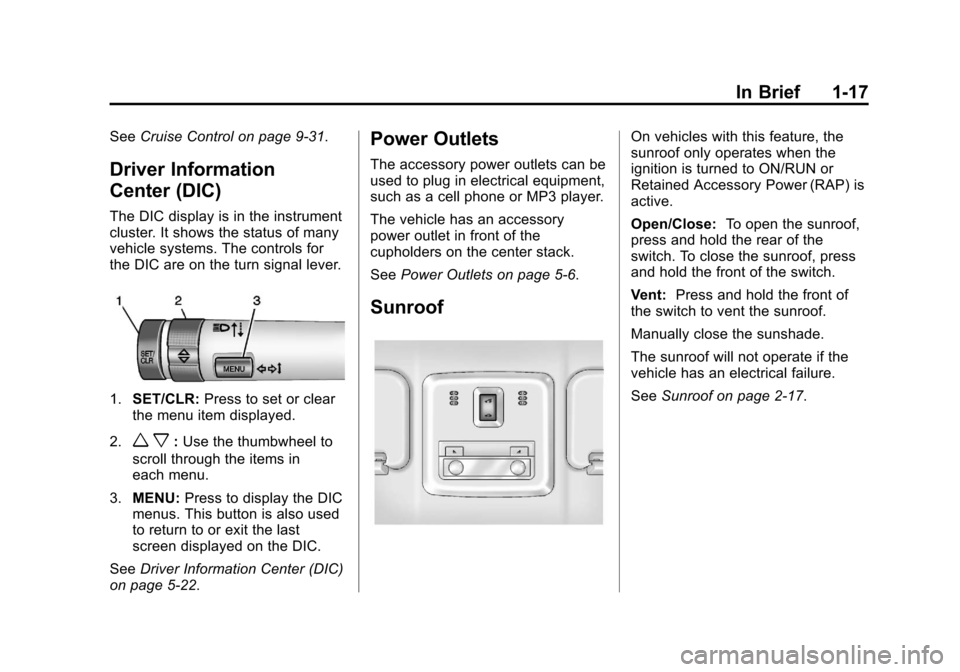
the DIC are on the turn signal lever.
1.SET/CLR: Press to set or clear
the menu item displayed.
2.
w x: Use the thumbwheel to
scroll through the items in
each menu.
3. MENU: Press to display the DIC
menus. This button is also used
to return to or exit the last
screen displayed on the DIC.
See Driver Information Center (DIC)
on page 5‑22.
Power Outlets
The accessory power outlets can be
used to plug in electrical equipment,
such as a cell phone or MP3 player.
The vehicle has an accessory
power outlet in front of the
cupholders on the center stack.
See Power Outlets on page 5‑6.
Sunroof
On vehicles with this feature, the
sunroof only operates when the
ignition is turned to ON/RUN or
Retained Accessory Power (RAP) is
active.
Open/Close: To open the sunroof,
press and hold the rear of the
switch. To close the sunroof, press
and hold the front of the switch.
Vent: Press and hold the front of
the switch to vent the sunroof.
Manually close the sunshade.
The sunroof will not operate if the
vehicle has an electrical failure.
See Sunroof on page 2‑17.
Page 100 of 382
Black plate (6,1)Chevrolet Sonic Owner Manual - 2013 - 2nd PrintReady - 10/11/12
5-6 Instruments and Controls
3. Select On to display the realtime or Off to display the time
set by the user.
4. Press
4.
Power Outlets
The accessory power outlets can be
used to plug in electrical equipment,
such as a cell phone or MP3 player.
The vehicle has an accessory
power outlet located in front of the
cupholders on the center floor
console.
Remove the cover to access and
replace when not in use.
{WARNING
Power is always supplied to the
outlets. Do not leave electrical
equipment plugged in when the
vehicle is not in use because the
vehicle could catch fire and cause
injury or death. Notice:
Leaving electrical
equipment plugged in for an
extended period of time while the
vehicle is off will drain the
battery. Always unplug electrical
equipment when not in use and
do not plug in equipment that
exceeds the maximum 20 ampere
rating.
Certain accessory power plugs may
not be compatible with the
accessory power outlet and could
overload vehicle or adapter fuses.
If a problem is experienced, see
your dealer.
When adding electrical equipment,
be sure to follow the proper
installation instructions included with
the equipment. See Add-On
Electrical Equipment on page 9‑38.
Notice: Hanging heavy
equipment from the power outlet
can cause damage not covered
by the vehicle warranty. The
power outlets are designed for
accessory power plugs only, such
as cell phone charge cords.
Cigarette Lighter
For vehicles with a cigarette lighter,
it is located in the center floor
console.
The ignition must be turned to ACC/
ACCESSORY or ON/RUN.
To activate the cigarette lighter,
push it into the heating element and
let go. When the lighter is ready it
will pop back out.
Notice: Holding a cigarette lighter
in while it is heating does not let
the lighter back away from the
heating element when it is hot.
Damage from overheating can
occur to the lighter or heating
element, or a fuse could be
blown. Do not hold a cigarette
lighter in while it is heating.
Page 133 of 382
Black plate (1,1)Chevrolet Sonic Owner Manual - 2013 - 2nd PrintReady - 10/11/12
Infotainment System 7-1
Infotainment
System
Introduction
Infotainment . . . . . . . . . . . . . . . . . . . 7-1
Theft-Deterrent Feature . . . . . . . 7-2
Overview (AM-FM Radio) . . . . . 7-3
Overview (Radio withCD/USB) . . . . . . . . . . . . . . . . . . . . 7-5
Overview (Radio with Touchscreen) . . . . . . . . . . . . . . . . 7-7
Home Page (Radio with Touchscreen) . . . . . . . . . . . . . . . . 7-7
Operation . . . . . . . . . . . . . . . . . . . . . 7-8
Radio
AM-FM Radio . . . . . . . . . . . . . . . . 7-12
Satellite Radio . . . . . . . . . . . . . . . 7-16
Radio Reception . . . . . . . . . . . . . 7-17
Satellite Radio Antenna . . . . . . 7-18
Multi-Band Antenna . . . . . . . . . . 7-18
Audio Players
CD Player . . . . . . . . . . . . . . . . . . . 7-18
USB Port . . . . . . . . . . . . . . . . . . . . 7-20
Auxiliary Devices . . . . . . . . . . . . 7-24
Bluetooth Audio . . . . . . . . . . . . . . 7-25
Phone
Bluetooth (Overview) . . . . . . . . 7-26
Bluetooth (Infotainment Controls) . . . . . . . . . . . . . . . . . . . 7-28
Bluetooth (Voice Recognition) . . . . . . . . . . . . . . . 7-37
Hands-Free Phone . . . . . . . . . . 7-42
Downloadable Applications
Smartphone Link (Overview) . . . . . . . . . . . . . . . . . 7-45
Smartphone Link (Pandora) . . . . . . . . . . . . . . . . . . 7-47
Smartphone Link (Stitcher) . . . . . . . . . . . . . . . . . . . 7-48
Bluetooth Phone/Devices
Pictures and Movies (AudioSystem) . . . . . . . . . . . . . . . . . . . . 7-50
Pictures and Movies (Picture System) . . . . . . . . . . . . . . . . . . . . 7-55
Pictures and Movies (Movie System) . . . . . . . . . . . . . . . . . . . . 7-56
Trademarks and License
Agreements
Trademarks and LicenseAgreements . . . . . . . . . . . . . . . . 7-58
Introduction
Infotainment
Determine which radio the vehicle
has and read the following pages to
become familiar with its features.
{WARNING
Taking your eyes off the road for
extended periods could cause a
crash resulting in injury or death
to you or others. Do not give
extended attention to infotainment
tasks while driving.
This system provides access to
many audio and non-audio listings.
To minimize taking your eyes off the
road while driving, do the following
while the vehicle is parked:
.Become familiar with the
operation and controls of the
audio system.
Page 134 of 382
Black plate (2,1)Chevrolet Sonic Owner Manual - 2013 - 2nd PrintReady - 10/11/12
7-2 Infotainment System
.Set up the tone, speaker
adjustments, and preset radio
stations.
See Defensive Driving on page 9‑2.
Notice: Contact your dealer
before adding any equipment.
Adding audio or communication
equipment could interfere with
the operation of the engine, radio,
or other systems, and could
damage them. Follow federal
rules covering mobile radio and
telephone equipment.
Customer Assistance
Assistance is available to help with
Bluetooth pairing, application
downloading and installation, other
mobile device interface, and
operation support of the
infotainment system. Specialists are
available when calling this
Customer Assistance number: U.S.
(855) 4 SUPPORT (478-7767).
Theft-Deterrent Feature
The theft-deterrent feature works by
learning a portion of the Vehicle
Identification Number (VIN) to the
infotainment system. The
infotainment system does not
operate if it is stolen or moved to a
different vehicle.
Page 136 of 382

Black plate (4,1)Chevrolet Sonic Owner Manual - 2013 - 2nd PrintReady - 10/11/12
7-4 Infotainment System
6. MENU/TUNE
.Radio: Manually selects
radio stations.
.CD: Selects tracks.
7. RADIO/BAND
.Changes the band while
listening to the radio.
.Selects the radio when
listening to a different audio
source.
8.
/BACK
.Menu: Moves one
level back.
.Character Input: Deletes
the last character.
9. AUX
.Selects external audio
source.
10.
H(Clock Menu)
.Opens the Clock menu.
11.
5/>(Phone Mute)
.Mutes the audio system. 12. TONE
.Opens the Tone menu.
13. INFO (Information)
.Radio: Shows available
information about the
current station.
.CD: Shows available
information about the
current track.
14. CONFIG (Configuration)
.Opens the
Configuration menu.
15. AUX Port
.3.5 mm (1/8 in)
connection for external
devices.
Page 138 of 382

Black plate (6,1)Chevrolet Sonic Owner Manual - 2013 - 2nd PrintReady - 10/11/12
7-6 Infotainment System
7. INFO (Information)
.Radio: Shows available
information about the
current station.
.CD: Shows available
information about the
current track.
8. CD Slot
9. SEEK
¨
.Radio: Seeks the next
station.
.CD: Selects the next track
or fast forwards within a
track.
10.
©SEEK
.Radio: Seeks the previous
station.
.CD: Selects the previous
track or rewinds within a
track.
11. CD/AUX
.Selects the CD player or
an external audio source. 12. RADIO/BAND
.Changes the band while
listening to the radio.
.Selects the radio when
listening to a different
audio source.
13.
H(Clock Menu)
.Opens the Clock menu.
14. TONE
.Opens the Tone menu.
15. CONFIG (Configuration)
.Opens the
Configuration menu.
16.
/BACK
.Menu: Moves one
level back.
.Character Input: Deletes
the last character.
17.
5/>(Phone/Mute)
.Opens the Phone menu.
.Mutes the audio system.
Page 140 of 382

Black plate (8,1)Chevrolet Sonic Owner Manual - 2013 - 2nd PrintReady - 10/11/12
7-8 Infotainment System
7telephone:Press to activate
the phone features (if equipped).
See Bluetooth (Voice Recognition)
on page 7‑37 orBluetooth
(Overview) on page 7‑26 or
Bluetooth (Infotainment Controls) on
page 7‑28.
^smartphone link: Press to listen
to Pandora or Stitcher. See
Smartphone Link (Overview) on
page 7‑45 orSmartphone Link
(Pandora) on page 7‑47 or
Smartphone Link (Stitcher) on
page 7‑48.
8settings: Press to access the
Personalization menu. See Vehicle
Personalization on page 5‑26.
Operation
Radio Controls Without
Touchscreen
The infotainment system is operated
by using the pushbuttons,
multifunction knobs, menus shown
on the display, and steering wheel
controls, if equipped.
Turning the System On or Off
O/VOL (Power/Volume): Press to
turn the system on and off.
Automatic Switch-Off
If the infotainment system is on after
the ignition is turned off, the system
will turn off automatically after
10 minutes.
Volume Control
O/VOL (Power/Volume): Turn to
adjust the volume.
5/>(Phone/Mute): For vehicles
with OnStar, press and hold
5/>
to mute the infotainment system.
Press and hold
5/>again, or turn
the
O/VOL knob to cancel mute.
For vehicles without OnStar, press
5/>to mute the infotainment
system. Press
5/>again, or turn
the
O/VOL knob to cancel mute.
Menu System
Controls
The MENU/TUNE knob, MENU/
TUNE button, and
/BACK button
are used to navigate the menu
system.
MENU/TUNE Knob:
Turn to:
.Enter the menu system.
.Highlight a menu option.
.Select a value.
MENU/TUNE Button:
Press to:
.Select or activate the highlighted
menu option.
.Confirm a set value.
.Turn a system setting on or off.
/BACK:
Press to:
.Exit a menu.
Page 149 of 382
Black plate (17,1)Chevrolet Sonic Owner Manual - 2013 - 2nd PrintReady - 10/11/12
Infotainment System 7-17
programming favorites for the
chosen number of numbered
pages.
SiriusXM Radio Messages
UPDATING:The encryption code
in the receiver is being updated, and
no action is required. This process
should take no longer than
30 seconds.
NO SIGNAL: The system is
functioning correctly, but the vehicle
is in a location that is blocking the
SiriusXM signal. When the vehicle is
moved into an open area, the signal
should return.
LOADING: The audio system is
acquiring and processing audio and
text data. No action is needed. This
message should disappear shortly.
OFF AIR: This channel is not
currently in service. Tune in to
another channel.
CH UNAVAILABLE: This
previously assigned channel is no
longer assigned. Tune to another station. If this station was one of the
presets, choose another station for
that preset button.
RADIO ID:
If tuned to channel 0,
this message alternates with the
SiriusXM Radio eight-digit radio ID
label. This label is needed to
activate the service.
CHECK XM TUNER: If this
message does not clear within a
short period of time, the receiver
could have a fault. Consult with your
dealer.
Radio Reception
Frequency interference and static
can occur during normal radio
reception if items such as cell phone
chargers, vehicle convenience
accessories, and external electronic
devices are plugged into the
accessory power outlet. If there is
interference or static, unplug the
item from the accessory power
outlet.
AM
The range for most AM stations is
greater than for FM, especially at
night. The longer range can cause
station frequencies to interfere with
each other. For better radio
reception, most AM radio stations
boost the power levels during the
day, and then reduce these levels
during the night. Static can also
occur when things like storms and
power lines interfere with radio
reception. When this happens, try
reducing the treble on the radio.
FM Stereo
FM signals only reach about 16 to
65 km (10 to 40 mi). Although the
radio has a built-in electronic circuit
that automatically works to reduce
interference, some static can occur,
especially around tall buildings or
hills, causing the sound to fade in
and out.