language CHEVROLET SONIC 2014 2.G Owners Manual
[x] Cancel search | Manufacturer: CHEVROLET, Model Year: 2014, Model line: SONIC, Model: CHEVROLET SONIC 2014 2.GPages: 400, PDF Size: 5.57 MB
Page 3 of 400
Black plate (3,1)Chevrolet Sonic Owner Manual (GMNA-Localizing-U.S./Canada-6081473) -
2014 - 2nd Edition - 8/19/13
Introduction iii
The names, logos, emblems,
slogans, vehicle model names, and
vehicle body designs appearing in
this manual including, but not limited
to, GM, the GM logo, CHEVROLET,
the CHEVROLET Emblem, and
SONIC are trademarks and/or
service marks of General Motors
LLC, its subsidiaries, affiliates,
or licensors.
This manual describes features that
may or may not be on your specific
vehicle either because they are
options that you did not purchase or
due to changes subsequent to the
printing of this owner manual.
Please refer to the purchase
documentation relating to yourspecific vehicle to confirm each of
the features found on your vehicle.
For vehicles first sold in Canada,
substitute the name
“General
Motors of Canada Limited” for
Chevrolet Motor Division wherever it
appears in this manual.
Keep this manual in the vehicle for
quick reference.
Canadian Vehicle Owners
Propriétaires Canadiens
A French language manual can be
obtained from your dealer, at
www.helminc.com, or from:
On peut obtenir un exemplaire de
ce guide en français auprès du
concessionnaire ou à l'adresse
savant:
Helm, Incorporated
Attention: Customer Service
47911 Halyard Drive
Plymouth, MI 48170
Using this Manual
To quickly locate information about
the vehicle, use the Index in the
back of the manual. It is an
alphabetical list of what is in the
manual and the page number where
it can be found.
Danger, Warnings, and
Cautions
{Danger
Text marked{Danger provides
information on risk of fatal injury.
Disregarding this information may
endanger life.
Litho in U.S.A.
Part No. 22867648 B Second Printing©2013 General Motors LLC. All Rights Reserved.
Page 123 of 400
Black plate (23,1)Chevrolet Sonic Owner Manual (GMNA-Localizing-U.S./Canada-6081473) -
2014 - 2nd Edition - 8/19/13
Instruments and Controls 5-23
DIC Menu Items
Press MENU to view the DIC
menus. Some items display in the
upper display area, some in the
lower display area, and others use
both the upper and lower display
areas. Use
w xto scroll through
the menu items. Not all items are
available on every vehicle. The
following is a list of all possible
menu items:
.Units
.Language
.Tire Learn
.Remaining Oil Life
Units
This menu is not available while the
vehicle is moving. Press SET/CLR
while the unit display is active and
move
w xto change units when
UNIT SET is displayed. Press SET/
CLR to confirm the setting. You will
have to select 1, 2, or 3 for the unit
display. 1 is Imperial units, 2 is US
units, and 3 is metric units. This will change the displays on the cluster
and DIC to the type of
measurements you select.
Language
This menu is not available while the
vehicle is moving. Press SET/CLR
while the language display is active
and move
w xto change the
language of the displays when
LANG SET is displayed. You will
have to select 1 or 2 for the
language display. 1 is Alphabet and
2 is Arabic Numeral. Press SET/
CLR to confirm the setting.
Tire Learn
This menu is not available while the
vehicle is moving. This display
allows for matching of the TPMS
sensors. See Tire Pressure Monitor
System on page 10-49 andTire
Pressure Monitor Operation on
page 10-50. Remaining Oil Life
This menu is not available while the
vehicle is moving. This display
shows an estimate of the oil's
remaining useful life. If 99
:% is
displayed, that means 99% of the
current oil life remains.
When the remaining oil life is low,
the Code 82 message will appear
on the display. The oil should be
changed as soon as possible. See
Engine Oil on page 10-9. In addition
to the engine oil life system
monitoring the oil life, additional
maintenance is recommended in the
Maintenance Schedule. See
Maintenance Schedule on
page 11-2.
Remember, the oil life display must
be reset after each oil change. It will
not reset itself. Also, be careful not
to reset the oil life display
accidentally at any time other than
when the oil has just been changed.
Page 127 of 400
Black plate (27,1)Chevrolet Sonic Owner Manual (GMNA-Localizing-U.S./Canada-6081473) -
2014 - 2nd Edition - 8/19/13
Instruments and Controls 5-27
the average fuel economy, press
and hold the SET/CLR button while
the average fuel economy is
displayed.
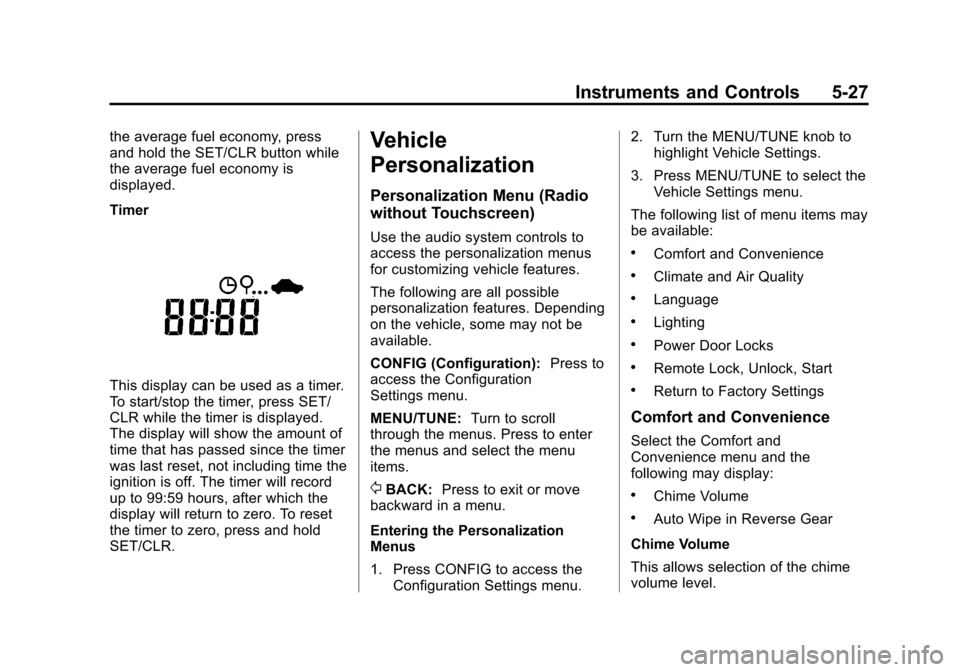
Timer
This display can be used as a timer.
To start/stop the timer, press SET/
CLR while the timer is displayed.
The display will show the amount of
time that has passed since the timer
was last reset, not including time the
ignition is off. The timer will record
up to 99:59 hours, after which the
display will return to zero. To reset
the timer to zero, press and hold
SET/CLR.
Vehicle
Personalization
Personalization Menu (Radio
without Touchscreen)
Use the audio system controls to
access the personalization menus
for customizing vehicle features.
The following are all possible
personalization features. Depending
on the vehicle, some may not be
available.
CONFIG (Configuration):Press to
access the Configuration
Settings menu.
MENU/TUNE: Turn to scroll
through the menus. Press to enter
the menus and select the menu
items.
/BACK: Press to exit or move
backward in a menu.
Entering the Personalization
Menus
1. Press CONFIG to access the Configuration Settings menu. 2. Turn the MENU/TUNE knob to
highlight Vehicle Settings.
3. Press MENU/TUNE to select the Vehicle Settings menu.
The following list of menu items may
be available:
.Comfort and Convenience
.Climate and Air Quality
.Language
.Lighting
.Power Door Locks
.Remote Lock, Unlock, Start
.Return to Factory Settings
Comfort and Convenience
Select the Comfort and
Convenience menu and the
following may display:
.Chime Volume
.Auto Wipe in Reverse Gear
Chime Volume
This allows selection of the chime
volume level.
Page 128 of 400
Black plate (28,1)Chevrolet Sonic Owner Manual (GMNA-Localizing-U.S./Canada-6081473) -
2014 - 2nd Edition - 8/19/13
5-28 Instruments and Controls
Select Normal or High.
Auto Wipe in Reverse Gear
When on and the vehicle on, this
feature will turn the rear wipers on
when the vehicle is placed in
R (Reverse) when the front wipers
are on.
Select On or Off.
Language
Select Language, then select from
the available language(s).
Exterior Lighting
Select the Lighting menu and the
following may display:
.Exterior Vehicle Locator Lights
.Exit Lighting
Exterior Vehicle Locator Lights
This allows selection of whether the
exterior lamps will turn on when
unlocking the vehicle.
Select On or Off. Exit Lighting
Select Off, 30 Seconds, 1 Minute,
or 2 Minutes.
Power Door Locks
Select Power Door Locks and the
following may display:
.Auto Door Unlock
.Unlock Door Anti Lock Out
.Delayed Door Lock
Auto Door Unlock
This allows selection of which of the
doors will automatically unlock when
the vehicle is shifted into P (Park) or
the key is removed.
Select All Doors, Driver Door, or Off.
Unlock Door Anti Lock Out
When on, this feature will keep the
driver door from locking when the
door is open. If off is selected, the
Unlock Door Anti Lock Out menu
will be available and the door will
lock as programmed through
this menu. Select On or Off.
Delayed Door Lock
When on, this feature will delay the
locking of the doors until
five seconds after the last door is
closed. Three chimes will signal that
delayed locking is in use. Pressing
will override the delayed locking
feature and immediately lock all of
the doors.
Select On or Off.
Remote Lock, Unlock, Start
Select Remote Lock, Unlock, Start
and the following may display:
.Remote Unlock Feedback
.Remote Lock Feedback
.Remote Door Unlock
Remote Unlock Feedback
When on, the exterior lamps will
flash when unlocking the vehicle
with the RKE transmitter.
Select On or Off.
Page 129 of 400
Black plate (29,1)Chevrolet Sonic Owner Manual (GMNA-Localizing-U.S./Canada-6081473) -
2014 - 2nd Edition - 8/19/13
Instruments and Controls 5-29
Remote Lock Feedback
This allows selection of what type of
feedback is given when locking the
vehicle with the RKE transmitter.
Select Lights and Horn, Lights Only,
Horn Only, or Off.
Remote Door Unlock
This allows selection of which doors
will unlock when pressing
Kon the
RKE transmitter.
Select All Doors or Driver Door
Only. When set to Driver Door Only,
the driver door will unlock the first
time
Kis pressed and all doors will
unlock when
Kis pressed a second
time. When set to All Doors, all of
the doors will unlock at the first
press of
K.
Return to Factory Settings
Select Return to Factory Settings to
return all of the vehicle
personalization to the default
settings.
Select Yes or No.
Personalization Menu (Radio
with Touchscreen)
Settings can be made with the
ignition ON and the vehicle not
moving.
Use the audio system controls to
access the personalization menus
for customizing vehicle features.
The following are all possible
personalization features. Depending
on the vehicle, some may not be
available.
D(Home): Press to access the
Home Page Menu.
QorR: Press to scroll through the
menus or setup items.
4: Press to exit, or return to the
previous screen or menu.
To access the menu:
1. Press
D.
2. Press Settings. The following list of menu items may
be available:
.Time & Date Settings
.Radio Settings
.Connection Settings
.Vehicle Settings
.Language
.Text Scroll
.Touch Beep Sound
.Max Startup Volume
.System Version
.DivX®VOD
Press the menu item to select it.
Each of the menus is detailed in the
following information.
Settings menus and functions may
vary depending on vehicle option.
Time & Date Settings
Select to change the settings:
.Set Time Format: Select 12h
or 24h.
Page 132 of 400
Black plate (32,1)Chevrolet Sonic Owner Manual (GMNA-Localizing-U.S./Canada-6081473) -
2014 - 2nd Edition - 8/19/13
5-32 Instruments and Controls
Unlocked Door Anti Lock Out
When on, this feature will keep the
driver door from locking when the
door is open. If Off is selected, the
Delayed Door Lock menu will be
available and the door will lock as
programmed through this menu.
Select On or Off.
Delayed Door Lock
When on, this feature will delay the
locking of the doors until
five seconds after the last door is
closed. Three chimes will signal that
delayed locking is in use. Pressing
either
QorKon the RKE
transmitter twice will override the
delayed locking feature and
immediately lock all of the doors.
Select On or Off.
Lock, Unlock Settings
Select and the following may
display:
.Remote Unlock Light Feedback
.Remote Lock Light & Horn
Feedback
.Remote Door Unlock
Remote Unlock Light Feedback
When on, the exterior lamps will
flash when unlocking the vehicle
with the RKE transmitter.
Select Flash Lights or Lights Off.
Remote Lock Light & Horn
Feedback
Select to set what type of feedback
is given when pressing
Qon the
RKE transmitter.
Select Lights Only, Lights & Horn,
Horn Only, or Off.
Remote Door Unlock
Select to set which doors will unlock
when pressing
Kon the RKE
transmitter.
Select All Doors or Driver Door.
When set to Driver Door Only, the
driver door will unlock the first time
Kis pressed and all doors will
unlock when the button is pressed a second time. When set to All Doors,
all of the doors will unlock at the first
press of
K.
Rear Camera Option
Select and the following may
display:
.Guidelines
Guidelines
The RVC system has a guideline
overlay that can help the driver align
the vehicle when backing into a
parking spot. See Rear Vision
Camera (RVC) on page 9-34.
Select On or Off.
Vehicle Factory Settings
Select to return all of the vehicle
personalization to the default
settings.
Select Yes or No.
Language
Select Language, then select from
the available language(s).
Page 195 of 400
Black plate (53,1)Chevrolet Sonic Owner Manual (GMNA-Localizing-U.S./Canada-6081473) -
2014 - 2nd Edition - 8/19/13
Infotainment System 7-53
.Pressgwithin five seconds of
the playback time to play the
previous file.
Returning to the Beginning of the
Current File
Press
gafter five seconds of the
playback time.
Scanning Forward or Backward
Press and hold
gorlduring
playback to rewind or fast forward.
Release the button to resume
playback at normal speed.
Playing a File Repeatedly
Press
vduring playback.
.1: Plays the current file
repeatedly.
.ALL: Plays all files repeatedly.
.OFF: Returns to normal
playback.
Playing a File Randomly
Press
uduring playback.
.NO: Plays all files randomly.
.OFF: Returns to normal
playback.
Viewing Information on the
Currently Playing File
Press the title during playback to
display information about the current
file playing.
.The information displayed
includes the title, file name,
folder name, and artist/album
saved with the song.
.Incorrect information cannot be
modified or corrected on the
infotainment system.
.The information for songs
expressed in special symbols or
in unavailable languages may be
displayed as “
u.”
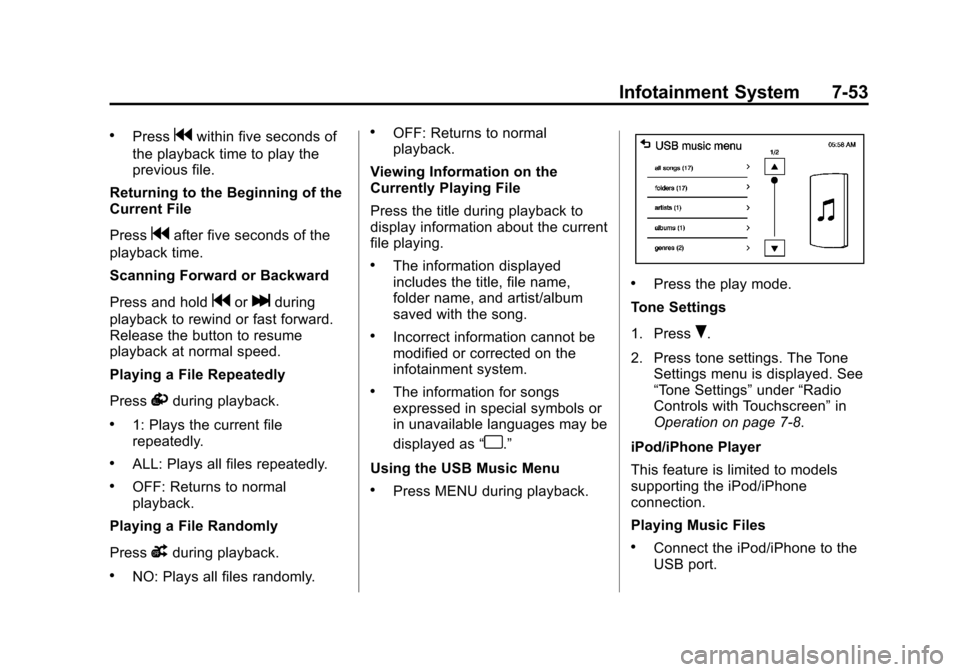
Using the USB Music Menu
.Press MENU during playback.
.Press the play mode.
Tone Settings
1. Press
R.
2. Press tone settings. The Tone Settings menu is displayed. See
“Tone Settings” under“Radio
Controls with Touchscreen” in
Operation on page 7-8.
iPod/iPhone Player
This feature is limited to models
supporting the iPod/iPhone
connection.
Playing Music Files
.Connect the iPod/iPhone to the
USB port.
Page 197 of 400
Black plate (55,1)Chevrolet Sonic Owner Manual (GMNA-Localizing-U.S./Canada-6081473) -
2014 - 2nd Edition - 8/19/13
Infotainment System 7-55
.Incorrect information cannot be
modified or corrected on the
infotainment system.
.The information for songs
expressed in special symbols or
in unavailable languages may be
displayed as“
u.”
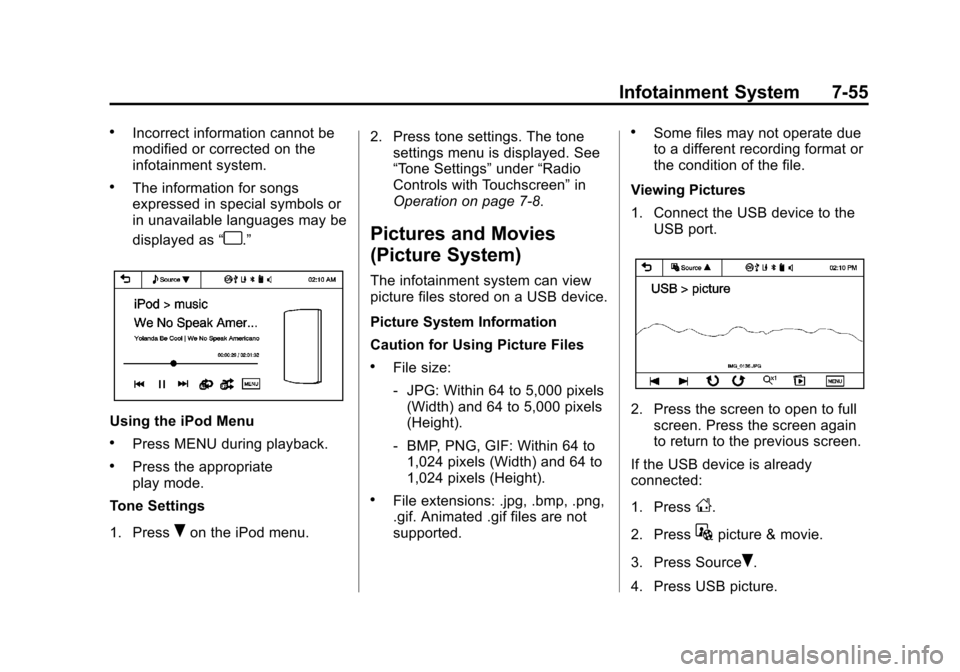
Using the iPod Menu
.Press MENU during playback.
.Press the appropriate
play mode.
Tone Settings
1. Press
Ron the iPod menu. 2. Press tone settings. The tone
settings menu is displayed. See
“Tone Settings” under“Radio
Controls with Touchscreen” in
Operation on page 7-8.
Pictures and Movies
(Picture System)
The infotainment system can view
picture files stored on a USB device.
Picture System Information
Caution for Using Picture Files
.File size:
‐ JPG: Within 64 to 5,000 pixels
(Width) and 64 to 5,000 pixels
(Height).
‐ BMP, PNG, GIF: Within 64 to
1,024 pixels (Width) and 64 to
1,024 pixels (Height).
.File extensions: .jpg, .bmp, .png,
.gif. Animated .gif files are not
supported.
.Some files may not operate due
to a different recording format or
the condition of the file.
Viewing Pictures
1. Connect the USB device to the USB port.
2. Press the screen to open to fullscreen. Press the screen again
to return to the previous screen.
If the USB device is already
connected:
1. Press
D.
2. Press
Gpicture & movie.
3. Press Source
R.
4. Press USB picture.
Page 200 of 400
Black plate (58,1)Chevrolet Sonic Owner Manual (GMNA-Localizing-U.S./Canada-6081473) -
2014 - 2nd Edition - 8/19/13
7-58 Infotainment System
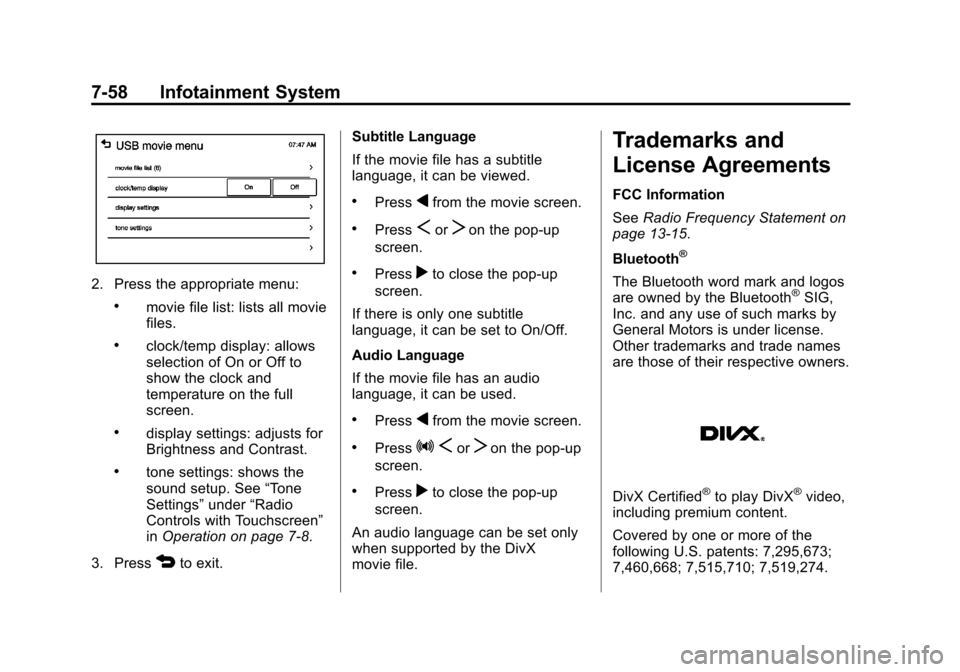
2. Press the appropriate menu:
.movie file list: lists all movie
files.
.clock/temp display: allows
selection of On or Off to
show the clock and
temperature on the full
screen.
.display settings: adjusts for
Brightness and Contrast.
.tone settings: shows the
sound setup. See“Tone
Settings” under“Radio
Controls with Touchscreen”
in Operation on page 7-8.
3. Press
4to exit. Subtitle Language
If the movie file has a subtitle
language, it can be viewed.
.Pressqfrom the movie screen.
.PressSorTon the pop-up
screen.
.Pressrto close the pop-up
screen.
If there is only one subtitle
language, it can be set to On/Off.
Audio Language
If the movie file has an audio
language, it can be used.
.Pressqfrom the movie screen.
.PressZ SorTon the pop-up
screen.
.Pressrto close the pop-up
screen.
An audio language can be set only
when supported by the DivX
movie file.
Trademarks and
License Agreements
FCC Information
See Radio Frequency Statement on
page 13-15.
Bluetooth
®
The Bluetooth word mark and logos
are owned by the Bluetooth®SIG,
Inc. and any use of such marks by
General Motors is under license.
Other trademarks and trade names
are those of their respective owners.
DivX Certified®to play DivX®video,
including premium content.
Covered by one or more of the
following U.S. patents: 7,295,673;
7,460,668; 7,515,710; 7,519,274.
Page 201 of 400
Black plate (59,1)Chevrolet Sonic Owner Manual (GMNA-Localizing-U.S./Canada-6081473) -
2014 - 2nd Edition - 8/19/13
Infotainment System 7-59
DivX®, DivX Certified®and
associated logos are trademarks of
Rovi Corporation or its subsidiaries
and are used under license.
“Made for iPod” and“Made for
iPhone” mean that an electronic
accessory has been designed to
connect specifically to iPod or
iPhone and has been certified by
the developer to meet Apple
performance standards.
iPod and iPhone are trademarks of
Apple Computer, Inc., registered in
the U.S. and other countries.
Fees and Taxes: Subscription fee,
taxes, one time activation fee, and
other fees may apply. Subscription
fee is consumer only. All fees and
programming subject to change.
Subscriptions subject to Customer
Agreement available at
www.siriusxm.com. SiriusXM
®
service only available in the
48 contiguous United States and
Canada.
In Canada: Some deterioration of
service may occur in extreme
northern latitudes. This is beyond
the control of SiriusXM
®Satellite
Radio. Explicit Language Notice: Channels
with frequent explicit language are
indicated with an
“XL”preceding the
channel name. Channel blocking is
available for SiriusXM Satellite
Radio receivers by notifying
SiriusXM:
.USA: 866-635-2349 or see
www.siriusxm.com.
.Canada: 877-209-0079 or see
www.xmradio.ca.
It is prohibited to copy, decompile,
disassemble, reverse engineer,
hack, manipulate, or otherwise
make available any technology or
software incorporated in receivers
compatible with the SiriusXM
Satellite Radio System or that
support the SiriusXM website, the
Online Service or any of its content.
Furthermore, the AMBER voice
compression software included in
this product is protected by
intellectual property rights including
patent rights, copyrights, and trade
secrets of Digital Voice
Systems, Inc.