CD player CHEVROLET SONIC 2016 2.G User Guide
[x] Cancel search | Manufacturer: CHEVROLET, Model Year: 2016, Model line: SONIC, Model: CHEVROLET SONIC 2016 2.GPages: 353, PDF Size: 7.74 MB
Page 152 of 353
Chevrolet Sonic Owner Manual (GMNA-Localizing-U.S/Canada-9085902) -
2016 - CRC - 5/27/15
Infotainment System 151
3. Press connection settings.
4. Press bluetooth settings.
5. Press pair device.
6. Press the name of the deviceto be disconnected.
7. Press OK.
Deleting a Paired Phone
1. Press
D.
2. Select settings.
3. Press connection settings.
4. Press bluetooth settings.
5. Press pair device.
6. Press Delete.
7. Press Yes.
Bluetooth Music
Before playing Bluetooth music,
read the follow information.
. A cell phone or Bluetooth device
that supports Advanced Audio
Distribution Profile (A2DP)
versions over 1.2 must be
registered and connected to the
product. .
From the cell phone or Bluetooth
device, find the Bluetooth device
type to set/connect the item as a
stereo headset.
.
5will appear on the screen if
the stereo headset is
successfully connected.
. The sound played by the
Bluetooth device is delivered
through the infotainment system.
. Bluetooth music can be played
only when a Bluetooth device
has been connected. To play
Bluetooth music, connect the
Bluetooth phone to the
infotainment system.
. If the Bluetooth device is
disconnected while playing
phone music, the music is
discontinued. The audio
streaming function may not be
supported in some Bluetooth
phones. Only one function can
be used at a time between the
Bluetooth hands-free or Phone
music function. For example,
if you convert to the Bluetooth
hands-free while playing Phone
music, the music is discontinued. Playing music from
the car is not possible when
there are no music files stored in
the cell phone.
. For Bluetooth music to play, the
music must be played at least
once from the music player
mode of the cell phone or
Bluetooth device after
connecting as a stereo headset.
After being played at least once,
the music player will
automatically play upon entering
play mode, and it will
automatically stop when the
music player mode ends. If the
cell phone or Bluetooth device is
not in the waiting screen mode,
some devices may not
automatically play in Bluetooth
music play mode.
Page 154 of 353
Chevrolet Sonic Owner Manual (GMNA-Localizing-U.S/Canada-9085902) -
2016 - CRC - 5/27/15
Infotainment System 153
.The infotainment system outputs
the audio from the cell phone or
Bluetooth device as it is
transmitted.
Bluetooth (Voice
Recognition)
Using Voice Recognition
To use voice recognition, press theb/gbutton located on the steering
wheel. Use the commands below for
the various voice features. For
additional information, say "Help"
while you are in a voice
recognition menu.
Pairing
A Bluetooth-enabled cell phone
must be paired to the Bluetooth
system and then connected to the
vehicle before it can be used. See
your cell phone manufacturer's user
guide for Bluetooth functions before
pairing the cell phone. If a Bluetooth
phone is not connected, calls will be
made using OnStar Hands-Free
Calling, if available. See OnStar
Overview 0332. Pairing Information
.
A Bluetooth phone with MP3
capability can be paired to the
vehicle as a phone and an MP3
player at the same time.
. Up to five cell phones can be
paired to the Bluetooth system.
. The pairing process is disabled
when the vehicle is moving.
. Pairing only needs to be
completed once, unless the
pairing information on the cell
phone changes or the cell phone
is deleted from the system.
. Only one paired cell phone can
be connected to the Bluetooth
system at a time.
. If multiple paired cell phones are
within range of the system, the
system connects to the first
available paired cell phone in the
order that they were first paired
to the system. To link to a
different paired phone, see
“Connecting to a Different
Phone” later in this section. Pairing a Phone
1. Press
b/g. The system
responds “Ready,”followed by
a tone.
2. Say “Bluetooth.” This command
can be skipped.
3. Say “Pair.”The system
responds with instructions and
a four-digit Personal
Identification Number (PIN).
The PIN is used in Step 5.
4. Start the pairing process on the cell phone that you want to
pair. For help with this process,
see your cell phone
manufacturer's user guide.
5. Locate the device named “Your
Vehicle” in the list on the cell
phone. Follow the instructions
on the cell phone to enter the
PIN provided in Step 3. After
the PIN is successfully entered,
the system prompts you to
provide a name for the paired
cell phone. This name will be
used to indicate which phones
are paired and connected to
the vehicle. The system
Page 168 of 353
Chevrolet Sonic Owner Manual (GMNA-Localizing-U.S/Canada-9085902) -
2016 - CRC - 5/27/15
Infotainment System 167
terminal, the music file will play,
but can’t be controlled by the
infotainment system.
. The iPod/iPhone playback
functions and the information
displayed may be different when
played on the infotainment
system.
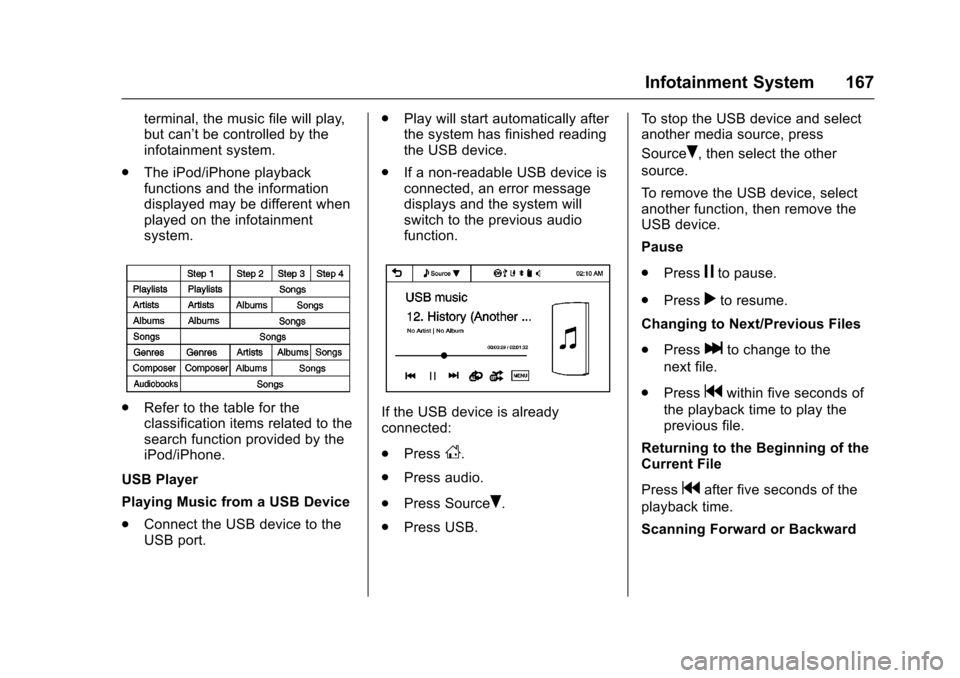
.Refer to the table for the
classification items related to the
search function provided by the
iPod/iPhone.
USB Player
Playing Music from a USB Device
. Connect the USB device to the
USB port. .
Play will start automatically after
the system has finished reading
the USB device.
. If a non-readable USB device is
connected, an error message
displays and the system will
switch to the previous audio
function.If the USB device is already
connected:
.Press
D.
. Press audio.
. Press Source
R.
. Press USB. To stop the USB device and select
another media source, press
Source
R, then select the other
source.
To remove the USB device, select
another function, then remove the
USB device.
Pause
. Press
jto pause.
. Press
rto resume.
Changing to Next/Previous Files
. Press
lto change to the
next file.
. Press
gwithin five seconds of
the playback time to play the
previous file.
Returning to the Beginning of the
Current File
Press
gafter five seconds of the
playback time.
Scanning Forward or Backward
Page 170 of 353
Chevrolet Sonic Owner Manual (GMNA-Localizing-U.S/Canada-9085902) -
2016 - CRC - 5/27/15
Infotainment System 169
movie files. Picture and movie files
are not available even if the audio
file in MTP device is played.
MTP device that has external
memory may be recognized as
USB1/USB2.
For other USB operations seeUSB
Port 0142.
When a MTP device is connected
and another app is running at the
same time, there may be a delay in
the rear vision camera.
iPod/iPhone Player
This feature is limited to models
supporting the iPod/iPhone
connection.
Playing Music Files
. Connect the iPod/iPhone to the
USB port.
. Play will start from the previously
played point after the system
has finished reading the USB
device. .
If a non-readable USB device is
connected, an error message
displays and the system will
switch to the previous audio
function.
. Connect the iPod/iPhone to the
USB port.
. Play will start from the previously
played point after the system
has finished reading the USB
device.
. If a non-readable USB device is
connected, an error message
displays and the system will
switch to the previous audio
function.
If the iPod/iPhone is already
connected:
1. Press
D.
2. Press
eaudio.
3. Press Source
R.
4. Press iPod.
To stop the device and select
another media source, press
Source
R, then select the other
source. To remove the device, select
another function, then remove the
device.
Pause
.
Press
jto pause.
. Press
rto resume.
Changing to Next/Previous Song
. Press
lto change to the
next song.
. Press
gwithin two seconds of
the playback time to play the
previous file.
Returning to the Beginning of the
Current File
Press
gafter two seconds of the
playback time.
Scanning Forward or Backward
Press and hold
gorlduring
playback to rewind or fast forward.
Release the button to resume
playback at normal speed.
Playing a File Repeatedly
Press
vduring playback.