CD player CHEVROLET SONIC 2016 2.G Owners Manual
[x] Cancel search | Manufacturer: CHEVROLET, Model Year: 2016, Model line: SONIC, Model: CHEVROLET SONIC 2016 2.GPages: 353, PDF Size: 7.74 MB
Page 20 of 353
Chevrolet Sonic Owner Manual (GMNA-Localizing-U.S/Canada-9085902) -
2016 - CRC - 5/27/15
In Brief 19
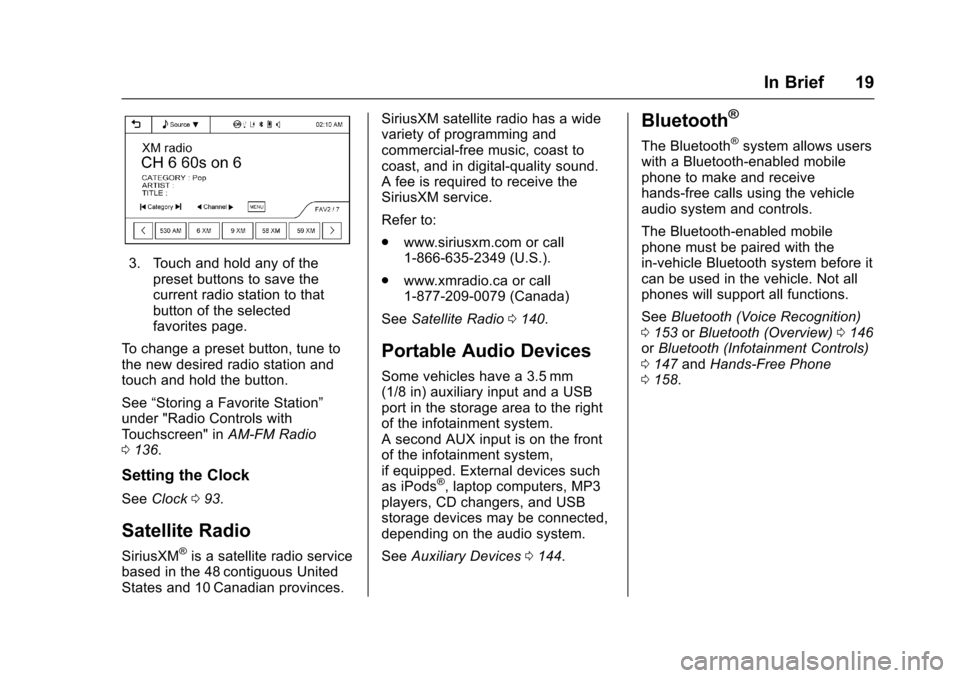
3. Touch and hold any of thepreset buttons to save the
current radio station to that
button of the selected
favorites page.
To change a preset button, tune to
the new desired radio station and
touch and hold the button.
See “Storing a Favorite Station”
under "Radio Controls with
Touchscreen" in AM-FM Radio
0 136.
Setting the Clock
See Clock 093.
Satellite Radio
SiriusXM®is a satellite radio service
based in the 48 contiguous United
States and 10 Canadian provinces. SiriusXM satellite radio has a wide
variety of programming and
commercial-free music, coast to
coast, and in digital-quality sound.
A fee is required to receive the
SiriusXM service.
Refer to:
.
www.siriusxm.com or call
1-866-635-2349 (U.S.).
. www.xmradio.ca or call
1-877-209-0079 (Canada)
See Satellite Radio 0140.
Portable Audio Devices
Some vehicles have a 3.5 mm
(1/8 in) auxiliary input and a USB
port in the storage area to the right
of the infotainment system.
A second AUX input is on the front
of the infotainment system,
if equipped. External devices such
as iPods
®, laptop computers, MP3
players, CD changers, and USB
storage devices may be connected,
depending on the audio system.
See Auxiliary Devices 0144.
Bluetooth®
The Bluetooth®system allows users
with a Bluetooth-enabled mobile
phone to make and receive
hands-free calls using the vehicle
audio system and controls.
The Bluetooth-enabled mobile
phone must be paired with the
in-vehicle Bluetooth system before it
can be used in the vehicle. Not all
phones will support all functions.
See Bluetooth (Voice Recognition)
0 153 orBluetooth (Overview) 0146
or Bluetooth (Infotainment Controls)
0 147 andHands-Free Phone
0 158.
Page 23 of 353
Chevrolet Sonic Owner Manual (GMNA-Localizing-U.S/Canada-9085902) -
2016 - CRC - 5/27/15
22 In Brief
Power Outlets
The accessory power outlets can be
used to plug in electrical equipment,
such as a cell phone or MP3 player.
The vehicle has an accessory
power outlet in front of the
cupholders on the center floor
console.
SeePower Outlets 094.
Sunroof
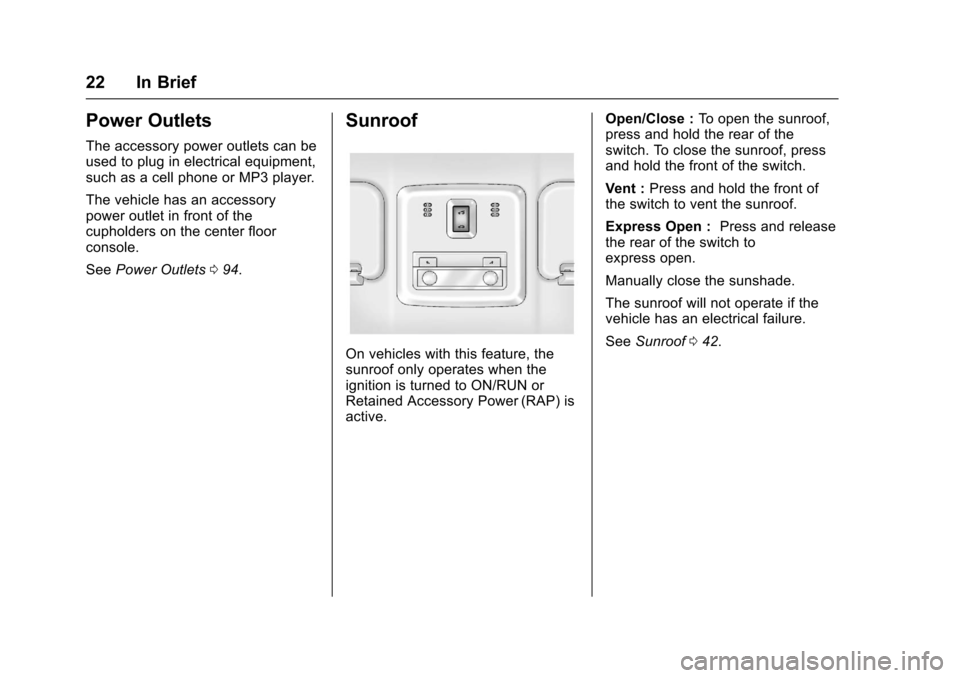
On vehicles with this feature, the
sunroof only operates when the
ignition is turned to ON/RUN or
Retained Accessory Power (RAP) is
active. Open/Close :
To open the sunroof,
press and hold the rear of the
switch. To close the sunroof, press
and hold the front of the switch.
Vent : Press and hold the front of
the switch to vent the sunroof.
Express Open : Press and release
the rear of the switch to
express open.
Manually close the sunshade.
The sunroof will not operate if the
vehicle has an electrical failure.
See Sunroof 042.
Page 95 of 353
Chevrolet Sonic Owner Manual (GMNA-Localizing-U.S/Canada-9085902) -
2016 - CRC - 5/27/15
94 Instruments and Controls
Setting the Time and Date
1. PressD, and then press
settings.
2. Press time and date settings, and then set time and date.
3. Press
yorzto adjust the
value.
4. Press
4.
Automatic Clock Sync
1. PressD, and then press
settings.
2. Press time and date settings, and then automatic clock sync.
3. Select On to display the real time or Off to display the time
set by the user.
4. Press
4.
Power Outlets
The accessory power outlets can be
used to plug in electrical equipment,
such as a cell phone or MP3 player.
The vehicle has an accessory
power outlet in front of the
cupholders on the center floor
console.
Remove the cover to access and
replace when not in use.
{Warning
Power is always supplied to the
outlets. Do not leave electrical
equipment plugged in when the
vehicle is not in use because the
vehicle could catch fire and cause
injury or death.
Caution
Leaving electrical equipment
plugged in for an extended period
of time while the vehicle is off will
drain the battery. Always unplug
electrical equipment when not in
use and do not plug in equipment
that exceeds the maximum
20 amp rating.
Certain accessory power plugs may
not be compatible with the
accessory power outlet and could
overload vehicle or adapter fuses.
If a problem is experienced, see
your dealer.
When adding electrical equipment,
be sure to follow the proper
installation instructions included with
the equipment. See Add-On
Electrical Equipment 0217.
Page 128 of 353
Chevrolet Sonic Owner Manual (GMNA-Localizing-U.S/Canada-9085902) -
2016 - CRC - 5/27/15
Infotainment System 127
Infotainment
System
Introduction
Infotainment . . . . . . . . . . . . . . . . . . 127
Theft-Deterrent Feature . . . . . . 128
Overview (AM-FM Radio) . . . . . 129
Overview (Radio withTouchscreen) . . . . . . . . . . . . . . . 131
Home Page (Radio with Touchscreen) . . . . . . . . . . . . . . . 131
Operation . . . . . . . . . . . . . . . . . . . . . 132
Radio
AM-FM Radio . . . . . . . . . . . . . . . . 136
Satellite Radio . . . . . . . . . . . . . . . . 140
Radio Reception . . . . . . . . . . . . . . 141
Satellite Radio Antenna . . . . . . 142
Multi-Band Antenna . . . . . . . . . . 142
Audio Players
USB Port . . . . . . . . . . . . . . . . . . . . . 142
Auxiliary Devices . . . . . . . . . . . . . 144
Bluetooth Audio . . . . . . . . . . . . . . 145
Phone
Bluetooth (Overview) . . . . . . . . . 146
Bluetooth (Infotainment Controls) . . . . . . . . . . . . . . . . . . . . 147 Bluetooth (Voice
Recognition) . . . . . . . . . . . . . . . . 153
Hands-Free Phone . . . . . . . . . . . 158
Downloadable Applications
Smartphone Link (Overview) . . . . . . . . . . . . . . . . . . 160
Smartphone Link (Pandora) . . . . . . . . . . . . . . . . . . . 162
Smartphone Link (Stitcher) . . . 164
Bluetooth Phone/Devices
Pictures and Movies (Audio System) . . . . . . . . . . . . . . . . . . . . . 165
Pictures and Movies (Picture System) . . . . . . . . . . . . . . . . . . . . . 170
Pictures and Movies (Movie System) . . . . . . . . . . . . . . . . . . . . . 172
Trademarks and License
Agreements
Trademarks and LicenseAgreements . . . . . . . . . . . . . . . . . 174
Introduction
Infotainment
Read the following pages to
become familiar with these features.
{Warning
Taking your eyes off the road for
too long or too often while using
any infotainment feature can
cause a crash. You or others
could be injured or killed. Do not
give extended attention to
infotainment tasks while driving.
Limit your glances at the vehicle
displays and focus your attention
on driving. Use voice commands
whenever possible.
Page 134 of 353
Chevrolet Sonic Owner Manual (GMNA-Localizing-U.S/Canada-9085902) -
2016 - CRC - 5/27/15
Infotainment System 133
/BACK:
Press to:
. Exit a menu.
. Return from a submenu screen
to the previous menu screen.
. Delete the last character in a
sequence.
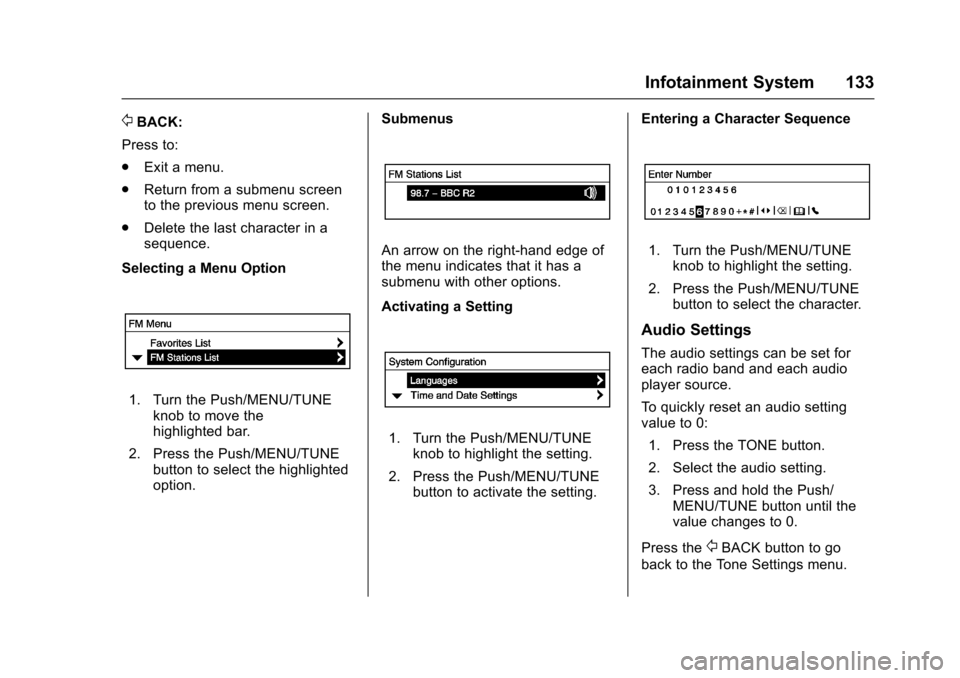
Selecting a Menu Option
1. Turn the Push/MENU/TUNE knob to move the
highlighted bar.
2. Press the Push/MENU/TUNE button to select the highlighted
option. Submenus
An arrow on the right-hand edge of
the menu indicates that it has a
submenu with other options.
Activating a Setting
1. Turn the Push/MENU/TUNE
knob to highlight the setting.
2. Press the Push/MENU/TUNE button to activate the setting. Entering a Character Sequence
1. Turn the Push/MENU/TUNE
knob to highlight the setting.
2. Press the Push/MENU/TUNE button to select the character.
Audio Settings
The audio settings can be set for
each radio band and each audio
player source.
To quickly reset an audio setting
value to 0:
1. Press the TONE button.
2. Select the audio setting.
3. Press and hold the Push/ MENU/TUNE button until the
value changes to 0.
Press the
/BACK button to go
back to the Tone Settings menu.
Page 136 of 353
Chevrolet Sonic Owner Manual (GMNA-Localizing-U.S/Canada-9085902) -
2016 - CRC - 5/27/15
Infotainment System 135
Radio Controls with
Touchscreen
The infotainment system is operated
by using the pushbuttons, menus
shown on the display, and steering
wheel controls.
Turning the System On or Off
O(Power) :Press and hold to turn
the radio on and off.
Automatic Switch-Off
If the infotainment system has been
turned on after the ignition is turned
off, the system will turn off
automatically after 10 minutes.
Volume Control
zVOLy(Volume) : Press to
increase or decrease the volume or
press the volume bar.
>(Mute) : PresszVOLy, then
press
>to mute and unmute the
system.
System Settings
Auto Volume
This feature automatically adjusts
the radio volume to compensate for
road and wind noise.
The level of volume compensation
can be selected, or the feature can
be turned off.
1. Press
D.
2. Select Settings.
3. Select Radio Settings.
4. Select Auto Volume.
5. Select the setting by pressing
SorT.
6. Press
4.
Auto Store (AS)
This feature automatically stores the
stations with the strongest
reception.
To store or update the stations,
press and hold the AS screen
button. To listen to a auto stored station:
1. Select AM or FM.
2. Press the AS screen button.
3. Press
SorTrepeatedly to
select the desired AS page.
4. Press the desired preset station screen button.
If AS is pressed with no stored
stations, AS will update.
Audio Settings
The audio settings can be set for
each radio band and each audio
player source.
Tone Settings : Press menu, then
tone settings from the AM or
FM menu.
. EQ (Equalizer): Press
SorTto
select a sound style or turn off
the sound style. When in tone
settings “Manual” and“Talk” may
be the only settings available
depending on the sound system.
Page 143 of 353
Chevrolet Sonic Owner Manual (GMNA-Localizing-U.S/Canada-9085902) -
2016 - CRC - 5/27/15
142 Infotainment System
charging the phone's battery,
or simply having the phone on. This
interference causes an increased
level of static while listening to the
radio. If static is received while
listening to the radio, unplug the
cellular phone and turn it off.
Satellite Radio Antenna
The XM Satellite Radio antenna is
located on the roof of the vehicle.
Keep the antenna clear of
obstructions for clear radio
reception.
If the vehicle has a sunroof, the
performance of the XM system (if
equipped) may be affected if the
sunroof is open.
Multi-Band Antenna
The multi-band antenna is on the
roof of the vehicle. The antenna is
used for the AM-FM radio, OnStar,
the SiriusXM Satellite Radio Service
System, and GPS (Global
Positioning System), if the vehicle
has these features. Keep the
antenna clear of obstructions for
clear reception.
If the vehicle has a sunroof, the
performance of the features listed
above may be affected if the
sunroof is open.
Audio Players
USB Port
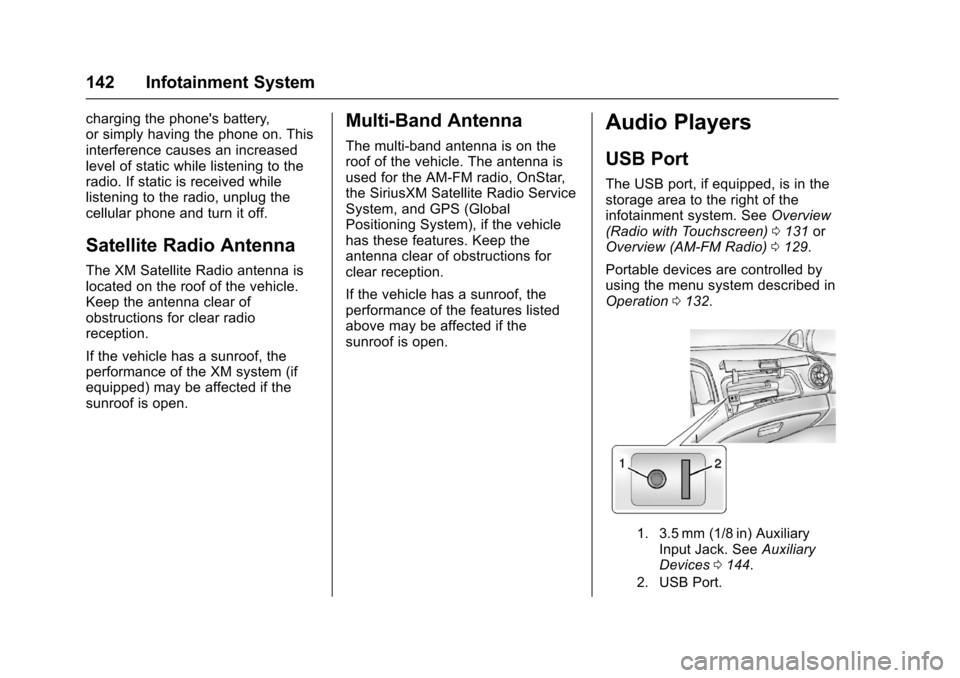
The USB port, if equipped, is in the
storage area to the right of the
infotainment system. SeeOverview
(Radio with Touchscreen) 0131 or
Overview (AM-FM Radio) 0129.
Portable devices are controlled by
using the menu system described in
Operation 0132.
1. 3.5 mm (1/8 in) Auxiliary
Input Jack. See Auxiliary
Devices 0144.
2. USB Port.
Page 145 of 353
Chevrolet Sonic Owner Manual (GMNA-Localizing-U.S/Canada-9085902) -
2016 - CRC - 5/27/15
144 Infotainment System
If a non-readable device that
supports MTP is connected, then an
error message will appear and the
infotainment system will be
automatically switched to the
previous audio function.
All files may not play. File loading
may take a few minutes. An MTP
device that has external memory
may be recognized as USB1/USB2.
Auxiliary Devices
The optional AUX input allows
portable devices to connect to the
vehicle using the 3.5 mm (1/8 in)
input jack. If equipped with a
touchscreen radio, the AUX input
jack is in the storage area to the
right of the infotainment system.
If equipped with a non-touchscreen
radio, the AUX input is on the front
of the infotainment system. See
Overview (Radio with Touchscreen)
0131 orOverview (AM-FM Radio)
0 129.
Portable devices are controlled by
using the menu system described in
Operation 0132.1. 3.5 mm (1/8 in) Auxiliary
Input Jack
2. USB Port. See USB Port
0 142.
Radio without Touchscreen
Connect a 3.5 mm (1/8 in) cable to
the auxiliary input jack to use a
portable audio player.
Playback of an audio device that is
connected to the 3.5 mm (1/8 in)
jack can only be controlled using
the controls on the device. Adjusting the Volume
Turn the
O/VOL knob to adjust the
volume of the infotainment system
after the volume level has been set
on the portable audio device.
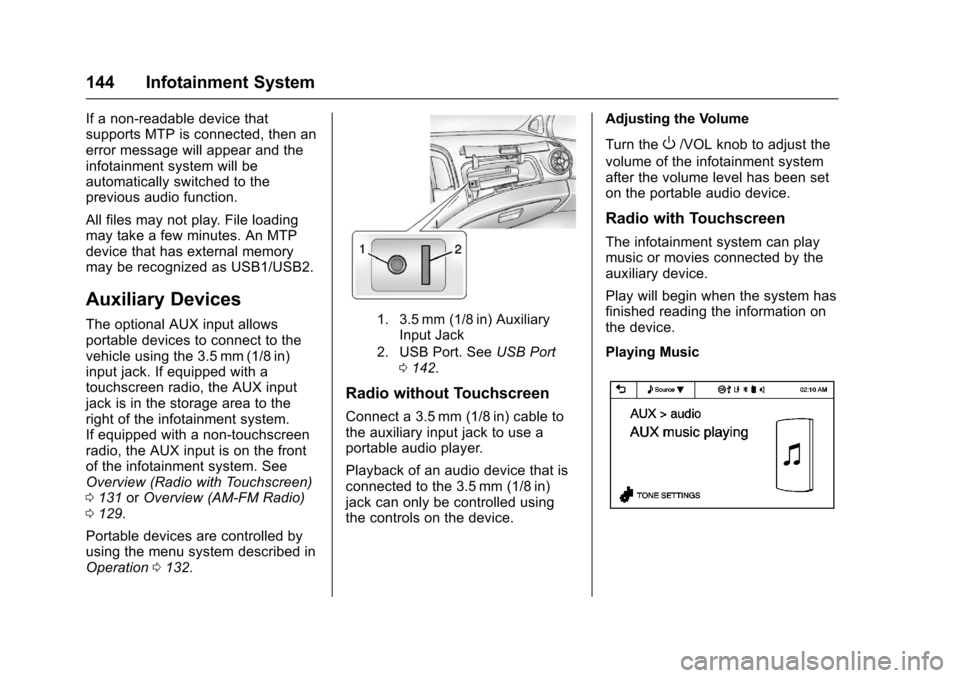
Radio with Touchscreen
The infotainment system can play
music or movies connected by the
auxiliary device.
Play will begin when the system has
finished reading the information on
the device.
Playing Music
Page 147 of 353
Chevrolet Sonic Owner Manual (GMNA-Localizing-U.S/Canada-9085902) -
2016 - CRC - 5/27/15
146 Infotainment System
When selecting Bluetooth audio, the
radio may not be able to launch the
audio player on the connected
device to start playing. When the
vehicle is not moving, choose the
phone to begin playback.
All devices launch audio differently.
When selecting Bluetooth audio as
a source, the radio may show as
paused on the screen. Press play
on the device to begin playback.
Some phones support sending
Bluetooth music information to
display on the radio. When the radio
receives this information, it will
check to see if any album art is
available and display it. For more
information about your phone and
supported Bluetooth features, see
www.gm.com/bluetooth.Phone
Bluetooth (Overview)
For vehicles equipped with
Bluetooth capability, the system can
interact with many cell phones,
allowing:
.Placement and receipt of calls in
a hands-free mode.
. Sharing of the cell phone’s
address book or contact list with
the vehicle.
To minimize driver distraction,
before driving, and with the vehicle
parked:
. Become familiar with the
features of the cell phone.
Organize the phone book and
contact lists clearly and delete
duplicate or rarely used entries.
If possible, program speed dial
or other shortcuts.
. Review the controls and
operation of the infotainment
system. .
Pair cell phone(s) to the vehicle.
The system may not work with
all cell phones. See “Pairing”in
this section.
. If the cell phone has voice
dialing capability, learn to use
that feature to access the
address book or contact list. See
“Voice Pass-Thru” in this
section.
. See “Storing and Deleting Phone
Numbers” in this section.
{Warning
When using a cell phone, it can
be distracting to look too long or
too often at the screen of the
phone or the infotainment system.
Taking your eyes off the road too
long or too often could cause a
crash resulting in injury or death.
Focus your attention on driving.
Vehicles with a Bluetooth system
can use a Bluetooth-capable cell
phone with a Hands-Free Profile to
make and receive phone calls. The
infotainment system and voice
Page 149 of 353
Chevrolet Sonic Owner Manual (GMNA-Localizing-U.S/Canada-9085902) -
2016 - CRC - 5/27/15
148 Infotainment System
Pairing
A Bluetooth-enabled cell phone
must be paired to the Bluetooth
system and then connected to the
vehicle before it can be used. See
your cell phone manufacturer's user
guide for Bluetooth functions before
pairing the cell phone. If a Bluetooth
phone is not connected, calls will be
made using OnStar Hands-Free
Calling, if available. SeeOnStar
Overview 0332.
Pairing Information
. A Bluetooth phone with MP3
capability cannot be paired to
the vehicle as a phone and an
MP3 player at the same time.
. Up to five cell phones can be
paired to the Bluetooth system.
. The pairing process is disabled
when the vehicle is moving.
. Depending on the phone book
entries, paring time may be
different. .
Pairing only needs to be
completed once, unless the
pairing information on the cell
phone changes or the cell phone
is deleted from the system.
. Only one paired cell phone can
be connected to the Bluetooth
system at a time.
. If multiple paired cell phones are
within range of the system, the
system connects to the first
available paired cell phone in the
order that they were first paired
to the system. To link to a
different paired phone, see
“Linking to a Different Phone”
later in this section.
. Always accept the Phone book
request on the initial pairing of
the phone.
When the Bluetooth device and
infotainment system are
successfully paired, the phone book
is downloaded automatically.
However, the phone book may not
be downloaded automatically
according to the type of the phone.
In this case, proceed with the
phonebook download on phone. If the phone list is more than 1,000,
it may not download to the radio.
Pairing a Phone
When there is no paired device on
the infotainment system and the
Simple Secure Pairing (SSP) is
supported:
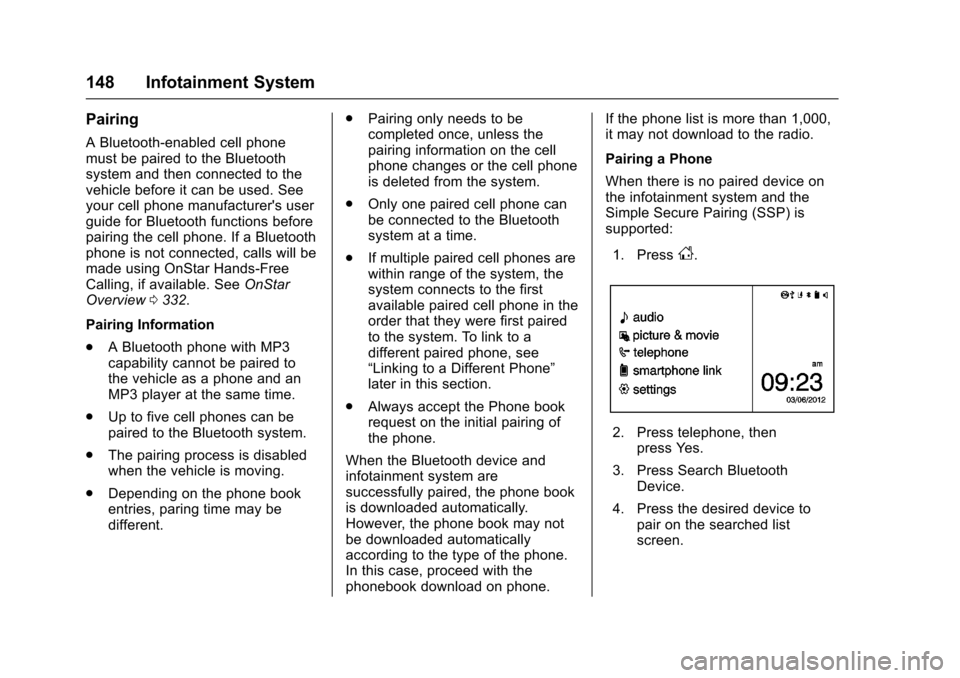
1. Press
D.
2. Press telephone, then press Yes.
3. Press Search Bluetooth Device.
4. Press the desired device to pair on the searched list
screen.