lock CHEVROLET SONIC 2016 2.G Workshop Manual
[x] Cancel search | Manufacturer: CHEVROLET, Model Year: 2016, Model line: SONIC, Model: CHEVROLET SONIC 2016 2.GPages: 353, PDF Size: 7.74 MB
Page 118 of 353
Chevrolet Sonic Owner Manual (GMNA-Localizing-U.S/Canada-9085902) -
2016 - CRC - 5/27/15
Instruments and Controls 117
Bluetooth Settings
Select this feature to:
.Connect, disconnect, or delete a
device
. Change or set a Personal
Identification Number (PIN)
. Turn on or off the Bluetooth
connection
. Make the infotainment system
discoverable by Bluetooth
devices
. Check the device information
Change Ringtone
Select to set different ringtones.
Ringtone Volume
Select to set the ringtone volume.
Press
SorT.
Vehicle Settings
Select and the following may
display:
. Climate & Air Quality
. Comfort & Convenience
. Collision/Detection .
Lighting
. Power Door Locks
. Lock, Unlock Settings
. Rear Camera Option
. Vehicle Factory Settings
Climate & Air Quality
Select and Remote Start Heated
Seats may display.
Select On or Off.
Comfort & Convenience
Select and the following may
display:
.Chime Volume
. Auto Wipe in Reverse Gear
Chime Volume
Select to set the chime volume
level.
Select Normal or High. Auto Wipe in Reverse Gear
Select to set this feature on or off.
When on, and the front wipers are
on, the rear window wiper will turn
on automatically when the vehicle is
shifted into R (Reverse).
Select On or Off.
Collision/Detection
Select and Park Assist may display.
Select On or Off.
Lighting
Select and the following may
display:
.
Exit Lighting
. Vehicle Locator Lights
Exit Lighting
Select to set how long the exterior
lamps stay on when leaving the
vehicle and it is dark outside.
Select Off, 30 Sec, 60 Sec,
or 120 Sec.
Page 119 of 353
Chevrolet Sonic Owner Manual (GMNA-Localizing-U.S/Canada-9085902) -
2016 - CRC - 5/27/15
118 Instruments and Controls
Vehicle Locator Lights
This allows selection of how long
the exterior lamps stay on when
leaving the vehicle and it is dark
outside.
Select On or Off.
Power Door Locks
Select and the following may
display:
.Auto Door Unlock
. Unlocked Door Anti Lock Out
. Delayed Door Lock
Auto Door Unlock
Select to set which of the doors will
automatically unlock when the
vehicle is shifted into P (Park).
Select All Doors, Driver Door, or Off.
Unlocked Door Anti Lock Out
When on, this feature will keep the
driver door from locking when the
door is open. If Off is selected, the
Delayed Door Lock menu will be
available and the door will lock as
programmed through this menu.
Select On or Off. Delayed Door Lock
When on, this feature will delay the
locking of the doors until
five seconds after the last door is
closed. Three chimes will signal that
delayed locking is in use. Pressing
either
QorKon the RKE
transmitter twice will override the
delayed locking feature and
immediately lock all of the doors.
Select On or Off.
Lock, Unlock Settings
Select and the following may
display:
. Remote Unlock Light Feedback
. Remote Lock Light & Horn
Feedback
. Remote Door Unlock
Remote Unlock Light Feedback
When on, the exterior lamps will
flash when unlocking the vehicle
with the RKE transmitter.
Select Flash Lights or Lights Off. Remote Lock Light & Horn
Feedback
Select to set what type of feedback
is given when pressing
Qon the
RKE transmitter.
Select Lights Only, Lights & Horn,
Horn Only, or Off.
Remote Door Unlock
Select to set which doors will unlock
when pressing
Kon the RKE
transmitter.
Select All Doors or Driver Door.
When set to Driver Door, the driver
door will unlock the first time
Kis
pressed and all doors will unlock
when the button is pressed a
second time. When set to All Doors,
all of the doors will unlock at the first
press of
K.
Rear Camera Option
Select and the following may
display:
. Guidelines
Page 131 of 353
Chevrolet Sonic Owner Manual (GMNA-Localizing-U.S/Canada-9085902) -
2016 - CRC - 5/27/15
130 Infotainment System
8.5/>(Phone/Mute)
. Mutes the audio system.
9. CLOCK .Opens the Clock menu.
10. MEDIA .Selects external audio
source.
11.
/BACK
. Menu: Moves one
level back.
. Character Input: Deletes
the last character.
12. RADIO/BAND .Changes the band while
listening to the radio.
. Selects the radio when
listening to a different audio
source. 13. Push/MENU/TUNE
.Radio: Manually selects
radio stations.
14.
©SEEK
. Radio: Seeks the previous
station.
15. SEEK
¨
. Radio: Seeks the next
station.
Page 146 of 353
Chevrolet Sonic Owner Manual (GMNA-Localizing-U.S/Canada-9085902) -
2016 - CRC - 5/27/15
Infotainment System 145
To play the music from the device,
if the device is already connected:1. Press
D.
2. Press audio.
3. Press Source
R.
4. Press AUX/USB.
To adjust the tone settings, see
“Tone Settings” under“Radio
Controls with Touchscreen” in
Operation 0132.
Playing Movies
Movies are not available while
driving.
If the USB storage device is already
connected:
1. Press
D.
2. Press picture and movie.
3. Press Source
R.
4. Press USB (Movie).
For iPod/iPhone, connect the iPod/
iPhone to the AUX input terminal by
using the AUX cable for iPod/
iPhone to play movie files. iPhone 5 cell phones have a
connector that no longer supports
AUX connections to the radio. This
feature is limited to older versions of
iPhone.
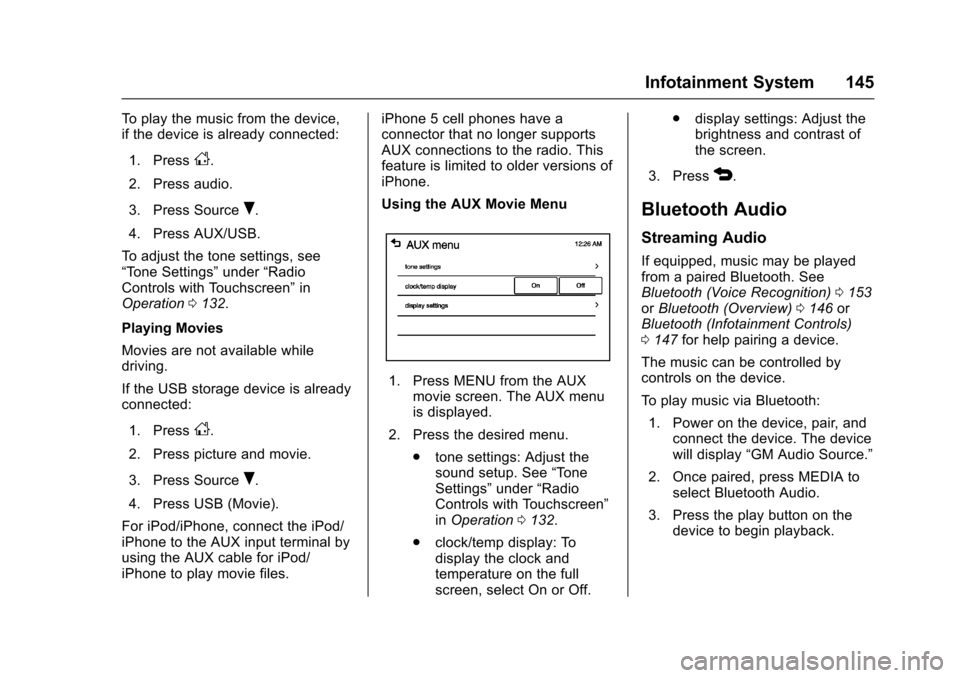
Using the AUX Movie Menu
1. Press MENU from the AUX
movie screen. The AUX menu
is displayed.
2. Press the desired menu. .tone settings: Adjust the
sound setup. See “Tone
Settings” under“Radio
Controls with Touchscreen”
in Operation 0132.
. clock/temp display: To
display the clock and
temperature on the full
screen, select On or Off. .
display settings: Adjust the
brightness and contrast of
the screen.
3. Press
4.
Bluetooth Audio
Streaming Audio
If equipped, music may be played
from a paired Bluetooth. See
Bluetooth (Voice Recognition) 0153
or Bluetooth (Overview) 0146 or
Bluetooth (Infotainment Controls)
0 147 for help pairing a device.
The music can be controlled by
controls on the device.
To play music via Bluetooth:
1. Power on the device, pair, and connect the device. The device
will display “GM Audio Source.”
2. Once paired, press MEDIA to select Bluetooth Audio.
3. Press the play button on the device to begin playback.
Page 162 of 353
Chevrolet Sonic Owner Manual (GMNA-Localizing-U.S/Canada-9085902) -
2016 - CRC - 5/27/15
Infotainment System 161
Stitcher SmartRadio is an Internet
radio service that streams news,
sports, and entertainment shows
through the audio system. Create
personalized, on-demand stations or
discover new shows through
Stitcher's preset stations. To set up
an account, download the
application from the Android Market
or iTunes Store, or go to
www.stitcher.com.
A phone or tablet with Internet
connection and the application
installed is required. Personal cell
phone data plans are used. Make
sure the latest version is installed
on the device and the volume is
turned up.
Smartphone Supported by
Application
To use Applications:
.Connect an iPod/iPhone using
the USB port.
. Connect Andriod™ phones
through Bluetooth. iPod/iPhone Error Messages and
Solutions
If the system fails to activate the
application on the iPod/iPhone
connected, an error message is
displayed as,
“Unable to start
application, possible reasons.”
. Your iPhone is locked. To
resolve, unlock the iPhone.
. You have another active
application open. To resolve,
close the other active
application.
. You have not installed the
application on your iPhone. To
resolve, install the application on
the iPhone.
iOS Version Error
If the iOS version of the iPhone is
less than 4.0, the error message is
displayed as, “Your iPhone does not
allow this application to be opened
on a USB connection. Please refer
to owner ’s manual.”
. Activate the application on your
iPhone, then touch the desired
application menu on the
infotainment system. Connecting Application Error
If the infotainment system fails to
activate the application on the
smartphone connected through
Bluetooth wireless technology, the
error message is displayed as,
“Connecting application failed.”
.
Reset all settings related to the
phone, then touch the desired
application menu on the
infotainment system.
. Reconnect the smartphone and
infotainment system through
Bluetooth wireless technology,
then touch the desired
application menu on the
infotainment system.
. When the application is stopped
on the smartphone, it usually
takes time to return to normal
operation. Try to activate the
application after 10–20 seconds.
To switch to another application
while playing an application and
connected through the USB port,
touch HOME on the iPod/iPhone,
then touch the application icon on
the infotainment system.
Page 172 of 353
Chevrolet Sonic Owner Manual (GMNA-Localizing-U.S/Canada-9085902) -
2016 - CRC - 5/27/15
Infotainment System 171
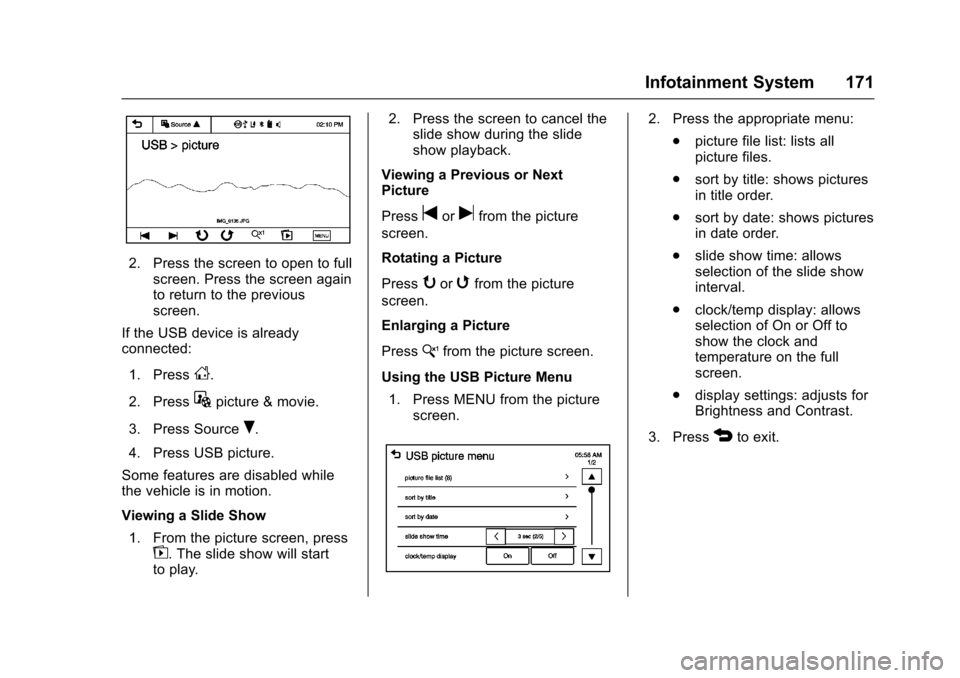
2. Press the screen to open to fullscreen. Press the screen again
to return to the previous
screen.
If the USB device is already
connected:
1. Press
D.
2. Press
Gpicture & movie.
3. Press Source
R.
4. Press USB picture.
Some features are disabled while
the vehicle is in motion.
Viewing a Slide Show
1. From the picture screen, press
z. The slide show will start
to play. 2. Press the screen to cancel the
slide show during the slide
show playback.
Viewing a Previous or Next
Picture
Press
torufrom the picture
screen.
Rotating a Picture
Press
yorwfrom the picture
screen.
Enlarging a Picture
Press
xfrom the picture screen.
Using the USB Picture Menu 1. Press MENU from the picture screen.
2. Press the appropriate menu:
.picture file list: lists all
picture files.
. sort by title: shows pictures
in title order.
. sort by date: shows pictures
in date order.
. slide show time: allows
selection of the slide show
interval.
. clock/temp display: allows
selection of On or Off to
show the clock and
temperature on the full
screen.
. display settings: adjusts for
Brightness and Contrast.
3. Press
4to exit.
Page 174 of 353
Chevrolet Sonic Owner Manual (GMNA-Localizing-U.S/Canada-9085902) -
2016 - CRC - 5/27/15
Infotainment System 173
Returning to the Beginning of the
Current Movie
Press
tafter five seconds of the
playback time.
Scanning Forward or Backward
Press and hold
toruduring
playback to rewind or fast forward.
Release the button to resume
playback at normal speed.
Viewing Full Screen
Press
tfrom the movie screen.
Press
tagain to return to the
previous screen.
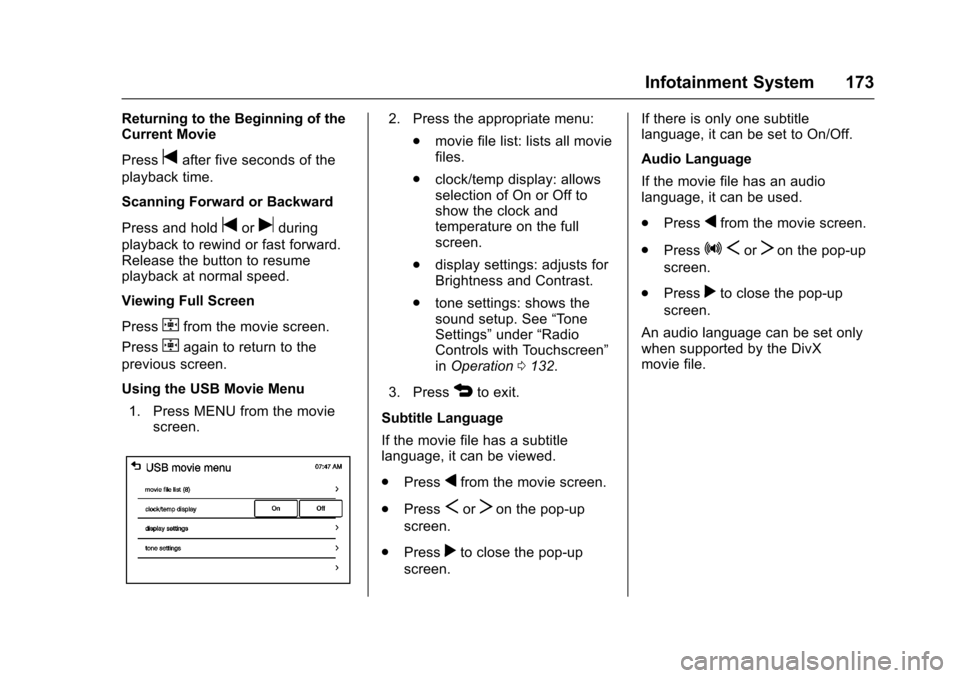
Using the USB Movie Menu
1. Press MENU from the movie screen.
2. Press the appropriate menu:
.movie file list: lists all movie
files.
. clock/temp display: allows
selection of On or Off to
show the clock and
temperature on the full
screen.
. display settings: adjusts for
Brightness and Contrast.
. tone settings: shows the
sound setup. See “Tone
Settings” under“Radio
Controls with Touchscreen”
in Operation 0132.
3. Press
4to exit.
Subtitle Language
If the movie file has a subtitle
language, it can be viewed.
. Press
qfrom the movie screen.
. Press
SorTon the pop-up
screen.
. Press
rto close the pop-up
screen. If there is only one subtitle
language, it can be set to On/Off.
Audio Language
If the movie file has an audio
language, it can be used.
.
Press
qfrom the movie screen.
. Press
ZSorTon the pop-up
screen.
. Press
rto close the pop-up
screen.
An audio language can be set only
when supported by the DivX
movie file.
Page 177 of 353
Chevrolet Sonic Owner Manual (GMNA-Localizing-U.S/Canada-9085902) -
2016 - CRC - 5/27/15
176 Climate Controls
Climate Controls
Climate Control Systems
Climate Control Systems . . . . . 176
Air Vents
Air Vents . . . . . . . . . . . . . . . . . . . . . 178
Maintenance
Air Intake . . . . . . . . . . . . . . . . . . . . . 179
Passenger Compartment AirFilter . . . . . . . . . . . . . . . . . . . . . . . . 179
Climate Control
Systems
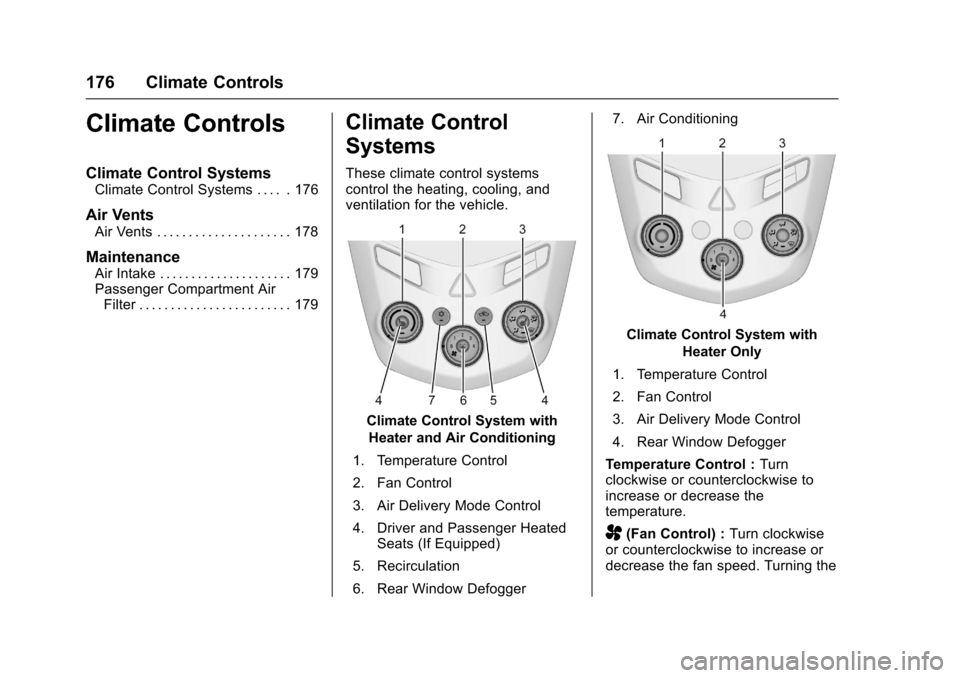
These climate control systems
control the heating, cooling, and
ventilation for the vehicle.
Climate Control System with
Heater and Air Conditioning
1. Temperature Control
2. Fan Control
3. Air Delivery Mode Control
4. Driver and Passenger Heated Seats (If Equipped)
5. Recirculation
6. Rear Window Defogger 7. Air Conditioning
Climate Control System with
Heater Only
1. Temperature Control
2. Fan Control
3. Air Delivery Mode Control
4. Rear Window Defogger
Temperature Control : Turn
clockwise or counterclockwise to
increase or decrease the
temperature.
A(Fan Control) : Turn clockwise
or counterclockwise to increase or
decrease the fan speed. Turning the
Page 178 of 353
Chevrolet Sonic Owner Manual (GMNA-Localizing-U.S/Canada-9085902) -
2016 - CRC - 5/27/15
Climate Controls 177
fan control to 0 turns the fan off. The
fan must be turned on to run the air
conditioning compressor.
Air Delivery Mode Control :Turn
clockwise or counterclockwise to
change the current airflow mode.
Select from the following air delivery
modes:
Y(Vent) : Air is directed to the
instrument panel outlets.
\(Bi-Level) : Air is divided
between the instrument panel and
floor outlets.
[(Floor) : Air is directed to the
floor outlets, with some air directed
to the rear outlets.
W(Defog) : This mode clears the
windows of fog or moisture. Air is
directed to the floor, windshield, and
side window outlets.
1(Defrost) : This mode clears the
windshield of fog or frost more
quickly. Air is directed to the
windshield and side window outlets.
Do not drive the vehicle until all
windows are clear. In defrost or defog mode, excessive
air conditioning use can cause the
windows to fog. If this happens,
change the air delivery mode to
Y
and reduce the fan speed.
#(Air Conditioning) :
If equipped
with air conditioning, follow these
steps to use the system. Turn
Ato
the desired speed. The air
conditioning does not operate when
the fan control knob is in the off
position. Press
#to turn the air
conditioning on and off. When
#is
pressed, an indicator light comes on
to show that the air conditioning
is on.
For quick cool down on hot days:
1. Open the windows to let hot air escape.
2. Press
M.
3. Press
#.
4. Select the coolest temperature.
5. Select the highest
Aspeed. Using these settings together for
long periods of time may cause the
air inside the vehicle to become too
dry. To prevent this from happening,
after the air in the vehicle has
cooled, turn the recirculation
mode off.
M(Recirculation) :
This mode
recirculates and helps to quickly
cool the air inside the vehicle. It can
be used to reduce the entry of
outside air and odors.
Press the button to turn the
recirculation mode on. An indicator
light comes on to show that the
recirculation is on. Press the button
again to return to outside air mode.
Using the recirculation mode for
extended periods may cause the
windows to fog. If this happens,
select the defrost mode.
Max
#is available when the air
conditioning is selected and the
temperature is set to the coolest
setting while the outside air
temperature is warm. When Max
#
is activated, the air inside the
vehicle is automatically recirculated,
Page 179 of 353
Chevrolet Sonic Owner Manual (GMNA-Localizing-U.S/Canada-9085902) -
2016 - CRC - 5/27/15
178 Climate Controls
which helps to quickly cool the
vehicle. The recirculation indicator
will not be lit.
To allow outside air to enter in these
conditions, press the recirculation
button twice. The recirculation
indicator will not be lit.
MorL(Heated Seats, If
Equipped) : Press to heat the driver
or passenger seat. See Heated
Front Seats 047.
Rear Window and Outside
Mirror Defogger
1(Rear Window Defogger) :
Press to turn the rear window and
outside mirror defogger on or off. An
indicator light comes on to show
that the feature is on.
The rear window defogger can be
turned off by pressing
1again or
by turning the ignition to ACC/
ACCESSORY or LOCK/OFF. If equipped with heated outside
rearview mirrors, they turn on with
the rear window defogger and help
to clear fog or frost from the surface
of the mirror. See
Heated Mirrors
0 39.
Caution
Using a razor blade or sharp
object on the inside rear window
can damage the antenna or
defogger. Repairs would not be
covered by the vehicle warranty.
Do not stick anything to the rear
window.
Air Vents
Use the air vents located in the
center and on the side of the
instrument panel to direct the
airflow. Move the slats on the center
air vents to direct airflow.
Turn the knobs on the side air vents
counterclockwise or clockwise to
open or close off the airflow.
Operation Tips
.
Clear away any ice, snow,
or leaves from the air inlets at
the base of the windshield that
may block the flow of air into the
vehicle.
. Use of non-GM approved hood
deflectors may adversely affect
the performance of the system.
. Keep the path under the front
seats clear of objects to help
circulate the air inside the
vehicle more effectively.