radio CHEVROLET SONIC 2017 2.G User Guide
[x] Cancel search | Manufacturer: CHEVROLET, Model Year: 2017, Model line: SONIC, Model: CHEVROLET SONIC 2017 2.GPages: 342, PDF Size: 7.2 MB
Page 130 of 342
Chevrolet Sonic Owner Manual (GMNA-Localizing-U.S./Canada-10122660) -2017 - crc - 5/13/16
Instruments and Controls 129
Text Scroll
Select to see text scroll on thescreen.
Select Off or On.
Tone Settings
Select to adjust the radio tone. SeeOperation0144.
Auto Volume
This feature adjusts the volumebased on vehicle speed andambient noise.
Select Off, Low, Medium-Low,Medium, Medium-High, or High.
Maximum Startup Volume
This feature sets the maximumstartup volume. If the vehicle isstarted and the volume is greaterthan this level, the volume isadjusted to this level. To set themaximum startup volume, turn theMENU knob or press + or✓toincrease or decrease.
Audio Cue Volume
This feature sets the volume ofaudio files played at system startupand shutdown.
Select On, then press + or✓toincrease or decrease the volume.
Vehicle
Select and the following maydisplay:
.Collision/Detection Systems
.Comfort and Convenience
.Lighting
.Power Door Locks
.Remote Lock, Unlock, Start
Collision/Detection Systems
Select and the following maydisplay:
.Park Assist
Park Assist
If equipped, this feature can assistin backing up and parking thevehicle. SeeParking Assist0203.
Select On or Off.
Comfort and Convenience
Select and the following maydisplay:
.Chime Volume
.Auto Wipe in Reverse Gear
Chime Volume
This allows the selection of thechime volume level.
Turn the MENU knob, touch + or✓to adjust the volume, or selectNormal or High.
Auto Wipe in Reverse Gear
When on and the front wiper is on,the rear wiper will automaticallyactivate when the vehicle is shiftedto R (Reverse).
Select Off or On.
Lighting
Select and the following maydisplay:
.Vehicle Locator Lights
.Exit Lighting
Page 133 of 342
Chevrolet Sonic Owner Manual (GMNA-Localizing-U.S./Canada-10122660) -2017 - crc - 5/13/16
132 Instruments and Controls
Apple CarPlay™
Select and the following maydisplay:
.Apple CarPlay
.Manage Apple CarPlay Devices
Apple CarPlay
This feature allows Apple devices tobe connected to the infotainmentsystem through a USB port.
Select Off or On.
Manage Apple CarPlay Devices
Select to manage Apple devices.Apple CarPlay must be on for thisfeature to be accessed.
Android Auto™
Select and the following maydisplay:
.Android Auto
.Manage Android Auto Devices
Android Auto
This feature allows Android devicesto be connected to the infotainmentsystem through a USB port.
Select Off or On.
Manage Android Auto Devices
Select to manage Android devices.Android Auto must be on for thisfeature to be accessed.
USB Auto Launch
This allows Android and AppleCarPlay devices to automaticallyconnect when plugged into theUSB port.
Select Off or On.
Turn Display Off
Select to turn the display off. Pressanywhere on the display area or anyfaceplate button to turn thedisplay on.
Calibrate Touchscreen
Select to calibrate the touchscreen,then follow the prompts.
Turn Display Off
Select to turn the display off. Pressanywhere on the display area or anyfaceplate button to turn thedisplay on.
Rear Camera
Select and the following maydisplay:
.Guidance Lines
.Rear Park Assist Symbols
Guidance Lines
Select to turn Off or On. SeeRearVision Camera (RVC)0201.
Rear Park Assist Symbols
Select to turn Off or On. SeeParking Assist0203.
Return to Factory Settings
Select and the following maydisplay:
.Reset Vehicle Settings
.Clear All Private Data
.Restore Radio Settings
Reset Vehicle Settings
This allows selection of restoringvehicle settings.
Select Continue or Cancel.
Page 134 of 342
Chevrolet Sonic Owner Manual (GMNA-Localizing-U.S./Canada-10122660) -2017 - crc - 5/13/16
Instruments and Controls 133
Clear All Private Data
Select to clear all private informationfrom the vehicle.
Select Continue or Cancel.
Restore Radio Settings
This allows selection to restoreradio settings.
Select Continue or Cancel.
Software Information
Select to view the infotainmentsystem current software information.
Page 142 of 342
Chevrolet Sonic Owner Manual (GMNA-Localizing-U.S./Canada-10122660) -2017 - crc - 5/19/16
Infotainment System 141
Infotainment
System
Introduction
Infotainment . . . . . . . . . . . . . . . . . . 141Theft-Deterrent Feature . . . . . . 142Overview . . . . . . . . . . . . . . . . . . . . . 143Home Page . . . . . . . . . . . . . . . . . . 144Operation . . . . . . . . . . . . . . . . . . . . . 144
Radio
AM-FM Radio . . . . . . . . . . . . . . . . 145Satellite Radio . . . . . . . . . . . . . . . . 146Radio Reception . . . . . . . . . . . . . . 148Multi-Band Antenna . . . . . . . . . . 148
Audio Players
Avoiding Untrusted MediaDevices . . . . . . . . . . . . . . . . . . . . . 149USB Port . . . . . . . . . . . . . . . . . . . . . 149Auxiliary Devices . . . . . . . . . . . . . 155
Phone
Bluetooth (Overview) . . . . . . . . . 155Bluetooth (InfotainmentControls) . . . . . . . . . . . . . . . . . . . . 157Apple CarPlay andAndroid Auto . . . . . . . . . . . . . . . . 161Hands-Free Phone . . . . . . . . . . . 161
Trademarks and License
Agreements
Trademarks and LicenseAgreements . . . . . . . . . . . . . . . . . 164
Introduction
Infotainment
Read the following pages tobecome familiar with the features.
{Warning
Ta k i n g y o u r e y e s o f f t h e r o a d f o r
too long or too often while using
any infotainment feature can
cause a crash. You or others
could be injured or killed. Do not
give extended attention to
infotainment tasks while driving.
Limit your glances at the vehicle
displays and focus your attention
on driving. Use voice commands
whenever possible.
The infotainment system has built-infeatures intended to help avoiddistraction by disabling somefunctions when driving. Thesefunctions may gray out when theyare unavailable. Many infotainment
Page 144 of 342
Chevrolet Sonic Owner Manual (GMNA-Localizing-U.S./Canada-10122660) -2017 - crc - 5/13/16
Infotainment System 143
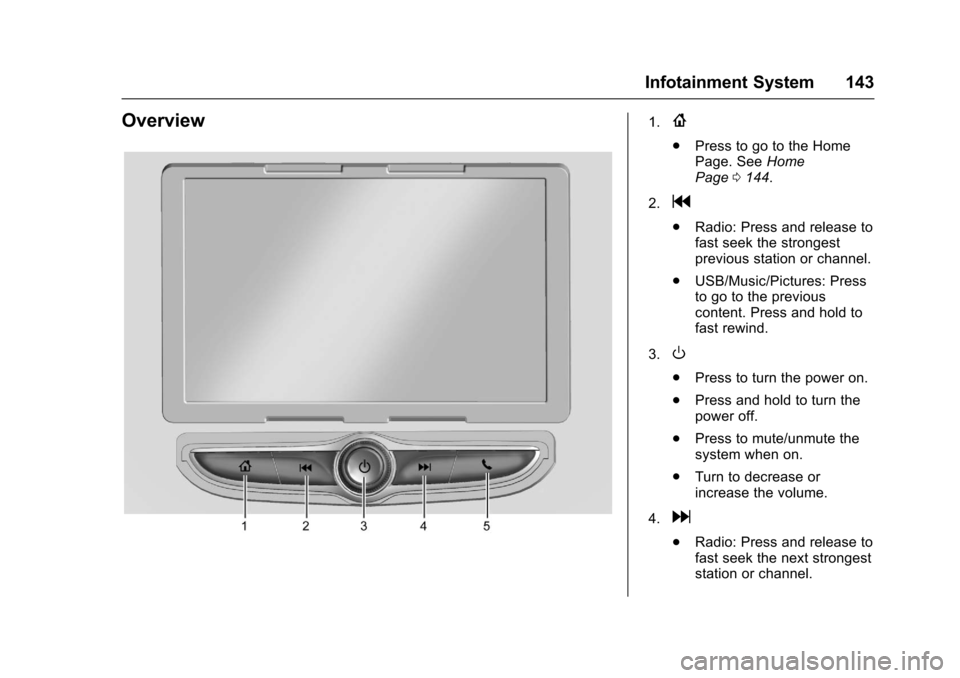
Overview1.{
.Press to go to the HomePage. SeeHomePage0144.
2.g
.Radio: Press and release tofast seek the strongestprevious station or channel.
.USB/Music/Pictures: Pressto go to the previouscontent. Press and hold tofast rewind.
3.O
.Press to turn the power on.
.Press and hold to turn thepower off.
.Press to mute/unmute thesystem when on.
.Turn to decrease orincrease the volume.
4.d
.Radio: Press and release tofast seek the next strongeststation or channel.
Page 145 of 342
Chevrolet Sonic Owner Manual (GMNA-Localizing-U.S./Canada-10122660) -2017 - crc - 5/13/16
144 Infotainment System
.USB/Music/Pictures: Pressto go to the next content.Press and hold to fastforward.
5.5
.Press and release toaccess the phone screen,answer an incoming call,or access the device homescreen.
Home Page
Touchscreen Buttons
To u c h s c r e e n b u t t o n s s h o w o n t h escreen when available. When afunction is unavailable, the buttonmay gray out. When a function isselected, the button may highlight.
Home Page Features
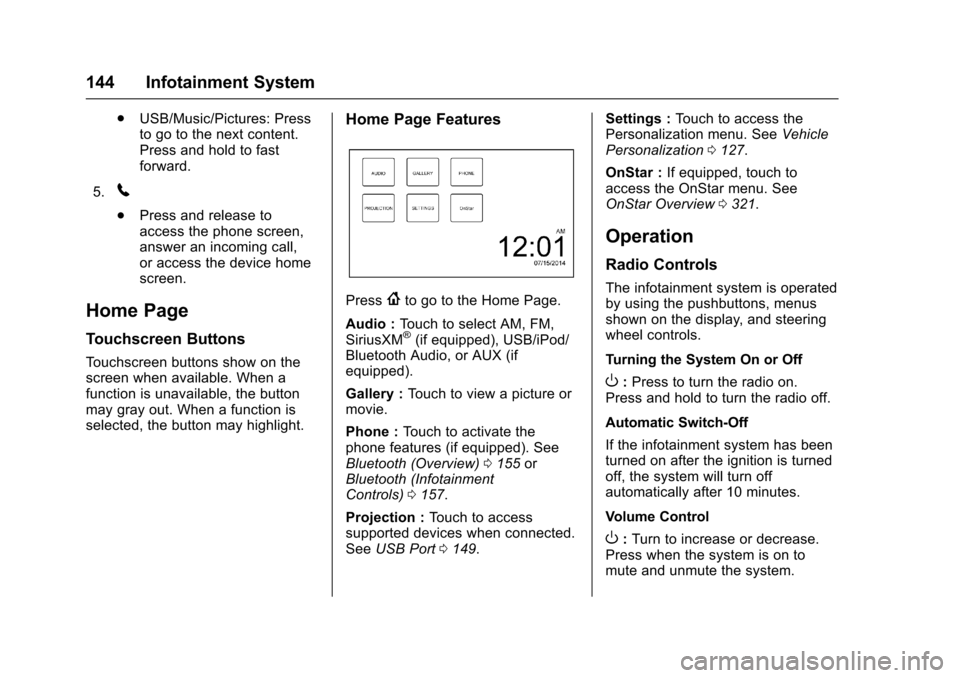
Press{to go to the Home Page.
Audio :To u c h t o s e l e c t A M , F M ,SiriusXM®(if equipped), USB/iPod/Bluetooth Audio, or AUX (ifequipped).
Gallery :To u c h t o v i e w a p i c t u r e o rmovie.
Phone :To u c h t o a c t i v a t e t h ephone features (if equipped). SeeBluetooth (Overview)0155orBluetooth (InfotainmentControls)0157.
Projection :To u c h t o a c c e s ssupported devices when connected.SeeUSB Port0149.
Settings :To u c h t o a c c e s s t h ePersonalization menu. SeeVehiclePersonalization0127.
OnStar :If equipped, touch toaccess the OnStar menu. SeeOnStar Overview0321.
Operation
Radio Controls
The infotainment system is operatedby using the pushbuttons, menusshown on the display, and steeringwheel controls.
Turning the System On or Off
O:Press to turn the radio on.Press and hold to turn the radio off.
Automatic Switch-Off
If the infotainment system has beenturned on after the ignition is turnedoff, the system will turn offautomatically after 10 minutes.
Volume Control
O:Turn to increase or decrease.Press when the system is on tomute and unmute the system.
Page 146 of 342
Chevrolet Sonic Owner Manual (GMNA-Localizing-U.S./Canada-10122660) -2017 - crc - 5/13/16
Infotainment System 145
System Settings
Auto Volume
This feature automatically adjuststhe radio volume to compensate forroad and wind noise.
The level of volume compensationcan be selected, or the feature canbe turned off.
Tone Settings
The tone settings can be set foreach radio band and each audioplayer source.
Custom Tone Settings
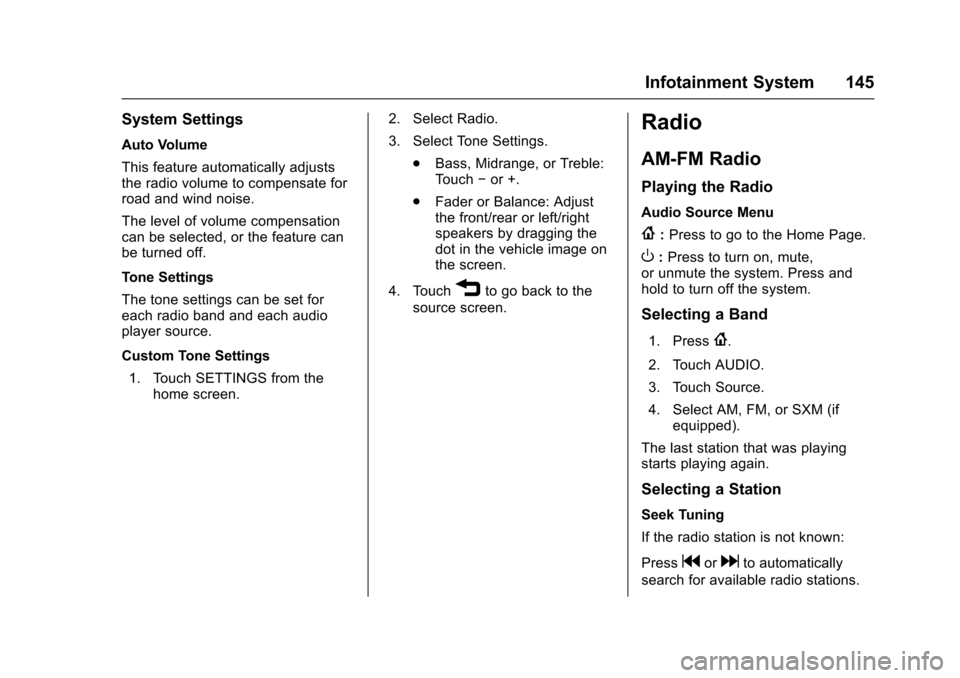
1. Touch SETTINGS from thehome screen.
2. Select Radio.
3. Select Tone Settings.
.Bass, Midrange, or Treble:To u c h✓or +.
.Fader or Balance: Adjustthe front/rear or left/rightspeakers by dragging thedot in the vehicle image onthe screen.
4. Touch3to go back to the
source screen.
Radio
AM-FM Radio
Playing the Radio
Audio Source Menu
{:Press to go to the Home Page.
O:Press to turn on, mute,or unmute the system. Press andhold to turn off the system.
Selecting a Band
1. Press{.
2. Touch AUDIO.
3. Touch Source.
4. Select AM, FM, or SXM (ifequipped).
The last station that was playingstarts playing again.
Selecting a Station
Seek Tuning
If the radio station is not known:
Pressgordto automatically
search for available radio stations.
Page 147 of 342
Chevrolet Sonic Owner Manual (GMNA-Localizing-U.S./Canada-10122660) -2017 - crc - 5/13/16
146 Infotainment System
Direct Tune
From the AM or FM menu:
1. Touch Tune.
2. Enter the station number.
3. Touch Go.
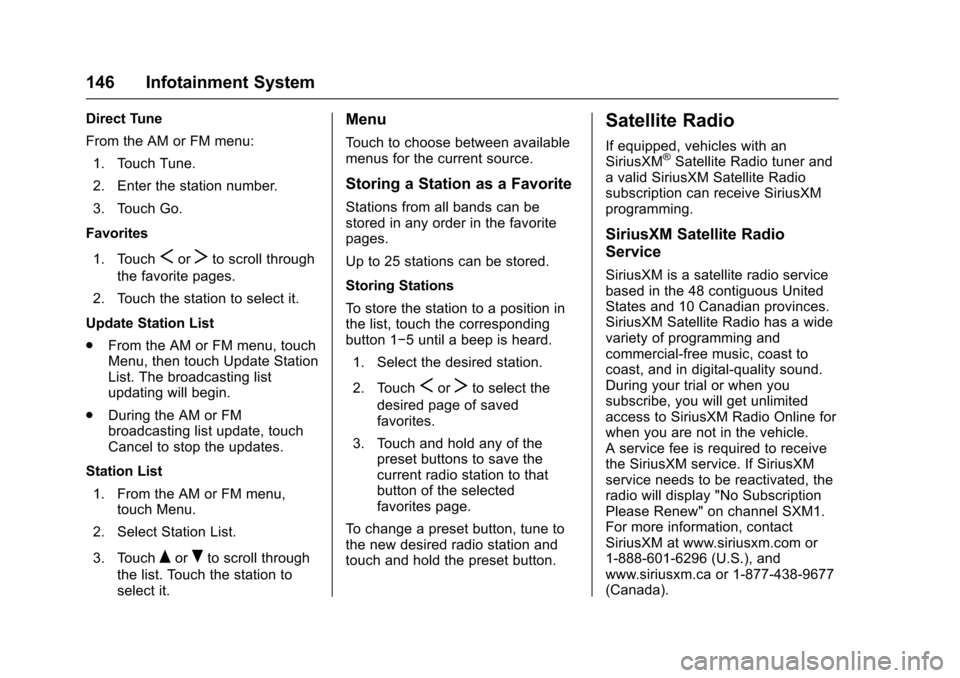
Favorites
1. TouchSorTto scroll through
the favorite pages.
2. Touch the station to select it.
Update Station List
.From the AM or FM menu, touchMenu, then touch Update StationList. The broadcasting listupdating will begin.
.During the AM or FMbroadcasting list update, touchCancel to stop the updates.
Station List
1. From the AM or FM menu,touch Menu.
2. Select Station List.
3. TouchQorRto scroll through
the list. Touch the station toselect it.
Menu
To u c h t o c h o o s e b e t w e e n a v a i l a b l emenus for the current source.
Storing a Station as a Favorite
Stations from all bands can bestored in any order in the favoritepages.
Up to 25 stations can be stored.
Storing Stations
To s t o r e t h e s t a t i o n t o a p o s i t i o n i nthe list, touch the correspondingbutton 1✓5untilabeepisheard.
1. Select the desired station.
2. TouchSorTto select the
desired page of savedfavorites.
3. Touch and hold any of thepreset buttons to save thecurrent radio station to thatbutton of the selectedfavorites page.
To c h a n g e a p r e s e t b u t t o n , t u n e t othe new desired radio station andtouch and hold the preset button.
Satellite Radio
If equipped, vehicles with anSiriusXM®Satellite Radio tuner andavalidSiriusXMSatelliteRadiosubscription can receive SiriusXMprogramming.
SiriusXM Satellite Radio
Service
SiriusXM is a satellite radio servicebased in the 48 contiguous UnitedStates and 10 Canadian provinces.SiriusXM Satellite Radio has a widevariety of programming andcommercial-free music, coast tocoast, and in digital-quality sound.During your trial or when yousubscribe, you will get unlimitedaccess to SiriusXM Radio Online forwhen you are not in the vehicle.Aservicefeeisrequiredtoreceivethe SiriusXM service. If SiriusXMservice needs to be reactivated, theradio will display "No SubscriptionPlease Renew" on channel SXM1.For more information, contactSiriusXM at www.siriusxm.com or1-888-601-6296 (U.S.), andwww.siriusxm.ca or 1-877-438-9677(Canada).
Page 148 of 342
Chevrolet Sonic Owner Manual (GMNA-Localizing-U.S./Canada-10122660) -2017 - crc - 5/13/16
Infotainment System 147
Listening to SiriusXM Radio
1. Press{.
2. Touch AUDIO.
3. Touch Source.
4. Touch SXM and the mostrecent listened to SiriusXMchannel will display.
Selecting a Category
From Menu, touch Categories, thentouch the desired category or from
Categories, touchQorRto find the
desired channel. Touch the channelto select it.
Selecting a Channel
Pressgordto seek the previous
or next channel.
Using the Preset Buttons
Up to five favorites pages can besaved, and each page can store upto five channels.
To c h a n g e a p r e s e t b u t t o n , t u n e t othe new desired channel and holdthe button.
Listening to Preset Channels
1. TouchSorTrepeatedly to
select the desiredfavorites page.
2. Touch the preset button tolisten to the channel.
Using the SiriusXM Menu
Operation
1. Touch MENU on the SXM radioscreen.
2. Touch the menu to select thedesired item or to display thedetail menu item.
3. Touch0to return to the
previous menu.
Channel List
1. Touch Channel List from theSXM menu. The channel list isdisplayed.
2. TouchQorRto find the
desired channel. Touch thechannel to select it.
Tone Settings
1. Touch Tone Settings. See“To n e S e t t i n g s”underOperation0144.
2. Touch0.
Auto Volume
1. Touch Auto Volume. See“AutoVolume”underOperation0144.
2. Touch0.
Categories
1. Touch Categories.
2. TouchQorRto find the
desired category. Touch thecategory to select it.
Explicit Content Filter
When on, only a filtered list ofchannels will be received. When off,all regular SXM programmingsubscribed to will be received.
1. Touch SXM Explicit Filter.
2. Select to enable or disable.
Page 149 of 342
Chevrolet Sonic Owner Manual (GMNA-Localizing-U.S./Canada-10122660) -2017 - crc - 5/13/16
148 Infotainment System
Radio Reception
Frequency interference and staticcan occur during normal radioreception if items such as mobilephone chargers, vehicleconvenience accessories, andexternal electronic devices areplugged into the accessory poweroutlet. If there is interference orstatic, unplug the item from theaccessory power outlet.
FM
FM signals only reach about 16 to65 km (10 to 40 mi). Although theradio has a built-in electronic circuitthat automatically works to reduceinterference, some static can occur,especially around tall buildings orhills, causing the sound to fade inand out.
AM
The range for most AM stations isgreater than for FM, especially atnight. The longer range can causestation frequencies to interfere witheach other. Static can occur whenthings like storms and power lines
interfere with radio reception. Whenthis happens, try reducing the trebleon the radio.
SiriusXM®Satellite Radio
Service
SiriusXM Satellite Radio Servicegives digital radio reception fromcoast to coast in the 48 contiguousUnited States, and in Canada. Justas with FM, tall buildings or hills caninterfere with satellite radio signals,causing the sound to fade in andout. In addition, traveling or standingunder heavy foliage, bridges,garages, or tunnels may cause lossof the SiriusXM signal for a periodof time.
Cell Phone Usage
Cell phone usage, such as makingor receiving phone calls, charging,or just having the phone on maycause static interference in theradio. Unplug the phone or turn it offif this happens.
Multi-Band Antenna
The multi-band antenna is on theroof of the vehicle. The antenna isused for OnStar, the SiriusXMSatellite Radio Service System, andGPS (Global Positioning System),if the vehicle has these features.Keep the antenna clear ofobstructions for clear reception.
If the vehicle has a sunroof, and it isopen, reception can also beaffected.