radio CHEVROLET SONIC 2017 2.G Owner's Manual
[x] Cancel search | Manufacturer: CHEVROLET, Model Year: 2017, Model line: SONIC, Model: CHEVROLET SONIC 2017 2.GPages: 342, PDF Size: 7.2 MB
Page 153 of 342
Chevrolet Sonic Owner Manual (GMNA-Localizing-U.S./Canada-10122660) -2017 - crc - 5/13/16
152 Infotainment System
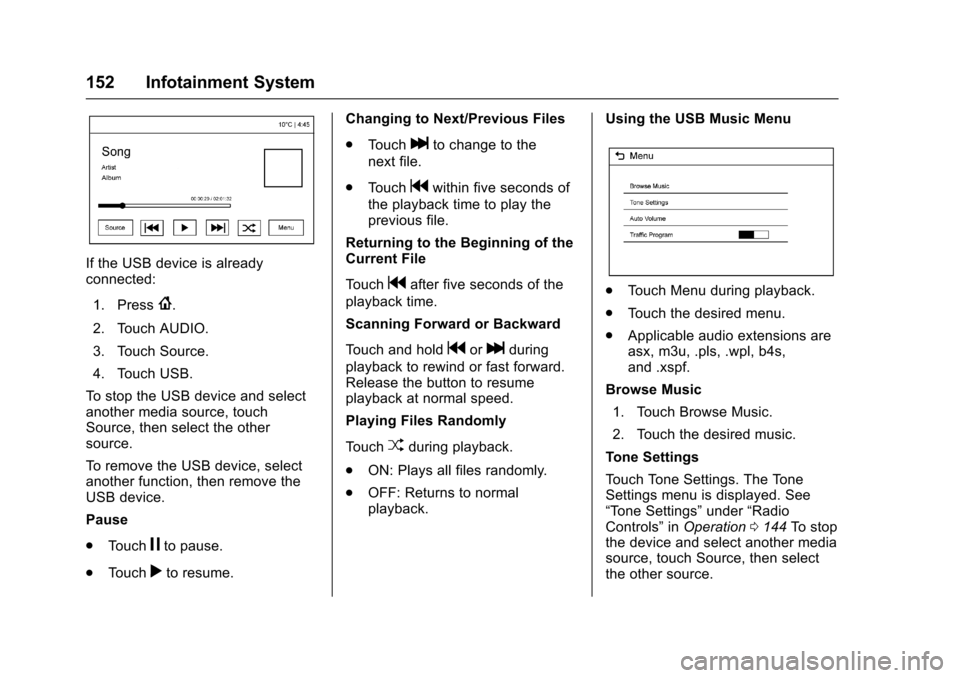
If the USB device is alreadyconnected:
1. Press{.
2. Touch AUDIO.
3. Touch Source.
4. Touch USB.
To s t o p t h e U S B d e v i c e a n d s e l e c tanother media source, touchSource, then select the othersource.
To r e m o v e t h e U S B d e v i c e , s e l e c tanother function, then remove theUSB device.
Pause
.To u c hjto pause.
.To u c hrto resume.
Changing to Next/Previous Files
.To u c hlto change to the
next file.
.To u c hgwithin five seconds of
the playback time to play theprevious file.
Returning to the Beginning of theCurrent File
To u c hgafter five seconds of the
playback time.
Scanning Forward or Backward
To u c h a n d h o l dgorlduring
playback to rewind or fast forward.Release the button to resumeplayback at normal speed.
Playing Files Randomly
To u c hZduring playback.
.ON: Plays all files randomly.
.OFF: Returns to normalplayback.
Using the USB Music Menu
.To u c h M e n u d u r i n g p l a y b a c k .
.To u c h t h e d e s i r e d m e n u .
.Applicable audio extensions areasx, m3u, .pls, .wpl, b4s,and .xspf.
Browse Music
1. Touch Browse Music.
2. Touch the desired music.
To n e S e t t i n g s
To u c h To n e S e t t i n g s . T h e To n eSettings menu is displayed. See“To n e S e t t i n g s”under“RadioControls”inOperation0144To s t o pthe device and select another mediasource, touch Source, then selectthe other source.
Page 154 of 342
Chevrolet Sonic Owner Manual (GMNA-Localizing-U.S./Canada-10122660) -2017 - crc - 5/13/16
Infotainment System 153
Auto Volume
To u c h A u t o V o l u m e . T h e A u t oVolume menu is displayed. See“Auto Volume”under“RadioControls”inOperation0144
Tr a f f i c P r o g r a m(If Equipped)
To u c h O n o r O f f .
MTP (Media Transfer Protocol)
.Connect an MTP supporteddevice.
.Play will start automatically afterthe system has finished readingthe MTP device.
.If a non-readable MTP device isconnected, an error messagedisplays and the system willswitch to the previous audiofunction.
iPod/iPhone Player
This feature is limited to modelssupporting the iPod/iPhoneconnection.
Playing Music Files
.Connect the iPod/iPhone to theUSB port.
.Play will start from the previouslyplayed point after the systemhas finished reading the USBdevice.
.If a non-readable USB device isconnected, an error messagedisplays and the system willswitch to the previous audiofunction.
If the iPod/iPhone is alreadyconnected:
1. Press{.
2. Touch AUDIO.
3. Touch Source.
4. Touch iPod.
To s t o p t h e d e v i c e a n d s e l e c tanother media source, touchSource, then select the othersource.
To r e m o v e t h e d e v i c e , s e l e c tanother function, then remove thedevice.
Pause
.To u c hjto pause.
.To u c hrto resume.
Changing to Next/Previous Song
.To u c hlto change to the
next song.
.To u c hgwithin two seconds of
the playback time to play theprevious file.
Returning to the Beginning of theCurrent File
To u c hgafter two seconds of the
playback time.
Scanning Forward or Backward
To u c h a n d h o l dgorlduring
playback to rewind or fast forward.Release the button to resumeplayback at normal speed.
Playing Files Randomly
To u c hZduring playback.
.ON: Plays all files randomly.
.OFF: Returns to normalplayback.
Using the iPod Menu
.To u c h M e n u d u r i n g p l a y b a c k .
.To u c h t h e a p p r o p r i a t eplay mode.
Page 155 of 342
Chevrolet Sonic Owner Manual (GMNA-Localizing-U.S./Canada-10122660) -2017 - crc - 5/13/16
154 Infotainment System
Browse Music
1. Touch Browse Music.
2. Touch the desired music.
To n e S e t t i n g s
To u c h To n e S e t t i n g s . T h e To n eSettings menu is displayed. See“To n e S e t t i n g s”under“RadioControls”inOperation0144
Auto Volume
To u c h A u t o V o l u m e . T h e A u t oVolume menu is displayed. See“Auto Volume”under“RadioControls”inOperation0144.
Picture System Information
The infotainment system can viewpicture files stored on a USBstorage device and devices thatsupport Media TransferProtocol (MTP).
.Supported file extensions: .jpg,.bmp, .png, .gif.
.Animated GIF files are notsupported.
.Some files may not operate dueto a different recording format orthe condition of the file.
Viewing Pictures
1. Connect the USB device to theUSB port.
2. Touch the screen to open to fullscreen. Touch the screen againto return to the previousscreen.
If the USB device is alreadyconnected:
1. Press{.
2. Touch GALLERY.
Some features are disabled whilethe vehicle is in motion.
Viewing a Slide Show
1. Touchzfrom the picture
screen.
2. Touch the screen to cancel theslide show during the slideshow playback.
Viewing a Previous or NextPicture
To u c hSorTfrom the picture
screen.
Rotating a Picture
To u c hwfrom the picture screen.
Enlarging a Picture
To u c hxfrom the picture screen.
Using the USB Picture Menu
1. Touch MENU from the picturescreen.
2. Touch the appropriate menu:
.Slide Show Time: Allowsselection of the slide showinterval.
.Clock, Temp. Display:Allows selection of On orOff to show the clock andtemperature on the fullscreen.
.Display Settings: Adjustsfor Brightness and Contrast.
3. Touch0to exit.
Page 156 of 342
Chevrolet Sonic Owner Manual (GMNA-Localizing-U.S./Canada-10122660) -2017 - crc - 5/13/16
Infotainment System 155
Auxiliary Devices
Using the Auxiliary Input Jack
Settings menus and functions mayvary depending on vehicle options.
If equipped, the auxiliary input jackcan be used to connect externalaudio devices such as an iPod®,iPhone®,MP3player,CDplayer,and other supported devices for useas another source for audiolistening. This input jack is not anaudio output; do not plugheadphones into the front auxiliaryinput jack.
If equipped, the auxiliary input jackis located on the center consolebelow the climate controls. Theinfotainment system can play musicconnected by the auxiliary device.
Play will begin when the system hasfinished reading the information onthe device.
Playing Music
To p l a y m u s i c f r o m t h e d e v i c e , i f t h edevice is already connected:
1. Press{.
2. Touch AUDIO.
3. Touch Source.
4. Touch AUX.
5. Touch0.
To a d j u s t t h e t o n e s e t t i n g s , S e e“To n e S e t t i n g s”under“RadioControls”inOperation0144.
Phone
Bluetooth (Overview)
For vehicles equipped withBluetooth capability, the system caninteract with many cell phones,allowing:
.Placement and receipt of calls inahands-freemode.
.Sharing of the cell phone’saddress book or contact list withthe vehicle.
To m i n i m i z e d r i v e r d i s t r a c t i o n ,before driving, and with the vehicleparked:
.Become familiar with thefeatures of the cell phone.Organize the phone book andcontact lists clearly and deleteduplicate or rarely used entries.If possible, program speed dialor other shortcuts.
.Review the controls andoperation of the infotainmentsystem.
Page 158 of 342
Chevrolet Sonic Owner Manual (GMNA-Localizing-U.S./Canada-10122660) -2017 - crc - 5/13/16
Infotainment System 157
change the volume level. Theadjusted volume level remains inmemory for later calls. The systemmaintains a minimum volume level.
Other Information
SeeRadio FrequencyStatement0317.
Bluetooth (Infotainment
Controls)
To u s e i n f o t a i n m e n t c o n t r o l s t oaccess the menu system, seeOverview0143.
Pairing
ABluetooth-enabledcellphonemust be paired to the Bluetoothsystem and then connected to thevehicle before it can be used. Seeyour cell phone manufacturer's userguide for Bluetooth functions beforepairing the cell phone. If a Bluetoothphone is not connected, calls will bemade using OnStar Hands-FreeCalling, if available. SeeOnStarOverview0321.
Pairing Information
.ABluetoothphonewithMP3capability cannot be paired tothe vehicle as a phone and anMP3 player at the same time.
.Up to 10 cell phones can bepaired to the Bluetooth system.
.The pairing process is disabledwhen the vehicle is moving.
.Pairing only needs to becompleted once, unless thepairing information on the cellphone changes or the cell phoneis deleted from the system.
.Only one paired cell phone canbe connected to the Bluetoothsystem at a time.
.If multiple paired cell phones arewithin range of the system, thesystem connects to the firstavailable paired cell phone in theorder that they were first paired.
When the Bluetooth device andinfotainment system aresuccessfully paired, the phone bookis downloaded automatically. This isdependent on the type of phonepaired. If the automatic download
does not occur, proceed with thephone book download on thephone.
Pairing a Phone–SSP and NoPaired Device
When there is no paired device onthe infotainment system and SimpleSecure Pairing (SSP) is supported:
1. Press{.
2. Touch PHONE, press5on the
faceplate, or pressgon the
steering wheel without OnStar.
3. Touch Search Device.
4. Touch the desired device topair on the searched listscreen.
5. Touch Yes on the pop-upscreen of the Bluetooth deviceand infotainment system.
6. When the Bluetooth device andinfotainment system aresuccessfully paired, the phonescreen is displayed on theinfotainment system.
Page 165 of 342
Chevrolet Sonic Owner Manual (GMNA-Localizing-U.S./Canada-10122660) -2017 - crc - 5/13/16
164 Infotainment System
Trademarks and
License Agreements
FCC Information
SeeRadio FrequencyStatement0317.
Bluetooth®
The Bluetooth word mark and logosare owned by the Bluetooth®SIG,Inc. and any use of such marks byGeneral Motors is under license.Other trademarks and trade namesare those of their respective owners.
DivX Certified®to play DivX®video,including premium content.
Covered by one or more of thefollowing U.S. patents: 7,295,673;7,460,668; 7,515,710; 7,519,274.
DivX®,DivXCertified®andassociated logos are trademarks ofRovi Corporation or its subsidiariesand are used under license.
“Made for iPod”and“Made foriPhone”mean that an electronicaccessory has been designed toconnect specifically to iPod oriPhone and has been certified bythe developer to meet Appleperformance standards.
iPod and iPhone are trademarks ofApple Computer, Inc., registered inthe U.S. and other countries.
Fees and Taxes: Subscription fee,taxes, one time activation fee, andother fees may apply. Subscriptionfee is consumer only. All fees andprogramming subject to change.Subscriptions subject to CustomerAgreement available atwww.siriusxm.com orwww.siriusxm.ca. SiriusXM®serviceonly available in the 48 contiguousUnited States and Canada.
In Canada: Some deterioration ofservice may occur in extremenorthern latitudes. This is beyondthe control of SiriusXM®SatelliteRadio.
It is prohibited to copy, decompile,disassemble, reverse engineer,hack, manipulate, or otherwisemake available any technology orsoftware incorporated in receiverscompatible with the SiriusXMSatellite Radio System or thatsupport the SiriusXM website, theOnline Service or any of its content.Furthermore, the AMBER voicecompression software included inthis product is protected byintellectual property rights including
Page 166 of 342
Chevrolet Sonic Owner Manual (GMNA-Localizing-U.S./Canada-10122660) -2017 - crc - 5/13/16
Infotainment System 165
patent rights, copyrights, and tradesecrets of Digital VoiceSystems, Inc.
General Requirements:
1. A License Agreement fromSiriusXM is required for anyproduct that incorporatesSiriusXM Technology and/or foruse of any of the SiriusXMmarks to be manufactured,distributed, or marketed in theSiriusXM Service Area.
2. For products to be distributed,marketed, and/or sold inCanada, a separate agreementis required with CanadianSatellite Radio Inc. (operatingas SiriusXM Canada).
FreeType 2
Portions of this software are
copyright®2007-2012 The
FreeType Project(www.freetype.org). All rightsreserved.
Libjpeg
The navigation software is based inpart on the work of the independentJPEG Group.
Page 173 of 342
Chevrolet Sonic Owner Manual (GMNA-Localizing-U.S./Canada-10122660) -2017 - crc - 5/13/16
172 Driving and Operating
Driving Information
Distracted Driving
Distraction comes in many formsand can take your focus from thetask of driving. Exercise goodjudgment and do not let otheractivities divert your attention awayfrom the road. Many localgovernments have enacted lawsregarding driver distraction. Becomefamiliar with the local laws inyour area.
To a v o i d d i s t r a c t e d d r i v i n g , k e e pyour eyes on the road, keep yourhands on the steering wheel, andfocus your attention on driving.
.Do not use a phone indemanding driving situations.Use a hands-free method toplace or receive necessaryphone calls.
.Watch the road. Do not read,take notes, or look upinformation on phones or otherelectronic devices.
.Designate a front seatpassenger to handle potentialdistractions.
.Become familiar with vehiclefeatures before driving, such asprogramming favorite radiostations and adjusting climatecontrol and seat settings.Program all trip information intoany navigation device prior todriving.
.Wait until the vehicle is parkedto retrieve items that have fallento the floor.
.Stop or park the vehicle to tendto children.
.Keep pets in an appropriatecarrier or restraint.
.Avoid stressful conversationswhile driving, whether with apassenger or on a cell phone.
{Warning
Ta k i n g y o u r e y e s o f f t h e r o a d t o o
long or too often could cause a
crash resulting in injury or death.
Focus your attention on driving.
Refer to the Infotainment section formore information on using thatsystem, including pairing and usingacellphone.
Defensive Driving
Defensive driving means“alwaysexpect the unexpected.”The firststep in driving defensively is to wearthe safety belt. SeeSafetyBelts059.
.Assume that other road users(pedestrians, bicyclists, andother drivers) are going to becareless and make mistakes.Anticipate what they might doand be ready.
.Allow enough following distancebetween you and the driver infront of you.
.Focus on the task of driving.
Drunk Driving
Death and injury associated withdrinking and driving is a globaltragedy.
Page 184 of 342
Chevrolet Sonic Owner Manual (GMNA-Localizing-U.S./Canada-10122660) -2017 - crc - 5/13/16
Driving and Operating 183
Caution
Using a tool to force the key to
turn in the ignition could cause
damage to the switch or break the
key. Use the correct key, make
sure it is all the way in, and turn it
only with your hand. If the key
cannot be turned by hand, see
your dealer.
1(ACC/ACCESSORY):This is theposition in which things like theradio and the windshield wipers canbe operated when the engine is off.
2(ON/RUN):This position can beused to operate the electricalaccessories and to display someinstrument cluster warning andindicator lights. This position canalso be used for service anddiagnostics, and to verify the properoperation of the malfunctionindicator lamp as may be requiredfor emission inspection purposes.The switch stays in this positionwhen the engine is running.
If you leave the key in the ACC/ACCESSORY or ON/RUN positionwith the engine off, the battery couldbe drained. You may not be able tostart the vehicle if the battery isallowed to drain for an extendedperiod of time.
3(START):This is the position thatstarts the engine. When the enginestarts, release the key. The ignitionswitch returns to ON/RUN fordriving.
Awarningtonewillsoundwhenthedriver door is opened, the ignition isin ACC/ACCESSORY or LOCK/OFF, and the key is in the ignition.If the ignition becomes difficult toturn, seeKeys026.
Ignition Positions
(Keyless Access)
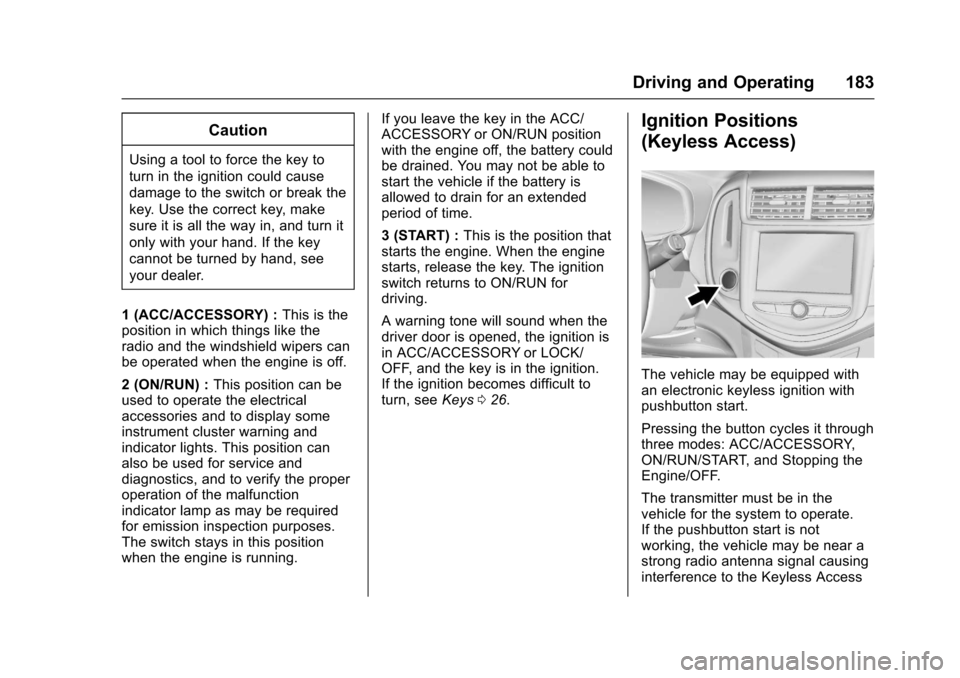
The vehicle may be equipped withan electronic keyless ignition withpushbutton start.
Pressing the button cycles it throughthree modes: ACC/ACCESSORY,ON/RUN/START, and Stopping theEngine/OFF.
The transmitter must be in thevehicle for the system to operate.If the pushbutton start is notworking, the vehicle may be near astrong radio antenna signal causinginterference to the Keyless Access
Page 188 of 342
Chevrolet Sonic Owner Manual (GMNA-Localizing-U.S./Canada-10122660) -2017 - crc - 5/13/16
Driving and Operating 187
Warning (Continued)
Failure to use therecommended extensioncord in good operatingcondition, or using adamaged heater orextension cord, could makeit overheat and cause a fire,property damage, electricshock, and injury.
.Do not operate the vehiclewith the heater cordpermanently attached to thevehicle. Possible heatercord and thermostatdamage could occur.
.While in use, do not let theheater cord touch vehicleparts or sharp edges. Neverclose the hood on theheater cord.
.Before starting the vehicle,unplug the cord, reattachthe cover to the plug, andsecurely fasten the cord.Keep the cord away fromany moving parts.
4. Before starting the engine, besure to unplug and store thecord as it was before to keep itaway from moving engineparts. If you do not it could bedamaged.
The length of time the heater shouldremain plugged in depends onseveral factors. Ask a dealer in thearea where you will be parking thevehicle for the best advice on this.
Retained Accessory
Power (RAP)
These vehicle accessories may beused for up to 10 minutes after theengine is turned off:
.Audio System
.Power Windows
.Sunroof
The power windows and sunroof willcontinue to work for up to10 minutes or until any door isopened.
The radio will work when the key isin ON/RUN or ACC/ACCESSORY.Once the ignition is turned from on
to off, the radio will continue to workfor 10 minutes after the last input(button press, knob turn) to theradio is detected.
It is possible to turn the radio backon at any time after it has timed outusing the Power knob. The radio willbe functional for 10 minutes after thelast input (button press, knob turn)to the radio is detected.
Shifting Into Park
(Automatic Transmission)
1. Hold the brake pedal down andset the parking brake. SeeParking Brake0196.
2. Move the shift lever intoP(Park) by pressing the buttonon the shift lever and pushingthe lever all the way toward thefront of the vehicle.
3. Turn the ignition key toLOCK/OFF.
4. Remove the key and take itwith you. If you can leave thevehicle with the ignition key inyour hand, the vehicle is inP(Park).