warning CHEVROLET SONIC 2019 Owners Manual
[x] Cancel search | Manufacturer: CHEVROLET, Model Year: 2019, Model line: SONIC, Model: CHEVROLET SONIC 2019Pages: 351, PDF Size: 5.32 MB
Page 202 of 351
Chevrolet Sonic Owner Manual (GMNA-Localizing-U.S./Canada-12461769) -
2019 - crc - 5/21/18
Driving and Operating 201
For the best fuel economy,
accelerate slowly and shift when the
light comes on, and if the weather,
road, and traffic conditions allow.
It is normal for the light to go on and
off if the accelerator position
changes quickly. Ignore the light
during downshifts.Brakes
Antilock Brake
System (ABS)
This vehicle has an Antilock Brake
System (ABS), an advanced
electronic braking system that helps
prevent a braking skid.
When the vehicle begins to drive
away, ABS checks itself.
A momentary motor or clicking noise
may be heard while this test is going
on, and it may even be noticed that
the brake pedal moves a little. This
is normal.
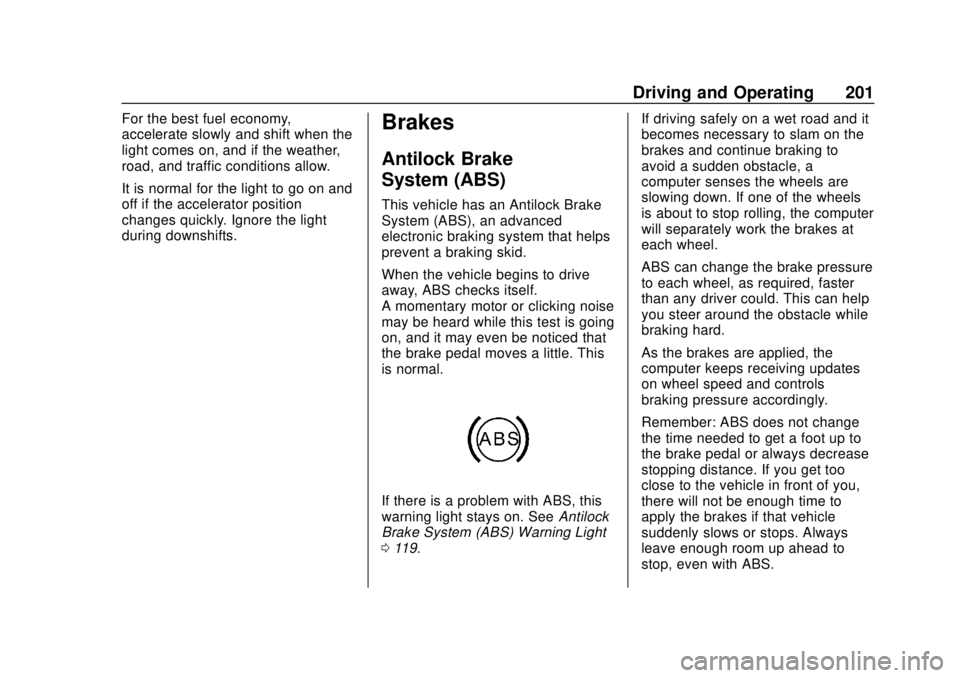
If there is a problem with ABS, this
warning light stays on. SeeAntilock
Brake System (ABS) Warning Light
0 119. If driving safely on a wet road and it
becomes necessary to slam on the
brakes and continue braking to
avoid a sudden obstacle, a
computer senses the wheels are
slowing down. If one of the wheels
is about to stop rolling, the computer
will separately work the brakes at
each wheel.
ABS can change the brake pressure
to each wheel, as required, faster
than any driver could. This can help
you steer around the obstacle while
braking hard.
As the brakes are applied, the
computer keeps receiving updates
on wheel speed and controls
braking pressure accordingly.
Remember: ABS does not change
the time needed to get a foot up to
the brake pedal or always decrease
stopping distance. If you get too
close to the vehicle in front of you,
there will not be enough time to
apply the brakes if that vehicle
suddenly slows or stops. Always
leave enough room up ahead to
stop, even with ABS.
Page 203 of 351
Chevrolet Sonic Owner Manual (GMNA-Localizing-U.S./Canada-12461769) -
2019 - crc - 5/21/18
202 Driving and Operating
Using ABS
Do not pump the brakes. Just hold
the brake pedal down firmly and let
ABS work. You may hear the ABS
pump or motor operating and feel
the brake pedal pulsate. This is
normal.
Braking in Emergencies
ABS allows you to steer and brake
at the same time. In many
emergencies, steering can help
more than even the very best
braking.
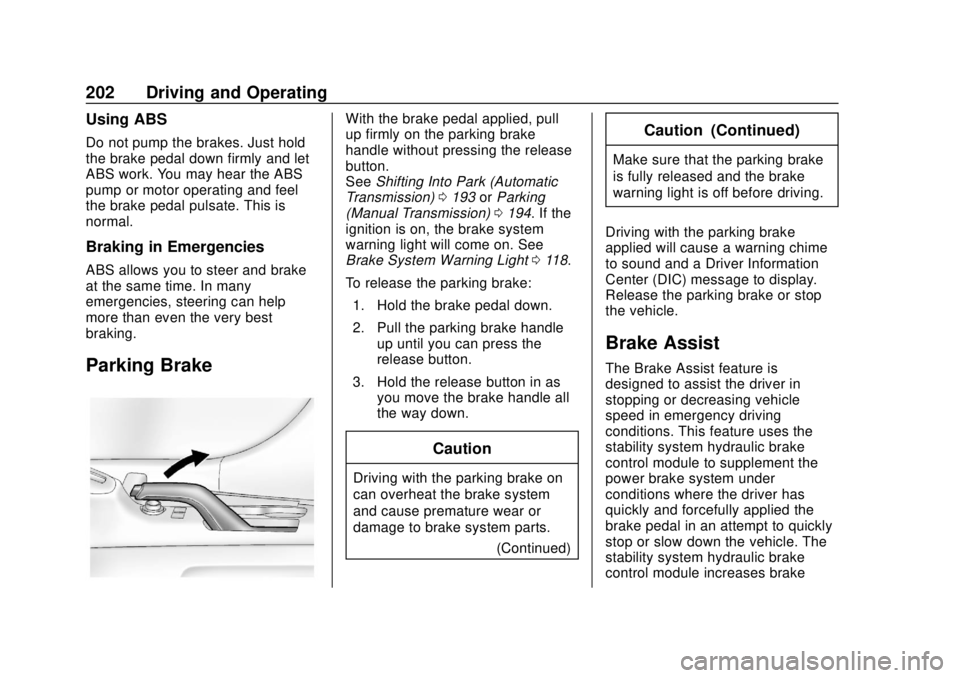
Parking Brake
With the brake pedal applied, pull
up firmly on the parking brake
handle without pressing the release
button.
SeeShifting Into Park (Automatic
Transmission) 0193 orParking
(Manual Transmission) 0194. If the
ignition is on, the brake system
warning light will come on. See
Brake System Warning Light 0118.
To release the parking brake: 1. Hold the brake pedal down.
2. Pull the parking brake handle up until you can press the
release button.
3. Hold the release button in as you move the brake handle all
the way down.
Caution
Driving with the parking brake on
can overheat the brake system
and cause premature wear or
damage to brake system parts.
(Continued)
Caution (Continued)
Make sure that the parking brake
is fully released and the brake
warning light is off before driving.
Driving with the parking brake
applied will cause a warning chime
to sound and a Driver Information
Center (DIC) message to display.
Release the parking brake or stop
the vehicle.
Brake Assist
The Brake Assist feature is
designed to assist the driver in
stopping or decreasing vehicle
speed in emergency driving
conditions. This feature uses the
stability system hydraulic brake
control module to supplement the
power brake system under
conditions where the driver has
quickly and forcefully applied the
brake pedal in an attempt to quickly
stop or slow down the vehicle. The
stability system hydraulic brake
control module increases brake
Page 206 of 351
Chevrolet Sonic Owner Manual (GMNA-Localizing-U.S./Canada-12461769) -
2019 - crc - 5/21/18
Driving and Operating 205
Caution
Do not repeatedly brake or
accelerate heavily when TCS is
off. The vehicle driveline could be
damaged.
To turn off only TCS, press and
release
g. The traction off lighti
displays in the instrument cluster.
The appropriate message may
display in the DIC.
To turn TCS on again, press and
release
g. The traction off lighti
displayed in the instrument cluster
will turn off.
If TCS is limiting wheel spin when
g
is pressed, the system will not turn
off until the wheels stop spinning.
To turn off both TCS and StabiliTrak/
ESC, press and hold
guntil the
traction off light
iand StabiliTrak/
ESC OFF light
gcome on and stay
on in the instrument cluster. The
appropriate message may display in
the DIC. To turn TCS and StabiliTrak/ESC on
again, press and release
g. The
traction off light
iand StabiliTrak/
ESC OFF light
gin the instrument
cluster turn off.
Adding accessories can affect the
vehicle performance. See
Accessories and Modifications
0 223.
Cruise Control
If the vehicle is equipped with cruise
control, a speed of about 40 km/h
(25 mph) or more can be maintained
without keeping your foot on the
accelerator. Cruise control does not
work at speeds below 40 km/h
(25 mph).
{Warning
Cruise control can be dangerous
where you cannot drive safely at
a steady speed. Do not use
cruise control on winding roads or
in heavy traffic.
Cruise control can be dangerous
on slippery roads. On such roads,
fast changes in tire traction can
cause excessive wheel slip, and
you could lose control. Do not use
cruise control on slippery roads.
If the vehicle's Traction Control
System (TCS) or StabiliTrak/
Electronic Stability Control (ESC)
system begins to limit wheel spin
while using cruise control, the cruise
Page 209 of 351
Chevrolet Sonic Owner Manual (GMNA-Localizing-U.S./Canada-12461769) -
2019 - crc - 5/21/18
208 Driving and Operating
.Pressn.
. Shift the transmission to
N (Neutral) (automatic
transmissions).
. To turn off cruise control,
press
o.
Erasing Speed Memory
The cruise control set speed is
erased from memory if
ois
pressed or if the ignition is
turned off.
Driver Assistance
Systems
This vehicle may have features that
work together to help avoid crashes
or reduce crash damage while
driving, backing, and parking. Read
this entire section before using
these systems.
{Warning
Do not rely on the Driver
Assistance Systems. These
systems do not replace the need
for paying attention and driving
safely. You may not hear or see
alerts or warnings provided by
these systems. Failure to use
proper care when driving may
result in injury, death, or vehicle
damage. See Defensive Driving
0 176.
Under many conditions, these
systems will not: (Continued)
Warning (Continued)
.Detect children,
pedestrians, bicyclists,
or animals.
. Detect vehicles or objects
outside the area monitored
by the system.
. Work at all driving speeds.
. Warn you or provide you
with enough time to avoid a
crash.
. Work under poor visibility or
bad weather conditions.
. Work if the detection sensor
is not cleaned or is covered
by ice, snow, mud, or dirt.
. Work if the detection sensor
is covered up, such as with
a sticker, magnet, or metal
plate.
. Work if the area surrounding
the detection sensor is
damaged or not properly
repaired.
(Continued)
Page 210 of 351
Chevrolet Sonic Owner Manual (GMNA-Localizing-U.S./Canada-12461769) -
2019 - crc - 5/21/18
Driving and Operating 209
Warning (Continued)
Complete attention is always
required while driving, and you
should be ready to take action
and apply the brakes and/or steer
the vehicle to avoid crashes.
Audible Alert
Some driver assistance features
alert the driver of obstacles by
beeping. To change the volume of
the warning chime, see “Comfort
and Convenience” underVehicle
Personalization 0132.
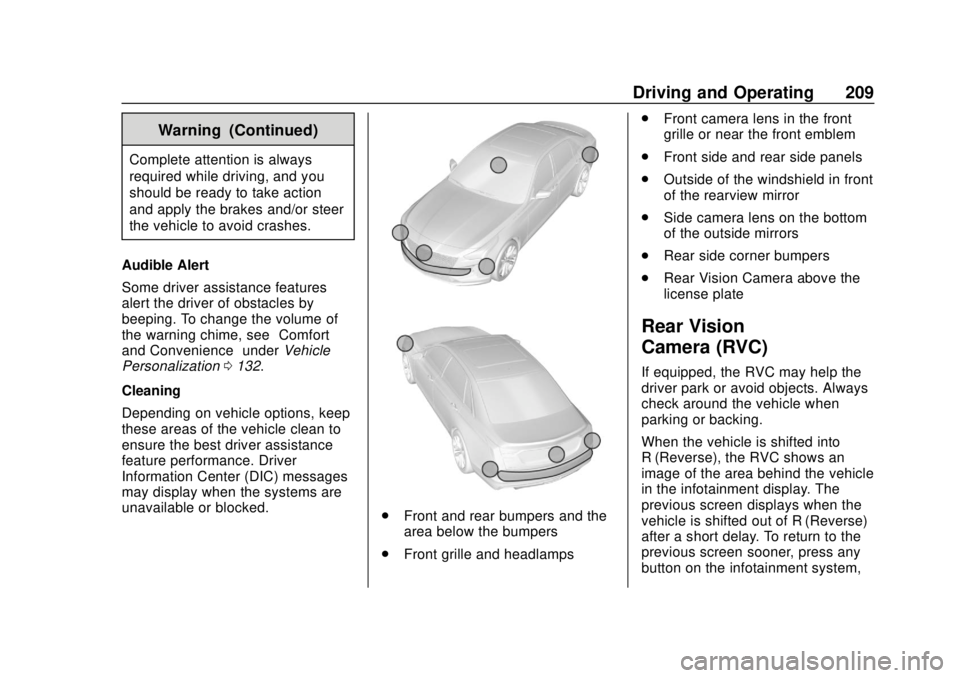
Cleaning
Depending on vehicle options, keep
these areas of the vehicle clean to
ensure the best driver assistance
feature performance. Driver
Information Center (DIC) messages
may display when the systems are
unavailable or blocked.
. Front and rear bumpers and the
area below the bumpers
. Front grille and headlamps .
Front camera lens in the front
grille or near the front emblem
. Front side and rear side panels
. Outside of the windshield in front
of the rearview mirror
. Side camera lens on the bottom
of the outside mirrors
. Rear side corner bumpers
. Rear Vision Camera above the
license plate
Rear Vision
Camera (RVC)
If equipped, the RVC may help the
driver park or avoid objects. Always
check around the vehicle when
parking or backing.
When the vehicle is shifted into
R (Reverse), the RVC shows an
image of the area behind the vehicle
in the infotainment display. The
previous screen displays when the
vehicle is shifted out of R (Reverse)
after a short delay. To return to the
previous screen sooner, press any
button on the infotainment system,
Page 211 of 351
Chevrolet Sonic Owner Manual (GMNA-Localizing-U.S./Canada-12461769) -
2019 - crc - 5/21/18
210 Driving and Operating
shift into P (Park), or reach a vehicle
speed of approximately 12 km/h
(8 mph).
Select Guidance Lines on the
camera screen to enable or disable
the guidance lines.
{Warning
The camera(s) do not display
children, pedestrians, bicyclists,
crossing traffic, animals, or any
other object outside of the
cameras’field of view, below the
bumper, or under the vehicle.
Shown distances may be different
from actual distances. Do not
drive or park the vehicle using
only these camera(s). Always
check behind and around the
vehicle before driving. Failure to
use proper care may result in
injury, death, or vehicle damage.
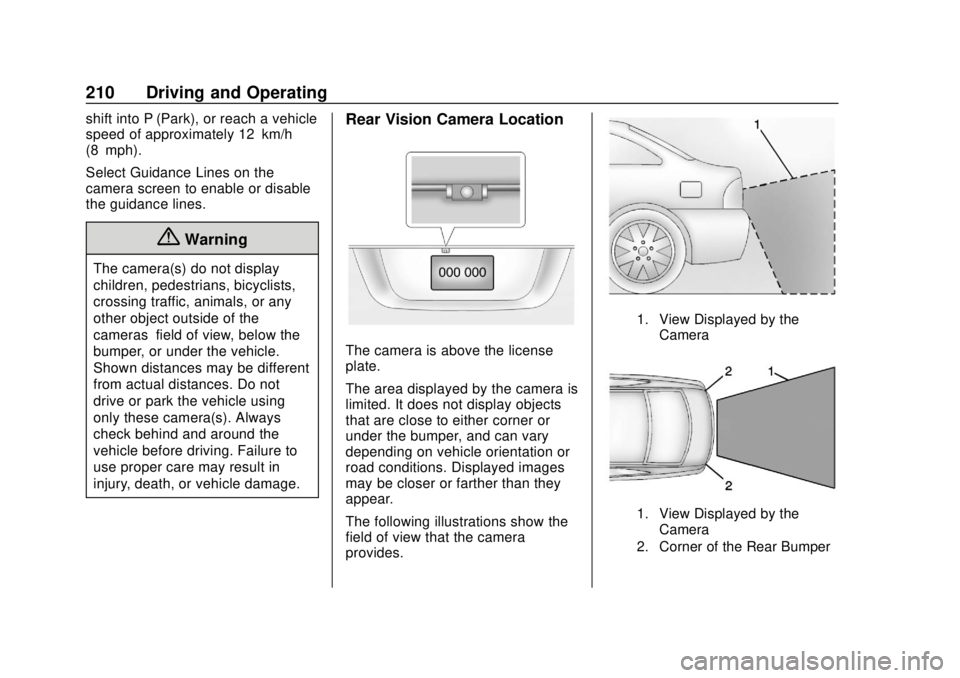
Rear Vision Camera Location
The camera is above the license
plate.
The area displayed by the camera is
limited. It does not display objects
that are close to either corner or
under the bumper, and can vary
depending on vehicle orientation or
road conditions. Displayed images
may be closer or farther than they
appear.
The following illustrations show the
field of view that the camera
provides.
1. View Displayed by the Camera
1. View Displayed by theCamera
2. Corner of the Rear Bumper
Page 212 of 351
Chevrolet Sonic Owner Manual (GMNA-Localizing-U.S./Canada-12461769) -
2019 - crc - 5/21/18
Driving and Operating 211
The RVC system may have a
feature that lets the driver view park
assist symbols on the infotainment
display while using the RVC. Rear
Park Assist (RPA) must not be
disabled to use the caution symbols.
The error message Rear Park Assist
Symbols Unavailable may display if
RPA has been disabled and the
symbols have been turned on. See
Park Assist0211.
When the System Does Not
Seem to Work Properly
The RVC system may not work
properly or display a clear image if:
.
The RVC is turned off.
. It is dark.
. The sun or the beam of
headlamps is shining directly
into the camera lens.
. Ice, snow, mud, or anything else
builds up on the camera lens.
Clean the lens, rinse it with
water, and wipe it with a soft
cloth. .
The back of the vehicle is in a
crash. The position and
mounting angle of the camera
can change, or the camera can
be affected. Be sure to have the
camera and its position and
mounting angle checked at your
dealer.
Park Assist
If equipped, Rear Park Assist (RPA)
assists the driver with parking and
avoiding objects while in
R (Reverse). RPA operates at
speeds less than 8 km/h (5 mph).
The sensors on the rear bumper
detect objects up to 1.5 m (4.9 ft)
behind the vehicle, and at least
20 cm (8 in) off the ground. The
distance at which objects can be
detected may be less during warmer
or humid weather.
{Warning
The Park Assist system does not
detect children, pedestrians,
bicyclists, animals, or objects
below the bumper or that are too
close or too far from the vehicle.
It is not available at speeds
greater than 8 km/h (5 mph). To
prevent injury, death, or vehicle
damage, even with Park Assist,
always check the area around the
vehicle and check all mirrors
before backing.
How the System Works
RPA comes on automatically when
the shift lever is moved into
R (Reverse). A single beep sounds
to indicate the system is working.
RPA operates only at speeds less
than 8 km/h (5 mph).
An obstacle is indicated by audible
beeps. The time between the beeps
becomes shorter as the vehicle gets
Page 214 of 351
Chevrolet Sonic Owner Manual (GMNA-Localizing-U.S./Canada-12461769) -
2019 - crc - 5/21/18
Driving and Operating 213
FCA detects vehicles within a
distance of approximately 60 m
(197 ft) and operates at speeds
above 40 km/h (25 mph).
{Warning
FCA is a warning system and
does not apply the brakes. When
approaching a slower-moving or
stopped vehicle ahead too rapidly,
or when following a vehicle too
closely, FCA may not provide a
warning with enough time to help
avoid a crash. It also may not
provide any warning at all. FCA
does not warn of pedestrians,
animals, signs, guardrails,
bridges, construction barrels,
or other objects. Be ready to take
action and apply the brakes. See
Defensive Driving0176.
FCA can be disabled with the FCA
steering wheel control.
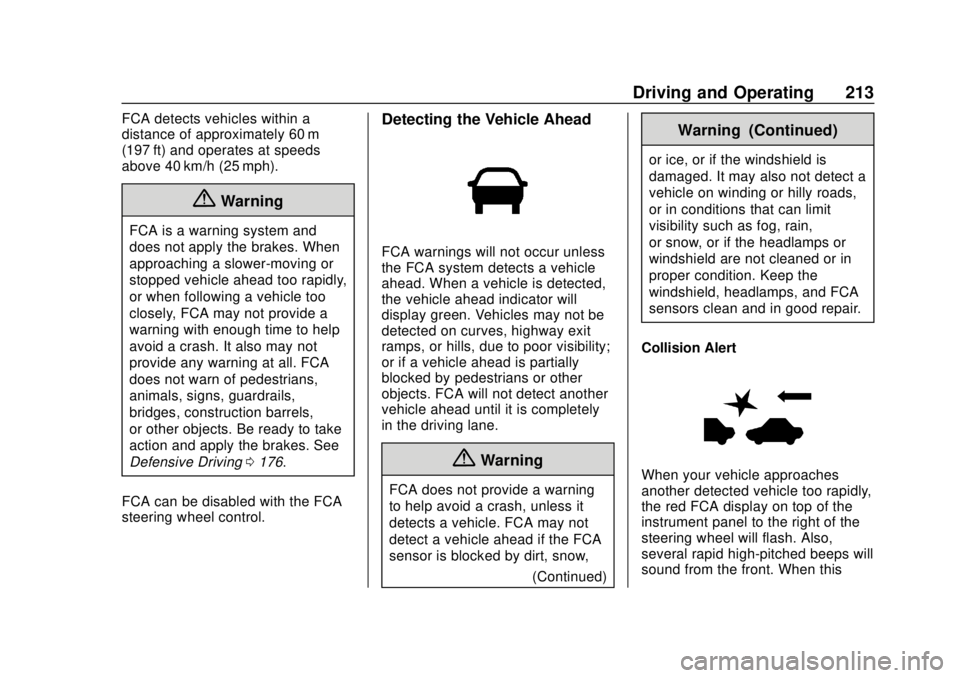
Detecting the Vehicle Ahead
FCA warnings will not occur unless
the FCA system detects a vehicle
ahead. When a vehicle is detected,
the vehicle ahead indicator will
display green. Vehicles may not be
detected on curves, highway exit
ramps, or hills, due to poor visibility;
or if a vehicle ahead is partially
blocked by pedestrians or other
objects. FCA will not detect another
vehicle ahead until it is completely
in the driving lane.
{Warning
FCA does not provide a warning
to help avoid a crash, unless it
detects a vehicle. FCA may not
detect a vehicle ahead if the FCA
sensor is blocked by dirt, snow, (Continued)
Warning (Continued)
or ice, or if the windshield is
damaged. It may also not detect a
vehicle on winding or hilly roads,
or in conditions that can limit
visibility such as fog, rain,
or snow, or if the headlamps or
windshield are not cleaned or in
proper condition. Keep the
windshield, headlamps, and FCA
sensors clean and in good repair.
Collision Alert
When your vehicle approaches
another detected vehicle too rapidly,
the red FCA display on top of the
instrument panel to the right of the
steering wheel will flash. Also,
several rapid high-pitched beeps will
sound from the front. When this
Page 215 of 351
Chevrolet Sonic Owner Manual (GMNA-Localizing-U.S./Canada-12461769) -
2019 - crc - 5/21/18
214 Driving and Operating
Collision Alert occurs, the brake
system may prepare for driver
braking to occur more rapidly which
can cause a brief, mild deceleration.
Continue to apply the brake pedal
as needed. Cruise control may be
disengaged when the Collision Alert
occurs.
Tailgating Alert
The red FCA display will stay
continuously illuminated when you
are following a detected vehicle
ahead much too closely.
Selecting the Alert Timing
The Collision Alert control is on the
steering wheel. Press COLLISION
ALERT to set the alert timing to far,
medium, near, or off. The first button
press shows the current control
setting on the DIC. Additional button
presses will change this setting. The
chosen setting will remain until it is
changed and will affect both the
Collision Alert and the Tailgating
Alert features. The timing of both
alerts will vary based on vehicle
speed. The faster the vehicle speed,
the farther away the alert will occur.Consider traffic and weather
conditions when selecting the alert
timing. The range of selectable alert
timing may not be appropriate for all
drivers and driving conditions.
Unnecessary Alerts
FCA may sometimes set
unnecessary alerts to turning
vehicles, vehicles in other lanes,
objects that are not vehicles,
or shadows. These alerts are
normal operation and the vehicle
does not need service.
Cleaning the System
If the FCA system does not seem to
operate properly, cleaning the
outside of the windshield in front of
the rearview mirror may correct the
issue.
Lane Departure
Warning (LDW)
If equipped, LDW may help avoid
crashes due to unintentional lane
departures. It may provide an alert if
the vehicle is crossing a lane
without using a turn signal in thatdirection. LDW uses a camera
sensor to detect the lane markings
at speeds of 56 km/h (35 mph) or
greater.
{Warning
The LDW system does not steer
the vehicle. The LDW system
may not:
. Provide enough time to
avoid a crash.
. Detect lane markings under
poor weather or visibility
conditions. This can occur if
the windshield or
headlamps are blocked by
dirt, snow, or ice; if they are
not in proper condition; or if
the sun shines directly into
the camera.
. Detect road edges.
. Detect lanes on winding or
hilly roads.
(Continued)
Page 216 of 351
Chevrolet Sonic Owner Manual (GMNA-Localizing-U.S./Canada-12461769) -
2019 - crc - 5/21/18
Driving and Operating 215
Warning (Continued)
If LDW only detects lane
markings on one side of the road,
it will only warn you when
departing the lane on the side
where it has detected a lane
marking. Always keep your
attention on the road and
maintain proper vehicle position
within the lane, or vehicle
damage, injury, or death could
occur. Always keep the
windshield, headlamps, and
camera sensors clean and in
good repair. Do not use LDW in
bad weather conditions.
How the System Works
The LDW camera sensor is on the
windshield ahead of the rearview
mirror.
To turn LDW on and off, press
@on
the center console. The control
indicator will light when LDW is on. When LDW is on,
@is green if
LDW is available to warn of a lane
departure. If the vehicle crosses a
detected lane marking without using
the turn signal in that direction,
@
changes to amber and flashes.
Additionally, there will be three
beeps on the right or left, depending
on the lane departure direction.
When the System Does Not
Seem To Work Properly
The system may not detect lanes as
well when there are:
. Close vehicles ahead.
. Sudden lighting changes, such
as when driving through tunnels.
. Banked roads.
If the LDW system is not functioning
properly when lane markings are
clearly visible, cleaning the
windshield may help. LDW alerts may occur due to tar
marks, shadows, cracks in the road,
temporary or construction lane
markings, or other road
imperfections. This is normal system
operation; the vehicle does not need
service. Turn LDW off if these
conditions continue.