radio CHEVROLET SONIC 2020 User Guide
[x] Cancel search | Manufacturer: CHEVROLET, Model Year: 2020, Model line: SONIC, Model: CHEVROLET SONIC 2020Pages: 329, PDF Size: 5.56 MB
Page 132 of 329
Chevrolet Sonic Owner Manual (GMNA-Localizing-U.S./Canada-13566834) -
2020 - CRC - 10/4/19
Infotainment System 131
Fling or swipe is used to scroll
through a list, or change page
views. Do this by placing a finger on
the screen then moving it rapidly up
and down or right and left.
Cleaning High Gloss Surfaces
and Vehicle Information and
Radio Displays
For vehicles with high gloss
surfaces or vehicle displays, use a
microfiber cloth to wipe surfaces.
Before wiping the surface with the
microfiber cloth, use a soft bristle
brush to remove dirt that could
scratch the surface. Then use the
microfiber cloth by gently rubbing to
clean. Never use window cleaners
or solvents. Periodically hand wash
the microfiber cloth separately,
using mild soap. Do not use bleach
or fabric softener. Rinse thoroughly
and air dry before next use.
Radio
AM-FM Radio
Playing the Radio
From the Home Page, touch the
Audio icon to display the active
audio source page. Choose from a
list of the three most recently used
sources listed at the left side of the
screen. Choose More to display a
list of available resources.
Examples of available sources are
AM, FM, SXM, MyMedia, USB,
AUX, and Bluetooth.
Infotainment System
Sound Menu
From any of the audio source main
pages, touch Sound to display the
following:
Equalizer :Touch to adjust Bass,
Midrange, and Treble using the
controls on the infotainment display.
Fade/Balance : Touch to adjust
using the controls on the
infotainment display or by tapping/
dragging the crosshair.
Finding a Station
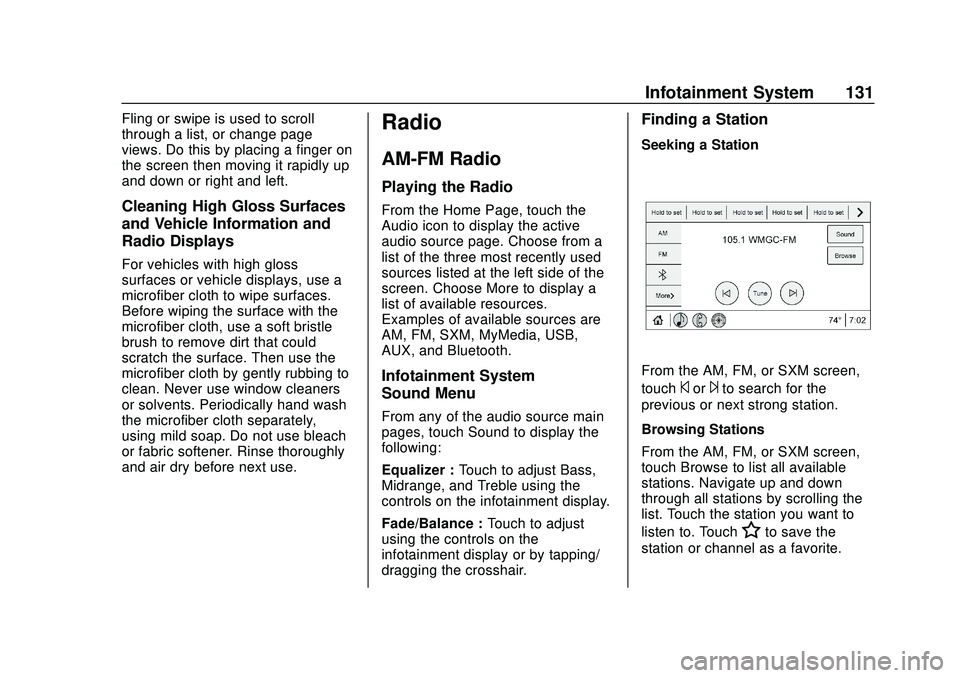
Seeking a Station
From the AM, FM, or SXM screen,
touch
©or¨to search for the
previous or next strong station.
Browsing Stations
From the AM, FM, or SXM screen,
touch Browse to list all available
stations. Navigate up and down
through all stations by scrolling the
list. Touch the station you want to
listen to. Touch
Hto save the
station or channel as a favorite.
Page 133 of 329
Chevrolet Sonic Owner Manual (GMNA-Localizing-U.S./Canada-13566834) -
2020 - CRC - 10/4/19
132 Infotainment System
If equipped, touch Update Station
List to update the active stations in
your area.
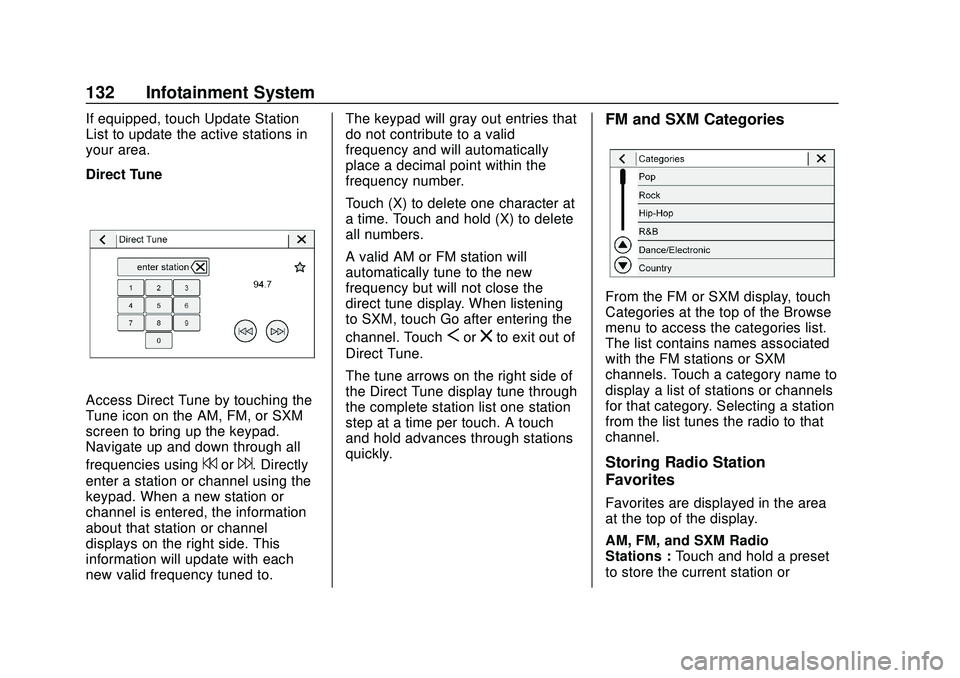
Direct Tune
Access Direct Tune by touching the
Tune icon on the AM, FM, or SXM
screen to bring up the keypad.
Navigate up and down through all
frequencies using
7or6. Directly
enter a station or channel using the
keypad. When a new station or
channel is entered, the information
about that station or channel
displays on the right side. This
information will update with each
new valid frequency tuned to. The keypad will gray out entries that
do not contribute to a valid
frequency and will automatically
place a decimal point within the
frequency number.
Touch (X) to delete one character at
a time. Touch and hold (X) to delete
all numbers.
A valid AM or FM station will
automatically tune to the new
frequency but will not close the
direct tune display. When listening
to SXM, touch Go after entering the
channel. Touch
Sorzto exit out of
Direct Tune.
The tune arrows on the right side of
the Direct Tune display tune through
the complete station list one station
step at a time per touch. A touch
and hold advances through stations
quickly.
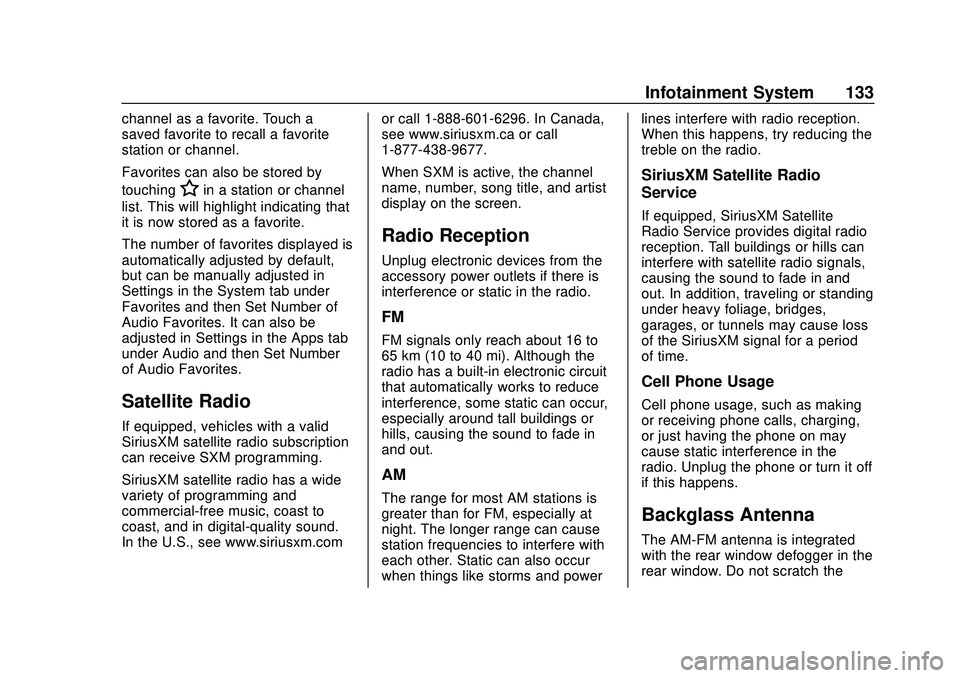
FM and SXM Categories
From the FM or SXM display, touch
Categories at the top of the Browse
menu to access the categories list.
The list contains names associated
with the FM stations or SXM
channels. Touch a category name to
display a list of stations or channels
for that category. Selecting a station
from the list tunes the radio to that
channel.
Storing Radio Station
Favorites
Favorites are displayed in the area
at the top of the display.
AM, FM, and SXM Radio
Stations : Touch and hold a preset
to store the current station or
Page 134 of 329
Chevrolet Sonic Owner Manual (GMNA-Localizing-U.S./Canada-13566834) -
2020 - CRC - 10/4/19
Infotainment System 133
channel as a favorite. Touch a
saved favorite to recall a favorite
station or channel.
Favorites can also be stored by
touching
Hin a station or channel
list. This will highlight indicating that
it is now stored as a favorite.
The number of favorites displayed is
automatically adjusted by default,
but can be manually adjusted in
Settings in the System tab under
Favorites and then Set Number of
Audio Favorites. It can also be
adjusted in Settings in the Apps tab
under Audio and then Set Number
of Audio Favorites.
Satellite Radio
If equipped, vehicles with a valid
SiriusXM satellite radio subscription
can receive SXM programming.
SiriusXM satellite radio has a wide
variety of programming and
commercial-free music, coast to
coast, and in digital-quality sound.
In the U.S., see www.siriusxm.com or call 1-888-601-6296. In Canada,
see www.siriusxm.ca or call
1-877-438-9677.
When SXM is active, the channel
name, number, song title, and artist
display on the screen.
Radio Reception
Unplug electronic devices from the
accessory power outlets if there is
interference or static in the radio.
FM
FM signals only reach about 16 to
65 km (10 to 40 mi). Although the
radio has a built-in electronic circuit
that automatically works to reduce
interference, some static can occur,
especially around tall buildings or
hills, causing the sound to fade in
and out.
AM
The range for most AM stations is
greater than for FM, especially at
night. The longer range can cause
station frequencies to interfere with
each other. Static can also occur
when things like storms and powerlines interfere with radio reception.
When this happens, try reducing the
treble on the radio.
SiriusXM Satellite Radio
Service
If equipped, SiriusXM Satellite
Radio Service provides digital radio
reception. Tall buildings or hills can
interfere with satellite radio signals,
causing the sound to fade in and
out. In addition, traveling or standing
under heavy foliage, bridges,
garages, or tunnels may cause loss
of the SiriusXM signal for a period
of time.
Cell Phone Usage
Cell phone usage, such as making
or receiving phone calls, charging,
or just having the phone on may
cause static interference in the
radio. Unplug the phone or turn it off
if this happens.
Backglass Antenna
The AM-FM antenna is integrated
with the rear window defogger in the
rear window. Do not scratch the
Page 135 of 329
Chevrolet Sonic Owner Manual (GMNA-Localizing-U.S./Canada-13566834) -
2020 - CRC - 10/4/19
134 Infotainment System
inside surface or damage the lines
in the glass. If the inside surface is
damaged, it could interfere with
radio reception. For proper radio
reception, the antenna connector
needs to be properly attached to the
post on the glass.
If attaching a cell phone antenna to
the glass, attach it between the grid
lines.
Caution
Using a razor blade or sharp
object to clear the inside rear
window can damage the rear
window antenna and/or the rear
window defogger. Repairs would
not be covered by the vehicle
warranty. Do not clear the inside
rear window with sharp objects.
Caution
Do not apply aftermarket glass
tinting with metallic film. The
metallic film in some tinting
materials will interfere with or
distort the incoming radio
reception. Any damage caused to
the backglass antenna due to
metallic tinting materials will not
be covered by the vehicle
warranty.
Multi-Band Antenna
The roof antenna is for OnStar,
SiriusXM Satellite Radio (U.S. and
Canada only), and GPS (Global
Positioning System). Keep clear of
obstructions for clear reception.
If the vehicle has a sunroof, and it is
open, reception can also be
affected.
Audio Players
Avoiding Untrusted Media
Devices
When using media devices such as
CDs, DVDs, Blu-ray Discs, SD
cards, USB devices, and mobile
devices, consider the source.
Untrusted media devices could
contain files that affect system
operation or performance. Avoid use
if the content or origin cannot be
trusted.
USB Port
Audio stored on a USB device may
be listened to.
This vehicle has two USB ports in
the center stack. These ports are for
data and charging.
Caution
To avoid vehicle damage, unplug
all accessories and disconnect all
accessory cables from the vehicle(Continued)
Page 136 of 329
Chevrolet Sonic Owner Manual (GMNA-Localizing-U.S./Canada-13566834) -
2020 - CRC - 10/4/19
Infotainment System 135
Caution (Continued)
when not in use. Accessory
cables left plugged into the
vehicle, unconnected to a device,
could be damaged or cause an
electrical short if the unconnected
end comes in contact with liquids
or another power source such as
the accessory power outlet.
Playing from a USB
A USB mass storage device can be
connected to the USB port.
Audio extensions supported by
the USB:
.MP3
. MP4
. M4A
. AAC
. OGG
. WAV My Media Library
My Media is only available when
more than one indexed device is
connected. It allows access to
content from all indexed media
sources. My Media will show as an
available source in the
Source page.
USB MP3 Player and USB Drives
The USB MP3 players and USB
drives connected must comply with
the USB Mass Storage Class
specification (USB MSC).
To play a USB device:
1. Connect the USB.
2. Touch Audio from the Home Page.
3. Touch More and select the USB device.
Use the following when playing an
active USB source:
p: Touch to play the current media
source.
j: Touch to pause playback of the
current media source.
7:
. Touch to seek to the beginning
of the current or previous track.
. Touch and hold to reverse
quickly through playback.
Release to return to playing
speed. Elapsed time displays.
6:
. Touch to seek to the next track.
. Touch and hold to advance
quickly through playback.
Release to return to playing
speed. Elapsed time displays.
Shuffle : Touch the shuffle icon to
play music in random order.
USB Sound Menu
See “Infotainment System Sound
Menu” underAM-FM Radio 0131.
USB Browse Menu
When a list of songs, albums,
artists, or other types of media
displays, the up and down arrows
and A-Z appear on the left side.
Page 137 of 329
Chevrolet Sonic Owner Manual (GMNA-Localizing-U.S./Canada-13566834) -
2020 - CRC - 10/4/19
136 Infotainment System
Select A-Z to view a screen that will
show all letters of the alphabet and
select the letter to go to.
Touch the up and down arrows to
move the list up and down.
Touch Browse and the following
may display:
Playlists:1. Touch to view the playlists stored on the USB.
2. Select a playlist to view the list of all songs in that playlist.
3. Select a song from the list to begin playback.
Supported Playlist extensions are:
m3u and pls.
Artists: 1. Touch to view the list of artists stored on the USB.
2. Select an artist name to view a list of all albums by the artist.
3. To select a song, touch All Songs or touch an album and
then select a song from the list. Songs:
1. Touch to display a list of all songs on the USB.
2. To begin playback, select a song from the list.
Albums: 1. Touch to view the albums on the USB.
2. Select the album to view a list of all songs on the album.
3. Select a song from the list to begin playback.
Genres: 1. Touch to view the genres on the USB.
2. Select a genre to view a list of artists.
3. Select an artist to view albums by that artist.
4. Select an album to view songs on the album.
5. Select a song to start playback.
iTunes Radio: Touch to view iTunes
Radio on the iPhone to get a list of
stations. Compilations:
Touch to view the
Compilations on the USB.
Composers:
1. Touch to view the composers on the USB.
2. Select a Composer to view a list of albums by that
composer.
3. Select an album or all songs to view a list of songs.
4. Select a song from the list to begin playback.
Folders: 1. Touch to view the directories on the USB.
2. Select a folder to view a list of all files.
3. Select a file from the list to begin playback.
Podcasts: Touch to view the
podcasts on the USB and get a list
of podcast episodes.
Audiobooks:
1. Touch to view the audiobooks stored on the device.
Page 138 of 329
Chevrolet Sonic Owner Manual (GMNA-Localizing-U.S./Canada-13566834) -
2020 - CRC - 10/4/19
Infotainment System 137
2. Select an audiobook to get alist of chapters.
3. Select the chapter from the list to begin playback.
File System and Naming
File systems supported by the USB:
. FAT32
. HFS+
The songs, artists, albums, and
genres are taken from the file’s
song information and are only
displayed if present. The radio
displays the file name as the track
name if the song information is not
available.
Supported Apple Devices
To view supported devices, see
my.chevrolet.com/learn.
Storing and Recalling Media
Favorites
To store media favorites, touch
Browse to display a list of media
types.
Select from one of the following
Browse options to save a favorite: Playlists :
Touch
Hnext to any
playlist to store the playlist as a
favorite. Touch a saved favorite to
recall a favorite playlist. The first
song in the playlist begins to play.
Artists : Touch
Hnext to any artist
to store the artist as a favorite.
Touch a saved favorite to recall a
favorite artist. The first song in the
artist list begins to play.
Songs : Touch
Hnext to any song
to store the song as a favorite.
Touch a saved favorite to recall a
favorite song.
Albums : Touch
Hnext to any
album to store the album as a
favorite. Touch a saved favorite to
recall a favorite album. The first
song in the album list begins to play.
Genres : Touch
Hnext to any
genre to store the genre as a
favorite. Touch a saved favorite to
recall a favorite genre. The first
song of the genre begins to play. Podcasts :
Touch
Hnext to any
podcast to store the podcast as a
favorite. Touch a saved favorite to
recall a favorite podcast. The
podcast begins to play.
Audiobooks : Touch
Hnext to any
audiobook to store the audiobook as
a favorite. Touch a saved favorite to
recall a favorite audiobook. The first
chapter in the audiobook begins
to play.
Media Playback and Mute
USB playback will be paused if the
system is muted. If the steering
wheel mute control is pressed
again, playback will resume.
If the source is changed while in
mute, playback resumes and audio
will unmute.
Auxiliary Jack
This vehicle has an auxiliary input
jack in the center stack. Possible
auxiliary audio sources include:
. Laptop computer
. Audio music player
Page 139 of 329
Chevrolet Sonic Owner Manual (GMNA-Localizing-U.S./Canada-13566834) -
2020 - CRC - 10/4/19
138 Infotainment System
This jack is not an audio output. Do
not plug headphones into the
auxiliary input jack. Set up an
auxiliary device while the vehicle is
parked.
Connect a 3.5 mm (1/8 in) cable
from the auxiliary device to the
auxiliary input jack. When a device
is connected, the system can play
audio from the device over the
vehicle speakers.
If an auxiliary device has already
been connected, but a different
source is currently active, touch
More and select AUX to make the
source active.
Shuffle and Browse are not
available in the AUX source menu.
Bluetooth Audio
Music may be played from a paired
Bluetooth device. SeeBluetooth
(Overview) 0140 or
Bluetooth (Pairing and Using a
Phone) 0141.
Volume and song selection may be
controlled by using the infotainment
controls or the phone/device. If Bluetooth is selected and no
volume is present, check the
volume setting on both your phone/
device and the infotainment system.
Music can be launched by touching
Bluetooth from the recent sources
list on the left of the screen or by
touching More and then selecting
the Bluetooth device.
To play music via Bluetooth:
1. Power on the device, and pair to connect the device.
2. Once paired, touch Audio from the Home Page, then touch
Bluetooth from the recent
sources list on the left of the
display.
Bluetooth Sound Menu
See “Infotainment System Sound
Menu” underAM-FM Radio 0131.
Manage Bluetooth Devices
From the Home Page: 1. Touch Audio.
2. Touch More.
3. Touch Bluetooth. 4. Touch Devices to add or delete
devices.
When selecting Bluetooth, the radio
may not be able to launch the audio
player on the connected device to
start playing. When the vehicle is
not moving, use the phone to begin
playback.
All devices launch audio differently.
When selecting Bluetooth as a
source, the radio may show as
paused on the screen. Press play
on the device or touch
pon the
display to begin playback.
Browse functionality will be provided
where supported by the Bluetooth
device. This media content will not
be part of the MyMedia
source mode.
Some phones support sending
Bluetooth music information to
display on the radio. When the radio
receives this information, it will
check to see if any is available and
display it. For more information
about supported Bluetooth features,
see my.chevrolet.com/learn.
Page 151 of 329
Chevrolet Sonic Owner Manual (GMNA-Localizing-U.S./Canada-13566834) -
2020 - CRC - 10/4/19
150 Infotainment System
Apple CarPlay
This feature allows you to interact
directly with your phone on the
infotainment display. SeeApple
CarPlay and Android Auto 0146.
Touch Off or On.
Audio
Depending on the current audio
source, different options will be
available.
Touch and the following may
display:
. Tone Settings: Touch to adjust
Equalizer, Fade/Balance,
or Sound Mode. See
“Infotainment System Sound
Menu” inAM-FM Radio 0131.
. Auto Volume: This feature
adjusts the volume based on the
vehicle speed.
Touch Off, Low, Medium-Low,
Medium, Medium-High, or High.
. Manage Favorites: Touch to
display a list of Audio or Mobile
Devices favorites. Favorites can be moved,
renamed, or deleted.
To move, touch and hold on the
favorite, and then drag up or
down to rearrange the position.
. Set Number of Audio Favorites:
Touch to select how many
favorites pages can be viewed
from the audio application. The
auto setting will automatically
adjust this number based on the
number of favorites you have
saved. Touch Auto, 5, 10, 15,
20, 25, 30, 35, or 40.
. RDS: This allows RDS to be
turned off or on.
Touch Off or On
. Explicit Content Filter: This
allows Explicit Content Filter to
be turned off or on.
Touch Off or On
. Manage Phones: Select to
connect to a different phone
source, disconnect a phone,
or delete a phone. .
Reset Music Index: This allows
the music index to be reset if
you are having difficulty
accessing all of the media
content on your device.
Touch YES or NO.
Phone
Touch and the following may
display:
. My Number: Displays the cell
phone number of the Bluetooth
connected device.
. Active Call View: Shows active
call display when answering
a call.
Touch Off or On.
. Privacy: Only show call alerts in
cluster.
Touch Off or On.
. Sort Contacts: Touch to sort by
first or last name.
Page 152 of 329
Chevrolet Sonic Owner Manual (GMNA-Localizing-U.S./Canada-13566834) -
2020 - CRC - 10/4/19
Infotainment System 151
.Re-sync Device Contacts:
This allows the device contacts
to re-sync if you are having
difficulty accessing all of the
contacts on your cell phone.
. Delete All Vehicle Contacts:
Touch to delete all vehicle stored
contacts.
. OnStar Phone TTY Mode: This
enables OnStar cell phone
TTY mode.
Touch Disable or Enable.
Vehicle
This menu allows adjustment of
different vehicle features. See
Vehicle Personalization 0115.
Trademarks and
License Agreements
FCC Information
See Radio Frequency Statement
0 304.
Bluetooth
The Bluetooth word mark and logos
are owned by the Bluetooth
®SIG,
Inc. and any use of such marks by
General Motors is under license.
Other trademarks and trade names
are those of their respective owners.
"Made for iPod," and "Made for
iPhone," mean that an electronic
accessory has been designed to
connect specifically to iPod or
iPhone, respectively, and has been
certified by the developer to meet
Apple performance standards. Apple is not responsible for the
operation of this device or its
compliance with safety and
regulatory standards. Please note
that the use of this accessory with
iPod or iPhone may affect wireless
performance. iPhone, iPod, iPod
classic, iPod nano, iPod shuffle, and
iPod touch are trademarks of Apple
Inc., registered in the U.S. and other
countries.
Fees and Taxes: Subscription fee,
taxes, one time activation fee, and
other fees may apply. Subscription
fee is consumer only. All fees and
programming subject to change.
Subscriptions subject to Customer
Agreement available at
www.siriusxm.com or
www.siriusxm.ca. SiriusXM service
only available in the 48 contiguous
United States and Canada.