reset CHEVROLET SONIC 2020 User Guide
[x] Cancel search | Manufacturer: CHEVROLET, Model Year: 2020, Model line: SONIC, Model: CHEVROLET SONIC 2020Pages: 329, PDF Size: 5.56 MB
Page 133 of 329
Chevrolet Sonic Owner Manual (GMNA-Localizing-U.S./Canada-13566834) -
2020 - CRC - 10/4/19
132 Infotainment System
If equipped, touch Update Station
List to update the active stations in
your area.
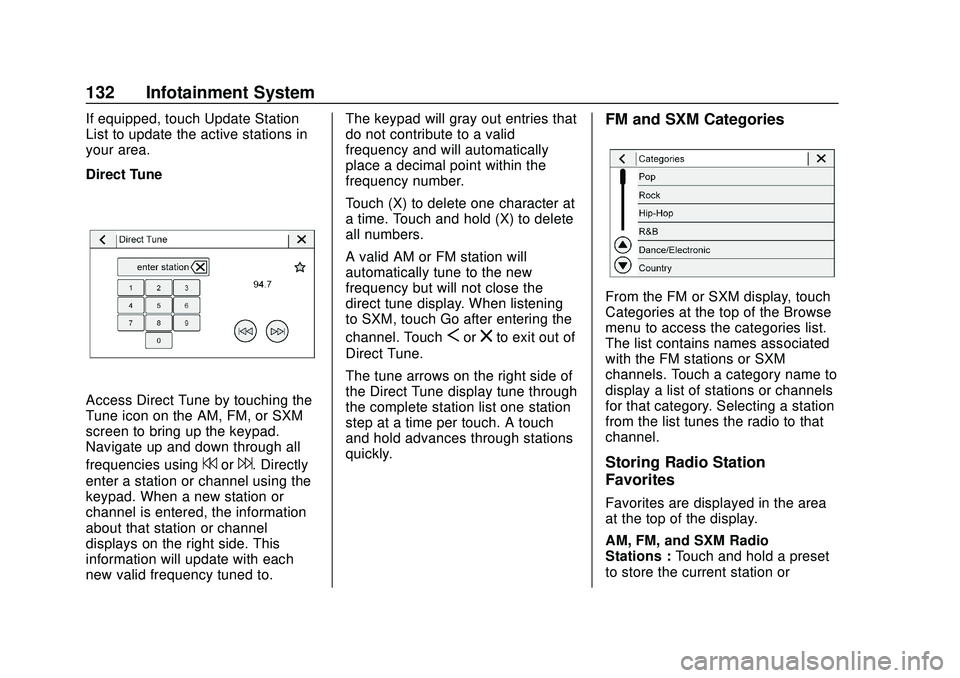
Direct Tune
Access Direct Tune by touching the
Tune icon on the AM, FM, or SXM
screen to bring up the keypad.
Navigate up and down through all
frequencies using
7or6. Directly
enter a station or channel using the
keypad. When a new station or
channel is entered, the information
about that station or channel
displays on the right side. This
information will update with each
new valid frequency tuned to. The keypad will gray out entries that
do not contribute to a valid
frequency and will automatically
place a decimal point within the
frequency number.
Touch (X) to delete one character at
a time. Touch and hold (X) to delete
all numbers.
A valid AM or FM station will
automatically tune to the new
frequency but will not close the
direct tune display. When listening
to SXM, touch Go after entering the
channel. Touch
Sorzto exit out of
Direct Tune.
The tune arrows on the right side of
the Direct Tune display tune through
the complete station list one station
step at a time per touch. A touch
and hold advances through stations
quickly.
FM and SXM Categories
From the FM or SXM display, touch
Categories at the top of the Browse
menu to access the categories list.
The list contains names associated
with the FM stations or SXM
channels. Touch a category name to
display a list of stations or channels
for that category. Selecting a station
from the list tunes the radio to that
channel.
Storing Radio Station
Favorites
Favorites are displayed in the area
at the top of the display.
AM, FM, and SXM Radio
Stations : Touch and hold a preset
to store the current station or
Page 143 of 329
Chevrolet Sonic Owner Manual (GMNA-Localizing-U.S./Canada-13566834) -
2020 - CRC - 10/4/19
142 Infotainment System
2. Touch the Phone icon on theHome Page or the phone
shortcut on the applications
tray at the bottom of the
display.
3. Touch Phone at the top of the infotainment display. There is
also an Add option in the
middle of the Phone screen.
Touching this Add Phone
option will shortcut to the
Phone List menu.
4. Touch Add Phone.
5. Select the vehicle name shown on the infotainment display
from your phone’ s Bluetooth
Settings list.
6. Follow the instructions on the cell phone to confirm the
six-digit code shown on the
infotainment display and touch
Pair. The code on the cell
phone and infotainment display
will need to be acknowledged
for a successful pair.
7. Start the pairing process on the cell phone to be paired to the
vehicle. See the cell phone manufacturer's user guide for
information on this process.
Once the cell phone is paired,
it will show under Connected.
8. If the vehicle does not appear on your phone, there are a few
ways to start the pairing
process over.
.Turn the phone off and then
back on.
. Go back to the beginning of
the Phone menus on the
infotainment display and
restart the pairing process.
. Reset the phone, but this
step should be done as a
last-effort.
9. If the phone prompts to accept connection or allow phone
book download, select Always
Accept and Allow. The phone
book may not be available if
not accepted.
10. Repeat Steps 1−8 to pair additional phones. First to Connect Paired Phones
If multiple paired cell phones are
within the range of the system, the
system connects to the paired cell
phone that is set as First to
Connect. To enable a paired phone
as the First to Connect phone:
1. Make sure the cell phone is turned on.
2. Touch Settings, then touch System.
3. Touch Phones to access all paired and all connected cell
phones and mobile devices.
4. Touch the information icon to the right of the cell phone to
open the cell phone’s
settings menu.
5. Touch the First to Connect option, to enable the setting for
that device.
Cell phones and mobile devices can
be added, removed, connected, and
disconnected. A sub-menu will
display whenever a request is made
to add or manage cell phones and
mobile devices.
Page 150 of 329
Chevrolet Sonic Owner Manual (GMNA-Localizing-U.S./Canada-13566834) -
2020 - CRC - 10/4/19
Infotainment System 149
automatically adjust this number
based on the number of favorites
you have saved. Touch Auto, 5,
10, 15, 20, 25, 30, 35, or 40.
Updates
If equipped, the infotainment system
can download and install select
software updates over a wireless
connection. The system will prompt
for certain updates to be
downloaded and installed. There is
also an option to check for updates
manually.
To manually check for updates,
touch Settings on the Home Page,
followed by Software Information,
and then System Update. Follow the
on-screen prompts. The steps to
check for, download and install
updates may vary by vehicle.
Downloading Over-the-Air vehicle
software updates requires internet
connectivity, which can be accessed
through the vehicle’ s built-in 4G LTE
connection, if equipped and active.
If required, data plans are provided
by a third party. Optionally, a secure
Wi-Fi hotspot such as a compatible mobile device hotspot, home
hotspot or public hotspot can be
used. Applicable data rates may
apply.
To connect the infotainment system
to a secured mobile device hotspot,
home hotspot, or a public hotspot,
touch Settings on the Home Page,
select the System tab, followed by
Wi-Fi Networks. Select the
appropriate Wi-Fi network, and
follow the on-screen prompts.
Download speeds may vary.
On most compatible mobile devices,
activation of the Wi-Fi hotspot is in
the Settings menu under Mobile
Network Sharing, Personal Hotspot,
Mobile Hotspot or similar.
Availability of Over-the-Air software
updates varies by vehicle and
country. For more information on
this feature, see my.chevrolet.com/
learn.
Preferences
Touch the controls on the
infotainment display to disable or
enable the download of new
updates in the background.About
Touch to view the infotainment
system software information.
Return to Factory Settings
Touch and the following may
display:
.
Reset Vehicle Settings: Resets
all vehicle settings for the
current user.
Touch Cancel or Reset.
. Erase Settings and Personal
Data: Erases app data settings,
user profiles, and personal data
including mobile device data.
Touch Cancel or Erase.
Apps
The menu may contain the
following:
Android Auto
This feature allows you to interact
directly with your phone on the
infotainment display. See Apple
CarPlay and Android Auto 0146.
Touch Off or On.
Page 151 of 329
Chevrolet Sonic Owner Manual (GMNA-Localizing-U.S./Canada-13566834) -
2020 - CRC - 10/4/19
150 Infotainment System
Apple CarPlay
This feature allows you to interact
directly with your phone on the
infotainment display. SeeApple
CarPlay and Android Auto 0146.
Touch Off or On.
Audio
Depending on the current audio
source, different options will be
available.
Touch and the following may
display:
. Tone Settings: Touch to adjust
Equalizer, Fade/Balance,
or Sound Mode. See
“Infotainment System Sound
Menu” inAM-FM Radio 0131.
. Auto Volume: This feature
adjusts the volume based on the
vehicle speed.
Touch Off, Low, Medium-Low,
Medium, Medium-High, or High.
. Manage Favorites: Touch to
display a list of Audio or Mobile
Devices favorites. Favorites can be moved,
renamed, or deleted.
To move, touch and hold on the
favorite, and then drag up or
down to rearrange the position.
. Set Number of Audio Favorites:
Touch to select how many
favorites pages can be viewed
from the audio application. The
auto setting will automatically
adjust this number based on the
number of favorites you have
saved. Touch Auto, 5, 10, 15,
20, 25, 30, 35, or 40.
. RDS: This allows RDS to be
turned off or on.
Touch Off or On
. Explicit Content Filter: This
allows Explicit Content Filter to
be turned off or on.
Touch Off or On
. Manage Phones: Select to
connect to a different phone
source, disconnect a phone,
or delete a phone. .
Reset Music Index: This allows
the music index to be reset if
you are having difficulty
accessing all of the media
content on your device.
Touch YES or NO.
Phone
Touch and the following may
display:
. My Number: Displays the cell
phone number of the Bluetooth
connected device.
. Active Call View: Shows active
call display when answering
a call.
Touch Off or On.
. Privacy: Only show call alerts in
cluster.
Touch Off or On.
. Sort Contacts: Touch to sort by
first or last name.
Page 180 of 329
Chevrolet Sonic Owner Manual (GMNA-Localizing-U.S./Canada-13566834) -
2020 - CRC - 10/4/19
Driving and Operating 179
Parking over Things
That Burn
{Warning
Things that can burn could touch
hot exhaust parts under the
vehicle and ignite. Do not park
over papers, leaves, dry grass,
or other things that can burn.
Extended Parking
(Keyless Access)
It is best not to park with the vehicle
running. If the vehicle is left running,
be sure it will not move and there is
adequate ventilation. SeeShifting
Into Park 0177 and
Engine Exhaust 0179. If the vehicle is left parked and
running with the Remote Keyless
Entry (RKE) transmitter outside the
vehicle, it will continue to run for up
to half an hour.
If the vehicle is left parked and
running with the RKE transmitter
inside the vehicle, it will continue to
run for up to an hour.
The vehicle could turn off sooner if it
is parked on a hill, due to lack of
available fuel.
The timer will reset if the vehicle is
taken out of P (Park) while it is
running.
Engine Exhaust
{Warning
Engine exhaust contains carbon
monoxide (CO), which cannot be
seen or smelled. Exposure to CO
can cause unconsciousness and
even death.
Exhaust may enter the vehicle if:
. The vehicle idles in areas
with poor ventilation
(parking garages, tunnels,
deep snow that may block
underbody airflow or tail
pipes).
. The exhaust smells or
sounds strange or different.
. The exhaust system leaks
due to corrosion or damage.
. The vehicle exhaust system
has been modified,
damaged, or improperly
repaired.
(Continued)
Page 212 of 329
Chevrolet Sonic Owner Manual (GMNA-Localizing-U.S./Canada-13566834) -
2020 - CRC - 10/4/19
Vehicle Care 211
the oil life system to work properly,
the system must be reset every time
the oil is changed.
When the system has calculated
that oil life has been diminished, it
indicates that an oil change is
necessary. A
:% CHANGE
message in the DIC comes on.
Change the oil as soon as possible
within the next 1 000 km (600 mi).
It is possible that, if driving under
the best conditions, the oil life
system might indicate that an oil
change is not necessary for up to a
year. The engine oil and filter must
be changed at least once a year
and, at this time, the system must
be reset. Your dealer has trained
service people who will perform this
work and reset the system. It is also
important to check the oil regularly
over the course of an oil drain
interval and keep it at the proper
level.
If the system is ever reset
accidentally, the oil must be
changed at 5 000 km (3,000 mi) since the last oil change.
Remember to reset the oil life
system whenever the oil is changed.
How to Reset the Engine Oil
Life System
Reset the system whenever the
engine oil is changed so that the
system can calculate the next
engine oil change. To reset the
system:
1. Press MENU to show Remaining Oil Life on the
display. This display shows an
estimate of the oil’s remaining
useful life. If 99% is displayed,
that means that 99% of the
current oil life remains.
2. To reset the engine oil life system, press SET/CLR while
the oil life display is active.
Select YES and press and hold
SET/CLR. After a few seconds,
there will be a single chime and
the oil life will be reset
to 100%. Be careful not to reset the oil life
display accidentally at any time
other than after the oil is changed.
It cannot be reset accurately.
If the
:% CHANGE message in
the DIC comes back on when the
vehicle is started, the engine oil life
system has not reset. Repeat the
procedure.
Automatic Transmission
Fluid
How to Check Automatic
Transmission Fluid
It is not necessary to check the
transmission fluid level.
A transmission fluid leak is the only
reason for fluid loss. If a leak
occurs, take the vehicle to your
dealer and have it repaired as soon
as possible.
There is a special procedure for
checking and changing the
transmission fluid. Because this
procedure is difficult, you should
have this done at your dealer.
Page 226 of 329
Chevrolet Sonic Owner Manual (GMNA-Localizing-U.S./Canada-13566834) -
2020 - CRC - 10/4/19
Vehicle Care 225
Headlamp Aiming
Front Headlamp Aiming
Headlamp aim has been preset and
should need no further adjustment.
If the vehicle is damaged in a crash,
the headlamp aim may be affected.
If adjustment to the headlamps is
necessary, see your dealer.
Bulb Replacement
For the proper type of replacement
bulbs, or any bulb changing
procedure not listed in this section,
contact your dealer.
Caution
Do not replace incandescent
bulbs with aftermarket LED
replacement bulbs. This can
cause damage to the vehicle
electrical system.
Halogen Bulbs
{Warning
Halogen bulbs have pressurized
gas inside and can burst if you
drop or scratch the bulb. You or
others could be injured. Be sure
to read and follow the instructions
on the bulb package.
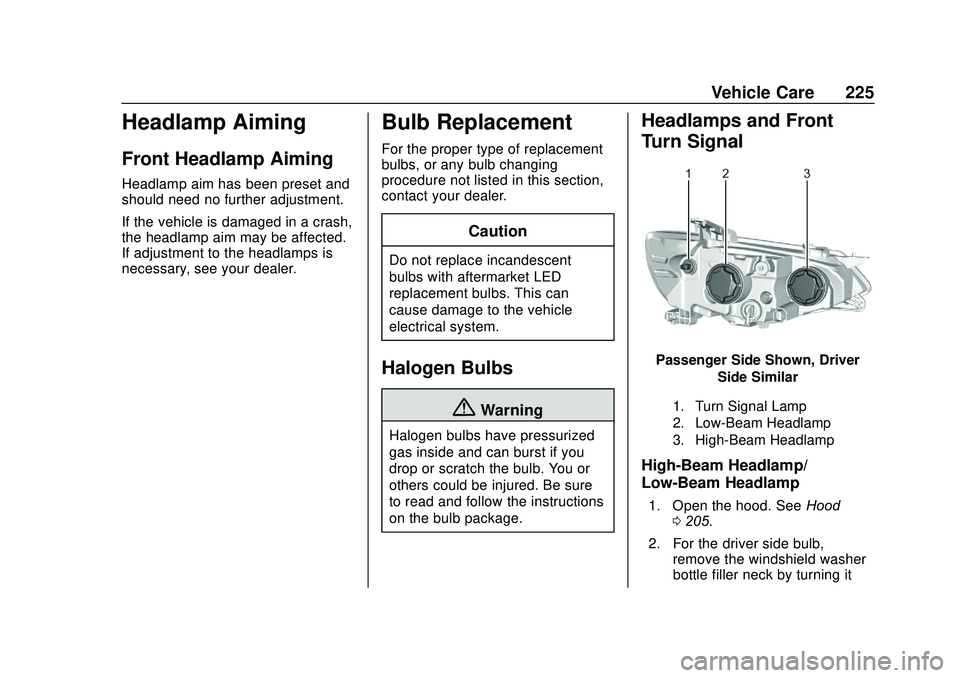
Headlamps and Front
Turn Signal
Passenger Side Shown, DriverSide Similar
1. Turn Signal Lamp
2. Low-Beam Headlamp
3. High-Beam Headlamp
High-Beam Headlamp/
Low-Beam Headlamp
1. Open the hood. See Hood
0 205.
2. For the driver side bulb, remove the windshield washer
bottle filler neck by turning it
Page 247 of 329
Chevrolet Sonic Owner Manual (GMNA-Localizing-U.S./Canada-13566834) -
2020 - CRC - 10/4/19
246 Vehicle Care
.There is cord or fabric
showing through the tire's
rubber.
.The tread or sidewall is
cracked, cut, or snagged
deep enough to show cord or
fabric.
.The tire has a bump, bulge,
or split.
.The tire has a puncture, cut,
or other damage that cannot
be repaired well because of
the size or location of the
damage.
Tire Rotation
Tires should be rotated every
12 000 km (7,500 mi). See
Maintenance Schedule0278.
Tires are rotated to achieve a
more uniform wear for all tires.
The first rotation is the most
important. Anytime unusual wear is
noticed, rotate the tires as soon
as possible, check for proper tire
inflation pressure, and check for
damaged tires or wheels. If the
unusual wear continues after the
rotation, check the wheel
alignment. See
When It Is Time
for New Tires 0247 and
Wheel Replacement 0251.
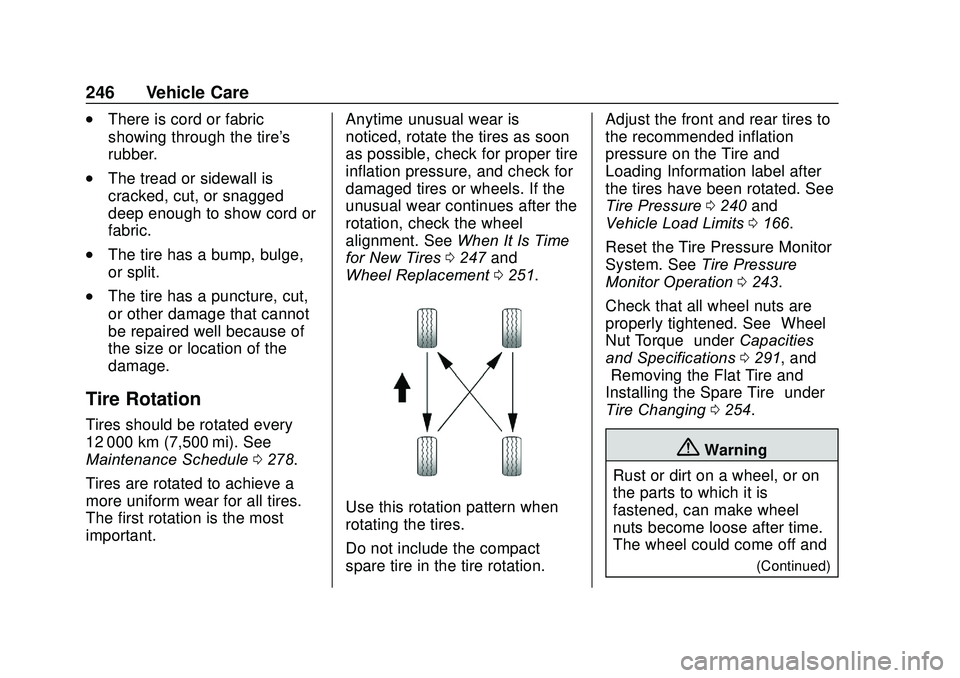
Use this rotation pattern when
rotating the tires.
Do not include the compact
spare tire in the tire rotation. Adjust the front and rear tires to
the recommended inflation
pressure on the Tire and
Loading Information label after
the tires have been rotated. See
Tire Pressure
0240 and
Vehicle Load Limits 0166.
Reset the Tire Pressure Monitor
System. See Tire Pressure
Monitor Operation 0243.
Check that all wheel nuts are
properly tightened. See “Wheel
Nut Torque” underCapacities
and Specifications 0291, and
“Removing the Flat Tire and
Installing the Spare Tire” under
Tire Changing 0254.
{Warning
Rust or dirt on a wheel, or on
the parts to which it is
fastened, can make wheel
nuts become loose after time.
The wheel could come off and
(Continued)
Page 279 of 329
Chevrolet Sonic Owner Manual (GMNA-Localizing-U.S./Canada-13566834) -
2020 - CRC - 10/4/19
278 Service and Maintenance
Maintenance
Schedule
Owner Checks and Services
At Each Fuel Stop
.Check the engine oil level. See
Engine Oil 0208.
Once a Month
. Check the tire inflation
pressures. See Tire Pressure
0 240.
. Inspect the tires for wear. See
Tire Inspection 0245.
. Check the windshield washer
fluid level. See Washer Fluid
0 217.
Engine Oil Change
When a:% CHANGE message
displays in the DIC, have the engine
oil and filter changed within the next
1 000 km/600 mi. If driven under the
best conditions, the engine oil life
system may not indicate the need
for vehicle service for up to a year.
The engine oil and filter must be changed at least once a year and
the oil life system must be reset.
Your trained dealer technician can
perform this work. If the engine oil
life system is reset accidentally,
service the vehicle within 5 000 km/
3,000 mi since the last service.
Reset the oil life system when the
oil is changed. See
Engine Oil Life
System 0210.
Air Conditioning Desiccant
(Replace Every Seven Years)
The air conditioning system requires
maintenance every seven years.
This service requires replacement of
the desiccant to help the longevity
and efficient operation of the air
conditioning system. This service
can be complex. See your dealer.
Tire Rotation and Required
Services Every 12 000 km/
7,500 mi
Rotate the tires, if recommended for
the vehicle, and perform the
following services. See Tire
Rotation 0246. .
Check engine oil level and oil
life percentage. If needed,
change engine oil and filter, and
reset oil life system. See Engine
Oil 0208 and
Engine Oil Life System 0210.
. Inspect the engine air cleaner
filter. See Engine Air Cleaner/
Filter 0212.
. Check engine coolant level. See
Cooling System 0213.
. Check windshield washer fluid
level. See Washer Fluid 0217.
. Check tire inflation pressures.
See Tire Pressure 0240.
. Inspect tire wear. See Tire
Inspection 0245.
. Visually check for fluid leaks.
. Inspect brake system. See
Exterior Care 0266.
Page 293 of 329

Chevrolet Sonic Owner Manual (GMNA-Localizing-U.S./Canada-13566834) -
2020 - CRC - 10/4/19
292 Technical Data
Engine Specifications
EngineVIN CodeTransmission Spark Plug Gap
1.4L L4 Engine (LUV) BAutomatic 0.60–0.70 mm (0.024–
0.028 in)
Spark plug gaps are preset by the manufacturer. Re-gapping the spark plug is not recommended and can damage
the spark plug.