display CHEVROLET SONIC 2020 Service Manual
[x] Cancel search | Manufacturer: CHEVROLET, Model Year: 2020, Model line: SONIC, Model: CHEVROLET SONIC 2020Pages: 329, PDF Size: 5.56 MB
Page 146 of 329
Chevrolet Sonic Owner Manual (GMNA-Localizing-U.S./Canada-13566834) -
2020 - CRC - 10/4/19
Infotainment System 145
Accepting or Declining a Call
When an incoming call is received,
the infotainment system mutes and
a ring tone is heard in the vehicle.
Accepting a Call
There are two ways to accept a call:
.Press
b/gon the steering
wheel controls.
. Touch Answer on the
infotainment display.
Declining a Call
There are two ways to decline
a call:
. Press
$/ion the steering
wheel controls.
. Touch Ignore on the infotainment
display.
Call Waiting
Call waiting must be supported on
the Bluetooth phone and enabled by
the wireless service carrier to work. Accepting a Call
There are two ways to accept a
call-waiting call:
.
Press
b/gon the steering
wheel controls.
. Touch Switch on the
infotainment display.
Declining a Call
There are two ways to decline a
call-waiting call:
. Press
$/ion the steering
wheel controls.
. Touch Ignore on the infotainment
display.
Switching Between Calls (Call
Waiting Calls Only)
To switch between calls, press the
Phone icon on the Home Page to
display Call View. While in Call
View, touch the call information of
the call on hold to change calls.
Three-Way Calling
Three-way calling must be
supported on the Bluetooth phone
and enabled by the wireless service
carrier to work.
To start a three-way call while in a
current call: 1. In the Call View, touch Add Call to add another call.
2. Initiate the second call by selecting from Recents,
Contacts, or Keypad.
3. When the second call is active, touch the merge icon to
conference the three-way call
together.
Ending a Call
.Press$/ion the steering
wheel controls.
. Touch
#on the infotainment
display, next to a call to end only
that call.
Page 147 of 329
Chevrolet Sonic Owner Manual (GMNA-Localizing-U.S./Canada-13566834) -
2020 - CRC - 10/4/19
146 Infotainment System
Dual Tone Multi-Frequency
(DTMF) Tones
The in-vehicle Bluetooth system can
send numbers during a call. This is
used when calling a menu-driven
phone system. Use the Keypad to
enter the number.
Apple CarPlay and
Android Auto
If equipped, Android Auto and/or
Apple CarPlay capability may be
available through a compatible
smartphone. If available, the
Android Auto and Apple CarPlay
icons will appear on the Home Page
of the infotainment display.
To use Android Auto and/or Apple
CarPlay:1. Download the Android Auto app to your smartphone from
the Google Play store. There is
no app required for Apple
CarPlay. 2. Connect your Android
smartphone or Apple iPhone
by using the compatible phone
USB cable and plugging into a
USB data port. For best
performance, use the device’ s
factory-provided USB cable.
Aftermarket or third-party
cables may not work.
3. When the phone is first connected to activate Apple
CarPlay or Android Auto, the
message “Device Projection
Privacy Consent” will appear.
. Touch Continue to launch
Apple CarPlay or
Android Auto.
. Touch Disable to remove
Apple CarPlay and Android
Auto capability from the
vehicle Settings menu.
Other functions may
still work. The Android Auto and Apple
CarPlay icons on the Home Page
will illuminate depending on the
smartphone. Android Auto and/or
Apple CarPlay may automatically
launch upon USB connection. If not,
touch the Android Auto or Apple
CarPlay icon on the Home Page to
launch.
Press
{on the center stack to
return to the Home Page.
For further information on how to set
up Android Auto and Apple CarPlay
in the vehicle, see my.chevrolet.com
or see Customer Assistance Offices
0 296.
Android Auto is provided by
Google and is subject to Google’ s
terms and privacy policy. Apple
CarPlay is provided by Apple and is
subject to Apple’ s terms and privacy
policy. Data plan rates apply.
For Android Auto support see
https://support.google.com/
androidauto. For Apple CarPlay
Page 148 of 329
Chevrolet Sonic Owner Manual (GMNA-Localizing-U.S./Canada-13566834) -
2020 - CRC - 10/4/19
Infotainment System 147
support see www.apple.com/ios/
carplay/. Apple or Google may
change or suspend availability at
any time. Android Auto, Android,
Google, Google Play, and other
marks are trademarks of Google
Inc.; Apple CarPlay is a trademark
of Apple Inc.
Press
{on the center stack to exit
Android Auto or Apple CarPlay. To
enter back into Android Auto or
Apple CarPlay, press and hold {on
the center stack.
Apple CarPlay and Android Auto
can be disabled from the
Infotainment system. To do this,
touch Home, Settings, and then
touch the Apps tab along the top of
the display. Use the On/Off toggled
to turn off Apple CarPlay or
Android Auto.
Settings
The Settings menu may be
organized into three categories.
Select the desired category by
touching System, Apps, or Vehicle.
To access the menus:
1. Touch the Settings icon on the Home Page of the infotainment
display.
2. Touch the desired category to display a list of available
options.
3. Touch to select the desired feature setting.
4. Touch
9orRto turn off or on a
feature.
5. Touch
zto go to the top level
of the Settings menu.
The menu may contain the
following:
System
The menu may contain the
following: Time / Date
Use the following features to set the
clock:
.
Automatic Time and Date: Touch
on to have the time and date
automatically set. When this
feature is off, the time and date
can be manually set.
. Set Time: Touch to manually set
the time using the controls on
the infotainment display.
. Set Date: Touch to manually set
the date using the controls on
the infotainment display.
. Use 24-hour Format: Touch to
specify the clock format shown.
Touch Off or On.
Language
This will set the display language
used on the infotainment display.
Touch Language and select the
appropriate language.
Page 149 of 329
Chevrolet Sonic Owner Manual (GMNA-Localizing-U.S./Canada-13566834) -
2020 - CRC - 10/4/19
148 Infotainment System
Phones
Touch to connect to a different cell
phone or mobile device source,
disconnect a cell phone or media
device, or delete a cell phone or
media device.
Wi-Fi Networks
This will show connected and
available Wi-Fi networks.
If a 4G LTE data package is not
active on the vehicle, the
infotainment system can be
connected to an external protected
Wi-Fi network, such as a mobile
device or home hotspot, to utilize
connected services.
Wi-Fi Hotspot
Touch and the following may
display:
.Wi-Fi Services: This allows
devices to use the vehicle
hotspot.
Touch the controls on the
infotainment display to disable or
enable. .
Wi-Fi Name: Touch to change
the vehicle Wi-Fi name.
. Wi-Fi Password: Touch to
change the vehicle Wi-Fi
password.
. Connected Devices: Touch to
show connected devices.
. Share Hotspot Data: Touch
Enable to allow devices to use
the vehicle hotspot and its data
or Touch Disable to allow
devices to only use the vehicle
hotspot.
Display
Touch and Turn Display Off
displays.
Touch to turn the display off. Touch
anywhere on the display area or any
infotainment control on the center
stack again to turn the display on.
Sounds
Touch and the following may
display:
. Maximum Startup Volume: This
feature adjusts the maximum
volume of the infotainment system when you start the
vehicle. Use the controls on the
infotainment display to set the
desired startup volume.
. Audible Touch Feedback: This
setting determines if sounds play
when you touch the infotainment
display or press any
infotainment control on the
center stack. This feature can be
turned off or on.
Favorites
Touch and the following may
display:
. Manage Favorites: Touch to
display a list of Audio or Mobile
Devices favorites.
Favorites can be moved,
renamed, or deleted.
To move, touch and hold on the
favorite, and then drag up or
down to rearrange the position.
. Set Number of Audio Favorites:
Touch to select how many
favorites pages can be viewed
from the audio application.
Select Auto for the system to
Page 150 of 329
Chevrolet Sonic Owner Manual (GMNA-Localizing-U.S./Canada-13566834) -
2020 - CRC - 10/4/19
Infotainment System 149
automatically adjust this number
based on the number of favorites
you have saved. Touch Auto, 5,
10, 15, 20, 25, 30, 35, or 40.
Updates
If equipped, the infotainment system
can download and install select
software updates over a wireless
connection. The system will prompt
for certain updates to be
downloaded and installed. There is
also an option to check for updates
manually.
To manually check for updates,
touch Settings on the Home Page,
followed by Software Information,
and then System Update. Follow the
on-screen prompts. The steps to
check for, download and install
updates may vary by vehicle.
Downloading Over-the-Air vehicle
software updates requires internet
connectivity, which can be accessed
through the vehicle’ s built-in 4G LTE
connection, if equipped and active.
If required, data plans are provided
by a third party. Optionally, a secure
Wi-Fi hotspot such as a compatible mobile device hotspot, home
hotspot or public hotspot can be
used. Applicable data rates may
apply.
To connect the infotainment system
to a secured mobile device hotspot,
home hotspot, or a public hotspot,
touch Settings on the Home Page,
select the System tab, followed by
Wi-Fi Networks. Select the
appropriate Wi-Fi network, and
follow the on-screen prompts.
Download speeds may vary.
On most compatible mobile devices,
activation of the Wi-Fi hotspot is in
the Settings menu under Mobile
Network Sharing, Personal Hotspot,
Mobile Hotspot or similar.
Availability of Over-the-Air software
updates varies by vehicle and
country. For more information on
this feature, see my.chevrolet.com/
learn.
Preferences
Touch the controls on the
infotainment display to disable or
enable the download of new
updates in the background.About
Touch to view the infotainment
system software information.
Return to Factory Settings
Touch and the following may
display:
.
Reset Vehicle Settings: Resets
all vehicle settings for the
current user.
Touch Cancel or Reset.
. Erase Settings and Personal
Data: Erases app data settings,
user profiles, and personal data
including mobile device data.
Touch Cancel or Erase.
Apps
The menu may contain the
following:
Android Auto
This feature allows you to interact
directly with your phone on the
infotainment display. See Apple
CarPlay and Android Auto 0146.
Touch Off or On.
Page 151 of 329
Chevrolet Sonic Owner Manual (GMNA-Localizing-U.S./Canada-13566834) -
2020 - CRC - 10/4/19
150 Infotainment System
Apple CarPlay
This feature allows you to interact
directly with your phone on the
infotainment display. SeeApple
CarPlay and Android Auto 0146.
Touch Off or On.
Audio
Depending on the current audio
source, different options will be
available.
Touch and the following may
display:
. Tone Settings: Touch to adjust
Equalizer, Fade/Balance,
or Sound Mode. See
“Infotainment System Sound
Menu” inAM-FM Radio 0131.
. Auto Volume: This feature
adjusts the volume based on the
vehicle speed.
Touch Off, Low, Medium-Low,
Medium, Medium-High, or High.
. Manage Favorites: Touch to
display a list of Audio or Mobile
Devices favorites. Favorites can be moved,
renamed, or deleted.
To move, touch and hold on the
favorite, and then drag up or
down to rearrange the position.
. Set Number of Audio Favorites:
Touch to select how many
favorites pages can be viewed
from the audio application. The
auto setting will automatically
adjust this number based on the
number of favorites you have
saved. Touch Auto, 5, 10, 15,
20, 25, 30, 35, or 40.
. RDS: This allows RDS to be
turned off or on.
Touch Off or On
. Explicit Content Filter: This
allows Explicit Content Filter to
be turned off or on.
Touch Off or On
. Manage Phones: Select to
connect to a different phone
source, disconnect a phone,
or delete a phone. .
Reset Music Index: This allows
the music index to be reset if
you are having difficulty
accessing all of the media
content on your device.
Touch YES or NO.
Phone
Touch and the following may
display:
. My Number: Displays the cell
phone number of the Bluetooth
connected device.
. Active Call View: Shows active
call display when answering
a call.
Touch Off or On.
. Privacy: Only show call alerts in
cluster.
Touch Off or On.
. Sort Contacts: Touch to sort by
first or last name.
Page 172 of 329
Chevrolet Sonic Owner Manual (GMNA-Localizing-U.S./Canada-13566834) -
2020 - CRC - 10/4/19
Driving and Operating 171
Information Center (DIC) will display
the message SHIFT TO PARK.
When the vehicle is shifted into
P (Park), the ignition system will
switch to OFF.
Do not turn the engine off when the
vehicle is moving. This will cause a
loss of power assist in the brake
and steering systems and disable
the airbags.
If the vehicle must be shut off in an
emergency:1. Brake using a firm and steady pressure. Do not pump the
brakes repeatedly. This may
deplete power assist, requiring
increased brake pedal force.
2. Shift the vehicle to N (Neutral). This can be done while the
vehicle is moving. After shifting
to N (Neutral), firmly apply the
brakes and steer the vehicle to
a safe location.
3. Come to a complete stop. Shift to P (Park).
4. Set the parking brake. See Parking Brake 0184.
{Warning
Turning off the vehicle while
moving may cause loss of power
assist in the brake and steering
systems and disable the airbags.
While driving, only shut the
vehicle off in an emergency.
If the vehicle cannot be pulled over,
and must be shut off while driving,
press and hold ENGINE START/
STOP for longer than two seconds,
or press twice in five seconds.
ACC/ACCESSORY (Amber
Indicator Light) : This mode allows
you to use some electrical
accessories when the engine is off.
With the ignition off, pressing the
button one time without the brake
pedal applied will place the ignition
system in ACC/ACCESSORY.
The ignition will switch from ACC/
ACCESSORY to OFF after
five minutes to prevent battery
rundown. ON/RUN/START (Green Indicator
Light) :
This mode is for driving and
starting. With the ignition off and the
brake pedal applied, pressing
ENGINE START/STOP once will
place the ignition system in ON/
RUN/START. Once engine cranking
begins, release the button. Engine
cranking will continue until the
engine starts. See Starting the
Engine 0174. The ignition will then
remain in ON/RUN.
Service Mode
This power mode is available for
service and diagnostics, and to
verify the proper operation of the
malfunction indicator lamp as may
be required for emission inspection
purposes. With the vehicle off, and
the brake pedal not applied,
pressing and holding ENGINE
START/STOP for more than
five seconds will place the vehicle in
Service Mode. The instruments and
audio systems will operate as they
do in ON/RUN, but the vehicle will
not be able to be driven. The engine
Page 174 of 329
Chevrolet Sonic Owner Manual (GMNA-Localizing-U.S./Canada-13566834) -
2020 - CRC - 10/4/19
Driving and Operating 173
{Warning
Turning off the vehicle while
moving may cause loss of power
assist in the brake and steering
systems and disable the airbags.
While driving, turn off the vehicle
only in an emergency.
In an emergency, if the vehicle
cannot be pulled over and must be
turned off while driving: 1. Push the key all the way in toward the steering column,
then turn the key to ACC/
ACCESSORY.
2. Brake using firm and steady pressure. Do not pump the
brakes repeatedly. This may
deplete power assist, requiring
increased brake pedal force.
3. Shift the vehicle to N (Neutral). This can be done while the
vehicle is moving. Continue
braking and steer the vehicle to
a safe location.
4. Come to a complete stop. 5. Shift to P (Park).
6. Push the key all the way in
toward the steering column (1),
then turn the ignition to
LOCK/OFF (2).
7. Set the parking brake. See Parking Brake 0184.
8. Remove the key.
9. Release the brake pedal.
Caution
Use the correct key, make sure it
is all the way in —or pushed all
the way in toward the steering
column when turning off the
vehicle —and turn it only with
your hand.
1 (ACC/ACCESSORY) : This
position allows features such as the
infotainment system to operate
while the vehicle is off. It also
unlocks the steering column,
if equipped with a locking steering
column. Use this position if the vehicle must be pushed or towed.
See
Retained Accessory Power
(RAP) 0177.
From ON/RUN, push the key all the
way in toward the steering column,
then turn the key to ACC/
ACCESSORY.
If the key is left in ACC/
ACCESSORY with the engine off,
the battery could drain and the
vehicle may not start.
A warning chime will sound when
the driver door is opened and the
key is in the ignition.
2 (ON/RUN) : This position can be
used to operate the electrical
accessories and to display some
instrument cluster warning and
indicator lights. This position can
also be used for service and
diagnostics, and to verify the proper
operation of the malfunction
indicator lamp as may be required
for emission inspection purposes.
The switch stays in this position
when the engine is running. The
transmission is also unlocked in this
position on automatic transmission
vehicles.
Page 176 of 329
Chevrolet Sonic Owner Manual (GMNA-Localizing-U.S./Canada-13566834) -
2020 - CRC - 10/4/19
Driving and Operating 175
3. If the engine still will not start,or starts but then stops, it could
be flooded with too much
gasoline. Try pushing the
accelerator pedal all the way to
the floor and holding it there as
you hold the key in START for
about three seconds. If the
vehicle starts briefly but then
stops again, do the same thing,
but this time keep the pedal
down for five or six seconds.
This clears the extra gasoline
from the engine.
Keyless Access 1. With the Keyless Access system, the RKE transmitter
must be in the vehicle. Press
ENGINE START/STOP with the
brake pedal applied. When the
engine begins cranking, let go
of the button.
The idle speed will go down as
the engine gets warm. Do not
race the engine immediately
after starting it. If the RKE transmitter is not in
the vehicle, if there is
interference, or if the RKE
battery is low, a Driver
Information Center (DIC)
message will display.
See
Driver Information Center
(DIC) 0109 and
Remote Keyless Entry (RKE)
System Operation (Keyless
Access) 010 or
Remote Keyless Entry (RKE)
System Operation (Key
Access) 016.
Caution
Cranking the engine for long
periods of time, by trying to start
the engine immediately after
cranking has ended, can overheat
and damage the cranking motor,
and drain the battery. Wait at
least 15 seconds between each
try, to let the cranking motor
cool down. 2. If the engine does not start
after five to 10 seconds,
especially in very cold weather
(below −18 °C or 0 °F), it could
be flooded with too much
gasoline. Try pushing the
accelerator pedal all the way to
the floor and holding it there as
you press ENGINE START/
STOP, for up to a maximum of
15 seconds. Wait at least
15 seconds between each try,
to allow the cranking motor to
cool down. When the engine
starts, let go of the button and
the accelerator. If the vehicle
starts briefly but then stops
again, do the same thing. This
clears the extra gasoline from
the engine. Do not race the
engine immediately after
starting it. Operate the engine
and transmission gently until
the oil warms up and lubricates
all moving parts.
Page 183 of 329
Chevrolet Sonic Owner Manual (GMNA-Localizing-U.S./Canada-13566834) -
2020 - CRC - 10/4/19
182 Driving and Operating
Caution
A transmission hot message may
display if the automatic
transmission fluid is too hot.
Driving under this condition can
damage the vehicle. Stop and idle
the engine to cool the automatic
transmission fluid. This message
clears when the transmission fluid
has cooled sufficiently.
D : This position is for normal
driving. If more power is needed for
passing, press the accelerator
pedal down.
M : This position allows you to
change gears similar to a manual
transmission. If equipped, see
“Manual Mode” following. Operating Modes
The transmission may operate in a
lower gear than normal to improve
vehicle performance. The engine
speed may be higher and there may
be an increase in noise during the
following conditions:
.
When climbing a grade
. When driving downhill
. When driving in hot
temperatures or at high altitude
Manual Mode
To use this feature, if equipped:
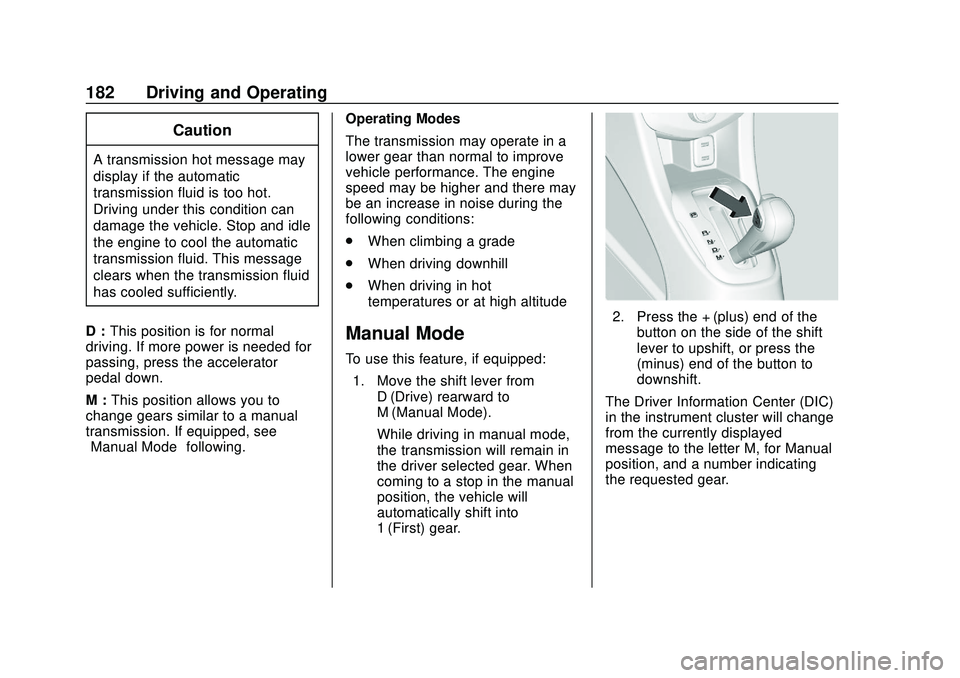
1. Move the shift lever from D (Drive) rearward to
M (Manual Mode).
While driving in manual mode,
the transmission will remain in
the driver selected gear. When
coming to a stop in the manual
position, the vehicle will
automatically shift into
1 (First) gear.
2. Press the + (plus) end of thebutton on the side of the shift
lever to upshift, or press the −
(minus) end of the button to
downshift.
The Driver Information Center (DIC)
in the instrument cluster will change
from the currently displayed
message to the letter M, for Manual
position, and a number indicating
the requested gear.